
创作
How to Create Aesthetic Video Transitions Without After Effects
Oct 16, 2026
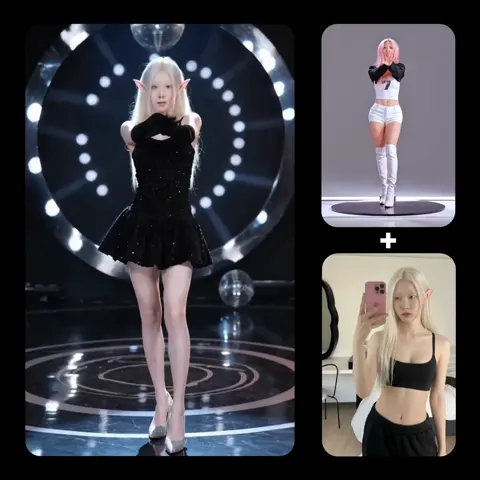
Why transitions decide whether a viewer stays
Short-form feeds are rhythm machines. Viewers decide in under two seconds whether to keep watching, and the edit points are what keep that decision alive. A well-built transition does three jobs at once: it hides a cut, carries momentum forward, and tells the audience that something changed — a location, a time of day, a mood, a point in the argument.
When people describe a video as expensive-looking, they are usually reacting to two things: cuts that land on movement, and a consistent visual language across shots. Neither requires a compositing suite. Both require planning.
The older assumption was that only a motion-graphics program could produce transitions with real polish — whip pans with directional blur, seamless morphs between two faces, light leaks that feel organic rather than pasted on. Modern editors now ship with optical-flow retiming, AI-assisted masking, and large libraries of editable presets, while generative video tools can produce bridging shots that would once have required a second shoot day. The skill has moved from memorising effect menus to designing the cut before the timeline is even open.
This guide walks through a repeatable method: plan transitions on set, cut on motion, use AI where it genuinely saves time, grade for texture, and finish with sound. It also covers the places where AI-generated transitions fall apart, so you can decide quickly whether a shot needs a generative assist or a five-minute manual fix.
What aesthetic actually means in a transition
Aesthetic is a vague word that hides three distinct techniques. Naming them makes them reproducible.
Match cuts and graphical matches
A match cut links two shots through a shared shape, colour, or action. Hands open and a flower blooms. A car wheel becomes a record player. The audience reads continuity even though the content changed completely.
Practical rules:
- Line up the dominant shape in the last frame of clip A with the first frame of clip B. Rotate or scale one clip slightly in the timeline to make the shapes agree.
- Keep the direction of movement identical. If a subject exits frame left, the next shot should enter from the left.
- Hold the match for no more than three or four frames. Longer reads as a dissolve; shorter reads as a jump cut.
Motion blur, speed ramps, and whip pans
Speed ramps create energy by accelerating through a moment and then decelerating into the next shot. The illusion depends on motion blur. Without blur, a sped-up clip looks like a stuttering slideshow; with blur, it looks like a camera was physically whipped across the scene.
Two ways to get blur without a compositing program:
- Optical-flow retiming inside the editor. Set interpolation to the optical-flow option, then ramp from roughly 200% to 40% across ten frames.
- Shoot a real whip pan and use it as the transition itself. Blur is baked in and reads as authentic because it is authentic.
Light, texture, and sound-led transitions
Light-led transitions use a flash, a lens flare, or a hard shift in exposure to hide a cut. Sound-led transitions start in the audio track: a whoosh, a shutter click, a bass drop. The visual change happens on the sound event.
Both are inexpensive. Both are over-used. The version that still looks good is restrained: one flash per section rather than one per cut, and sound accents that match the tempo of the music instead of fighting it.
The no-compositing toolkit
You do not need a full compositing suite. You need three layers of tools, stacked.
AI-assisted editors and mobile suites
Editors such as CapCut, DaVinci Resolve, Premiere Pro, and Final Cut ship with auto-reframe, subject masking, optical-flow retiming, and template-driven transitions. Mobile versions often provide the fastest path to a finished vertical clip. Use them for assembly and for the retiming tricks above.
Generative video for bridge shots
Text-to-video and image-to-video models can generate the two-second shot that connects two otherwise unrelated scenes: the camera push through a window, the abstract wipe, the impossible camera move. Treat these as inserts, not as the backbone of the edit. A generated shot that lasts longer than three seconds usually begins revealing artefacts — warped hands, melting textures, geometry that changes shape between frames.
Transition packs and motion presets
Preset libraries remain the fastest option when you need a specific look: film burns, glitch, zoom blur, paper tear, liquid morph. Most are drag-and-drop. The mistake is using the preset as-is. Always adjust duration, intensity, and blend mode so the transition matches your footage rather than announcing itself.
Hybrid stacking
The strongest results come from stacking: a real whip pan recorded on a phone, retimed with optical flow, masked so a generated element enters mid-blur, then graded to match. Each layer is cheap; the combination looks deliberate.
A six-step workflow you can repeat
Step 1: shoot and log for transitions
Decide before the shoot which moments will be transition points. Then collect material for them:
- Shoot five seconds of runway on either side of every planned cut. Trim later; never shoot exactly to the length you think you need.
- Record a whip pan, a cover shot with a hand, a lens-cap close, and a wall or sky frame at every location. These are your emergency transitions.
- Keep a consistent frame rate and shutter angle. Mixed shutter speeds are the single biggest reason a speed ramp looks wrong.
Step 2: build a transition map before editing
Write the list of sections and the transition type between each one. For a 30-second vertical video, that is typically three to five transitions. Naming them up front prevents the usual failure mode: discovering that clip A and clip B share nothing, then reaching for an aggressive zoom effect to cover the seam.
Step 3: cut on motion, not on time
The cut should happen at the frame where the movement peak occurs — the hand at the top of its arc, the head at the end of a turn. Nudge the edit point one or two frames in either direction while watching at full speed; the correct frame is usually obvious once you see it.
Step 4: retime with optical flow
Apply optical-flow interpolation, then ramp. Keep ramps short: eight to fourteen frames. Long ramps feel like slow motion rather than acceleration. For whip pans, a curve that accelerates hard and decelerates gently reads cleaner than a linear ramp.
Step 5: layer texture and grade
Grain, halation, and a consistent grade are what make two clips from different cameras feel like one film. Match black levels first, then white balance, then saturation. Add grain last, sized to the export resolution — grain scaled up from a smaller timeline looks like static.
Step 6: sound design last
Build the audio transition before fine-tuning the visual one. A whoosh, a riser, or a single click gives the eye something to hang onto. If the sound lands correctly, a slightly imperfect visual transition becomes invisible.
Using generative models for transitions
Generative video is most useful in three specific cases.
Bridge shots between unrelated scenes
You have a kitchen scene and a rooftop scene with no shared visual element. Generate a two-second shot of the camera pushing through a window, then cut to the rooftop. The model supplies the connective tissue; you supply the timing.
Frame extension and outpainting
When a clip is 0.4 seconds too short, outpainting the last frame gives you the extra beat needed for a transition. This is faster than reshooting and cleaner than freezing a frame, which almost always reads as an error.
Morph and interpolation transitions
Some tools interpolate between two still images to create a morph. Feed them the last frame of clip A and the first frame of clip B. Expect strange results in roughly a third of attempts — faces blend into a blur, backgrounds dissolve into noise. Generate three or four variants and keep the cleanest one.
What generative models still struggle with: text, hands, consistent characters across a cut, and physics. If your transition depends on any of those, plan a manual alternative.
Common mistakes and how to avoid them
Using four transition styles in one minute. Pick two per video and repeat them. Repetition reads as style; variety reads as noise.
Letting the transition outlast the content. A two-second transition in a 20-second clip is a tenth of the runtime. Keep transitions under half a second unless the transition itself is the point.
Ignoring audio. A perfect visual transition with no sound event feels accidental.
Mismatched motion direction. If clip A moves left and clip B moves right, the transition fights itself. Flip one clip horizontally if the composition allows.
Over-processing. Heavy glow, chromatic aberration, and three layers of grain hide the cut but also announce the technique. Restraint ages better.
Exporting at the wrong frame rate. A 24 fps timeline exported at 30 fps judders during motion-blurred transitions. Match the timeline to the source.
Decision guide: choosing the right method
Use this to pick quickly.
- Real whip pan available in the footage → retime with optical flow. Cheapest and most convincing.
- Two shots share a shape or colour → match cut with a two-frame overlap.
- Hard scene change with no shared element → generate a one- to two-second bridge shot.
- Need energy → speed ramp plus a sound accent.
- Need a soft, emotional shift → short dissolve with matched grade, 8–12 frames.
- Need to hide a continuity error → flash, cover shot, or light leak.
- Need a loop for a short-form post → match the final frame to the first frame exactly.
If two options seem equal, choose the one that requires fewer effects. Complexity adds failure points.
Practice drills that build speed
- Ten-match drill. Take one clip and cut it against itself ten ways, matching a different shape each time. This trains the eye faster than any tutorial.
- Sound-first drill. Build a 15-second sequence starting with audio only, then place visuals. You will find transitions you would never have designed visually.
- One-second constraint. Make a video where every transition is under eight frames. Constraints expose lazy habits.
- Cross-camera drill. Combine phone footage with a mirrorless camera and grade until they match. This is the most transferable skill in the whole workflow.
- Deconstruct drill. Pick a professionally edited clip, pause on each transition, and name the technique. Twenty of these will sharpen your instincts more than another preset download.
Speed comes from pattern recognition, not from more effects.
FAQ
Do I really not need a compositing program?
For most social and marketing video, correct. Reach for a compositing suite when you need tracked text on a moving surface, multi-layer 3D camera moves, or precise rotoscoping around complex edges. Those are exceptions, not the default.
Can AI generate a transition between two of my own clips?
Yes, if the tool accepts start and end frames. Quality depends on how visually similar the two frames are. The closer the framing and lighting, the better the morph.
What frame rate should I shoot for smooth transitions?
Match your delivery frame rate. If you finish at 24 fps, shoot at 24 fps. Shooting at 60 fps gives retiming flexibility but changes motion character and light requirements.
How long should a speed ramp be?
Eight to fourteen frames. Longer than twenty frames reads as slow motion rather than acceleration.
Why does my optical flow look glitchy?
Usually because the footage has heavy noise, fast strobing, or lots of thin detail like hair and foliage. Denoise first, or shoot with a faster shutter so motion blur is minimal, then add blur in post.
Is grain necessary?
No, but it helps unify footage from different cameras. Keep it subtle and matched to output resolution.
How do I keep transitions consistent across a series?
Build a template project with two or three transition presets, a fixed grade, and a sound set. Reuse it. Consistency across a series is a bigger branding win than novelty in any single video.
Do transitions work the same on horizontal and vertical video?
Vertical framing compresses horizontal movement, so whip pans travel less distance on screen. Either slow the pan when shooting vertically or lean on vertical movement — tilts, drops, and hand wipes — which read much more strongly in a 9:16 frame.
Where to go from here
Start with one drill and one workflow change: cut on movement peaks, retime with optical flow, and finish the audio before the visuals. That single combination will raise the perceived quality of your edits more than any preset pack.
Then add generative bridge shots once you can reliably identify the moments that need them. The order matters. Effects cannot rescue an edit that was planned badly, but a well-planned edit survives almost any tool limitation.

Alexander
More Blogs
Read MoreVidu Q4 Alternatives: 4K AI Video Models Compared (2026)
Vidu Q4 alternatives compared: Kling 4.0, Seedance 2.5, Wan 3.0, and Runway Gen-4 — 4K support, input modes, durations, audio, and what each costs in credits on Domer.
Top 4K AI Image Generators in 2026: 5 Models Compared on Real Costs
The top 4K AI image generators on Domer compared: Flux 3 Klein, Nano Banana 2.1, GPT Image 2.5, GPT Image 2, and Nano Banana Pro — 4K credit costs, reference limits, and speed.
Nano Banana 2.1 vs GPT Image 2.5: Which Image Model Should You Use? (2026)
Nano Banana 2.1 vs GPT Image 2.5 Flare compared: credit costs per resolution, aspect ratios, reference images, text rendering, and which tasks fit each model.