
Affiliazione
Inizia Gratis Ora
AI 90s Anime Art Generator: Create Nostalgic Visuals
Oct 15, 2026
Why 90s Anime Visuals Still Feel Timeless
The 1990s anime look is not just nostalgia. It is a set of production constraints that became a visual language. Hand-painted cels, limited frame counts, bold outlines, and saturated but selective color made every frame readable. When you generate AI art in this style, you are not only copying a period. You are recreating a design system: strong silhouettes, dramatic shadows, and backgrounds that carry as much mood as the characters.
Modern audiences recognize this style instantly. A single frame with soft film grain, a sunset gradient, and a determined hero can trigger memories of late-night broadcasts. That recognition is useful for creators. It helps thumbnails stand out, makes music videos feel cohesive, and gives game concept art a clear emotional target. AI generators can accelerate exploration, but they do not replace taste. The best results come from clear references, careful prompt structure, and patient refinement.
What Defines the 90s Anime Aesthetic
Line work, cel shading, and limited animation
Classic anime from the era often uses clean ink lines with slight thickness variation. Shadows are simplified into two or three tonal steps. Highlights are hard-edged rather than soft and airbrushed. In still images, you can mimic this with prompts that mention cel shading, flat colors, bold outlines, and minimal gradients. Avoid terms like highly detailed or photorealistic, because they pull the render toward modern digital painting.
Limited animation also affects composition. Characters hold poses, backgrounds receive extra detail, and action is suggested through key frames. When generating a single image, ask for a dynamic key pose rather than a realistic motion blur. A frozen mid-air kick, a turn of the head, or a windblown coat will feel more authentic than a smooth cinematic blur.
Color palettes, grain, and broadcast texture
The 90s palette often mixes warm sunset oranges, deep teals, muted browns, and neon city accents. Colors are saturated but not neon-modern. Blacks are slightly lifted, whites are warm, and skin tones shift with lighting. Add film grain, VHS softness, slight chromatic aberration, and a gentle bloom around light sources. These touches make an AI image feel like a captured frame instead of a clean digital illustration.
Do not overdo the damage. Heavy scan lines can hide faces and reduce readability. A subtle grain overlay and a soft color grade are usually enough. If you are making a series, keep the same grain strength and palette across images so the set feels intentional.
Camera language and composition
Retro anime frequently uses dramatic angles: low-angle hero shots, wide establishing views with tiny figures, and close-ups that isolate eyes. Backgrounds may be painted with more realism than characters, creating a pleasing contrast. Use composition prompts like wide shot, low angle, rule of thirds, negative space, and dramatic perspective. Avoid modern lens flare and ultra-wide distortion unless the scene calls for it.
How AI Generators Interpret Retro Anime Prompts
Training data and style drift
AI image generators learn from mixed datasets. When you type 90s anime, the model may blend cel shading, modern digital art, and generic retro filters. This is style drift. You can reduce it by naming concrete visual traits instead of relying on a decade label alone. For example, combine 90s anime with hand-painted background, cel shaded character, bold outline, limited color palette, and film grain. The more specific the visual cues, the less the model guesses.
Different tools also have different biases. Some excel at expressive characters but struggle with clean line work. Others produce beautiful backgrounds but flatten faces. Test a short prompt across two or three tools before committing to one. A quick comparison saves hours later.
Strengths, limits, and the uncanny valley
AI is excellent at generating mood, color harmony, and quick variations. It can create dozens of costume ideas or background moods in minutes. It is weaker at precise continuity, complex hands, consistent logos, and exact character identity. It also tends to add unwanted modern details such as smartphone screens, overly glossy hair, or cinematic depth of field.
The uncanny valley appears when a retro style is mixed with hyper-real skin or 3D lighting. To avoid it, specify flat shading, matte skin, simple highlights, and painted background. If a result looks almost right but slightly wrong, inspect the shadows and line weight first. Modern renders often have soft gradients where retro art would use a hard shadow shape.
A Practical Workflow for AI 90s Anime Art
Step 1: Build a compact reference board
Collect eight to twelve images that represent the exact mood you want. Include one character close-up, one wide landscape, one interior, one action pose, and one color study. Do not mix too many eras. If you want a specific broadcast look, choose references with similar grain and contrast.
Write short notes beside each reference: line weight, shadow shape, palette, and camera angle. These notes become prompt ingredients. For example, if your references use teal shadows and orange highlights, you can add teal shadow, warm orange highlight, and sunset gradient to the prompt.
Step 2: Write the base prompt
Start with a simple structure:
subject + action + setting + style + lighting + camera + quality modifiers
Example base prompt:
a teenage pilot standing on a rooftop, wind blowing through hair, futuristic city at sunset, 90s anime style, cel shaded, bold outlines, hand-painted background, warm orange and teal palette, film grain, wide shot, dramatic low angle
Keep the first pass simple. Generate a small batch and review the silhouette. If the silhouette is weak, adjust the pose or camera before adding more detail. A strong shape reads better than a hundred adjectives.
Step 3: Control pose, composition, and camera
Once the base works, add pose and camera controls. Use terms like dynamic key pose, mid-air kick, over-the-shoulder shot, Dutch angle, or centered portrait. If the tool supports pose references, use a simple stick figure or a rough sketch. This is especially helpful for action scenes where the model might otherwise produce a static stance.
For group shots, describe positions clearly: two characters back to back, one on the left holding a sword, one on the right raising a hand. Spatial language reduces random composition. If the result ignores your layout, simplify the scene and add characters one at a time.
Step 4: Refine color, lighting, and grain
After composition is solid, refine the palette. Ask for a limited palette, specific time of day, and shadow color. For example: dusk lighting, purple shadows, golden rim light, muted green midtones. Then add texture: subtle film grain, slight VHS softness, gentle bloom. These refinements should support the scene, not bury it.
Use image-to-image or inpainting for small fixes. If the face is good but the background is wrong, keep the face and regenerate only the background. If the hands are broken, inpaint them rather than rerolling the entire image. This preserves the best parts and saves time.
Step 5: Upscale, clean up, and export
Upscale at the end, after the composition and color are locked. Over-upscaling can make line work look plastic. A moderate upscale plus a light sharpen is usually enough. Clean up stray artifacts manually if needed: missing fingers, broken lines, or accidental text. Export in the format your project needs, and keep a layered version if you plan to animate or composite.
Prompt Formulas and Ready-to-Use Examples
Character portrait prompt
A close-up portrait of a determined young swordswoman, short black hair, red scarf, windblown, ancient temple gate at dawn, 90s anime style, cel shaded, bold ink outlines, limited palette, warm sunlight, cool shadows, hand-painted background, film grain, subtle VHS texture, dramatic close-up
Why it works: it defines subject, wardrobe, setting, style, lighting, camera, and texture. The scarf gives movement, and the temple gate provides a painted backdrop.
City street scene prompt
A rainy city street at night, neon signs reflecting on wet asphalt, a courier on a motorbike, 90s anime style, cel shaded character, detailed hand-painted background, teal and magenta palette, dramatic perspective, low angle, film grain, cinematic composition, no text
Why it works: the contrast between flat character shading and detailed background matches the era. The no text instruction prevents fake signage.
Mecha action prompt
A giant robot launching from a hangar, steam and sparks, pilot silhouetted in the cockpit, 90s anime style, mechanical detail, cel shading, bold outlines, industrial palette, orange warning lights, dark blue shadows, dynamic low angle, action key frame, film grain
Why it works: mecha design benefits from clear shapes and hard shadows. The action key frame language keeps the pose readable.
Fantasy adventure prompt
Two travelers crossing a grassy plain, distant mountains, a floating island in the sky, 90s anime style, painted background, cel shaded characters, soft morning light, pastel palette with deep green shadows, wide shot, sense of scale, film grain
Why it works: it uses scale and negative space. The characters are small, so the world feels vast.
Keeping Characters Consistent Across a Series
Reference images and seed locking
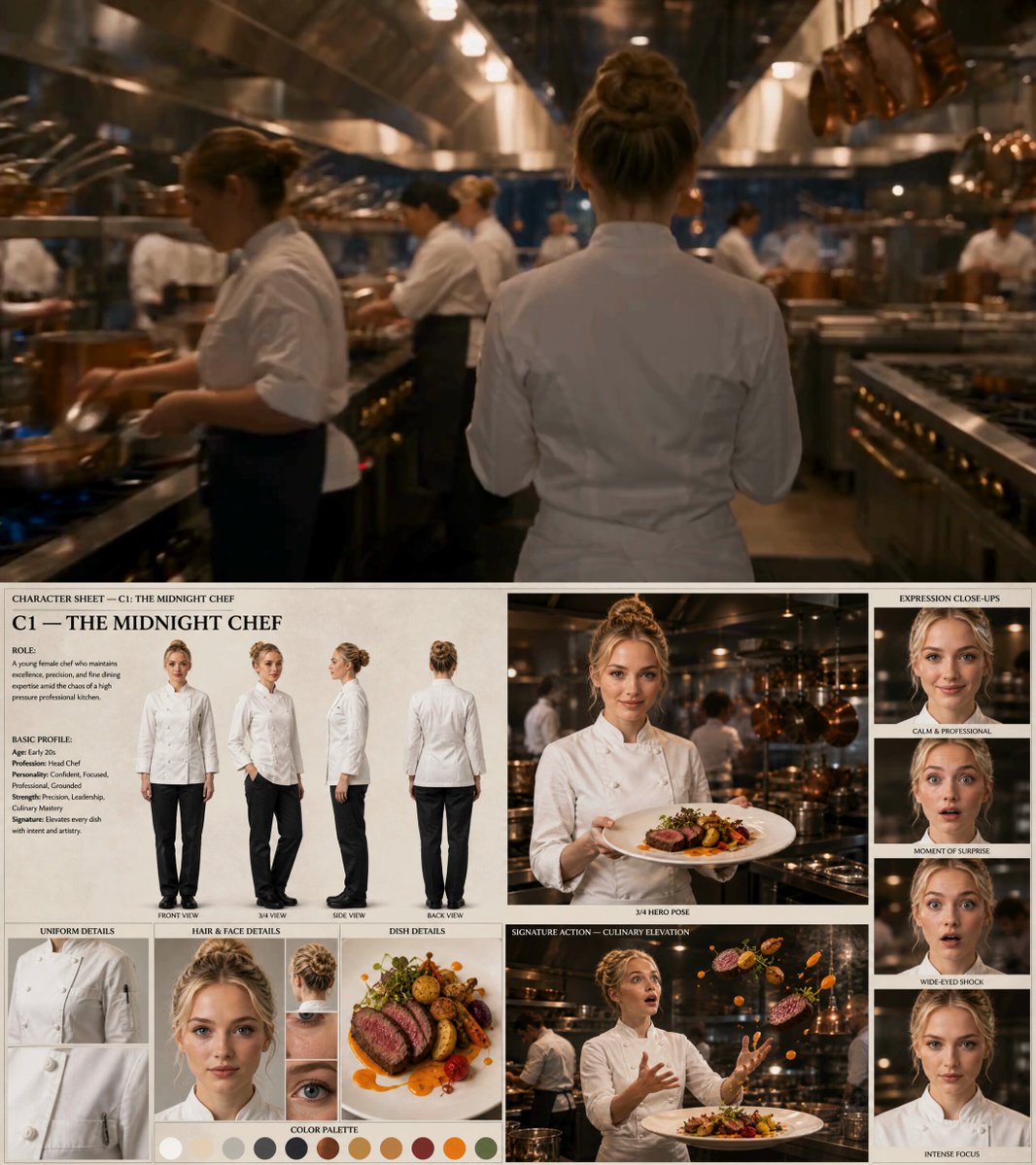
Consistency is the hardest part of AI art. Start by locking a seed if your tool supports it. Then create a character sheet with front, side, and three-quarter views. Use the same reference image for every generation. If the tool supports character reference or image prompts, feed the approved face and outfit into each new scene.
Write a short character block and reuse it exactly:
Mika, 17, short black hair with blue tint, red scarf, brown leather jacket, determined expression, cel shaded, bold outline, flat skin shading
Do not change word order or synonyms. Small changes can shift facial features. If you must adjust, change one variable at a time.
Turnarounds and expression sheets
Generate a turnaround before you generate story images. A turnaround includes front, side, back, and three-quarter views. Then create an expression sheet: neutral, happy, angry, surprised, sad. This gives you a visual dictionary. When a new scene needs Mika angry, you can reference the angry expression instead of hoping the model remembers.
Expression sheets also help with animation. If you plan to create short clips, you can use the expressions as key frames and interpolate between them with motion tools.
Consistency mistakes to avoid
Common mistakes include changing hairstyle length between prompts, switching between cel shading and soft shading, and using different color temperatures for the same scene. Another mistake is relying on a single seed for everything. A seed helps, but it does not guarantee identity if the prompt changes too much. Use seeds plus reference images plus a fixed character block.
Backgrounds, Props, and Worldbuilding for Retro Anime
Backgrounds often carry the nostalgia. A classroom with warm afternoon light, a cluttered workshop, or a train station at dusk can set the emotional tone before a character speaks. Generate backgrounds separately when possible. Use wide shots, no characters, and terms like hand-painted background, watercolor sky, detailed foliage, and soft light.
Props should feel period-appropriate. A bulky CRT monitor, a cassette player, a analog camera, or a scooter with a rounded fairing can sell the era. Avoid modern smartphones and minimalist interfaces unless you are intentionally mixing eras. If a prop is important to the story, generate it on a neutral background first so you can reuse it.
Worldbuilding benefits from a small style guide. Define the palette, line weight, architecture, and technology level. For example: coastal city, 90s retro-future, rounded vehicles, warm streetlights, teal ocean, orange sunsets. A style guide keeps a series coherent even when each image is generated separately.
Tool Selection Criteria and Quality Control
What to compare
When choosing an AI generator for retro anime, compare style control, pose control, reference image support, inpainting quality, resolution, and batch speed. Style control matters most. Look for tools that respond well to cel shading, line weight, and palette prompts. Pose control helps with action scenes. Reference image support helps with character consistency. Inpainting helps you fix small errors without losing a good composition.
Test each tool with the same three prompts: a portrait, a wide landscape, and an action scene. Judge the silhouette, line quality, color harmony, and background detail. Do not judge only by a single beautiful image. Judge by how reliably the tool produces usable results.
Quality control checklist
Before you approve an image, check the silhouette at thumbnail size. If it reads clearly, the composition is strong. Check the face and hands for errors. Check the line weight for consistency. Check the palette against your style guide. Check the shadows for hard edges and intentional shapes. Check the background for accidental modern objects or text. Check the grain level. Finally, check that the image still looks good when scaled down for a thumbnail or social post.
If an image fails, decide whether to fix or reroll. Fix if the composition and mood are strong. Reroll if the pose, silhouette, or character identity is wrong. Fixing is often faster with inpainting, but rerolling is better when the core idea is weak.
Common Mistakes and How to Fix Them
Mistake 1: Overloading the prompt with too many style words. Fix: keep the core style terms and remove contradictory descriptors.
Mistake 2: Using modern anime keywords. Fix: replace soft shading, glossy highlights, and cinematic depth of field with cel shading, flat colors, and painted background.
Mistake 3: Ignoring the silhouette. Fix: squint at the image or shrink it. If the shape is unclear, change the pose or camera.
Mistake 4: Changing the character prompt between scenes. Fix: save a reusable character block and paste it into every prompt.
Mistake 5: Overdoing grain and scan lines. Fix: apply texture at the end and keep it subtle. Readability comes first.
Mistake 6: Forgetting hands and props. Fix: generate a prop sheet and a hand reference. Use inpainting to correct errors.
Mistake 7: Mixing palettes across a series. Fix: create a palette guide with hex-like color descriptions such as warm orange, deep teal, dusty rose, and charcoal brown. Use the same lighting logic in every scene.
Mistake 8: Relying on one tool. Fix: compare at least two generators. Different tools handle line work and backgrounds differently.
Mistake 9: Skipping cleanup. Fix: budget time for manual retouching, especially for faces and line breaks. AI output is a draft, not a final asset.
Mistake 10: Forgetting the story. Fix: ask what the image communicates. A nostalgic style can attract attention, but emotion, character, and place keep viewers engaged.
FAQ
What prompt words best capture 90s anime style?
Use terms such as 90s anime style, cel shaded, bold ink outlines, flat colors, hand-painted background, limited palette, film grain, and subtle VHS texture. Add specific lighting and camera language. Avoid modern anime terms that imply glossy digital rendering.
How do I stop AI from making modern-looking anime?
Name the era and then add concrete traits: hard-edged shadows, matte skin, painted backgrounds, and limited color. Negative prompts can include 3D render, glossy skin, modern smartphone, and soft airbrush. Check for modern objects in the background and inpaint them out.
Can I keep the same character across many images?
Yes, but it takes systems. Use a fixed character block, a reference image, a locked seed when available, and a turnaround sheet. Generate expression sheets for emotional consistency. Reuse the same shading and palette instructions in every prompt.
How many variations should I generate per scene?
Start with four to eight variations for composition. Pick the best silhouette, then refine with inpainting. For important shots, generate more. For background plates, fewer may be enough if the mood is simple.
What resolution should I work at?
Generate at a moderate resolution for speed, then upscale after approval. Very high resolution early in the process slows iteration. Keep the final output large enough for your intended use, whether that is social media, print, or animation.
Do I need to draw to use AI for retro anime art?
No, but visual literacy helps. Study composition, color, and line weight. Build reference boards. Learn to identify why an image feels wrong. Those skills improve your prompts and your editing decisions.
How do I make backgrounds look hand-painted?
Describe watercolor sky, gouache texture, painted foliage, soft gradients, and detailed environment. Generate backgrounds separately from characters when possible. Flat character shading against a detailed background creates the classic contrast.
Can AI generate animation in this style?
AI can help with key frames, in-between suggestions, and motion effects, but it rarely produces perfectly consistent animation on its own. Use AI for concept frames and texture, then assemble motion in an editor or animation tool. Keep character sheets nearby to maintain identity.
The most reliable approach is to treat AI as a fast concept artist. It gives you options. Your job is to choose, correct, and unify. Build a small style guide, reuse your best prompts, and review every image at thumbnail size. With a clear workflow, you can create nostalgic visuals that feel intentional rather than random.

Alexander
More Blogs
Read MoreVidu Q4 Alternatives: 4K AI Video Models Compared (2026)
Vidu Q4 alternatives compared: Kling 4.0, Seedance 2.5, Wan 3.0, and Runway Gen-4 — 4K support, input modes, durations, audio, and what each costs in credits on Domer.
Top 4K AI Image Generators in 2026: 5 Models Compared on Real Costs
The top 4K AI image generators on Domer compared: Flux 3 Klein, Nano Banana 2.1, GPT Image 2.5, GPT Image 2, and Nano Banana Pro — 4K credit costs, reference limits, and speed.
Nano Banana 2.1 vs GPT Image 2.5: Which Image Model Should You Use? (2026)
Nano Banana 2.1 vs GPT Image 2.5 Flare compared: credit costs per resolution, aspect ratios, reference images, text rendering, and which tasks fit each model.