

Affiliazione
Inizia Gratis Ora
AI Animate Art Generator: Turn Still Images Into Motion
Oct 15, 2026
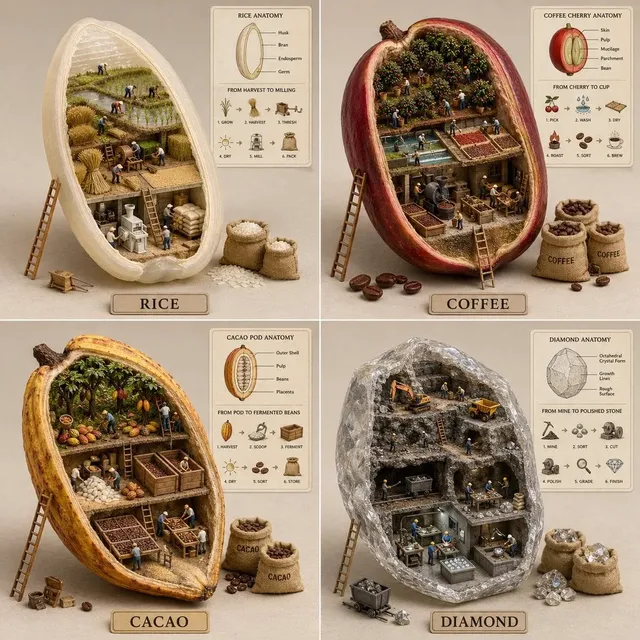
Animation has always been the expensive part of visual storytelling. A single second of hand-drawn motion can take hours; a polished three-second logo sting can take days. AI animate art generators change that equation by taking one finished still image — a painting, a sketch, a photograph, a comic panel, a product render — and producing a moving version of it in minutes. The result is not a replacement for animation craft, but it does remove the barrier that used to sit between an idea and a moving image.
This guide covers what these tools actually do under the hood, which techniques matter in practice, how to choose a tool for a specific project, and a repeatable workflow you can run from the first draft to a publishable clip.
What an AI animate art generator actually does
At its core, an animate art generator is an image-to-video system. You supply a still frame, a text description of the motion you want, and a few parameters such as duration, aspect ratio, and motion strength. The model then synthesizes a short sequence of new frames that preserve the original image's composition and style while introducing movement.
That distinction matters. A traditional video editor moves a fixed image around a frame — panning, zooming, fading. A generative model invents new pixels. Hair lifts in a breeze, water ripples, a character blinks, cloth folds and unfolds. The model is not tracking a real performance; it is predicting a plausible continuation of the still you handed it.
Because prediction is probabilistic, output varies. Run the same image and prompt twice and you get two different clips, one of which may be noticeably better. Professional workflows account for this by generating several candidates, then selecting and repairing rather than expecting perfection on the first attempt.
Most systems also let you steer motion in regions. A brush or mask tool marks the areas that should move — a face, a waterfall, a flag — while leaving the rest anchored. Regional control is the single biggest quality lever after prompt wording, because it prevents the model from animating everything at once.
Animation techniques you can combine
There is no single method. Skilled creators layer several techniques in one project, using each where it is strongest.
Image-to-video generation
The default approach: one still image in, a clip out. Best for painterly illustrations, environment shots, and any image where you want ambient life rather than a specific performance. Motion strength settings usually range from subtle drift to aggressive transformation; subtle usually reads as more professional.
Motion brush and region control
Paint over the elements you want animated and leave the background locked. This is how you get clean results on character portraits, where unconstrained generation tends to warp ears, teeth, and jewelry. Region control also lets you animate two elements at different speeds — a fast-moving foreground object against a slow background.
Pose and performance transfer
Some pipelines let you drive a still character with a reference video, transferring the pose or expression of a real performer onto a drawn or painted figure. This is the technique behind a lot of "living illustration" content. It requires a clean, front-facing source image with clearly separated limbs, and it works poorly on heavily stylized silhouettes.
2.5D parallax and camera moves
Instead of animating the subject, you animate the camera. Layers are separated — foreground, midground, background — and moved at different rates to fake depth. This technique is stable, cheap, and almost never produces artifacts, which makes it ideal for book covers, historical photographs, and architectural renders.
Style-preserving frame interpolation and upscaling
Once you have a clip, interpolation tools raise the frame rate and upscalers raise the resolution. Both can soften texture, so apply them with restraint and check for the telltale smeared look on skin and fine line art. Interpolation is most valuable for slow, cinematic moves; for fast action it can introduce ghosting.
A practical rule: generate the motion first at modest resolution, confirm the timing feels right, then invest in upscaling and interpolation. Doing it in the reverse order wastes processing time on clips you will discard.
How to choose a tool without wasting weeks
Feature lists look similar across products. The differences that matter show up in week three, when you need consistency across a dozen shots.
Control granularity. Does the tool offer masks, motion brushes, camera controls, or trajectory paths? A generator with no regional control forces you to fix problems in post, which costs more time than it saves.
Clip length and extension. Most systems produce short clips by default. Check whether you can extend a clip while preserving continuity, and whether quality degrades noticeably on the second or third extension.
Style retention. Feed the same illustration into three tools and compare how faithfully each preserves line weight, color palette, and texture. This is where models differ most and where marketing material rarely tells the truth.
Consistency across shots. If your project has a recurring character, you need repeatable results. Look for reference image features, character locking, or seed control that keeps a design stable between generations.
Iteration speed. Fast, cheap generation is worth more than slightly higher fidelity. You will generate far more takes than you expect.
Export and integration. Confirm supported resolutions, frame rates, aspect ratios, and whether the tool exports clean files without watermarks or forced conversions.
A sensible test: take one representative image from your actual project and run it through each candidate with the same prompt. Judge the outputs side by side rather than in isolation, and be honest about which one you would actually ship.
A repeatable workflow from still image to finished clip
Step 1: Prepare the source image
Generative models amplify whatever you give them. Clean up the source before generating: remove stray marks, straighten the composition, and check that edges around the elements you want to move are well defined. A slightly higher-resolution source with crisp subject separation outperforms a low-resolution source every time.
If you plan a parallax move, separate layers first in an image editor. Cut the subject out, fill in the background behind it, and export each layer separately. This extra ten minutes removes most of the hallucinated background artifacts that plague single-layer parallax.
Step 2: Storyboard the motion
Before prompting, write one sentence per shot describing what moves and how. "Her hair drifts left, she blinks once, the candle flame flickers, camera slowly pushes in." Vagueness produces vague motion. Specificity produces usable motion.
Decide the motion arc across your sequence. A three-shot scene might open wide and slow, tighten on a face, then pull back. Without an arc, each clip feels like an isolated experiment and the final edit feels disjointed.
Step 3: Generate short, then extend
Start with the shortest duration the tool allows. Review for structure: is the subject holding together, is the background stable, is the motion in the right direction? Only extend clips that pass. Extending a broken clip produces a longer broken clip.
Generate three to five candidates per shot. Keep a simple naming convention that records the prompt version and settings so you can reproduce a good result later.
Step 4: Assemble, score, and finish
Bring clips into an editor. Cut to rhythm, add sound design, and color match across shots. Sound is not optional — a subtle ambience bed, a whoosh, or a musical hit changes how motion is perceived far more than another generation pass would.
Where a clip nearly works, fix it in post rather than regenerating. Stabilization, speed ramps, masking, and frame blending solve a surprising share of problems. Reserve regeneration for structural failures.
Prompting motion: the language that works
Prompts for animation behave differently from prompts for still image generation. Describe change over time, not appearance.
Use camera language. Terms like slow dolly in, gentle handheld drift, locked-off shot, and slow orbit give the model a clear motion vocabulary. Camera motion is usually more stable than subject motion.
Add physics cues. "Fabric ripples in a light breeze," "steam curls upward," "hair sways and settles" all imply speed and mass. Without cues, the model defaults to a uniform, slightly floaty drift that reads as artificial.
Keep style tokens consistent. Repeat the same style phrases across every shot in a sequence — "matte painting, textured brushwork, warm muted palette" — so clips match during editing.
Constrain what should not move. Many tools accept negative descriptions. Listing "no morphing, no extra limbs, no background warping" measurably reduces common failures.
Vary one variable at a time. Change the motion verb, keep everything else fixed. Otherwise you cannot tell which change produced the improvement.
Quality checks before you publish
Run every clip through the same short checklist.
- Temporal coherence: does anything pop, flicker, or reverse direction unexpectedly between frames?
- Edge integrity: check hair, fingers, glasses, and thin structures for warping or dissolving.
- Identity stability: if a face is present, does it stay the same person for the full duration?
- Background anchoring: does the environment stay put, or does it slide in ways the story does not justify?
- Motion amplitude: is the movement meaningful at the final viewing size? Motion that looks dramatic in a full-screen preview often disappears in a social feed.
- Loopability: if the clip will repeat, do the first and last frames match closely enough?
Flag anything that fails two or more checks and regenerate rather than trying to salvage it.
Common mistakes and how to avoid them
Animating everything. New users apply strong global motion and end up with a clip where the whole frame writhes. Restrict motion to one or two elements and let the rest be still.
Skipping the source cleanup. Dust, compression artifacts, and messy edges get amplified into visible glitches. Ten minutes of preparation saves an hour of regeneration.
Trusting the first output. Even excellent tools produce inconsistent results. Budget for multiple attempts per shot.
Over-upscaling. Aggressive upscaling on stylized line art destroys the texture that made the original appealing. Compare before and after at 100% zoom.
Ignoring audio. Silent animated art feels like a tech demo. A simple ambience track makes it feel like a film.
Inconsistent color across shots. Match contrast and saturation at the sequence level, not per clip, or the final piece will look stitched together.
Where animated art pays off
Marketing and social. Turning a product illustration, brand mascot, or key visual into a short moving asset increases time-on-view compared with a static post. Three to five seconds is usually enough.
Games and interactive media. Concept art animations, animated character portraits for dialogue screens, and looping environment plates for menus and loading screens.
Publishing and comics. Motion comics, animated book covers, and promotional panels that move when a reader hovers.
Education and explainers. Diagrams where a component slides into place or a process flows step by step are far easier to follow than a static figure.
Museums, archives, and heritage projects. Restoring and animating historical photographs and paintings for exhibits and documentary inserts, where stable camera moves are safer than full subject animation.
E-commerce. Subtle motion on product renders — a highlight sweep, a slow rotation, a fabric settling — communicates material and finish better than a still alone.
Building a pipeline that scales
Once a workflow works for one shot, systematize it. Keep a prompt library organized by motion type: camera moves, environmental motion, character motion, transitions. Save reference images and settings that produced good results. Build a small set of reusable sound beds and transitions.
Standardize your output specifications — resolution, frame rate, aspect ratio, codec — so clips drop into a timeline without conversion. And keep a review step where a second person watches the sequence end to end, because individual clips that pass inspection can still fail as a set.
If you are producing at volume, the bottleneck stops being generation and becomes selection. Investing in naming conventions and a review checklist early pays off far more than chasing marginal quality gains from a new model.
Frequently asked questions
Do I need drawing skills to use these tools? No, but visual judgment matters more than ever. The ability to spot a warped hand or an inconsistent palette determines output quality more than any technical setting.
How long should an animated art clip be? For social, three to eight seconds. For narrative inserts, four to six seconds. Longer clips are usually several short generations joined in editing.
Why does my character's face change mid-clip? Face drift comes from the model reinterpreting features between frames. Mask the face out of the motion region, reduce motion strength, or use a tool with identity locking.
Can I animate a photograph of a real person? Technically yes, but check consent, licensing, and platform policies. Digitally animating a real person raises ethical and legal questions that vary by jurisdiction.
What resolution should I generate at? Generate at the highest native resolution your tool supports without excessive upscaling, then upscale the keepers only.
Is interpolation always an improvement? No. It smooths motion but can introduce ghosting on fast movement and soften fine texture. Use it selectively.
How many attempts should I expect per shot? Three to six is typical for a keepable clip, more for complex character motion.
Can I use these clips commercially? That depends on the tool's terms and the source image rights. Verify both before publishing paid work.
Getting started
The fastest way to learn is to animate one image you care about. Pick a piece with a clear subject and simple background, mask a single element, and write one sentence of motion description. Generate four candidates, pick the best, and add a sound bed.
The gap between a still image and a moving one is smaller than it has ever been. The craft has shifted from drawing every frame to directing motion clearly, reviewing critically, and finishing carefully — skills that improve with every clip you ship.

Alexander
More Blogs
Read MoreVidu Q4 Alternatives: 4K AI Video Models Compared (2026)
Vidu Q4 alternatives compared: Kling 4.0, Seedance 2.5, Wan 3.0, and Runway Gen-4 — 4K support, input modes, durations, audio, and what each costs in credits on Domer.
Top 4K AI Image Generators in 2026: 5 Models Compared on Real Costs
The top 4K AI image generators on Domer compared: Flux 3 Klein, Nano Banana 2.1, GPT Image 2.5, GPT Image 2, and Nano Banana Pro — 4K credit costs, reference limits, and speed.
Nano Banana 2.1 vs GPT Image 2.5: Which Image Model Should You Use? (2026)
Nano Banana 2.1 vs GPT Image 2.5 Flare compared: credit costs per resolution, aspect ratios, reference images, text rendering, and which tasks fit each model.