
Affiliazione
Inizia Gratis Ora
AI Animation Art Generator: Build Professional Animations
Oct 15, 2026
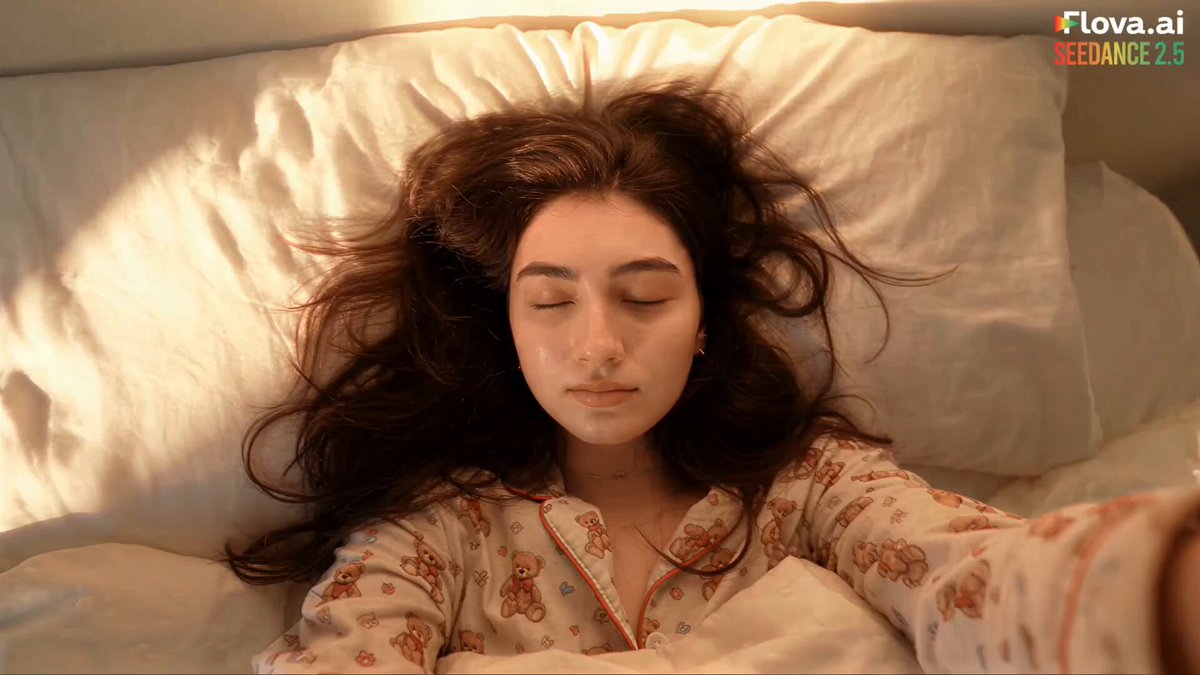
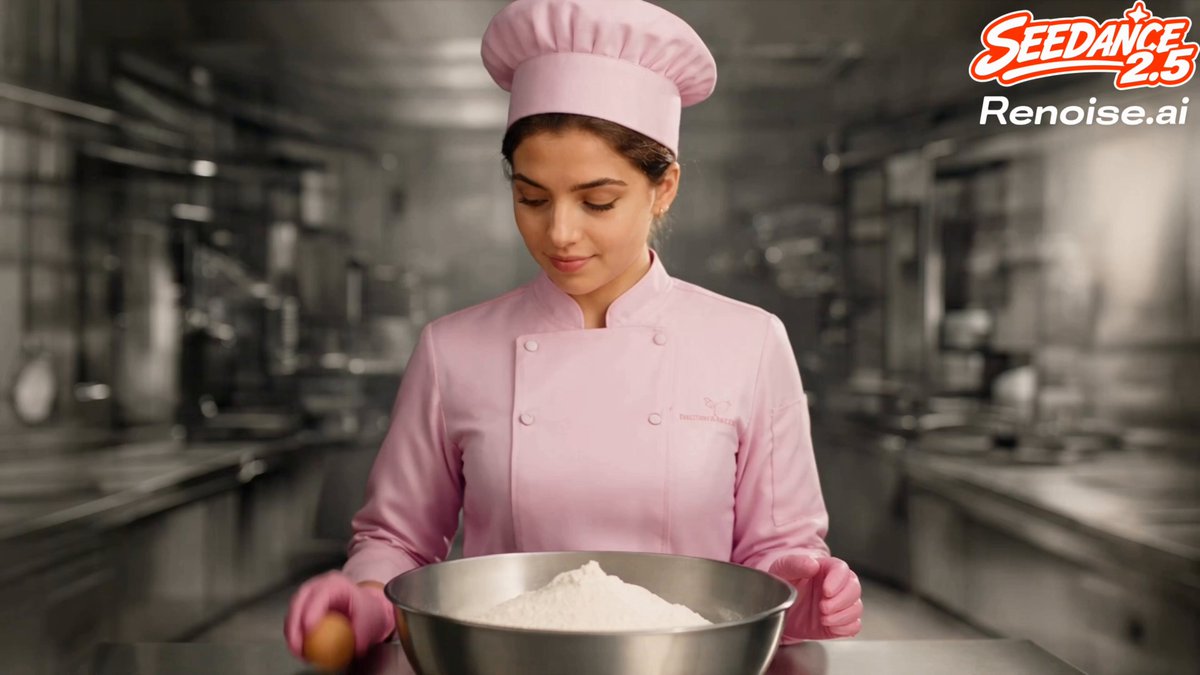
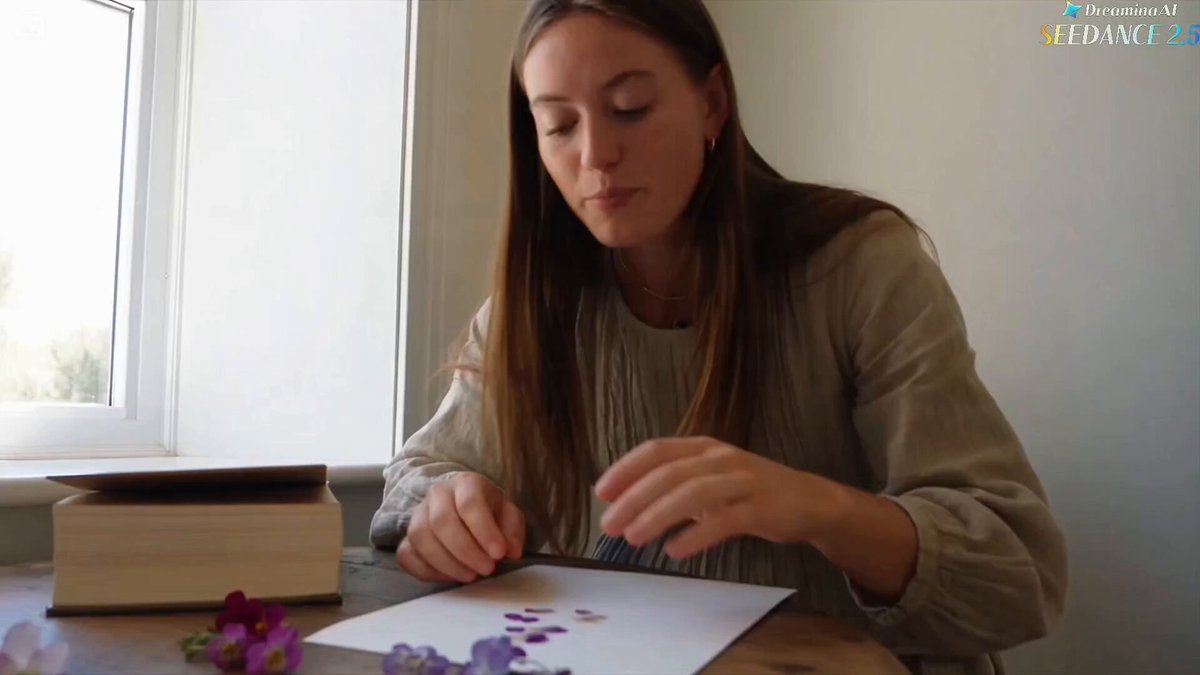
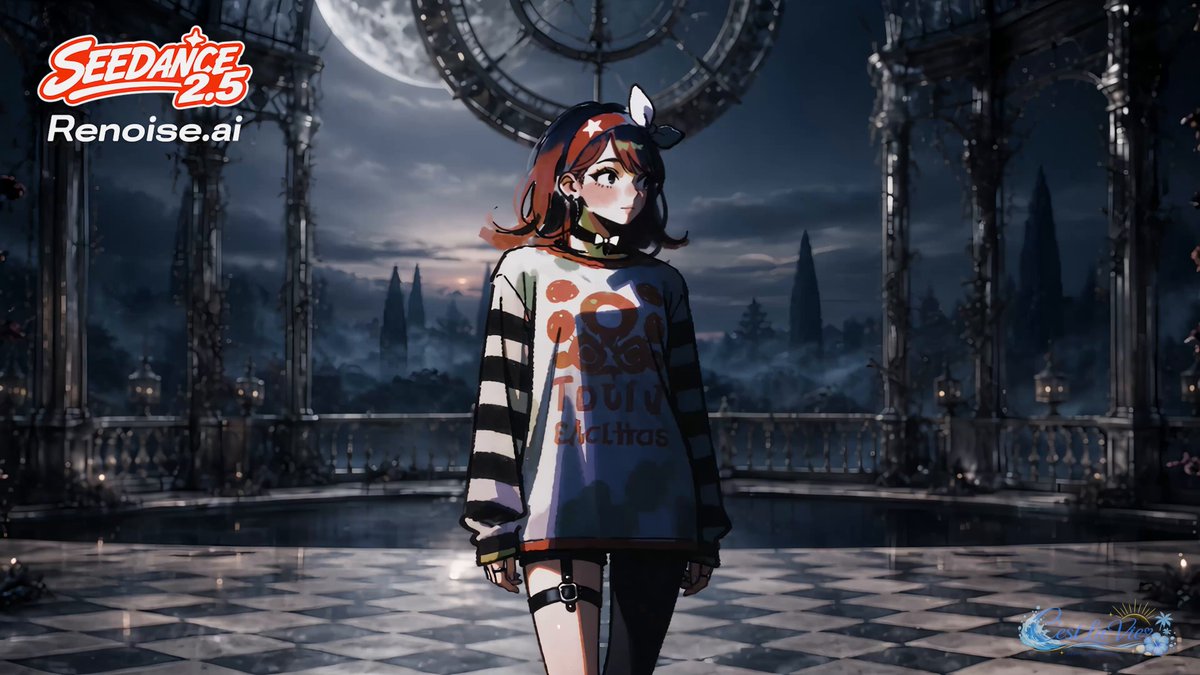
What an AI Animation Art Generator Really Does
An AI animation art generator converts creative intent — a sentence, a sketch, a photograph, a storyboard panel — into moving imagery that holds a consistent visual style. It is rarely a single button. Most modern systems chain several models together: a language model that interprets your prompt, a diffusion or transformer model that renders keyframes, a motion model that invents movement between them, and an enhancement stage that sharpens detail, stabilises faces, and attaches audio.
Knowing that chain tells you where failures come from. When a character's jacket changes colour between shots, the break is usually in the reference stage, not the motion stage. When hands melt and eyes wander, the cause is often resolution, frame interpolation, or an over-long clip. When the camera drifts in a way that damages the story, the fault is in your prompt or your controls, not in the model.
Treat AI animation as a production pipeline rather than a slot machine. Professional-looking results come from controlled inputs, short iterative clips, and deliberate assembly — not from one enormous generation that you hope will hold together. The creators who ship polished work almost always render more shots than they need and cut the weak ones without sentiment.
How the Generation Pipeline Works, Stage by Stage
Every serious tool follows a similar sequence, even when the marketing language differs.
Prompt interpretation. Your text is parsed into structured intent: subject, action, environment, lens, lighting, pacing. Vague prompts produce generic motion because the system fills gaps with statistical averages. Specific prompts narrow the search space and produce motion that matches your intent.
Keyframe generation. The model renders one or more still images that define the look. This is where art direction is really decided. If the still is weak, no amount of motion sophistication will save it, and you will waste hours trying to fix a composition problem inside a video clip.
Motion synthesis. The system predicts plausible movement — a walk cycle, a head turn, a camera push. Motion models are good at physics-adjacent behaviour and poor at narrative intent, so you steer with explicit direction or with a reference video that shows the timing you want.
Temporal consistency pass. A refinement pass reduces flicker and identity drift across frames. Some tools expose this as a strength slider; others hide it behind a quality preset. Knowing which one you have changes how you plan clip length.
Upscaling and interpolation. Low-resolution generation runs faster, so many workflows generate small and then upscale, adding frames for smoothness. This is also where face repair usually happens, which is why close-ups benefit disproportionately from a final upscale pass.
Audio and export. Ambience, dialogue, and music are added afterwards, then the sequence is exported at a delivery codec. Mixing before you lock picture wastes time, because every re-render invalidates your timing and your foley placement.
One more practical detail: prompt length matters less than prompt structure. A tight four-line prompt naming subject, action, lens, and light usually beats a paragraph of atmosphere.
Choosing the Right Model for Each Shot
Different shots demand different generation modes. Matching mode to shot is the single biggest efficiency gain in an AI animation workflow, because it stops you from fighting a tool that was never suited to the task.
Text-to-video for establishing shots and mood
When the frame has no recurring character and the priority is atmosphere — a rain-slick street, a desert horizon, a spacecraft interior — text-to-video is fast and forgiving. Describe lens, light, and movement rather than plot. These shots are also ideal for testing a new model without risking continuity.
Image-to-video for anything with continuity
Once a character or location exists as a still, image-to-video gives you far more control. You approve the art direction first, then animate the approved frame. This is the workhorse mode for narrative animation and the mode you should default to whenever a face, costume, or vehicle must stay recognisable.
Video-to-video for restyling and texture passes
If you already have live-action footage or a rough 3D previz, video-to-video can repaint it into an illustrated look while preserving performance timing. It is excellent for stylised rotoscoping and mediocre for changing what a scene actually contains, since the source geometry tends to dominate.
When a still image and a camera move beat full generation
A slow push across a detailed painting often reads as more cinematic than a fully generated shot with drifting artefacts. Use motion graphics, parallax, or a simple dolly on a rendered still for dialogue beats where the audience is reading faces, not action. Audiences accept stillness far more readily than they accept broken anatomy.
Mixing modes inside one scene
It is perfectly reasonable to open a scene with an atmospheric text-to-video plate, cut to an image-to-video character shot, and finish on a held still with a parallax move. What matters is that the palette, lens language, and grain stay constant across the cut.
Character Consistency: The Hardest Problem to Solve
Audiences forgive imperfect physics. They do not forgive a protagonist whose face changes every four seconds. Consistency must be engineered rather than hoped for.
Build a character reference sheet
Create five to eight images of the same character from different angles and expressions before you animate anything. Name the files clearly and keep the clothing identical. Many tools accept multiple reference images; feeding three or four consistent ones outperforms feeding one perfect one, because the model learns the invariant features instead of a single pose.
Lock style, wardrobe, and palette
Write a reusable style block — medium, rendering style, palette, lighting — and paste it into every prompt unchanged. Changing adjectives between shots is the most common cause of visual drift. If a character wears a red scarf, that scarf should be described identically in every prompt, every time.
Use seeds, adapters, or custom training
If your tool supports seeds, keep the seed fixed for shots in the same location. If it supports custom character training or lightweight adapters, invest the hour it takes. Consistency that comes from training beats consistency that comes from prompt engineering, especially across long timelines.
Accept controlled variation
Perfect stillness looks artificial. Allow small variation in expression and angle, and keep identity anchored: face shape, hair silhouette, signature clothing. Test by placing stills side by side at thumbnail size. If the character is unrecognisable at small scale, the shot will fail in motion, no matter how good the full-resolution frame looks.
A Practical Workflow for a 60-Second Animated Short
Here is a workflow that scales from a hobby short to a client deliverable.
Script and shot list
Write the beat, then break it into twelve to twenty shots. For each shot record duration, subject, action, camera, and emotional purpose. A 60-second short with twenty shots averages three seconds per shot, which is a comfortable length for generated motion and keeps drift manageable.
Keyframe art
Generate or illustrate the key still for every shot before animating anything. Review them as a contact sheet. Fix composition problems now, because they are cheap to fix as stills and expensive to fix as video.
Motion passes
Animate in short bursts — two to four seconds per generation. Generate three variations per shot and keep the best. Reject quickly; do not try to rescue a bad generation with editing, because clipping and speeding up a flawed clip rarely hides the flaw.
Sound design and assembly
Cut picture to a scratch music track, then replace the temp audio with designed ambience, foley, and voice. Sound carries more of the illusion of quality than most creators expect, and it is the cheapest remaining upgrade once picture is locked.
Review gate
Watch the full piece once muted, then once with your eyes closed. If the story is unclear muted, the visuals are not doing narrative work. If the audio alone does not suggest the scene, the sound design is thin.
Style Control: Making Twenty Shots Feel Like One Film
Cohesion is what separates a demo reel from a film. Three levers matter most: palette, lens language, and grain.
Define a palette of no more than five colours and check every still against it. Consistent colour temperature across shots reads as intentional even when the content varies wildly. Use lens language deliberately: wide lenses with deep focus for context, long lenses with shallow depth for intimacy. If shot three is a 24 mm wide and shot four is an 85 mm portrait, that contrast should be motivated by story, not accidental.
Grain, halation, and subtle chromatic aberration are cheap tools for unifying images generated in different sessions or with different models. Applying a single finishing pass across the whole timeline is the fastest way to make mixed sources look like one project.
Keep a style guide document with exact prompt fragments, reference images, and post-processing settings. It removes guesswork and makes collaboration possible. When you return to a project after two weeks, that document is the difference between continuing and restarting.
Prompt fragments worth reusing
Build prompts from slots rather than prose: subject and wardrobe, action beat, camera behaviour, lighting and time of day, medium and palette. Swap only the action beat between shots in the same scene and your continuity improves immediately.
The finishing pass
Grade every clip in one timeline, not in separate sessions. Add grain once, at the end, so it sits over the cuts rather than inside each clip. Export a reference still from three different shots and compare them side by side before you commit.
Common Mistakes and How to Fix Them
| Symptom | Likely cause | Fix |
|---|---|---|
| Faces morph between shots | Weak references, changing prompt adjectives | Lock a reference sheet and a reusable style block |
| Motion looks like a slow zoom only | Generic prompt, no action verb | Specify subject action plus camera move |
| Flickering textures | Clip too long, no consistency pass | Generate shorter, enable refinement, then interpolate |
| Limbs bend oddly | Fast movement, low resolution | Reduce action speed, generate larger, simplify the pose |
| Style drifts mid-project | New model or prompt version | Freeze settings and record them in the style guide |
| Scenes feel disconnected | No palette or lens plan | Apply a unified grade and check the contact sheet |
Three habits prevent most of these. Generate shorter than you think you need. Never change two variables in one iteration. And review at delivery size, not only at full screen, because small artefacts disappear when a clip is viewed on a phone.
Another frequent mistake is animating before the story works. If the shot list is vague, the best model in the world will produce beautiful nonsense. Fix the storyboard first, and generation becomes a rendering task rather than a guessing game.
Hardware, Time, and Budget Realities
AI animation is compute-bound. Local generation on a mid-range consumer GPU is viable for short clips at modest resolution, but expect minutes of rendering per second of finished footage. Cloud generation removes hardware limits and adds queue time and per-use billing, which nudges you toward planning shots more carefully before you hit generate.
The real budget line is iteration. A single three-second shot may take five or ten generations to look right. Multiply that across a twenty-shot short and the difference between a disciplined and a sloppy workflow is measured in hours, not minutes. Discipline here means fewer, better-planned generations rather than endless tweaking.
Practical ways to control time: storyboard thoroughly, batch similar shots so settings stay identical, render at preview resolution while testing motion, and only upscale approved shots. Keep a render log with settings for every accepted clip, because recreating a lucky result is otherwise nearly impossible.
A hybrid setup often works best. Use local generation for exploration and iteration, then move approved shots to cloud compute for high-resolution final passes. You get fast feedback during creative work and consistent quality at delivery.
Quality Control Checklist Before Delivery
Run this pass on the locked cut:
- Identity: does the protagonist look the same at thumbnail size in every appearance?
- Continuity: do props, wardrobe, and time of day stay consistent across cuts?
- Motion: is there any shot where movement is implausibly slow, fast, or directionless?
- Artefacts: check hands, teeth, eyes, text, and jewellery frame by frame at 200 percent.
- Audio sync: do footsteps and impacts land on the frame of contact?
- Colour: does the grade hold across the full timeline without sudden temperature jumps?
- Loudness: is dialogue intelligible on phone speakers, and are peaks controlled?
- Delivery: correct aspect ratios, safe margins for captions, and a clean master file.
Fix issues in order of audience impact — identity, then continuity, then artefacts. Viewers notice a changing face long before they notice a slightly soft background, so spend your remaining time where perception actually lives.
Frequently Asked Questions
Do I need artistic skills to use an AI animation art generator?
No, but you need taste and vocabulary. Knowing what a 35 mm lens, rim light, or complementary palette does gives you control that pure prompt guessing never provides. Basic composition literacy accelerates everything.
How long should each generated clip be?
Two to four seconds is the sweet spot for most tools. Longer clips invite drift, and short clips cut together easily. Generate a longer sequence as several shorter pieces and assemble them in the edit.
Can AI animation replace a traditional animation pipeline?
For stylised shorts, explainers, and social content, often yes. For character-driven performance with precise lip sync and hand acting, it currently works best as a previsualisation or assistive layer alongside traditional animation.
Why does my character change appearance between shots?
Usually because the reference material changed, the prompt adjectives shifted, or the seed and model version differed. Freeze all three and re-test with two shots side by side before generating a whole scene.
Is image-to-video better than text-to-video?
For anything with recurring characters or locations, yes. Text-to-video is best for mood shots, backgrounds, and rapid experimentation where continuity does not matter.
How do I keep a project cohesive when using several tools?
Keep the style block, palette, and finishing pass constant. Do the final grade and grain in one application across all clips so that mixed sources are unified.
What is the fastest way to improve quality?
Shorten your clips, lock your references, and reject weak generations early instead of editing around them.
Where to Go From Here
Pick one three-second shot, define a reference, write a style block, and generate five variations. Compare them side by side and note which variable changed the outcome. That single exercise teaches more than any list of settings, because it builds the judgement you will rely on for every shot that follows.
From there, expand to a themed sequence of four shots with one character, then a full short. Add sound early, keep a written style guide, and treat every generation as a test rather than a final answer. The craft compounds quickly once your pipeline stops being a mystery and starts being a process you can repeat on demand.

Alexander
More Blogs
Read MoreVidu Q4 Alternatives: 4K AI Video Models Compared (2026)
Vidu Q4 alternatives compared: Kling 4.0, Seedance 2.5, Wan 3.0, and Runway Gen-4 — 4K support, input modes, durations, audio, and what each costs in credits on Domer.
Top 4K AI Image Generators in 2026: 5 Models Compared on Real Costs
The top 4K AI image generators on Domer compared: Flux 3 Klein, Nano Banana 2.1, GPT Image 2.5, GPT Image 2, and Nano Banana Pro — 4K credit costs, reference limits, and speed.
Nano Banana 2.1 vs GPT Image 2.5: Which Image Model Should You Use? (2026)
Nano Banana 2.1 vs GPT Image 2.5 Flare compared: credit costs per resolution, aspect ratios, reference images, text rendering, and which tasks fit each model.