
Affiliazione
Inizia Gratis Ora
AI Animation Generator Image: Create Dynamic Visuals
Oct 15, 2026
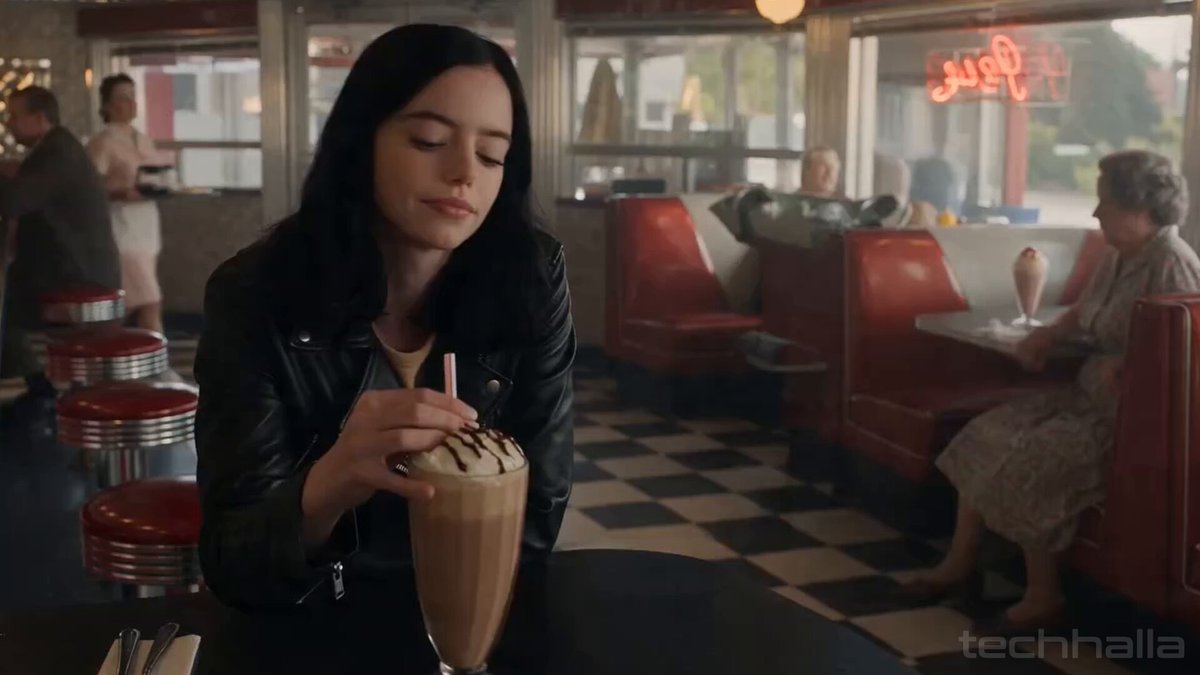
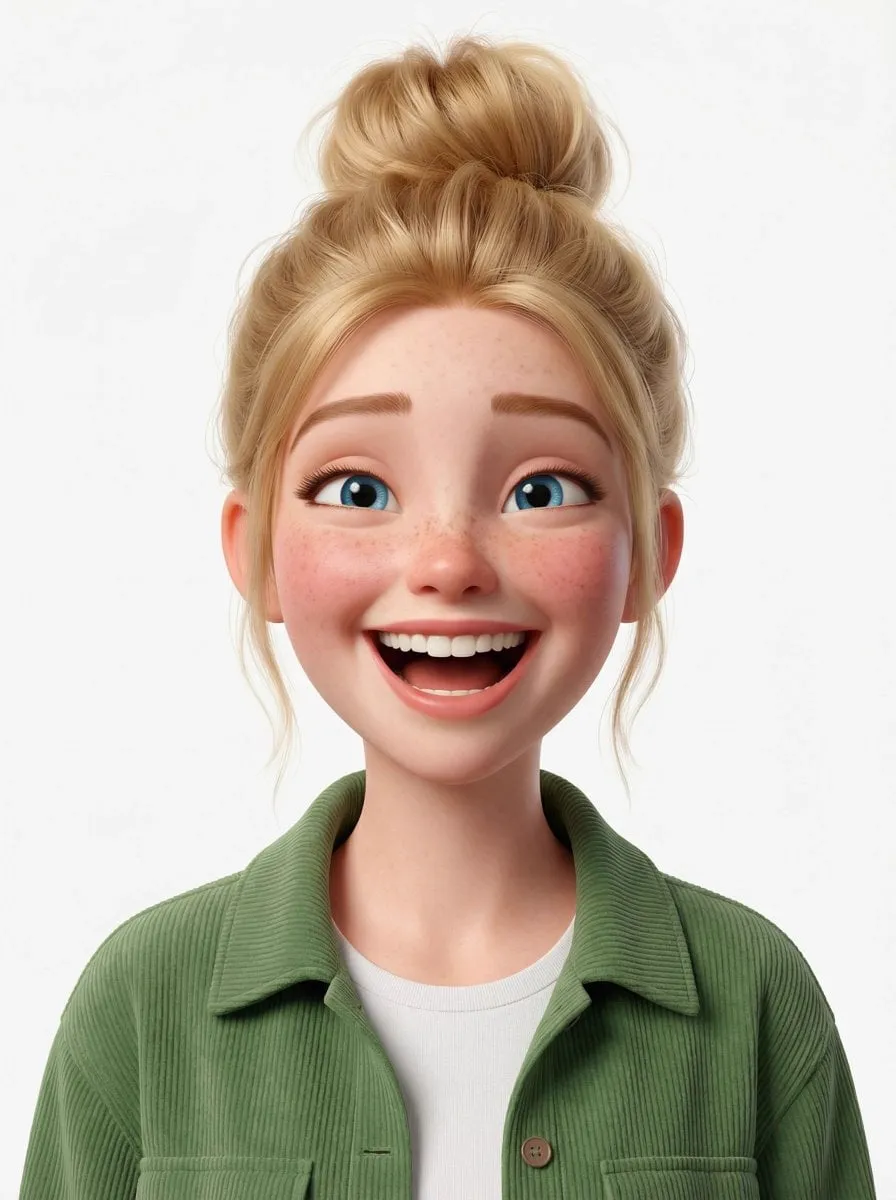

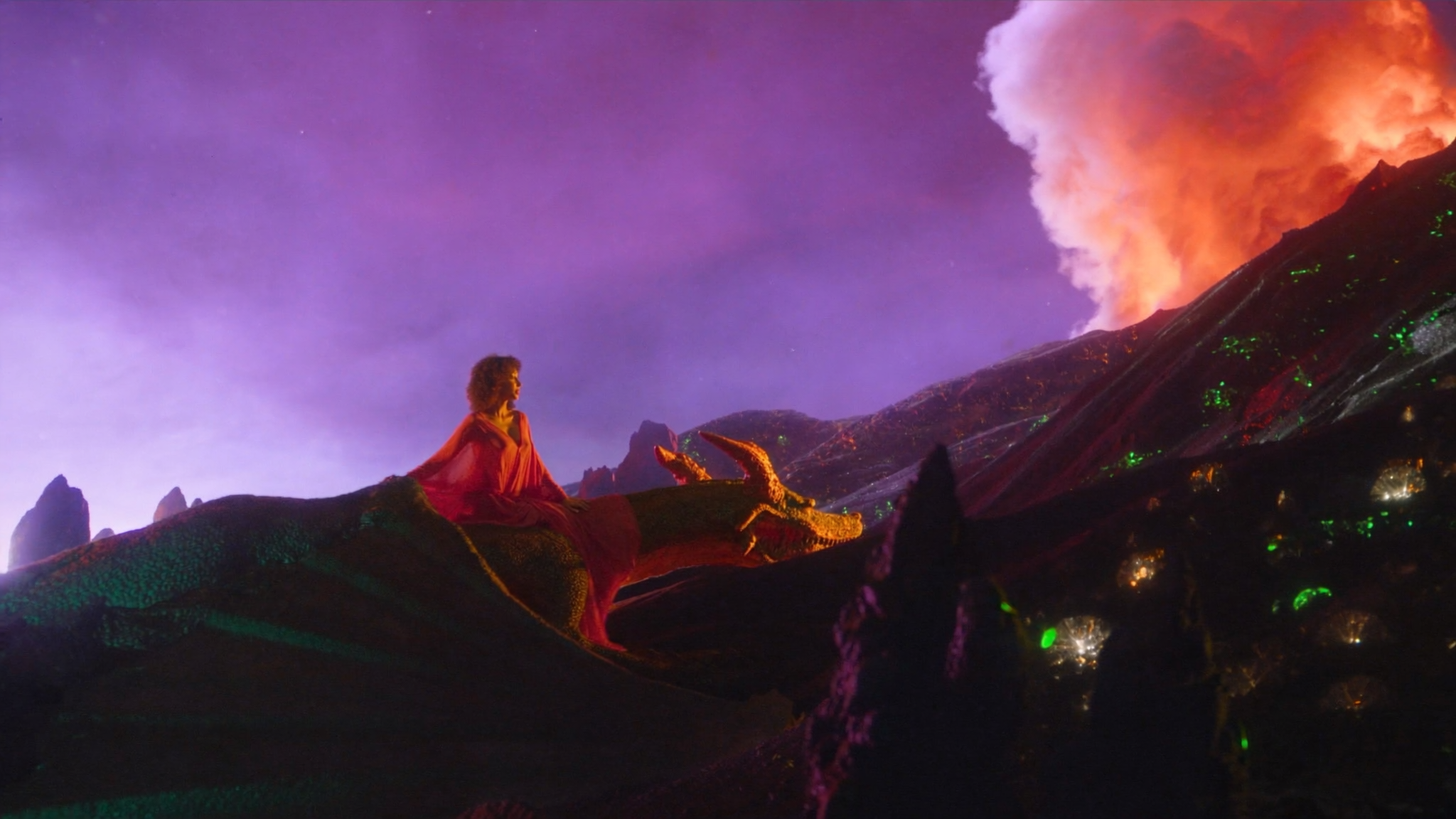
Turning a single still image into a believable moving shot used to require a full 3D pipeline, a rigger, an animator, and hours of rendering. Today, an AI animation generator image workflow can produce a dynamic clip from a photograph, illustration, or product render in minutes. The result is not always perfect, but with the right prompts, settings, and post-production, it can look polished enough for social ads, music videos, explainer content, and storyboards.
The appeal is simple. You already have an image that works. You do not want to rebuild it in animation software. You want motion: a camera push, drifting clouds, blinking eyes, a turning product, flowing hair, or a character stepping forward. AI video generation bridges that gap by predicting how pixels should move from one frame to the next. This guide explains how the technology works, how to use it in a practical workflow, and how to avoid common failures.
What an AI Animation Generator Image Actually Does
An AI animation generator image is a system that takes a still image as its primary input and outputs a short video clip. The still image acts as the first frame, a style reference, or a structural guide. The model then invents the motion, lighting changes, and temporal details needed to make the scene feel alive.
This is different from text-to-video generation. In text-to-video, the model starts from noise and builds the entire scene from a prompt. In image-to-video, the model starts from an existing composition. That makes the process more controllable, but it also creates a specific challenge: the model must preserve the original image while adding movement that feels natural.
Common use cases include animating portraits for social avatars, bringing product photos to life for e-commerce ads, creating motion posters from key art, turning concept art into animatics, generating looping backgrounds for streams, adding subtle movement to historical photos, and producing short clips for music videos. The output is usually a few seconds long, often between two and ten seconds. Treat the AI as a collaborator, not a magic button. You provide a strong source image, clear motion intent, and realistic constraints.
The Technical Foundation in Plain English
You do not need to understand every tensor operation to get good results, but knowing the basics helps you diagnose problems. Most modern systems use diffusion models or transformer-based video models. They learn from millions of video frames and gradually denoise a latent representation until it becomes a coherent clip.
From Still Image to Latent Motion
The source image is encoded into a latent space, a compressed mathematical representation. The model then adds temporal layers that predict how that latent representation should change over time. A decoder turns the latents back into visible frames. If the source image is sharp and well-composed, the motion tends to be more stable.
Temporal Consistency and Why It Is Hard
Temporal consistency means the same object looks the same from frame to frame. It is difficult because each frame is generated with some uncertainty, and small errors accumulate. A face may drift, a logo may warp, or a background may shimmer. Models use attention mechanisms, optical flow, and reference conditioning to reduce these errors. Your job is to avoid pushing the model beyond what it can track.
Motion Controls You Can Actually Use
Most tools expose a few practical controls: motion strength or motion score, camera movement such as pans and push-ins, duration, seed, reference image weight, and negative prompts. Start with low motion and increase it gradually. High motion settings often create warping, especially in faces and text.
A Step-by-Step Image-to-Video Workflow
A reliable workflow reduces randomness. The following process works for most image-to-video tools.
Step 1: Prepare the Source Image
Use the highest-resolution image you can find. Crop it to the aspect ratio you need before uploading. Remove distracting elements with an image editor if possible. If the image contains a face, make sure the eyes and mouth are clearly visible. If it contains a product, center it and clean up the background. The model will animate what it sees, including mistakes.
Step 2: Choose the Right Model and Aspect Ratio
Different models excel at different styles. Some are better for photorealistic humans, others for anime, and others for landscapes. Choose a model that matches your content. Set the aspect ratio first: 16:9 for YouTube and presentations, 9:16 for TikTok, Reels, and Shorts, 1:1 for feed posts, and 4:5 for portrait ads.
Step 3: Write Motion-Aware Prompts
Your prompt should describe movement, not just content. Instead of writing a woman in a forest, write a woman turns her head slowly toward the camera while leaves drift in the wind. Instead of a product on a table, write a slow orbit around a sneaker as light sweeps across the surface. Keep prompts focused on one or two actions.
Step 4: Tune Motion Strength, Camera, and Duration
Start with a short clip, around three to five seconds. Use moderate motion strength. Add a camera move only if it supports the story. A slow push-in can add drama; a fast orbit can create energy. If the tool allows keyframes, set the first and last frame to anchor the motion.
Step 5: Generate, Review, and Iterate
Generate several variations with different seeds. Review them at full speed and frame by frame. Look for identity drift, warped edges, flickering textures, and unnatural motion. Keep notes on which settings produced the best result.
Step 6: Finish in Post-Production
AI output is rarely final. Stabilize shaky motion, color grade the clip, add sound design, and trim to the beat. If the clip is too short, generate multiple shots and edit them together. If the resolution is low, use an upscaler. If the motion is choppy, use frame interpolation sparingly because it can introduce ghosting.
Prompt Patterns and Motion Controls That Work
Good prompts are specific but not overloaded. A useful pattern is: subject action + camera behavior + environmental motion + style constraint.
Examples:
- A portrait of an older man, he blinks and smiles slightly, camera slowly pushes in, warm window light, realistic skin texture.
- An anime heroine stands on a rooftop, her hair and coat move in the wind, camera pans left, city lights flicker below, cel-shaded style.
- A glass bottle of serum on a marble surface, water droplets slide down, camera orbits slowly, soft studio lighting, high-end product photography.
- A fantasy castle in the mountains, clouds drift behind the towers, banners wave, camera tilts up, epic cinematic lighting.
Negative prompts can help. Use them to avoid common problems: warped face, extra fingers, flickering, text artifacts, morphing, blurry, low resolution, jitter. Focus on the three or four issues you see most often. Motion control is about restraint. If you ask for a character to run, jump, and turn while the camera orbits, the model may produce a muddled result. If you ask for a subtle head turn and a slow push-in, the result is often clean. For complex actions, break the scene into multiple shots.
Model and Tool Selection by Creative Goal
There is no single best AI video generator. The right choice depends on your source image, style, and delivery format.
Photorealistic People and Dialogue
Photorealistic human animation is the hardest category. Look for models with strong face preservation, identity consistency, and lip-sync support. Use clean, well-lit source images. Avoid extreme expressions in the source frame because the model may exaggerate them. If you need dialogue, generate the performance first, then align the animation to the audio.
Anime, Illustration, and Stylized Worlds
Stylized content is often more forgiving because viewers accept exaggerated motion. Models trained on illustration or animation data tend to perform better. Keep line art clean and avoid noisy textures. If the style is very specific, use a style reference image or a custom style adapter if your tool supports one.
Product, Logo, and Brand Animation
Product animation needs precision. Logos must not warp, and text must remain readable. Use slow camera moves, simple lighting changes, and subtle particle effects. If the product has reflective surfaces, check each frame for flicker. Consider animating only the background and keeping the product static, then adding motion in post-production.
Landscapes, Weather, and Environmental Shots
Landscapes are ideal for image-to-video because environmental motion is expected. Clouds, water, grass, and fog can move without breaking realism. Use longer durations and gentler motion settings. These clips also loop well if the first and last frames match.
Social Shorts and Looping Visuals
For social media, prioritize vertical framing, strong first-frame contrast, and a clear focal point. Short loops perform well because viewers watch them multiple times. Generate a clip with matching start and end frames, or use a crossfade in editing to hide the seam.
Consistency, Resolution, and Export Settings
Consistency is the difference between a demo and a usable asset. If your project has multiple shots, keep a reference sheet with character details, clothing, colors, and lighting. Use the same seed when possible. Use the same model and prompt structure. If a character appears in several shots, generate the closest matching angle first, then animate the rest.
Resolution matters, but higher resolution is not always better. Many models generate at 720p or 1080p and then upscale. Start at the native resolution of the model, then upscale in post-production. Avoid generating at 4K if the model does not support it natively, because the output may contain soft details and artifacts.
Export settings depend on the platform. YouTube and presentations need 16:9 at 1920x1080 or 3840x2160 and 24 or 30 fps. TikTok, Reels, and Shorts need 9:16 at 1080x1920 and 30 fps. Instagram feed posts need 1:1 or 4:5 at 1080x1080 or 1080x1350. Web backgrounds need 16:9 at 1920x1080 and 30 or 60 fps with optimized file size. Use a high bitrate for final delivery, keep source files organized, and name versions clearly. Export a clean master without captions or music, then create platform-specific versions.
Editing and Troubleshooting AI Animation
AI animation improves dramatically in the edit. Cut on motion, add sound effects, and use color grading to unify shots. A whoosh, a footstep, or ambient wind can make a synthetic clip feel real. Music can hide small inconsistencies and set the pace.
Common problems and fixes:
- Flickering textures: reduce motion strength, use a cleaner source image, or apply temporal denoising.
- Face morphing: use a higher reference image weight, shorten the clip, or lower the motion setting.
- Warped edges: crop away problematic areas, use a simpler background, or add a slight vignette in post.
- Identity drift: use the same seed, avoid extreme camera angles, and keep the character centered.
- Too much motion: lower the motion score and use a slower camera move.
- Choppy playback: check frame rate consistency and use interpolation only if needed.
If a clip fails repeatedly, change the source image. A different pose, cleaner lighting, or simpler background can solve more problems than prompt tweaking.
Practical Creative Workflows and Examples
The best way to learn is to build small projects. These examples show how to combine image-to-video generation with editing.
Example 1: Product Highlight in Three Shots
Start with three product photos: front view, side view, and detail shot. Animate each with a slow orbit and a subtle light sweep. Generate three to five seconds per shot. In the edit, cut to the beat of a calm electronic track. Add a clean voiceover or text overlay. Color grade to match the brand. Export a 15-second vertical ad and a 30-second horizontal version.
Example 2: Anime Loop for Social Media
Create a detailed anime illustration of a character on a train platform. Animate the hair, coat, and passing train lights. Keep the camera still so the loop feels seamless. Generate eight seconds. In post-production, crossfade the last half-second with the first half-second. Add ambient station sounds. Export as a vertical loop.
Example 3: Historical or Fantasy Scene
Use a high-quality matte painting as the source image. Animate clouds, banners, and torch flames. Add a slow camera tilt to reveal the scale. Generate multiple takes and choose the one with the fewest artifacts. Add cinematic sound design and a subtle film grain overlay.
FAQ
What is the best image for AI animation?
A sharp, well-lit image with a clear subject and simple background works best. Avoid blurry photos, heavy filters, and cluttered scenes. Faces should be well-defined, and products should be centered.
How long can AI animation clips be?
Most tools produce two to ten seconds. Some support longer clips, but quality often drops as duration increases. For longer videos, generate multiple shots and edit them together.
Can AI animate text or logos?
It can, but text and logos are prone to warping. Use slow motion, keep the logo static, or animate the background instead. For critical brand assets, add the logo in post-production.
Why does my character's face change?
Face drift happens when the model struggles to maintain identity across frames. Use a cleaner source image, lower motion strength, shorter duration, and a higher reference weight. Some tools offer face restoration or identity preservation features.
Should I use frame interpolation?
Use it only when the source clip has a low frame rate and the motion is simple. Interpolation can create ghosting around fast movement, hands, and fine details. Test before committing.
Final Checklist for Dynamic Visuals
Before you export, run through this checklist:
- The source image is high-resolution and clean.
- The aspect ratio matches the destination platform.
- The motion supports the story instead of distracting from it.
- Faces, logos, and text remain stable throughout the clip.
- The clip has been reviewed frame by frame for artifacts.
- Color grading and sound design are applied.
- The final file is exported at the correct resolution and frame rate.
- Versions are named clearly for future edits.
An AI animation generator image is not a replacement for animation craft. It is a fast way to create motion from assets you already own. When you combine strong source images, restrained prompts, and thoughtful editing, you can produce dynamic visuals that hold attention and look intentional. Start with a single shot, refine your workflow, and build from there. The best results come from iteration, not from one perfect generation.

Alexander
More Blogs
Read MoreVidu Q4 Alternatives: 4K AI Video Models Compared (2026)
Vidu Q4 alternatives compared: Kling 4.0, Seedance 2.5, Wan 3.0, and Runway Gen-4 — 4K support, input modes, durations, audio, and what each costs in credits on Domer.
Top 4K AI Image Generators in 2026: 5 Models Compared on Real Costs
The top 4K AI image generators on Domer compared: Flux 3 Klein, Nano Banana 2.1, GPT Image 2.5, GPT Image 2, and Nano Banana Pro — 4K credit costs, reference limits, and speed.
Nano Banana 2.1 vs GPT Image 2.5: Which Image Model Should You Use? (2026)
Nano Banana 2.1 vs GPT Image 2.5 Flare compared: credit costs per resolution, aspect ratios, reference images, text rendering, and which tasks fit each model.