
Affiliazione
Inizia Gratis Ora
AI Animation Video Generator: Create Stunning Visuals
Oct 15, 2026
What an Animation AI Video Generator Actually Does
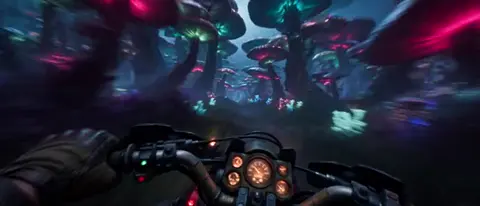
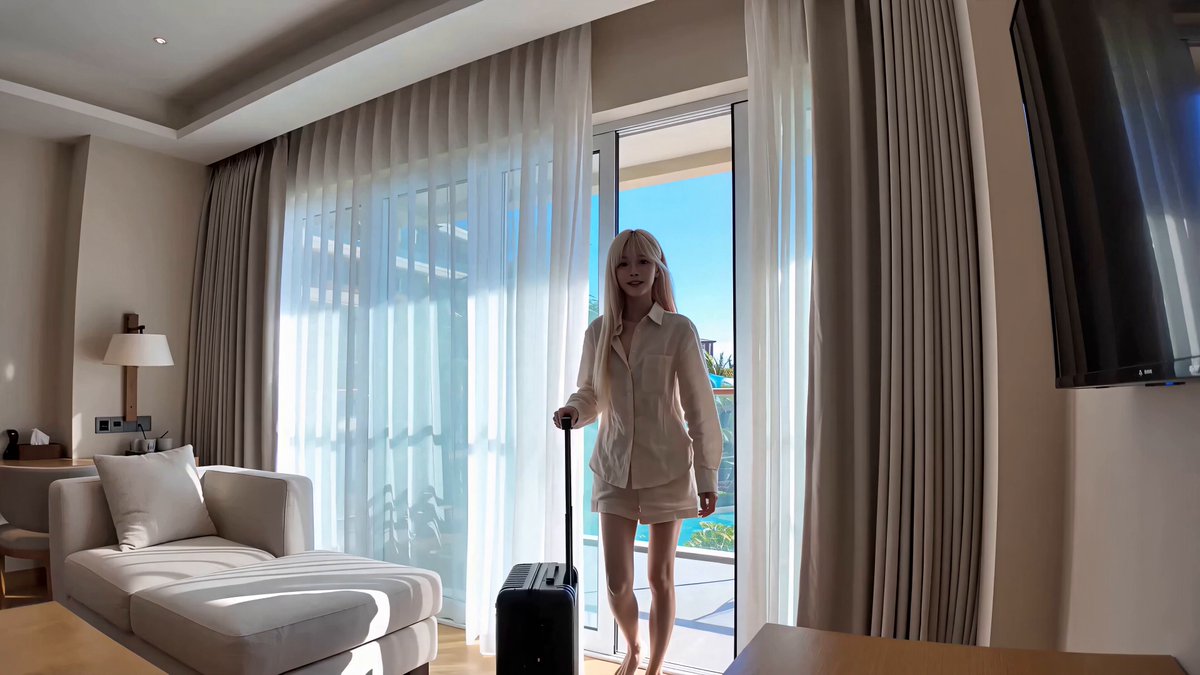
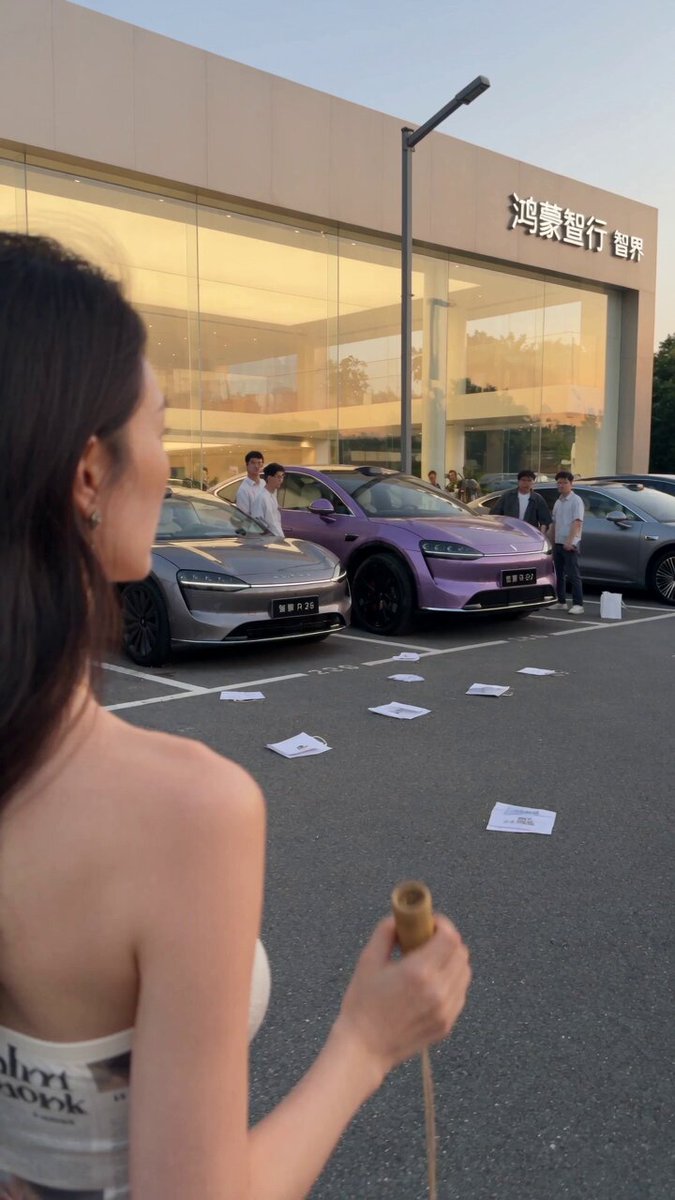
An animation AI video generator is a system that turns a short written brief, a still image, or a storyboard frame into moving footage. Unlike a traditional renderer that needs keyframes and interpolation curves, these tools predict motion directly. You describe what should happen, and the model invents the frames in between: how a character's coat swings, how light shifts across a face, how a camera drifts sideways through a doorway.
That shift changes who can animate. A solo marketer can produce a fifteen-second animated loop for a product launch. A teacher can illustrate a physics concept without hiring a studio. A game team can previsualize a cutscene in an afternoon. The technology is not a replacement for hand-crafted 2D or 3D animation. It is a fast first-draft engine that gets you to a viewable result quickly, which shortens your feedback loop from weeks to hours.
Three output types dominate today:
- Text-to-video turns a prompt into a clip with no starting frame.
- Image-to-video animates a still you already control.
- Video-to-video restyles or smooths footage you already shot.
Most real projects mix all three. You might generate a hero shot from text, animate a logo from a PNG, and restyle a live-action plate into a painterly look. The practical takeaway is to think of these tools as a camera crew that costs nothing to schedule. That mental model keeps you directing deliberately instead of accepting whatever the model hands back.
One more framing that helps: the model is not creative, it is associative. It responds to the specificity and structure of your input. Vague input returns average output. Structured input, referencing concrete objects, light, and motion, returns something you can actually cut into a timeline.
The Core Building Blocks Behind the Motion
How models learn movement
These systems train on enormous collections of video paired with text descriptions. They absorb statistical patterns about motion: liquids pour downward and splash, crowds flow around obstacles, hair lags behind a head turn, smoke curls upward. Those patterns are compressed into a latent space, and your prompt navigates it. When you write about a slow camera push, you are selecting a region of that latent space where push-ins are common.
Temporal consistency
The hardest problem is keeping a frame stable across time. Faces warp, hands merge into objects, backgrounds flicker between frames. Modern systems fight this with attention across frames, optical-flow guidance, and reference conditioning. As a user you influence it in three ways: keep shots short, keep motion descriptions simple, and give the model a strong reference frame so it has less to guess.
Style conditioning
Style is usually controlled by a reference image, a lightweight adapter trained on a specific look, or a cluster of descriptive phrases. A reference frame is almost always stronger than words. Three frames of your character beat a paragraph about their face. If you want a consistent series, invest early in a reference set rather than rewriting descriptions each time.
Resolution and length tradeoffs
Longer clips and higher resolution consume more compute and often degrade coherence. A thirty-second generation rarely looks better than three ten-second generations cut together. Generate short, dense clips and assemble them in an editor. This is the difference between fighting the tool and collaborating with it.
A Practical Workflow: From Idea to Finished Clip
Step 1 - Write a shot list, not a prompt
Before opening any tool, write your shots as a list: what the audience sees, how long it lasts, and what changes. For example, "Shot 3, four seconds, medium shot of a courier opening a package, reveal of a glowing object, slow push-in." This single habit prevents most wasted generations, because you stop hunting for a magic phrase and start filming a plan.
Step 2 - Lock the look with a reference frame
Generate or select one still that nails the style: lighting, palette, character design, lens feel. Approve it before spending time on motion. Every downstream shot inherits its flaws, so a mediocre reference frame becomes a mediocre sequence.
Step 3 - Describe motion in one sentence
Keep the action to a single subject verb and a single camera move. "Camera pushes in while she turns toward the window" works. Five simultaneous actions in one prompt produce mush.
Step 4 - Review at low resolution first
Generate cheap drafts, pick the best seed, then re-render that seed at higher quality. This is the biggest time saver in the entire workflow. Reviewing at full quality wastes minutes per attempt on clips you will reject in two seconds.
Step 5 - Fix in the edit, not the generator
Small warps, off timing, and awkward transitions are usually cheaper to solve with a trim, a speed ramp, or a cross-dissolve than with ten more generations. Editors are deterministic. Generators are not.
Step 6 - Upscale, grade, and finish
Run final selects through a dedicated upscaler, apply a light color grade to unify mixed sources, and add subtle grain so shots from different models sit together convincingly.
Prompting for Motion, Not Just Images
Describe the camera
Camera vocabulary beats decorative adjectives. "Slow dolly in," "handheld follow," "static wide," "crane down," "orbit left." A camera instruction gives the model a stable spatial anchor and prevents the wandering, unmoored drift that ruins otherwise good clips.
Describe the subject's action as an arc
Say what the subject does at the start and what is different at the end. "Begins seated, rises to her feet, faces the window." Arcs produce movement with narrative shape instead of random twitching. Two beats are enough. Three is usually too many for a short clip.
Use negatives sparingly but precisely
A short negative list works better than a long one. "No text overlays, no extra limbs, no hard cuts" is enough. Long negative lists tend to strip out the style you actually wanted, because they punish visual complexity in general.
Anchor style with three words, not thirty
"Aged film, teal shadow, soft rim light" is easier for a model to hold across shots than a full paragraph of art direction. Save the long version for your own documentation and use the short version in every prompt.
Build a prompt library
Save prompts that worked alongside seed numbers, aspect ratio, and model choice. Reuse is faster than reinvention, and visual consistency across a series comes from repetition more than from invention.
Choosing the Right Model for the Job
Different models have different personalities. Some favor stylized, illustration-like output and forgive anatomy errors. Others aim for photorealism and punish imprecise prompts. Matching the model to the job is more valuable than chasing the newest release.
| Need | Best fit | Why |
|---|---|---|
| Explainers and motion graphics | Stylized text-to-video | Forgives anatomy, strong graphic shapes |
| Branded product shots | Image-to-video from a rendered still | Compositional control, predictable framing |
| Recurring characters | Identity-conditioned pipelines | Keeps faces stable across shots |
| Restyling live footage | Video-to-video | Preserves timing and camera motion |
| Dialogue scenes | Generate first, lip-sync second | Performance and speech phrasing rarely align in one pass |
| Private or regulated work | Local open-weight pipelines | No upload, full control, heavier setup |
Test before committing
If a character appears in five shots, run three quick generations with your chosen model before committing to the sequence. Ten minutes of testing saves an hour of re-rendering.
Cloud versus local
Cloud tools iterate faster and need no hardware. Local pipelines give you privacy and control but require GPU time, dependency management, and patience. Many teams use both: cloud for exploration, local for final sensitive renders.
Keeping a Look Consistent Across Shots
Consistency is where amateur AI sequences fall apart. A viewer will forgive a slightly odd hand but not a character whose jacket changes color between cuts. Four habits fix most of it:
- Reuse the same reference frame for every shot featuring that character or product.
- Keep a fixed descriptor block and paste it identically into every prompt. Do not paraphrase it.
- Lock aspect ratio and frame rate across the whole project so nothing re-frames itself mid-sequence.
- Finish with a single color grade. Even a mild LUT applied to the full timeline makes disparate generations feel like one film.
Reduce your palette deliberately. Three dominant colors plus one accent is plenty. Models drift toward saturated, crowded images when left unconstrained, and a limited palette gives drift nowhere to go.
Common Mistakes and How to Avoid Them
Asking for too much in one clip. Complex choreography, dialogue, and a camera move in one prompt produce chaos. Split it into separate shots.
Skipping the reference frame. Working from text alone means every shot invents its own version of your subject. Generate the still first.
Judging at high resolution. You will burn time on renders you reject. Draft low, finalize high.
Rewriting prompts from scratch each time. Variation feels creative but destroys consistency. Iterate on a saved prompt instead.
Ignoring physics. Feet sliding, objects passing through hands, and shadows pointing the wrong way break the illusion instantly. Watch for them in every clip before approving.
Over-processing. Heavy upscaling, sharpening, and grain on top of heavy generation creates a plastic look. Do less, and do it once.
Animating text or logos with a generative model. Typography warps. Composite real vector elements over generated plates in your editor.
Forgetting the audio plan. A clip that looks fine can feel broken once music lands. Cut to the beat, not the other way around.
Audio, Timing, and Assembly
Generate video silent and build sound afterward. This gives you full control over pacing, and it means a music change does not force a re-render.
Start with the music bed. Its tempo tells you where cuts should land. Trim generated clips to the beat rather than stretching music to fit arbitrary clip lengths. Then layer sound design: footsteps, cloth movement, a soft whoosh on a transition, ambience under a wide shot. Sound design is what convinces an audience that generated motion is real.
For dialogue, generate the shot silent, then apply a dedicated lip-sync pass using a clean voice track. Keep lines short. Long monologues expose every sync imperfection.
Finally, export at a consistent specification: fixed resolution, fixed frame rate, and matching codec settings. Mixed frame rates cause stutter that no amount of regeneration will fix.
Quality Checklist Before You Publish
Run every finished sequence through this list:
- Does each shot have one clear subject and one clear action?
- Are hands, faces, and shadows free of obvious artifacts?
- Does the character or product look the same in every shot?
- Do cuts land on musical beats where music is present?
- Is there a light grade and grain unifying all sources?
- Is text rendered as a real graphic element, not generated?
- Does the first two seconds communicate the subject without sound?
- Are export settings identical across all clips?
- Have you watched it once at full speed on a phone screen?
That last check catches more problems than any technical inspection.
FAQ
How long should a generated clip be?
Three to eight seconds is the sweet spot for most models. Longer clips tend to drift, lose subject identity, or invent unwanted scene changes. Assemble a longer piece from several short shots.
Do I need a powerful computer?
For cloud-based tools, no. A browser is enough. Local pipelines require a modern GPU with substantial memory, plus time for setup and troubleshooting.
Can I use a generated clip commercially?
That depends entirely on the model's license and the terms of the service you use. Check the specific terms for commercial use, training-data restrictions, and any attribution requirements before publishing client work.
Why does my character's face change between shots?
Because each generation starts from a different random seed with no shared identity anchor. Fix it with a reference image, an identity-conditioned workflow, and identical descriptor text across prompts.
Is image-to-video better than text-to-video?
For controlled, branded work, almost always yes. You decide the composition and the model only adds motion. Text-to-video is better for brainstorming shot ideas quickly.
How do I make animated text look right?
Do not generate it. Create the typography as a vector graphic and composite it over the generated footage in your editor. Models treat letters as texture, not language, so they warp and misspell.
What is the fastest way to improve output quality?
Shorten your clips, lock a reference frame, and re-render only the seeds that already look right in a low-resolution draft. That combination improves results more than any prompt trick.
Can these tools replace a traditional animation pipeline?
Not for precision work like technical illustration, brand-locked character animation, or broadcast-grade compositing. They excel at exploration, social content, explainers, and previsualization, where speed matters more than frame-perfect control.

Alexander
More Blogs
Read MoreVidu Q4 Alternatives: 4K AI Video Models Compared (2026)
Vidu Q4 alternatives compared: Kling 4.0, Seedance 2.5, Wan 3.0, and Runway Gen-4 — 4K support, input modes, durations, audio, and what each costs in credits on Domer.
Top 4K AI Image Generators in 2026: 5 Models Compared on Real Costs
The top 4K AI image generators on Domer compared: Flux 3 Klein, Nano Banana 2.1, GPT Image 2.5, GPT Image 2, and Nano Banana Pro — 4K credit costs, reference limits, and speed.
Nano Banana 2.1 vs GPT Image 2.5: Which Image Model Should You Use? (2026)
Nano Banana 2.1 vs GPT Image 2.5 Flare compared: credit costs per resolution, aspect ratios, reference images, text rendering, and which tasks fit each model.