
Affiliazione
Inizia Gratis Ora
AI Animation Video Generators: A Practical Workflow Guide
Oct 15, 2026
What an AI Animation Video Generator Really Does
An AI animation video generator is rarely a single feature. In practice it is a stack of capabilities that can be used together or independently: text-to-video synthesis, image-to-video animation, motion transfer from a reference clip, style conditioning, and automated assembly. Knowing which layer you actually need is the difference between a usable result in twenty minutes and an afternoon lost to failed renders.
The most common mistake is asking the whole stack to solve a narrow problem. Someone needs a ten-second animated logo reveal, so they type a paragraph into a general video model and get back something that looks vaguely cinematic and completely off-brand. The better instinct is to work backwards: define the shot, decide what has to move, then choose the smallest tool that can move it well.
The three layers: generation, motion, and assembly
Generation produces the raw visual — a scene, a character, a product shot, a background. This is where diffusion-based video and image models do their best work.
Motion controls how that visual changes over time. Camera pushes, parallax, walk cycles, cloth movement, and transitions all live in this layer.
Assembly is the editing layer: cutting shots to a beat, adding titles and captions, mixing sound, and exporting in the right aspect ratios.
Modern tools increasingly bundle all three, but quality still varies sharply by layer. A model that produces beautiful stills may animate them stiffly. A tool with rich motion controls may only accept images you already have. Mapping your project onto these three layers tells you immediately where the risk sits — and where you should plan to spend your review time.
Where it fits alongside traditional motion design
AI generation is not a drop-in replacement for keyframe animation, and treating it that way leads to disappointment. It is best understood as an extremely fast concept artist and an extremely fast texture generator. Use it to produce storyboards, animatics, backgrounds, style tests, and B-roll. Use conventional tools for anything that requires frame-perfect timing, precise typography, or a clean, traceable asset history.
Teams that blend both approaches usually ship faster than teams that insist on one or the other. The hybrid pattern is simple: AI for volume and exploration, manual craft for the hero moments, and a clear handoff between them.
Decision Criteria: Which Generator Fits Your Project
Before comparing products, narrow the field with five questions. Answering them honestly will eliminate most tools before you ever open a browser tab.
- What length do you actually need? Most generators are strongest between three and ten seconds per clip. Longer sequences are built by chaining shots in an editor, not by asking for a two-minute render.
- How much camera control matters. If the camera path is part of the creative idea, prioritize tools with explicit camera parameters or motion brush controls.
- What assets already exist. If you have product renders, photography, or a character sheet, image-to-video will beat text-to-video on both fidelity and consistency.
- How much variation you can tolerate. Some projects need twelve options; others need one approved look repeated twenty times. The second kind demands reference conditioning, not randomness.
- What the licensing and disclosure requirements are. Commercial work, regulated industries, and client contracts often dictate which training data and output terms are acceptable.
| Project type | Primary need | Best-fit tool category |
|---|---|---|
| Social ad variants | Volume and speed | Template-driven generators |
| Explainer animation | Clarity and control | Vector motion tools with AI asset generation |
| Cinematic teaser | Atmosphere and look | High-end video synthesis models |
| Product demo | Fidelity to a real object | Image-to-video from existing renders |
| Character-led story | Consistent identity | Character-reference or actor-driven pipelines |
Notice that only one row points at a general-purpose text-to-video model. That is not an accident. The flashiest capability is rarely the one a given project actually needs, and buying access to a tool you will not use is the fastest way to inflate a budget without improving the output.
A Production Workflow, Step by Step
The workflow below assumes a short deliverable — fifteen to sixty seconds — with a small team and a deadline measured in days rather than weeks. It scales down to solo creators and up to studio pipelines with minor changes.
Step 1: Write a shot list before you touch a prompt
A shot list is not bureaucracy; it is the single biggest quality lever in AI video work. Write each shot as one line describing subject, action, camera, and duration. "Medium shot, ceramic kettle on a wooden counter, steam rising, slow push in, four seconds." That sentence converts directly into a prompt, a duration setting, and an editorial slot.
Shot lists also expose problems early. If two shots both require the same character in the same wardrobe, you know before generating anything that you need reference conditioning. If a shot depends on precise hand movement, you know it is a candidate for a manual pass instead of a generation attempt.
Aim for shots between three and six seconds. Shorter clips hide artifacts and give you more editorial flexibility. Longer clips force the model to invent more, which is where drift, morphing, and broken anatomy appear.
Step 2: Approve the look in stills first
Generate or select a still frame for each shot before animating anything. Stills are cheap, fast, and easy to compare side by side. A contact sheet of twelve candidate frames lets a client or director make a real decision in two minutes.
Once the stills are approved, lock the palette, lighting direction, and composition. Every downstream animation inherits those choices, so changes made here cost seconds rather than hours. This step alone removes most of the endless-revision cycles that plague AI video projects.
Step 3: Animate in short, controlled passes
Animate one shot at a time, and animate the simplest thing that satisfies the shot. If a shot only needs a slow push in, use a camera move rather than a full regeneration. If it needs a specific gesture, drive it with a reference clip or a motion control instead of hoping the text prompt understands.
Keep a log as you go: which prompt, which seed, which reference image, which settings. When a shot finally works, you will be asked to reproduce it — possibly for a different aspect ratio, a different language, or a different product color. Teams without a log rebuild from memory and burn hours doing it.
Step 4: Assemble, sound, and deliver
Editing is where AI clips stop looking like tests and start looking like video. Cut to a rhythm, trim the weak first and last frames of every generation, and use sound to bridge the small continuity gaps that are almost impossible to eliminate. Room tone, foley, and a consistent music bed do more for perceived quality than another round of generation.
Finish with the boring details: caption burns, safe margins, correct loudness targets, and export presets for each platform. Delivering three aspect ratios from one timeline is standard practice now, so build the master edit with that in mind rather than re-editing later.
Prompt Design for Motion, Not Just Subject
Most prompt advice focuses on describing a scene. That is only half the job. A video prompt has to describe both what is in frame and how the frame changes. Models weight the first few words heavily and tend to drop details that appear late, so the ordering of information matters as much as the wording.
A four-part prompt structure
A reliable structure covers four things in order:
- Subject and setting. Who or what, where, at what time of day.
- Action and motion. What moves, in which direction, at what speed.
- Camera. Shot size, angle, and movement.
- Look. Lighting, lens character, color, film stock or render style.
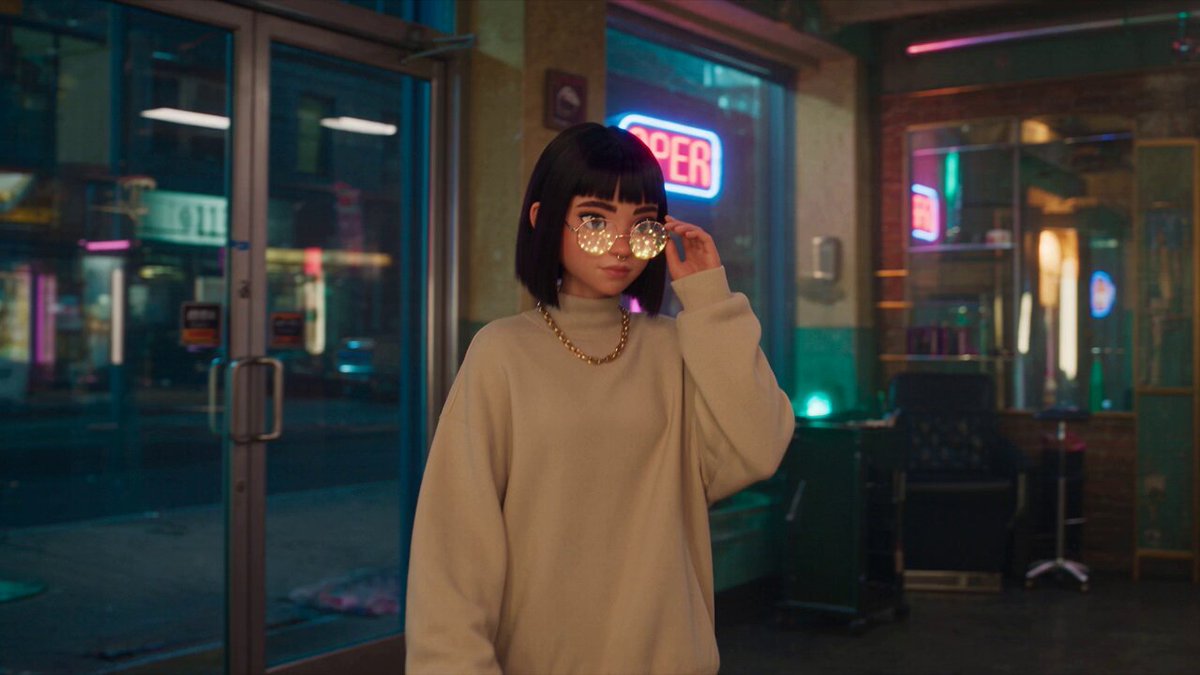
Written out, that becomes something like: "Woman in a wool coat walking through a rainy neon alley, rain falling steadily, slow tracking shot from the side at shoulder height, anamorphic lens, cool blue and magenta lighting, shallow depth of field." Every clause has a job.
The same idea at three levels of control
Consider a product shot of a smartwatch on a desk.
Low control: "A smartwatch on a desk, cinematic." The model decides everything. You will get something plausible and probably unusable for brand work.
Medium control: "Close-up of a black smartwatch on a walnut desk, screen glowing softly, slow push in, warm afternoon light from the left, shallow depth of field." Now the shot is defined, and the model has room to render.
High control: generate the still yourself from a product render, then animate only the screen content and a subtle camera push. Nothing about the physical product can drift, because the model never had to invent it.
Most commercial work should live at medium-to-high control. Low-control prompting is for exploration and mood boards, not deliverables.
Using Your Own Assets: Images, Footage, and Brand Consistency
Image-to-video is the highest-value technique
If you learn one skill from this guide, make it image-to-video. Starting from a still you control removes the largest source of randomness in the entire pipeline: the initial composition. You keep the layout, the product geometry, the typography placement, and the color palette exactly as approved, then ask the model for only motion.
The trade-off is that motion quality becomes the limiting factor. A strong still animated with a timid camera move can look flat. Counter that by combining the generated motion with a subtle editorial push in post, or by layering in practical elements — particles, light flicker, screen glow — from stock or from your own footage.
Style control and brand consistency
Brand work lives or dies on repetition. The same logo, the same gradient, the same typeface across twelve deliverables. AI generation resists repetition by default, so you need to force it.
Three practical techniques help. First, fix a reference image set and reuse it for every shot in a campaign. Second, keep a written style block — colors, lighting, lens, grain — and paste it unchanged into every prompt. Third, build a small library of approved motion presets so that transitions and camera moves feel like part of the same family.
Characters, avatars, and continuity
Character continuity is the hardest problem in generative video. Faces drift, clothing changes, and eye lines wander. Solutions exist, but they all cost either time or money.
Reference-based character tools let you lock an identity from a handful of images. Actor or performance-transfer pipelines let you drive a generated character with real footage, which is far more reliable for dialogue and gesture. For anything longer than a few shots, plan your character work as its own mini-project with its own review cycle rather than bolting it onto a general edit.
Quality Control: A Pre-Export Checklist
Run this list before anything leaves your machine, whether it is an internal review or a client delivery.
- Check the first and last frames. Models often start and end with unstable frames. Trim them.
- Watch at full speed, not frame by frame. Artifacts that look catastrophic when paused are frequently invisible in motion.
- Scan for hands, text, and teeth. These are recurring weak points. If a shot depends on readable text, add it in post instead of generating it.
- Verify continuity between shots. Props, wardrobe, light direction, and time of day should not jump without intent.
- Check audio loudness and sync. A great visual with a half-second audio offset reads as amateur.
- Confirm aspect ratio and safe areas. Captions and logos get cropped more often than anyone expects.
- Document what you generated. Keep prompts, references, and settings alongside the final file.
This checklist takes about ten minutes per deliverable and prevents the specific class of error that clients notice instantly.
Common Mistakes That Waste Time and Budget
Asking for long clips. Ten-second generations look impressive in a demo and fragile in production. Build length from multiple shots.
Skipping the still approval step. Moving straight to video means every rejection costs a full render instead of a single image.
Using text prompts for things that need references. If the shot depends on a specific object or person, supply an image. Words cannot lock geometry.
Ignoring the edit until the end. Assembling early reveals pacing problems while there is still time to fix them at the shot level.
Chasing a perfect single take. Ten mediocre options beat one over-polished render when the deadline is real.
Forgetting sound. Viewers forgive visual imperfection far more readily than bad audio.
Not versioning prompts. When something works, you need to know exactly what produced it.
Tool Stack Options Compared
There is no single best generator, but there are clear categories, and most healthy pipelines use two or three of them.
| Category | Strength | Weakness | Typical use |
|---|---|---|---|
| All-in-one creative suites | Deep integration with editing and design apps | Less cutting-edge on raw synthesis | Brand and marketing production |
| Specialized video models | Best motion realism and camera control | Limited editing and asset management | Hero shots and cinematic sequences |
| Image models plus animation tools | Maximum control over composition | Requires more manual steps | Product and character work |
| Template and avatar platforms | Speed and repeatability | Visually generic | Volume social content and training video |
| Traditional motion tools with AI features | Precision and typography | Slower to iterate | Explainers and UI animation |
A practical stack for most small teams is one specialized video model for hero shots, one image model for composition control, and one editor that handles captions, sound, and versioning well. Adobe's ecosystem is a common choice here because Firefly generation sits next to Premiere Pro and After Effects, which means approved assets move into a real timeline without exporting through four different apps. Whatever you choose, prioritize the handoff between generation and editing — that seam is where projects slow down.
Scaling AI Animation Across a Team
Treat prompts as documents
Once more than one person generates video, prompts become production assets. Store them in a shared file with the reference images, settings, and the resulting clip name. Version them like code: when a campaign look changes, the prompt changes, and everyone downstream knows which version they are using.
This habit prevents the most common team failure in AI video: two people generating similar shots that do not match, then spending a day in the edit trying to reconcile them.
Client communication: what to promise
Be explicit about what generation is good at and where you will apply manual craft. Clients respond well to a clear statement like: "We will explore the look with AI, lock it with your approval on stills, then animate and finish in our standard editing pipeline." That framing sets expectations about review stages, revision limits, and turnaround in a way that a vague promise of "AI-powered video" never will.
Also plan for disclosure conversations early. Some clients and platforms require labeling synthetic media, and it is far easier to include that in the original plan than to retrofit it after delivery.
FAQ
How long should a single AI-generated clip be?
Three to six seconds is the sweet spot for most models. Shorter clips are more stable and easier to cut; longer clips accumulate drift. If your final piece is thirty seconds, plan for eight to twelve shots rather than two long renders.
Do I need a powerful computer to use these tools?
For cloud-based generators, no. Most processing happens remotely, so a mid-range laptop and a stable connection are enough. Local rendering is a different story and generally requires a strong GPU, which only makes sense if you have privacy or volume requirements that justify the hardware.
Can AI animation replace a motion designer?
Not for precision work. It replaces parts of the exploration and asset-production process, and it can handle atmospheric and background shots well. Typography, brand systems, and frame-accurate timing still reward human judgment.
How do I keep a character consistent across shots?
Use reference images of the same character in every generation, keep the prompt's descriptive block identical, and avoid changing camera angles drastically between shots. For dialogue-heavy work, performance transfer from real footage is more reliable than text-only prompting.
What is the fastest way to improve output quality?
Approve stills before animating, animate the simplest thing that satisfies the shot, and trim the unstable first and last frames of every clip. Those three habits improve perceived quality more than any model upgrade.
How should I handle licensing and disclosure?
Read the terms of every tool you use, keep records of your prompts and sources, and ask clients about labeling requirements before you start. When in doubt, disclose — it costs nothing and protects the project.
Is it worth learning prompt engineering in depth?
Yes, but the useful part is structural, not magical. Learning to specify subject, motion, camera, and look in a consistent order will improve your results across every tool, and that skill transfers even when the models change.

Alexander
More Blogs
Read MoreVidu Q4 Alternatives: 4K AI Video Models Compared (2026)
Vidu Q4 alternatives compared: Kling 4.0, Seedance 2.5, Wan 3.0, and Runway Gen-4 — 4K support, input modes, durations, audio, and what each costs in credits on Domer.
Top 4K AI Image Generators in 2026: 5 Models Compared on Real Costs
The top 4K AI image generators on Domer compared: Flux 3 Klein, Nano Banana 2.1, GPT Image 2.5, GPT Image 2, and Nano Banana Pro — 4K credit costs, reference limits, and speed.
Nano Banana 2.1 vs GPT Image 2.5: Which Image Model Should You Use? (2026)
Nano Banana 2.1 vs GPT Image 2.5 Flare compared: credit costs per resolution, aspect ratios, reference images, text rendering, and which tasks fit each model.