
Crea
Affiliazione
Inizia Gratis Ora
AI Apps for Instagram Video Edits: A Practical Workflow Guide
Oct 15, 2026

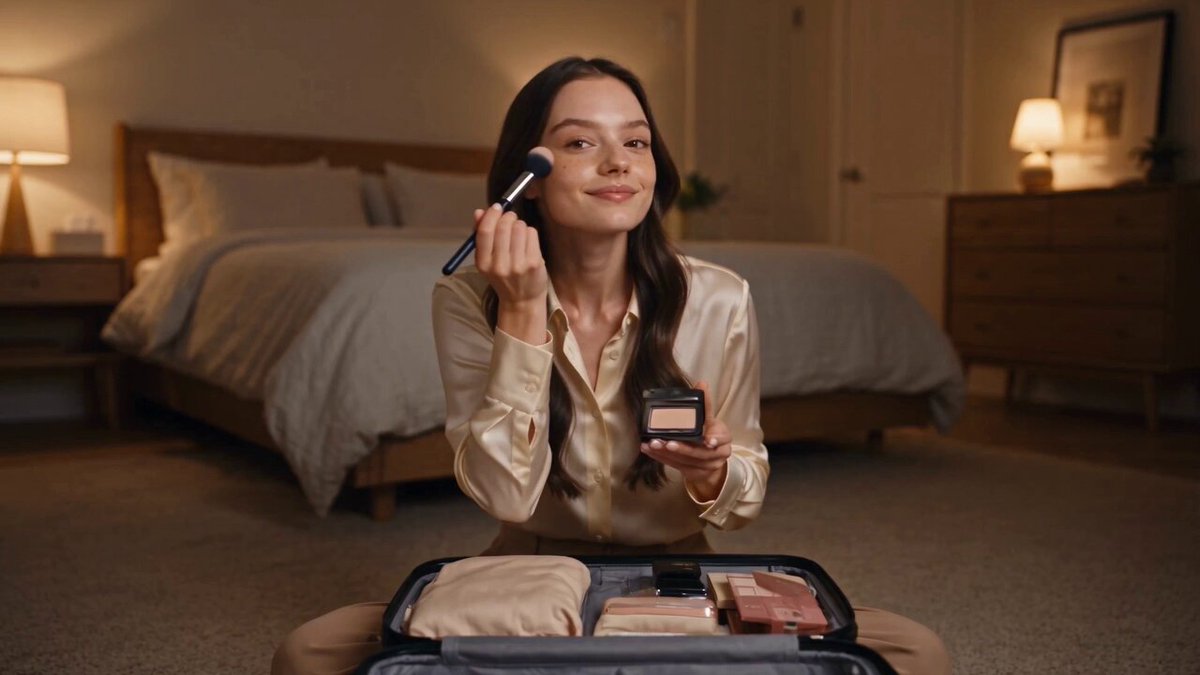
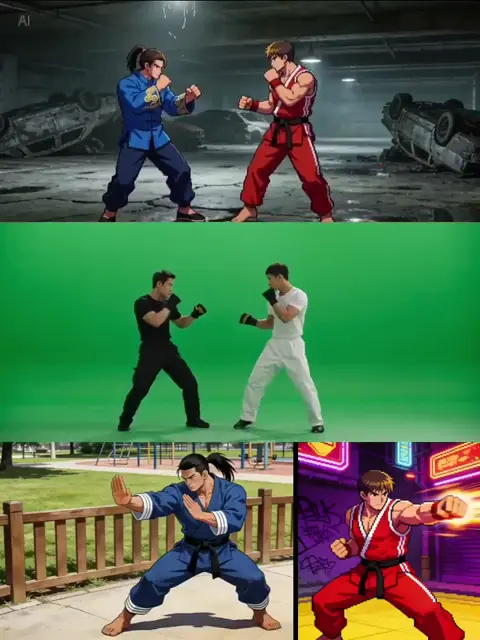
Why Instagram Editing Has Become an AI-Assisted Craft
Instagram is a video-first platform now. Reels, Stories, and in-feed video account for most of the time people spend in the app, and the ranking signals that matter most — completion rate, replays, shares, saves — reward pacing and clarity far more than they reward expensive production. That creates a strange set of expectations. You are supposed to publish often, edit quickly, and still look deliberate.
Doing all three by hand is possible, but it is slow, and it burns the hours you need for shooting, planning, and talking to your audience. AI-assisted editing moved from novelty to default practice because it removes the repetitive middle of the job: transcribing, cutting silences, matching color between shots, cleaning up audio recorded in a noisy room.
Something else changed too. The tools got good enough that the bottleneck is no longer capability. Modern apps ship automatic scene detection, word-level captions, background removal without a green screen, voice isolation, upscaling, and prompt-driven b-roll. The real question is no longer whether AI belongs in your workflow. It is which combination of apps fits the way you actually shoot, edit, and publish — and how much of the decision-making you want to hand over.
This guide is organized around decisions rather than rankings. You will find the constraints Instagram imposes on every edit, the jobs AI does well and the ones it does badly, a framework for choosing tools, and a full workflow that takes a raw clip to a published Reel with the parts that matter left in human hands.
The Constraints That Shape Every Instagram Edit
Most editing frustration happens before anyone opens an app. It happens when a creator builds an edit for the wrong canvas. Instagram is unusually strict about framing, and a beautiful widescreen timeline will look broken the moment it is cropped into a vertical feed.
Aspect ratio, resolution, and reframing
Reels and Stories are vertical: 9:16. In-feed video supports square and landscape, but vertical almost always wins because it fills the screen on a phone. Export at 1080 x 1920 as your baseline. If your source footage is horizontal, decide early whether you will crop, pad with a blurred background, or reframe. Subject-tracking reframe tools can pan a wide shot into a vertical frame automatically, which saves a lot of time — but they need a manual pass, because tracking drifts during fast movement and near frame edges.
Safe zones
Instagram lays interface elements over your video: the caption, the username, the audio label, and the action buttons stacked on the right side. Treat roughly the top 15 percent and the bottom 20 percent of the frame as unreliable. Keep faces, text, and product details inside the central area. Editors with safe-zone guides make this trivial; without them, preview the export on a real phone before publishing rather than trusting a desktop monitor.
Length and pacing
Reels can run long, but attention falls fast. A tight 15 to 30 second edit usually beats a 60 second one unless the longer piece has a real narrative arc or a genuine tutorial payoff. Pacing matters more than duration. Cut on movement, change the shot every two to four seconds during the opening, and slow down once the viewer is invested. Scene detection features that find motion peaks and audio transients are a good first pass for cut points, even if you trim by hand afterward.
Sound-off viewing and captions
A large share of viewers watch with the sound off. Burned-in captions improve retention and accessibility. Automatic speech-to-text is now accurate enough for English and most major European languages that manual transcription is rarely worth the time, but you should always proofread names, product terms, numbers, and anything a model could mishear.
Which Editing Tasks AI Handles Well — and Which It Does Not
AI is uneven. It is excellent at repetitive, pattern-based work and weak at taste. Sorting your tools around that reality prevents a lot of wasted effort.
Assembly and trimming. Silence removal, filler-word detection, and scene splitting are solved problems. Feed a twenty-minute talking-head recording into a strong editor and you can get a tight three-minute assembly in minutes. The output is a starting point, not a finished cut.
Transcription and captions. Word-level timestamps make animated captions possible without keyframing, which is why captioning features reshaped short-form editing more than any generative tool.
Cleanup and correction. Noise reduction, voice isolation, color matching between clips from different lighting conditions, stabilization, and upscaling from 720p to 1080p are all dependable in current tools. These are the unglamorous wins that make phone footage look intentional.
Isolation and compositing. Background removal without a green screen is good enough for talking heads and product shots, provided the subject's edges are not hair-thin against a busy background. Fine hair, glass, and fast motion remain the failure cases.
Generation. Text-to-video, image-to-video, and reference-based workflows produce striking b-roll, transitions, and abstract texture. They struggle with specific real people, readable text inside the frame, and precise physical actions. Use generated footage as atmosphere, not as a substitute for your own primary footage.
Audio. Voice synthesis, noise removal, automatic ducking of music under speech, and generated music beds are mature enough for regular use. Voice cloning is a separate question with consent implications covered later.
The pattern is simple: let machines handle the parts nobody watches for, and keep human judgment for hooks, structure, and the emotional beats that decide whether someone stays.
A Decision Framework for Choosing Your Editing Apps
Rather than collecting ten apps, pick two or three that cover different stages of the job. Ask these questions before you commit.
Where does the footage live? If you shoot on a phone, a mobile editor keeps everything on one device with no transfer step. If you shoot on a camera or record long-form interviews, a desktop editor with proxy workflows will save hours.
Who else touches the project? Solo creators can optimize purely for speed. Teams need shared project files, version history, comment threads, and locked brand assets.
Do you want templates or a recognizable style? Template-driven editors produce fast, on-trend edits that can feel interchangeable. Timeline editors take longer but build a look that viewers start to recognize.
How much control do you want over automated decisions? Some apps apply automatic color, stabilization, and framing with no way to override. Others expose parameters. If brand consistency matters, prefer tools where you can lock a look and reuse it across projects.
What is the export path? Check watermark policy, resolution limits, and whether the free tier allows commercial publishing. A watermark is a hidden tax that shows up in your finished work.
How fast is your feedback loop? If you publish reactively, prioritize tools that render quickly on the device you already have. A slower high-end editor is a liability when the trend dies in six hours.
A practical rule: one primary editor for assembly, one specialist tool for the weakest part of your edit, and one generator for b-roll. More than three tools usually means more exporting than editing.
Mobile Editors: Speed Before Precision
Mobile editors dominate short-form because they collapse shooting, editing, and publishing into a single device, with no file transfer in between.
CapCut offers a surprisingly deep timeline for a phone app: auto-captions, background removal, speed curves, keyframes, and a large template library. It is the default starting point for many Reels creators, and a reasonable one.
InShot and VN lean toward straightforward trimming, transitions, and text with fewer generative features. They are good when you want speed without a heavy interface or a subscription.
Adobe's mobile video tools integrate with the desktop ecosystem, which matters if you already use Adobe apps for photos, graphics, or motion. Expect a learning curve for advanced features.
Canva is not a traditional editor, but its video canvases plus image tools make it excellent for graphic-led Reels: text animation, brand kits, and resize-and-repurpose workflows. If your content is more typography than footage, it may be all you need.
Descript's mobile and web experience is built around editing text to edit video. For talking-head content, interviews, and voiceover-heavy Reels, editing a transcript is dramatically faster than scrubbing a timeline.
Choose a mobile editor when your content is reactive, trend-driven, or published within hours of shooting. Accept the trade-off: smaller screens make audio timing and color consistency harder to judge.
Desktop and Browser Editors: Control Before Convenience
When you need precision, a desktop timeline still wins, especially for color, multi-track audio, and anything longer than a minute.
DaVinci Resolve offers professional color grading, a strong audio page, and a capable free tier. Its AI features include object removal, mask tracking, and speech-to-text. It is heavier than a phone app but rewards the investment with control that generative tools cannot replicate.
Adobe Premiere Pro covers text-based editing, automatic transcription, and tight integration with motion graphics tools. It is the safe default for teams already inside an Adobe workflow.
Final Cut Pro remains the fastest timeline for Apple users, with magnetic timelines and strong performance on laptop hardware.
Browser-based editors such as Clipchamp work well on low-powered machines and in collaborative settings, though they lag behind installed software for complex grading and multi-track audio.
A common hybrid pattern works surprisingly well: assemble and caption on desktop for accuracy, then send a draft to a phone for final polish, sound checks, and posting. It sounds inefficient, but it often beats fighting a small screen for audio timing.
Generative Video, Image, and Audio Tools in Practice
Generative tools solve the coverage problem. When you need three seconds of a city at night, a product rotating in soft light, or an abstract texture behind a quote, generating it is often faster than searching stock libraries.
Text-to-video. Prompt for camera movement, lens character, lighting, and mood rather than plot. "Slow dolly-in, shallow depth of field, warm tungsten light, condensation on glass" outperforms "a drink being poured." Keep generations short — three to five seconds each — and cut them into the edit as accents.
Image-to-video. This is the most useful mode for product and brand work. Start with a still you control, then animate it: subtle parallax, a slow push, drifting particles. Because you supply the composition, the output stays on brand.
Reference-based consistency. Supplying several reference images lets you hold a character or product appearance across multiple shots. Consistency is the hardest part of generated video, so a reference-driven approach beats re-prompting from scratch each time.
Stylization and upscaling. Turning real footage into animation, adding grain and halation, or upscaling a phone clip to clean 1080p are low-risk uses that rarely look artificial.
Audio generation. Text-to-speech is useful for faceless channels, explainer segments, and multi-language versions of the same Reel. For music, describe genre, tempo, instrumentation, and energy curve rather than naming a popular artist, and confirm the license terms of the specific tool before publishing.
Practical guidance: label generated b-roll mentally as set dressing. It supports the story; it should not be the story. Viewers forgive a synthetic texture shot, but they notice immediately when an entire video is synthetic.
A Repeatable Workflow From Raw Clip to Published Reel
Consistency beats inspiration. This workflow scales to a weekly publishing schedule without turning editing into a second job.
1. Capture with the edit in mind. Shoot vertical, leave headroom for captions, grab two extra seconds at the start and end of every shot, and record a clean audio take even if you plan to replace it.
2. Organize before you edit. Create one folder per Reel, pull selects into it, and name projects with date plus topic. It saves minutes every week and hours every month.
3. Build a rough assembly fast. Drop selects on the timeline in story order without trimming. Get the shape right first: hook, context, payoff, call to action.
4. Write the hook while watching the assembly. The first two seconds decide everything. If the hook is not visible in your first shot, add a text overlay or reorder clips.
5. Run the automatic pass. Auto-captions, silence removal, scene detection. Then go manual: fix caption line breaks, delete the pauses that remain, tighten pacing.
6. Layer sound. Dialogue or voiceover first, music bed second, sound effects third. Cuts that land on a beat feel intentional. Use whooshes sparingly — they date quickly.
7. Color and finish. Apply one look across the whole piece, match shots from different lighting conditions, and add subtle grain or halation if the footage looks too clean and digital.
8. Export and preview on a phone. Check safe zones, caption legibility at arm's length, and loudness. Watch once with sound off and once with sound on.
9. Publish with intent. Write a caption that adds information rather than repeating the video, choose a cover frame with a face or clear focal point, and resist deleting a Reel that underperforms in the first hour.
10. Review and iterate. After a week, note which hooks, lengths, and formats performed. Feed that back into the next capture session instead of starting from a blank slate.
Mistakes, Rights, and Quality Control
Over-editing. Constant zooms, transitions, and effects create visual noise. One strong transition per video is usually enough.
Ignoring the hook. A beautiful edit with a slow first two seconds loses to a plain edit with a strong opening line.
Inconsistent framing. If one shot is full-body and the next is a tight crop with a different color temperature, the edit feels amateurish regardless of how good the tooling is.
Caption clutter. Full sentences centered at large sizes block the subject. Short chunks positioned in the upper or middle third read better.
Leaning on generated footage for the whole piece. Viewers may not name it, but they feel the absence of a real person, product, or place.
Skipping the rights check. Generated music, synthetic voices, and reference-based images all carry license terms. Read them once, then build a toolkit you know is safe to publish.
Editing on one screen size. What looks fine on a laptop is often unreadable on a phone.
On rights, three questions prevent most problems. Do you own or license every clip and image you use? Do you have consent from anyone whose face or voice appears, including cloned voices? Does your music license permit commercial use on social platforms? If any answer is unclear, replace the asset — a royalty-free alternative costs less than a takedown.
On disclosure, platforms increasingly expect transparency when content is synthetically generated or meaningfully altered. Most automated options live in the upload flow. Beyond rules, there is a trust argument: audiences forgive AI assistance in production and resent being deceived about it.
Build a short pre-publish checklist: safe zones respected, captions proofread, audio peaks not clipping, brand colors accurate, export resolution correct, disclosure applied where needed. Two minutes of checking prevents the re-upload that resets your performance data.
FAQ
Do I need a paid app to edit Reels well?
No, but free tiers typically add watermarks or cap resolution. If you publish commercially, check the license terms of the free plan before you rely on it.
Is text-to-video good enough to replace filming?
For abstract b-roll, backgrounds, and textures, yes. For talking heads, product demonstrations, and anything requiring precise real-world action, filming is still faster and more reliable.
How long should a Reel be?
Match the length to the idea. Fifteen to thirty seconds suits most single-idea content. Go longer only when there is a genuine narrative or a tutorial that earns the extra time.
What is the fastest way to caption videos?
Use automatic speech-to-text, then proofread. If you publish in multiple languages, translate the transcript rather than re-recording narration, and review the translated lines for natural phrasing.
Can AI make phone footage look professional?
Up to a point. Stabilization, noise reduction, color matching, and upscaling help significantly. Lighting and composition still matter more than any post-production tool.
Should I use the same editing app for every post?
Consistency helps your audience and your own speed. Pick one primary editor, learn its shortcuts, and add specialist tools only where they solve a specific problem.
How do I keep a consistent look across generated and real footage?
Apply a single color treatment, grain amount, and caption style to both. Generated clips often look cleaner than camera footage, so add a touch of texture to generated shots rather than removing texture from real ones.
Do AI music generators produce copyright-safe tracks?
Generally yes, if you follow the tool's license. Some restrict use in certain contexts or require a paid plan for commercial publishing, so verify before you export.
How do I know when AI is the wrong choice?
When the task depends on taste, timing, or a specific real-world detail — a punchline, a product's exact texture, a person's expression. Automate the middle of the job and keep the edges human.
What if my edits keep looking generic?
Generic usually means inconsistent sourcing plus template defaults. Lock one color treatment, one caption style, and one pacing rhythm, then vary the substance rather than the surface.
Getting Started Without Overwhelm
Pick one editor, one audio tool, and one generator. For the next four posts, run the same workflow: capture vertical, assemble fast, let the automatic pass do the first round of cleanup, then spend your remaining effort on the hook, the captions, and the sound. Once that loop feels routine, add a specialist tool to fix whatever still slows you down.
The creators who get the most from AI editing are not the ones with the biggest tool stack. They are the ones who understand Instagram's constraints, know which tasks machines handle well, and reserve human attention for the parts that decide whether someone watches to the end. Apps change constantly; the workflow and the judgment behind it carry from one tool to the next.

Alexander
More Blogs
Read MoreVidu Q4 Alternatives: 4K AI Video Models Compared (2026)
Vidu Q4 alternatives compared: Kling 4.0, Seedance 2.5, Wan 3.0, and Runway Gen-4 — 4K support, input modes, durations, audio, and what each costs in credits on Domer.
Top 4K AI Image Generators in 2026: 5 Models Compared on Real Costs
The top 4K AI image generators on Domer compared: Flux 3 Klein, Nano Banana 2.1, GPT Image 2.5, GPT Image 2, and Nano Banana Pro — 4K credit costs, reference limits, and speed.
Nano Banana 2.1 vs GPT Image 2.5: Which Image Model Should You Use? (2026)
Nano Banana 2.1 vs GPT Image 2.5 Flare compared: credit costs per resolution, aspect ratios, reference images, text rendering, and which tasks fit each model.