
Affiliazione
Inizia Gratis Ora
AI Art and Video Generator Workflow: Create Visuals That Move
Oct 15, 2026
Why AI Art and Video Generators Belong in the Same Workflow
AI art generators and AI video generators are often discussed as separate categories, but the most interesting work happens when they feed each other. A still image can become a storyboard panel, a style reference, a texture map, a character sheet, or the first frame of an animated shot. A video generator can take that frame and add camera movement, environmental motion, or a subtle performance. When you connect the two, you stop producing isolated outputs and start building a visual system.
The practical benefit is consistency. If you generate a character portrait in one tool, then animate it in another, you risk changes in face shape, clothing details, lighting direction, and color grading. A shared reference image, a written style guide, and a repeatable prompt structure reduce that drift. You can also reuse seeds, control images, and depth maps across stages so the final video still feels like the original art.
A second benefit is speed. Instead of building every background, prop, and lighting setup from scratch, you can explore dozens of visual directions in image form, select the strongest, and animate only those. This saves time on failed motion tests. It also makes client feedback easier because stills communicate tone and composition quickly, while video tests confirm whether the motion idea works.
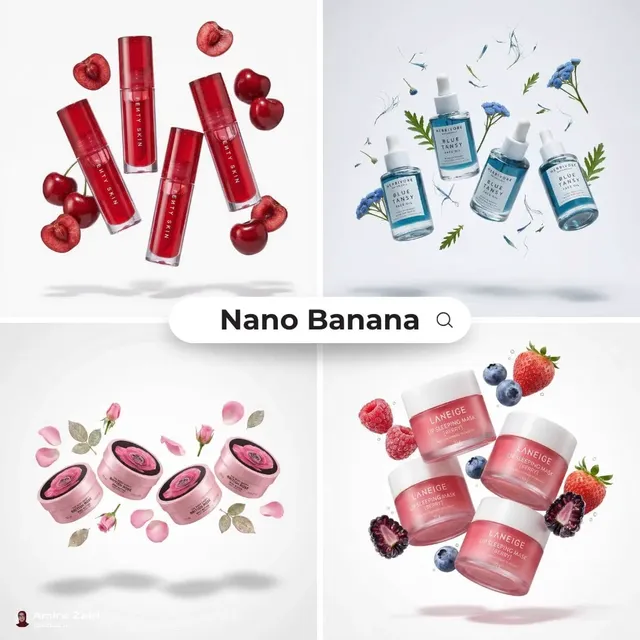
Finally, mixed workflows open creative doors that single-purpose tools cannot. You can create a painterly landscape, animate a slow parallax camera move, add atmospheric particles, and cut it to music. You can generate a product in a clean studio style, then animate a turntable rotation and add reflective highlights. You can design a surreal creature, animate its breathing, and composite it into live-action footage. The key is to treat AI as a set of connected stages, not a single magic button.
How the Two Technologies Differ and Where They Meet
AI art generation and AI video generation share foundations in deep learning, but they solve different problems. Image models typically focus on spatial quality: composition, detail, texture, lighting, and style. They can generate at high resolution and offer fine control through prompts, negative prompts, image references, depth maps, pose guides, and regional prompts. Iteration is relatively cheap because each output is a single frame.
Video models must also handle time. They need temporal coherence, which means keeping objects, backgrounds, and lighting stable from frame to frame. They must decide how motion behaves: how fabric folds, how hair moves, how water flows, how a camera pans. This makes video generation more computationally expensive and more sensitive to prompt wording. A prompt that produces a beautiful still may produce a muddy or unstable clip if it lacks motion cues or contains too many competing actions.
The meeting point is image-to-video. Here, an AI-generated still becomes the anchor. The video model uses it as the first frame, a style reference, or a structural guide. This approach gives you more control than pure text-to-video because composition, color, and subject identity are already established. Other bridges include video-to-video restyling, frame interpolation, upscaling, rotoscoping, and depth-based parallax. Each bridge lets you carry visual decisions from the art stage into the motion stage.
A useful mental model is to separate the project into look development and motion development. Look development belongs mostly to image tools: mood boards, key art, character designs, color scripts, and lighting studies. Motion development belongs to video tools: camera paths, performance, physics, pacing, and transitions. When both stages share the same references, the final piece feels unified.
Building a Reliable Art-to-Video Pipeline
A reliable pipeline does not have to be complex, but it should be deliberate. The following stages work for short social clips, product videos, narrative scenes, and experimental loops.
Stage 1: Define the creative brief and delivery constraints
Start with the output. Is this a vertical clip for social media, a horizontal product demo, a looping background, or a scene for a longer edit? Note the aspect ratio, target duration, frame rate, and where the video will be viewed. A clip that looks sharp on a phone may fall apart on a large screen if the source images are low resolution or the motion is blurry.
Write a one-sentence creative brief. For example: 'A slow, cinematic reveal of a ceramic coffee cup on a warm morning table, with steam rising and soft window light.' This sentence becomes your north star. It tells you what to generate, what to reject, and when the shot is finished.
Stage 2: Develop key art and a style bible
Use an AI art generator to explore the visual direction. Generate a small set of images that represent the mood, color palette, lighting, and composition. Do not chase a single perfect image yet. Instead, look for a consistent visual language. Save the prompts, seeds, model names, and reference images that produced the best results.
Create a simple style bible. It can be a text file or a note with five to ten bullet points: palette, lighting, lens feel, texture, era, and subject treatment. Include a few approved images. This document keeps every later generation aligned, whether you are making another still or animating a shot.
Stage 3: Prepare images for animation
Not every beautiful image animates well. Before sending a still to a video generator, check composition and separation. Subjects should be distinct from the background. Important details should not sit at the very edge of the frame, because motion may reveal missing information. If the video model needs to invent what is behind a character, it may produce warping or melting.
Prepare the image by cleaning up obvious artifacts, fixing anatomy, and extending the canvas if the camera will move. You can use an image editor, an inpainting tool, or an AI upscaler. If the shot requires a specific camera move, consider creating a depth map or a rough 3D proxy. Some video tools accept depth or pose inputs, which can make motion much more predictable.
Stage 4: Generate motion with image-to-video and text-to-video
Now write motion prompts. Describe the camera, the subject action, the environment, and the pacing. Keep the action simple. 'Slow dolly in, steam rises gently, curtains move in a light breeze' is better than 'the camera moves around while the character drinks, turns, laughs, and the room changes from day to night.' One shot should usually communicate one main motion idea.
Generate several short clips rather than one long clip. Short clips are easier to control and cheaper to redo. If a clip fails, adjust one variable at a time: camera speed, subject action, or negative prompt. Some tools offer motion strength, seed locking, or reference image weight. Use those controls to maintain consistency. If you need a longer sequence, generate overlapping clips and edit them together.
Stage 5: Assemble, edit, and polish
Bring the clips into a video editor. Arrange them for pacing, add transitions, and cut on movement or sound. Stabilize any jitter, retime clips for slow motion, and color grade so all shots share the same palette. Add sound design early, because audio changes how motion is perceived. A simple whoosh, room tone, or music bed can make a generated clip feel intentional.
Finish with upscaling and compression. Export a master file at high quality, then create platform-specific versions. Check the final video on different devices. AI-generated details can look impressive on a monitor but turn to mush on a phone, especially in dark scenes or fast motion.
Prompting for Still Images vs Moving Shots
Prompting is a skill that transfers between art and video, but the emphasis changes. For stills, you are directing a single decisive moment. For video, you are directing a performance over time.
Prompt structure for AI art
A strong image prompt often includes subject, action, setting, lighting, lens, style, and mood. For example: 'A lone lighthouse on a rocky cliff, storm clouds gathering, dramatic side light, wide-angle lens, muted blue and gray palette, cinematic realism.' Add negative prompts to remove unwanted elements such as text, watermarks, extra limbs, or blur. Use reference images when you need a specific face, product, or composition.
Prompt structure for AI video
A video prompt should add motion and time. Include camera movement, subject movement, environmental movement, and pace. For example: 'Slow push-in on a lighthouse, waves crash below, clouds drift from left to right, seagulls cross the frame, cinematic, stable, 24 frames per second.' Avoid contradictory motions. If the camera pushes in and pulls out at the same time, the model may produce unstable results. Also specify what should stay still, such as 'background remains stable' or 'face stays consistent.'
Keeping consistency across both
Use the same style keywords in both stages. If your art prompt says 'soft morning light, warm ceramic tones, shallow depth of field,' your video prompt should repeat those anchors. Use a reference image or first-frame image whenever possible. For characters, create a character sheet with multiple angles and expressions, then use image references or face-locking features. For products, keep a clean reference photo and use it as the hero frame.
Tool Selection Criteria for Mixed Media Projects
Not every AI tool needs to do everything. It is often better to choose specialized tools and connect them. Evaluate options against the needs of your project.
Visual control and model variety
Look for tools that accept image references, depth maps, pose guides, or masks. These controls let you move from art to video without losing the look you developed. Model variety also matters. Some models excel at realism, others at illustration, anime, 3D, or painterly styles. A flexible toolchain can match the model to the shot.
Temporal coherence and motion realism
Review sample clips for flicker, warping, and object persistence. A model that produces beautiful stills may struggle with hands, faces, or complex motion. Test with your own images. Generate a short clip from a portrait, a product shot, and a landscape. Compare how well each model handles the specific challenges of your project.
Iteration speed and batch workflow
Speed affects creativity. If a clip takes too long to generate, you will test fewer ideas. Look for queue management, batch generation, and preview options. A fast draft mode is useful for exploring motion, while a high-quality mode can be reserved for final shots. Also consider how easily you can organize prompts, images, and versions.
Export, licensing, and commercial use
Check the terms for commercial projects, model training, and content restrictions. Verify export formats, resolution limits, and watermark policies. If you are working for a client, keep records of the assets you used and the prompts that generated them. This makes revisions and approvals smoother. Do not assume that every tool allows the same use case. Read the current terms before you publish.
Common Mistakes and How to Avoid Them
Many mixed-media projects fail for predictable reasons. Avoiding these mistakes will improve both quality and speed.
- Starting with video before the art direction is clear. Fix: develop key art and a style bible first.
- Writing video prompts that contain too many actions. Fix: one shot, one main motion idea.
- Using low-resolution images as video sources. Fix: upscale and clean images before animation.
- Ignoring audio until the end. Fix: add a scratch track early to guide pacing.
- Forgetting to lock character or product details. Fix: use reference images and consistent style tokens.
- Generating long clips in one pass. Fix: create short overlapping clips and edit them together.
- Accepting the first output. Fix: generate variations, compare, and adjust one variable at a time.
- Overlooking platform compression. Fix: test exports on the target device and adjust contrast and bitrate.
Practical Project Examples
Different projects need different balances of art and video. Here are four common examples and how to approach them.
Social media teaser
For a vertical teaser, start with three to five key art images that establish the mood. Choose one hero image and animate it with a simple camera move, such as a slow push-in or parallax slide. Add bold text in the editor rather than asking the video model to generate text. Keep the clip under ten seconds, use a strong music hit, and export at the platform's recommended resolution. The goal is a scroll-stopping visual, not a complex narrative.
Product explainer
For a product explainer, create clean studio images of the product from multiple angles. Use image-to-video to generate a turntable rotation, a slow reveal, or a close-up on a feature. Keep the background stable and the lighting consistent. Add UI callouts and captions in the editor. Because product details matter, use reference images and check each clip for warping. If a model changes the logo or shape, discard the clip and adjust the prompt or motion strength.
Narrative short or music video
For a narrative short, build a character sheet and a color script before animating. Generate stills for each shot, then animate only the shots that need motion. Use cuts, sound design, and music to carry energy. Not every moment needs AI motion. A still image with a slow zoom can be more powerful than a warped animated clip. Mix generated shots with practical footage or stock elements when it improves the story.
Concept art loop for a game or app
For a loop, create a wide environment image with clear layers: foreground, midground, and background. Animate each layer at a different speed to create parallax. Add subtle atmospheric effects like fog, embers, or rain. Make sure the first and last frames match so the loop is seamless. This workflow is useful for menus, loading screens, and ambient visuals.
Workflow Variations: Fast, Balanced, and High-Control
You can adjust the pipeline based on deadline, budget, and quality needs.
Fast workflow
Use a single AI art tool and a single video tool. Generate a few images, pick one, animate it with a preset motion, and edit quickly. This works for social content, mood pieces, and rapid prototyping. The trade-off is less consistency and fewer customization options.
Balanced workflow
Use two or three specialized tools: one for image generation, one for video generation, and one for upscaling or editing. Create a small style bible, generate a handful of key images, animate the best, and polish in an editor. This is the sweet spot for many commercial and creative projects.
High-control workflow
Use reference images, depth maps, pose guides, masks, and manual cleanup. Generate multiple candidates for every shot, composite elements, and color grade carefully. This approach takes longer but delivers the most consistent results. It is best for brand work, character-driven stories, and projects where visual continuity is critical.
Quality Control Checklist
Before you publish, run through this checklist:
- Does the first frame match the intended style and composition?
- Is the main subject stable throughout the clip?
- Are hands, faces, and fine details free of warping?
- Does the camera movement feel motivated and smooth?
- Is the lighting consistent from shot to shot?
- Does the color palette match the style bible?
- Is the audio synced and balanced?
- Are text and logos added in the editor rather than generated?
- Does the export look good on the target device?
- Are you cleared to use every asset commercially?
FAQ
Can one tool handle both AI art and AI video well?
Some platforms offer both image and video generation, but they rarely excel equally at both. A combined tool is convenient for quick projects, while a specialized chain gives you more control. Start with one tool if you are learning, then add specialized tools as your needs grow.
How do I keep characters consistent between images and video?
Create a character sheet with several angles and expressions. Use image references, face-locking features, or consistent prompt tokens. When animating, use the approved character image as the first frame and keep motion subtle. Avoid extreme camera angles that force the model to invent new facial details.
What resolution should I start with?
Generate at the highest practical resolution for your target output. If the final video is vertical 1080p, start with a square or vertical image that has enough pixels for a camera move. Upscale before animation if necessary. Higher resolution helps, but clean composition and stable lighting matter more than raw pixel count.
How long should AI video clips be?
Short clips are easier to control. Start with two to five seconds per shot. If you need a longer sequence, generate overlapping clips and edit them together. Longer single generations are more likely to drift, warp, or lose coherence.
Do I need a powerful GPU?
It depends on the tools. Cloud-based generators run on remote hardware, so your local machine mainly needs a good browser and internet connection. Local tools benefit from a strong GPU and plenty of memory. For most mixed-media workflows, a cloud tool plus a capable laptop is enough to begin.
How can I avoid a generic AI look?
Develop a specific style bible, use reference images, and avoid default prompts. Add imperfections, practical lighting cues, and a clear color palette. Mix AI-generated elements with real textures, stock footage, or manual compositing. The more decisions you make before generation, the less the output looks like a default model sample.
Next Steps: Build Your Own Mixed-Media System
The most effective approach is to treat AI art and video generators as one connected studio. Start small: pick a single shot, develop a key image, animate it, and polish it with sound and color. Document what worked and what failed. Then expand the pipeline to more shots and more complex sequences.
As you practice, you will develop a personal library of prompts, references, and motion presets. That library becomes your real advantage, because it captures your taste and solves recurring problems. Whether you are making social clips, product videos, or narrative scenes, the combination of still-image control and video motion gives you a flexible way to bring ideas to life.

Alexander
More Blogs
Read MoreVidu Q4 Alternatives: 4K AI Video Models Compared (2026)
Vidu Q4 alternatives compared: Kling 4.0, Seedance 2.5, Wan 3.0, and Runway Gen-4 — 4K support, input modes, durations, audio, and what each costs in credits on Domer.
Top 4K AI Image Generators in 2026: 5 Models Compared on Real Costs
The top 4K AI image generators on Domer compared: Flux 3 Klein, Nano Banana 2.1, GPT Image 2.5, GPT Image 2, and Nano Banana Pro — 4K credit costs, reference limits, and speed.
Nano Banana 2.1 vs GPT Image 2.5: Which Image Model Should You Use? (2026)
Nano Banana 2.1 vs GPT Image 2.5 Flare compared: credit costs per resolution, aspect ratios, reference images, text rendering, and which tasks fit each model.