
Affiliazione
Inizia Gratis Ora
AI Image Editor Workflow: Edit Photos Faster and Better
Oct 14, 2026


AI image editing stopped being a novelty the moment it became faster than doing the work by hand. Tasks that once took an hour of masking, healing, and curve adjustments now finish in a few clicks, and in most genres the output is good enough to deliver to a client. This guide covers how these tools actually work, which capabilities are worth caring about, how to evaluate an editor before committing to it, and the workflows where automation saves the most time.
Why AI Image Editing Became the Default Workflow
Two changes made this shift happen. The first was model quality. Segmentation and restoration networks became accurate enough to find individual strands of hair against a busy background, rebuild detail in an underexposed frame, and hold skin tones steady across a set of photos shot under shifting light. The second was interface design. Early tools exposed model parameters that no photographer wanted to tune. Current tools expose sliders that behave like the ones people already understand: strength, smoothness, warmth, contrast.
That combination moved AI from a separate step at the end of the pipeline into the middle of the normal flow. Import, cull, correct, retouch, export. Editors learn quickly where to trust the model and where to take over by hand, which is the difference between shipping faster and shipping faster with a plastic, over-smoothed look.
The economics matter too. If you handle volume, whether that is a store with hundreds of product shots, a social team publishing daily, or a photographer delivering an entire wedding, the bottleneck is rarely creative judgment. It is repetitive labor. Automation absorbs the repetition and leaves the decisions to you.
What an AI Image Editor Actually Does Under the Hood
Most editors blend several model families rather than relying on one "enhance" button. Understanding the categories helps you predict when results will be excellent and when the tool will invent something that was never in the frame.
Restoration versus generation
Restoration models reconstruct what was probably there: recovering sharpness from slight motion blur, suppressing sensor noise, pulling detail out of shadows, patching a small area of missing texture. They are conservative by design and are generally safe for documentary and editorial work.
Generation models create plausible content that never existed: a new sky, an extended canvas, a removed object, a completely replaced background. These are powerful, but they carry an editorial question. For commercial and social content, generated elements are routine. For photojournalism and documentary work they usually are not, and many publications require disclosure.
The processing stack
A typical pipeline runs in layers, each with its own model:
- Analysis: scene classification, subject detection, face and eye landmarks.
- Segmentation: separating subject from background, including hair, fur, and semi-transparent edges.
- Correction: exposure, white balance, lens profile, color balance.
- Retouching: skin texture, blemishes, eye clarity, stray hair removal.
- Detail: upscaling, denoising, sharpening without halos.
- Style: grading presets and look transfer between images or references.
Each layer can succeed or fail independently. A single bad result usually means one layer needs manual input, such as a tighter mask, a corrected horizon, or a disabled auto-white-balance, rather than the whole tool being useless.
Core Capabilities That Matter Most
Automatic retouching and portrait cleanup
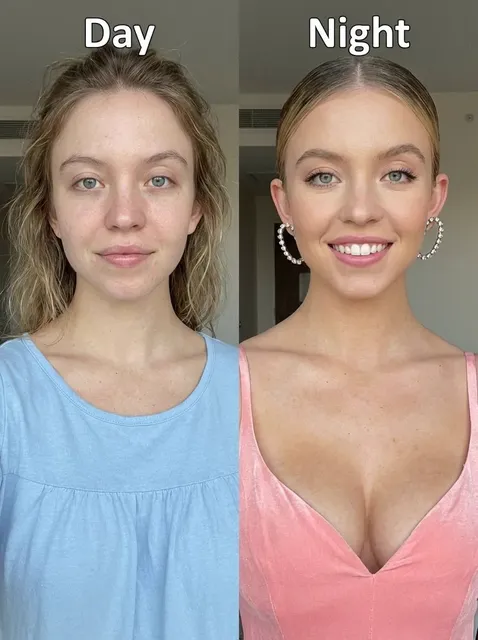
Face-aware retouching is the most mature feature in the category. Good implementations separate texture that should stay (pores, fine lines, freckles, natural variation in skin) from transient problems that should go: blemishes, blotchy redness, red-eye, flyaway hairs. The failure mode is frequency separation pushed too far. Skin turns into a flat surface, hair edges melt into the background, and teeth glow unnaturally white.
Practical habit: keep the strength slider between 30 and 50 percent, then compare at 100 percent zoom. If you cannot see skin texture at full magnification, you have gone too far. For group shots, check every face individually, since models often handle the most prominent face best and treat the rest of the frame with less care.
Background removal and replacement
Segmentation quality is the single best test of an editor. Run it on three difficult images: someone with curly hair, a product with a reflective surface, and a subject against a low-contrast wall. A strong tool returns clean edges with no halo, preserves semi-transparent details like veil fabric or glass, and does not eat fingers or thin straps.
Replacement matters as much as removal. Look for controls that match the lighting direction of the original, apply a subtle contact shadow under the subject, and preserve the original shadow shape. Without those, composites look obviously pasted even when the cutout itself is perfect.
Color grading and style transfer
AI grading can analyze a reference image and apply its palette, contrast curve, and color temperature to your photo. This is genuinely useful for consistency: a catalog shoot spread across three days of changing weather will still look like one campaign. It is less useful for creative work where the grade is the point, because the model optimizes for resemblance to the reference rather than for the story you are telling.
Use it as a starting point. Apply the look, then adjust shadows, skin tone, and saturation by hand. Watch for oversaturated skies and orange skin as the two most common artifacts.
Upscaling, denoising, and detail recovery
Upscaling has two jobs: making small files printable and rescuing slightly soft images. Both are reconstruction tasks, and quality varies dramatically between tools. Test on a portrait with fine eyelashes, a landscape with distant foliage, and a texture-heavy shot like fabric or brick. Good upscalers add plausible detail without turning foliage into mush or adding a painterly sheen.
Denoising deserves the same test. Aggressive noise reduction removes grain and also removes skin texture, which is why a light pass followed by careful sharpening usually beats a single heavy pass.
Batch processing and reusable presets
Batch processing is where the time savings become obvious. The key is designing edits that survive variation. A preset built on one image often fails on the next because exposure, subject position, and background differ.
A reliable sequence: apply corrections only (lens, white balance, exposure, contrast), then retouch, then grade. Save the correction stage as a preset and keep retouching and grading manual per image. That way the automated stages handle mechanical work, and the stages that need judgment stay under your control.
How to Choose the Right Tool
Quality versus iteration speed
Some tools produce a brilliant single result but take thirty seconds per image; others produce a decent result in two seconds. For a portrait studio, the slow, high-quality option wins. For a marketplace processing thousands of listings, throughput decides. Measure on your own images rather than trusting a demo gallery.
Control: masks, layers, and re-editable history
Automation that cannot be corrected is a liability. Look for editable masks, the ability to subtract from a selection, brush-based refinement, and a history you can step back through. The strongest tools treat AI output as a layer, not a flattened replacement.
Export, color management, and file handling
Check supported formats and bit depth. Sixteen-bit TIFF and PNG export, embedded color profiles, and clean RAW handling matter if you deliver to print or to a client with strict specifications. Also verify how the tool resizes on export and whether it applies output sharpening.
Privacy, licensing, and provenance
If you work with client material or unpublished products, understand where images are processed. Some tools run locally, some in the cloud with retention policies, and some use uploaded images for training by default. Read the terms and know whether your plan allows commercial use. Content credentials and provenance metadata are increasingly expected by larger clients.
Workflows by Use Case
Social media content pipeline
Build a weekly batch: cull in your library, apply a correction preset, run face-aware retouching at moderate strength, then crop to the platform ratios you need, including square, vertical, and landscape versions of the same image. Export at platform-appropriate sizes. Keeping one grading look across a month of posts does more for brand recognition than any single clever edit.
E-commerce product photography
Consistency beats drama here. Photograph on a neutral background, let segmentation handle the cutout, then apply a fixed shadow treatment so every product appears to sit on the same surface. Standardize canvas size and product scale across the catalog. Inspect reflective and transparent items manually, since those are the categories AI cutouts still mishandle most often.
Event and portrait photography
Cull first, and never retouch an image you are about to discard. Apply base corrections to the whole set, then retouch only the selects. Session work benefits from a consistent skin treatment, but vary strength by subject: children and older clients need lighter handling than a typical beauty shot.
Marketing and ad creative
This is where generation earns its place. Extending a canvas for a wide banner, swapping a background for a seasonal campaign, or producing regional variants of one hero image all become fast operations. Keep a master file with the original untouched photo, and treat generated versions as derivatives so you can always rebuild.
Common Mistakes and How to Avoid Them
- Over-smoothing skin. Check texture at 100 percent before export.
- Trusting auto white balance in mixed light. Correct it manually before any grading.
- Running batch edits without a spot check. Sample ten images from the set and review them at full size.
- Ignoring edge quality. Zoom into hair, glass, and reflective edges after every cutout.
- Destroying the original. Always work on copies or keep a layered master file.
- Letting the tool decide the crop. Subject-aware cropping is a suggestion, not a composition.
- Ignoring export settings. A perfect edit ruined by heavy compression is still ruined.
Where Still Images Meet Video
Most modern pipelines do not stop at photos. Product catalogs become product videos, portraits become animated posts, and campaign stills become motion assets. If your workflow already includes AI image tools, the natural next step is short-form video, and the same principles apply: consistent grading, clean subject separation, and a preset-driven base layer with manual finishing on the shots that matter.
That continuity is practical. A thumbnail, a carousel slide, and a six-second vertical clip can share one look if the color and retouching decisions come from the same reference. Teams that build that shared look early spend far less time re-editing later, and they avoid the mismatched-asset problem that appears when every piece of content is treated as a one-off.
FAQ
Do AI editors replace manual retouching entirely?
No, and the best results usually come from a hybrid approach. Let automation handle exposure, color, cutouts, and base retouching, then finish by hand: dodge and burn on the face, local contrast, careful sharpening, and dust removal along the edges.
Will AI editing make my photos look fake?
Only if you let it. The recognizable AI look comes from excessive smoothing, over-sharpening, and aggressive color. Keep sliders moderate, compare before and after at full magnification, and check skin texture. That single test prevents most problems.
Can I use AI-edited images commercially?
It depends on the tool's terms and on the content you started with. Check the license for commercial use, confirm whether generated elements carry restrictions, and verify you have rights to the source photo. When in doubt, keep records of the original files and your editing steps.
What formats and bit depths should I look for?
At minimum, JPEG, PNG, and 16-bit TIFF export with embedded color profiles, plus RAW support if you shoot RAW. For print delivery, 16-bit output and consistent color management are worth prioritizing over extra creative features.
How do I keep a consistent look across hundreds of images?
Build a correction preset from a representative image, apply it in batch, then review a random sample for white balance drift and exposure variance. Grade after correction, never before, and keep the grade simple enough that it survives different lighting conditions.
Is it safe to run batch processing unattended?
For straightforward corrections, usually yes. For segmentation, retouching, or generation, no. Spot check at least ten images and watch the hardest cases, including reflective products, busy backgrounds, and small faces in wide shots.
Where should AI editing sit in a professional pipeline?
After culling and basic correction, before creative grading, and always before export. That order keeps the automated stages working on clean material and gives you manual control at the point where it actually changes the result.

Alexander
More Blogs
Read MoreVidu Q4 Alternatives: 4K AI Video Models Compared (2026)
Vidu Q4 alternatives compared: Kling 4.0, Seedance 2.5, Wan 3.0, and Runway Gen-4 — 4K support, input modes, durations, audio, and what each costs in credits on Domer.
Top 4K AI Image Generators in 2026: 5 Models Compared on Real Costs
The top 4K AI image generators on Domer compared: Flux 3 Klein, Nano Banana 2.1, GPT Image 2.5, GPT Image 2, and Nano Banana Pro — 4K credit costs, reference limits, and speed.
Nano Banana 2.1 vs GPT Image 2.5: Which Image Model Should You Use? (2026)
Nano Banana 2.1 vs GPT Image 2.5 Flare compared: credit costs per resolution, aspect ratios, reference images, text rendering, and which tasks fit each model.