

Affiliazione
Inizia Gratis Ora
AI Video Generation Workflow: A Practical Creator Guide
Oct 14, 2026

Why AI Video Generation Changed the Production Workflow
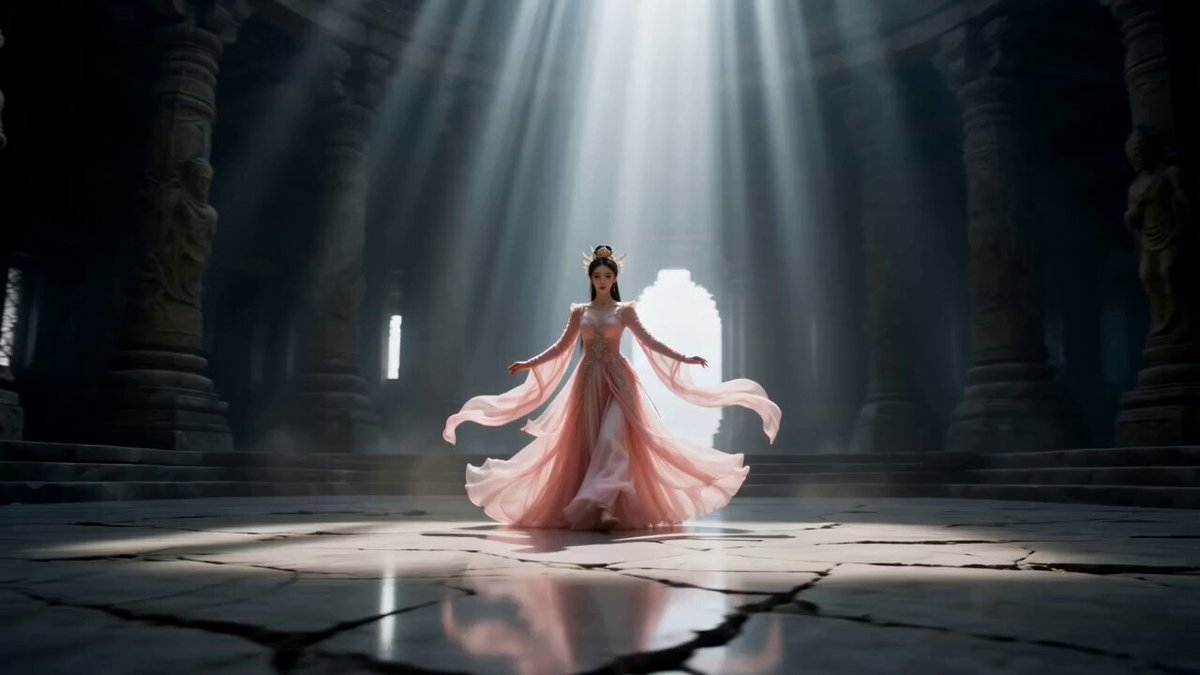
A few years ago, generating a moving image from a text description was a party trick. Today it is a legitimate part of how commercials, social spots, explainers, music videos, and even documentary inserts get made. Models such as Veo, Runway, Kling, Luma, Pika, and Sora-class systems have turned video generation into something closer to a production discipline than a novelty.
The practical shift is not that a machine can now produce a clip. It is that the cost of iterating on a shot has collapsed. A director used to think in terms of shooting days: you block the scene, light it, rehearse it, roll, and hope the take works. Now you can generate fifteen variations of a shot before lunch, watch them back, and change your mind about the concept entirely. That changes how you plan, how you pitch, and how much risk you can absorb.
This guide is about the workflow, not the hype. It covers what current models genuinely do well, how to structure a project from script to final export, how to prompt for motion rather than for still images, how to keep characters and locations consistent, how to choose between platforms, and where the common failure points are. If you are moving from occasional experimentation to regular production, this is the order in which to solve the problems.
What Modern Video Models Actually Offer
Before building a workflow, it helps to know which capabilities are reliable and which are still temperamental. Treat the list below as a mental map, because your choice of model should follow from the shot you need, not the other way around.
Text-to-video
You describe a scene and receive a clip. Text-to-video excels at establishing shots, abstract transitions, nature imagery, atmospheric mood pieces, and anything where the audience will not scrutinize facial identity for five continuous seconds. It struggles with precise choreography, readable on-screen text, complex hand interactions, and multi-character dialogue scenes.
Image-to-video and reference conditioning
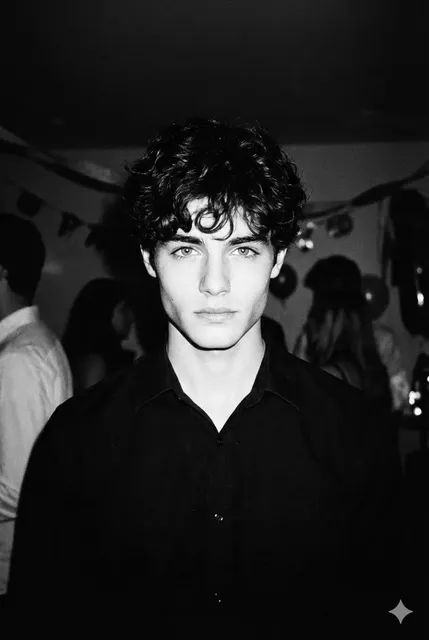
Feeding a still image as the first frame is the single biggest quality upgrade available to most creators. You gain control over composition, palette, wardrobe, and framing without fighting the model's imagination. Reference conditioning goes further: you supply character images, style boards, or product photos so that the generated footage matches something that already exists.
For product work, this is essential. If you need a specific bottle, phone, or sneaker to appear unchanged across six shots, generate or photograph a clean hero still first, then animate from it.
Performance, lip sync, and dialogue
Dedicated performance tools handle talking heads far better than general video models. If your project needs a person speaking to camera, the practical pipeline is: generate or capture a clean performance, then use a lip-sync or dubbing tool to align the mouth movement to the audio. Trying to get a general text-to-video model to deliver a believable 20-second monologue is usually a waste of time.
Camera, motion, and style controls
Most platforms now expose some combination of camera movement presets, motion strength, shot duration, aspect ratio, and style references. These controls matter more than people expect. A slow dolly-in with shallow depth of field reads as premium; a fast orbit with a wide lens reads as energetic. Naming the camera move explicitly in your prompt is often more impactful than adding three more adjectives about lighting.
A Repeatable End-to-End Workflow
Ad hoc prompting produces ad hoc results. The following sequence is what a small team can run consistently, whether the deliverable is a 15-second social cut or a 3-minute brand film.
Step 1: Write a shot list, not a prompt
Start in a document, not in a generator. Break the piece into shots, and for each shot write one sentence describing what the camera sees and one sentence describing what changes during the shot. "Wide shot of an empty coastal road at dawn; a cyclist enters frame from the left and rides toward camera." That second sentence is the motion brief, and it is the part most people forget.
Two benefits follow. First, you can generate shots in any order, so you are never blocked waiting on a sequence. Second, you can hand the shot list to a collaborator and get consistent output without a long briefing call.
Step 2: Lock the look with stills first
Before generating any video, generate or select five to ten still images that establish the visual language: color palette, lens character, lighting direction, wardrobe, environment. This is cheap and fast compared to video generation, and it forces the creative decisions to happen early, when they are still easy to change.
Once approved, those stills become your first frames and reference images. A useful habit is to keep a folder of approved reference assets named by role: hero-character-front.png, location-kitchen-wide.png, product-bottle-studio.png. You will reuse them constantly.
Step 3: Generate short, controllable clips
Long generations drift. A 10-second clip has roughly three times the failure surface of a 5-second clip, and the failures tend to appear in the last third. Generate short, then assemble.
The rule of thumb: if a shot does not work at 5 seconds, it will not work at 10. Extend only after you have a take you like, and extend in small increments so you can abandon a drifting continuation without losing the good opening.
Step 4: Select takes like an editor, not a cheerleader
The most common beginner mistake is saving every decent generation. Build a numbered selects folder and be ruthless. Ask of each clip: does it advance the story, is the motion physically plausible, is the subject still recognizable at the end, and would this survive on a large screen? If two of four answers are no, discard it. Storage is cheap; an unmanageable selects bin is not.
Step 5: Assemble, stabilize, and grade
Bring selects into your editor of choice. AI clips usually need three fixes: stabilization, because subtle jitter reads as amateur; speed adjustment, because generated motion is often slightly too fast or too slow; and color grading, because the same concept generated across sessions can drift in temperature and contrast.
A simple grade that lifts blacks slightly, cools the shadows, and warms the highlights will unify clips from different generations far better than any single model setting.
Step 6: Finish with sound, voice, and captions
Sound is where AI video projects most often fall apart. Generated visuals with no audio design feel like animatics. A minimal but effective audio layer includes:
- An ambient bed recorded or sourced for the location
- One or two foley hits that land on motion beats
- Music that changes energy at the same points the edit does
- Voice-over or dialogue recorded from a real performance where possible
If you use synthetic voice, keep sentences short and vary pacing between them. Uniform cadence is the giveaway that a script was read by a machine.
Prompting for Motion: What Actually Changes the Output
Most prompt advice online is written for image models and translates poorly. Video prompts need four ingredients in roughly this order:
- Subject and setting — who and where, stated plainly.
- Action over time — what changes between the first and last frame.
- Camera behavior — lens, height, movement, and speed.
- Light and mood — direction, quality, and color temperature.
Here is a weak prompt: "beautiful cinematic shot of a woman in a city, 4k, highly detailed." It describes an image, not a moment.
A stronger prompt: "Medium shot, eye level, of a woman in a grey coat standing at a crosswalk; she turns her head to the right as the walk signal changes; camera holds static with a slow push in; overcast morning light, cool tones, soft shadows."
The second version gives the model a temporal instruction. It also gives you something to evaluate: either she turns her head or she does not.
A few practical habits that pay off repeatedly:
- Reuse seeds. When you find a composition you like, keep the seed and change only one variable at a time.
- Change one thing per iteration. Changing action, lighting, and camera at once means you learn nothing about which change mattered.
- Write negative instructions carefully. Blur, warping, extra limbs, and text artefacts are the usual candidates, but an overlong negative list can flatten motion entirely.
- Prefer concrete nouns. "Brushed steel kettle" beats "modern kitchen object."
- Specify pacing. "Slow, deliberate movement" versus "quick, energetic motion" changes output more than most style words.
Consistency Across Shots
Consistency is the hardest problem in AI video, and it is solved with assets rather than prompts. Four techniques, in order of reliability:
Reference images. The most effective method. Generate one clean, front-facing image of your character or product and use it as a reference for every subsequent shot. When the model supports multiple references, add a location reference alongside the character reference.
Wardrobe and prop anchoring. Change one element at a time. If a character wears a red jacket in shot one, they wear the red jacket in the prompt for every subsequent shot, and it appears in every reference image. Audiences notice wardrobe continuity errors instantly.
A color script. Decide the palette per scene and note it in the shot list. Scenes that share a light direction and temperature will feel continuous even when the model's rendering style shifts.
Naming discipline. Version your assets: hero-v3-approved.png, not hero-final-final.png. When you regenerate a shot three weeks later, you will need to know which reference produced the good take.
Choosing a Platform: Decision Criteria That Hold Up
Model comparison charts go stale quickly. The criteria below stay useful regardless of which names are current.
| Criterion | Why it matters |
|---|---|
| Maximum clip duration | Determines whether you can hold a shot or must cut frequently |
| Reference image support | The single biggest lever for consistency |
| Resolution and upscaling | Affects whether footage survives on a large display |
| Native audio | Saves a step, but usually inferior to a dedicated audio pass |
| Camera controls | Critical for premium-looking motion |
| Commercial usage terms | Determines whether you can publish client work |
| Generation latency | Affects how many iterations you can afford in a session |
| Cost per usable second | The only cost metric that matters |
That last row deserves emphasis. A model that produces one usable second in five attempts is more expensive than a slower model that produces one usable second in two attempts, even if the per-generation figure looks higher. Track your own hit rate over a project. It is the number that determines whether AI video is viable for your workflow.
Common Mistakes and How to Avoid Them
Chasing a single perfect generation. Iterating on one prompt for fifty attempts rarely beats restructuring the shot into two simpler shots.
Ignoring the first frame. If the first frame is weak, the clip is weak. Generate the still first and evaluate it as a photograph.
Overloading prompts. Long lists of style adjectives dilute the motion instruction. Cut anything that does not change what the camera sees.
Skipping stabilization. Audiences may not name jitter, but they feel it. Stabilize every clip before the edit, even the ones that look calm.
Mixing aspect ratios late. Decide delivery format before you generate. Cropping a 16:9 clip to 9:16 after the fact often destroys the composition.
Trusting on-screen text. Most models still render text badly. Add titles, logos, and prices in post-production.
Forgetting continuity in sound. If a scene is a rainstorm, the ambient bed must be a rainstorm in every shot, not just the wide.
Not budgeting for the edit. Generation is roughly half the work. Assembly, sound, and grading take the rest.
Quality Control Checklist Before You Publish
Run every finished piece through the same checks:
- Motion is physically plausible — no sliding feet, melting hands, or objects that change shape mid-shot
- Subject identity is stable from the first frame to the last
- Color temperature is consistent across cuts, or deliberately divergent
- No visible warping at frame edges, especially on fast camera moves
- Audio levels are consistent, and there are no abrupt ambience changes at cut points
- Aspect ratio and safe areas are correct for every platform you will publish to
- Text, logos, and legal lines were added in post and are crisp
- Any synthetic performance is disclosed in line with the platform's policy
Rights, Disclosure, and Platform Rules
Two questions decide whether a generated clip is publishable: who owns the output, and does the audience need to know how it was made?
On ownership, terms vary significantly between providers and change over time. If you are producing client work, read the current terms and keep a record of the model, version, and date used for each delivered asset. This also helps if a clip needs to be regenerated later.
On disclosure, the trend is toward transparency. Several major platforms require labels for realistic synthetic media, and some advertising standards bodies expect disclosure for AI-generated presenters. The safe default is to disclose when a reasonable viewer could be misled about whether a real person or event is depicted.
Avoid generating recognizable real people, trademarked characters, or branded products you do not have rights to depict. Reference-image workflows make this easy to do accidentally, since a client-supplied image may itself carry restrictions.
Frequently Asked Questions
Do I need a powerful computer?
No. Generation happens on remote infrastructure. What you need is a reliable editor for assembly, and enough storage for takes.
How long should a generated clip be?
Five seconds is the practical sweet spot for most models. Generate short, select carefully, and extend only what works.
Why do my characters change appearance between shots?
Because prompts alone do not carry identity. Use a consistent reference image, lock wardrobe and lighting descriptions, and generate in the same session when possible.
Is text-to-video or image-to-video better?
Image-to-video for anything that must match an existing look, product, or character. Text-to-video for environments, transitions, and exploratory concepting.
How many generations should a finished shot take?
Experienced users typically land usable takes in one to three attempts for simple shots and five to ten for complex ones. If you are far above that, simplify the shot.
Can I use AI video for client work?
Often yes, but check the specific model's commercial terms, disclose where required, and confirm the client is comfortable with the approach before production begins.
What is the biggest quality upgrade available?
Starting from a strong still image. It gives you control over composition and palette, which are the two things that most determine whether footage looks intentional.
Where to Start Tomorrow
Pick one shot from a project you already have in mind. Write a proper motion brief for it, generate a still first, animate from that still, and take it all the way through stabilization, sound, and a grade. One shot, finished properly, teaches more than a hundred experiments.
Then repeat it five times with the same character, the same palette, and the same folder structure. You will have a template, a set of reference assets, and a realistic sense of how long each stage takes. That is the point at which AI video generation stops being a curiosity and becomes part of how you actually make things.

Alexander
More Blogs
Read MoreVidu Q4 Alternatives: 4K AI Video Models Compared (2026)
Vidu Q4 alternatives compared: Kling 4.0, Seedance 2.5, Wan 3.0, and Runway Gen-4 — 4K support, input modes, durations, audio, and what each costs in credits on Domer.
Top 4K AI Image Generators in 2026: 5 Models Compared on Real Costs
The top 4K AI image generators on Domer compared: Flux 3 Klein, Nano Banana 2.1, GPT Image 2.5, GPT Image 2, and Nano Banana Pro — 4K credit costs, reference limits, and speed.
Nano Banana 2.1 vs GPT Image 2.5: Which Image Model Should You Use? (2026)
Nano Banana 2.1 vs GPT Image 2.5 Flare compared: credit costs per resolution, aspect ratios, reference images, text rendering, and which tasks fit each model.