
Crea
Affiliazione
Inizia Gratis Ora
AI Video Generator Workflow: From Prompt to Polished Clip
Oct 15, 2026
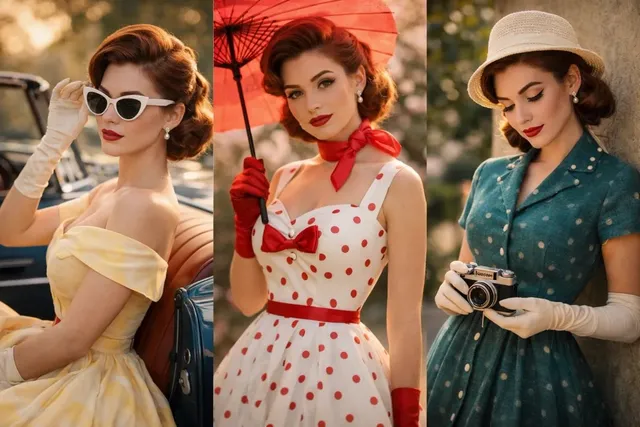
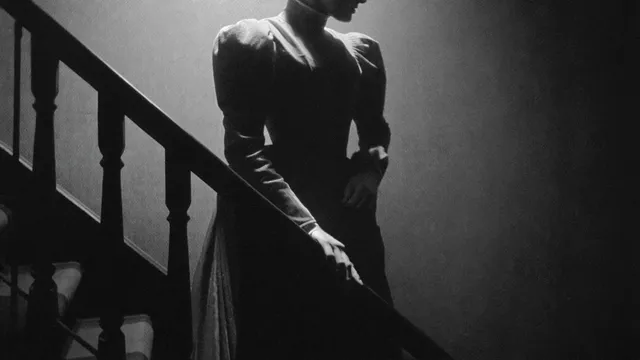
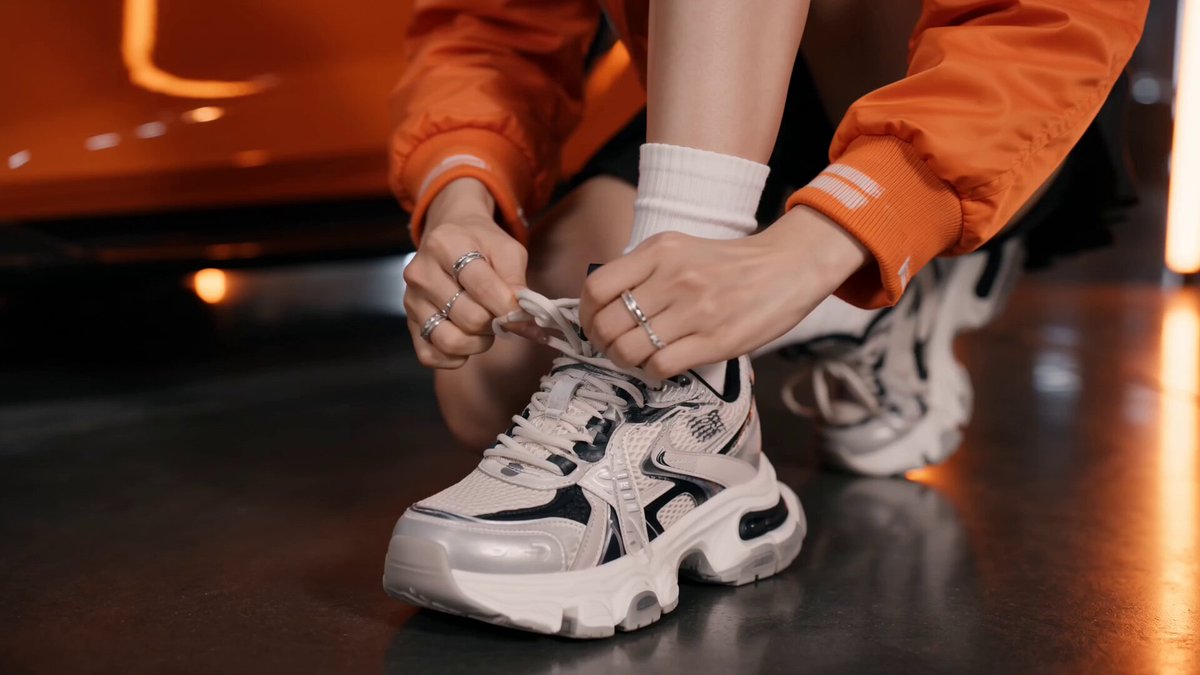
Video is the most demanding format on the internet. It asks for framing, lighting, motion, sound, pacing, and a story strong enough to hold attention past the first three seconds. That stack of requirements is why so many good ideas never leave a notes app. AI video generators have changed the arithmetic: a sentence, a still image, or a rough storyboard can become a watchable clip in minutes. But the difference between a mediocre result and a polished one is almost never the tool. It is the workflow built around it.
This guide is for anyone who wants that workflow. It covers what actually makes a generator easy to live with, how the prompt-to-pixels pipeline behaves under the hood, how to choose between tools for a specific job, a repeatable production loop for marketing clips, explainers, social shorts, and personal projects, and the mistakes that make capable tools feel frustrating.
Why Ease Is a Workflow Problem, Not a Feature List
Ease is not the same thing as simplicity. A generator that produces a clip from a single click but gives you no anchors is a slot machine: occasionally generous, never repeatable. The systems that still feel effortless after months of use share three traits.
Input flexibility. Text is the entry point, but strong tools accept far more: a first-frame image, a short reference clip for motion, a style sample, a depth map, or a rough sketch. Feeding an existing product photo or brand asset into the system lets you skip the hardest part of prompting, which is describing what something looks like, and spend your attention on what happens next. This matters most for consistency. Re-describing the same character or package across ten prompts is slow and unreliable; reusing the same image is fast and dependable.
Iteration speed. A generator becomes easy the moment a failed attempt costs seconds instead of an afternoon. Look for fast draft renders, the ability to queue several variations at once, and a preview that honestly represents composition without demanding a full high-resolution pass. Good creative sessions are built on ten quick attempts, nine of which end up in the bin.
Legible controls. Control is only useful when it is predictable. Aspect ratio, duration, camera movement, negative instructions, seed locking, motion strength, and style strength matter far more than a long menu of exotic parameters. What you want is the ability to change one variable, regenerate, and see the effect clearly.
There is a simple test that separates a tool you will keep from one you will abandon: the twenty-minute test. Write one sentence, generate a six-second clip, then try to change exactly one thing, such as the camera angle, the light, or the subject's clothing. If the change is visible and predictable, the tool behaves like a collaborator. If the result jumps around randomly, you are gambling, and no amount of practice will fix that.
Ease also has a cost side. Every retry consumes time, and time was the thing you were trying to save. A slightly slower tool with predictable controls beats a fast tool that produces unusable takes, every single week of the year.
The Five Stages Behind Every Prompt-to-Video Pipeline
Understanding the pipeline turns guessing into tuning. Most modern systems move through roughly five stages, and knowing which stage is failing tells you what to change.
Prompt interpretation
Your text is tokenized and converted into embeddings. Concrete nouns and verbs carry the most weight, camera terms carry moderate weight, and floating adjectives such as cinematic, epic, or beautiful carry very little on their own. This is why a prompt like a copper kettle steaming on a gas burner, close-up, warm lamp light from the right outperforms a beautiful, atmospheric, cinematic scene of a cozy kitchen. The first prompt contains objects; the second contains opinions.
Latent generation
A diffusion or transformer model denoises a compressed representation of the scene, deciding composition, subject placement, and lighting. This is where most of your prompt's influence lands, and also where vague prompts collapse into generic imagery. If your output looks like stock footage of nothing in particular, the failure happened here, and the fix is more concrete nouns rather than more adjectives.
Temporal coherence
Cross-frame attention keeps faces, objects, and motion stable across the clip. Nearly every visible artifact lives at this stage: morphing hands, melting edges, objects that change color between frames, hair that flickers. The practical rule is that the more the camera moves and the longer the clip runs, the more opportunities the model has to drift. Short, stable shots are not a compromise; they are the technique.
Upscaling and interpolation
The clip leaves generation at a modest resolution, then gets upscaled and smoothed. Frame interpolation can make motion silky, but it also softens fast action and can introduce ghosting around hard cuts, thin edges, and fast-moving hands. If your footage looks oddly soapy, reduce interpolation rather than increasing resolution.
Post
Color correction, grain, audio, captions, and titles are layered on. Some platforms handle a version of this natively; others hand you a clean clip and expect an editor to finish the job. Neither approach is better, but knowing which one you have prevents the classic disappointment of expecting a finished film from a tool that only promised footage.
Two conclusions follow from the pipeline. First, short and specific beats long and poetic. A four-second shot of a ceramic mug rotating on a wooden table is far more achievable than a thirty-second story about morning rituals. Second, generate the story in pieces and assemble later. Treat the generator as a camera crew, not an editing suite.
Pre-Flight: Setting Up a Project Before You Generate
Ten minutes of setup saves an hour of rework. Before you type a single prompt, settle these decisions.
Decide the destination format first. Vertical for short-form feeds, square for profile posts, widescreen for embedded pages and presentations. Each changes composition, headroom, and how much environment fits in frame. Rendering in 16:9 and cropping to 9:16 later throws away framing you deliberately asked for, and the crop usually lands on someone's chin.
Write a shot list, not a script. A thirty-second explainer is usually seven to ten shots of two to four seconds each. List them one line per shot: what the camera sees, in order. You will rewrite that list twice, and rewriting a list is far cheaper than rewriting ten prompts.
Collect reference assets. Product photos, previous renders you liked, a style frame, a logo, a screenshot of the color palette. Put everything in one folder named after the project so a collaborator can find it without asking.
Fix your technical baseline. Choose aspect ratio, frame rate, and draft resolution, then write them at the top of your prompt file so you stop re-deciding them every session.
Check usage terms before you invest a day. Confirm whether the output can be used commercially, placed inside paid advertising, or used to depict real people and real brands. Rules differ between platforms, and discovering a restriction after publishing is an expensive lesson.
Set naming conventions. Project, shot number, take, version, and seed: kettle-shot03-take02-v1-s8841. It sounds fussy until a client approves a take and nobody can find it.
Start a prompt log. Every prompt you try, plus the seed and key settings. This log becomes the most valuable asset in the project, worth more than any single render, because it turns future work into a variation on a proven recipe instead of a fresh experiment.
Writing Prompts That Survive the Model
Prompting is not creative writing. It is specification writing with a mood attached. Build prompts in six layers, ordered from most to least important to the model.
- Subject. Who or what, with two or three concrete visual details.
- Action. One verb, present tense, describing a single movement.
- Camera. One movement or one static framing.
- Lighting. Direction and quality, such as soft window light from the left.
- Environment. Location plus two or three atmosphere details.
- Style. Texture and format, such as muted film grain and shallow depth of field.
A rewrite that shows the difference
Before: a beautiful cinematic video of a person looking thoughtful in a city, dramatic, epic, emotional.
After: a woman in a beige coat, standing still and looking off-frame, static medium shot, overcast daylight, wet city street with blurred lights behind her, muted film grain.
The second prompt is shorter, more specific, and gives the model five concrete anchors instead of five opinions. It also gives you something to adjust. If the framing is wrong you change the camera layer; if the mood is flat you change the lighting layer. With the first prompt, there is nothing to adjust, only more adjectives.
Camera language that actually works
Phrases that produce reliable results include slow dolly in, gentle pan left, static wide shot, handheld follow, slow orbit, tilt up, and push in. Vague words such as dynamic or epic do not specify motion, and models tend to answer them with a slow unexplained drift. Use one camera instruction per clip. Two instructions fight each other and produce a compromise move you never asked for.
Negative instructions
Exclude the failure modes you keep seeing: extra fingers, watermark, on-screen text, duplicated limbs, warped face, jump cut, flicker. Keep the list to six or eight items. An overly broad exclusion list flattens texture and light, and you end up with a technically clean image that looks dead.
Length and language
Under sixty words is a good working ceiling for a single shot. Beyond that, attention spreads across too many concepts and the model averages them into mush. Prompt language and deliverable language do not need to match either. If the model responds better to prompts in one language but your audience speaks another, write the prompt in whichever language produces better frames and handle the rest in post.
Choosing a Tool By Job to Be Done
There is no single best generator, only a best generator for a specific job. Start with the job, not the feature list.
| Use case | What matters most | Suggested approach |
|---|---|---|
| Social shorts | Vertical framing, fast drafts, punchy motion | Text-to-video with one strong camera prompt and hard cuts |
| Product demos | Fidelity to a real object | Image-to-video from a clean product photo |
| Narrated explainers | Shot stability, alignment with a script | Many short clips joined on a timeline under voiceover |
| Talking heads | Lip sync, identity consistency | A dedicated avatar or lip-sync tool plus a generator for cutaways |
| Artistic B-roll | Style coherence, texture | A style reference image with a locked seed |
| Animating stills | Slow, believable motion | Image-to-video with low motion strength |
| Localized versions | Subtitle handling, pacing | One visual master, multiple audio tracks and caption files |
Beyond the table, weigh four practical criteria. Duration limits per clip matter because many tools are strongest between three and ten seconds. Aspect ratio support matters because composition is not croppable after the fact. Reference conditioning matters because image-to-video and keyframe control are the fastest routes to a specific result. Licensing and export control matter because you eventually need a clean, high-resolution file without a platform watermark.
If your work is client-facing, add reproducibility as a fifth criterion. A tool that cannot lock a seed or reuse a reference makes revisions painful, and revisions are where projects actually live. Most studios also end up pairing tools: a generator for shots, a lip-sync or voice tool for narration, and a conventional editor for assembly. Do not force one product to cover all three jobs.
The Seven-Step Production Loop
This loop works whether you are producing one clip or forty. Run it in order, and resist the urge to skip step three.
Step 1: Define one shot, not one video. Write a single sentence describing what the camera sees. Not a story, a shot: a hand lifts a matte black camera from a marble counter, morning light from the left. That is a prompt. A full script is a shot list, and it belongs on paper, not in the prompt box.
Step 2: Generate a draft at low resolution. Speed beats fidelity at this stage. You are checking composition, motion direction, and whether the subject reads clearly, not whether the grain looks right.
Step 3: Diagnose before you judge. Do not evaluate on taste alone. If the composition is right but the motion is wrong, keep the prompt and lower motion strength. If the composition is wrong, rewrite the subject layer. If the style is wrong, add a reference image instead of more adjectives. Naming the failure tells you which control to touch.
Step 4: Lock what works. Once a shot is close, stop changing everything. Lock the seed, keep the reference image, and change exactly one variable per attempt. This converts a random process into a controlled one, and it makes your results explainable to a client or a collaborator who asks why a shot changed.
Step 5: Assemble on a timeline. AI clips rarely carry a story alone. Drop your best takes into an editor, trim each one to its strongest two or three seconds, and cut on motion rather than on stillness. Match the pace to the music before you add transitions; a cut that lands on a beat feels intentional even when it is not.
Step 6: Finish sound and captions. Sound carries more perceived quality than most creators expect. Add ambience, a music bed, and captions burned in or exported as a sidecar file for platforms that autoplay muted.
Step 7: Export per destination. Produce a vertical master, a square cut, and a widescreen version from the same timeline. Exporting once and cropping later almost always damages framing, and it wastes the compositional work you did in step one.
Sound, Voiceover, and Captions Without a Studio
Audio is where easy video generation quietly becomes hard. Three approaches work well, and the right one depends on how much control you need.
Generate silent clips and build sound in post. This gives maximum control and the cleanest edit, because music and effects can be adjusted after the picture is locked. It is the slowest option but the most forgiving.
Use a dedicated voice tool for narration and sync visuals to it. This is the fastest route for explainers, product walkthroughs, and anything driven by a script. Write for the ear: short sentences, one idea each, and a pause wherever a visual change lands.
Let the generator produce ambience or dialogue natively. Convenient, and occasionally magical, but the hardest to edit precisely when a client asks for one word to change.
For voiceovers, record or generate at a consistent pace and then nudge clip lengths to match the narration rather than the other way around. Stretching audio to fit picture is where robotic delivery comes from. Keep music beds well under the voice, aim for consistent loudness across the whole piece, and check the mix on a phone speaker, because that is where most viewers will hear it.
Captions should be styled once and reused as a template: same font, same position, same animation, no exceptions. Consistency reads as professionalism even when the footage is synthetic. Two lines maximum per caption, high contrast, and a safe margin away from the platform's interface elements at the bottom of the frame.
Ten Mistakes That Make Easy Tools Feel Hard
- Cramming a story into one prompt. The model spreads attention across too many concepts. Split the story into shots and generate them separately.
- Asking for thirty-second clips. You usually get a slow, incoherent drift. Generate six five-second shots instead and join them.
- Ignoring aspect ratio until export. You crop away the composition you worked to build. Render in the target format from the start.
- Changing five variables between attempts. You learn nothing from the result. Change one thing per generation.
- Chasing style with adjectives. Words like cinematic drift toward a generic average. Use a reference image or a style frame.
- Reusing a prompt across projects without updating the subject layer. The subject is the most important layer and the most project-specific. Rewrite it every time.
- Skipping the timeline. The result feels like a demo reel rather than a story. Add a beginning, a middle, and a payoff, even in fifteen seconds.
- Treating sound as an afterthought. Silent or unbalanced audio undermines otherwise strong visuals. Budget a third of the project time for audio and captions.
- Burning high-resolution renders on drafts. It multiplies waiting time for no creative benefit. Draft low, finalize high.
- Forgetting to save the seed and prompt for approved takes. Revisions become guesswork. Log every approved take with its settings.
The most expensive mistake is treating generation as the whole job. In a typical project, prompting is roughly a fifth of the time. Selecting takes, trimming, sound design, and captions consume the rest. Plan for that split and the work stops feeling disappointing.
Repurposing, Versioning, and Your Prompt Library
A single well-made shot can become a surprising amount of content. Export a vertical version for short-form feeds, a widescreen version for embedded pages, and a square version for profile posts. Pull three still frames for thumbnails and carousel slides. Reuse the same visuals with a different voiceover to create a second video with a completely different message, which is often faster than generating new footage.
Keep a project folder containing your best prompts, reference images, seeds, and negative lists. Structure the log with five fields: shot description, final prompt, seed, settings that mattered, and a one-line note about what failed. After a few projects, that library becomes a personal style guide, and new work becomes a variation on something already proven.
Measuring whether your workflow is actually working
Track one number for a month: minutes spent per finished second of video. Include everything, from prompt writing to export. If the number is falling, your workflow is improving. If it is flat while output quality rises, you are simply working harder. A second useful measure is the retry rate per shot. If it takes more than eight attempts to get a usable four-second shot, the problem is usually a vague subject layer, not a weak model.
FAQ: Direct Answers to Common Questions
Do I need editing experience to use an AI video generator?
No, but basic trimming, timing, and caption placement improve results dramatically. An afternoon with any free editor is enough to learn the fundamentals, and those skills transfer to every project afterward.
How long should each generated clip be?
Three to eight seconds is the sweet spot for most tools. Longer clips are technically possible but usually lose coherence, and you will spend more time repairing artifacts than you saved by not cutting.
Why does my subject change appearance between clips?
Inconsistency comes from changing the reference image, the prompt wording, or the seed. Fix all three, generate the full set in one session before changing any settings, and the drift largely disappears.
Is AI-generated footage usable for commercial work?
Often yes, but check the terms of the specific tool you use, including restrictions on advertising, resale, and depictions of real people, real logos, or recognizable locations. Verify before you publish, not after.
What is the fastest way to improve output quality?
Swap adjectives for a reference image, reduce motion strength, and shorten the clip. Those three changes fix the majority of disappointing renders, and they take less time than rewriting a prompt repeatedly.
Do I need a powerful computer?
Usually not. Most capable generators run in the cloud, so a browser and a stable connection are enough. Local tools demand a strong graphics card, but they rarely offer the same iteration speed for beginners.
How do I keep a character consistent across a series?
Reuse one reference image, one descriptive phrase, and one seed family. Generate every shot featuring that character in a single session, then change nothing before moving on to other subjects.
Should I generate audio inside the video tool or add it later?
Generate silence, then add audio in post, whenever you need control. Use native audio generation only for quick drafts or ambience, since editing a single line of generated dialogue is far harder than re-recording narration.
How many takes should I plan per shot?
Budget four to six attempts for a simple shot and up to ten for anything with hands, crowds, or fast movement. Planning for retries is what keeps the process calm instead of frantic.
The Habit That Makes It Look Easy
Ease in AI video comes from a repeatable process, not a magic button. Think in shots rather than scripts, prompt in layers, change one variable at a time, and treat sound and editing as part of the job rather than an afterthought. Choose tools based on the job at hand: framing, duration, reference support, export control, and usage terms. Do that consistently, and the platform you pick matters far less than the workflow you bring to it. The creators whose output looks effortless are usually the ones who wrote the most boring checklists.

Alexander
More Blogs
Read MoreVidu Q4 Alternatives: 4K AI Video Models Compared (2026)
Vidu Q4 alternatives compared: Kling 4.0, Seedance 2.5, Wan 3.0, and Runway Gen-4 — 4K support, input modes, durations, audio, and what each costs in credits on Domer.
Top 4K AI Image Generators in 2026: 5 Models Compared on Real Costs
The top 4K AI image generators on Domer compared: Flux 3 Klein, Nano Banana 2.1, GPT Image 2.5, GPT Image 2, and Nano Banana Pro — 4K credit costs, reference limits, and speed.
Nano Banana 2.1 vs GPT Image 2.5: Which Image Model Should You Use? (2026)
Nano Banana 2.1 vs GPT Image 2.5 Flare compared: credit costs per resolution, aspect ratios, reference images, text rendering, and which tasks fit each model.