

Affiliazione
Inizia Gratis Ora
Android AI Video Generator: A Practical On-the-Go Guide
Oct 15, 2026

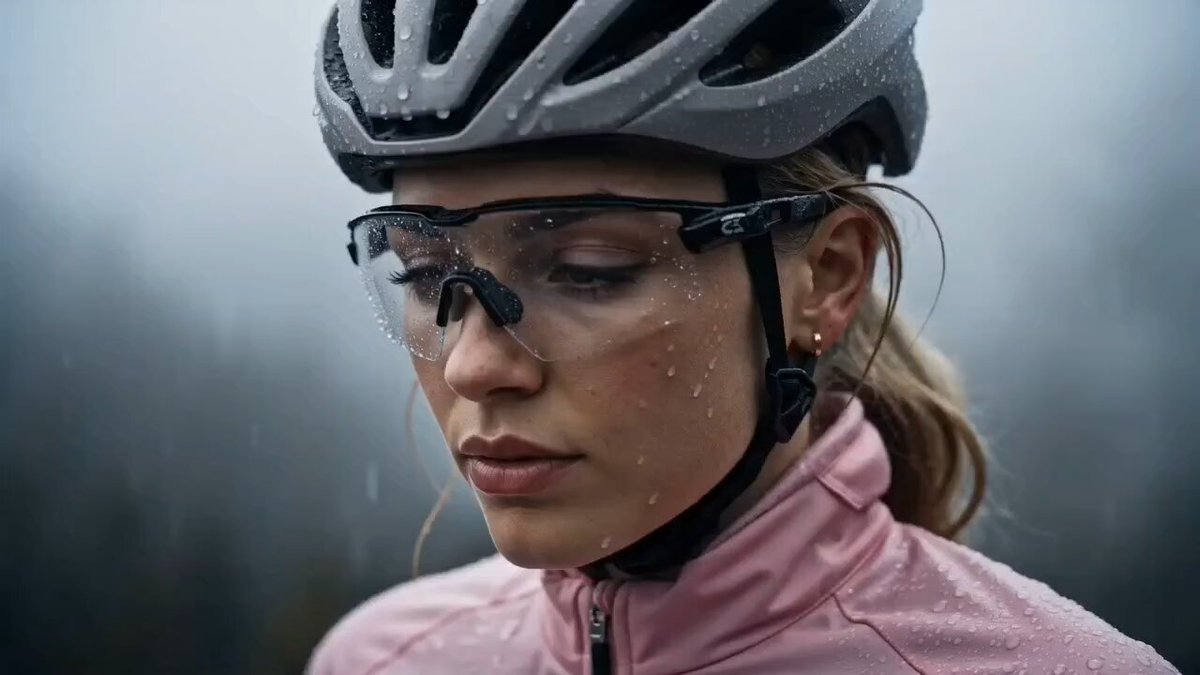

AI video generation is no longer a desktop-only hobby. With a modern Android phone, a stable connection, and a clear creative brief, you can move from idea to watchable clip during a commute, a coffee break, or a client meeting. The key is treating your phone as a production tool rather than a novelty. This guide walks through a neutral, app-agnostic workflow for creating AI videos on Android, from planning and prompting to editing, quality control, and publishing.
Why Android Is a Serious AI Video Studio
Android is the most widely used mobile operating system, and that scale has attracted a wide range of creative tools. For video generation, the advantage is not just app availability. It is the combination of powerful cameras, fast chips, cloud connectivity, and flexible file management. A phone can capture reference footage, run generation prompts, edit clips, add captions, and publish to social platforms without ever touching a desktop. That makes Android a genuinely practical studio for solo creators, small teams, and anyone who needs to produce content while moving.
The shift from desktop-only to mobile-first
Early AI video tools were heavy and tied to desktop GPUs. They demanded long render times and technical setup. Cloud inference changed the equation. The heavy computation moved to remote servers, while the phone became a lightweight control surface. Now a creator can write a prompt in a mobile app, choose a style, and receive a generated clip in minutes. The phone handles creative decisions, previews, and edits. Mobile-first production has become normal rather than a compromise.
What Android hardware brings to generation
Modern Android phones include neural processing units, generous RAM, high-resolution displays, and multiple cameras. Those features matter for AI video in three ways. They support smooth previews and timeline editing. They provide high-quality source images and reference clips. They keep the creative process portable. A phone with a good screen and enough storage can act as a storyboard, capture device, editing bay, and publishing station. Even mid-range devices can handle many cloud-based generation workflows if you manage storage and expectations.
Limits to respect
Mobile AI video is powerful, but it is not magic. Battery life, heat, upload speed, and app memory all affect the experience. Long generations can drain a phone quickly. Large video files can fill storage. Weak connections can stall uploads. Treat these limits as part of the workflow. Charge before a session, clear old files, work near reliable Wi-Fi when possible, and keep individual projects short. Respecting those constraints helps you avoid frustration and keeps creative momentum going.
How Android AI Video Generators Actually Work
Most Android AI video generators combine three layers: an interface for prompts and settings, a generation engine that creates or transforms clips, and an editing environment for sequencing and export. The interface is what you see. The engine may run in the cloud or on the device. The editing layer turns raw generations into a watchable piece. Understanding this stack helps you choose the right tool and troubleshoot problems when a generation does not match your intent.
Text-to-video and image-to-video pipelines
Text-to-video starts with a written prompt and produces moving visuals. The model interprets the subject, action, setting, camera movement, and style. Image-to-video starts with a still image and animates it. That approach is useful for product shots, portraits, illustrations, and brand assets because it preserves the original composition. Many mobile workflows combine both. You might generate a still image first, refine it, then animate it into a short clip. This layered approach often gives more control than asking a single text prompt to do everything.
Cloud inference vs on-device processing
Cloud inference offers stronger models, faster generation, and less strain on your phone. The trade-off is that you need a connection and must upload source files. On-device processing can be more private and works without a network, but it is usually limited to simpler effects, lower resolutions, or shorter clips. For most creators, a hybrid approach works best. Use cloud generation for complex scenes and on-device tools for quick trims, captions, and audio adjustments. Check how each app handles your files before you upload sensitive material.
Prompt interpretation, style, and motion controls
AI video models do not read minds. They respond to patterns in the prompt and to any controls the app exposes. Style presets, camera direction, motion strength, duration, and aspect ratio all influence the result. A prompt that mentions slow push-in, soft morning light, and a shallow depth of field will guide the model differently than a prompt that only names a subject. Learn which controls your app provides and use them deliberately. The goal is to reduce guesswork and make each generation closer to your creative brief.
Setting Up a Reliable Android Video Workflow
A stable workflow saves time and prevents avoidable rework. Before you open a video app, decide what you are making, where it will be published, and how long it needs to be. A few minutes of planning can save hours of generation and editing. The setup does not need to be complicated. It just needs to be consistent enough that you can repeat it under time pressure.
Prepare your device and storage
Free up storage before a long session. AI video apps create temporary files, exports, and cached previews. Ten to twenty gigabytes of free space is a comfortable starting point for mobile video work. Charge your phone or keep a power bank nearby. Close background apps that might compete for memory. If you plan to upload large reference images or clips, test your connection first. A stable setup reduces the chance that a generation fails halfway through.
Choose a project format and aspect ratio
Aspect ratio should be one of the first decisions, not an afterthought. Vertical 9:16 works for short-form social video. Square 1:1 can suit feed posts and product demos. Horizontal 16:9 remains useful for explainers, presentations, and YouTube-style content. Choose the ratio before generating because reframing later can crop important details. If you need multiple versions, generate the primary format first and then create adapted crops with safe margins around the subject.
Build a prompt brief before opening the app
Write a short brief with five lines: subject, action, setting, camera, and style. For example: a ceramic coffee cup, steam rising, on a wooden table, slow orbit, warm cinematic light. That brief becomes the foundation for every prompt in the project. It keeps your visual language consistent and makes it easier to judge whether a generation is on track. When you work on a phone, a compact brief is especially valuable because it reduces the need to improvise while typing on a small screen.
Prompting for Better AI Video on a Phone
Prompt quality is the difference between a random clip and a usable shot. Mobile typing encourages brevity, but that does not mean vague prompts. You can write short, structured prompts that give the model clear direction. Think of the prompt as a shot list entry rather than a poem. Specificity helps the model choose the right subject, motion, and mood.
Structure: subject, action, setting, camera, light, style
Use a repeatable formula. Name the subject first. Then describe the action. Add the setting. Specify the camera movement or angle. Describe the light. Finish with a style or mood. A prompt like a cyclist riding through a neon city at night, tracking shot from the side, wet streets, reflections, cyberpunk color palette is easier for a model to interpret than a beautiful video of a cyclist. The formula also makes it simple to change one variable at a time during iteration.
Prompt examples for common video types
For a product teaser, try a sleek wireless speaker on a stone pedestal, slow rotating shot, dramatic side light, minimal studio background, premium commercial style. For a social short, try a young chef tossing vegetables in a pan, handheld close-up, warm kitchen light, energetic and playful mood. For an explainer, try a simple animated diagram of a cloud network, gentle camera pan, clean white background, blue and gray palette, educational style. These examples show how the same structure adapts to different goals.
Negative prompts and iteration
If the app supports negative prompts, use them to exclude common problems. Words like blurry, distorted hands, extra limbs, flickering, text artifacts, or watermarks can help. If there is no negative prompt field, add positive constraints instead: sharp focus, natural proportions, stable camera, clean composition. Generate several variations and compare them side by side. Change only one element per round so you can learn what actually influenced the result. Iteration is faster when your tests are controlled.
From Images and Clips to Finished Video
Generation is only the first half of the job. The second half is assembly. A strong mobile workflow turns several short AI clips into a coherent video with a beginning, middle, and end. That means selecting the best takes, trimming them, arranging them, and adding audio and captions. The editing stage is where mobile AI video starts to feel intentional rather than experimental.
Image-to-video for product and portrait shots
Image-to-video is especially useful when you already have a strong still. Product photos, portraits, logos, and illustrations can be animated with subtle motion. Keep the movement restrained. A slow push-in, a gentle parallax, or a soft light sweep often looks more professional than dramatic transformation. Check edges and backgrounds for warping. If the model distorts the subject, reduce motion strength or use a cleaner source image with a simple background.
Using reference clips and motion transfer
Some mobile tools let you use a reference clip to guide motion, camera movement, or pacing. This can help you match a specific style without writing a complex prompt. Use short, clear reference clips with one dominant action. Avoid chaotic footage with many cuts. The goal is to transfer a motion idea, not to copy someone else s work. If the tool offers style or motion strength controls, start low and increase gradually until the result feels natural.
Editing sequences, captions, and sound
Once clips are generated, arrange them in a simple timeline. Trim dead frames at the start and end. Keep each shot long enough to read but short enough to maintain attention. Add captions because many viewers watch without sound. Use consistent fonts, colors, and placement. Add music or sound effects that support the mood without overpowering dialogue. Export a draft early and watch it on the phone. Small screens reveal pacing problems quickly.
Audio, Voice, and Captions in Mobile AI Video
Audio often decides whether a mobile AI video feels complete. Poor audio can make strong visuals feel unfinished, while clean audio can elevate simple clips. On Android, you have several options: record your own voice, use text-to-speech, add licensed music, or combine ambient sound with a voiceover. The right choice depends on the platform and the purpose of the video.
Voiceover options
Recording your own voice adds personality and trust. Use a quiet room, speak close to the phone microphone, and record in short sections. If you prefer synthetic voice, choose a natural-sounding option and adjust speed and pitch carefully. Always listen on headphones before publishing. Synthetic voices work best for explainers, listicles, and neutral narration. Personal stories usually benefit from a human voice.
Music and sound effects
Use music that matches the energy of the edit. A slow product teaser needs ambient or minimal music. A social short may need a stronger beat and crisp sound effects. Keep volume balanced so speech remains clear. If the app provides a music library, check the usage terms for the platforms where you plan to publish. Sound effects like whooshes, clicks, and transitions can add polish, but use them sparingly. Too many effects make the video feel noisy.
Accessibility and subtitle workflow
Captions improve accessibility and retention. Auto-caption tools on Android have become quite accurate, but they still need review. Check names, technical terms, and punctuation. Break long lines into readable chunks. Keep captions away from the bottom edge where platform buttons may cover them. If you publish in multiple languages, create separate subtitle tracks rather than burning one language into the video. That makes the content easier to reuse.
Quality Control Before You Publish
Before you export, review the video as a viewer, not as a creator. Watch it once without pausing. Then watch it again with a critical eye. Check the first three seconds, the pacing, the audio balance, and the ending. Mobile screens are forgiving, so preview on a larger display if possible. A quick quality-control pass can catch problems that would otherwise damage credibility.
Check motion, anatomy, text, and continuity
Look for warped hands, melting faces, flickering backgrounds, and unstable objects. Check any on-screen text for spelling and legibility. Confirm that lighting and color stay consistent between shots. If a clip breaks continuity, either replace it or use a transition that hides the change. AI video can produce beautiful frames, but consistency across a sequence is what makes the final piece feel professional.
Compression and export settings
Export at the highest quality that your target platform supports. For most social video, 1080p is sufficient. Use a standard frame rate such as 30 or 60 frames per second, depending on the motion. Avoid exporting at a very low bitrate because compression artifacts become more visible in fast motion and gradients. If file size is a concern, trim unnecessary footage before lowering quality. A shorter, sharp video usually performs better than a long, compressed one.
Brand safety and disclosure
Be transparent when content is AI-generated, especially in news, education, or advertising contexts. Follow platform rules for synthetic media. Avoid using real people, trademarks, or copyrighted characters without permission. If the video includes sensitive topics, review it for bias, accuracy, and potential harm. Disclosure does not weaken a creative piece. It builds trust with viewers and keeps your workflow sustainable.
Practical Use Cases for On-the-Go Creation
Android AI video generators fit many situations where a desktop is impractical. The key is to match the tool to the task. Not every project needs a complex pipeline. Sometimes a single generated clip with captions and music is enough. Other times you need a sequence of shots and a clear narrative.
Social shorts and product teasers
Short-form platforms reward speed and clarity. Generate a strong opening shot, add a hook in the first two seconds, and keep the video focused on one idea. For product teasers, use image-to-video with a clean product photo and subtle motion. Add text overlays with a simple call to action. Keep the aspect ratio vertical and design for sound-off viewing. A polished ten-second teaser can be produced during a short break.
Education and explainers
Explainer videos benefit from structured prompts and consistent visuals. Use diagrams, simple animations, or metaphorical scenes. Keep narration concise and pair it with captions. Generate background clips that support the topic without distracting from the explanation. For complex subjects, break the script into short sections and generate one visual per section. This modular approach makes editing easier and lets you replace weak clips without rebuilding the whole video.
Travel, events, and personal storytelling
Travel and event videos often use real footage mixed with AI-generated transitions or stylized inserts. You can animate a favorite photo, create an establishing shot, or generate a dreamlike sequence. Keep the story personal by recording voice notes or adding captions with specific details. AI should support the memory, not replace it. A few generated clips can add atmosphere while your own footage carries the emotional weight.
Common Mistakes and How to Avoid Them
Most mobile AI video problems come from a small set of recurring mistakes. Fixing them does not require advanced skills. It requires patience, planning, and a willingness to iterate. The following issues appear again and again in on-the-go workflows.
Overloaded prompts
A prompt with too many subjects, actions, and style references confuses the model. It may ignore key details or blend them badly. Keep each generation focused on one main idea. If you need a complex scene, build it in layers: generate the background, then the subject, then combine them in editing. Simpler prompts are easier to debug and usually produce cleaner results.
Ignoring aspect ratio and platform specs
Generating in the wrong aspect ratio wastes time and can crop important visual information. Decide where the video will live before you generate. Check the recommended dimensions, maximum length, and caption placement for each platform. If you need multiple formats, plan safe zones around the subject so you can crop later without losing the focus.
Relying on one generation
The first generation is rarely the best. Treat it as a draft. Generate several variations, compare them, and select the strongest. Save prompts that work so you can reuse them. Over time, you will build a personal library of reliable prompt patterns. That library becomes a competitive advantage because it reduces trial and error on future projects.
Forgetting storage, battery, and network
Technical constraints can derail a creative session. Low storage stops exports. Low battery interrupts uploads. Weak network slows cloud generation. Before you start, check all three. Carry a power bank, clear old projects, and download source files if you will be offline. A little preparation keeps the focus on creativity instead of troubleshooting.
FAQ
Do I need a flagship Android phone?
No. Many AI video workflows run in the cloud, so the phone mainly needs a decent screen, enough storage, and a stable connection. A mid-range device can handle prompt writing, previews, captions, and basic editing. Flagship phones offer faster performance and better displays, but they are not mandatory. Start with the device you have and upgrade only if you regularly hit memory or speed limits.
Can I generate video offline?
Some on-device effects and editing tools work offline, but full AI video generation usually requires a connection because the models run in the cloud. If you need to work offline, prepare assets in advance, download them to your phone, and use offline editing tools for captions, trimming, and audio. Then upload or generate when you reconnect. Plan offline sessions around simple edits rather than complex generations.
How long should AI video clips be?
For social media, individual clips often work best between three and eight seconds. Longer clips can work for explainers or storytelling if the motion and subject hold attention. Generate short shots and assemble them into a longer sequence. This gives you more control over pacing and makes it easier to replace a weak shot without regenerating an entire video. Short clips also reduce generation time and storage use.
Is AI video allowed on social platforms?
Most major platforms allow AI-generated video, but they may require disclosure or limit certain types of synthetic media. Check the rules for each platform, especially for realistic depictions of people, news, politics, and advertising. Labeling AI content is a good habit even when it is not required. Transparency protects your account and helps viewers understand what they are watching.
How do I keep a consistent style?
Create a style guide with a few fixed elements: color palette, lighting, camera movement, music mood, and caption font. Use the same prompt structure for every clip. Save reference images or clips that show the look you want. Consistency comes from repetition and constraints, not from using the same prompt for every scene. A narrow visual language makes a series feel intentional.
What should I practice first?
Practice image-to-video with a simple still image. It teaches you how motion strength, camera direction, and duration affect the result. Then practice text-to-video with one subject and one action. Finally, practice assembling three clips with captions and music. These three exercises cover the core skills of mobile AI video creation. Once they feel comfortable, you can experiment with more advanced styles and longer sequences.

Alexander
More Blogs
Read MoreVidu Q4 Alternatives: 4K AI Video Models Compared (2026)
Vidu Q4 alternatives compared: Kling 4.0, Seedance 2.5, Wan 3.0, and Runway Gen-4 — 4K support, input modes, durations, audio, and what each costs in credits on Domer.
Top 4K AI Image Generators in 2026: 5 Models Compared on Real Costs
The top 4K AI image generators on Domer compared: Flux 3 Klein, Nano Banana 2.1, GPT Image 2.5, GPT Image 2, and Nano Banana Pro — 4K credit costs, reference limits, and speed.
Nano Banana 2.1 vs GPT Image 2.5: Which Image Model Should You Use? (2026)
Nano Banana 2.1 vs GPT Image 2.5 Flare compared: credit costs per resolution, aspect ratios, reference images, text rendering, and which tasks fit each model.