
Affiliazione
Inizia Gratis Ora
How to Animate Photos With AI: A Practical Workflow Guide
Oct 15, 2026
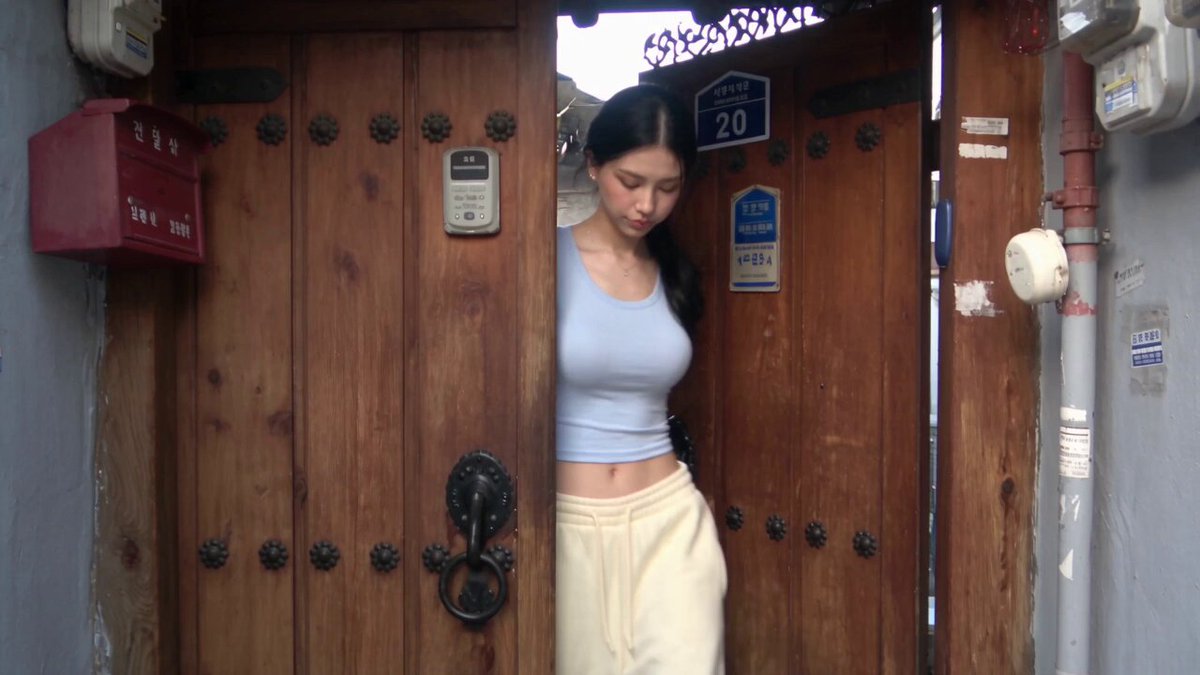
Still images are cheap to produce and expensive to ignore. A single well-lit photograph can carry a brand, a memory, or a product idea, but the moment it lands in a feed it competes with motion. That gap is exactly what AI photo animation fills: instead of shooting new footage, you take an image you already own and give it believable movement.
The tricky part is not pressing a generate button. It is knowing which shots animate well, how to describe motion in a way a model understands, and how to keep a face or a logo looking like itself from clip to clip. This guide walks through the whole pipeline — from choosing an approach, to writing motion prompts, to assembling and quality-checking the result.
What AI Photo Animation Actually Does
An AI animator takes a source image plus a text instruction (and sometimes a reference video) and produces a short clip. Under the hood, most systems combine a few capabilities: depth estimation to understand which parts of the image are near or far, segmentation to separate subject from background, optical-flow prediction to guess how pixels should travel, and a generative model that fills in the areas that were never photographed.
That last point matters more than any other. When a camera pushes into a portrait, the model has to invent the side of a face that was never visible. When a person turns their head, new background appears behind them. Good tools make those invented regions look plausible; weaker tools smear them, melt teeth, or stretch ears.
Practically, you get three categories of output. Micro-motion keeps the composition locked and adds breathing, blinking, hair drift, or a subtle push-in. Camera motion moves the virtual lens — dolly, pan, orbit, crane. Subject motion actually changes the pose or action, which is the hardest and most failure-prone type. Most professional use cases live in the first two categories, and that is not a limitation; it is a taste decision.
Choosing the Right Approach for Your Shot
Not every image deserves full generative animation. Pick the method that matches the source material and the amount of risk you can tolerate.
Parallax and 2.5D depth
If your image has clear foreground and background layers, a depth-based parallax gives you convincing camera movement with almost no risk of distortion. Portrait subjects against blurred backdrops, product shots on a table, and architectural photos all respond well. The result looks like a slow camera move rather than a performance, which is usually enough for hero banners, title cards, and editorial openers.
Micro-motion loops
These keep the frame static and animate small details: steam rising from a cup, fabric shifting, hair moving in wind, a blink. Loops are ideal for social posts and website heroes because they can repeat seamlessly without a jarring cut. The safest version of this restricts motion to a masked region so the rest of the image stays pixel-identical.
Full generative motion
Here the model invents new frames: the subject turns, walks, laughs, or gestures. This is where AI video gets exciting and where most of the quality problems appear. Reserve it for shots with simple anatomy, clear lighting, and low demands on identity precision.
Talking-head and lip-sync
If the goal is a person speaking, you want a dedicated portrait-animation or lip-sync path rather than general image-to-video. These systems track mouth shapes and head pose against an audio track, which produces far more believable results than trying to describe speech in a motion prompt.
A quick rule: the more the model has to invent, the more you should shoot (or generate) additional reference frames. One photo is a suggestion; four photos from slightly different angles are a spec.
The Core Workflow, Step by Step
Here is the pipeline that consistently produces usable clips with minimal rework.
Step 1: Prepare the source image
Start with the highest resolution you have. Upscale if needed, but do not over-sharpen — models amplify halos and JPEG artifacts into visible crawling noise. Crop to the final aspect ratio before animating, not after, because composition affects how the model interprets depth. Clean up distractions: stray objects, watermarks, harsh color casts.
If faces matter, make sure the eyes are sharp and the expression is neutral-to-pleasant. Squints, extreme angles, and heavy occlusion (hands over the face, deep shadows) are where identity drifts first.
Step 2: Decide duration and frame rate
Short clips generate better than long ones. Two to five seconds is the sweet spot for most platforms; anything past eight seconds tends to accumulate drift. For looping backgrounds, target a duration that divides evenly into your final edit so the loop point is invisible.
Step 3: Write the motion prompt
Describe what moves, how fast, and how the camera behaves — in that order. Keep it to one or two sentences. Vague prompts like "make it cinematic" are noise; specific prompts like "slow dolly in, subject blinks once, jacket fabric shifts gently" give the model something to solve.
Step 4: Generate several variations
Never accept the first output. Run the same prompt at least three or four times with different seeds. Motion models are stochastic; the difference between a convincing clip and a melted face is often just sampling luck. Keep a shortlist, not a single result.
Step 5: Review at full speed and frame by frame
Watch the clip once at normal speed to judge whether it feels alive. Then scrub frame by frame. Look for warping at the edges of the subject, texture boiling on flat surfaces, and flicker in the background. Anything that looks fine at speed but broken frame by frame will break again once it is compressed for delivery.
Step 6: Upscale and stabilize
Motion outputs often run at modest resolution. Upscale with a model that preserves faces, then apply light stabilization if the camera move wobbles. Be conservative — aggressive stabilization can add a rubbery quality that reads as fake.
Step 7: Assemble and deliver
Bring clips into your editor, trim the first and last few frames where models tend to settle, and match color across shots. Export in the codec and aspect ratio the destination platform prefers.
Writing Motion Prompts That Actually Hold Up
Prompting for motion is a different skill from prompting for images. You are not describing a scene; you are directing a camera operator and an actor simultaneously.
Build prompts from four slots: camera, subject, environment, and pace. "Slow push-in" is camera. "Woman smiles and turns slightly toward the light" is subject. "Steam drifts upward, leaves rustle" is environment. "Gentle, unhurried" is pace. Fill all four and you have a prompt with almost no ambiguity.
Avoid negative instincts. Telling a model not to do something frequently backfires, because the concept still appears in the embedding. Say what you want instead: rather than "no fast movement," write "very slow, minimal motion."
Watch for contradictory instructions. "Slow dolly in while the subject walks toward the camera" doubles the closing speed and often produces a lurch. If two motions share a direction, you may be asking for more than the shot can hold. Pick the one that carries the story.
Finally, calibrate intensity with adverbs rather than adjectives. "Slightly," "gently," and "slowly" are reliable dials. "Epic," "dramatic," and "dynamic" mostly add noise.
Keeping Faces, Logos, and Product Details Consistent
Identity drift is the most common reason an animated photo gets rejected. There are several practical defenses.
First, reduce the amount of rotation. A subject who turns ninety degrees gives the model enormous latitude to reinterpret a face. A subject who turns ten degrees does not. If your story needs a big turn, consider ending the clip before the profile becomes extreme.
Second, supply multiple references. Many image-to-video systems accept a subject reference or a small set of frames. Feeding a front view, a three-quarter view, and a profile dramatically improves likeness retention, because the model has real evidence rather than a guess.
Third, isolate what must not change. Mask logos, product labels, and text before generation so they are composited back in post at full fidelity. Generative models treat typography as texture; letters will warp. Nobody notices a slightly soft background, but everyone notices a mangled brand name.
Fourth, keep lighting consistent between reference frames. Mixing a warm indoor photo with a cool outdoor one teaches the model two different skin tones, and the output averages them into something wrong.
Editing, Stitching, and Sound
A single animated clip is a component, not a finished piece. Three or four clips cut together at a consistent rhythm read as a deliberate sequence; the same clips dropped in without pacing read as a demo reel.
Match motion direction across cuts. If clip one pushes in, consider starting clip two with a matching push or a clean hard cut on a beat. Avoid stacking two clips with the same movement unless the repetition is intentional.
Sound does more work than most creators expect. Ambient room tone, a soft whoosh on a transition, and a light musical bed make subtle AI motion feel intentional rather than accidental. If a clip has visible artifacts, a well-timed cut to black on a beat can hide more than any post-processing filter.
Color grade last. Because each generation may shift white balance slightly, apply a unifying grade across the whole sequence instead of correcting shot by shot.
Common Mistakes and How to Avoid Them
Over-prompting is the first trap. Long prompts with a dozen clauses produce averaged, mushy motion. Cut yours in half and see if it improves.
Ignoring composition is the second. Wide shots with lots of small detail — crowds, foliage, busy streets — are the hardest to animate cleanly. Close and medium shots with clear subjects and soft backgrounds behave far better.
Chasing photorealism on impossible subjects is the third. If you are animating a historical photo of a person whose face is barely resolved, the model has to invent identity from nothing. Lean into a stylized or archival treatment instead of demanding a lifelike performance.
Skipping the punch list is the fourth. Beyond the obvious ones — no visible warping, stable facial features, no morphing hands — check for flicker on flat surfaces, texture crawl in skies, and background elements that slide out of alignment with the subject. Also confirm the clip loops if it is meant to.
Practical Use Cases That Pay Off
E-commerce benefits most from micro-motion: a slow push on a product photo, a subtle shadow shift, or a light sweep across a surface. It signals quality without promising an interaction the product does not have.
Real estate and hospitality use parallax to make a single well-shot interior feel like a walkthrough. Add a title card and you have a listing video in minutes.
Editorial and publishing use animated archival images to open essays and explainers. Keep the motion restrained; the reader is here for the story.
Social teams use loops for backgrounds and hooks. A three-second animated still at the top of a carousel increases watch time before the first swipe.
Education and training use talking-head animation to bring historical figures or illustrated characters into a lesson, with clear labeling that the visuals are synthetic.
Quality Checklist Before You Publish
Run every clip through the same seven checks. Is the motion physically plausible? Does the subject still resemble the source? Is any text legible and undistorted? Are edges free of halo or tearing? Does the first frame match the last if it is a loop? Does it hold up at the delivered resolution, not just in the preview? And does it survive compression to the target platform?
If a clip fails two or more checks, re-generate rather than trying to fix it in post. Repair work on generative motion rarely looks better than a fresh sample.
Frequently Asked Questions
How many photos do I need to animate a single image?
One is enough to start. Two to four reference images from different angles significantly improve identity consistency for people and products.
What is the best duration for an AI-animated photo?
Two to five seconds for most platforms. Longer clips drift more and are harder to keep consistent. If you need a longer sequence, cut several short clips together.
Why does my animated portrait look like a different person?
Usually because the model is inventing too much. Reduce rotation, supply additional references, avoid harsh shadows, and keep the expression close to neutral in the source image.
Can I animate text or a logo along with the photo?
It is safer not to. Mask logos and typography out, generate the motion, then composite the unchanged elements back in during editing.
Do I need a powerful computer?
Not necessarily. Heavier models run faster on a modern GPU, but cloud-based generation removes the hardware requirement entirely. Local tools are preferable when you need privacy or offline work.
How do I keep a series of clips looking consistent?
Lock your aspect ratio, resolution, and prompt phrasing before generating. Generate all clips in one session, then apply a single color grade across the whole sequence rather than adjusting shots individually.
Is AI-animated photography acceptable for client work?
It depends on the client and jurisdiction. Disclose synthetic motion where it matters, avoid animating real people in ways they did not consent to, and check the licensing terms of the specific tool you use. When in doubt, use AI motion for backgrounds and supporting visuals rather than for claims about real events.
What should I do when the output looks almost right?
Re-generate with the same prompt and a different seed before touching any settings. Most near-misses are sampling variance, not a broken prompt. If three attempts fail the same way, then change one variable at a time — motion intensity first, then duration, then reference count.
The broader takeaway is that animated photos are a craft problem, not a button. The tools will keep improving, but the creators who get consistent results are the ones who prepare their sources carefully, write motion prompts with specificity, generate in batches, and hold every clip to the same checklist before it ships. Build that pipeline once and you can turn an existing image library into a steady stream of motion content without a camera in sight.

Alexander
More Blogs
Read MoreVidu Q4 Alternatives: 4K AI Video Models Compared (2026)
Vidu Q4 alternatives compared: Kling 4.0, Seedance 2.5, Wan 3.0, and Runway Gen-4 — 4K support, input modes, durations, audio, and what each costs in credits on Domer.
Top 4K AI Image Generators in 2026: 5 Models Compared on Real Costs
The top 4K AI image generators on Domer compared: Flux 3 Klein, Nano Banana 2.1, GPT Image 2.5, GPT Image 2, and Nano Banana Pro — 4K credit costs, reference limits, and speed.
Nano Banana 2.1 vs GPT Image 2.5: Which Image Model Should You Use? (2026)
Nano Banana 2.1 vs GPT Image 2.5 Flare compared: credit costs per resolution, aspect ratios, reference images, text rendering, and which tasks fit each model.