
Crea
Affiliazione
Inizia Gratis Ora
Avatar Video Workflow: A Practical Guide to AI Presenters
Oct 13, 2026


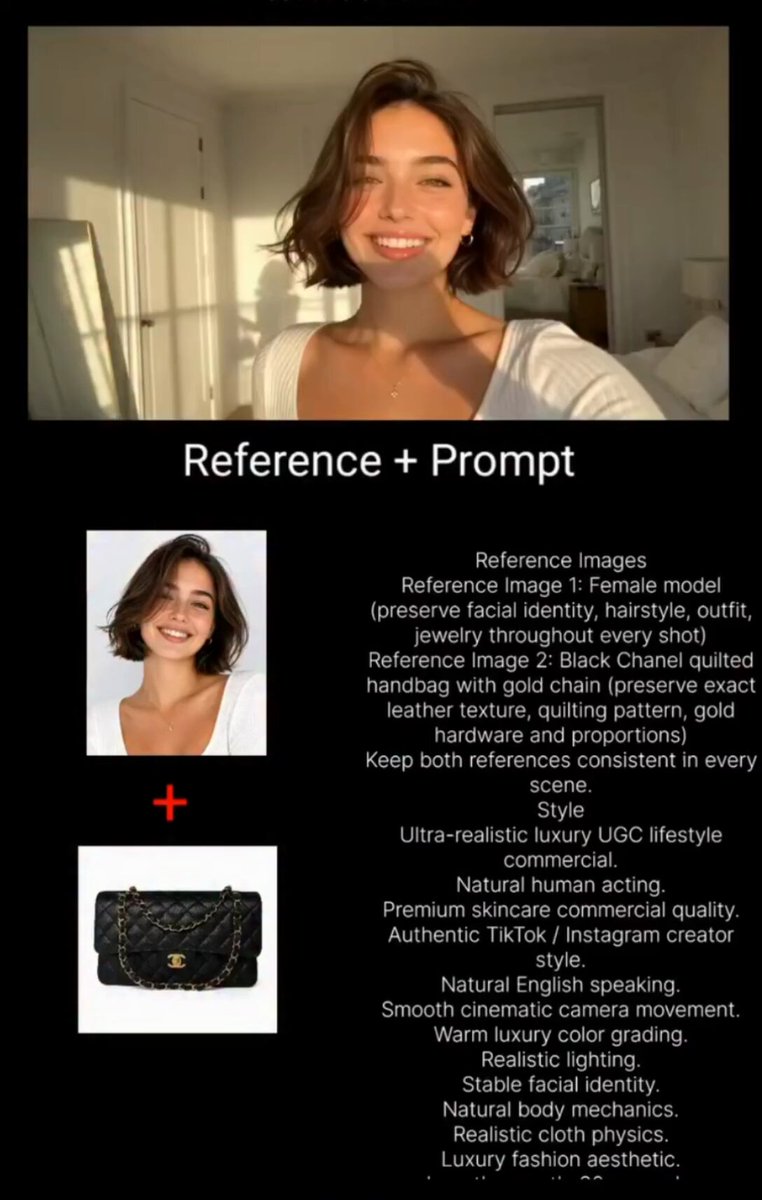
Why Presenter-Led AI Video Became a Production Category
For two decades, the cost of a talking-head video followed a predictable curve: book a studio, hire a presenter, light the set, shoot, edit, and reshoot whenever the product name changes. That curve made video a luxury reserved for launches and annual events. Presenter-led generation tools broke the curve by separating the two things a talking-head video actually needs — a human face and an accurate script — and making the first one reusable.
The result is a format that behaves more like a document than a film. When your onboarding script changes, you edit text and re-render instead of booking another session. Teams in learning and development, customer education, sales enablement, and internal communications now publish dozens of short videos a month where they previously managed two a year.
That shift has a cost. A document-first mindset makes it tempting to publish anything that renders. Audiences forgive a simple visual style, but they do not forgive a robotic delivery, a mispronounced product name, or captions that drift out of sync. The workflow below treats a synthetic presenter as one component in a production pipeline rather than as a magic button.
Choosing the Right Presenter Approach
Not every video needs a face. Before writing a single line of script, decide which presenter model fits the job. Most disappointing results come from choosing the most expensive option by default instead of the one that matches the content.
Stock avatars
Stock presenters are the fastest path to a finished video. They work best for evergreen explainers, policy summaries, and internal announcements where the message matters more than the messenger. The trade-off is familiarity: viewers who watch a lot of generated video start recognizing the same faces, and a recognizable stock presenter can undercut the authority of a compliance briefing. Use stock avatars for high-volume, short-shelf-life content, and switch to something branded when the topic carries weight.
Custom and branded presenters
A custom presenter — either a consented recording of a real team member or a fully designed digital character — gives you continuity across a series. Learners build trust with a consistent host, and a recurring host makes a 40-video curriculum feel like one course instead of forty disconnected clips. Budget the setup time accordingly: a custom presenter needs a clean capture session, a wardrobe decision, a pronunciation guide, and a written agreement about how the likeness may be used, amended, or retired.
Voice-first videos with b-roll
If your content is heavily visual — a software walkthrough, a data story, a physical product — a disembodied voice over screen capture or b-roll often outperforms a talking head. The audience spends attention on the interface instead of on a face that is not moving meaningfully. Voice-first also ages better: you can re-record audio in five minutes without re-rendering a presenter.
Hybrid: avatar plus screen recording
This is the workhorse format for training. Open with a 10–15 second avatar introduction that establishes who is speaking and what the viewer will learn, then cut to screen recording for the demonstration, then return to the avatar for a recap and next step. The avatar carries framing and transitions; the recording carries detail. The hybrid keeps the video credible while keeping production costs low.
| Content type | Recommended format | Typical length |
|---|---|---|
| Compliance and policy | Stock avatar, single presenter | 2–4 minutes |
| Product onboarding | Hybrid avatar plus screen capture | 5–12 minutes, chunked |
| Sales enablement | Custom presenter, recurring host | 3–6 minutes |
| Feature release notes | Voice-first with b-roll | 60–90 seconds |
| Localized rollout | Avatar with translated audio and captions | Same as source |
The End-to-End Workflow
A reliable avatar video pipeline has five stages. Skipping any of them shows up later as a re-render, a re-record, or an awkward approval meeting.
Brief and script lock
Start with a one-page brief: audience, single learning objective, target runtime, tone, and the action you want the viewer to take. Write the script to be spoken, not read. Lock the script before touching the tool. If a stakeholder can still change the wording after the render, you have not finished the script stage.
Storyboard and shot list
Map the script to visuals in a simple two-column table: script line on the left, on-screen element on the right. Mark every place where the presenter should step aside for a screen recording, a chart, a text card, or a b-roll clip. This table is what prevents the classic mistake of a synthetic presenter narrating a screen they are standing in front of.
Presenter and voice selection
Choose the presenter and voice together, not separately. A calm voice with an energetic face reads as mismatched. Test the pairing on the first 20 seconds of the script — the most rhythmically demanding part — and check how the voice handles your hardest product names and acronyms before committing to a full render.
Assembly and render passes
Build in layers: presenter track, voice track, screen and b-roll layer, graphics layer, captions layer, music bed. Render a low-fidelity pass first to check timing and pronunciation, then commit to a full render. Exporting the same project three times because you fixed a typo in the middle costs more time than a deliberate two-pass approach.
Review loop and export
Route the draft to exactly two reviewers: a subject-matter expert for accuracy and a brand or communications reviewer for tone. Give them a deadline and a structured form. Once approved, export the master file, the caption file, and the localizable script in the same folder so the next language version does not require archaeology.
Writing Scripts Synthetic Presenters Can Deliver
Generated presenters handle clear, well-punctuated prose well and handle tangled sentences badly. The difference is not intelligence, it is rhythm. Here are the rules that matter most.
Keep sentences under about 20 words. Break a long clause into two sentences before you blame the tool for awkward pacing. Replace semicolons and parenthetical asides with separate sentences, because a spoken voice has no way to show a parenthesis.
Spell out what you want pronounced. Product names, acronyms, and numbers are the three most common failure points. Write "A-P-I" if you want letters, "app-ee" if you want syllables. Write "twenty-five percent" rather than a symbol in a spoken line, or verify that the voice engine reads symbols correctly before a full render.
Cut humor that depends on delivery. Sarcasm, deadpan, and rapid-fire jokes need micro-timing that synthetic voices rarely land. A plain, warm sentence is more persuasive than a joke that arrives half a beat late.
Write for the ear with short examples. Instead of "the system supports a variety of configurations," write "you can run it three ways." Concrete numbers, named people, and specific scenarios give the voice natural places to breathe.
Before and after, the difference is obvious. "In order to ensure that all employees, regardless of department or seniority, are able to complete the mandatory training within the designated compliance window, we have introduced a new scheduling system" becomes "Everyone needs to finish the training this quarter. The new scheduler books your slot in about a minute." Same information, half the words, and a presenter who sounds like a person.
Voice, Pacing, and Captions
Voice selection drives perceived quality more than avatar realism. A slightly stylized face with an excellent voice reads as professional; a photoreal face with flat audio reads as uncanny. Aim for a pace between roughly 140 and 160 words per minute for instructional content, and slow down for technical material.
Add pauses deliberately. A half-second beat before a key number tells the viewer something matters. Insert pauses in the script as sentence breaks rather than trying to fix pacing in post.
Captions are not optional. Publish a sidecar caption file in SRT or VTT alongside the video, and decide separately whether to burn captions into the frame. Burned-in captions guarantee visibility on social platforms where captions are off by default; sidecar files let viewers resize text and translate it automatically. For internal training libraries and anything that may be localized later, ship both.
Check loudness. Mixed audio levels between the presenter track, music bed, and screen recording narration are the number one complaint in review cycles. Target consistent perceived loudness across the whole series, and keep music at least 15 dB under the voice.
Localization and Multi-Language Rollout
Localization is where a text-first workflow pays for itself, but only if you plan for it before the first render.
Translate the locked script, not the captions. A caption file translated line by line produces fragmented sentences and awkward line breaks. Start from the approved script, translate it as prose, then regenerate captions from the translated audio so timing matches the delivery.
Build a glossary before the first translation. Product names, feature names, job titles, and units of measure all need agreed translations. A glossary prevents one video from calling a feature "dashboard" and the next from calling it "control panel" in the same language.
Adapt rather than transliterate. Idioms, sports metaphors, currency examples, and holiday references rarely survive a literal translation. Replacing a baseball metaphor with a neutral example costs one minute of editing and saves the entire localized version.
Verify names, numbers, and on-screen text. On-screen graphics are easy to forget during localization because they live in a different layer. Localize lower thirds, chart labels, and end cards in the same pass as the audio, and check that translated text still fits its container.
Plan a staggered rollout. Launch the source language first, collect the questions viewers actually ask, then localize with those answers already folded into the script. Translating a script that is about to change wastes the whole effort.
A Quality Checklist to Run Before Publishing
Run this list on every video. It takes five minutes and prevents most public corrections.
- Pronunciation: play the first 30 seconds and search for every proper noun, acronym, and number.
- Lip sync: watch the mouths during fast passages, not during the calm opening.
- Eye line and framing: confirm the presenter looks toward the viewer, not off-frame, during key statements.
- Gestures: check for repeated or looping hand motion that becomes distracting after two minutes.
- Pacing: confirm no sentence runs faster than a listener can follow on first pass.
- Captions: verify sync at the beginning, middle, and end — drift usually appears late.
- On-screen text: check safe areas so nothing is cut off on mobile players.
- Audio: confirm consistent loudness and no clipping when music and voice overlap.
- Brand: confirm lower thirds, end cards, and calls to action match the current template.
- Accessibility: confirm contrast ratios and that critical information is not conveyed by color alone.
Governance, Approvals, and Asset Management
Synthetic presenters introduce questions that traditional video never raised. Handle them early, in writing.
For any presenter based on a real person, document consent that covers scope, duration, allowed contexts, and the process for withdrawal. Store that agreement with the presenter asset itself so it travels with the project.
Decide your disclosure policy. For internal training, a note in the description is usually enough. For external communications, follow your legal and communications guidance, and be consistent across the series so viewers are never surprised.
Adopt a naming convention before you have 200 files. A workable pattern includes series, topic, language, version, and date. Version control matters more than usual because a single script edit can invalidate audio, captions, and graphics simultaneously — keep the script as the source of truth and treat renders as outputs.
Finally, assign an owner. When nobody owns the template library, it fragments within two quarters and every new video starts from scratch.
Common Mistakes and How to Avoid Them
Rendering before the script is approved. Every downstream asset depends on the script. Lock it first.
Using an avatar for content that needs a screen. If the viewer needs to see an interface, show the interface. The presenter frames it; the recording teaches it.
Ignoring the first 15 seconds. Viewers decide whether to keep watching almost immediately. Open with the outcome, not with a welcome speech.
Letting videos run long. A 10-minute script usually contains three separate 3-minute topics. Chunk them and let viewers find what they need.
Skipping pronunciation checks. A mispronounced product name in a training video gets quoted back to you for months.
Localizing too early. Translate after the source script has survived its first round of real viewer questions.
Treating captions as an afterthought. They are the most-read text in most videos and the cheapest accessibility win available.
No template. Consistency across a series comes from a shared intro, lower-third style, and end card, not from repeated manual effort.
FAQ
How long should a presenter-led video be?
Most instructional videos work best between 2 and 6 minutes. If the topic needs more, split it into a short series with a shared opening and a clear sequence, and let viewers jump to the section they need.
Do I need a custom presenter, or is a stock avatar enough?
Use stock avatars for short-lived, high-volume, functional content. Invest in a custom presenter when you are building a recurring series where recognition and continuity matter, or when the material is sensitive enough that familiarity builds trust.
How do I handle product names that change frequently?
Keep a pronunciation and terminology glossary as a living document, and reference it during every script review. When a name changes, update the glossary first, then re-render only the videos where the name appears in spoken audio.
Should captions be burned in?
Ship both. Burned-in captions guarantee readability on social platforms, while a sidecar file supports translation, resizing, and screen readers. The extra export takes seconds.
What is the biggest time saver in this workflow?
The storyboard table. Mapping script lines to visuals before rendering prevents the reshoots and re-renders that consume most of the schedule.
How do we keep quality consistent across a large series?
Standardize four things: a script template with sentence-length guidance, one presenter and voice pairing per series, a fixed visual template, and the ten-point quality checklist above. Consistency comes from constraints, not from effort.
Can synthetic presenters replace live filming entirely?
No, and they should not try. Live footage still wins for customer stories, executive messaging, and anything where spontaneity is the point. Use generated presenters for the repetitive, high-volume, frequently updated layer of your video library, and save the camera for the moments that deserve it. Used that way, the workflow above turns video from a quarterly project into a routine publishing habit.

Alexander
More Blogs
Read MoreVidu Q4 Alternatives: 4K AI Video Models Compared (2026)
Vidu Q4 alternatives compared: Kling 4.0, Seedance 2.5, Wan 3.0, and Runway Gen-4 — 4K support, input modes, durations, audio, and what each costs in credits on Domer.
Top 4K AI Image Generators in 2026: 5 Models Compared on Real Costs
The top 4K AI image generators on Domer compared: Flux 3 Klein, Nano Banana 2.1, GPT Image 2.5, GPT Image 2, and Nano Banana Pro — 4K credit costs, reference limits, and speed.
Nano Banana 2.1 vs GPT Image 2.5: Which Image Model Should You Use? (2026)
Nano Banana 2.1 vs GPT Image 2.5 Flare compared: credit costs per resolution, aspect ratios, reference images, text rendering, and which tasks fit each model.