

Affiliazione
Inizia Gratis Ora
How to Choose the Best AI Image Generator for LinkedIn
Oct 14, 2026

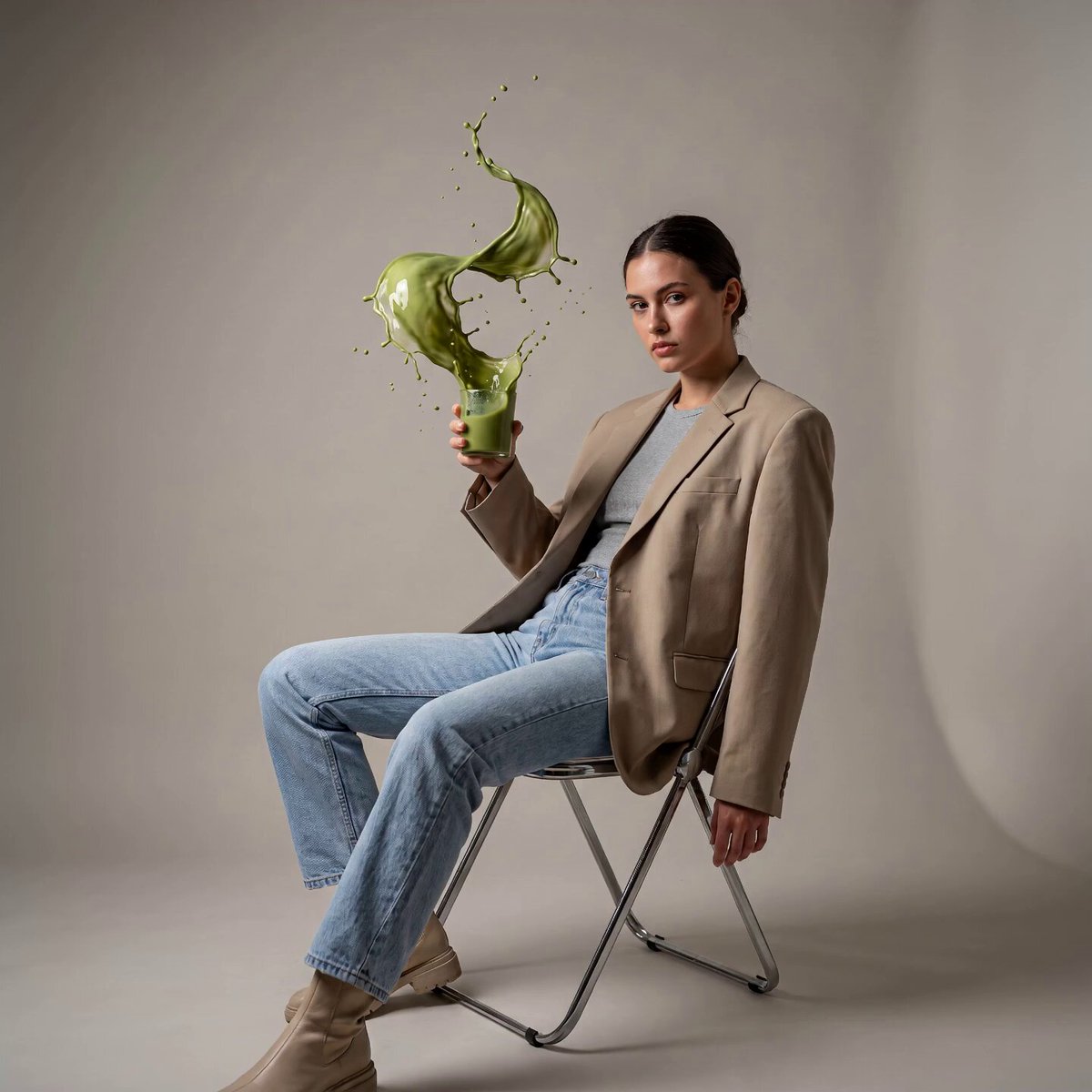
Why LinkedIn Rewards Better Visuals
LinkedIn is a text platform by reputation and a visual platform by behavior. A member scrolling the feed sees a fairly uniform stream of paragraphs, job announcements, and reposts. Anything that breaks that visual rhythm earns a pause, and a pause is the only currency that matters before a click, a comment, or a follow.
That is why image quality matters more here than on platforms where noise is the norm. A blurry stock photo or a stretched screenshot signals carelessness in a place where people are evaluating your judgment. A clean, purposeful graphic signals that you think about your audience. Neither guarantees engagement, but the second one removes an easy reason for someone to keep scrolling.
There is also a practical dimension. LinkedIn renders images in several different containers: the feed, the mobile feed, the expanded lightbox, profile banners, article headers, and document carousels. A single asset that looks good in one of those places may look cropped, muddy, or unreadable in another. An AI image generator worth using for LinkedIn is one that understands those containers, not just one that produces pretty pictures.
This guide walks through what to evaluate, how to run a workflow from prompt to published post, which tools suit which jobs, and the mistakes that quietly cost reach.
What "Best" Actually Means for LinkedIn Images
The word "best" is unhelpful on its own. A generator that is superb for surreal concept art may be useless for a product announcement graphic. Instead of ranking tools, evaluate them against five practical criteria.
Brand consistency without a design system
Most professionals do not have a brand book. They have a color they like, a headshot, maybe a logo file, and a general sense of tone. The best tools let you lock those choices in so every generated asset feels related: consistent palette, consistent typographic weight, consistent level of abstraction.
Look for saved presets, style references, and the ability to upload a reference image that the model follows. If you have to retype your color hex codes and re-describe your visual language for every post, you will eventually stop doing it, and your feed will look random.
Aspect ratios and safe zones
LinkedIn is forgiving but not infinitely so. The feed favors a landscape or square composition; vertical formats get cropped in previews unless a member taps through. Banners are extremely wide and shallow, which means any text you place in the middle can be covered by your profile photo on mobile.
A generator that can output a specific ratio, or that can outpaint an existing image into a new ratio, saves you from destructive cropping. Outpainting is the unsung feature here: generate the idea in a comfortable square, then extend it to a wide banner without losing the composition.
Resolution and legibility
Feed images are compressed. Fine gradients, thin type, and low-contrast details dissolve into mush. Two habits solve most of this:
- Keep text large. If a phrase is not readable at thumbnail size, cut it or split it across a carousel page.
- Keep contrast high. Dark text on light backgrounds, or the inverse, with generous breathing room.
Upscaling tools help, but they cannot rescue a composition with too much detail packed into too little space. Design for the thumbnail first.
Speed and batch workflows
A single great image is a hobby. Ten consistent images a month is a content system. Generators that support batches, saved prompts, and quick variations turn a 40-minute design session into a five-minute one. That difference determines whether you actually post.
Format flexibility beyond stills
Increasingly, LinkedIn rewards motion: short silent loops, subtle text animations, and simple explainer clips. A tool that can animate a still frame or export a short video gives you a second format from the same concept, without a separate production pipeline.
A Practical Workflow: From Prompt to Published Post
The following five-step workflow works with almost any modern generator, and it keeps you from over-investing in a single asset.
Step 1: Define the visual job, not the image
Before prompting, write one sentence: "This image must make a hiring manager stop and read the first line about remote onboarding." The visual job tells you what must be legible, what must be emotional, and what must be absent.
Useful visual jobs on LinkedIn include:
- Contrast graphics that put two numbers or two states side by side.
- Metaphor images that make an abstract point concrete, such as a tangled cable for process debt.
- Context images that place a person in a recognizable work setting.
- Data frames that hold space for a chart you will add later.
- Quote cards that carry a single sentence of text.
Step 2: Write a prompt that behaves
A prompt for professional content should specify four things: subject, setting, style, and constraints. Constraints are the part most people skip, and they matter most.
A workable template:
Subject + action, environment, lighting, viewpoint, style reference, color palette, negative constraints, output ratio.
Example: "A product manager sketching a roadmap on a glass wall, modern office at midday, soft natural light, three-quarter view, clean editorial photography, muted navy and warm gray palette, no text, no logos, no clutter, wide 16:9."
The negative constraints do real work. "No text" prevents garbled lettering. "No logos" avoids accidental trademark issues. "No clutter" keeps the thumbnail readable.
Step 3: Generate variations, then choose cold
Generate at least four options, then walk away for five minutes. When you come back, look at the images at thumbnail size on your phone. The one that still communicates something is the one to keep. If none do, the prompt was too vague, not the tool too weak.
Step 4: Refine, clean up, and upscale
Almost every generated image needs a pass. Typical fixes:
- Remove or replace odd background elements.
- Lift shadows or reduce contrast where compression will hurt.
- Extend the canvas to the exact ratio you need.
- Upscale to roughly twice the final display size so compression has room to work.
- Add your own text in a real design tool, never inside the generator, unless that is the tool's strength.
Background removal utilities and dedicated upscalers are worth having in the toolkit even if your main generator claims to do both.
Step 5: Export per placement
Prepare three exports per concept: a square for the feed, a wide ratio for articles and banners, and a vertical for carousels or stories-style placements. Name files with a consistent convention so you can find them a year later.
Tool Landscape: Matching Generators to Jobs
No single generator wins every category. Think in terms of job fit.
DALL·E 3 for prompt accuracy
DALL·E 3, accessed through ChatGPT and several other interfaces, is strong at following detailed instructions and rendering short text more reliably than many alternatives. That makes it a good fit for conceptual visuals, simple diagrams, and illustrations where you need the model to respect a specific arrangement. Its photographic realism is decent but not its defining strength.
Midjourney for atmosphere and texture
Midjourney produces distinctive, often beautiful imagery with strong lighting and composition. It is excellent for hero images, metaphor visuals, and mood-driven backgrounds. It is less good at precise layout control and small text, so plan on layering your typography afterward.
Adobe Firefly for commercially cautious teams
Firefly's main appeal in a corporate context is its provenance story and its integration with familiar Adobe tools. If your organization has a legal review process for generative imagery, Firefly often clears it faster than alternatives. Output quality is solid across illustration and photography.
Canva's AI features for speed and layout
Canva's generator is less about artistic ambition and more about finishing. It pairs generation with templates, brand kits, and resizing tools, which makes it the fastest route from idea to a correctly sized LinkedIn asset. For most individual professionals and small teams, this combination beats a standalone generator plus a separate editor.
Open models via Stable Diffusion and Flux for control
If you need reproducibility, custom fine-tuning, or offline processing, open-weight models give you the most control. The trade-off is setup time and hardware. This route suits agencies producing high volumes for multiple clients with strict style guides.
Utility tools worth pairing
- Background removal: fast cutouts for headshots, product shots, and composite graphics.
- Upscaling: rescues older assets and gives compression headroom.
- Animate-a-still: converts a static graphic into a short loop for higher dwell time.
- Mockup generators: place a screenshot of your app or deck into a believable device frame.
The practical answer for most people is a two-tool stack: one generator for the visual, one editor for text, sizing, and export.
Prompt Patterns for Professional Feeds
Certain prompt structures consistently produce LinkedIn-friendly results.
The editorial photograph
"Editorial photograph of [subject] in [setting], natural light, shallow depth of field, muted color palette, negative space on the right for text, no signage, no text." Negative space is the key phrase; it gives you room for a headline overlay.
The clean metaphor
"Minimal 3D render of [object] representing [concept], soft studio lighting, single color palette, plain background, centered, no text." This pattern produces images that survive thumbnail compression because they have one clear focal point.
The isometric diagram
"Isometric illustration of [process] with four stages, flat vector style, limited palette, generous spacing between elements, no text labels." Add labels yourself so they stay crisp and spell correctly.
The portrait-adjacent scene
"Candid workplace scene showing [role] doing [activity], diverse team, documentary style, warm neutral tones, no direct eye contact with camera, no text." Useful for culture posts where a stock-photo feel would undermine credibility.
The abstract texture
"Abstract gradient mesh in [brand colors], soft grain, no objects, no text." Ideal as a background layer behind a quote or statistic.
Keep a personal prompt library. The five prompts that reliably work for your niche are worth more than a hundred random experiments.
Common Mistakes That Hurt Engagement
Garbled text inside the image. Generated lettering is often subtly wrong. Even when it looks plausible, small errors read as sloppiness. Generate clean plates and add type yourself.
Too much information. A graphic with six bullet points is a document, not an image. One idea per asset, especially for carousel covers.
Ignoring the mobile crop. Check every asset on a phone before posting. Banners and wide images are the usual casualties.
Inconsistent visual voice. If one post is a photorealistic office scene and the next is neon 3D abstraction, your feed feels incoherent. Pick one or two styles and stay in them.
Uncanny faces. Generated people can land in the uncanny valley, which is fatal on a platform built on real professional relationships. Use generated faces sparingly, or blur them into the background.
Over-processing. Heavy filters and extreme contrast fight LinkedIn's compression. Flat, clean images hold up better.
Posting the image without a reason. The visual should carry part of the argument, not decorate it. If you removed the image and the post said the same thing, the image was optional.
Governance, Disclosure, and Rights
Professional audiences are more sensitive than most to authenticity. A few guidelines reduce risk:
- Disclose synthetic imagery when it could mislead. A clearly stylized illustration needs no disclaimer. A photorealistic image presented as documentation does.
- Avoid real people, brands, and trademarks in generated visuals unless you have the right to use them.
- Check your employer's policy. Many organizations now have rules about generative tools and confidential information. Never paste internal documents into a public generator.
- Check the tool's commercial terms before using output in paid promotion or client work.
- Keep a record. Save the prompt, the tool, and the date for assets you publish. It makes future audits trivial.
Building a Repeatable Visual System
The professionals who look consistently good on LinkedIn are rarely the most talented designers. They are the ones with a system.
A simple system looks like this:
- A style note. One page: palette, two fonts, three approved visual styles, one thing you never do.
- A template set. Square post, wide article header, banner, carousel cover. Rebuild once, reuse for months.
- A batch day. Generate and design eight to ten assets in a single session, then schedule them.
- A review pass. Every asset checked at thumbnail size on mobile before it enters the queue.
- A monthly audit. Look at your last 20 posts as a grid. If the grid looks chaotic, tighten the style note.
This is also where motion earns its place. Turning one still asset per week into a three-second loop costs almost nothing once the template exists, and motion consistently buys extra dwell time in a text-heavy feed.
Frequently Asked Questions
Do I need design skills to use these tools?
No, but you need taste and a checklist. The generation step is easy; the judgment about legibility, crop, and relevance is what determines results.
Can I use AI images for my LinkedIn profile banner?
Yes, and it is one of the highest-leverage places to use them. Generate a wide abstract background in your brand colors and keep the center-left area calm so your profile photo does not collide with busy detail.
Should I use the same generator for everything?
Not necessarily. Most people get the best results from one generator plus one editor. Adding a third tool usually adds friction rather than quality.
How many images should a post have?
One strong image beats a carousel for most text posts. Use a document carousel when the content is genuinely sequential, such as a five-step framework or a case study walkthrough.
Are AI-generated images penalized by the algorithm?
There is no reliable evidence of a blanket penalty. What does get penalized is weak content. A generic AI image attached to a generic post performs like a generic post.
How do I keep a consistent look across months?
Save your prompts, save your palette, and rebuild your templates rather than starting from scratch. Consistency is a filing problem more than a creativity problem.
Key Takeaways
The best AI image generator for LinkedIn is the one that fits your workflow, matches your visual voice, and can output the ratios and resolutions the platform actually uses. Start by defining the visual job of each post, write prompts with explicit constraints, generate in batches, and always check the result at thumbnail size on a phone.
Pair one generator with one editor, build a small template set, and treat motion as a bonus format rather than a separate project. Do that consistently, and your feed will look deliberate in a place where deliberate stands out.

Alexander
More Blogs
Read MoreVidu Q4 Alternatives: 4K AI Video Models Compared (2026)
Vidu Q4 alternatives compared: Kling 4.0, Seedance 2.5, Wan 3.0, and Runway Gen-4 — 4K support, input modes, durations, audio, and what each costs in credits on Domer.
Top 4K AI Image Generators in 2026: 5 Models Compared on Real Costs
The top 4K AI image generators on Domer compared: Flux 3 Klein, Nano Banana 2.1, GPT Image 2.5, GPT Image 2, and Nano Banana Pro — 4K credit costs, reference limits, and speed.
Nano Banana 2.1 vs GPT Image 2.5: Which Image Model Should You Use? (2026)
Nano Banana 2.1 vs GPT Image 2.5 Flare compared: credit costs per resolution, aspect ratios, reference images, text rendering, and which tasks fit each model.