

Affiliazione
Inizia Gratis Ora
Blender for Video Editing and 3D Animation: A Workflow Guide
Oct 14, 2026

Why Blender keeps showing up in serious production pipelines
Most video editors are built around one idea: cutting footage. Blender started from the opposite direction. It began life as an in-house 3D creation tool, and its video editor — the Video Sequence Editor, usually shortened to VSE — was added as a supporting feature for people who needed to assemble rendered frames, not as the main event.
That origin story explains almost everything about working with Blender today. Its 3D side is deep, mature, and genuinely competitive with commercial suites that cost thousands per seat. Its editing side is capable but idiosyncratic, better at assembling animation and graphics-heavy sequences than at slicing through hours of interview footage.
The practical consequence: Blender is not the best tool for every project, but it is often the best single tool for one specific kind of project — the one where live footage, 3D elements, titles, and effects all need to live in the same file. If your work involves product renders, animated explainers, virtual sets, title sequences, or anything where a camera move has to line up with a 3D object, Blender removes an entire category of export-import pain.
This guide walks through how Blender actually behaves in a working pipeline: what it does well, where it forces compromises, how to set up a workspace that respects your time, and how to fold AI-generated media into a Blender project without wrecking visual consistency.
What Blender is genuinely good at — and what it isn't
The honest split looks like this.
| Task | Blender strength | Practical verdict |
|---|---|---|
| 3D modeling and sculpting | Excellent | Production-ready for characters, props, hard-surface work |
| Rigging and character animation | Very strong | Armatures, constraints, drivers, shape keys all included |
| Motion graphics and procedural animation | Strong | Geometry Nodes changed the game here |
| Compositing | Very strong | Node-based, integrates directly with render passes |
| Rendering | Excellent | Cycles and EEVEE cover photoreal and real-time looks |
| Cutting and trimming long-form footage | Adequate | Works, but slower than a dedicated NLE |
| Multi-track audio mixing | Weak | Use an external audio tool for anything serious |
| Team collaboration and review workflows | Weak | No real-time multi-editor support |
| Color grading | Adequate | Fine for basic work, limited for heavy grading |
The pattern is clear. Blender excels at everything generated rather than captured. The moment a project is mostly captured footage with a light graphics layer, a dedicated editor will usually be faster. The moment a project is mostly generated footage with a light captured layer, Blender's integration advantage outweighs its editing friction.
A useful rule of thumb: if more than roughly 70 percent of your screen time is spent on 3D or compositing, stay in Blender. If more than 70 percent is spent cutting dialogue, edit elsewhere and use Blender as a shot factory.
Setting up a workspace that respects your time
Blender's interface has a reputation for being hostile. That reputation is mostly outdated — the modern interface is clean and logical — but the default workspace is not optimized for hybrid video work. Twenty minutes of configuration saves hours later.
Start from the workspace tabs
Across the top of the screen you'll find tabs: Layout, Modeling, Sculpting, UV Editing, Texture Paint, Shading, Animation, Rendering, Compositing, Geometry Nodes, Scripting, and Video Editing. Each is a saved screen layout, and each can be duplicated, renamed, or deleted. Treat them as project-specific workstations rather than fixed furniture.
Build a dual-purpose layout for video work
A layout that works well for animation-heavy editing:
- Top half: 3D viewport in one pane, Video Sequencer in another, stacked vertically so you can scrub the timeline and see the 3D result simultaneously.
- Bottom left: Outliner, so you can find objects and collections without hunting.
- Bottom right: Properties panel, with the render and output tabs pinned.
Then create a second tab called something like "Composite" that replaces the sequencer with the compositor node editor. Toggling between two well-designed tabs beats cramming everything into one screen.
Learn a short list of shortcuts before anything else
The five that pay off fastest:
G,R,S— grab, rotate, scale. Tap once to move freely, tap then press an axis key (X,Y,Z) to constrain.Tab— toggle Edit Mode for the selected object.Shift + A— the Add menu, context-sensitive to the editor you're hovering over.NandT— toggle the sidebar and toolbar in any viewport.Ctrl + Space— maximize whatever panel the cursor is over. This single shortcut makes small screens usable.
Add Ctrl + Z, F12 to render a still, and Ctrl + F12 to render an animation, and you have enough to work without fighting the interface.
Customize the theme and reduce visual noise
Under Preferences → Themes, drop the UI saturation, shrink the node curve thickness, and increase the 3D viewport overlay transparency. Small aesthetic tweaks measurably reduce eye fatigue on long sessions. Also disable any add-ons you don't use — the add-on list loads at startup and a bloated install genuinely slows launch time.
Modeling and sculpting assets that hold up in motion
Static beauty and animation-ready geometry are different problems. An asset that looks perfect in a still can become unusable the moment it needs to bend.
Model for silhouette first
Before topology, before materials, get the silhouette right. Rotate the viewport constantly and check the shape in three-quarter angles, not just front and side. Most weak 3D assets fail at the silhouette stage, and no amount of detail later fixes a boring outline.
Topology rules that save you later
The non-negotiables:
- Quads where things deform. Triangles and n-gons create pinching under deformation. Keep them in flat, rigid areas.
- Edge loops at joints. Fingers, elbows, knees, mouths, and eyelids need supporting loops on both sides of the bend.
- Even density. Sudden changes in polygon density create shading artifacts and unpredictable deformation.
- Build at real-world scale. A character 1.8 units tall behaves correctly with physics, lighting falloff, and depth of field.
Sculpting and retopology
Blender's sculpt mode handles high-resolution work well, especially with Dyntopo for quick blocking and Multiresolution for staged detail. The professional pattern is sculpt first, retopologize second: build the shape freely at high density, then rebuild a clean animation mesh on top, and bake the high-detail normals onto the low-poly surface.
Reuse ruthlessly
Create an asset library — a folder of .blend files containing reusable props, materials, and rigs. Link them into projects rather than appending copies. Linked assets stay in sync when the source changes, which means fixing a chair in one file fixes it in every scene that links to it.
Animation, rigging, and motion graphics
Keyframes, interpolation, and the Graph Editor
Pressing I in the 3D viewport inserts a keyframe on the properties that make sense for the current context. The magic is not in the keyframes, though — it's in the interpolation between them. The Graph Editor shows animation as curves, and most motion that feels "wrong" feels wrong because the curves are wrong, not because the poses are wrong.
Three fixes that solve most of it:
- Switch linear moves to Bezier and adjust the handles so motion eases in and out.
- Add overshoot keys just past the final pose, then settle back, for snappy, characterful action.
- Offset related curves by a few frames — arms lag behind the torso, cloth lags behind the body. Perfectly synchronized curves look robotic.
Rigging basics
An armature is a skeleton of bones. Parent the mesh to the armature with automatic weights, then clean up the result by hand. Expect to spend real time on weights around shoulders, hips, and any area where two limbs meet. Weight problems are the source of most "why does my character look broken" moments.
Add constraints sparingly. An IK chain on legs and arms is standard. Copy Rotation on a hand, Limit Rotation on a shoulder, and a Child Of constraint for props all earn their place. Too many constraints create mysterious dependency loops that are painful to debug.
Drivers and procedural motion
Drivers connect one property to another through a formula or curve. They're ideal for mechanical animation: a wheel rotating in proportion to a car's forward motion, a gauge needle driven by a numeric value, a blinking light driven by a noise function. Once set up, drivers run automatically and never need keyframing.
Geometry Nodes for motion graphics
Geometry Nodes turns procedurally generated motion into a visual, node-based activity. Useful patterns:
- Scatter thousands of objects across a surface with randomized rotation and scale.
- Animate an array along a curve with a single offset value.
- Build a grid of cubes where each cube's height is driven by an audio amplitude.
- Generate endlessly evolving abstract backgrounds for title sequences.
The key advantage over traditional keyframing is parameterization: change one number and the entire animation restructures itself. For title sequences and explainer graphics, that's a massive time saver.
Compositing and VFX with the node editor
Blender's compositor sits between rendering and output. It receives a render (or a piece of imported footage), manipulates it through a node graph, and produces the final image.
The core node patterns
- Render Layers → Color Balance → Glare → Composite is the baseline beauty pipeline. Add a Denoise node before color work if you're rendering with Cycles.
- Cryptomatte nodes isolate specific objects, materials, or holdouts from a render, letting you grade a single character without touching the background.
- Z-Depth passes drive depth-based effects: fog, depth of field, and atmospheric haze added after the render rather than baked into it.
Node groups are your best friend
A compositing setup that takes an hour to build should be saved as a node group. Select the nodes, press Ctrl + G, and you have a reusable, portable effect. Build a personal library: film grain, chromatic aberration, vignette, halation, subtle lens distortion. Ten minutes of setup produces a consistent look across every project.
Motion tracking and camera solving
Blender's tracker can solve a moving camera from live footage and reconstruct the 3D space. Once solved, you can place 3D objects into the shot with correct perspective and scale. This is the workflow that makes Blender invaluable for hybrid projects: shoot a plate on a phone, track it, drop in a rendered product, and composite the result — all without leaving the application.
Tracking checklist: use footage with visible parallax, mark at least eight features across the whole solve, avoid features that move independently, and always check the solve error before trusting the result.
Rendering strategy: Cycles, EEVEE, and output settings
Choosing a renderer
Cycles is the physically based path tracer. It produces accurate reflections, caustics, soft shadows, and subsurface scattering. It is slower and benefits enormously from GPU acceleration.
EEVEE is the real-time rasterizer. It's dramatically faster and, in recent versions, capable of genuinely attractive results — especially for stylized work, motion graphics, and anything with flat or hand-painted materials.
A practical split: EEVEE for anything with a graphic or illustrative look and for previews while animating; Cycles for hero shots, photoreal product renders, and anything where light interaction sells the image.
Output settings that prevent pain later
Render to an image sequence (PNG or OpenEXR) rather than directly to a video file. If a render crashes at frame 900, an image sequence resumes at frame 901; a compressed video file starts over. Assemble the sequence in the Video Sequence Editor afterward, or in an external editor if you prefer.
For delivery, think in targets:
- Web and social: 1080p vertical or horizontal, H.264, high bitrate, Rec.709 color.
- Broadcast or client review: ProRes or DNxHR, which are large but edit-friendly and widely accepted.
- Archival or grading handoff: OpenEXR sequences with linear color.
Background and distributed rendering
Blender can render from the command line, which means you can queue jobs, run them overnight, or distribute them across machines. Even a modest two-machine setup roughly halves render time once you sort out shared storage. For heavier work, third-party render farms accept Blender project files directly.
Bringing AI-generated media into a Blender workflow
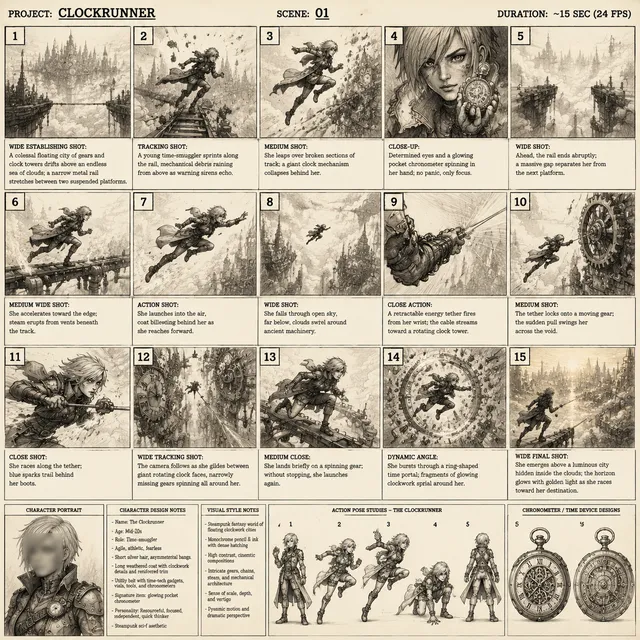
AI video and image generation has become a realistic source of assets rather than a novelty. The trick is treating AI output as raw material to be finished, not as a finished shot.
Where AI genuinely helps
- Concepting and previsualization — generate a rough look, then rebuild it properly in 3D.
- Background plates — generate an environment, then use it as a backdrop behind tracked 3D elements.
- Textures and materials — generate seamless patterns and use them in the shader editor.
- Rotoscoping assistance — use segmentation-based tools to produce mattes, then refine them in the compositor.
- Upscaling and cleanup — improve older or low-resolution footage before integration.
Prepping AI output for compositing
Generated footage typically arrives with problems that need fixing before it sits next to rendered elements:
- Resolution mismatch. Scale to project resolution before adding effects, not after.
- Frame rate mismatch. Conform to your project frame rate to avoid stutter.
- Color space drift. Generated material often has a slightly different white balance and gamma. Match it with a Color Balance node and a reference swatch.
- Compression artifacts. Generated video tends to be compressed hard. Denoise, then add a light grain layer to hide what remains.
- Inconsistent motion. Generated motion rarely matches a real camera move. If the shot needs precision, track the generated plate and stabilize it before compositing on top.
Keeping the look consistent
This is where most hybrid projects fall apart. AI-generated backgrounds look "too clean" next to rendered 3D. Render elements look "too sharp" next to compressed generated footage. The fix is a unifying pass applied to everything at the end of the compositor chain: shared grain, shared chromatic aberration, shared slight defocus on background layers, and a single grade applied to the whole frame. Run every element through that same final treatment and the seams disappear.
Seven mistakes that slow Blender projects down
- Rendering straight to video. Explained above — always render to an image sequence.
- Skipping the storyboard. Blender's flexibility tempts you to start building before the shot is planned. Plan first.
- Over-detailing background assets. Detail that never reads on screen is wasted render time.
- Ignoring the Outliner. Large scenes become unnavigable without collections and clear naming.
- Hardcoding values. Use drivers and node inputs so changes don't require redoing setups.
- Not saving versions. Blender files can grow complex enough that a broken change is hard to trace. Save numbered versions at milestones.
- Fighting the interface instead of customizing it. If you perform an action five times a day, put it on a shortcut or a menu.
FAQ
Can Blender replace a dedicated video editor?
For graphics-driven projects, yes. For dialogue-heavy long-form editing, most professionals keep a dedicated editor for the cut and use Blender for effects, titles, and 3D shots.
Is Blender's Video Sequence Editor good enough for professional output?
It handles multi-track editing, transitions, color adjustment, and audio scrubbing. Output quality is not the limiting factor — workflow speed is. Many creators finish in Blender for short-form work and hand long-form back to a dedicated NLE.
What hardware matters most?
For 3D work, a fast GPU with generous VRAM, 32 GB of system RAM, and SSD storage. For editing-only work, CPU and fast storage matter more than the graphics card.
How long does it take to learn?
Basic navigation and simple animation in a weekend. Comfortable, self-directed project work in a few weeks of consistent practice. Rigging and compositing depth take longer.
Do I need to know Python?
No, but a little scripting pays off enormously for repetitive tasks, custom operators, and bulk property changes across many objects.
How does it fit with other tools?
Cleanly. Blender imports and exports common 3D formats, reads image sequences and video files, and can render out passes that other compositors consume. Treat it as one station in a pipeline rather than the whole pipeline.
Decision guide: when Blender is the right call
Choose Blender when your project is graphics-heavy, when you need 3D and editing in one file, when budget matters, or when you want to keep everything on your own machine with no subscription. Choose a dedicated editor as your primary tool when your project is captured footage with a light graphics layer, when multiple people need to collaborate on the same timeline, or when audio work is central.
The most productive configuration for many small teams is a hybrid: generate and composite in Blender, cut and finish in a dedicated editor. Whichever route you take, invest the first hours in workspace setup, asset hygiene, and reusable node groups. Blender rewards that investment more than almost any other tool in the stack, because everything you build — rigs, node groups, asset libraries, procedural setups — carries forward into the next project.

Alexander
More Blogs
Read MoreVidu Q4 Alternatives: 4K AI Video Models Compared (2026)
Vidu Q4 alternatives compared: Kling 4.0, Seedance 2.5, Wan 3.0, and Runway Gen-4 — 4K support, input modes, durations, audio, and what each costs in credits on Domer.
Top 4K AI Image Generators in 2026: 5 Models Compared on Real Costs
The top 4K AI image generators on Domer compared: Flux 3 Klein, Nano Banana 2.1, GPT Image 2.5, GPT Image 2, and Nano Banana Pro — 4K credit costs, reference limits, and speed.
Nano Banana 2.1 vs GPT Image 2.5: Which Image Model Should You Use? (2026)
Nano Banana 2.1 vs GPT Image 2.5 Flare compared: credit costs per resolution, aspect ratios, reference images, text rendering, and which tasks fit each model.