
Crea
Affiliazione
Inizia Gratis Ora
How to Create Stunning Visual Effects Without Complex Software
Oct 15, 2026

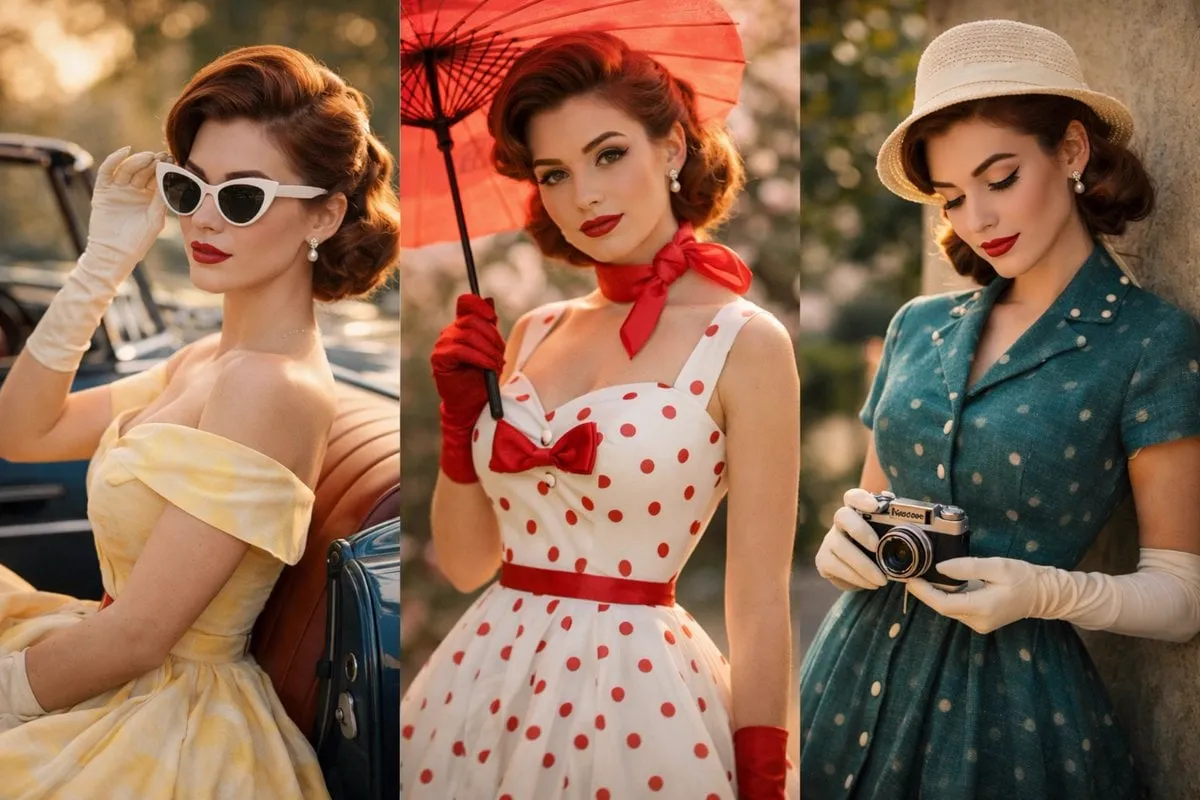
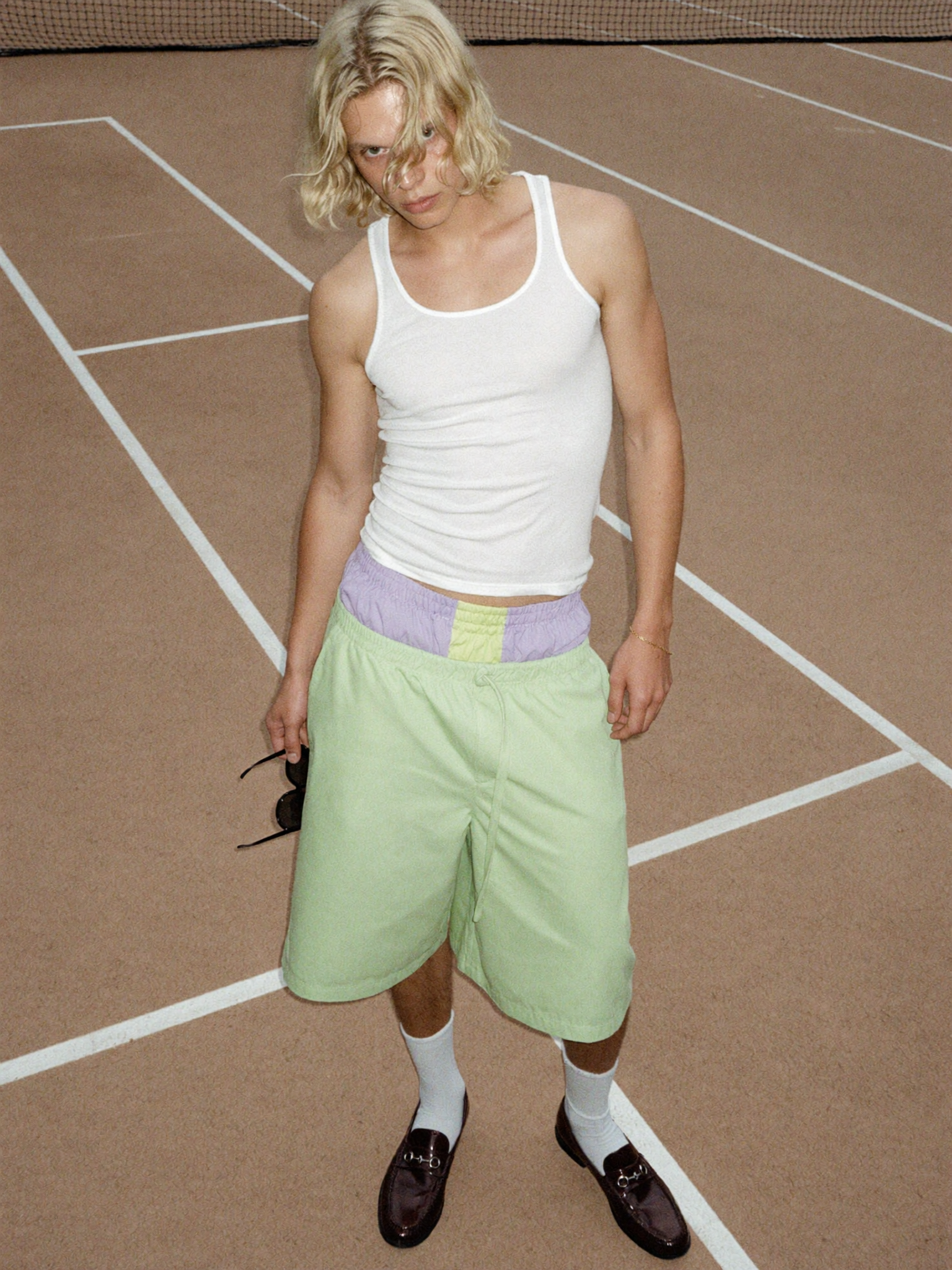
Why AI Changed the Visual Effects Landscape
For decades, visual effects belonged to studios with render farms, compositing suites, and artists who spent years mastering node graphs. If you wanted a convincing explosion, a sci-fi cityscape, or a character who could walk through three different environments, you either hired a pipeline or spent months learning one.
That barrier has mostly collapsed. Modern generative models can take a sentence, a storyboard frame, or a reference photo and produce moving footage with consistent lighting, plausible physics, and a coherent art direction. The heavy lifting — perspective matching, light direction, texture detail, motion interpolation — happens inside the model rather than in a timeline full of keyframes.
What that means in practice is that the bottleneck has shifted. It is no longer "can I technically build this shot?" but "do I know what shot I want, and can I describe it precisely enough?" The craft has moved from operating software to directing intent. That is a much easier skill to learn, and it rewards the same instincts that make a good editor or cinematographer: knowing what the audience should feel in each beat.
The rest of this guide walks through the actual techniques — scene composition, character consistency, style transfer, editing, finishing — and the workflow that ties them together, using lightweight tools that run in a browser or on a laptop.
What You Need Before You Start
You do not need a workstation. You need a clear plan, organized assets, and a tolerance for iteration. Most beginners fail not because the tools are weak but because they start generating before they know what they are making.
A realistic setup
- A mid-range laptop with a modern GPU or a decent cloud-based generation tool
- A browser-based editor for assembling clips, or any free desktop editor you already know
- A folder structure that separates references, raw generations, selected takes, and final exports
- Headphones. Judging motion and pacing without clean audio is a trap.
Reference and prompt hygiene
The quality of your output tracks the quality of your input more than any slider. Collect five to ten reference images that show the mood, palette, and camera language you want. Name them descriptively (rooftop-dusk-wide-01.jpg), not IMG_4471.jpg.
When you write prompts, describe the shot, not the vibe. "Slow dolly-in on a rain-slick alley, sodium streetlights, shallow depth of field, anamorphic flare" gives a model far more to work with than "cool cinematic scene." Include camera movement, lens feeling, time of day, and the emotional temperature of the frame. Keep a running document of prompts that worked — that document becomes your personal style guide.
Set expectations for iteration
Assume a 10:1 ratio. Ten generations to find one usable take is normal, and good. Budget your time accordingly, and never judge a model on a single roll of the dice.
Technique One: AI-Assisted Scene Composition
Scene composition is where AI saves the most time. Instead of building an environment from primitives, you describe it and get rendered options with lighting and perspective already resolved.
Build a shot list first
Before generating anything, write your sequence as a shot list: shot number, description, duration, and purpose. A three-shot sequence for a product teaser might read: establishing wide of a studio at dawn, medium shot of hands opening a box, macro shot of the product catching light.
With a shot list, every generation has a job. Without one, you accumulate beautiful clips that do not cut together.
Change one variable at a time
When a composition is close but not right, resist rewriting the entire prompt. Adjust one element: swap "overcast" for "golden hour," or change "wide establishing shot" to "low-angle medium shot." One change per iteration teaches you what the model responds to and keeps your best take recoverable.
Use depth cues deliberately
AI composition often looks flat because prompts ignore depth. Add foreground, midground, and background language: "blurred leaves in the foreground, subject at mid-distance, city skyline dissolving into haze behind." That single habit does more for perceived production value than any style keyword.
Technique Two: Character and Object Consistency Across Shots
Continuity is the hardest problem in AI filmmaking. A character who changes face between shots destroys the illusion faster than a wobbly camera ever will.
Lock the character before you shoot
Generate your character in isolation first — front, three-quarter, and profile views in neutral light. Save those as your canonical reference set. Then, in every subsequent generation, feed the reference back in and describe only what changes: pose, location, action. Keep wardrobe, hair, and distinguishing features in a fixed block of text you paste into every prompt rather than retyping from memory.
Some tools offer a dedicated character-lock or identity-preservation feature. Use it. It is far cheaper than fixing faces in post.
Build a continuity checklist
Run every shot against the same five questions:
- Does the face and hair match the reference set?
- Is the wardrobe consistent, including accessories and wear patterns?
- Does the light direction match the previous shot in the same scene?
- Are props in the correct hand, pocket, or position?
- Does the background geography hold up if the camera moves?
The same discipline applies to objects. If a specific vehicle, gadget, or product must look identical across five shots, treat it as a character and give it its own reference set.
Accept controlled imperfection
Perfect consistency is expensive to chase. Shots separated by a cut, a different angle, or significant motion are far more forgiving than a continuous take. Structure your edit so the audience never gets a long, uninterrupted look at a face that is drifting. Cut on motion, cut to a reaction, cut away — the grammar of film editing exists partly to hide exactly this kind of problem.
Technique Three: Style Transfer and Look Development
Style transfer takes existing footage and re-renders it through an aesthetic: watercolor, cel-shaded animation, aged film stock, brutalist monochrome. It is the fastest way to make ordinary footage feel designed.
Build a look bible
Pick three to five reference images that define your look and keep them visible while you work. Write down the concrete attributes: palette, contrast curve, grain level, line quality, motion blur behavior. When a generation drifts, you will know which attribute is off instead of just sensing that something is wrong.
Apply the style consistently across a whole sequence. Mixed looks within a scene read as mistakes, not choices. If you want a style break — say, a flashback — signal it clearly with a hard cut and a visible change in texture.
Mix AI looks with real footage
Style-transferred live-action footage is often more convincing than fully generated footage, because real motion and real lighting survive the transformation. Shoot simple plates on a phone — a walk through a corridor, hands on a keyboard, a skyline from a window — and restyle them. The result keeps human motion quirks that purely generated clips often lack.
Keep a clean, ungraded version of every clip you restyle. You will want it when the stylized version fails to cut with a neighboring shot.
Technique Four: Editing, Compositing, and Finishing
Generation is half the job. Assembly is where the piece either works or does not.
Assemble in passes
Do a rough assembly with no effects at all: just clips in order, trimmed for pacing. Watch it back. If the story does not hold with plain cuts, effects will not save it.
Then layer passes: first the primary look, then transitions, then particle or atmosphere work, then titles. Working in passes keeps you from polishing a shot that gets cut.
Match light and motion between shots
Even with consistent style, shots can feel stitched together. Two fixes cover most cases: match the direction of the key light, and match the speed of motion. If one shot has a slow drifting camera, do not cut to a static frame at a brisk tempo — the jump in energy reads as a mistake.
Do the sound pass properly
Sound sells visual effects more than most creators admit. A transition that looks thin becomes convincing with a well-timed whoosh, sub-bass thump, or ambience bed. Build three layers: dialogue or voiceover, sound design hits, and continuous ambience. Duck the ambience under any hit by a few decibels.
Finish with restraint
Keep color correction simple: set black levels, set white levels, then nudge saturation. Over-grading AI footage tends to amplify artifacts in skin tones and gradients. Add grain, vignette, and subtle lens distortion last — these unify mismatched shots surprisingly well, and they are the cheapest tools you have for making a sequence feel like one film.
A Full Workflow: Script to Final Cut
Here is the sequence that works repeatedly, from a blank page to an export.
- Write the beat sheet. Six to twelve beats. One sentence each. This is the spine.
- Convert beats to a shot list. Every beat becomes one to four shots with a duration and a purpose.
- Build the asset kit. Reference images for locations, characters, props, and the overall look, named and sorted.
- Lock characters and hero objects. Generate the canonical reference set before any scene work begins.
- Generate scenes in batches. One location at a time, one lighting condition at a time. Batch generation keeps style drift low.
- Select ruthlessly. Mark every usable take immediately. Delete the rest monthly so your library stays navigable.
- Rough-assemble. Clips on a timeline, no effects, pacing only.
- Add the style pass. Apply your look across the whole sequence in one sitting for consistency.
- Polish. Transitions, atmosphere, titles, grade, grain.
- Sound and export. Build the audio layers, then export at the highest practical quality, and keep a project archive.
A typical two-minute piece takes most creators somewhere between four and ten hours of active work once they know the tools. The first one takes much longer — that is normal, and it is where the learning happens.
Choosing the Right Tool for the Job
There is no single best tool. There is a best tool for the shot in front of you.
| Need | Best fit |
|---|---|
| Fast text-to-clip generation for concepts | General-purpose text-to-video tools |
| Consistent characters over many shots | Tools with identity or subject locking |
| Restyling live-action footage | Video-to-video style transfer tools |
| Precise control over individual frames | Image generation plus manual motion |
| Assembly, timing, and final polish | Any editor you already know well |
Decision criteria that actually matter
- Control versus speed. More control usually means more steps. Use fast tools for exploration, precise tools for hero shots.
- Output resolution and duration limits. Short clips are easier to keep consistent. Generate short, assemble long.
- Licensing terms. If the work is commercial, confirm what you are allowed to do with outputs and references.
- Reversibility. Prefer tools that let you return to a previous generation and branch, rather than overwrite your work.
Do not switch tools mid-project unless a tool is actively blocking you. Every switch costs you a re-learning curve and introduces a style discontinuity.
Common Mistakes to Avoid
- Generating before planning. The most expensive error. Every unplanned clip is a clip you will not use.
- Chasing perfect consistency. Restructure the edit instead. Coverage solves more continuity problems than a repair tool.
- Overloading prompts. Stacked keywords fight each other. Focus on subject, action, camera, light, mood — then stop.
- Ignoring sound. Silent assemblies hide pacing problems and expose amateur finishes.
- Grading everything at the end. Set a baseline look early; otherwise you will be reconciling shots that were never meant to match.
- Working on one shot forever. Move to the next shot, finish the sequence, then revisit. Context makes problems obvious.
- Skipping archives. Keep the project file, exports, and originals. You will reuse footage more than you expect.
FAQ
Do I need a powerful computer to make good-looking effects?
No. If you use browser-based or cloud tools, the generation happens on someone else's hardware. What you need is decent internet, an organized folder structure, and patience for iteration.
How long does it take to learn this workflow?
Expect a weekend to understand the basics and two to three small projects before results feel reliable. The technical part is quick; the judgment about what looks good and what cuts well takes longer, because that is real filmmaking skill.
Can I restyle footage I shot on a phone?
Yes, and it often looks better than fully generated video, because real motion and real lighting survive the transformation. Shoot stable, well-lit, simple plates and let the style pass do the heavy work.
How do I stop characters from changing between shots?
Lock a reference set first, reuse a fixed description block in every prompt, and structure your edit so faces are not on screen long enough to be inspected during a slow move. Consistency tools help, but editing rhythm helps more.
Is AI-generated footage suitable for client work?
Increasingly, yes — for explainers, social campaigns, mood pieces, and internal video. Check the licensing terms of every tool in your chain, and be transparent with clients about which portions are generated, which are restyled, and which are conventional footage.
What is the single highest-leverage habit?
Keeping a prompt and look document. Creators who write down what worked stop rediscovering the same settings, and their work starts to look deliberate rather than lucky.

Alexander
More Blogs
Read MoreVidu Q4 Alternatives: 4K AI Video Models Compared (2026)
Vidu Q4 alternatives compared: Kling 4.0, Seedance 2.5, Wan 3.0, and Runway Gen-4 — 4K support, input modes, durations, audio, and what each costs in credits on Domer.
Top 4K AI Image Generators in 2026: 5 Models Compared on Real Costs
The top 4K AI image generators on Domer compared: Flux 3 Klein, Nano Banana 2.1, GPT Image 2.5, GPT Image 2, and Nano Banana Pro — 4K credit costs, reference limits, and speed.
Nano Banana 2.1 vs GPT Image 2.5: Which Image Model Should You Use? (2026)
Nano Banana 2.1 vs GPT Image 2.5 Flare compared: credit costs per resolution, aspect ratios, reference images, text rendering, and which tasks fit each model.