

Affiliazione
Inizia Gratis Ora
Local AI Animation: Run an SD Video Generator Offline
Oct 15, 2026
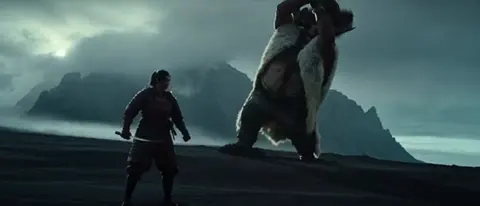
Running an animated Stable Diffusion video generator on your own machine used to feel like a stunt: technically impressive, practically unusable. That has changed. With mature node-based interfaces, leaner sampling methods, and video-aware checkpoints that fit inside consumer VRAM, a fully offline animation pipeline is now a realistic production setup for solo creators, small studios, and anyone who cannot or will not send footage to a remote service.
This guide walks through the whole stack: what offline video synthesis actually computes, which hardware genuinely matters, how to choose between competing interfaces and model families, and a repeatable render workflow you can reuse for every clip. It also covers the failure modes that eat the most time, plus the finishing steps that separate a promising test render from something you would actually publish.
Why Local Animation Pipelines Are Worth the Setup
Offline generation is not automatically better than a hosted tool. It is better for a specific set of constraints, and it helps to be honest about which ones apply to you before you spend an evening compiling dependencies.
Privacy and client confidentiality
When a render runs on your own storage, nothing leaves the machine. For creators working under NDAs, on unreleased product visuals, or with footage of identifiable people, that matters more than raw quality. You can iterate on sensitive material without worrying about retention policies or data handling terms you did not read closely.
Predictable costs and unlimited iteration
The economics of local rendering are attractive because the marginal cost of one more take is essentially electricity. Latent-space experiments, throwing away nine versions of a shot, re-rendering after a tiny prompt change: all of that is free at the point of use. If your workflow involves heavy trial and error, local wins on budget alone.
Reproducibility and version control
A cloud tool updates when it updates. A local pipeline is pinned: same checkpoint, same sampler, same seed, same result months later. You can archive a project folder and rebuild a shot exactly, which is invaluable when a client asks for a small revision six weeks after delivery.
The trade-offs you accept
In exchange, you own the maintenance. Driver conflicts, dependency breakage, thermal throttling, and render times measured in hours instead of minutes are all part of the deal. Local pipelines reward patience and punish improvisation.
How Offline AI Video Synthesis Actually Works
Understanding the mechanics makes debugging dramatically easier, because most artifacts trace back to a specific stage of the pipeline rather than to some vague model misbehavior.
Frames, latents, and the temporal problem
An image model denoises a single latent tensor. An animation pipeline denoises a stack of tensors that must agree with one another. The model has to keep each frame internally coherent while also keeping frames coherent across time. That second requirement is where flicker, texture crawl, and identity drift come from.
Temporal layers and motion modules exist to solve exactly this. They inject information from neighboring frames into the current one, so the sampler is effectively told what happened a moment ago. When those modules are too weak, you get shimmer. When they are too strong, motion becomes mushy and the subject slides instead of moving naturally.
Where sampling schedules fit in
Frame count, frame rate, and sampling steps interact far more than beginners expect. A twenty-four frame clip at twelve frames per second is two seconds of very short motion, which is why many creators render at a lower playback rate and then interpolate upward. Higher step counts improve still-frame fidelity but do not fix temporal inconsistency; that is a structural problem, not a noise problem.
The role of conditioning
Control inputs such as depth maps, pose skeletons, edge maps, and optical flow are the real workhorses of a stable render. Prompts describe intent; conditioning enforces geometry. If your subject keeps changing shape, the answer is usually a stronger structural input, not a longer negative prompt.
Hardware Planning: Match the Rig to the Shot
You can start small and grow, but you should decide up front what resolution and clip length you are targeting, because that determines the floor.
VRAM tiers and what they enable
Eight gigabytes of VRAM is enough for short, low-resolution test clips with aggressive memory-saving flags. Twelve gigabytes opens up comfortable 512-pixel work with temporal modules enabled. Sixteen to twenty-four gigabytes is where the workflow stops feeling fragile: higher base resolution, longer sequences, and room to keep the text encoder resident. Beyond that, you are mostly buying speed and the ability to batch.
Storage, RAM, and thermals
Model files are large and you will accumulate dozens of them. A fast NVMe drive for active models and a slower drive for archives keeps load times sane. Thirty-two gigabytes of system memory is a reasonable baseline because preprocessing steps load frames into RAM before they hit the GPU. Cooling deserves real attention: a render that throttles after ten minutes can take twice as long as one that stays at a stable temperature, and sustained load is exactly where cheap airflow fails.
Knowing when to stay offline
If your project needs hundreds of seconds of finished animation, a single desktop will become a queue. That is the moment to consider a second machine, a small local cluster, or a hybrid where only the heaviest pass runs elsewhere. Staying fully offline is a policy decision as much as a technical one.
Choosing the Software Stack for Offline Rendering
Node-based versus form-based interfaces
Node graph tools give you total control: you build the exact chain of loaders, samplers, conditioning nodes, and export steps, and you can reuse that graph as a template. They have a learning curve, but the curve pays off the first time you need to insert a preprocessing step in the middle of a render.
Form-based interfaces are friendlier for a first attempt and excellent for quick image tests. Many creators use a form-based tool for prompt exploration and a node graph for the actual animation, moving only the ideas that survive.
Standalone animation front ends that render frame-by-frame by driving an image model are a third option. They are convenient for stylized, deliberately unstable looks, and less suited to clean character motion.
Model formats and environment isolation
Prefer a single-file format for checkpoints and a separate lightweight file for style adapters, so you can swap styles without reloading a multi-gigabyte base. Keep your environment isolated: a dedicated virtual environment per interface prevents the classic situation where upgrading one tool breaks another. Snapshot a working configuration before you change anything, because you will want to go back.
Auxiliary tools worth installing early
A frame interpolation utility for smoothing low-frame-rate renders, a dedicated upscaler for detail recovery, and a command-line encoder for assembling image sequences into video. None of these are glamorous, and all of them save hours.
A Step-by-Step Offline Animation Workflow
This sequence is deliberately ordered from cheap decisions to expensive computation, so mistakes surface before you have spent GPU time.
Plan the shot list before touching the sampler
Write down what each shot must accomplish in one sentence. A close-up of a character reacting is a different technical problem from a wide establishing pan. Short shots hide temporal weaknesses; long shots expose them. Budget your clip lengths accordingly and accept that a three-second beat rendered well beats a twelve-second beat rendered approximately.
Render the base pass at low resolution
Generate at a reduced resolution with the same aspect ratio as your final output. This pass exists to validate motion, framing, and timing, not detail. Use a fixed seed so you can compare variations meaningfully, and keep a written log of prompt and settings for each attempt.
Lock motion with structural passes
Once the base motion reads correctly, add your depth, pose, or edge conditioning. If the subject walks, a pose-driven pass will hold the silhouette far better than text alone. If the camera moves, driving that motion explicitly prevents the model from inventing its own, which is where most warping originates.
Interpolate frames for smoothness
Render at a modest frame rate, then interpolate to your delivery rate. Interpolation smooths motion but cannot invent missing detail, so keep the base render reasonably clean. Watch for artifacts around fine edges such as hair and thin props; most interpolation tools let you adjust the blend or enable a motion-aware mode.
Upscale and restore detail
Upscaling an animation is not the same as upscaling a photograph. Applying a detail model frame by frame can introduce flicker that was invisible at low resolution. A short test of ten frames is enough to tell whether your chosen upscaler is temporally stable. If it is not, try a milder setting or blend the upscaled result back toward the original.
Assemble, encode, and archive
Encode from the image sequence rather than from an earlier compressed file to avoid generational loss. Archive the project graph, the checkpoint filename, the seed, and a plain-text settings file alongside the final video. Six months from now that note is worth more than the render itself.
Model Selection Criteria for Local Animation
Motion-first checkpoints
Community fine-tunes differ enormously in how they handle motion. A checkpoint tuned for photorealistic stills can produce gorgeous single frames and miserable animation. Look for versions explicitly trained or tuned with temporal modules in mind, and test each candidate on a five-second clip before committing a project to it.
Video-native models
A newer generation of models is trained on video directly rather than extended from image generation. They tend to produce more convincing camera movement and physical continuity out of the box, at the cost of heavier requirements and sometimes less stylistic range. They are excellent for establishing shots and environments.
Adapters, styles, and control modules
Small style adapters let you shift the look without changing the base model. Structural control models let you dictate composition. A practical combination is one strong base checkpoint, two or three adapters for recurring looks, and one structural control network you know well. Depth and edge control cover most shots; pose control is worth adding when characters move.
Use a modest set of negative prompts focused on the specific artifacts you keep seeing, such as extra limbs, melted geometry, or duplicated faces, rather than a long generic list.
Troubleshooting the Most Common Local Render Failures
Flicker and texture crawl
Raise the influence of temporal modules, reduce prompt changes between frames, and check whether your upscaler is the actual culprit by testing it in isolation. Texture crawl on backgrounds is frequently caused by too much randomness in detail generation, so lowering the context or motion scale often helps more than adding samples.
Subject morphing and drift
This is almost always a conditioning problem. Add a structural pass, shorten the clip, or move the camera instead of the subject. Identity drift in characters usually improves with a reference-image adapter that pins facial features across frames.
Out-of-memory crashes
Reduce resolution before reducing frame count, since memory scales quickly with pixel area. Enable tiled decoding or sequential loading for the text encoder, close other applications that hold VRAM, and consider rendering in segments and stitching later. If crashes happen near the end of a batch, that is a fragmentation clue rather than a size problem.
Painfully slow renders
Measure before optimizing. Time a single frame, then change exactly one variable. Common wins include switching to a faster sampler, lowering step count while compensating with interpolation, using a smaller text encoder, and rendering at a base resolution that divides evenly into your final size.
Reviewing, Grading, and Finishing Without the Cloud
Watch your render at full speed and at quarter speed. Full speed reveals rhythm problems; slow motion reveals structural breaks that disappear when frames fly past. Keep a simple checklist: does the subject stay recognizable, does the background hold still when the camera is static, does anything pop on the first and last frame.
For finishing, a light grade in any offline editor will do more than a heavier upscale. Slight contrast and color consistency across shots pulls a sequence together. If you are adding audio, cut the picture to the sound rather than the reverse, and never judge motion quality with music playing.
Turning One Clip Into a Repeatable Series
Once a shot works, convert it into a template. Save the node graph with placeholder prompts, store the settings that produced the approved result, and write a short checklist of the exact passes used. New shots then become variations rather than experiments.
For series work, batch overnight with fixed seeds, keeping resolution low and quality passes for a second stage. Name everything consistently: project, shot number, version, seed. Track which checkpoint produced which approved frame, because when you revisit a series later you will want the same look and small differences become very visible side by side.
FAQ
Can I run an animated video generator on a laptop GPU?
Yes, if you accept constraints. Expect short clips, reduced resolution, and longer render times. Memory-saving flags, tiled processing, and a smaller text encoder make the difference between a crash and a finished render. Thermal throttling is the real limiting factor on thin laptops.
How long should an AI-generated animation clip be?
Two to four seconds is the sweet spot for most workflows. Longer sequences accumulate temporal errors, so a series of short shots cut together usually looks better than one continuous long take.
Do I need a video-native model, or is an image model with temporal modules enough?
An extended image model with temporal modules covers stylized and character-focused work well and is easier to control. Video-native models are worth the extra resource cost when you need believable camera motion and environmental continuity.
Why does my render look fine frame by frame but terrible in motion?
Because temporal consistency is a separate property from per-frame quality. Check interpolated frames, conditioning strength, and how much the prompt or seed changes mid-sequence. Steady inputs produce steady motion.
How much VRAM is enough to start?
You can begin with eight gigabytes for testing at low resolution. Twelve to sixteen gigabytes is the practical threshold where an animation workflow stops being a compromise, and higher capacity mainly buys speed and longer clips.
Is an offline pipeline faster than a hosted tool?
Per render, usually not. Overall, sometimes yes, because iteration is instant and there are no queues, uploads, or waiting for processing slots. The advantage is workflow continuity, not raw throughput.
What should I learn first?
Learn one interface thoroughly, learn one structural control method, and learn how to read a failed render. Those three skills solve more problems than any new checkpoint will.
Key takeaway: A local animation pipeline is a system, not a single tool. Once hardware, interface, conditioning, and finishing are treated as connected stages, offline generation becomes a dependable part of production rather than a technical gamble.

Alexander
More Blogs
Read MoreVidu Q4 Alternatives: 4K AI Video Models Compared (2026)
Vidu Q4 alternatives compared: Kling 4.0, Seedance 2.5, Wan 3.0, and Runway Gen-4 — 4K support, input modes, durations, audio, and what each costs in credits on Domer.
Top 4K AI Image Generators in 2026: 5 Models Compared on Real Costs
The top 4K AI image generators on Domer compared: Flux 3 Klein, Nano Banana 2.1, GPT Image 2.5, GPT Image 2, and Nano Banana Pro — 4K credit costs, reference limits, and speed.
Nano Banana 2.1 vs GPT Image 2.5: Which Image Model Should You Use? (2026)
Nano Banana 2.1 vs GPT Image 2.5 Flare compared: credit costs per resolution, aspect ratios, reference images, text rendering, and which tasks fit each model.