
Affiliazione
Inizia Gratis Ora
Make Instagram Reels in Premiere Pro: A Complete Workflow
Oct 15, 2026
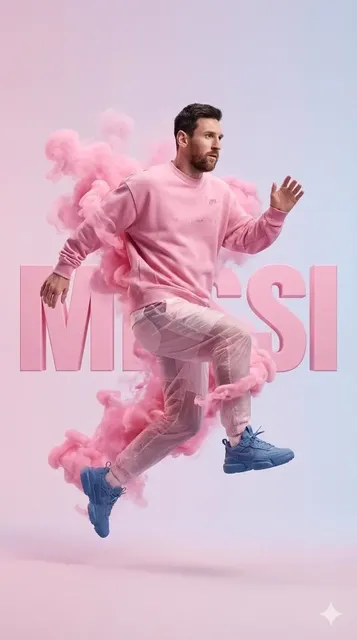
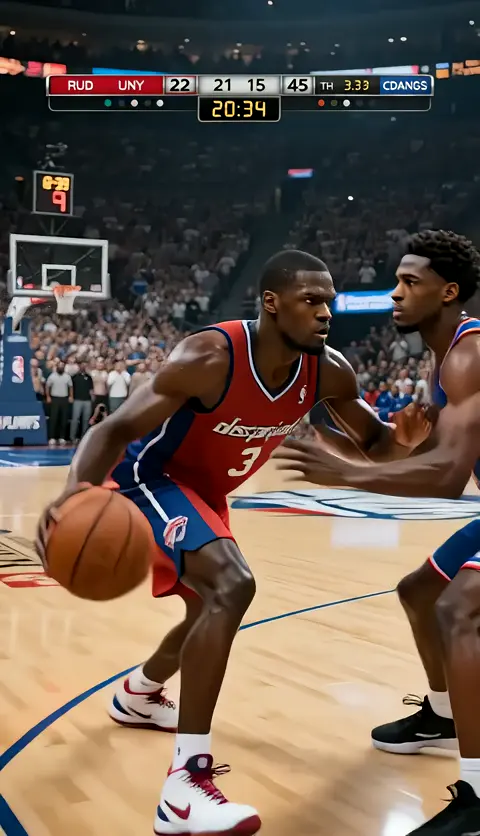
Short-form vertical video is no longer a side experiment for editors. It is the format that decides whether a brand, creator, or small studio gets discovered at all. The good news is that the tool you probably already use for client work, Adobe Premiere Pro, is more than capable of producing polished vertical video at speed. The catch is that Premiere Pro is built for timelines, not for feeds, so the default project setup quietly works against you.
This guide walks through a complete, repeatable workflow for making Instagram Reels in Premiere Pro: how to set up a vertical project that does not fight you, how to build hooks that survive the first scroll, how to handle captions and color for tiny screens, how to export a file that looks sharp after compression, and where AI-powered assists save real hours without flattening your style.
Why Premiere Pro Still Belongs in Short-Form Video
Plenty of editors cut vertical video in lighter apps and then hit a wall: the moment a clip needs tracked text, a multi-layer composite, or a color match against three other cameras, the simple tool runs out of road. Premiere Pro handles those situations without requiring a second piece of software.
What makes it a strong fit for vertical work specifically:
- Precise timing control. Frame-level trimming matters more in a 20-second Reel than in a 10-minute video. Every extra frame in the hook costs retention.
- Reusable templates. Once you build a look and a caption style, you can save it as a project template or a Motion Graphics template and reuse it across dozens of posts.
- Multi-format delivery. The same timeline can export a 9:16 Reel, a 1:1 feed cut, and a 16:9 YouTube version with modest adjustments.
- Reliable audio tools. Essential Sound, track mixing, and loudness normalization are the difference between audio that sounds intentional and audio that sounds like a phone recording.
The trade-off is overhead. Premiere Pro does not assume vertical framing, does not auto-caption as gracefully as newer tools, and does not know anything about trending audio. You compensate with a disciplined setup, which is what the rest of this article is about.
Setting Up a Vertical-First Project in Premiere Pro
The single biggest source of wasted hours in vertical editing is a horizontal sequence full of letterboxed footage that you keep repositioning. Fix that in the first five minutes.
Sequence settings and safe zones
Start a new sequence at 1080 × 1920 with a square pixel aspect ratio. If you plan to shoot and finish in higher resolution, work at 2160 × 3840 and scale down on export; the extra detail helps when you push in on a shot.
Then turn on the title-safe and action-safe guides and position them for a phone screen rather than a broadcast monitor. Instagram's interface overlaps the bottom of the frame with captions and controls, and the top with the account header. A practical rule: keep critical text and faces inside the middle 80 percent of the frame, roughly 250 pixels away from the bottom edge and 300 from the top.
Bring order to the media
Vertical projects usually mean vertical media, captured on phones, gimbals, and mirrorless cameras with wildly different frame rates. Before you cut anything:
- Create bins for A-roll, B-roll, Audio, Graphics, and Stills.
- Rename clips with a consistent scheme, for example
scene-take-topic. Your future self will thank you when a client asks for a change a month later. - Build proxies if you are working with 4K or higher footage. ProRes Proxy or a low-bitrate H.264 proxy keeps scrubbing smooth on a laptop.
- Set the timeline frame rate to match your dominant source, usually 24, 25, or 30 fps, and only use higher rates for deliberate slow motion.
Scale and frame mismatches
Horizontal footage inside a vertical frame will need a Scale value around 180–300 percent. Set the default scale of imported clips in Preferences so you are not adjusting each one by hand. Then reframe deliberately: crop for the subject, not for the middle of the frame. Talking heads usually look better slightly off-center, and product shots benefit from placing the object in the upper third where thumbs do not cover it.
Building Hooks and Pacing in the First Three Seconds
Retention curves for vertical video are brutal and predictable. Most viewers decide somewhere in the first two to three seconds whether your clip is worth finishing. That decision is made by the visual, the first line of speech or text, and the movement of the cut.
Structure the opening
A dependable opening pattern looks like this:
- Frame 1 (0:00–0:01): a visually strong image. Motion, a face, a surprising object, or a bold text card.
- Frame 2 (0:01–0:02): the promise. One short sentence of speech or a two-to-four-word overlay that states the payoff.
- Frame 3 (0:02–0:03): the first transition into substance, so there is no dead air before the body of the video.
Record the hook line separately and place it against the best-looking shot in your footage. It is almost always worth re-recording the first sentence even if you improvised everything else.
Cut for rhythm, not for completeness
Short-form rewards compression. Apply these habits while assembling:
- Cut on movement or on a word, not on a pause.
- Aim for a visual change every one to two seconds in the first five seconds, then relax to two to four seconds.
- Use J-cuts to let the next clip's audio arrive before its picture. It hides edits and keeps momentum.
- Trim the first and last frames of every clip. Camera starts and stops are the most common source of accidental dead air.
Once the rough cut is assembled, watch it once with the sound off and once while looking away from the screen. If you cannot follow the story by listening alone, the visuals are not carrying enough information, and vice versa.
Captions and Typography That Survive Compression
Vertical video is watched silent more often than not, in queues, on trains, and in offices. Captions are not an accessibility afterthought; they are a retention feature.
Start by generating a transcript with Premiere Pro's speech-to-text feature, then correct the words that matter: names, product terms, numbers, and anything that would look embarrassing if wrong. Auto-generated captions are a starting point, not a finished product.
Typography rules for a phone screen
- Size: body captions around 60–90 pixels tall on a 1080-wide frame. Anything smaller disappears on a mid-range phone.
- Line length: three to five words per line, maximum. Long lines force a re-read and viewers skip.
- Font choice: a clean geometric or grotesque sans-serif with generous spacing. Avoid thin weights, which break up under heavy compression.
- Contrast: white text needs a shadow, a stroke, or a semi-transparent plate. Text over a busy background is unreadable even when it looks fine on a large monitor.
- Placement: keep captions in the upper-middle or middle of the frame so the platform's own interface does not collide with them.
Build once, reuse forever
Create a caption style with your brand's font, color, and animation, then save it as a Motion Graphics template. Every future Reel starts from that style instead of from scratch. If you produce weekly content, this one habit alone can cut your per-video editing time noticeably.
Color Grading and Finishing for Phone Screens
Phone screens are bright, high-contrast, and usually viewed at partial brightness with a lot of ambient light. Grading decisions that look subtle on a calibrated monitor can vanish or look muddy in the feed.
A practical finishing order:
- Normalize exposure and white balance per clip. Use Lumetri's basic correction to bring each shot into the same tonal range before you add any creative look.
- Match shots against each other using comparison view. Consistency across cuts reads as production value.
- Add a light creative grade. A slight warm shift for lifestyle content or a cool, desaturated look for tech content is usually enough. Heavy teal-and-orange looks are aging fast in vertical feeds.
- Apply a subtle sharpen of 10–20 and a touch of noise reduction only if you need it. Over-sharpened footage turns into blocky artifacts after platform compression.
- Consider a grain or texture layer at very low opacity. It can mask banding in gradients like skies or studio backdrops.
If you shoot in a flat log profile, convert to Rec.709 early in the chain rather than at the end. It is much easier to judge exposure when you are looking at a normal-contrast image.
Audio Workflow for Earbuds, Speakers, and Muted Scrollers
Most viewers who do listen are on small earbuds or a phone speaker. Both are unforgiving in different ways. Earbuds expose background hiss; phone speakers expose muddiness in the low midrange.
A simple chain that works for nearly every Reel:
- Clean first. Use DeNoise and DeHum before anything else. Restorative processing applied late amplifies problems you already added.
- Level second. Set dialogue around -12 to -6 dBFS on the meter, then use a limiter on the master to keep peaks below -1 dBFS.
- Target loudness deliberately. Around -14 LUFS integrated is a reasonable target for social platforms, which normalize playback loudness anyway.
- Carve space for music. Music beds should sit roughly 12–18 dB below dialogue in the spoken sections. Ducking with a sidechain or Essential Sound is faster and more consistent than hand-drawn keyframes.
- Add one or two accents. A whoosh on a transition or a click on a text pop makes the edit feel designed. More than a few becomes distracting.
For dialogue recorded in noisy environments, an AI speech-enhancement pass can rescue a take that would otherwise need re-recording. Treat it as a first aid tool, not a substitute for a proper lav mic.
Export Settings and a Reliable Delivery Checklist
Export mistakes are the most common reason a good edit looks soft in the feed. Instagram re-encodes everything you upload, so give it a clean, high-bitrate master.
Recommended starting point for Reels:
- Format: H.264 in an MP4 container.
- Resolution: 1080 × 1920. Uploading 4K is acceptable, but it is not a substitute for sharp source footage.
- Frame rate: match the timeline. Avoid variable frame rate exports from phone footage; convert to constant frame rate first.
- Bitrate: 10–16 Mbps for 1080p vertical, or a target bitrate of roughly 20 Mbps if the content has a lot of motion or fine detail.
- Audio: AAC at 320 kbps, 48 kHz, stereo.
Before you hit export, run this checklist:
- Is the first frame strong enough to stop a thumb?
- Are captions readable at 50 percent zoom?
- Is the dialogue intelligible on a phone speaker?
- Are the loudest moments below clipping?
- Is the last frame a deliberate ending rather than a hard cut to nothing?
- Does the file name identify the campaign and version?
Where AI Assists Fit Into a Premiere Pro Workflow
AI tools have moved from novelty to utility in editing, and the useful ones share a trait: they remove mechanical work rather than creative decisions. The best approach is to keep Premiere Pro as your assembly and finishing environment and pull AI in for specific bottlenecks.
Generative fills and background extension
When a vertical crop cuts off an important element, generative fill in Premiere Pro can extend the background to fill the empty vertical space. It works well for simple textures, skies, and out-of-focus backgrounds. It works poorly for complex patterns or faces. Always check the filled region at 100 percent zoom, because artifacts that are invisible at fit-to-screen become obvious on a phone.
Auto-captioning and transcript-driven editing
Transcript-based editing is one of the highest-leverage AI features for social video. You can search a spoken word and jump to it, delete filler words in bulk, and generate captions from the same transcript. For interview-style content, this turns a two-hour assembly into a much shorter task.
Generative b-roll and image assets
Sometimes the perfect insert shot does not exist in your footage. Generating a short clip or a still image to cover a concept line can be faster than shooting, and it sidesteps licensing questions as long as you check the terms of the tool you use. Keep generated inserts short, motivated, and visually consistent with your footage: mismatched lighting and grain are the fastest way to make an edit feel stitched together.
Voice cleanup and dubbing
Speech enhancement, noise removal, and voice matching tools are genuinely useful for creators who record in uncontrolled spaces. Use them to raise the floor on audio quality, not to replace clear delivery. Synthetic or cloned voices should be disclosed when the platform or your audience expects it.
A realistic AI-assisted pass
A practical division of labor looks like this: you cut the story, choose the takes, and set the rhythm. The AI handles transcript generation, filler removal, noise reduction, first-pass captions, and background extension. You then review every generated element, adjust timing by hand, and finish color and audio yourself. That division keeps your voice intact while removing the tedious parts.
Common Mistakes and How to Avoid Them
Most weak vertical edits fail for the same handful of reasons. Watch for these:
- Starting with a logo or title card. Nobody has agreed to watch yet. Lead with the most interesting image you have.
- Editing at full monitor size. Review at actual phone dimensions. Text that feels large on a 27-inch display is often unreadable in the feed.
- Over-styling. Three fonts, four transitions, and two animated stickers per second. Pick one visual language and repeat it.
- Ignoring the hook's audio. A quiet, hesitant first line loses viewers before the content starts. Re-record it with energy.
- Exporting variable frame rate footage. It causes audio drift and stutter after platform processing.
- Reusing one export for every platform. Aspect ratios, safe zones, and interface overlaps differ. Keep a small set of export presets.
- Skipping the silent watch. If the video does not work without sound, add text; if it does not work with sound only, add visual change.
FAQ: Short-Form Editing Questions Answered
Should I shoot vertical natively or crop horizontal footage?
Shoot vertical when you can. Cropping horizontal footage loses more than half the frame and often forces awkward scaling. When you must crop, shoot with vertical in mind and keep subjects near the center of the horizontal frame.
How long should a Reel be?
Match length to the idea. Many strong Reels land between 15 and 45 seconds. If the value is delivered and nothing else is added, end it. Length is not a ranking factor by itself; retention is.
Do I need a color-managed workflow for phone video?
For most social content, a consistent Rec.709 workflow is enough. If you shoot in log or HDR, convert to a standard deliverable before your creative grade so you can judge exposure accurately.
How do I keep captions from being covered by the interface?
Keep them inside the middle band of the frame and test on a real phone before publishing. Platform layouts change, so verify with one draft upload rather than trusting an old template.
Is it worth building a project template?
Yes, if you publish more than twice a month. A template with sequence settings, caption styles, audio presets, and export settings removes setup friction and standardizes your output quality.
Where should AI stop and I begin?
Let AI handle transcription, noise, captions, and background filling. Keep story selection, timing, tone, and the final emotional read for yourself. Those are the parts viewers actually remember.
What is the fastest way to improve my vertical edits?
Record your hook three times, cut the first second tighter than feels comfortable, and watch the result on the phone you actually use. Then make one deliberate improvement per video instead of rebuilding everything at once.

Alexander
More Blogs
Read MoreVidu Q4 Alternatives: 4K AI Video Models Compared (2026)
Vidu Q4 alternatives compared: Kling 4.0, Seedance 2.5, Wan 3.0, and Runway Gen-4 — 4K support, input modes, durations, audio, and what each costs in credits on Domer.
Top 4K AI Image Generators in 2026: 5 Models Compared on Real Costs
The top 4K AI image generators on Domer compared: Flux 3 Klein, Nano Banana 2.1, GPT Image 2.5, GPT Image 2, and Nano Banana Pro — 4K credit costs, reference limits, and speed.
Nano Banana 2.1 vs GPT Image 2.5: Which Image Model Should You Use? (2026)
Nano Banana 2.1 vs GPT Image 2.5 Flare compared: credit costs per resolution, aspect ratios, reference images, text rendering, and which tasks fit each model.