
Crea
Affiliazione
Inizia Gratis Ora
Mobile Video Filter Side Effects and Better AI Video Workflows
Oct 14, 2026
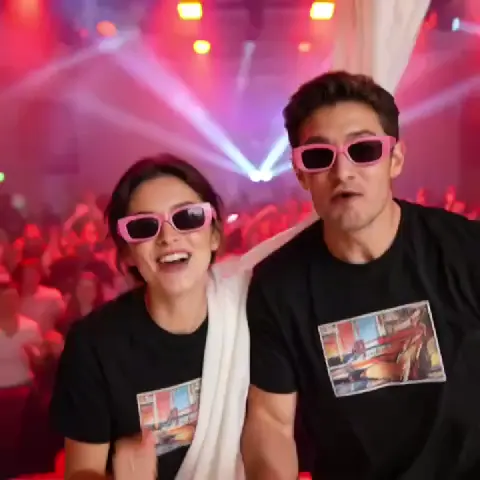
Phone cameras turned everyone into a filmmaker, and app-based filters turned everyone into a colorist, an animator, and a special effects artist — at least in theory. In practice, the footage that looks fantastic on a 6-inch screen frequently falls apart the moment you watch it on a laptop, a TV, or a client review link.
The reasons are rarely about creativity. They are about physics, encoding, thermal limits, and the way mobile pipelines make compromises you never approved. This guide unpacks what those compromises actually do to your footage, then walks through a desktop-first AI workflow that gets you the stylized look you wanted without the mush.
Why the side effects appear in the first place
Mobile editing apps are built around a hard constraint: a battery-powered device with a small thermal envelope, limited RAM, and a shared GPU that also handles the screen, the camera pipeline, and the operating system. A desktop that renders a shot for 40 seconds can do things a phone simply cannot do in real time — or at all, without draining the battery and heating the back of the device until the app throttles itself.
So apps optimize. They downscale frames before processing, they run generative passes at lower internal resolution, they use far fewer inference steps, they cache aggressively, and they re-encode every time you apply or remove an effect. Each of those decisions is invisible in the settings menu and very visible in the final file.
The result is a cluster of problems that people usually describe as "the filter ruined my video": softness, blocky shadows, faces that change shape between cuts, outlines that crawl, and colors that look fine on the phone but muddy on a calibrated display.
The technical anatomy of filter damage
Understanding the failure modes makes them far easier to prevent. Nearly every visible artifact traces back to one of five causes.
Compression stacked on compression
A phone clip starts life as a compressed file — often H.265 at a modest bitrate. When you import it into an editing app, apply a filter, and export, the app decodes and re-encodes. Some apps do this once per effect layer. Two or three export passes on already-lossy footage produce visible blocking in gradients, smeared foliage, and the characteristic "waxy" skin texture that reads as cheap even to viewers who cannot name what is wrong.
A clean pipeline decodes once, processes in a high-bit-depth intermediate format, and encodes once at the end. That alone eliminates a large share of perceived quality loss.
Temporal flicker and identity drift
This is the biggest problem with AI-driven filters, and the one people notice most. Frame-by-frame generative processing has no memory of the frame before it unless the pipeline is explicitly designed to provide one. Faces shift slightly in shape, hair strands rearrange, glasses appear and disappear, and a jacket's texture shimmers like static.
In a short clip it reads as "dreamy." In a 30-second sequence it reads as broken. Fixing it after the fact is nearly impossible — you have to prevent it during generation by using a locked reference, consistent seed behavior, and tools that support temporal coherence instead of treating each frame as an isolated image.
Resolution ceilings and detail loss
Many mobile effects run internally at 720p or 1080p regardless of what you shot. If your source is 4K, you have just thrown away three-quarters of your detail and then upscaled it back, which is why hair, fabric weave, and fine text turn to soup. Some apps also quietly crop to a processing-friendly aspect ratio and scale back up, introducing a soft border or a subtly stretched image.
Color and skin tone clipping
Consumer filters often push saturation and contrast hard in 8-bit space. Highlights clip to flat white, deep shadows crush to pure black, and skin tones drift toward orange or magenta because the filter was tuned on a narrow set of reference faces. Regrading crushed footage is painful: once a channel is clipped, the information is gone.
Audio drift and sync creep
Generative and frame-interpolating effects can change the effective frame rate or duration of a clip. If audio is left untouched, you end up with lip sync that drifts a few frames over a long take — small enough to feel wrong, large enough to be distracting in a talking-head video.
When the phone is still the right tool
A desktop pipeline is not automatically better for everything. Mobile editing remains the right choice when speed matters more than polish: social cutdowns, behind-the-scenes clips, quick reaction videos, and vertical reactive content where the audience is watching on the same class of screen you edited on. If the video will be consumed on a phone, artifacts at 200% zoom are irrelevant.
The decision point is simple. Ask three questions:
- Will this be watched on a screen larger than a tablet?
- Does the shot need a face, a character, or a product to stay consistent across cuts?
- Will anything be reused, recut, or delivered to a client?
A single yes is usually enough reason to move the heavy processing off the phone. Two yeses make it mandatory.
A desktop AI workflow that avoids the side effects
The workflow below is deliberately unglamorous. It front-loads boring decisions — format, resolution, reference material — because those decisions are what keep the AI stage from producing artifacts you have to repair later.
Step 1: shoot for the pipeline
Lock your frame rate, lock your shutter angle, and avoid heavy in-camera digital zoom. Shoot the flattest profile you can tolerate so you retain highlight and shadow information, and keep the phone's own beautification and denoise features off — they fight with anything you do afterwards. If you know a shot will be stylized heavily, shoot a clean plate of the same scene with no people in it; it becomes invaluable as a reference for environment consistency.
Step 2: normalize before you stylize
Import into a non-linear editor and do the unexciting work first. Stabilize, remove obvious noise, correct exposure, and set a consistent white balance across the scene. Transcode to a high-bit-depth intermediate — ProRes or DNxHR — so every subsequent operation works on data-rich frames instead of compressed ones.
This step also fixes audio sync
in advance. If you are changing frame rates with interpolation later, do the sync check on the normalized timeline first so you know your baseline is correct.
Step 3: style transfer with a locked reference
This is where the look gets built. Instead of relying on a random preset, generate a still-frame reference first: pick three to five representative frames from the scene, apply your intended style to them, and iterate until the look is right. Then use those approved frames as the style anchor for the whole shot.
Working still-first is the single highest-leverage habit in AI video. Stills are cheap and fast to iterate. Once you have an approved look, the video pass becomes a consistency problem rather than a creative one.
Step 4: keep characters consistent with reference sheets
If a character appears in more than one shot, build a small reference set: a neutral head-on portrait, a three-quarter view, a profile, and a full-body frame in neutral lighting. Feed the same reference material into every generation, and describe the character the same way every time — same wording, same order, same level of detail.
For anything longer than a few seconds, prefer tools or pipelines that explicitly support temporal consistency, character referencing, or video-to-video conditioning over tools that treat each frame independently. Where a tool offers an identity or character reference feature, use it rather than relying on a text prompt to hold a face together.
Step 5: upscale and match grain
After styling, upscale in a dedicated pass rather than during generation. That separates two problems that are often mixed together badly: detail reconstruction and style application. Upscale tools that specialize in video handle temporal consistency better than generic image upscalers applied frame by frame.
Then add grain, but add it on purpose. A very light, consistent film grain layer masks residual banding in gradients and helps stylized footage feel intentional rather than synthetic. The classic mistake is adding grain per shot with different settings, which creates visible texture jumps at every cut.
Step 6: finish color, then mix audio
Do your final grade after all generative work. Grade in a wide-gamut, high-bit-depth space, check skin tones against a vector scope rather than by eye alone, and keep saturation moves modest — stylized footage already carries a strong color signature, and doubling down pushes it into clipping.
Finish with audio last: normalize loudness, clean up room tone, and re-check lip sync at three points in the timeline — beginning, middle, and end. Drift accumulates, so a check at the start proves nothing.
Choosing the right class of tool for each job
Most disappointment in AI video comes from using one tool for everything. It helps to think in categories.
Style transfer and restyling. Look for tools that accept a reference image or video and support video-to-video conditioning. These handle painterly, animated, and film-look conversions best. Prioritize temporal coherence options and the ability to set a fixed seed or reference across a shot.
Character and scene generation. Prioritize consistent-character features, reference-image conditioning, and the ability to reuse an approved seed or identity across shots. Text-only prompting is the fastest route to a character who changes face between cuts.
Motion and interpolation. Use dedicated frame interpolation and slow-motion tools rather than in-app speed ramps. They generate cleaner intermediate frames and let you control how much motion blur is synthesized.
Restoration and upscaling. Choose tools built specifically for video, with temporal stability modes. These handle denoise, deblock, and detail reconstruction far better than image upscalers run in a batch.
Finishing. A conventional editor or color suite still wins for grading, titles, and audio. AI tools are not a replacement for a timeline.
A practical rule: use generative tools to create and transform, and conventional tools to assemble and finish. Mixing those responsibilities is how projects become unrecoverable.
Rebuilding popular filter looks without the artifacts
Presets are rarely the problem; the pipeline around them is. Here is how to reproduce common looks properly.
Analog film look. Build it from three parts: a gentle curve with lifted blacks and rolled highlights, a subtle halation pass on bright edges, and a single consistent grain layer. On a phone, the filter does all three simultaneously in 8-bit and clips highlights in the process. On a desktop timeline, you can control each part and keep the highlights intact.
Anime or cel-shaded style. This is where temporal consistency matters most. Use a video-to-video model with reference frames from your approved stills, keep line weight consistent by fixing the style reference across the whole shot, and avoid mixing multiple style references in a single sequence. Edge crawling is the tell that frames were processed independently.
Dreamy bloom and soft focus. Diffuse glow should be a compositing layer, not a filter baked into the source. That way you can dial it down for wide shots and up for close-ups without re-rendering the entire clip.
Retro VHS and glitch. Deliberately damaged footage is forgiving, which makes it the perfect place to experiment. Because the look is supposed to be degraded, you can push contrast and saturation hard without the result reading as an encoding error.
Mistakes that reintroduce every side effect you just removed
Even with a good pipeline, a handful of habits will undo the work. Watch for these.
- Generating in the final delivery aspect ratio too early. Crop last. Processing a 9:16 crop and then realizing you need a 16:9 version means redoing everything.
- Applying AI effects to already-graded footage. Denoise and upscale tools read contrast and saturation as real image data. Grade after generation, not before.
- Using different style references per shot in one sequence. Even small differences in reference framing produce visible look shifts at cuts.
- Stacking multiple generative passes. Each one adds artifacts. If a shot needs three separate effects, consider whether a single model with better prompting can do the job.
- Ignoring audio until the very end. Sync problems discovered after export mean another full render.
- Trusting a phone screen for approval. Check skin tones and gradients on a calibrated monitor; mobile displays oversaturate and hide banding.
A short quality check before you export
Run this list on every deliverable, not just the hero shots.
- Watch at 100% on a large display and look specifically at gradients — skies, walls, and shadows.
- Scrub frame by frame across two cuts and check that faces, hair, and clothing don't shift.
- Check skin tones against a scope or a known reference image.
- Confirm the first, middle, and last dialogue beats are in sync.
- Play the export once at low volume — visual problems are easier to spot when you are not following the audio.
- Verify the frame rate, resolution, and color tags match the delivery spec rather than whatever the export dialog defaulted to.
The fix for a problem found here is cheap. The fix for the same problem found by a client is not.
Frequently asked questions
Do phone filters really reduce video quality, or is that a myth?
It depends on the app, but most consumer apps re-encode footage at least once and often process at a lower internal resolution than your source. Compression plus downscaling plus 8-bit color work is a real, measurable quality loss, even though it may be invisible on the phone screen where you applied it.
What causes a face to change slightly between frames in an AI-filtered clip?
Frame-independent processing. If each frame is generated without knowledge of the previous one, small variations in the model's output accumulate into visible identity drift. The fix is a pipeline that supports temporal conditioning or consistent character references rather than per-frame generation.
Can I fix flicker and drift after the footage has been processed?
Mild flicker can be reduced with deflicker and temporal-denoise tools, but identity drift usually cannot be repaired. Restyling from the original source with a proper video-to-video workflow is generally faster than trying to patch the output.
Is a desktop workflow always necessary?
No. For vertical social content watched on phones, a mobile-first pipeline is faster and entirely adequate. Move to desktop processing when the video is long, character-driven, client-facing, or destined for a large screen.
How do I keep a stylized look consistent across a whole sequence?
Approve the look on still frames first, then use those stills as the style reference for every shot in the sequence. Keep your descriptive language identical between shots, and avoid introducing new references mid-sequence unless the story requires a deliberate look change.
What order should processing happen in?
Normalize, then stylize, then upscale, then grade, then mix audio. Each stage assumes the previous one produced clean, consistent frames — reversing the order means later stages amplify problems instead of fixing them.
Do I need a powerful machine for this?
For still-frame iteration, almost anything works, and cloud rendering covers the heavier passes. What matters more than raw hardware is choosing tools that support high-bit-depth intermediates and temporal consistency, because those two features prevent more artifacts than extra GPU headroom ever will.
The short version: filters are not the enemy. Uncontrolled pipelines are. Decide early where a project will be watched, keep the processing order disciplined, and use generative tools for creation and conventional tools for assembly — and the side effects that make phone-edited footage look cheap simply stop appearing.

Alexander
More Blogs
Read MoreVidu Q4 Alternatives: 4K AI Video Models Compared (2026)
Vidu Q4 alternatives compared: Kling 4.0, Seedance 2.5, Wan 3.0, and Runway Gen-4 — 4K support, input modes, durations, audio, and what each costs in credits on Domer.
Top 4K AI Image Generators in 2026: 5 Models Compared on Real Costs
The top 4K AI image generators on Domer compared: Flux 3 Klein, Nano Banana 2.1, GPT Image 2.5, GPT Image 2, and Nano Banana Pro — 4K credit costs, reference limits, and speed.
Nano Banana 2.1 vs GPT Image 2.5: Which Image Model Should You Use? (2026)
Nano Banana 2.1 vs GPT Image 2.5 Flare compared: credit costs per resolution, aspect ratios, reference images, text rendering, and which tasks fit each model.