

Affiliazione
Inizia Gratis Ora
Mobile Video Special Effects: AI-Assisted Workflow Guide
Oct 15, 2026
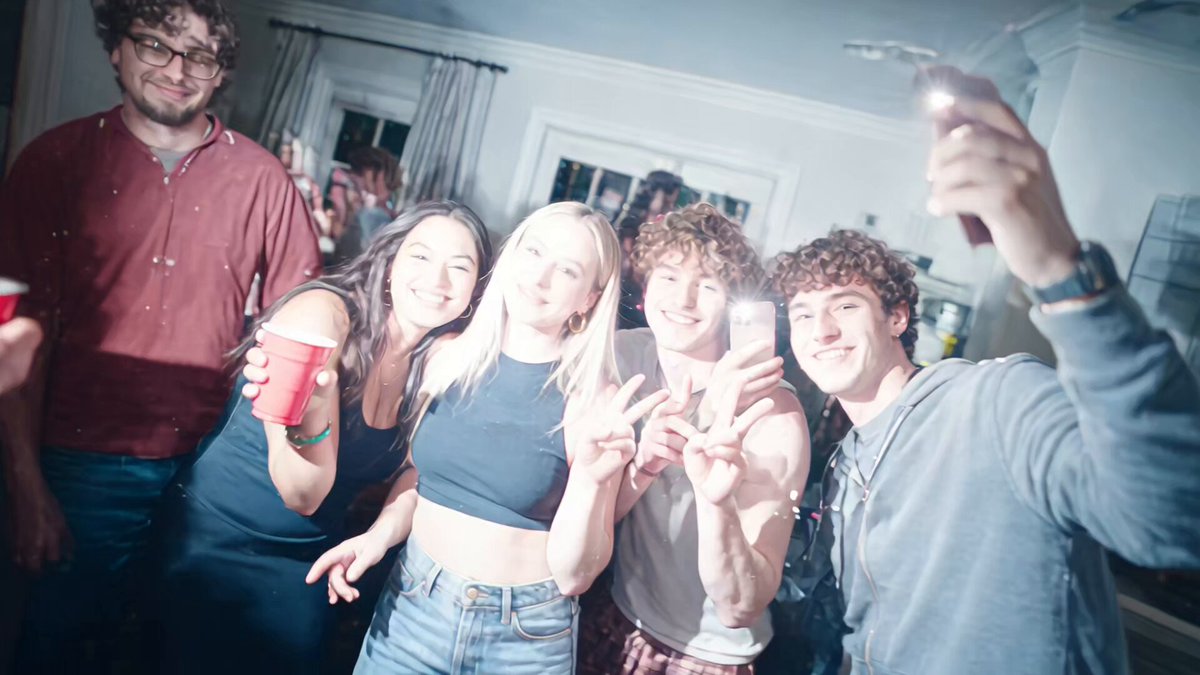

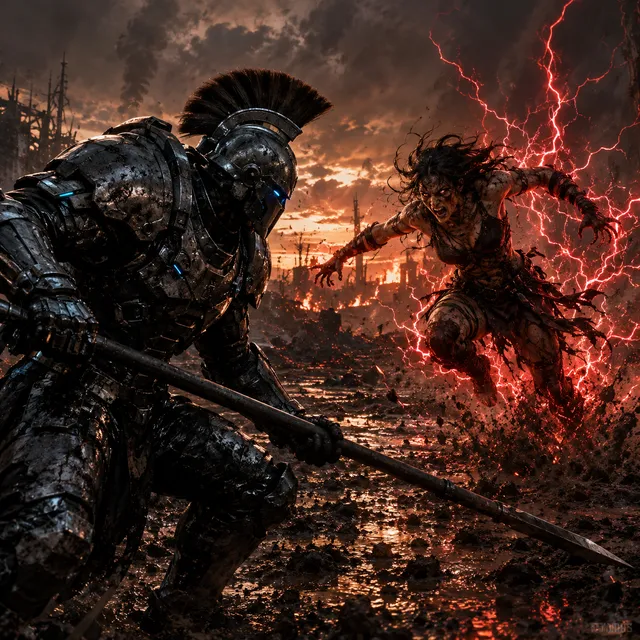
Phone footage now looks good enough that the bottleneck has moved from the camera to the edit. A clip shot on a recent handset can sit beside a mirrorless camera in the same timeline without most viewers noticing, and that shift has changed what people expect from mobile editors. Filters and drag-and-drop transitions still have a place, but they no longer carry a video on their own. The effects that make short-form work feel expensive — clean masks, tracked text, stylized color, object removal, buttery slow motion — used to require a desktop and hours of keyframing.
AI-assisted tools changed the arithmetic. Instead of drawing a mask frame by frame, you describe what you want and correct the result. Instead of stabilizing by hand, you let an algorithm solve the camera path and hand you back a clean take. This guide covers what is realistically possible on a phone, which effects are worth automating, and a repeatable workflow you can run entirely from one device.
What Mobile Editors Can and Cannot Do
The real ceiling: keyframing on a glass screen
Timeline-based mobile editors are genuinely capable. Most support multiple tracks, blend modes, speed ramps, chroma key, and basic masking. The problem is not the feature list; it is the input method. Positioning a mask point accurately on a six-inch screen, then repeating that action 90 times for a three-second shot, is a physical endurance test. Precision tools were designed for a mouse and a keyboard, and no amount of pinch-to-zoom fixes that.
The second limitation is processing. Rotoscoping, denoising, and optical-flow retiming are computationally heavy. On a phone, the app competes with the operating system for thermal headroom. Ten minutes of heavy effect work can trigger thermal throttling, and suddenly your preview stutters and your export time doubles.
Where manual work still wins
Manual control has not become obsolete. If you need an effect that matches an existing cut exactly — a light leak that hits on a specific beat, a mask that follows a deliberate blink — hand-tuned keyframes remain the most predictable route. Manual is also better when the shot is short and simple: masking a two-second logo reveal by hand takes less time than configuring an AI model and validating its output.
The practical rule is to let automation handle anything repetitive or motion-heavy, and keep manual control for timing, rhythm, and taste. Effects work is 20 percent technical execution and 80 percent deciding what the shot needs.
The AI-Assisted Effect Toolkit, Decoded
Not all "AI effects" are the same thing. Most fall into five categories, and knowing which one you actually need saves a lot of wasted rendering.
Tracking and stabilization
Point tracking follows a feature — a face, a hand, a sign — across frames so an element can be pinned to it. The AI part is the solver: it estimates motion vectors and predicts where the feature goes when it is briefly occluded. Stabilization uses a similar solve in reverse, smoothing the camera path while preserving intentional movement.
Rotoscoping and segmentation
Segmentation models separate a subject from the background without a green screen. Modern versions handle hair, motion blur, and semi-transparent edges reasonably well, especially when the subject is well lit and roughly centered. This is the single biggest time saver in mobile effects work, because it unlocks background replacement, selective color, and layered compositing.
Style transfer and look matching
Style transfer applies the color and texture profile of a reference frame to your footage. The most useful version is not the artistic "turn my video into an oil painting" mode — it is look matching, where a clip shot in mixed indoor lighting is nudged toward the grade of the surrounding shots.
Generative fill and object removal
This covers deleting a light stand, a passerby, or a logo, and filling the gap with plausible pixels. On a phone, results are best when the removed object is small, static, and over a simple background such as sky, wall, or grass.
Upscaling and frame interpolation
Upscaling adds perceived detail to soft or cropped footage; interpolation synthesizes intermediate frames to create smooth slow motion. Both are useful, and both can produce artifacts on highly detailed textures like foliage or fine fabric. Always check at 100 percent zoom before committing.
A Six-Step Workflow for AI-Assisted Effects on a Phone
This sequence works whether you are editing a 15-second vertical clip or a three-minute piece. The order matters more than the specific app you use.
Step 1: Decide the effect before you shoot
The most common failure in mobile video is trying to fix a shot in post that was never framed for the effect. If you want a background replacement, avoid busy backgrounds and shoot with the subject clearly separated from what is behind them. If you want tracked text, leave negative space where the text will land. If you want slow motion, record at a higher frame rate than your delivery rate so the interpolation has real data to work with.
Write a two-line shot note for each clip: what the effect is, and what the camera needs to do to make it cheap to produce. That single habit eliminates most of the pain later.
Step 2: Clean and organize before you effect
Trim dead frames first. Effects render faster on shorter clips, and every unnecessary second costs processing time. Normalize the audio separately. Group clips by shot type so you can apply the same treatment to similar footage rather than re-tuning settings for every clip.
If your phone allows it, work from an external drive or cloud-synced folder. Filling local storage mid-project is a reliable way to lose an afternoon.
Step 3: Apply the biggest effect first
Start with anything that changes the composition: segmentation, background replacement, object removal, stabilization. These alter the underlying pixels, so any color, text, or grain added beforehand would have to be redone. Lock the heavy layers, then build on top.
Step 4: Refine masks by hand selectively
AI masks are usually 90 percent right. The remaining 10 percent shows up at the edges: a shoulder that flickers, a stray strand of hair, a chunk of background that sticks to the subject during a fast pan. Do not re-render the whole clip with lower thresholds. Scrub to the problem frames and correct only those, using a manual mask or a garbage matte that crops the region the model struggles with.
Step 5: Unify color, grain, and motion
Effects almost never match the source footage out of the box. Compressed phone footage has grain and noise; a clean AI-generated element does not. Add subtle grain to the effect layer so it sits in the same noise floor as the rest of the shot. Match the black levels and white balance. If the effect moves, check that its motion cadence matches the camera's — a perfectly linear digital move against a handheld shot reads as fake.
Step 6: Export for the destination
Export at the highest resolution and bitrate your target platform accepts, then let the platform compress. Uploading a pre-compressed file means double compression, and artifacts multiply in dark areas and fast motion. Vertical destinations want 1080x1920 or higher; horizontal wants 1920x1080 or 3840x2160. Keep the frame rate consistent with the source to avoid judder.
Matching Effects to Platform and Format
Different destinations punish different mistakes. Vertical short-form feeds reward fast, obvious effects: a snap transition, a punch-in, a bold animated caption. Subtle film grain and long dissolves disappear on a phone screen viewed at arm's length.
Longer horizontal content — YouTube-style explainers, brand films, documentary segments — rewards restraint. Heavy stylistic filters age quickly and can make footage look amateur when overdone. In these formats, the highest-value AI effects are the invisible ones: stabilization, noise reduction, object removal, and clean upscaling.
A useful discipline is to decide your effect intensity by screen size. If the primary viewing device is a phone, effects need to be roughly twice as pronounced as they would be for a television or laptop.
On-Device vs Cloud Processing: How to Choose
On-device processing is fast to start, private by default, and works offline. It is the right choice for stabilization, basic segmentation, color matching, and anything you want to iterate on quickly.
Cloud processing wins when the model is large: high-fidelity segmentation, generative fill, upscaling to 4K, and frame interpolation on long clips. The trade-off is upload time, which is often the real bottleneck. A two-minute 4K clip can take longer to upload than to process.
A practical hybrid: do all your creative iteration on-device at low resolution, lock the edit, then send only the clips that need heavy processing to the cloud. Batch them in one session rather than one at a time.
Color, Grain, and the "Shot on a Phone" Problem
Phone footage has a recognizable signature: aggressive sharpening, heavy noise reduction that smears fine texture, and clipped highlights in bright sun. AI effects layered on top amplify all three.
Three fixes address most of it. First, reduce sharpening in the editor before adding any effect; oversharpened footage makes every compositing edge visible. Second, add a very light grain layer to your final export so the sharpened areas blend with the softer ones. Third, protect your highlights while shooting by exposing slightly darker than looks correct on the phone screen — you can lift shadows in the edit, but blown highlights are gone.
If you are matching phone footage to camera footage, match the noise first, then the color. Viewers notice mismatched texture far more readily than a slightly different color temperature.
Common Mistakes That Ruin Mobile Effects
Applying effects before stabilizing. Tracking and segmentation models perform worse on shaky footage. Stabilize first, then mask.
Stacking too many AI passes. Every generation of processing degrades the image slightly. Three sequential AI passes can leave footage looking waxy. Do the minimum number of passes at the highest quality.
Ignoring the audio. A visually perfect effect with muddy, unbalanced audio still feels amateur. Treat audio as part of the effect.
Trusting the preview. Mobile previews are often rendered at half resolution and can hide edge artifacts. Always export a short test segment and watch it on a different screen.
Chasing every trend. Effects that follow a trend have a short shelf life. If the effect is not serving the story, it is costing you time and dates the video.
Forgetting the mask on the first and last frame. Many segmentation failures happen at clip boundaries, where the model has no motion context. Extend the clip by a few frames on each side before processing.
Quality Control Checklist Before You Publish
Run through this before exporting the final file:
- Watch the full clip once at normal speed without pausing. Does anything pull your eye to the effect instead of the subject?
- Zoom to 100 percent on the effect boundaries. Look for flicker, halos, and edge crawl.
- Check the first and last two seconds of every affected clip.
- Listen with headphones on both quiet and loud playback.
- Export a 10-second test at final settings and view it on a phone, a laptop, and a TV if possible.
- Confirm frame rate, resolution, and aspect ratio match the destination.
FAQ
Can a phone really produce effects that look professional?
Yes, for specific categories. Stabilization, segmentation, color matching, and object removal can reach a professional standard on a phone because the underlying models are strong and the footage is usually well lit. Large-scale compositing with many interacting layers still benefits from a desktop, mostly because of screen real estate and processing headroom rather than capability.
How long should an effect take to render?
On-device, a few seconds of processed footage per second of render time is normal for segmentation. Cloud processing is faster per frame but adds upload time. If a single short clip takes more than ten minutes, something is wrong — usually resolution or an unnecessary second pass.
What is the most useful single AI effect for mobile creators?
Subject segmentation. It unlocks background replacement, selective color, text behind the subject, and clean compositing. One good mask does more for production value than a dozen filters.
Do I need a green screen?
No, though it still helps. A green screen reduces the difficulty of segmentation and produces cleaner edges on hair and semi-transparent objects. If you shoot often, a cheap pop-up backdrop pays for itself quickly.
Why does my effect look fake?
Usually one of three reasons: the effect layer lacks the grain and noise of the surrounding footage, its motion does not match the camera's movement, or the color grade is slightly off. Fix the texture first — it is the most common giveaway.
Should I shoot vertically or horizontally?
Shoot for the primary destination. Cropping horizontal footage into vertical loses more than half the frame and reduces effective resolution, which makes every effect look softer. If you genuinely need both, frame wide and keep the subject centered.
How do I keep effects consistent across a series?
Save your settings as a preset the moment something works. Note the exact values for grain, sharpening, and color temperature. Consistency across episodes matters more than having the single best-looking clip.
What about storage and backups?
Effects projects generate large intermediate files. Keep the original camera files untouched in a separate folder, and back up project files as you go. Losing an hour of mask refinement to a full device is a lesson you only need once.

Alexander
More Blogs
Read MoreVidu Q4 Alternatives: 4K AI Video Models Compared (2026)
Vidu Q4 alternatives compared: Kling 4.0, Seedance 2.5, Wan 3.0, and Runway Gen-4 — 4K support, input modes, durations, audio, and what each costs in credits on Domer.
Top 4K AI Image Generators in 2026: 5 Models Compared on Real Costs
The top 4K AI image generators on Domer compared: Flux 3 Klein, Nano Banana 2.1, GPT Image 2.5, GPT Image 2, and Nano Banana Pro — 4K credit costs, reference limits, and speed.
Nano Banana 2.1 vs GPT Image 2.5: Which Image Model Should You Use? (2026)
Nano Banana 2.1 vs GPT Image 2.5 Flare compared: credit costs per resolution, aspect ratios, reference images, text rendering, and which tasks fit each model.