
Affiliazione
Inizia Gratis Ora
Runway Gen-4 Workflow Guide for AI Video Creators and Editors
Oct 14, 2026
What Runway Gen-4 Changes for Everyday Video Work
AI video generation used to behave like a slot machine. You typed a sentence, waited, and either got something magical or something with three elbows. Even when the output looked good, the illusion usually collapsed the moment you needed a second shot: the same character came back with a different face, the same jacket changed color, and the camera drifted in a direction that made no sense for the scene.
Runway Gen-4 targets exactly that problem. Instead of optimizing only for single-clip spectacle, it focuses on the parts of production that actually break a sequence: keeping a character recognizable across shots, holding props and environments stable, following a described camera move, and respecting the physical logic of a scene. In practice, that shifts the tool from a novelty generator into something you can plan around.
Three differences matter most for working creators:
- Reference-driven consistency. You can supply images that anchor a character or location, then generate new shots that stay visually close to those anchors instead of reinventing them every time.
- Stronger prompt adherence. Camera language such as slow dolly in, handheld tracking, or static wide shot lands more reliably, which means fewer rerolls spent chasing a framing you already described.
- Draft-to-final pipelines. Faster model variants let you iterate cheaply on motion and composition, then regenerate the approved shots at higher quality once the edit is locked.
That combination changes how you work. You stop writing prompts as one-off lottery tickets and start writing them as parts of a shot list. You plan coverage, you reuse assets, and you treat generation as a step inside post-production rather than a substitute for it. This guide walks through that shift end to end: planning, prompting, consistency tools, editing, troubleshooting, and how to decide when a different tool is the better call for a given shot.
Planning Before Generation: Briefs, References, and Specs
The single biggest time saver in AI video is boring: deciding what you want before you generate. Clips are cheap to make and expensive to organize, and a project with forty unlabeled takes is harder to finish than one with twelve deliberate ones.
Write a one-page shot brief
Before touching the generate button, write a page that covers:
- Logline and tone. One sentence on what the piece is, plus three adjectives for the mood (for example: clinical, humid, unhurried).
- Visual references. Screenshots from films, photography, or your own footage. Concrete references beat abstract adjectives every time.
- Character notes. Age range, silhouette, wardrobe, distinctive features, and anything that must stay constant — a scar, a specific watch, a shade of green.
- Location notes. Time of day, weather, key architecture, and which directions the camera is allowed to look.
- Technical spec. Aspect ratio, target duration per shot, and frame rate.
Prepare reference assets first
Gather or create stills before you generate motion. A clean character reference sheet, a wide environment plate, and a prop close-up will do more for consistency than any prompt phrasing. If you do not have usable stills, generate a handful of images first and pick the strongest ones as anchors. Treat that selection process as casting: choose two or three candidates, then commit.
Lock technical specs early
Decisions that are painful to reverse later:
- Aspect ratio. 16:9 for landscape delivery, 9:16 for vertical feeds, 1:1 or 4:5 for certain social placements. Choose before generating, because reframing after the fact crops the composition you deliberately built.
- Duration per shot. Short clips cut together better than long ones. Aim for two to five seconds per generated shot and let the edit create rhythm.
- Frame rate. 24 fps for a cinematic feel, 30 fps for a neutral web look. Mixing rates in one timeline creates judder that no amount of grading hides.
- Resolution and delivery target. Decide whether you are finishing at 1080p or higher, because upscaling changes how much fine texture you need to protect in the source.
A short brief also protects you from scope creep. When a client or collaborator asks for a change, you can point at the brief and ask whether the request is a revision or a new deliverable.
Prompting for Motion: Writing Shots That Hold Together
The prompt is not a wish; it is a shot description. The most reliable prompts read like something an assistant director would hand a camera operator.
A prompt formula that scales
Use four building blocks, in this order:
- Shot type and camera. Static wide, slow push in, handheld medium, overhead top-down, low-angle tracking.
- Subject and action. A single clear verb phrase: a cyclist rounds a corner, a barista sets down a cup, a figure walks away from camera.
- Environment and light. Rain-slicked asphalt at dusk, warm tungsten interior with window backlight, hard midday sun with sharp shadows.
- Texture and mood modifiers. Fine grain, shallow depth of field, muted palette, documentary realism.
Example: Slow dolly in on a woman in a grey wool coat standing at a rain-streaked window, warm interior lamp behind her, cool blue dusk outside, shallow depth of field, subtle film grain.
That is one sentence, four blocks, and it gives the model a composition, a subject, lighting logic, and a finish. Compare it with beautiful cinematic shot of a sad woman — which gives the model almost nothing to obey.
Camera vocabulary that actually changes output
Terms that consistently produce visible differences include:
- Push in / dolly in versus pull out — changes intimacy and reveals context.
- Tracking shot — camera moves laterally with the subject, background parallax.
- Handheld — micro-shake and slight framing drift.
- Crane up / tilt down — vertical movement that reveals scale.
- Rack focus — attention shifts between foreground and background planes.
- Orbit / arc — camera circles a subject while keeping it centered.
Keep one dominant camera instruction per shot. Stacking three movements in a two-second clip produces mush, not choreography.
What to leave out
Avoid absolute statements the model cannot guarantee: no visible text, exactly five people, perfectly symmetrical. Text rendering and counting remain unreliable across most video models, so plan around them. If a sign must say something specific, add it in post. If a crowd must be exactly five, generate a wider shot and let the composition imply the count.
Also skip moral or narrative instructions. The model cannot depict a character feeling betrayed. It can depict a character staring at a closed door, jaw tight, one hand still on the handle. Translate emotion into visible behavior.
Consistency Tools: References, Characters, and Keyframes
Consistency is where amateur-looking AI sequences and professional-looking ones diverge. Three mechanisms do most of the heavy lifting.
Character sheets and reference images
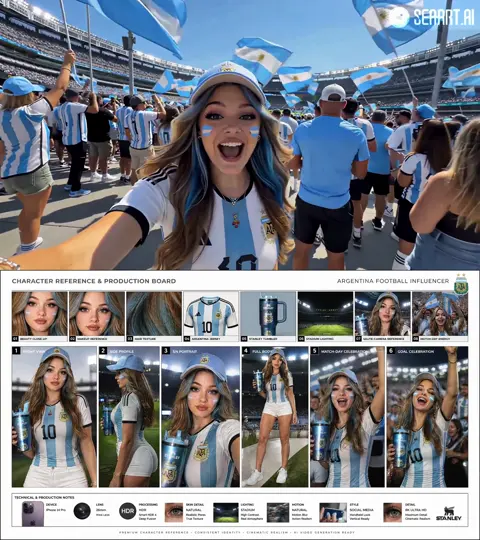
Build a reference set for every recurring character: a neutral front view, a three-quarter view, a profile, and one full-body shot. Keep the lighting consistent across the set and avoid dramatic shadows that hide facial structure.
When generating, attach the relevant references and describe the character briefly in text as well. The text description should be short and stable — grey wool coat, dark bob haircut, mid-thirties — and repeated word for word across every shot. Changing the wording between shots invites the model to reinterpret the person.
Keyframe control
Keyframe control lets you specify a starting image, an ending image, or both, and let the model generate the motion between them. This is the closest thing AI video has to blocking a scene.
Practical uses:
- Start-frame anchoring. Generate a still you love, then animate it. Composition is locked before motion enters the equation.
- First-and-last-frame pairing. Define where a move begins and ends. Excellent for reveals, turns, and product rotations, where the endpoint matters as much as the journey.
- Cut-point matching. End one shot on the same frame that begins the next, so the edit lands invisibly.
Multi-image fusion for scenes and props
Fusing several images lets you combine elements: a character reference plus a location plate plus a prop still. This is useful for brand work where the product, the person, and the setting all need to stay accurate. Keep fusion inputs to a small number — three or four well-chosen images usually outperform a crowded set that confuses the model about what matters.
Shot Lists, Continuity, and Editing AI Footage
Once you can trust consistency, sequences become possible. A shot list is the tool that turns a pile of clips into a scene.
Building a continuity-friendly shot list
For each shot, record: shot number, framing, camera move, duration, characters present, location, wardrobe state, and lighting condition. The wardrobe and lighting columns are what save you. If a jacket is open in shot four, it should not be buttoned in shot five unless a scene beat explains it.
Generate in an order that follows dependency, not story order. Establish your hero wide shot first, use it as a reference for coverage, then generate inserts and reactions last.
Editing AI clips like real footage
- Cut on motion. Trim so the cut happens during a movement — a hand reaching, a head turning, a step forward. Cuts during stillness expose small inconsistencies.
- Vary shot length. Uniform four-second clips feel robotic. Mix one-second inserts with six-second holds to create rhythm.
- Hide the seams. Transitions, speed ramps, and match cuts on shape or motion disguise the boundary between separately generated clips.
- Grade as one piece. Apply a single look across all shots. A shared grade with slight grain unifies footage generated in different sessions.
- Design sound before you polish picture. Room tone, footsteps, cloth movement, and a music bed do more for believability than another render pass.
For resolution, upscale after the edit is locked, not before. Upscaling a shot you end up cutting wastes time and encourages you to keep a weak shot simply because it looks sharp.
A Repeatable End-to-End Workflow
This sequence works for commercials, short narrative pieces, and social campaigns alike.
- Define. Write the brief, logline, and tone words.
- Collect. Assemble references for characters, locations, and props.
- Storyboard. Produce stills for each beat and arrange them in order before any motion exists.
- Cast. Select final character references and freeze the descriptive text you will reuse.
- Draft. Generate fast, low-commitment variants to test motion, framing, and pacing.
- Select. Choose one direction per shot. Delete the rest so the project stays legible.
- Refine. Regenerate approved shots with keyframe control and stronger reference inputs.
- Assemble. Edit to a temp music track, then cut to picture.
- Sound. Add ambience, effects, and dialogue or voiceover as needed.
- Finish. Grade, upscale, add titles, and export deliverables at each required aspect ratio.
Two habits separate smooth projects from chaotic ones. First, name files with shot numbers and versions. Second, keep a running log of prompt phrasing that produced good results — your own phrasing library becomes more valuable than any generic prompt list.
Troubleshooting: Common Problems and Fixes
| Problem | Likely cause | Fix |
|---|---|---|
| Face changes between shots | References too few or lighting inconsistent | Add a front and three-quarter reference, repeat identical text description |
| Motion looks weightless | No physical cue in prompt | Name the action and surface: boots on wet gravel, heavy crate set down |
| Camera ignores instructions | Too many movements in one prompt | Keep one dominant camera move per clip |
| Warping in fast action | Motion too large for clip length | Split into two shots, cut on the fastest frame |
| Colors drift across clips | Different grade per generation | Lock a reference look and apply one grade in post |
| Faces stretch at edges | Subject too close to frame edge | Reframe with more headroom and margin |
| Text turns to gibberish | Model cannot render typography reliably | Remove text from generation, add in editing |
| Flicker in slow motion | Frame interpolation on complex texture | Reduce speed ramp strength or apply optical flow carefully |
Most failures trace back to ambiguity, not model weakness. When a shot keeps failing, rewrite the prompt as if describing it to a stranger who has never seen the script.
Choosing Between AI Video Tools: Decision Criteria
Runway Gen-4 is strong, but it is not the only sensible choice for every shot. Judge tools on these axes:
- Character consistency. Does it hold a face and wardrobe across a sequence? Critical for narrative work, less so for landscapes and abstract visuals.
- Prompt adherence. How faithfully does it follow camera and lighting instructions? Test with the same prompt across tools before committing.
- Motion realism. Compare human movement and object physics. Some tools excel at stylized motion, others at naturalistic action.
- Control features. Keyframes, references, camera controls, and inpainting determine how much of your intent survives translation.
- Clip length and pacing. Longer native clips reduce edit complexity but can invite drift.
- Audio capabilities. Native sound generation saves a step but rarely replaces dedicated sound design.
- Speed and iteration cost. Fast draft modes change how boldly you experiment.
- Integration with your edit. Export options, codecs, and alpha support affect how quickly clips land in the timeline.
A practical approach: run one identical test prompt through each candidate tool, then compare the results on framing accuracy, character stability, and motion quality. That twenty-minute test tells you more than any feature list.
Developing a Visual Style You Can Repeat
Style consistency is what makes a body of work feel authored. Build it deliberately:
- Write a style block. Five to eight words you append to most prompts: soft window light, muted earth palette, 35mm grain, shallow focus.
- Fix a lens language. Decide whether you shoot wide and environmental or long and compressed, then stay there.
- Build a palette. Choose three dominant colors and one accent. Repeat them in wardrobe, set dressing, and grade.
- Standardize the grade. Save a look preset and apply it to every export so clips from different sessions match.
- Keep a prompt library. Organize by shot type: establishing, insert, reaction, transition. Reuse the structure and swap the subject.
Style also means knowing what to refuse. If a shot requires a technique your pipeline cannot deliver reliably — precise hand choreography, legible signage, complex crowd interaction — redesign the shot around your strengths instead of fighting the tool.
FAQ
How long should each generated clip be?
Two to five seconds is the sweet spot for most sequences. Short clips stay coherent, cut well, and let the edit create rhythm. Reserve longer generations for establishing shots where slow drift is part of the effect.
Can I keep the same character across many shots?
Yes, with discipline. Prepare a consistent reference set, repeat an identical short description in every prompt, and keep lighting conditions similar between shots. Consistency depends more on your process than on any single setting.
What are keyframes actually for?
Keyframes turn generation into blocking. A start frame locks composition before motion begins; a start-and-end pair defines the trajectory of a move. They are the most reliable way to get a specific result rather than a pleasant accident.
Should I generate in portrait or landscape?
Decide from the delivery channel, not from the generation tool. Generating in the final aspect ratio preserves the composition you designed. Cropping a carefully framed landscape shot into vertical rarely looks intentional.
How much of a project should be AI generated?
As much or as little as serves the story. Many strong pieces mix AI shots with real footage, stock, motion graphics, and stills. Audiences respond to coherence, not to purity.
Do I still need editing software?
Yes. Generation produces raw material, not a finished piece. Trimming, pacing, sound design, color, and titles are where a sequence becomes watchable. Treat any generator as a camera, not a studio.
How do I stop wasting time on rerolls?
Track what you change. Reroll one variable at a time — camera phrasing, reference image, lighting description — and note which change moved the result. Random rerolling burns hours; deliberate iteration builds a personal playbook.
What is the fastest way to improve output quality?
Improve your inputs. Cleaner references, a shorter and more specific prompt, and a shot list that respects continuity will outperform any amount of post-processing on weak generation.

Alexander
More Blogs
Read MoreVidu Q4 Alternatives: 4K AI Video Models Compared (2026)
Vidu Q4 alternatives compared: Kling 4.0, Seedance 2.5, Wan 3.0, and Runway Gen-4 — 4K support, input modes, durations, audio, and what each costs in credits on Domer.
Top 4K AI Image Generators in 2026: 5 Models Compared on Real Costs
The top 4K AI image generators on Domer compared: Flux 3 Klein, Nano Banana 2.1, GPT Image 2.5, GPT Image 2, and Nano Banana Pro — 4K credit costs, reference limits, and speed.
Nano Banana 2.1 vs GPT Image 2.5: Which Image Model Should You Use? (2026)
Nano Banana 2.1 vs GPT Image 2.5 Flare compared: credit costs per resolution, aspect ratios, reference images, text rendering, and which tasks fit each model.