
Affiliazione
Inizia Gratis Ora
TikTok AI Anime Art Generator: Stunning Anime Visuals
Oct 15, 2026
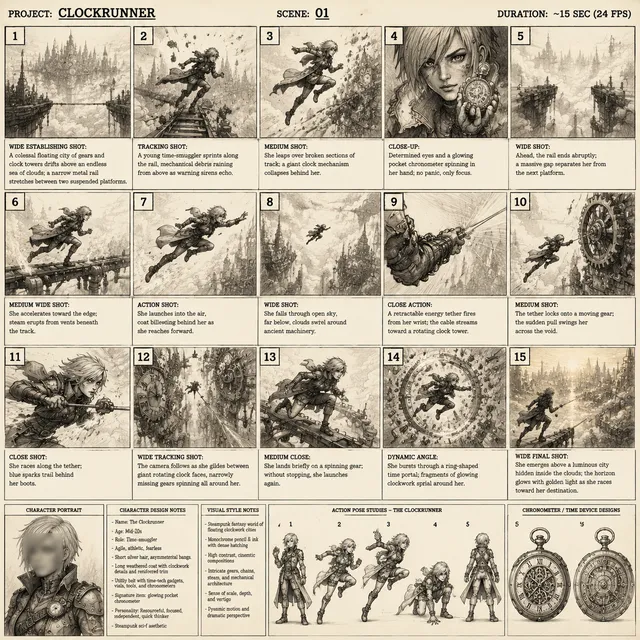
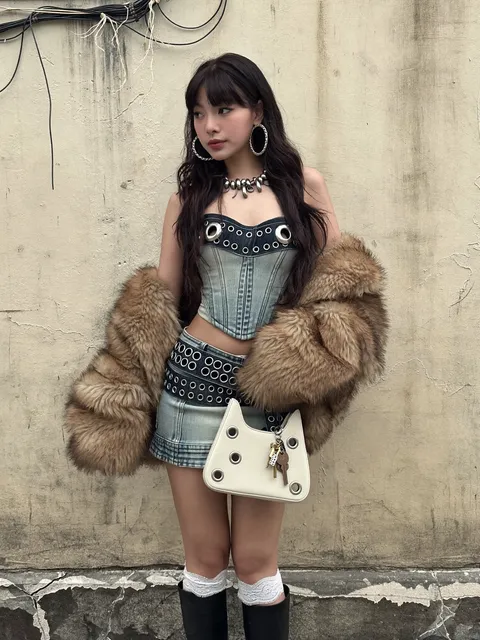
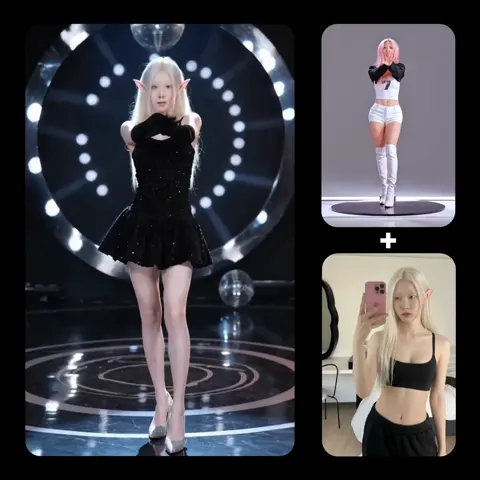
Why Anime AI Art Dominates Short-Form Feeds
Short-form video is a low-resolution, high-speed medium, and anime's visual grammar was practically built for it. Thick outlines, flat color fields, dramatic rim lighting, and exaggerated expressions survive compression and a vertical crop far better than photoreal renders. Where a photorealistic face turns to mush at 720p on a phone screen, a cel-shaded face keeps its silhouette, and the eye still reads the emotion in a single frame. That technical reality explains a lot of why anime-style clips keep winning attention.
There is also a demand story. Anime fandom is one of the largest self-organizing creative communities online, with an appetite for daily output that no traditional animation pipeline can satisfy. A two-minute hand-drawn clip can take a small team weeks. A generator-driven clip can be storyboarded, generated, animated, scored, and posted in an afternoon, and the audience judges the result on vibe and composition more than on labor hours.
The economics of iteration matter just as much. You can produce twenty thumbnail options in the time it takes to sketch one by hand, which changes how you make creative decisions. Instead of defending a single idea, you explore a space of ideas, keep the frames that make you stop scrolling, and discard the rest. The real skill is not prompt typing; it is taste plus a repeatable pipeline.
Finally, "stunning" in this genre has a specific meaning. It is not maximum detail. It is a clean focal point, a character with appeal, coherent lighting, and motion that does not fight the style. Keep that definition in mind for everything below.
How an Anime Art Generator Actually Works
Most modern anime generators are diffusion models. During training, the model learns to reverse a process that adds noise to images, so at generation time it can start from pure noise and denoise it step by step, guided by a text prompt encoded into a numerical representation. The text encoder is why phrasing matters so much: it is not reading your prompt the way a human does, it is matching patterns it saw during training.
Anime-style output usually comes from one of three layers. First, a base model that already leans toward illustration rather than photography. Second, a fine-tuned adapter, often trained on a few dozen curated images, that pushes line weight, eye rendering, and color palettes toward a specific look. Third, structural controls such as pose, depth, and line-art conditioning that let you dictate composition while the model fills in style. Reference-image conditioning does something similar: you hand the model a character portrait and it carries those features into new scenes.
Video adds a second problem: temporal coherence. Image-to-video models take a still and predict how pixels should move, which is why they excel at subtle motion and struggle with radical changes. Frame-by-frame approaches generate stills and then interpolate between them, which can look smooth but wobbly. Most practical workflows combine both: generate a strong keyframe, animate it for three to five seconds, then interpolate and stabilize in post.
Understanding this stack tells you where to spend effort. If your character's face keeps shifting, the problem is consistency conditioning, not the prompt. If motion smears, the problem is the animation step, not the render quality. Diagnose the layer, then fix the layer.
Choosing Your Toolchain: Decision Criteria
Start with the output you actually need
Three broad categories exist: image-only generators for posters, thumbnails, and carousel posts; image-to-video tools for animating stills; and motion-first pipelines that generate multi-shot sequences. Most creators should master one image generator plus one image-to-video tool before touching anything more complex. Stacking five tools on day one produces confusion, not variety.
Check the control knobs, not the gallery
Marketing pages show the best output from the best prompts. What matters for repeatable work is control: can you lock a seed, load a reference image, apply a pose, mask and repaint a region, and batch-generate variations of the same composition? Tools with strong controls look worse in demos and better in production.
Weigh iteration speed against hardware cost
Cloud generation removes hardware requirements but adds queue time and per-generation cost. Local generation is free per image but demands a capable GPU and setup time. If you upload daily, queue latency is your real bottleneck. If you upload weekly and iterate heavily, local control usually wins.
Plan the editing handoff early
Decide now whether your clips will be finished in a mobile editor, a desktop NLE, or a compositor. That choice determines your export settings: resolution, frame rate, and whether you generate at 16:9 and crop or generate natively vertical.
| Workflow | Best for | Main trade-off |
|---|---|---|
| Image generator plus manual edit | Poster-style posts, lyric clips | Slow motion, strong style control |
| Image-to-video pipeline | Character loops, transformations | Short clip length, motion limits |
| Frame-by-frame plus interpolation | Dance and action beats | Flicker, cleanup time |
Prompting for Authentic Anime Style
Build a reusable style block
Keep a fixed string describing medium, era, and rendering: something like "hand-drawn anime key visual, cel shading, clean line art, soft rim light, muted teal and coral palette." Reuse that exact block across a project so shots feel like they belong to the same world. Randomize only the subject and camera description.
Describe the subject before the style
Order matters less than specificity, but a prompt that opens with a clear subject tends to produce clearer composition: "a girl in a school uniform standing on a rooftop at dusk, wind lifting her hair, city skyline behind her." Vague prompts produce generic characters; specific nouns produce specific drawings.
Use negative prompts to clean up artifacts
Block the failure modes you keep seeing: photorealistic rendering, extra fingers, melted hands, watermark, signature, text, jpeg artifacts, blurry background. If your model over-saturates, add oversaturated as a negative. Keep the negative list short and targeted, because a forty-item list usually fights itself.
Match lighting language to mood
Lighting terms do more emotional work than adjectives. "Golden hour backlight," "overcast flat light," "neon night rim light," and "harsh noon shadows" each change the emotional read of the same character. Use them deliberately rather than stacking three of them in one prompt.
Iterate one variable at a time
When a generation fails, change exactly one thing: the seed, the style weight, the pose reference, or a single noun. Changing five things at once teaches you nothing and burns time.
A Repeatable Workflow from Idea to Posted Clip
Step 1: Storyboard in three beats
Vertical video rewards a beginning, a turn, and a payoff. Beat one establishes the character and setting. Beat two introduces motion, a transformation, or a reveal. Beat three lands the emotional or visual punch. Three keyframes is enough for a twelve to twenty second clip and keeps the whole project manageable.
Step 2: Generate keyframes with a locked style block
Generate fifteen to thirty candidates per beat, then pick one. Judge candidates small: shrink the grid to thumbnail size and choose the frame that reads instantly. Images that only work at full size usually fail on a phone.
Step 3: Animate the strongest frames
Send each chosen frame into an image-to-video step with restrained motion settings. Keep clips between three and five seconds. Describe camera motion explicitly, such as slow push in, gentle pan right, or subtle hair movement, and avoid asking for anything the still cannot plausibly become.
Step 4: Assemble, sound-design, and caption
Cut on motion, not on silence. Trim the first and last quarter-second of every generated clip, where morphing tends to appear. Layer ambience, a whoosh on transitions, and a short musical phrase that loops. Add captions in a font with clear weight, because thin serif type disappears on mobile.
Step 5: Export for the platform
Deliver 1080x1920 at 30 or 60 fps, high bitrate, H.264 for compatibility. If you animate at 16:9, crop with intent rather than centering blindly. The subject's face should sit in the upper third, clear of the interface elements that cover the bottom of the screen.
Step 6: Log what worked
Keep a simple note of the prompt block, seed, and motion settings for every clip that performed. Six uploads in, patterns appear, and your production speed roughly doubles because you stop re-deciding solved problems.
Locking Character Consistency Across Shots
Consistency is the single biggest quality gap between amateur and polished AI anime work. The cheapest fix is a reference image plus reference conditioning: generate one strong portrait, then feed it into every subsequent generation and describe outfit and pose changes in text. The model carries the face while your prompt changes the scene.
The next step up is training a small adapter on fifteen to thirty images of the same character from different angles and expressions. This takes an hour and pays off across an entire series. If training is not available in your tool, simulate it: keep the description of hair color, eye color, and signature accessories identical in every prompt, and change nothing else about the character block.
Seed discipline helps more than people expect. Reusing a seed family with the same prompt structure produces outputs that cluster around the same face and palette. Batch generation is your friend: generate ten variations of the same scene rather than one variation of ten scenes, then choose the most consistent result.
For multi-shot sequences, hold a pose reference constant while varying the camera angle. Consistency of pose plus consistency of face reads as "same character, new shot," which is exactly how animation communicates continuity.
Motion and Camera Craft for Anime Video
Anime does not move the way live action moves. It holds frames, then bursts. It uses smears, speed lines, and impact frames to sell motion that would be physically impossible to animate frame by frame. You can imitate these conventions with surprisingly simple tools.
Start with held frames: a still image with a slow parallax push looks intentional and costs nothing. Then add a two-frame flash of white or color at the moment of impact. Drop speed lines over a fast pan. Layer particles such as petals, sparks, rain, or dust as an overlay to add life to otherwise static shots.
When animating with an image-to-video model, ask for small motion. A character turning their head, blinking, or letting hair drift reads as high quality. A full-body spin, a fight sequence, or a costume transformation usually produces morphing artifacts that no amount of cleanup will fix. If you need big motion, build it from several short clips and cut between them; the audience fills the gaps.
Interpolation can smooth choppy output, but it can also invent wobble around hands and outlines. Apply it selectively, and always compare against the uninterpolated version before committing.
Common Mistakes and How to Fix Them
The first symptom most creators notice is style drift: shot one looks like a watercolor print, shot three looks like a 3D render. That almost always means the style block was rewritten between generations. Freeze it.
The second is flicker, where lines crawl or colors pulse between frames. Reduce motion strength, lower the frame rate, or regenerate the keyframe with less fine detail in the background. Busy backgrounds give the model more opportunities to disagree with itself.
Morphing hands and faces come next. Fix them with short clips, lower motion settings, negative prompts, and by choosing poses where hands are partly out of frame. Hand-heavy compositions are a losing battle in most image-to-video tools.
Then there is the "AI look": over-detailed, over-saturated, symmetrical, and lifeless. Counter it with asymmetry, imperfect framing, a strong single light source, and deliberate negative space. Adding grain or a subtle paper texture in post also helps more than adding another adjective to the prompt.
Finally, technical mistakes: exporting at the wrong aspect ratio, forgetting captions, ignoring audio, and posting a clip whose first 300 milliseconds are a slow fade. Fix all four and your retention curve improves before you change a single prompt.
Rights, Disclosure, and Platform Rules
Two habits keep you out of trouble. First, disclose synthetic media where the platform requires it. Several major platforms label or downrank undisclosed AI content, and the label is rarely as costly as a takedown. Second, keep commercial work away from recognizable copyrighted characters and living artists' names. Style inspiration is a grey area, but naming a living artist in your prompt is a red flag you do not need.
For music, treat any track you did not license as background risk. Use platform libraries or licensed tracks, and keep a note of where each asset came from so you can prove it later.
If you use reference images of real people, get permission. If you generate a person who looks like a real public figure, think twice about posting it, especially in a commercial context.
FAQ
Do I need an expensive GPU? No. Cloud tools handle generation and animation, and a mid-range laptop plus a decent internet connection is enough for daily posting. Local generation is faster for heavy iteration but is a hardware commitment.
How long does one clip take? A fifteen-second finished clip typically takes 45 to 90 minutes once the workflow is stable: three keyframes, three short animations, one editing pass, one sound pass. The first project takes far longer.
Can I keep a character consistent without training a model? Yes, up to a point. A reference image plus an identical character description block and a fixed seed family covers most needs. Training a small adapter is the upgrade once you commit to a recurring character.
What resolution and aspect ratio should I generate at? Generate at the highest resolution your tool supports comfortably, then deliver vertical 1080x1920. Generating natively vertical avoids awkward crops, but 16:9 with a planned crop sometimes gives better composition control.
Why do my clips look artificial even when the art is good? Usually motion: too much of it, or motion that ignores weight and physics. Cut motion in half, add held frames, and let sound design carry the energy instead.
Is AI anime art worth pursuing commercially? It can be, in fields where speed and volume matter, such as thumbnails, wallpapers, sticker packs, lyric videos, and short-form series. The differentiator is not the generator; it is the consistency, the writing, and the editing.

Alexander
More Blogs
Read MoreVidu Q4 Alternatives: 4K AI Video Models Compared (2026)
Vidu Q4 alternatives compared: Kling 4.0, Seedance 2.5, Wan 3.0, and Runway Gen-4 — 4K support, input modes, durations, audio, and what each costs in credits on Domer.
Top 4K AI Image Generators in 2026: 5 Models Compared on Real Costs
The top 4K AI image generators on Domer compared: Flux 3 Klein, Nano Banana 2.1, GPT Image 2.5, GPT Image 2, and Nano Banana Pro — 4K credit costs, reference limits, and speed.
Nano Banana 2.1 vs GPT Image 2.5: Which Image Model Should You Use? (2026)
Nano Banana 2.1 vs GPT Image 2.5 Flare compared: credit costs per resolution, aspect ratios, reference images, text rendering, and which tasks fit each model.