
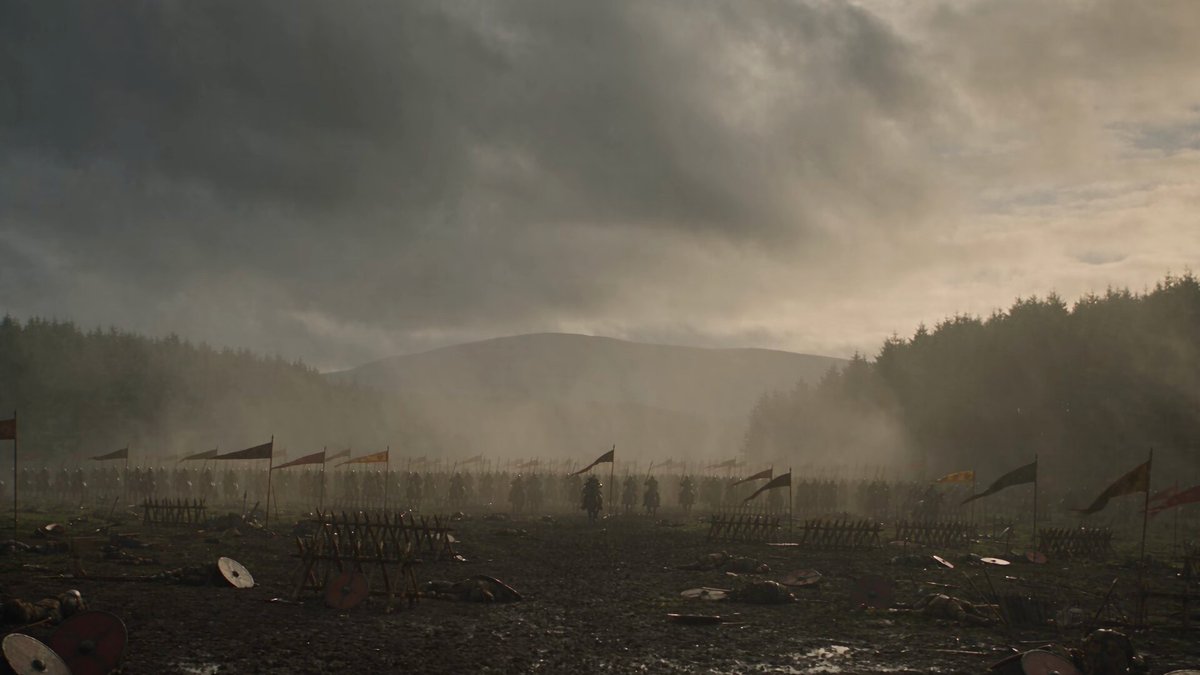
AI Art Animation Generator: Turn Still Images Into Motion
Oct 16, 2026
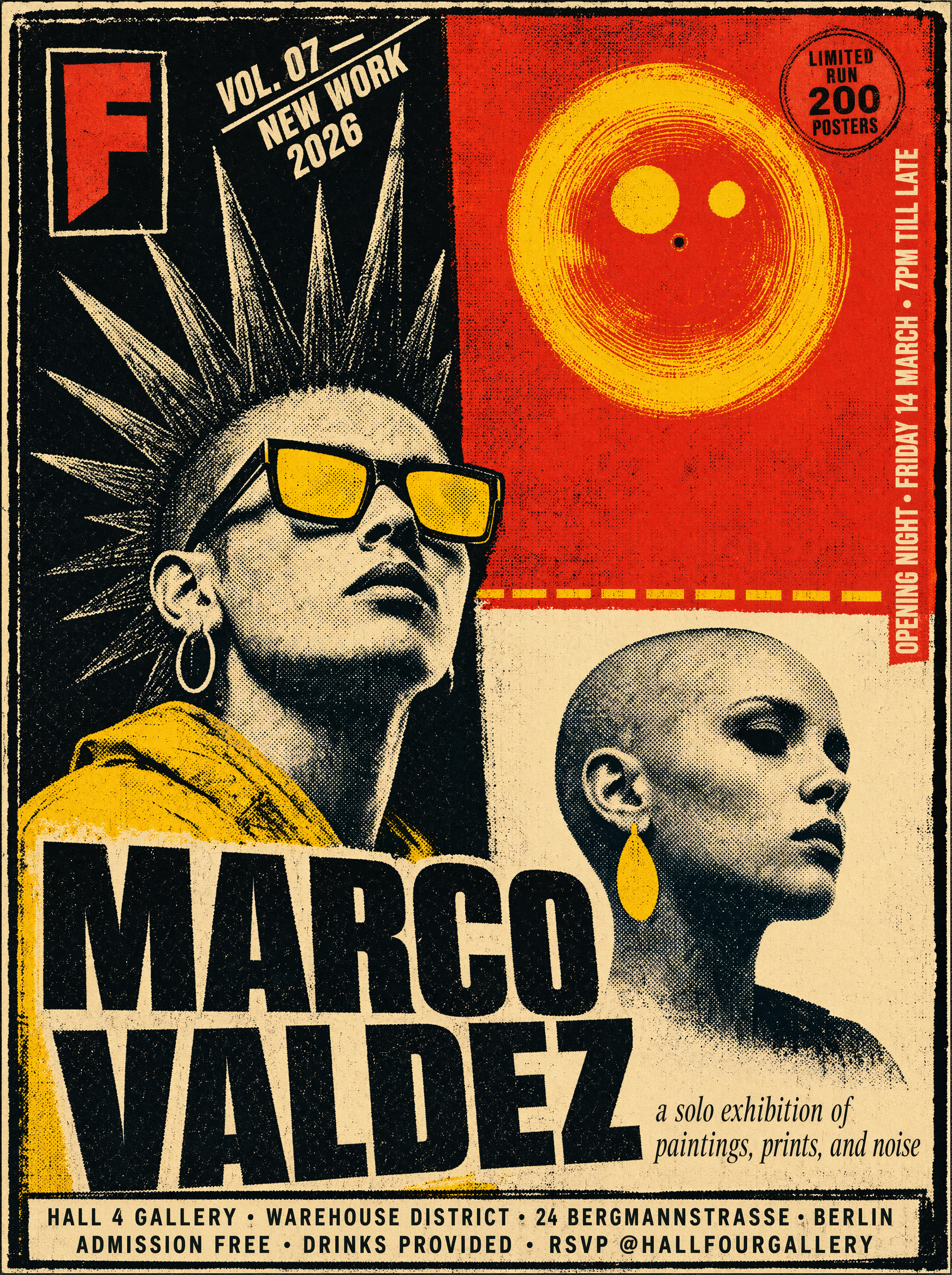
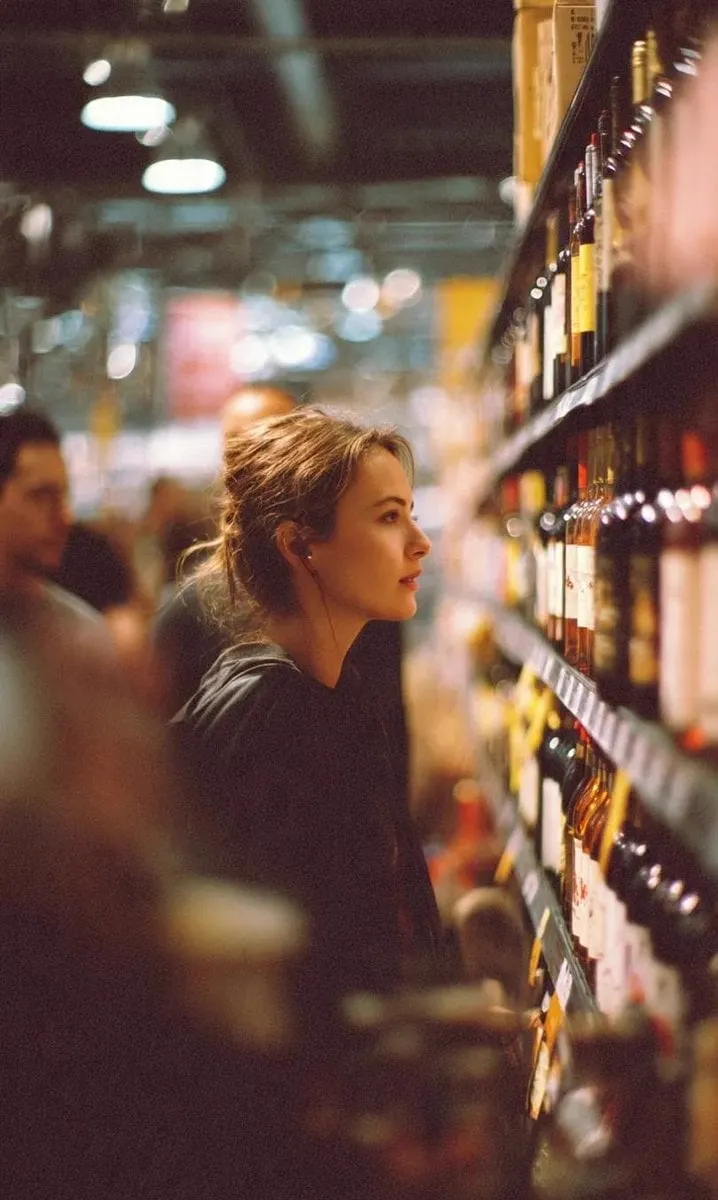
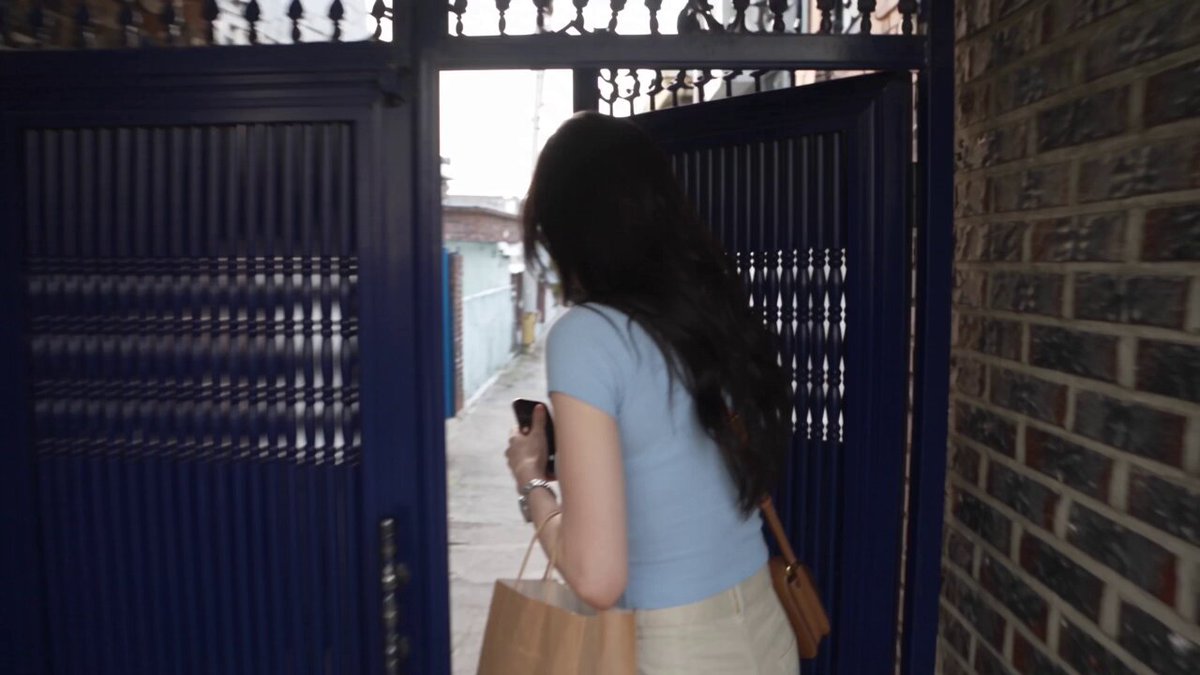
An AI art animation generator takes a still image — a painting, a photograph, a character illustration, a product render, a piece of concept art — and produces motion from it. That sounds simple, and for the first thirty minutes of experimenting it genuinely is. The difficulty arrives later, when the motion has to look intentional rather than like boiling texture, when a character must stay recognisable across four shots, or when someone asks for a slower push, a warmer grade, and a vertical crop before the morning.
This is a practical walkthrough of that whole process. It covers what these tools actually do under the hood, how to choose between the very different families of motion models, how to prepare artwork so the animation holds together, how to write motion direction that behaves like a shot list instead of a wish list, and how to move from one animated clip to a coherent sequence. It also covers the failure modes that waste the most time, and the export decisions that determine whether your work looks sharp or mushy on delivery.
What an AI Art Animation Generator Actually Does
Strip away the marketing language and most animation generators are doing one of three things.
The first is temporal prediction from a single frame. The model looks at your image, infers a plausible three-dimensional scene from shading, perspective, and texture cues, then synthesises what the next frames would look like if a camera moved through that scene or if elements within it drifted. Nothing in the original image moves in a literal sense; the model invents a consistent continuation and then plays it back as motion.
The second is reference-driven motion transfer. You supply a still and a separate motion source — a short video clip, a rigged puppet, a set of keyframed transforms — and the model maps the motion onto your artwork while trying to preserve the original style. This is the approach that gives you real control over timing, because you are no longer guessing how fast something should move. You are dictating it.
The third is interpolation and expansion. Here the model is not inventing motion so much as smoothing between frames you already have, or extending a clip past its original end. This is the least glamorous category and often the most useful in production, because it fixes the parts of a shot that already work.
Understanding which category you are working in matters, because the failure modes are different. Prediction models drift and warp. Motion-transfer models can produce a stiff, pasted-on quality if the source motion does not match the drawing style. Interpolation models smear fast movement and struggle with occlusion.
Choosing the Right Motion Model for Your Artwork
Not every image wants the same treatment. A loose watercolour illustration and a crisp anime keyframe have almost nothing in common structurally, and forcing both through the same pipeline produces predictable disappointment.
Image-to-video models for painterly and photographic work
These handle gradients, soft edges, and atmospheric depth well. They are the right default for concept art, matte paintings, photography, and anything where the appeal comes from texture and light rather than clean line work. Their weakness is line art: thin, high-contrast strokes tend to shimmer because the model cannot decide whether a line is an edge or a highlight.
Keyframe and rig-based approaches for characters
If a character needs to walk, gesture, or turn, driven approaches win. You keep the silhouette under control because you are controlling the underlying transform. The trade-off is setup time — you need a rig, a mask, or a reference performance, and the result only looks good if the rig matches the drawing.
Stylised and 2D-specific pipelines
Some tools are tuned for flat colour regions and hard outlines. They preserve line weight and prevent the background from crawling. If your source is cel-shaded, this is where to start.
Hybrid workflows
In practice, most professional work is hybrid. A common pattern: use a prediction model for the environment and background motion, a driven approach for the character, and interpolation to smooth the join. Compositing those layers in a standard editing tool gives you control no single model offers on its own.
Preparing Artwork So the Animation Holds Together
Most bad animations are bad before the model ever runs. Preparation is the cheapest place to gain quality.
Resolution, aspect ratio, and headroom
Feed the model more pixels than your output needs. A generator that has to upscale internally will hallucinate detail, and hallucinated detail moves in ways that look wrong. Crop to the target aspect ratio before animating, not after — animating a wide frame and then cutting it to vertical throws away the composition you built. Leave headroom around any element you intend to move, because models cannot animate objects that touch the frame edge without dragging the boundary with them.
Composition that gives the model room to move
Give the model depth cues. Overlapping foreground, midground, and background layers produce much better parallax than a flat plane, because the model has something to separate. Strong perspective lines give a camera move somewhere to go. A single centred subject on an empty background leaves almost nothing to work with — add haze, ground texture, or a few scattered elements so motion has something to displace.
Cleaning up problem areas before you animate
Small artefacts amplify. A stray brush stroke near a face becomes a warping blob. Text becomes unreadable scribble. Inconsistent lighting between two elements guarantees that one of them will drift differently from the other. Spend five minutes fixing these in an image editor; it saves an hour of re-rolling.
Masks and region control
If your tool supports masks, use them. Locking the sky, freezing a face, or isolating a single object lets you animate one part of the frame while everything else stays rock solid. Region control is the single biggest quality lever available in most modern tools, and it is the one most beginners ignore.
Writing Motion Prompts That Direct Instead of Describe
A prompt that describes content is not a motion prompt. The model already has the image; it knows there is a forest. What it needs is direction.
A workable prompt formula
A reliable structure is: subject action + camera behaviour + speed + atmosphere + what must not change.
For example: "Slow dolly in toward the doorway, leaves drifting left to right at a gentle pace, light flickering slightly, keep the figure's face and hands unchanged." Every clause does a job. The camera gives the model a global motion, the leaves give local motion, the light gives subtle change, and the constraint protects the part you care about.
Camera vocabulary that models understand
Stick to a small set of terms and use them consistently:
- Push in / dolly in — moves the viewer toward the subject, increases intensity.
- Pull out — reveals context, cools the emotional temperature.
- Pan left / right — horizontal rotation, useful for landscapes.
- Tilt up / down — vertical rotation, good for architecture and scale.
- Orbit / arc — circles the subject, adds dimension.
- Static camera — surprisingly powerful when you want only internal motion.
Combining two moves usually fails. Small, single movements read as intentional; compound movements read as drift.
Negative motion and constraint phrasing
Constraints are underused. Phrases like "keep the background static," "no camera shake," "preserve the character's silhouette," and "avoid morphing" genuinely change output. Treat them as part of the prompt, not as fine print.
Speed and timing language
Words like slow, gentle, steady, and gradual consistently produce more usable results than fast, dramatic, or intense, which tend to trigger large warps. If you need speed, get it in the edit by retiming rather than in the generation.
A Practical Workflow From Single Frame to Sequence
Here is a workflow that holds up under deadline pressure.
Step 1: Beat the shot into three seconds
Write down what changes in the shot in one sentence. If you cannot, the shot is not ready to animate. Three to five seconds is the sweet spot for most generators: long enough to feel like a shot, short enough that drift never becomes obvious.
Step 2: Generate a variation set, not a single take
Run six to ten variations with the same prompt and small seed changes. Pick the strongest one, then note why it is strongest. That reason becomes your new default setting.
Step 3: Lock the best take and extend
Once you have a base clip, extend it forward or backward rather than regenerating from scratch. Extension preserves the motion you liked; regeneration gambles it away.
Step 4: Upscale, then interpolate
Upscale first. Interpolation on a low-resolution clip amplifies noise structure into visible crawling. Only after resolution is settled should you interpolate frames — and use it sparingly, since synthetic in-between frames can produce a soft, soap-opera quality on stylised art.
Step 5: Grade and sound
A subtle colour pass unifies clips generated at different times. A room tone, a low pad, or a single environmental sound effect does more for perceived realism than another generation pass ever will. Audiences forgive imperfect motion; they rarely forgive silence.
Controlling Consistency Across Multiple Shots
Consistency is where single-clip tutorials stop and real projects begin.
Character consistency
The most reliable methods, in rough order of effort:
- Reference images plus a fixed seed — cheapest, works for simple wardrobe and lighting.
- A trained or adapted character model — moderate effort, strong results.
- Rig-driven animation — highest effort, highest reliability.
- Composite approach — animate the body, keep the face from a locked still, and blend in the edit.
Style consistency
Keep a written style block — a short paragraph describing palette, lighting, and line treatment — and paste it into every prompt unchanged. Small wording variations between shots produce visible shifts that no grade can hide.
Background and environment continuity
Generate backgrounds separately from characters when possible. A drifting background is far easier to fix than a drifting character, and reusing a locked plate across shots creates the impression of a single location without any extra work.
Common Mistakes and How to Avoid Them
Overloading the prompt. Ten simultaneous motions produce soup. One primary motion plus one or two secondary motions is the practical ceiling.
Animating the wrong frame. If the still already implies strong motion, an additional camera move fights it. Determine whether the shot needs camera motion, subject motion, or neither.
Ignoring the edit. Many disappointing generations look fine once trimmed by half a second and cut against a second shot. Test in an actual timeline before concluding the generation failed.
Chasing realism with stylised art. Forcing photorealistic lighting onto illustration destroys the exact quality that made the source compelling. Let the style dictate the motion language.
Regenerating instead of repairing. If 80 percent of a clip is right, fix the 20 percent with a mask, a patch, or a cut. Full regeneration resets all your progress.
Never archiving settings. Save prompts, seeds, and settings alongside the output. When a client asks for "the same look, different pose," that archive is the difference between an hour and a day.
Export Settings and Delivery
Delivery decisions are unglamorous and immediately visible.
- Frame rate. Match your target platform. For animation, 24 fps reads as cinematic; 30 fps reads as documentary; higher rates can expose synthetic interpolation artefacts.
- Resolution. Export at the native resolution of your final upscale, never upscaled again at export time.
- Codec and bitrate. Use a high-bitrate intermediate for editing, then encode a delivery master. A generous bitrate on the master prevents the mushy gradient banding that animation generators produce in skies and shadows.
- Colour. Work in a consistent colour space from generation through delivery. Mixed spaces produce clips that look correct alone and wrong in sequence.
- Aspect ratios. Render separate vertical versions rather than cropping horizontally — the composition will be better and the motion will be framed correctly.
- Naming and versioning. A predictable naming scheme with version numbers saves entire afternoons during revisions.
How to Evaluate a Tool Without Wasting a Week
Rather than reading feature lists, run one controlled test on every tool you are considering.
- Take a single test image with a face, a text element, and a detailed background.
- Run the same slow push-in prompt at the same duration in each tool.
- Score four things: facial stability, background coherence, text handling, and how closely the motion matched the prompt.
- Then test one camera pan and one static-camera internal-motion shot.
Four clips per tool is enough to reveal more than any comparison article. Weight the scores by what your actual work needs — a product animator cares almost entirely about coherence and edge stability, while a character animator cares about facial identity above everything else.
FAQ
Can I animate a photograph instead of a drawing?
Yes, and photographs often work better because they contain accurate depth and lighting cues. Watch for movement in flat surfaces such as walls and roads, which can develop a subtle crawling texture.
How long should an AI-animated clip be?
Three to five seconds is the practical range for a single generation. Longer clips accumulate drift. Build longer sequences by chaining shorter clips and cutting between them.
Why does my character's face change between shots?
Because the model has no persistent memory of the character. Fix it with a reference image, a fixed seed, a trained character model, or by compositing a locked face onto animated body motion.
Should I animate before or after colour grading?
Grade before animating when the look is critical, because motion models respond to contrast and saturation. Fine-tune after in the edit, where changes are reversible.
How do I stop the whole frame from wobbling?
Use masks or region locks, reduce prompt complexity to a single motion, lower the movement intensity, and shorten the clip. Wobble almost always comes from the model trying to move everything at once.
Do I need special hardware?
Not for hosted tools. Local workflows benefit substantially from a modern GPU with plenty of video memory, particularly when upscaling or interpolating long sequences.
Can I use animated output commercially?
That depends entirely on the terms of the specific tool and the provenance of your source artwork. Check both the generator's licensing and your own rights to the input image before publishing.
Where to Focus Next
The gap between interesting AI animation and usable AI animation is not talent or luck — it is process. Prepare the image properly, choose a model family that matches the artwork, direct the camera with one clear movement, generate a set rather than a take, and treat the edit as part of the animation rather than something that happens afterward.
Start with a single three-second shot of an image you already love. Get that one shot to a standard you would publish. Then repeat it with a different camera move, and cut the two together. That small exercise teaches more about consistency, timing, and constraint writing than a dozen hours of scattered experimentation — and it produces something you can actually show.

Alexander
More Blogs
Read MoreVidu Q4 Alternatives: 4K AI Video Models Compared (2026)
Vidu Q4 alternatives compared: Kling 4.0, Seedance 2.5, Wan 3.0, and Runway Gen-4 — 4K support, input modes, durations, audio, and what each costs in credits on Domer.
Top 4K AI Image Generators in 2026: 5 Models Compared on Real Costs
The top 4K AI image generators on Domer compared: Flux 3 Klein, Nano Banana 2.1, GPT Image 2.5, GPT Image 2, and Nano Banana Pro — 4K credit costs, reference limits, and speed.
Nano Banana 2.1 vs GPT Image 2.5: Which Image Model Should You Use? (2026)
Nano Banana 2.1 vs GPT Image 2.5 Flare compared: credit costs per resolution, aspect ratios, reference images, text rendering, and which tasks fit each model.