
AI Art Generator Workflow: How to Create Stunning Visuals
Oct 14, 2026
Why AI image generation became a core production skill
A few years ago, generating an image from a text prompt was a party trick. You typed something poetic, waited forty seconds, and got a blurry, slightly melted result that was fun to share and useless to ship. That era is over. Modern generative models produce images with coherent lighting, believable materials, readable text (sometimes), and consistent style across an entire series — and they do it in seconds.
The practical consequence is that visual production has shifted from a bottleneck to a routing problem. The hard part is no longer "can we get an image?" but "which image, from which model, at which resolution, and how do we keep forty of them looking like they belong together?"
That shift matters for almost every kind of team:
- Marketing teams need campaign key visuals, social variants, and localized assets without booking a studio for every iteration.
- Product designers want mood boards, UI illustration sets, and empty-state art that matches a design system.
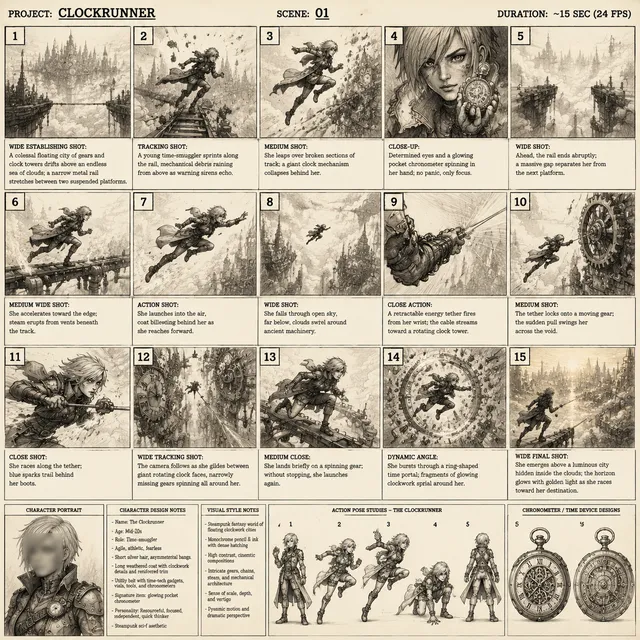
- Video creators use generated stills as storyboards, background plates, thumbnails, and starting frames for animated shots.
- Indie game and app developers prototype environments, character sheets, and icon families before committing to a full art pipeline.
- Solo creators ship content that previously required a photographer, an illustrator, and a retoucher.
This guide is a workflow guide, not a hype piece. It covers what is actually happening inside these tools, how to choose between them, how to prompt for repeatable results, and how to move a generated still into motion without the whole thing falling apart.
How modern image generators actually work
You do not need to understand the math to get good output, but you do need a mental model. Almost every frustrating result traces back to a mismatch between what you think the model is doing and what it is actually doing.
Diffusion in plain language
Most current image models are diffusion models. Training works like this: take a real image, add random noise to it in small steps until it is pure static, then train a network to reverse one step of that process. Do this across millions of images and the network learns the statistical shape of "what a photo looks like" — how light falls on skin, how fabric folds, how typography behaves.
At generation time, you start from noise and denoise step by step, nudged at every step by your text prompt through a text encoder. The number of denoising steps, the guidance strength, and the seed all change the outcome. This is why the same prompt gives you a different image every run: the starting noise is different.
Practical implications:
- Seeds are your version control. Fix the seed when you want small variations on an image you already like.
- Guidance strength is a trade-off. Higher values push harder toward your prompt and often produce oversaturated, crunchy results. Lower values look more natural and drift further from the brief.
- Steps have diminishing returns. Beyond a certain point, extra steps cost time without changing much.
GANs, transformers, and hybrid pipelines
Generative adversarial networks — a generator competing against a discriminator — still power some upscalers, face-restoration models, and stylization passes. They tend to be fast and sharp but less controllable than diffusion.
Transformer-based architectures changed text understanding. Early models ignored half of a long prompt; modern conditioning encoders parse relationships between words, so "a red chair beside a blue sofa" no longer produces a blue chair beside a red sofa. Some pipelines combine a diffusion backbone with transformer-based text understanding and a separate refinement network, which is why quality varies so much between tools that appear to offer "the same thing."
The control layers that change everything
Raw text-to-image is the least controllable mode. The interesting work happens in the layers around it:
| Control layer | What it does | When to use it |
|---|---|---|
| Reference images | Anchor style, subject, or composition | Brand consistency, character sheets |
| Depth / pose / edge maps | Constrain structure without constraining style | Storyboards, matching a layout |
| Inpainting and outpainting | Edit or extend a region only | Fixing hands, changing wardrobe, expanding canvas |
| Style adapters | Apply a trained aesthetic cheaply | Series work, consistent illustration sets |
| Upscaling and detail passes | Increase resolution and micro-detail | Print, large-format displays, final plates |
If a tool offers no reference conditioning, no masking, and no seed control, it is a novelty generator. That is fine for exploration and painful for production.
Choosing a generator: decision criteria that matter
Tool selection is where most teams lose weeks. Feature lists all look identical. Here is what actually separates platforms.
The criteria worth scoring
- Controllability. Reference images, masking, seeds, aspect-ratio control, negative prompting, and structural guides.
- Output resolution. Native output matters more than advertised maximum. An upscaler cannot recover detail the model never generated.
- Batch and consistency behavior. Can you generate ten variations that share a style? Can you lock a look and reuse it tomorrow?
- Iteration speed. A beautiful model that takes ninety seconds per image kills exploration. You want roughly five to fifteen seconds for draft passes.
- Motion support. If you plan to animate stills, choose a toolchain where image-to-video is a first-class step, not a workaround.
- Licensing and commercial terms. Check whether generated output can be used commercially and whether prompts or uploads are used for training.
- Editing surface. Presets and sliders beat re-rolling the dice, especially when a client asks for "the same but warmer."
- Export ergonomics. Transparency, layer separation, color profiles, and file formats save hours in post.
Matching tools to tasks
- Photorealistic product and lifestyle shots: prioritize models that handle materials, reflections, and text rendering, plus strong inpainting for label cleanup.
- Editorial illustration: prioritize style adapters and reference conditioning over photorealism.
- Character and mascot work: prioritize consistency tools, pose control, and the ability to reuse a locked design across dozens of scenes.
- Background plates for video: prioritize high resolution, wide aspect ratios, and depth consistency so camera moves do not reveal obvious flatness.
- Rapid concept exploration: prioritize speed and cheap batch generation over fidelity; you will throw most of it away.
A useful rule: pick two tools, not six. One for exploration (fast, loose, generous free tier) and one for finishing (slow, controllable, licensed for commercial use). Constantly switching between six platforms destroys consistency and your ability to learn any of them deeply.
Prompting for consistent, production-ready visuals
Prompting is not poetry. It is specification writing with an aesthetic vocabulary.
Anatomy of a strong prompt
A reliable prompt has five parts, usually in this order:
- Subject — who or what, described concretely. "A ceramic espresso cup" beats "coffee vibes."
- Action or state — what is happening. "Resting on a marble counter, steam rising."
- Environment and lighting — the biggest lever on mood. "Soft morning window light from the left, deep shadows behind."
- Composition and lens — framing and perspective. "Close-up, 85mm look, shallow depth of field, subject in the left third."
- Style and medium — the finish. "Editorial product photography, muted warm palette, fine grain."
Example, combining all five:
A ceramic espresso cup resting on a marble counter, steam rising, soft morning window light from the left, close-up 85mm look with shallow depth of field, subject in the left third, editorial product photography, muted warm palette, fine grain.
That single prompt is more predictable than twenty poetic adjectives, because every clause constrains something concrete.
Negative prompts and constraints
Negative prompts work best when they target specific failure modes rather than moral judgments. Useful entries:
blurry, low contrast, oversharpenedextra fingers, deformed hands, distorted facetext, watermark, logo, signatureflat lighting, dull colors, low detailcluttered background, busy pattern
Keep the negative list short. A forty-word negative prompt often cancels out parts of the positive prompt and produces a bland compromise.
Style locking and reference images
Consistency is the single hardest problem in generative visuals. Three techniques handle most of it:
- Reference conditioning. Supply one to three reference images that define the palette and rendering style. Do not supply ten; the model averages them into mush.
- Textual style anchors. Reuse the same style clause verbatim across every prompt in a series. "Muted warm palette, fine grain, soft window light" repeated twenty times produces a family resemblance that no single elaborate prompt will.
- Seed discipline. Keep the seed fixed when varying one element, and change it only when you want a genuinely new direction.
Document your style anchor somewhere. The most common failure in weekly content production is that nobody remembers which prompt produced last month's look.
From stills to motion: image-to-video workflows
Generated stills are often the front half of a video workflow. Image-to-video models take a single frame and animate it — adding camera movement, subject motion, or atmospheric changes.
Frame continuity basics
- Start from a high-resolution, clean still. Motion models amplify artifacts; a slightly noisy image becomes a boiling mess.
- Compose with headroom for movement. If the camera is going to push in, do not crop the subject to the edge.
- Keep the scene physically plausible. Models handle "steam rising" and "fabric moving" far better than "a person walks in and sits down."
- Limit clip length. Short clips of two to five seconds read as intentional; long clips drift into morphing.
Camera language for generated clips
Describe the move explicitly in the motion prompt: slow dolly in, gentle parallax pan left, static camera with subtle handheld drift. Ambiguous motion prompts produce the characteristic "everything wobbles" look that makes generated footage feel artificial.
For multi-shot sequences, generate each still separately, then animate each one with the same motion vocabulary. Cross-cutting between consistent shots hides the seams far better than trying to generate one long continuous clip.
A repeatable production workflow, step by step
This is the process that survives contact with deadlines and clients.
Step 1 — Write a one-paragraph brief
Before opening any tool, write down the audience, the channel, the aspect ratio, the mood in three adjectives, and the deliverable count. If you cannot fill these in, you are not ready to generate.
Step 2 — Build a mood board, not a prompt library
Collect six to ten reference images from anywhere — photography, film stills, existing brand assets. Their job is to give you vocabulary: lighting direction, palette, lens character. You will translate them into words, not upload them all as conditioning.
Step 3 — Lock the style with a small test grid
Generate a 2x2 or 3x3 grid of the simplest possible version of your subject. Compare lighting and palette. Pick one, then save the exact prompt and seed as your style anchor.
Step 4 — Batch generate, then cull ruthlessly
Generate thirty to sixty drafts at low resolution. Cull in two passes: first by gut reaction (three seconds per image), then by technical criteria (hands, text, symmetry, background noise). Keep maybe ten percent. The remaining candidates get regenerated at higher resolution, ideally with a fixed seed and minor prompt adjustments.
Step 5 — Repair instead of re-rolling
When a composition is right but one detail is wrong, use inpainting. Mask the offending region, describe only that region, and regenerate. Re-rolling the entire image loses everything that was working.
Step 6 — Upscale, composite, and color match
Run the finalists through an upscaler, then bring them into your editor of choice. Apply the same grade across the set: consistent white balance, consistent contrast curve, consistent grain. This step is what makes a batch of generated images look like a campaign rather than a folder.
Step 7 — Export in the right formats
Prepare a master at the largest size you need, then derive channel versions. Keep a lossless master; you will be asked to resize something eventually.
Common mistakes that waste the most time
- Overloading the prompt. Twelve competing concepts produce an average of all of them. One idea per generation.
- Ignoring aspect ratio. Generating square and cropping to vertical destroys composition. Set the ratio before you prompt.
- Chasing realism in the wrong model. Some models are excellent illustrators and mediocre photographers. Match the model to the finish.
- No style anchor. Every image looks like it came from a different project, because it did.
- Re-rolling instead of repairing. Inpainting is faster and preserves the parts you liked.
- Skipping color grading. Ungraded output from multiple generations will never sit together convincingly.
- Forgetting the brief. A beautiful image that does not serve the audience is a wasted afternoon.
- Not checking licensing. Commercial use terms differ, and discovering a restriction after publishing is expensive.
Quality control checklist
| Check | Why it matters |
|---|---|
| Anatomy and hands | The most common visible defect |
| Text rendering | Generated lettering is often subtly wrong |
| Lighting direction consistency | Mixing light sources breaks realism |
| Edge quality on cutouts | Halos ruin compositing |
| Palette match across the set | The difference between a series and a pile |
| Resolution at final display size | Upscaling cannot invent real detail |
| Aspect ratio and safe areas | Cropping kills good compositions |
| Licensing and disclosure | Protects you and your client |
Run this list before you send anything to a client or publish it. It takes two minutes and prevents most revision rounds.
Ethics, licensing, and disclosure
Generative visuals raise legitimate questions, and handling them well is part of professional practice.
- Training data and style mimicry. Avoid prompts that name a living artist's style as your primary directive. Describe the visual properties you want instead — it produces more original work and fewer awkward conversations.
- People and likeness. Do not generate identifiable real people without permission. For synthetic faces in commercial work, check the model's terms.
- Disclosure. Many platforms and clients now expect a note when visuals are AI-generated. Build that into your delivery template rather than deciding case by case.
- Dataset hygiene. Do not upload confidential client material to tools that may use uploads for training. Read the data policy once, properly.
- Documentation. Keep a short record of the tool, prompt, and date for each asset you ship. It is the cheapest insurance in this workflow.
FAQ
Do I need a powerful computer?
Not necessarily. Cloud-hosted tools run everything remotely; local generation requires a capable GPU but gives you more control and privacy. Most professionals mix both.
How many images should I generate per final asset?
A reasonable ratio is twenty to forty drafts per keeper. If you are getting better than one in five, your prompts are probably too generic and your quality bar too low.
Why do my results look generic?
Usually because the prompt describes a category rather than a specific scene. "A woman in a cafe" is a category. "A woman in a green booth, window light on her left hand, espresso cup in frame" is a scene.
Can I use generated images commercially?
It depends entirely on the tool's terms and your jurisdiction. Check the license, keep records, and disclose when required. Never assume.
What is the fastest way to get a consistent series?
Lock a seed, write one style clause, and reuse it verbatim. Change only the subject and composition per image.
Should I animate every still?
No. Animation multiplies render time and risk. Animate the two or three shots that carry the story, and let the rest stay still.
How do I fix hands?
Inpaint them separately with a tight mask, describe the hand position explicitly, and generate several options. It is tedious but reliable.
What about resolution for print?
Generate at the model's native maximum, upscale in two passes with different algorithms, then check at 100 percent zoom before sending to press.
Turning generation into a craft
The tools will keep changing. Models will get faster, control layers will get richer, and the gap between draft and final will keep narrowing. What will not change is the structure of good work: a clear brief, a locked style, disciplined iteration, honest quality control, and documentation that protects you later.
Treat the generator as one station in a pipeline rather than a magic button. Write your prompts like specifications. Build a style anchor and reuse it. Repair instead of re-rolling. Grade your output so it reads as a set. Move only your best frames into motion, and give them a camera instruction that a human operator could actually perform.
Do that consistently and the tools stop feeling like a lottery. They become what they should have been all along: a fast, controllable way to get from an idea to a finished visual, with the judgment still firmly on your side of the screen.

Alexander
More Blogs
Read MoreVidu Q4 Alternatives: 4K AI Video Models Compared (2026)
Vidu Q4 alternatives compared: Kling 4.0, Seedance 2.5, Wan 3.0, and Runway Gen-4 — 4K support, input modes, durations, audio, and what each costs in credits on Domer.
Top 4K AI Image Generators in 2026: 5 Models Compared on Real Costs
The top 4K AI image generators on Domer compared: Flux 3 Klein, Nano Banana 2.1, GPT Image 2.5, GPT Image 2, and Nano Banana Pro — 4K credit costs, reference limits, and speed.
Nano Banana 2.1 vs GPT Image 2.5: Which Image Model Should You Use? (2026)
Nano Banana 2.1 vs GPT Image 2.5 Flare compared: credit costs per resolution, aspect ratios, reference images, text rendering, and which tasks fit each model.