
Utwórz
AI Image Animation: Turn Static Photos Into Motion Clips
Oct 15, 2026
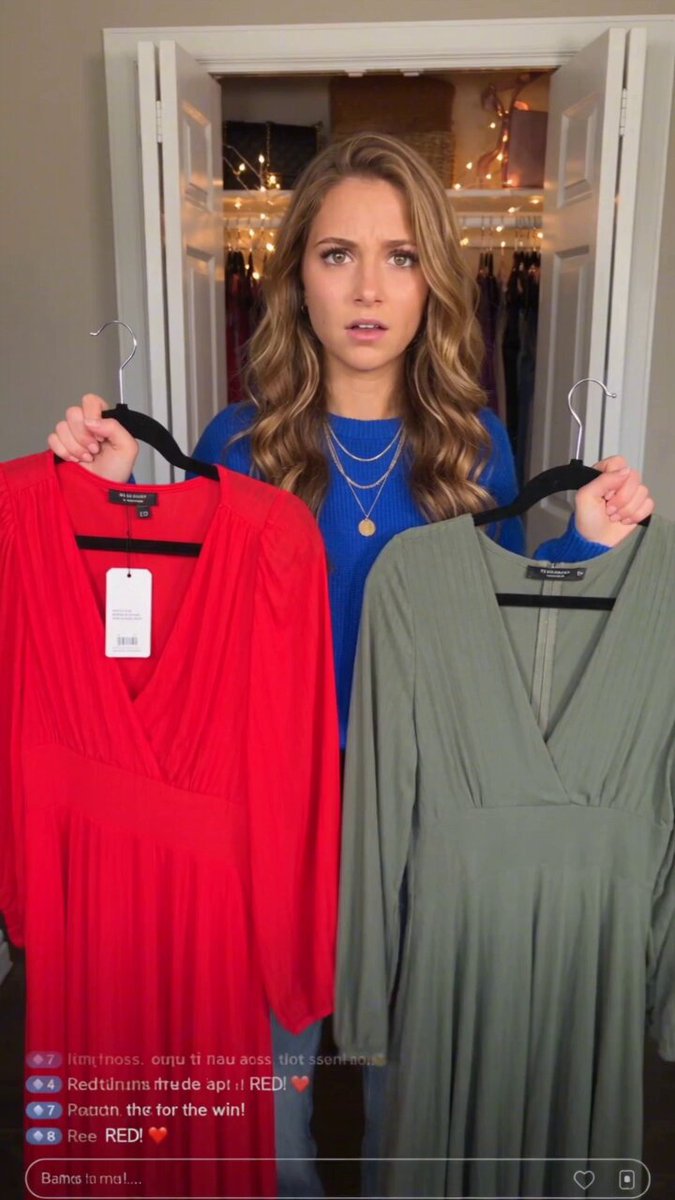
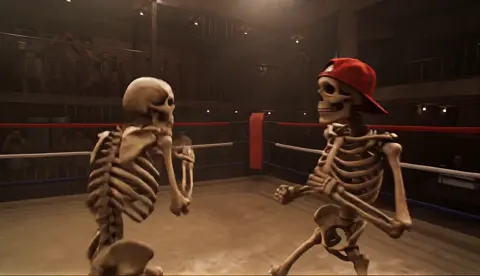
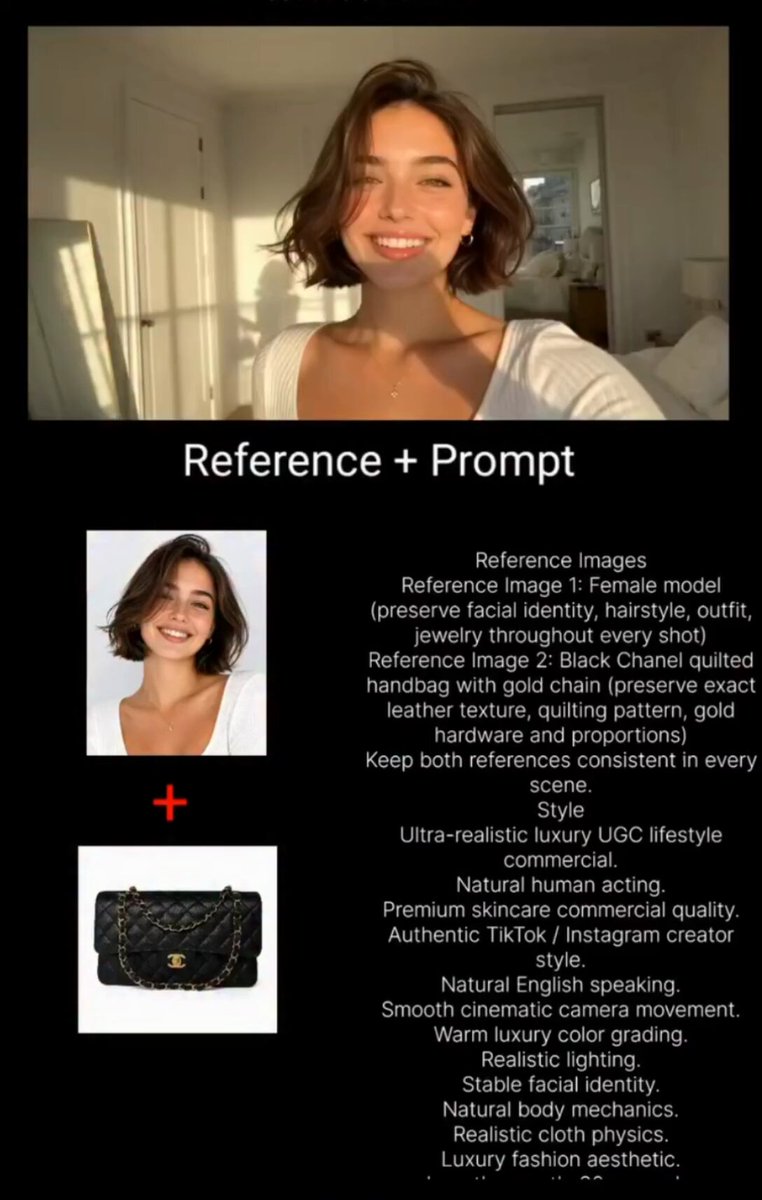
Why Still Images Are Suddenly Moving
The gap between a photograph and a video clip has collapsed into a settings menu. A portrait, a product shot, a landscape, or a piece of concept art can now be nudged into motion — hair lifting in a breeze, steam curling off a cup, a slow camera push across a ridge line — with a text prompt and a handful of controls. AI image animation tools sit at the center of that shift, and they have quietly changed how creators think about their photo libraries.
The appeal is not novelty. It is leverage. Anyone with a decent still already owns the hardest part of a video: composition, lighting, color, and a subject that reads clearly. Animation models do not need to invent a scene from nothing; they need to add believable change over time. That is a much smaller ask, and it is why image-to-video output often looks far more controlled than text-to-video output.
This guide walks through how these systems work under the hood, how to choose between the crowded field of tools, a repeatable production workflow, prompt patterns that actually produce clean motion, and the mistakes that waste the most render time.
How AI Image Animation Actually Works
The base model interprets, it does not copy
When you feed a still into an animation model, the system first encodes that image into a latent representation — a compressed mathematical description of shapes, textures, and lighting. The model then generates a sequence of new frames that are consistent with that description while gradually changing it. The original pixels are a starting condition, not a fixed layer.
This explains a behavior that confuses newcomers: fine details drift. Text on a label warps. Eyeglasses flicker. The model is reconstructing your image in every frame from an abstract summary, and small errors compound frame over frame.
Temporal layers create the sense of motion
Older image generators treated each frame independently, which produced the classic shimmering, melting look. Modern video diffusion architectures add temporal attention — layers that let each frame "look at" its neighbors and agree on where things are. Temporal coherence is the single biggest quality difference between a model that feels like a slideshow effect and one that feels filmed.
Motion can come from several sources
- Prompted motion: you describe what should move ("flags rippling, gentle handheld sway").
- Camera motion: you specify dolly, pan, tilt, zoom, or orbit as a separate control.
- Reference motion: you drive the shot with a video clip, a pose sequence, or a depth map.
- Keyframe interpolation: you supply a start frame and an end frame and let the model fill the middle.
Most professional-looking results combine two of these. Prompting subject motion while also defining a camera move gives the model an unambiguous job.
Motion strength is a real dial, not a suggestion
Nearly every tool exposes something called motion strength, motion bucket, or motion intensity. Low values preserve the source image almost exactly and produce subtle drift — ideal for product shots. High values produce dramatic movement and also produce warping, morphing, and identity drift. Treat this dial as the primary quality/impact trade-off in your workflow.
Choosing the Right Tool for the Job
The market splits into three rough tiers, and picking the wrong tier is the most common reason people conclude that image animation "doesn't work."
Cloud generators for speed
Hosted tools such as Runway, Kling, Luma Dream Machine, Pika, and Hailuo produce clips from a still in a minute or two with no hardware requirements. They are excellent for exploration, social content, and client mood boards. Their limitations are control granularity and consistency across many shots.
Local pipelines for control
Stable Video Diffusion, Wan, and similar open models running inside ComfyUI or a comparable node graph give you frame-level control, custom LoRAs, depth conditioning, and unlimited iteration. The cost is a steep setup curve and a GPU requirement that is easy to underestimate. If your project needs twenty visually consistent shots of the same character, this route usually wins.
Hybrid workflows for real production
Most serious work mixes both: generate motion in the cloud for speed, then finish in a video editor. DaVinci Resolve, Premiere Pro, or Final Cut handle retiming, stabilization, grain matching, and sound. Topaz Video AI or a similar upscaler handles the 1080p-to-4K pass that generative models rarely nail on their own.
What to compare when you trial a tool
- Source fidelity — does the subject's face, logo, or texture survive five seconds?
- Duration per generation — native four-second clips stitched together rarely match a native ten-second clip.
- Control surface — can you set camera separately from subject motion?
- Determinism — does the same seed and prompt give you a similar result twice?
- Export flexibility — frame sequences and high bitrates matter for finishing.
A Practical Workflow: From One Photo to a Finished Clip
Step 1 — Prepare the source frame properly
Animate a clean image, not a compromised one. Upscale to at least 1080p on the short side, remove compression artifacts, and crop to your target aspect ratio before generation. Sampled aspect ratios cause the model to invent composition at the edges, which is where most morphing artifacts appear.
If the image contains text or a face that must stay readable, consider generating a slightly wider version and masking the critical area during editing rather than hoping the model preserves it.
Step 2 — Write a motion-first prompt
Most people write prompts that describe the image. That information is already in the frame. Use the prompt to describe what changes: "slow push in, fabric fluttering, warm light shifting across the wall, steam rising." Keep it to one or two motion ideas plus one atmospheric detail.
Step 3 — Set camera behavior deliberately
Decide whether the camera moves at all. A locked-off frame with subtle subject motion reads as a living photograph and is extremely forgiving. A fast orbit reads as a music video and is extremely unforgiving. Start locked off, then add one camera move only if the shot needs energy.
Step 4 — Generate short, judge hard, iterate in passes
Generate four seconds at a moderate setting, watch it three times, and write down the specific failure. Was it identity drift, texture crawl, or an unwanted camera swing? Change one variable, regenerate. Adjusting three dials at once means you learn nothing.
Step 5 — Extend with overlap, not hope
To reach longer durations, generate overlapping segments and cut on motion — a hand passing, a whip pan, a fade through light. Cross-dissolving two static-feeling shots is more convincing than a single shot that falls apart at second six.
Step 6 — Finish like footage
Add grain, slight color grading, and ambience or music. Generative clips are unnervingly clean and silent; a little noise and a room tone make them read as real footage. Stabilize only after you decide whether the camera move was intentional.
Prompt Patterns That Produce Clean Motion
The single-action rule
One verb per clip. "She turns her head" works. "She turns her head, stands up, and walks away" will produce a mush of half-completed gestures. If you need three actions, you need three clips.
Anchor the environment
Adding a static anchor — a fixed horizon, a chair leg, a doorway — gives the temporal layers something stable to reference. Scenes with no fixed geometry drift the most.
Describe speed, not just direction
"Slowly," "gradually," and "gently" are functional tokens. "Explosive," "rapid," and "frantic" push the model toward high motion strength, which usually means warping.
Name the light
"Golden-hour light shifting," "flickering neon," and "cloud shadow passing" create motion without moving a single object. This is the cheapest way to add life to an otherwise static composition.
Control what should stay still
Negative prompts or explicit instructions like "static background, fixed camera, no morphing" genuinely help in tools that support them.
Common Mistakes and How to Avoid Them
Chasing maximum motion. Beginners set motion strength to the top, get a melting face, and blame the model. Start low and raise it only until the shot stops feeling dead.
Animating low-resolution sources. Compression blocks get amplified into crawling textures. Garbage in, visible garbage out.
Ignoring aspect ratio. Cropping a 16:9 render to 9:16 after the fact cuts away the composition the model was balancing around.
Overloading the prompt. Long prompts dilute the motion instruction. If the key verb is buried in paragraph three, the model may not weight it.
Trusting a single take. Every model is non-deterministic in practice. Generate three or four variants of the same setup and pick the cleanest rather than re-rolling endlessly for one perfect clip.
Forgetting audio. Silent clips feel unfinished in a way that is hard to diagnose. Even a subtle ambience bed changes perception of motion quality.
Skipping the final frame check. Scrub frame by frame before delivery. Flicker, warping logos, and melting fingers hide in playback but scream at full size.
Style Recipes for Different Content Types
Product and e-commerce
Lock the camera. Use low motion strength. Animate one physical property — liquid pouring, fabric draping, light sweeping across a surface. Preserve logo geometry by keeping the product centered and away from the frame edges. These clips work beautifully as looping hero backgrounds and as Amazon or Shopify listing video.
Portrait and character work
Keep motion small: a blink, a breath, a slight head turn, hair movement. Faces are the hardest subject for any video model, so expect multiple attempts. If the same character must appear across several shots, generate all of them from one source image or one LoRA to keep identity stable.
Landscape and atmosphere
This is where models shine. Clouds moving, water flowing, grass shifting, fog rolling — the subject is inherently non-rigid, so temporal errors are invisible. Add a slow push or drone-style rise and the result is immediately usable as B-roll.
Social-first vertical
Design for a one-second hook. The first moment of motion should already be happening when the clip starts — no wind-up. Keep the subject in the middle third, add captions in editing, and keep total runtime between six and twelve seconds.
A Quality Checklist Before You Publish
Run every clip through the same gate:
- Does the subject's identity survive from first frame to last?
- Is there any flicker in flat areas like walls or sky?
- Does text or a logo stay legible when paused at any moment?
- Does the motion stop abruptly, or does it resolve?
- Does the clip hold up at full resolution, not just in the preview window?
- Is the aspect ratio native to the destination platform?
- Is there audio that matches the motion energy?
If a clip fails two or more of these, regenerate rather than trying to fix it in the edit. Generative errors are rarely repairable with post-production tools.
FAQ
How long can an animated clip realistically be?
Most image-to-video models produce four to ten seconds of dependable motion. Beyond that, coherence degrades and the model starts inventing. Longer pieces are built by cutting several short generations together.
Do I need a powerful GPU?
Only if you run open models locally. Cloud tools handle rendering for you and are the sensible starting point. Local setups make sense when you need custom training, strict data privacy, or frame-level control.
Why does my subject's face change?
Because the model reconstructs each frame from a latent summary rather than tracking pixels. Lowering motion strength, increasing resolution, and shortening clip length are the three most effective fixes.
Can I animate a photo of a real person?
Technically yes, but get consent and check the platform's policy on likeness. Many tools restrict uploading images of identifiable people, and publishing synthetic likeness without permission carries real legal and reputational risk.
Is it better to animate an AI-generated image or a real photograph?
Photographs usually animate more cleanly because they contain consistent lighting and real texture. AI-generated stills sometimes carry subtle artifacts that the video model amplifies.
How do I keep the camera perfectly still?
Use explicit "locked camera" or "static shot" instructions and disable any auto camera-motion toggle. If the tool still drifts, crop slightly in editing and apply stabilization, which will also mask the residual movement.
What about audio?
Generate or source it separately. Motion quality is judged partly by sound, so a room tone, footstep, or ambient loop makes a modest clip feel dramatically more finished.
Where This Is Heading
The direction of travel is clear: more control, not more magic. Expect better spatial conditioning through depth and pose, longer native durations, and tighter consistency across multiple shots of the same subject — the missing piece for narrative work.
For now, the practical advantage belongs to creators who treat image animation as a craft with real trade-offs rather than a one-click effect. Prepare your source, describe one motion clearly, keep the camera calm, iterate in short passes, and finish the output like footage. Do that consistently and a folder of stills becomes a library of usable clips.

Alexander
More Blogs
Read MoreVidu Q4 Alternatives: 4K AI Video Models Compared (2026)
Vidu Q4 alternatives compared: Kling 4.0, Seedance 2.5, Wan 3.0, and Runway Gen-4 — 4K support, input modes, durations, audio, and what each costs in credits on Domer.
Top 4K AI Image Generators in 2026: 5 Models Compared on Real Costs
The top 4K AI image generators on Domer compared: Flux 3 Klein, Nano Banana 2.1, GPT Image 2.5, GPT Image 2, and Nano Banana Pro — 4K credit costs, reference limits, and speed.
Nano Banana 2.1 vs GPT Image 2.5: Which Image Model Should You Use? (2026)
Nano Banana 2.1 vs GPT Image 2.5 Flare compared: credit costs per resolution, aspect ratios, reference images, text rendering, and which tasks fit each model.