
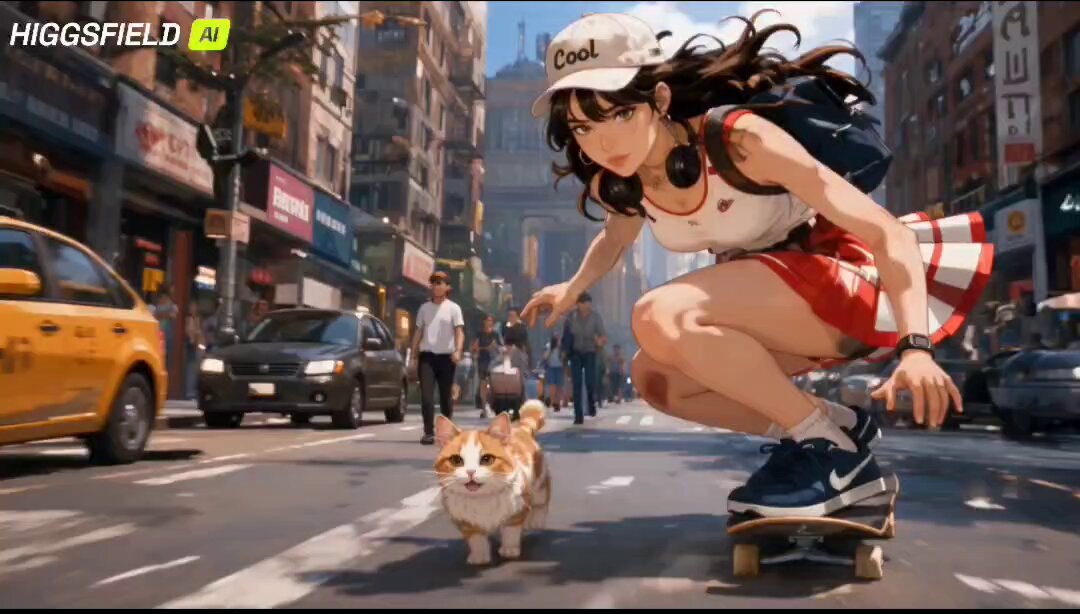
AI Picture to Animation: Turn Still Images Into Motion
Oct 15, 2026
What an AI Picture to Animation Generator Actually Does
An AI picture to animation generator takes a single still image and produces a short video clip in which that image appears to move. The subject breathes, the camera drifts, hair lifts in an imaginary breeze, steam curls off a coffee cup, or a landscape gains a slow parallax push. The still frame is the anchor; everything after it is predicted.
That distinction matters more than it first seems. Traditional animation requires you to build rigs, draw keyframes, or hand-paint frames. Classic 2.5D parallax requires cutting a photo into layers and moving them along a depth axis. Both approaches give you a lot of control but a lot of labor. Image-to-video models flip the trade: you get motion for almost no manual effort, but you give up frame-level control and have to steer the model with words and parameters instead of keyframes.
There are two broad families of tools in this space, and most confusion comes from treating them as the same thing.
Frame-prediction models treat your image as the first frame of a clip and hallucinate subsequent frames using learned motion priors. These handle complex organic motion well: flowing fabric, rippling water, a turning head, drifting smoke. They are also the tools most likely to warp details, because the model is inventing structure it cannot see.
Depth-and-parallax tools estimate a depth map from your image, slice it into layers, and move those layers in 3D space. They are extremely stable and produce clean, loopable camera moves, but they cannot make a subject genuinely change pose. A portrait will not blink convincingly; a building will just drift.
Most professional workflows use both. A parallax pass handles the establishing shot with a reliable push-in. A frame-prediction pass handles the shot where a person turns toward the camera. Knowing which family you need for which beat is the single biggest time-saver in this craft.
Typical outputs land somewhere between two and ten seconds at 24 or 30 frames per second, usually at 720p or 1080p before upscaling. Short clips are not a limitation to fight; they are the native unit of the format. Build sequences out of several short clips rather than trying to force one long one.
How the Pipeline Works, Stage by Stage
The internal mechanics are worth understanding at a conceptual level, because almost every weird artifact you will encounter traces back to one of these stages.
Image encoding and latent mapping
Your still is compressed into a latent representation, a dense numerical description of shapes, colors, textures, and rough depth. Fine details such as individual eyelashes, thin text, or delicate jewelry often get smoothed or scrambled here. If a detail is already marginal in the source image, it will not survive this compression well.
Temporal modelling and motion priors
The model draws on everything it learned about how the world moves. It knows that hair falls, that water ripples, that fire flickers, that cameras can dolly. When you write a prompt, you are selecting which of those priors to activate. When you write nothing, the model picks something plausible on its own, which is why unguided clips often drift sideways in a generic, slightly aimless way.
Decoding, interpolation, and upscaling
Latent frames are decoded back into pixels. Many pipelines then interpolate intermediate frames to smooth motion and run an upscaler to reach delivery resolution. Interpolation is where ghosting and smeared edges appear; upscaling is where soft textures and unnatural skin can appear. Both stages are usually optional and both cost time, so treat them as finishing tools rather than defaults.
Where control actually lives
Practically speaking, you control four things: the source image, the motion prompt, the duration and aspect ratio, and the model or style preset. Every other lever is downstream of those four. When a clip disappoints you, diagnose in that order. Nine times out of ten the problem is the source image or an overloaded prompt, not the model.
Preparing Source Images That Animate Well
Source preparation is where most quality is won or lost, and it is the step beginners skip.
Resolution, aspect ratio, and crop
Aim for at least 1080 pixels on the short side; more headroom helps if you plan to animate a camera move that needs to reframe. Crop to your target delivery aspect before animating, not after. If your final video is vertical, crop the photo vertically first so the model composes the motion inside the correct frame. Animating a wide shot and cropping later throws away the composition the model just built.
Subject separation and readable silhouettes
Models animate what they can identify. A subject that stands clearly apart from the background, with a crisp silhouette and reasonable contrast, produces far more coherent motion than a subject lost in visual noise. Busy backgrounds, dense foliage, cluttered shelves, and heavy patterns all create ambiguity that shows up as shimmering, crawling texture.
Lighting and texture
Even, directional lighting with clearly defined shadows gives the model good cues about depth and volume. Flat, blown-out lighting makes everything look like a sticker. High-frequency textures such as knitted fabric, chain-link fences, and fine gravel are the most common sources of the shimmering artifact known as texture crawl.
Details that reliably break
Small text, logos, thin straps, eyeglasses, loose strands of hair, fingers in complex poses, and teeth tend to degrade first. If a detail matters to the story, either accept that it may shift slightly or plan to composite a clean version of that element back in during editing.
When to retouch before generating
Spending five minutes in a photo editor to clean up an image is almost always faster than generating ten variants and hoping. Remove distracting background clutter, boost contrast on the subject, fix the crop, and neutralize color casts. That preparation pays for itself across every clip you generate from that image.
Prompting Motion: Camera, Subject, and Atmosphere
Motion prompts are not art direction essays. They are short instructions that steer which motion priors activate. The best prompts describe one camera behavior and one subject behavior, then stop.
Camera language that models understand
Use a single camera verb per shot: slow push in, slow pull back, gentle dolly left, slow orbit around the subject, slight handheld sway, subtle tilt up. Two competing camera moves in one prompt usually produce a muddy compromise or a jittering frame. Keep the motion modest; aggressive moves break geometry faster than anything else.
Subject motion
Describe what physically changes: hair moves gently in the wind, steam rises from the cup, fabric ripples, leaves rustle, water ripples outward, the subject turns their head slightly and smiles. Physical verbs beat emotional adjectives. "Elegant and cinematic" tells the model nothing; "slow push in on her face as her hair lifts" tells it everything.
Atmosphere and environment
Atmospheric cues add production value cheaply: drifting dust motes in a shaft of light, rolling fog, light rain, warm golden-hour glow, flickering candlelight. Pick at most two. Stacking five effects turns the clip into a lava lamp.
Negative prompts and guardrails
If your tool supports negative prompts, list the failures you keep seeing: warping, morphing face, extra fingers, distorted limbs, flickering, oversaturated colors. Keep the list short and specific. A giant list of exclusions tends to flatten the result and dull the motion.
Prompt length and structure
A reliable template is: [camera move] + [subject action] + [atmosphere]. Under twenty words. Then generate three to five variants rather than endlessly rewriting one prompt. Iteration through variants teaches you more about a model's behavior than any amount of prompt tinkering.
Choosing the Right Model for the Job
Model selection is a decision problem, not a loyalty question. Evaluate candidates against the specific shot in front of you.
Decision criteria that actually matter
Motion fidelity: does organic motion look natural, or does it look like a slow zoom with a wobble?
Identity preservation: does the face, product, or building stay recognizably the same across the clip?
Prompt adherence: does the model do what you asked, or does it default to generic drift?
Duration and continuity: how many seconds before coherence collapses, and does the clip hold together at the end?
Aspect ratio support: does it natively support vertical, square, and wide frames?
Speed and iteration cost: how quickly can you run a grid of test variants?
Matching tool to shot type
For talking-head portraits and testimonials, prioritize identity preservation and subtle motion. For product shots, prioritize edge stability and controlled camera moves. For landscapes and architecture, depth-based parallax often beats generative animation outright. For stylized illustration and anime, look for style-specific presets, since general-purpose models tend to add photoreal skin texture to drawn characters. For abstract and textural loops, motion fidelity matters less than loopability.
A pragmatic two-tier approach
Run early explorations on fast, inexpensive settings, then commit your chosen shot to the highest-quality settings available. Never burn your best render settings on a shot you have not yet validated. Reserve upscaling and frame interpolation for clips that have already survived review.
A Repeatable End-to-End Workflow
Here is a production loop that scales from a single social post to a batch of twenty clips.
1. Write a shot list before you generate anything. For each clip, note the source image, the intended camera move, the subject action, the target duration, and the aspect ratio. Two minutes of planning prevents twenty minutes of aimless generation.
2. Prepare all source images in one pass. Crop, clean, and color-correct everything in a single editing session. Switching between prep and generation repeatedly is where momentum dies.
3. Generate a low-cost test grid. Three variants per shot at short duration, low resolution. Save the seed and prompt for every variant that shows promise.
4. Review as a contact sheet. Watch all variants back to back. You are looking for one that reads correctly at thumbnail size. If it does not read at thumbnail size, it will not work in a feed.
5. Refine with one variable at a time. If the motion is wrong, change the prompt. If the identity drifts, change the source image or the model. Change one thing per round so you learn something.
6. Commit to a final render. Full resolution, full duration, interpolation on if you need smoothness, upscale if you need delivery size.
7. Assemble and finish. Cut on movement, add sound design, add captions, apply a consistent color treatment. AI clips without audio feel like demos; AI clips with sound design feel like finished work.
8. Archive the recipe. Store the source image, prompt, seed, model, and settings for every clip you ship. When a client asks for three more in the same style next month, that archive is worth hours.
Common Mistakes and How to Fix Them
Overloading the prompt. Five camera moves and three atmosphere effects produce mush. Fix: one camera move, one subject action.
Generating long clips from the start. Coherence degrades with length. Fix: generate short clips and cut them together. Two four-second clips beat one unusable eight-second clip.
Ignoring aspect ratio until the edit. Fix: crop first, animate second.
Expecting variety from one seed. Fix: change the seed, not just the prompt, when exploring.
Animating crowded frames. Groups of people are the hardest subject class. Fix: crop to one or two subjects.
Chasing perfection on a clip that will be seen for two seconds. Fix: judge at feed speed. If it reads well in motion at small size, ship it.
Forgetting audio. Silent AI clips feel uncanny; the same clip with ambience and a light music bed feels intentional.
Skipping the test grid and rendering finals blind. Fix: never validate a concept at maximum settings.
Quality Control: Judging Output Before You Ship
Run every candidate clip through the same checklist.
First-frame fidelity: does frame one look like the source image? If the model already altered it, viewers will notice the subject has changed.
Identity stability: pause at the start, middle, and end. Is it the same face, the same product, the same building?
Temporal coherence: watch for flicker, texture crawl, and background elements that slide unnaturally.
Edge integrity: look at the boundary between subject and background. Warping usually starts there.
Loopability: if the clip will autoplay silently on a loop, check whether the last frame cuts cleanly back to the first.
Crop safety: confirm nothing important falls outside the safe area of the destination platform.
Audio sync: if the clip accompanies a voiceover or music beat, make sure the motion lands on the beat.
Practical Use Cases and Lightweight Recipes
Product hero loop. Source: clean cutout on a simple background. Prompt: slow push in, subtle rotation of light, gentle dust in the air. Duration: four seconds, looping.
Portrait brand intro. Source: well-lit headshot with separation from the background. Prompt: slight handheld sway, subject turns head slightly and smiles. Keep the move tiny so the face stays stable.
Restored family photo. Source: scanned photo, cleaned and color balanced. Prompt: very slow push in, faint grain motion, no subject action. Restraint is the whole effect here.
Illustration promo. Source: high-contrast book or comic illustration. Prompt: slow parallax pan, leaves drifting, light flicker. Use a parallax tool if available; drawn art often breaks under generative motion.
Real estate teaser. Source: exterior wide shot. Prompt: slow dolly forward, clouds moving slowly. Depth-based parallax works especially well here because architecture should not deform.
Social hook. Source: bold single-subject image. Prompt: fast-ish push in with a beat drop in the edit. Pair with a text overlay revealed on the beat.
FAQ
Can any photo be animated well? No. Clean composition, clear subject separation, and sharp detail animate well. Blurry, cluttered, or extremely low-resolution images animate poorly no matter which tool you use. If a photo is precious but technically weak, retouch it first or accept a softer, more abstract result.
How long should each generated clip be? Start at three to five seconds. Most models hold coherence best in that window. Build longer sequences by cutting multiple short clips together, using movement to hide the cuts.
Do I need an expensive computer? Not necessarily. Cloud-based tools handle generation remotely, which means a modest laptop can run a professional workflow. Local generation requires a strong GPU and more patience, but gives you more privacy and unlimited iteration.
How do I stop faces from morphing? Three levers, in order of impact: use a higher-quality source image with a clearly lit face, choose a model known for identity preservation, and reduce motion in the prompt. A tiny head turn reads as alive; a big one reads as a glitch.
Should I use frame interpolation and upscaling on everything? No. Interpolation can introduce ghosting around fast movement and upscaling can smooth away texture. Apply both selectively to clips that need them.
How many attempts does a finished shot usually take? For a simple product or landscape loop, three to five variants is typical. For a person turning and speaking, expect ten or more, and budget accordingly.
Can I keep the same character consistent across several clips? Yes, with discipline. Use the same source image, the same model, the same style descriptors, and similar lighting language in every prompt. Consistency comes from constraining variables, not from hoping.
Can I use these clips commercially? That depends entirely on the model you use and the license attached to it, so read the terms of each tool before you publish. Also confirm you have rights to the source image itself.
The shortest path from a folder of stills to a finished video is a boring one: prepare images carefully, prompt one motion at a time, test cheaply, commit late, and finish with sound. The tools will keep changing, but that loop stays useful.

Alexander
More Blogs
Read MoreVidu Q4 Alternatives: 4K AI Video Models Compared (2026)
Vidu Q4 alternatives compared: Kling 4.0, Seedance 2.5, Wan 3.0, and Runway Gen-4 — 4K support, input modes, durations, audio, and what each costs in credits on Domer.
Top 4K AI Image Generators in 2026: 5 Models Compared on Real Costs
The top 4K AI image generators on Domer compared: Flux 3 Klein, Nano Banana 2.1, GPT Image 2.5, GPT Image 2, and Nano Banana Pro — 4K credit costs, reference limits, and speed.
Nano Banana 2.1 vs GPT Image 2.5: Which Image Model Should You Use? (2026)
Nano Banana 2.1 vs GPT Image 2.5 Flare compared: credit costs per resolution, aspect ratios, reference images, text rendering, and which tasks fit each model.