

Troubleshooting AI Video No Picture and Blank Output
Oct 16, 2026

Understand the Blank Video Problem Before You Fix It
A video generation job that returns audio, a black frame, a white frame, or a frozen image creates a specific kind of frustration. The interface says the render is complete, but the picture never appears. This is often called the video no picture problem, and it can happen with text-to-video, image-to-video, video-to-video, and avatar tools. The worst response is to rerun the same job repeatedly. Each rerun changes nothing if the failure is caused by an incompatible input, a parameter conflict, or a delivery step that breaks after the model has already produced frames.
Treat blank output as a diagnostic signal. A black export usually means the renderer produced frames but the encoder did not receive them. A white export can mean the frames are being decoded incorrectly or the alpha channel is being handled badly. A file with sound but no image often points to a codec mismatch in the container. A preview that works while the download fails often points to browser memory, storage permissions, or a server-side packaging step. Knowing which symptom you have narrows the search.
The goal is not to memorize one magic setting. The goal is to build a repeatable troubleshooting workflow that works across tools. Whether you are using a cloud generator, a local diffusion pipeline, or a node-based editor, the same broad stages apply: input preparation, prompt interpretation, model inference, frame assembly, encoding, and playback. When you isolate the stage that failed, you can fix the cause instead of guessing.
Map the AI Video Pipeline to Find the Failure Point
Input and prompt stage
The pipeline begins with text, an image, a video clip, or a combination. If the input is malformed, the model may still run but produce empty latents. Common problems include unsupported file types, images with a transparent background, extremely large dimensions, corrupt files, or color profiles that the platform cannot read. Prompts can also create conflicts. A prompt that asks for a realistic close-up and a wide aerial shot at the same time may confuse the guidance system. Negative prompts that exclude too much can push the model toward empty output.
Model and sampler stage
This is where the actual generation happens. Parameters such as resolution, duration, frame rate, motion strength, guidance scale, denoising strength, and seed interact with each other. Some models have strict supported ranges. If you request a duration or aspect ratio outside that range, the model may return a blank clip instead of an error. Image-to-video models also depend on the first frame. If the first frame is too dark, too uniform, or too detailed, motion prediction can fail.
Encoding and delivery stage
After inference, frames must be assembled, compressed, and packaged. This is where many no picture reports actually originate. The generation may have succeeded, but the encoder may have received an empty frame sequence. Alternatively, the browser may fail to decode the final codec, or the file may be delivered with a missing video track. Checking the file with a media player and a metadata tool separates a model problem from a delivery problem.
Fast Triage: Five Checks Before You Change Any Settings
- Download the file and open it in a desktop player such as VLC or MPV. If the picture appears there, the problem is browser playback or preview caching.
- Inspect the file size and duration. A suspiciously small file, often only a few kilobytes, usually contains no video stream. A normal-sized file with no picture points to decoding or codec issues.
- Run a minimal test job with a simple prompt, a short duration, and the default aspect ratio. If that succeeds, the problem is in your original input or parameters.
- Replace the source image or video with a clean, standard file. Use JPEG or PNG without transparency, sRGB color, and moderate dimensions.
- Lower the resolution and duration by half. If the render succeeds, you are likely hitting a resource limit in memory, GPU allocation, or platform time limits.
These five checks take only a few minutes, but they prevent wasted effort. They also produce useful evidence. If a minimal job works and the original job fails, you can compare the two setups systematically.
Prompt and Input Mistakes That Cause Empty Frames
Prompts are not just creative instructions. They are control signals. Vague prompts can sometimes produce interesting results, but they can also produce no result. If the prompt describes a subject that the model cannot ground, such as an abstract concept with no visual anchor, the model may generate a flat or empty frame. Strong prompts describe subject, action, setting, camera behavior, lighting, and style in a clear hierarchy.
Contradictions are another common cause. Asking for a static portrait and a fast dolly zoom at the same time creates conflicting motion signals. Asking for night and bright daylight in the same shot can confuse exposure. Negative prompts can also cause trouble. If you exclude too many common elements, you may accidentally exclude the subject itself. Start with a clean positive prompt and add negative terms only when you see a specific problem.
Input images deserve special attention. A transparent PNG may render as a black or white frame depending on how the model handles alpha. A very small image may be upscaled into mush. A very large image may exceed memory limits. A photo with extreme contrast or motion blur may not provide enough stable features for image-to-video. Crop to the target aspect ratio before uploading, and keep the subject clearly separated from the background.
File formats matter. Most cloud tools accept JPEG, PNG, and sometimes WebP. Some local pipelines prefer PNG because it avoids compression artifacts. Video inputs should use widely supported codecs such as H.264 with AAC audio. If you upload an exotic codec, the platform may decode it incorrectly or silently ignore it. When in doubt, convert the input to a standard format first.
Model Settings That Prevent Blank Frames
Every model has a supported operating range. Resolution is the most common source of blank output. A model trained for 512x512 may fail at 4K, while a model designed for 16:9 may crop or letterbox a vertical input into an empty frame. Check the documentation, but also test the edges of the range. If 1080p fails and 720p works, you have found a resource limit rather than a creative limit.
Duration and frame rate interact with memory. A 10-second clip at 60 frames per second contains six hundred frames. A 10-second clip at 24 frames per second contains two hundred forty frames. The lower frame rate may render successfully on the same hardware. If you need a longer clip, generate shorter segments and join them in an editor. This approach also gives you more control over continuity and retakes.
Guidance scale, also called CFG scale, controls how strictly the model follows the prompt. Extremely low values can produce noisy or empty output. Extremely high values can produce oversaturated artifacts or frozen frames. Start in the middle of the recommended range and adjust in small steps. Denoising strength matters for image-to-video and video-to-video. If the strength is too low, the model may return the input unchanged. If it is too high, the model may ignore the input and generate a blank or unrelated scene.
Seeds are useful for troubleshooting. Run the same seed with a simplified prompt. If the blank output persists, the issue is likely structural. Change the seed to see whether the problem follows the seed or the settings. Motion settings also need moderation. Very high motion can cause the model to lose track of the subject. Very low motion can look like a still frame. Test a medium motion setting before pushing the extremes.
Platform, Browser, and Account-Level Causes
Sometimes the model is fine, but the platform cannot deliver the result. Browser-based editors depend on WebGL, WebGPU, hardware acceleration, and available memory. A browser extension that blocks scripts or modifies network requests can break the preview. Try an incognito window with extensions disabled. Clear the cache and reload the project. If the preview works in another browser, the original browser is the problem.
Storage and permissions can also cause blank downloads. A cloud tool may need permission to write to your downloads folder. A mobile browser may struggle with large files. A corporate network may block the final media request. If the export button completes but the file is empty, check the browser download manager and the platform job history. Some systems show a completed job before the packaged file is ready.
Account-level restrictions can appear as silent failures. A workspace may have a storage quota, a rendering queue limit, or a policy that blocks certain inputs. These issues often produce generic errors or blank results instead of clear messages. Review the job log, notification center, or admin settings if you have access. If you are on a shared team plan, ask whether other members can reproduce the issue.
Resource contention is another hidden cause. Cloud rendering farms share GPUs. During peak demand, a job may be scheduled on a node with insufficient memory and fail without a detailed message. Retrying later can succeed even if nothing changed. This is frustrating, but it is useful to know that the problem may be temporary infrastructure pressure rather than your prompt.
A Reliable Image-to-Video Workflow for Clean Renders
Start with a single strong frame. Crop it to the target aspect ratio and export it as a high-quality JPEG or PNG. Keep the subject centered enough that motion will not crop it out. Avoid extreme close-ups with no background context, because the model needs spatial cues to animate the scene. If the image is very detailed, test a slightly softened version to reduce noise.
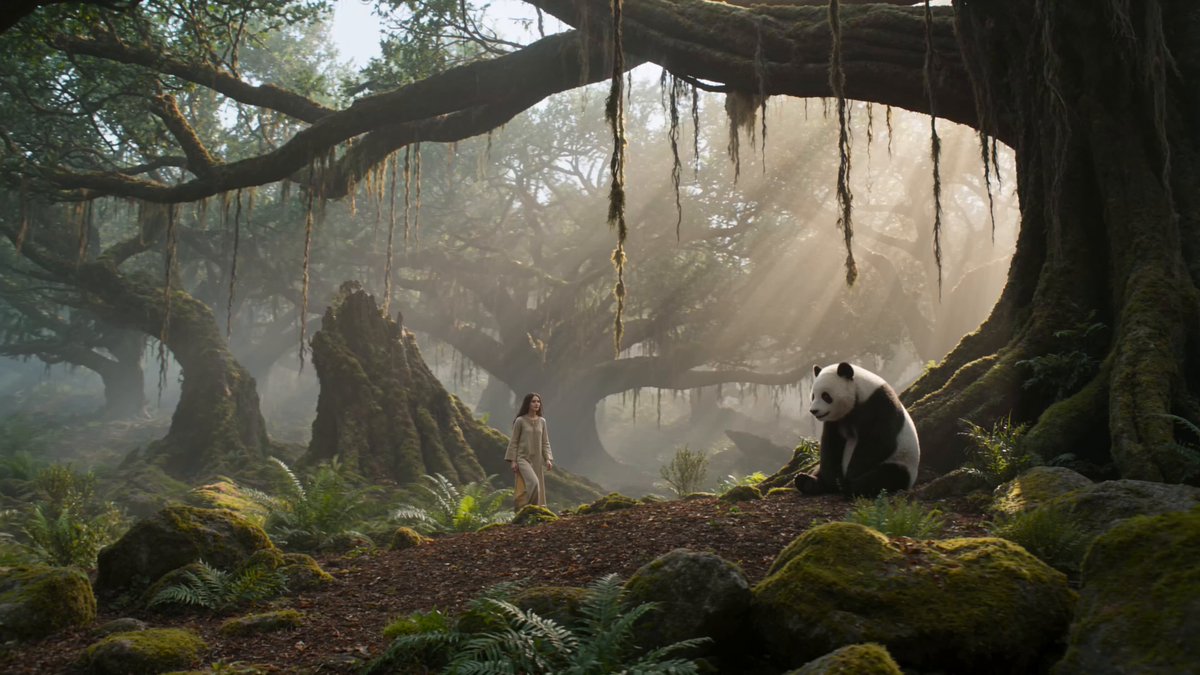
Write a prompt that describes the motion, not just the scene. Instead of a beautiful forest, write a slow forward camera move through a misty forest as light rays shift across the trees. Instead of a woman standing, write a woman turns her head slightly as wind moves her hair. Motion language helps the model understand what should change between frames.
Choose a model that matches the task. Some models excel at cinematic camera moves. Others are better for character animation, product rotations, or subtle environmental effects. Run a short test at low resolution before committing to a full render. Check the first few seconds. If the picture is blank, stop the job and adjust the input or settings rather than waiting for the full render.
After the render completes, download the file and inspect it outside the browser. Check the first frame, middle frame, and last frame. Look for flicker, warping, or sudden black frames. If the clip is mostly good but has a bad section, you can trim it or generate a replacement segment. Keep your project files organized by model, seed, and prompt version so you can reproduce a successful result.
Testing and Quality Control Before You Publish
A video that plays in one app can fail in another. Before publishing, test the file in at least two players and one browser. Check the codec, resolution, frame rate, and audio track. A standard delivery format such as H.264 video with AAC audio is widely supported. If the platform exports a less common codec, transcode the file before uploading it to social media or a learning management system.
Use a metadata tool to confirm the video stream exists. If the tool reports only an audio stream, the render failed at packaging. If it reports both streams but the duration is zero, the frames were never written. If the duration is correct but the picture is black, the frames may be empty or the color range may be wrong. These details tell you whether to fix the model, the encoder, or the player.
Quality control should also include a content check. Blank frames can sometimes be caused by a frame that is actually there but nearly identical to the background. Check the contrast and lighting. If the subject is dark against a dark background, the video may look blank even though it is technically valid. Adjust the lighting or use a different background before regenerating.
For team workflows, document the settings that worked. Record the model, resolution, duration, frame rate, guidance scale, seed, and prompt. When a blank render appears later, you can compare the failing job with a known good job. This turns troubleshooting from guesswork into a controlled experiment.
When to Switch Models, Tools, or Workflows
Not every problem is worth fixing in the same tool. If a model repeatedly returns blank output for a specific input type, try a different model. If a browser tool fails on long clips, switch to a desktop pipeline. If a local setup runs out of memory, use a cloud service or reduce the resolution. The best workflow is the one that produces reliable results for your specific use case.
Consider the trade-offs. Cloud tools offer convenience and faster iteration, but they depend on network conditions and shared resources. Local tools offer control and privacy, but they require hardware and maintenance. Specialized models may produce better motion for a specific style, while general models may be more predictable across many inputs. Keep one reliable fallback model that you can use when a new experiment fails.
If a project is business-critical, split it into smaller shots. Generate each shot separately, verify it, and assemble the final video in an editor. This reduces the blast radius of a failed render. It also makes it easier to replace a single bad shot without regenerating the entire project. For long-form content, use a storyboard and treat each panel as an independent generation task.
FAQ About AI Video No Picture Errors
Why do I get audio but no video?
This usually means the container has an audio track but the video track is missing or unreadable. Check the file metadata. If the video stream is absent, the render failed at encoding or packaging. If the video stream is present, your player may lack the codec. Transcode to H.264 and test again.
Why is only the first frame visible?
The model may have generated a still image instead of motion. This can happen when motion strength is too low, when the prompt lacks motion language, or when the input image is too uniform. Increase motion gradually, simplify the prompt, and test a different seed.
Why does the preview work but the download is blank?
The preview may be a lower-resolution proxy or a cached stream. The final export may fail because of browser memory, storage permissions, or a server-side packaging error. Download the file in another browser, clear the cache, and check the job log.
Why do long videos fail more often?
Long videos require more memory and more stable frame generation. A single bad frame can break the sequence. Generate shorter segments and join them in an editor. This is more reliable and gives you more control over quality.
Can a browser extension cause blank video?
Yes. Extensions that block scripts, modify network requests, or manage downloads can interfere with previews and exports. Test in an incognito window with extensions disabled. If the problem disappears, re-enable extensions one by one.
How do I know if the problem is my input?
Run a minimal test with a simple prompt and a clean reference image. If that works, your original input is the likely cause. Compare file format, dimensions, transparency, and contrast. Convert the input to a standard format and try again.
What settings should I change first?
Start with resolution and duration. Reduce both by half. Then adjust motion strength and guidance scale. Keep other settings at default. Change one variable at a time so you can identify what actually fixed the issue.
When should I contact support?
If a minimal test fails across multiple browsers, files, and models, the problem may be platform-side. Gather the job ID, timestamps, input type, settings, and error messages. Support can check server logs and queue status much faster when you provide specific evidence.
A Repeatable Troubleshooting Checklist
- Confirm the symptom: black frame, white frame, frozen image, audio-only file, or failed preview.
- Play the downloaded file in a desktop player and inspect metadata.
- Check file size, duration, codecs, and the presence of a video stream.
- Run a minimal test with default settings and a short duration.
- Replace the input with a clean JPEG or PNG at a moderate resolution.
- Simplify the prompt and add motion language.
- Reduce resolution and duration by half.
- Adjust motion strength, guidance scale, and seed one at a time.
- Try another browser, incognito mode, or a different device.
- Switch models or tools only after you have isolated the failing stage.
- Document the successful settings so you can repeat them.
- Split long projects into shorter shots and assemble them in an editor.
Blank AI video output is rarely a mystery once you treat it as a pipeline problem. The picture may be missing, but the evidence is still there in the file, the settings, and the job history. By checking inputs, prompts, parameters, encoding, and playback in a consistent order, you can fix the common causes quickly and build a workflow that produces reliable video every time.

Alexander
More Blogs
Read MoreVidu Q4 Alternatives: 4K AI Video Models Compared (2026)
Vidu Q4 alternatives compared: Kling 4.0, Seedance 2.5, Wan 3.0, and Runway Gen-4 — 4K support, input modes, durations, audio, and what each costs in credits on Domer.
Top 4K AI Image Generators in 2026: 5 Models Compared on Real Costs
The top 4K AI image generators on Domer compared: Flux 3 Klein, Nano Banana 2.1, GPT Image 2.5, GPT Image 2, and Nano Banana Pro — 4K credit costs, reference limits, and speed.
Nano Banana 2.1 vs GPT Image 2.5: Which Image Model Should You Use? (2026)
Nano Banana 2.1 vs GPT Image 2.5 Flare compared: credit costs per resolution, aspect ratios, reference images, text rendering, and which tasks fit each model.