
Utwórz
Best AI Tools for Video Creators: A Practical Workflow Guide
Oct 15, 2026


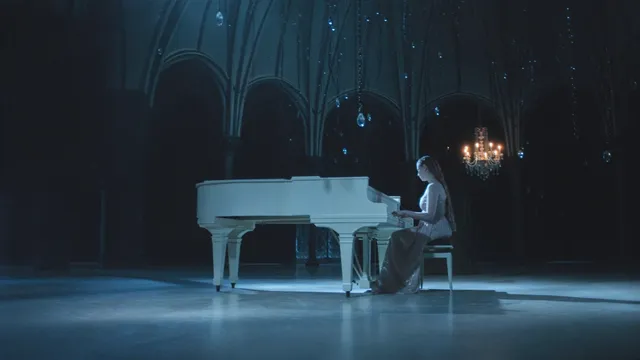
How AI Fits Into a Modern Video Workflow
A strong AI video workflow does not begin with a tool. It begins with a clear outcome: a product demo, a short film, a social ad, a training module, or a documentary scene. AI is most useful when it shortens the distance between an idea and a reviewable draft. It is least useful when it is asked to replace taste, structure, and editorial judgment.
The modern pipeline usually has six stages:
- Development: research, positioning, audience notes, and creative references.
- Pre-production: scripting, beat sheets, storyboards, shot lists, and visual direction.
- Generation: creating stills, animatics, voice tracks, music, and video clips.
- Assembly: selecting takes, building a rough cut, pacing scenes, and checking continuity.
- Post-production: color, cleanup, captions, effects, mixing, and mastering.
- Delivery: exports for landscape, vertical, square, broadcast, or web.
AI can support every stage, but the highest-value uses tend to be repetitive tasks with clear rules: transcribing interviews, generating variations of a storyboard frame, matching a color look, producing a scratch voiceover, or cutting a first assembly from a transcript. Creative decisions still need a human who understands the story.
The practical goal is not to automate the whole craft. The goal is to create a reliable loop: brief, draft, review, revise, approve. When that loop is fast, creators can test more angles, fix weak scenes earlier, and spend more time on the parts that make a video memorable.
Pre-Production: Research, Scripts, and Storyboards
Pre-production is where AI often delivers the biggest return because the work is text-heavy, iterative, and easy to review. A weak script cannot be rescued by better rendering. A clear script, however, can guide every later tool choice.
Research and angle finding
Use AI to summarize interviews, competitor videos, audience comments, and technical documentation. Ask for patterns rather than final conclusions. For example, prompt for five common objections in customer calls, three visual tropes in a category, or a list of questions a beginner would ask. Then verify the findings against your own source material.
A useful research prompt includes role, audience, goal, constraints, and output format. Instead of asking for ideas about fitness, ask for a table of ten video angles for busy parents who want a fifteen-minute home workout, with the emotional hook and the first shot for each angle.
Script drafts and beat sheets
AI is good at producing structured drafts: a hook, a setup, three proof points, a demonstration, and a call to action. Treat those drafts as scaffolding. Rewrite them in your own voice, cut anything that sounds generic, and add concrete details that only you can know.
For longer videos, ask for a beat sheet before a full script. A beat sheet keeps the story visible and prevents a rambling monologue. Once the beats work, expand each one into narration, dialogue, or on-screen text.
Storyboards, shot lists, and mood boards
Image generation can turn script beats into rough frames. You do not need polished artwork at this stage. You need composition, blocking, emotion, and a sense of pacing. Generate several options for the same beat, then choose the frame that communicates the idea fastest.
Shot lists should include more than a description. Add lens feeling, camera movement, lighting, location, duration, and continuity notes. A frame that looks beautiful but does not cut with the next shot is still a problem. Storyboards are a planning tool, not a decoration.
Designing Consistent Characters, Sets, and Visual Style
Consistency is one of the hardest parts of AI video. A character can drift between shots, a room can change layout, and a color palette can shift from warm to cold without warning. The solution is to treat consistency as a production system, not a lucky prompt.
Build a character bible
Create a short reference document for every main character: age range, face shape, hair, wardrobe, accessories, posture, expressions, and props. Include three to five approved reference images. Keep the language specific: a faded olive field jacket, round wire glasses, a small scar above the left eyebrow, not a cool outfit.
For animated or stylized work, define the visual rules separately. A character may be rendered in a painterly style, a cel-shaded style, or a photoreal style. Mixing those rules across scenes breaks the world.
Prompt formulas and seeds
A repeatable prompt formula helps reduce randomness. A basic structure is subject, action, environment, lighting, camera, style, and negative constraints. Keep the subject and wardrobe phrases identical across shots. Change only the action, camera angle, and scene context.
Seeds, reference images, and style references can help, but they are not magic. Test a character across five different scenes before committing to a long sequence. If the character fails in a close-up, a profile shot, or a low-light scene, adjust the reference set before generating more clips.
Continuity review
Review continuity in passes. First check identity: face, hair, wardrobe, and props. Then check space: doors, windows, furniture, and screen direction. Then check light: time of day, practical sources, and shadow direction. Finally check emotion: does the performance match the story beat?
A simple continuity board with one thumbnail per shot can save hours. Place approved frames in order and look at them as a sequence. Problems that are invisible in a single image become obvious when frames sit side by side.
Generative Video: Text-to-Video, Image-to-Video, and Hybrid Approaches
Generative video tools have different strengths. Some are better for realistic people, some for stylized motion, some for camera control, and some for quick social clips. The best workflow often combines two or three approaches rather than forcing one tool to do everything.
Text-to-video
Text-to-video is useful for concept exploration, abstract sequences, b-roll, and scenes that would be expensive to shoot. Write prompts that describe motion, not just appearance. A prompt such as a slow push toward a window while rain streaks across the glass gives the model something to animate. A prompt that only says a sad room leaves too much undefined.
Keep initial generations short. Six to ten seconds is often enough to judge whether the motion, composition, and style will work. Longer clips increase the chance of drift, morphing, and strange anatomy.
Image-to-video
Image-to-video gives you more control because you start with an approved frame. This is ideal for character consistency, product shots, architectural scenes, and storyboard animatics. Generate or photograph the key frame first, then animate selected elements: hair movement, cloth, camera parallax, background action, or a subtle expression change.
Avoid animating everything at once. If the camera moves, the character turns, the background changes, and the lighting shifts, the clip becomes unstable. Choose one primary motion and one secondary motion.
Hybrid workflows
A hybrid workflow might use image generation for characters, a video model for motion, a traditional editor for pacing, and a voice tool for narration. This is often more reliable than an end-to-end prompt because each stage has a clear approval point.
For example, create the character reference, generate a key frame, animate a five-second shot, edit it into an animatic, add temporary narration, and review the scene before generating the next shot. If the scene does not work with temporary assets, it will not work with expensive ones.
Clip length and technical settings
Match settings to the destination. Social platforms often reward vertical framing, fast openings, and clear captions. Training videos may need stable wide shots and slower pacing. Product videos may need clean backgrounds and precise motion. Decide the delivery format before generating, because reframing later can crop important action.
Also consider frame rate and motion blur. Realistic motion often looks better at twenty-four or twenty-five frames per second, while screen recordings and UI demos may look better at thirty or sixty. Test a short clip on the target device before committing to a style.
Editing and Post-Production with AI Assistance
Editing is where AI can remove the most tedious work. It can transcribe, label speakers, find repeated phrases, suggest cuts, generate captions, match color, and clean up audio. It cannot decide what the story needs. That remains an editorial choice.
Transcription, selects, and rough cuts
Start with a transcript for interviews, webinars, and talking-head videos. Search for key phrases, mark strong statements, and build a selects reel before touching the timeline. Text-based editing lets you cut the transcript and see the video follow. This is faster than scrubbing through hours of footage.
For scripted videos, use AI to create a first assembly from markers or scene descriptions. Treat that assembly as a sketch. The pacing will need manual adjustment, especially around jokes, emotional beats, and product demonstrations.
Color, cleanup, and effects
AI color tools can match shots, remove objects, upscale footage, stabilize motion, and reduce noise. Use them carefully. Over-cleaning can make skin look plastic, and aggressive upscaling can create fake detail. Always compare the processed shot with the original at full size.
For effects, AI can generate masks, rotoscope subjects, or create background extensions. These are powerful for short shots, but complex sequences still benefit from manual keyframing and a clean plate.
Captions and localization
Automatic captions are a fast starting point, not a final deliverable. Check names, technical terms, punctuation, and timing. Captions should appear when the words are spoken and remain long enough to read comfortably. For vertical video, keep them away from interface elements and safe zones.
Localization adds another layer. AI translation can draft subtitles, but idioms, humor, and cultural references need review. If you are dubbing, match meaning and emotion rather than word count. A slightly longer line that sounds natural is better than a literal line that sounds robotic.
Voice, Music, and Sound Design
Audio carries more perceived quality than many creators expect. Viewers forgive a simple visual style, but they notice bad audio immediately. AI can speed up voice, music, and sound effects, but the mix still needs intention.
Voiceover options
AI voice tools can create narration, scratch tracks, character voices, and multilingual versions. Use them for drafts, explainer videos, audiograms, and internal reviews. For brand films and sensitive topics, consider a human voice actor who can bring nuance and performance.
When using synthetic voice, write for the ear. Short sentences, natural punctuation, and clear transitions help. Test the pacing against the edit. If the voice sounds rushed, either slow the read or cut words. Do not fix a bloated script with faster speech.
Music beds and adaptive scores
AI music tools can generate beds by mood, tempo, and instrumentation. Use them to establish energy: tense, hopeful, playful, premium, or documentary-neutral. Keep music below narration and avoid busy arrangements under dialogue.
For longer videos, build sections rather than one loop. A soft intro, a rhythmic middle, and a resolved ending help the story feel intentional. If the music changes too often, it distracts. If it never changes, it flattens.
Sound effects and foley
Sound effects make generated visuals feel real. Add footsteps, cloth movement, room tone, keyboard clicks, door handles, traffic, and weather. AI can generate variants, but simple recorded foley often sounds better for close-up actions.
Room tone is especially important. Generated clips may have no natural ambience, which makes cuts feel abrupt. Lay a continuous background bed under a scene and adjust it gently between shots.
Mixing and loudness
Balance dialogue first, then music, then effects. Use compression carefully, and check the mix on phone speakers, laptops, and headphones. Loudness targets vary by platform, so leave headroom and avoid clipping. A clean mix with modest levels usually performs better than a loud, distorted one.
A Practical End-to-End Workflow
A repeatable workflow reduces decision fatigue. The exact tools can change, but the sequence should stay stable.
- Define the brief. Write one sentence for the audience, one for the promise, and one for the action you want viewers to take. Add format, length, tone, and deadline.
- Research and outline. Use AI to summarize source material, then choose an angle. Do not skip this step; a generic angle creates a generic video.
- Script and storyboard. Draft in beats, approve the structure, then generate rough frames. Confirm that the story works before generating motion.
- Create references. Lock character, wardrobe, location, palette, and style references. Approve a test shot with the main character in the main environment.
- Generate clips. Work shot by shot or scene by scene. Keep prompts and seeds organized. Name files with scene and shot numbers.
- Build a rough cut. Use transcript editing or manual assembly to establish pacing. Add temporary voice and music to judge timing.
- Refine post-production. Fix continuity, color, cleanup, captions, and effects. Replace temporary audio with final voice and music.
- Review and deliver. Watch on multiple devices, check captions, verify exports, and archive project files and prompts.
For teams, add two approval gates: one after the script and storyboard, one after the rough cut. These gates prevent expensive generation work from moving in the wrong direction.
Tool Selection Criteria and Decision Matrix
There is no single best AI video tool because projects have different needs. Use a decision matrix to compare options against your actual workflow.
| Need | What to look for | Tool type |
|---|---|---|
| Script and research | Summarization, tone control, structured output | AI writing assistant |
| Storyboards and concept art | Style control, reference images, batch variations | Image generator |
| Character consistency | Reference support, seed control, editing tools | Image and video generator |
| Motion and scenes | Image-to-video, camera control, clip length | Generative video platform |
| Editing | Transcript editing, multicam, captions, color | AI-assisted editor |
| Voice | Natural pacing, pronunciation, language support | Voice synthesis tool |
| Music | Mood control, loop-free sections, licensing clarity | AI music generator |
| Audio cleanup | Noise reduction, level matching, de-essing | Audio repair tool |
| Delivery | Vertical, square, landscape, batch export | Editing and encoding suite |
Score each option from one to five on output quality, control, speed, learning curve, collaboration, export quality, and data handling. A tool that wins on quality but fails on export or team review may still slow you down.
Also consider integration. A slightly weaker tool that fits your existing editor can be more valuable than a powerful tool that creates extra manual steps. The workflow matters more than the feature list.
Common Mistakes, Quality Control, and Ethical Guardrails
AI video creation has predictable failure modes. Recognizing them early saves time and protects your reputation.
Frequent mistakes
- Starting with generation before the story is clear.
- Using vague prompts that describe mood but not motion.
- Changing character descriptions between shots.
- Letting music compete with narration.
- Trusting automatic captions without review.
- Over-upscaling or over-cleaning footage until it looks artificial.
- Generating long clips before approving a short test.
- Mixing too many visual styles in one video.
- Ignoring aspect ratios and safe zones for each platform.
- Assuming a draft is finished because the tools made it quickly.
A practical quality control checklist
Watch the video once with sound, once without sound, and once at double speed. The silent pass reveals visual continuity problems. The double-speed pass reveals pacing problems. The normal pass reveals audio and emotional problems.
Check the first three seconds, the middle transition, and the final call to action. Those are the moments viewers remember and act on. If the opening is slow or the ending is vague, fix that before polishing minor details.
Ethics, permissions, and disclosure
Use AI responsibly. Do not clone a real person's voice or likeness without permission. Respect copyright, trademarks, and publicity rights. Be transparent when synthetic media could mislead viewers, especially in news, politics, health, and finance.
If you use stock or generated assets, keep records of licenses, prompts, and source references. Client work often requires proof of rights. A clear paper trail prevents problems later.
Frequently Asked Questions
Do I need AI tools to make videos?
No. Traditional filming and editing still work well. AI helps most when you need speed, iteration, or access to visuals that would be expensive to shoot. If your current workflow already produces the results you want, add AI only where it removes a real bottleneck.
Can AI generate a complete video from one prompt?
It can generate impressive short clips, but a complete video needs structure, continuity, sound, pacing, and review. Treat generation as one step in a pipeline. The final result depends on scripting, editing, and quality control.
How do I keep characters consistent across shots?
Create a character bible with approved references, use the same descriptive phrases, keep wardrobe and props stable, and test the character across several angles before generating a sequence. Review thumbnails side by side to catch drift.
What is the best way to use AI voiceovers?
Use them for drafts, explainers, internal reviews, and multilingual versions where speed matters. For brand films, sensitive stories, and performance-driven narration, a human voice often adds nuance that synthetic tools cannot match.
How long should AI-generated clips be?
Start with five to ten seconds. Short clips are easier to control, faster to review, and less likely to drift. Once the motion and composition work, extend the scene by generating additional shots rather than forcing one long clip.
Can AI edit my video automatically?
AI can transcribe, assemble rough cuts, remove silence, add captions, and suggest color adjustments. It cannot decide what the story needs. Expect to refine pacing, select the best moments, and approve every creative choice.
Which skills matter most in an AI video workflow?
Story structure, visual composition, sound judgment, prompt clarity, and editing rhythm matter more than knowing every tool. Tools change quickly. The ability to recognize a good shot, a strong opening, and a clean transition remains valuable.
How should I choose my first AI video tool?
Pick the tool that solves your biggest bottleneck. If scripting slows you down, start with a writing assistant. If visuals are the problem, start with image generation and image-to-video. If editing takes too long, start with a transcript-based editor. Build from one clear need.
Is AI-generated video allowed on major platforms?
Most platforms allow it, but rules vary. Some require disclosure for realistic synthetic media. Avoid misleading content, respect copyright, and check the latest platform policies before publishing. When in doubt, label synthetic scenes clearly.
What is a realistic first project?
Choose a thirty to sixty second video with one location, one character or product, and simple narration. Focus on a clean hook, three clear beats, and a strong ending. Finish it end to end before attempting a longer story. A completed short video teaches more than an unfinished ambitious one.

Alexander
More Blogs
Read MoreVidu Q4 Alternatives: 4K AI Video Models Compared (2026)
Vidu Q4 alternatives compared: Kling 4.0, Seedance 2.5, Wan 3.0, and Runway Gen-4 — 4K support, input modes, durations, audio, and what each costs in credits on Domer.
Top 4K AI Image Generators in 2026: 5 Models Compared on Real Costs
The top 4K AI image generators on Domer compared: Flux 3 Klein, Nano Banana 2.1, GPT Image 2.5, GPT Image 2, and Nano Banana Pro — 4K credit costs, reference limits, and speed.
Nano Banana 2.1 vs GPT Image 2.5: Which Image Model Should You Use? (2026)
Nano Banana 2.1 vs GPT Image 2.5 Flare compared: credit costs per resolution, aspect ratios, reference images, text rendering, and which tasks fit each model.