

Best Transitions for Water Video in Premiere Pro: A Guide
Oct 15, 2026

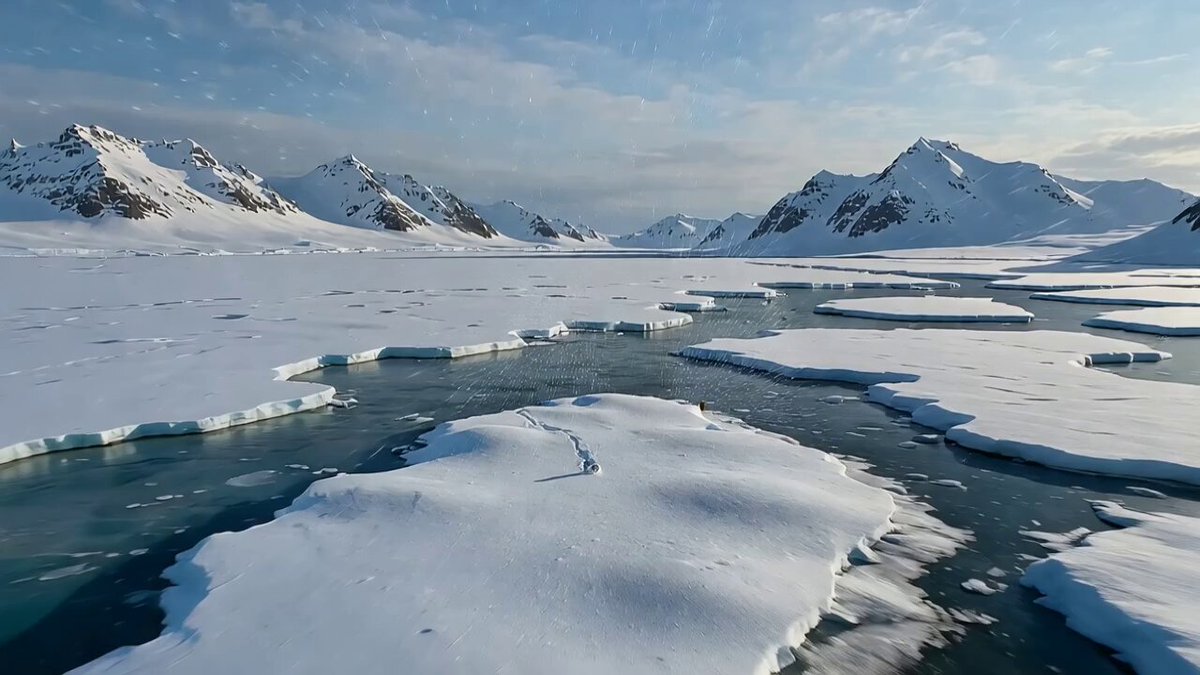
Why Water Footage Breaks Ordinary Transitions
Water is continuous. That is the reason it is beautiful and the reason it is difficult to cut. Unlike a person walking through a doorway or a car passing a signpost, water has no natural entry and exit points. A wave does not stop when you cut. A river does not respect your timeline markers. When you drop a standard dissolve between two clips of the ocean, the audience sees two oceans overlapping, not one continuous body of water.
That is the core problem this guide solves. Water footage rewards editors who understand motion vectors, horizon lines, and tonal continuity. It punishes editors who treat transitions as decoration. The best transition for water footage is usually the one the viewer never consciously notices, because the eye is following the foam, the reflection, or the camera move rather than the edit itself.
The good news is that Premiere Pro already contains almost everything you need. Between the native transition library, adjustment layers, effects like Turbulent Displace and Wave Warp, and a handful of masking tricks, you can build a reusable toolbox of water-friendly transitions without installing a single plugin. What follows is a practical workflow: how to read your footage, which transitions suit which water scenarios, how to build custom ones, and which mistakes to avoid.
Read the Footage Before You Choose a Transition
Most bad transitions are chosen before the edit begins. Editors decide they want a whip pan, then hunt for two clips that justify it. Reverse the process. Screen your water footage first and write down three things: the direction of motion, the energy level, and the dominant tone.
Direction of motion
Water moves in a direction, even when the camera does not. Surf pushing left to right, a waterfall falling vertically, a wake trailing behind a boat. If the outgoing clip moves right and the incoming clip moves left, a directional wipe will feel like a collision. Match direction where you can, and where you cannot, use a transition that neutralizes motion instead of amplifying it — a luminance dissolve, a defocus, or a hard cut on a beat.
Energy level
A calm lake at sunrise and a storm surge are two different editing languages. Low-energy water tolerates long dissolves, slow defocus, and soft light-leak overlays. High-energy water — rapids, breaking waves, a swimmer surfacing — rewards hard cuts, speed ramps, and short, punchy whip transitions. Mixing the two creates a rhythm problem that no transition can fix.
Reflections, horizon lines, and texture
Reflections are a gift and a trap. A mirrored skyline in a puddle gives you a strong horizontal line to wipe along. But reflections also change brightness dramatically between shots, so a dissolve between a bright reflective frame and a dark one will flash. Note where your horizon sits in the frame. If both clips share a similar horizon height, a horizontal wipe along that line feels intentional. If the horizons are at wildly different heights, the wipe will look like a mistake.
Native Premiere Pro Transitions That Actually Suit Water
The built-in library is larger than most editors explore. For water, a small subset does most of the work.
Cross Dissolve, used with restraint
Cross Dissolve is the default for a reason, but it is also the most overused transition in water edits. It works when the two shots share tone, composition, and motion direction. It fails when they do not. The practical fix is not to abandon it but to tune it: shorten the duration to eight to twelve frames, enable "Align to Video 2," and consider applying a slight Gaussian Blur to the outgoing clip so the dissolve reads as a defocus rather than a ghostly double exposure. Water has soft edges; blurring into the cut mimics how the eye loses focus underwater.
Dip to White and Dip to Black
A dip to white between two bright water shots — sunlight on the surface, spray in the air — reads like an overexposed glint and feels natural. A dip to black between two underwater shots reads like descending into depth. Both are cheap, both are effective, and both are more convincing than a cross dissolve when the tonal match is poor. Keep dips short: fifteen to twenty frames is usually enough.
Directional Wipes and Slides
The Wipe and Slide families are underrated for water because they respect direction. A Push transition moving left to right matches a current or a panning camera beautifully. A Barn Door or Venetian Blind is more stylized and works best in montage sequences rather than narrative scenes. If you use a wipe with a soft edge, increase the border softness to around 20 to 30 percent so the edge resembles a water line rather than a hard graphic bar.
Morph Cut and Its Limits
Morph Cut is designed for talking-head interviews, but it occasionally works wonders on slow, stable water shots where the camera is locked off and the motion is gentle. It will fail badly on crashing waves, fast camera moves, or anything with significant parallax. Treat it as a bonus tool you test, not a foundation.
Building Custom Water Transitions With Adjustment Layers
Adjustment layers are where water transitions become distinctive. An adjustment layer applies effects to everything beneath it, which means you can animate a single layer to transform both outgoing and incoming clips simultaneously.
The blur-and-displace combination
Place an adjustment layer over the cut point, trim it to roughly one second. Apply Gaussian Blur and animate blurriness from 0 to 40 and back to 0 across the layer. Then add Turbulent Displace with a small amount — around 15 to 25 — and animate the Evolution property so the distortion drifts rather than sits still. Finally, add Directional Blur and animate the direction to follow the water's flow. The result looks like the frame is being pulled into the current and released. Keyframe the effect opacity rather than the parameters when you want a lighter touch.
Ripple, Wave Warp, and their best uses
Ripple is a radial distortion. On a shot of a pebble dropping into still water, or a swimmer surfacing, Ripple at a low radius with high amplitude reads as a genuine surface disturbance. Wave Warp is a horizontal or vertical sine distortion and works beautifully on horizon lines. Animate the wave height from 0 up and back down, and the horizon will appear to breathe. Use both sparingly: distortion effects age quickly if overused.
Save your work as a preset
Once you have built a transition you like, right-click the adjustment layer and save it as a preset. Name it by function — "water-drift-transition," "surface-ripple-in" — not by project, so you can reuse it across every future water edit. This single habit will cut your transition-building time in half.
Masking, Speed Ramps, and the Invisible Cut
The strongest water transitions are usually invisible. Two techniques get you there most reliably.
The wipe-along-the-water-line mask
Take the incoming clip, place it on the track above, and apply a Linear Wipe to the outgoing clip's opacity. Instead of a straight graphic edge, use a mask with a feathered edge shaped to follow the water surface, then animate the mask position across the frame. Because the edge aligns with real water, the audience reads a rising tide rather than a wipe. Adding a subtle Displacement Map on the masked layer hides the seam further.
The speed-ramp match cut
A match cut relies on the outgoing and incoming frames having similar composition at the edit point. For water, this is easier than it sounds: find a frame where a wave crest, a splash, or a reflection occupies the same position and shape in both clips. Cut directly between them. If you need a bridge, ramp the outgoing clip from 100 percent speed to 400 percent over the last eight frames using Time Remapping, then come out of the incoming clip at 400 percent and ramp down to 100. The acceleration pulls the eye through the cut. Speed ramps work best on footage shot at 60 or 120 frames per second, so plan for them during production.
Motion Graphics and Overlays for Water Scenes
Overlays can turn a mediocre cut into a designed moment. The principle is simple: give the audience something to watch at the edit point so they stop watching the edit.
Useful overlay categories for water footage include:
- Splash and droplet elements rendered with alpha channels, placed at the cut so the splash covers the frame transition.
- Light leaks and lens flares with warm tones, which work particularly well for sunrise and sunset water.
- Caustic patterns — the rippling light patterns seen on pool floors — which can be screen-blended over an underwater cut to unify two shots with mismatched color.
- Atmospheric haze and mist for moody, cold-water scenes.
Blend mode matters more than the asset. Splashes usually work best on Screen or Linear Dodge. Mist works on Soft Light. Caustics on Overlay or Soft Light. Keep overlay opacity between 40 and 70 percent so the footage still reads, and time the overlay's peak brightness to the exact frame of the cut.
Color, Sound, and Continuity
A transition is a color event as much as an editorial one. Two water shots that match in motion but clash in white balance will still flash at the cut. Before you pick a transition, match the shots.
In Lumetri Color, use the Comparison View and a shot that represents your target look. Balance exposure first, then white balance, then saturation. Water is notoriously blue-heavy, and cameras often push it further than reality. Pulling the blue channel back by five to ten points in the shadows frequently makes two clips sit together far better than any effect.
Sound is the other half. Water has a continuous ambient bed — waves, flow, rain — and that bed should not cut when the picture does. Lay a room tone or ambience track underneath and let it run across the transition. If you want a moment of impact, add a whoosh, a sub-drop, or a splash sound effect precisely on the cut frame. The audio transition will sell a visual transition that is only 80 percent convincing, which is why the best editors cut sound first and picture second.
Finally, watch continuity of color temperature across the whole sequence. A run of shots that drift from cool to warm and back will feel restless regardless of how good individual transitions are.
A Repeatable Workflow
Here is a sequence you can apply to any water project.
-
Organize by motion. Create bins for static, slow-motion, and fast-moving water. This makes pairing shots for match cuts almost automatic.
-
Build a rough cut with hard cuts only. No transitions. Get the story and rhythm right first. If the sequence works with hard cuts, transitions will only improve it.
-
Mark the problem edits. Play through and note where hard cuts feel jarring. Those are your transition candidates, not every cut.
-
Match tone and motion. For each candidate, check direction of motion, horizon position, and exposure. Adjust color before adding an effect.
-
Choose the simplest transition that solves the problem. Cross dissolve, dip, or hard cut on a beat before anything custom.
-
Escalate to adjustment layers only when needed. Blur-and-displace, Ripple, or a mask-based wipe for the shots that still fight.
-
Add sound. Continuous ambience plus one accent on the cut.
-
Review at full speed and at quarter speed. Full speed tells you if it works emotionally. Quarter speed tells you if it works technically.
-
Save presets. Every transition you build is an asset for the next project.
Common Mistakes and How to Fix Them
Using the same transition for every cut. Variety is not the goal, but monotony is a problem. If every cut is a cross dissolve, the sequence flattens. Introduce one or two distinctive transitions at key story moments and keep the rest invisible.
Making transitions too long. A two-second dissolve between dynamic water shots kills momentum. Most water transitions should sit between eight and twenty-four frames unless you are deliberately slowing the pace.
Ignoring the direction of the camera move. A push transition that moves against a panning camera looks like a technical error. Match the transition direction to the camera movement or neutralize it entirely.
Applying distortion to the whole frame when only part needs it. Mask your Turbulent Displace or Ripple so it affects the water surface only. Distorting a person's face or a boat's hull adds an unintended uncanny quality.
Forgetting the audio. A perfect visual transition with a hard audio cut still feels broken. Extend your ambience bed across every transition.
Grading after transitioning. Effects behave differently on differently graded clips. Lock your color before finalizing transitions, or you will rebuild them.
FAQ
What is the single best transition for water footage in Premiere Pro?
There is no universal answer, but for most water edits a short Cross Dissolve with a slight blur, or a hard cut on a motion-matching frame, outperforms anything more elaborate. Custom transitions solve specific problems; they are not a default.
Can I create a water ripple transition without plugins?
Yes. Apply Ripple or Turbulent Displace to an adjustment layer over the cut and animate the Evolution or amplitude parameters. Save the result as a preset so you can reuse it.
How long should a water transition be?
Eight to twenty-four frames for most dynamic footage. Longer dissolves of forty frames or more are appropriate only for calm, meditative scenes.
Does frame rate affect my transition options?
Significantly. Footage shot at 60 or 120 frames per second gives you room for speed ramps and smooth slow motion around the cut. Footage at 24 frames per second limits you mostly to dissolves, wipes, and masking techniques.
Should I use Morph Cut on water?
Only on locked-off, slow, low-parallax shots. It struggles with breaking waves, moving cameras, and fast motion. Test it, but do not depend on it.
How do I stop water shots from flashing at the cut?
Match exposure and white balance first in Lumetri Color, then choose your transition. Flashing is almost always a color problem masquerading as an editing problem.
Can I reuse transitions across projects?
Yes. Save adjustment layers as presets in the Effects panel. Naming them by function rather than by project keeps your library usable and searchable.

Alexander
More Blogs
Read MoreVidu Q4 Alternatives: 4K AI Video Models Compared (2026)
Vidu Q4 alternatives compared: Kling 4.0, Seedance 2.5, Wan 3.0, and Runway Gen-4 — 4K support, input modes, durations, audio, and what each costs in credits on Domer.
Top 4K AI Image Generators in 2026: 5 Models Compared on Real Costs
The top 4K AI image generators on Domer compared: Flux 3 Klein, Nano Banana 2.1, GPT Image 2.5, GPT Image 2, and Nano Banana Pro — 4K credit costs, reference limits, and speed.
Nano Banana 2.1 vs GPT Image 2.5: Which Image Model Should You Use? (2026)
Nano Banana 2.1 vs GPT Image 2.5 Flare compared: credit costs per resolution, aspect ratios, reference images, text rendering, and which tasks fit each model.