

Best Video Effects Apps for Android: A Mobile Editor's Guide
Oct 14, 2026

Why Android Editing Finally Feels Professional
Five years ago, editing on Android meant accepting a compromise: chopped timelines, two-track limits, and exports that fell apart the moment you looked at them on a larger screen. That compromise is gone. Modern Android flagships ship with hardware decoders for H.264, HEVC, and increasingly AV1, GPU pipelines built on Vulkan, and enough sustained memory bandwidth to scrub a 4K timeline without the app collapsing. The software caught up too. Touch-first timelines, layered compositing, curve-based keyframes, and LUT import are now baseline features rather than premium add-ons.
The practical result is that a phone can carry an entire production pipeline: capture, rough cut, color, effects, sound, captions, and delivery. For solo creators, that means shooting an idea in the morning and publishing a finished piece by evening. For small teams, it means a field editor who can assemble a rough cut before the footage ever reaches a laptop.
This guide is about choosing and using video effects apps on Android with intention. Not a list of downloads, but a workflow: what to look for, how to structure a project, where AI features actually save time, and which habits separate a polished edit from an obvious phone edit.
How to Choose a Video Effects App for Android
Most app roundups compare feature checklists. Feature checklists lie. The app with forty transitions is not better than the app with eight transitions that render instantly and never crash on export. Choose based on your workflow, not the store page.
The non-negotiables: codec support and export control
Check what the app can decode and encode. If you shoot 10-bit HEVC or log-format footage on a recent phone, your editing app needs to read those files without transcoding them into mush. Look for manual control over bitrate, frame rate, resolution, and color space on export. A fixed "HD" or "4K" toggle with no bitrate slider is a warning sign: you will get whatever the developer decided, and that is often too compressed for upload platforms that re-compress your file again.
Performance and thermal behavior
Render speed matters less than thermal stability. A phone that renders a thirty-second clip in four seconds and then throttles to a crawl is worse than one that renders consistently. Test on your actual device with a two-minute timeline containing color correction, a text layer, and one effect-heavy segment. Watch for dropped preview frames, audio drift, and how fast the device heats up. If your phone gets uncomfortably warm during a two-minute edit, a longer project will be miserable.
Effect depth versus learning curve
There is a real trade-off. Full multi-layer node-based editors give you extraordinary control and a genuinely steep learning curve. Lightweight social-first editors give you speed and preset-driven effects but fight you when you want something specific. A good strategy is a two-app setup: a fast app for short vertical content, and a deeper app for anything with a narrative structure.
Pricing without guesswork
Subscription models vary widely. What matters is whether the features you actually use sit behind the paywall, and whether exports are watermarked. Check three things before committing: watermark policy, whether LUT and custom overlay import are available, and whether project files are portable. If you cannot export a plain project file or a clean master, you are renting your own work.
A quick comparison framework
| Priority | What to look for | Why it matters |
|---|---|---|
| Long-form editing | Multi-track timeline, adjustable clip length, audio lanes | Longer stories need structure, not just stacking |
| Visual polish | LUT import, HSL curves, scopes or at least a histogram | Grading blind is guessing |
| Motion work | Keyframes with easing, layer parenting, masks | Static clips feel flat without movement |
| Speed | Template reuse, project duplication, fast proxy preview | Repeatable formats reward shortcuts |
| Reliability | Stable export, no watermark, predictable file sizes | A finished file that fails is not finished |
A Repeatable Mobile Editing Workflow
The biggest quality gap on mobile is not the app. It is the absence of a process. Editing on a phone tempts you to start adding effects immediately, and that is how timelines become unfixable. Use this sequence instead.
Step 1: Ingest, backup, and proxy
Offload footage to internal storage, not a removable card if the app has trouble reading it. Sort by shoot or scene. If your phone struggles with 4K previews, generate proxy files at 1080p and edit against those, then relink to full resolution before export. Back up the original files to cloud storage or an external drive before you touch anything. Phones get dropped; footage does not come back.
Step 2: Build the story before the effects
Cut for structure first. Set your in and out points, remove dead air, and arrange clips so the sequence communicates something before a single filter is applied. A useful test: play the cut with the screen brightness low and no music. If it still holds attention, the structure is working. If it does not, no transition will save it.
Step 3: Grade, then animate
Apply color correction and creative grading before motion graphics. Colors shift when you add overlays, and text legibility depends on the background luminance underneath it. Doing color first means you design titles against the final look.
Step 4: A dedicated audio pass
Mobile edits lose more points on audio than on visuals. Normalize dialogue, cut music to the beat where it matters, and place sound effects a frame or two before the visual impact rather than exactly on it. Use headphones, always, and listen on a second device at low volume to catch problems your phone speaker hides.
Step 5: Export presets and delivery
Create export presets for each destination and reuse them. Vertical delivery for short-form, 16:9 for long-form, and a high-bitrate master you keep for yourself. Do not export directly to the most aggressive compression setting just to make the file small.
Color Correction and Grading on a Phone
Color is where mobile editing has improved most, and also where it is easiest to overdo.
Correction comes first: fix exposure, then white balance, then contrast. Only after the image is technically neutral should you add a creative look. Most Android editors now support LUT import, which means you can load a look you like and apply it consistently across a series. Resist stacking multiple LUTs; each one compounds contrast and saturation, and the result usually looks like a washed-out mess rather than a style.
HSL controls matter more than people expect. Being able to pull saturation out of greens without touching skin tones is the difference between a cinematic exterior and a neon nightmare. If your app has curves, learn the luma curve first. Lifting the black point slightly and rolling off the highlights produces a pleasing filmic response that no preset reproduces exactly.
On displays: do not grade on a phone at full brightness in a dark room. Set brightness to around half, disable any vivid or adaptive color mode, and rely on a histogram or waveform if your app provides one. Consistency beats intuition. Grade three clips, export them, and view them on a neutral screen to check your instincts.
For clips shot in log or HLG, apply the manufacturer's conversion LUT first, then grade. If your app cannot read log footage properly, transcode it before importing rather than fighting the color science after the fact.
AI Masking, Tracking, and Smart Rotoscoping
Automatic subject segmentation is the single most useful AI feature in mobile editing. Instead of rotoscoping frame by frame, you tap a subject once and the app generates a mask that follows them through the shot. This unlocks effects that used to require a desktop: background replacement, selective color, subject isolation for stylized transitions, and text that sits behind a person.
Quality varies considerably. Test an AI mask on the hardest shot you have: fast motion, hair detail, a subject crossing a busy background. Most tools handle a static medium shot beautifully and struggle the moment motion blur appears. Practical tips:
- Keep the subject reasonably large in frame. Masks degrade as the subject shrinks.
- Avoid extreme motion blur. Shoot or select takes with a higher shutter speed if you know you will need a mask.
- Split long shots into segments and re-apply the mask rather than tracking a single mask through a cut.
- Feather the mask edge slightly. A perfectly hard AI edge looks cut out; a two-pixel feather looks intentional.
Planar tracking is the other underrated tool. Attaching text or a graphic to a moving surface, like a wall or a phone screen, instantly raises the perceived production value. Look for a tracker that survives partial occlusion; you can often mask out the occluding object and let the tracker predict through it.
Keyframe Animation and Motion Graphics on a Touchscreen
Keyframes are where beginners plateau. Most people animate position and scale, then stop. The tools that make motion look designed, rather than automated, are easing and timing.
Linear keyframes feel mechanical. Apply ease-in and ease-out so movement accelerates and decelerates naturally. A simple zoom that eases over half a second reads as intentional camera movement; the same zoom on linear interpolation reads as a slideshow. For anything entering frame, overlap the animation slightly past its resting position and settle back. That tiny overshoot is the difference between "animated" and "alive."
Speed ramps are the fastest way to add energy without extra footage. Slow a moment down to emphasize a reaction, then ramp back to real time as the action resumes. On mobile, keep ramps short. A two-second ramp reads as style; a ten-second ramp reads as a mistake.
Build a small library of reusable motion assets. A lower-third, a title card, and an end screen you can duplicate into every project saves an enormous amount of time across a series. Duplicate the project rather than rebuilding from scratch, then swap the footage.
Finally, parent your text layers to a null or container layer when you need them to move together. Repositioning five text elements individually is how you introduce jitter and misalignment.
Generative AI Features Worth Using
Generative features on Android fall into a few categories, and they are not equally useful.
Background extension and fill. When your frame ratio changes from horizontal to vertical, generative fill can extend the edges of a shot instead of forcing you to crop the subject out. That is genuinely valuable for repurposing long-form footage into short-form.
Upscaling and enhancement. Older 1080p clips can be upscaled and sharpened for modern displays. Use restraint here. Aggressive upscaling produces waxy skin and crunchy textures. A modest upscale plus careful sharpening usually beats a maximum setting.
Frame interpolation. Useful for converting 24 or 30 frames per second footage to a smoother cadence, and for creating slow motion from normal-speed clips. Watch for warping around limbs and fast-moving objects; if you see it, reduce the slow-motion factor or skip the effect on that shot.
Restyle and stylized conversion. Turning live footage into an illustrated or painterly look can work beautifully for short inserts and title sequences. It rarely works for an entire piece; the effect becomes exhausting over several minutes.
Audio cleanup. Voice isolation, noise reduction, and automatic leveling are quietly the highest-value AI features on the platform. They are unglamorous and they improve almost every edit.
Automatic captions. Always review them. Auto-captions mangle names, jargon, and accents, and a poorly placed caption can hide the most important part of your frame. Position captions above the lower third and keep them inside the safe area for every aspect ratio you export.
Particle Systems, Distortion, and Stylistic Filters
The flashiest effects are also the fastest way to make an edit feel cheap. Use them to serve a moment, not to decorate a timeline.
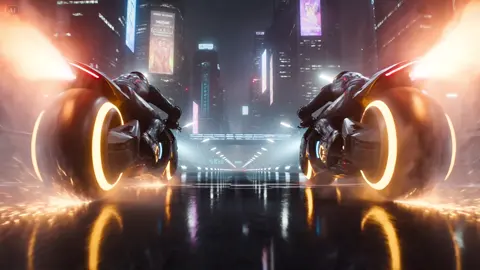
Particle systems handle embers, smoke, dust, snow, sparks, and light motes. Two settings do most of the work: emitter size and gravity. A wide emitter with low gravity produces drifting particles; a narrow emitter with high gravity produces sparks that fall fast. Blend mode matters more than particle count. Additive blending makes particles glow against dark backgrounds, while screen or lighten blending keeps them from turning into gray blobs over bright areas. Keep total particle count low and let motion blur do the work of making them feel dense.
Distortion effects cover displacement, glitch, chromatic aberration, and warping transitions. Displacement mapping, which uses a second image to push pixels around, is the most flexible: subtle settings create heat-haze or underwater wobble, while extreme settings create a datamosh look. As a rule, the distortion should be visible in motion and almost invisible on a paused frame.
Stylistic filters, including film grain, halation, light leaks, and halftone, are seasoning. A light grain pass at low opacity makes digital footage feel less clinical and helps blend effects layers together. Halation, a soft red-orange glow around bright areas, sells a vintage look convincingly. Overlay light leaks at low opacity and change their blend mode to screen or overlay. If a filter is the first thing a viewer notices, it is doing too much.
Mistakes That Ruin Mobile Edits
A handful of recurring errors show up in almost every weak phone edit:
- Over-filtering. Three stacked looks, each at moderate strength, produce a muddy result. Pick one direction and commit to it.
- Ignoring frame rate consistency. Mixing 24, 30, and 60 fps clips in one timeline without conforming them causes visible stutter. Conform everything to a single project frame rate at import.
- Cropping instead of composing. Chopping a 16:9 shot into a vertical frame usually decapitates your subject. Reframe deliberately or use background extension.
- Excessive transitions. Hard cuts work. Use a transition when there is a reason: a change in time, place, or perspective.
- Sliding audio. Music that starts a few frames late, or dialogue that drifts out of sync, is more noticeable than any visual flaw.
- Exporting from the editor directly into a compressed format. Keep a high-bitrate master and let the platform handle delivery compression.
- Editing on a hot, low battery. Thermal throttling causes dropped frames and misaligned audio. Charge up, close background apps, and disable battery saver while editing.
- Losing project structure. Name your projects, back up project files alongside media, and keep an archive of finished masters.
FAQ
Do I need a flagship phone to edit video well?
No, but you need enough RAM and storage headroom for your frame size. A mid-range device handles 1080p comfortably; 4K timelines with heavy effects benefit noticeably from a recent high-end chip and fast internal storage.
What is the most important effect feature for beginners?
Keyframes with easing. Learning to animate position, scale, and opacity smoothly improves more edits than any filter pack.
Should I use AI masking on every clip?
No. Use it where isolation adds meaning: a subject change, a background replacement, or a selective color moment. Constant masking makes edited footage look artificial.
How do I keep colors consistent across a series?
Build one grading preset, apply it as a starting point, then make small per-clip corrections. Export a still frame from each episode and compare them side by side before publishing.
Is it better to shoot with effects in mind or add them later?
Shoot with them in mind. Leaving headroom in the frame, avoiding motion blur, and capturing clean audio makes every later stage easier.
What export settings should I use?
Match the platform's preferred resolution and frame rate, and choose a bitrate high enough that the platform is not fixing compression artifacts. Keep a separate high-bitrate master for archive.
How long should a mobile edit take?
Structure takes the longest and is worth it. A one-minute vertical piece with a clean cut and a grade can reasonably take thirty to sixty minutes once your workflow is established.
Building Your Own Mobile Editing Kit
The best video effects app for Android is the one that fits the way you actually work. Start with a fast editor for everyday short-form content and a deeper multi-track editor for narrative projects. Learn the four skills that carry across every app: cutting for structure, correcting before grading, animating with easing, and treating audio as a first-class element. Then build a small library of reusable pieces: a grade, a title card, a lower-third, an end screen, and a set of export presets.
Effects are the visible layer of editing, but they are the last thing you should reach for. Get the story right, get the color neutral, get the sound clean, and the effects have somewhere solid to land. That is what separates footage shot on a phone from video made on a phone.

Alexander
More Blogs
Read MoreVidu Q4 Alternatives: 4K AI Video Models Compared (2026)
Vidu Q4 alternatives compared: Kling 4.0, Seedance 2.5, Wan 3.0, and Runway Gen-4 — 4K support, input modes, durations, audio, and what each costs in credits on Domer.
Top 4K AI Image Generators in 2026: 5 Models Compared on Real Costs
The top 4K AI image generators on Domer compared: Flux 3 Klein, Nano Banana 2.1, GPT Image 2.5, GPT Image 2, and Nano Banana Pro — 4K credit costs, reference limits, and speed.
Nano Banana 2.1 vs GPT Image 2.5: Which Image Model Should You Use? (2026)
Nano Banana 2.1 vs GPT Image 2.5 Flare compared: credit costs per resolution, aspect ratios, reference images, text rendering, and which tasks fit each model.