

Free Video Transitions for AI Clips in HitFilm Express
Oct 16, 2026
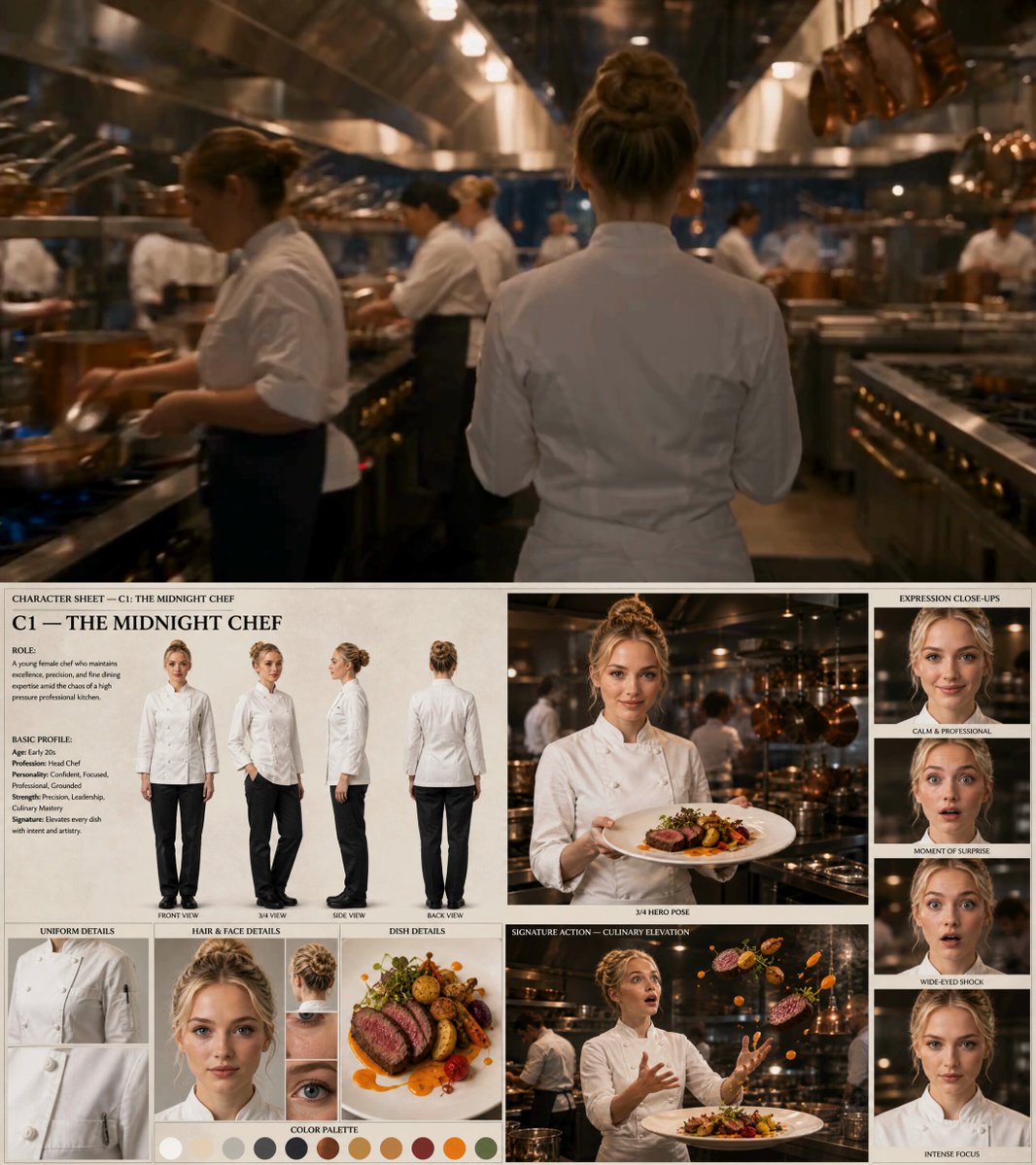
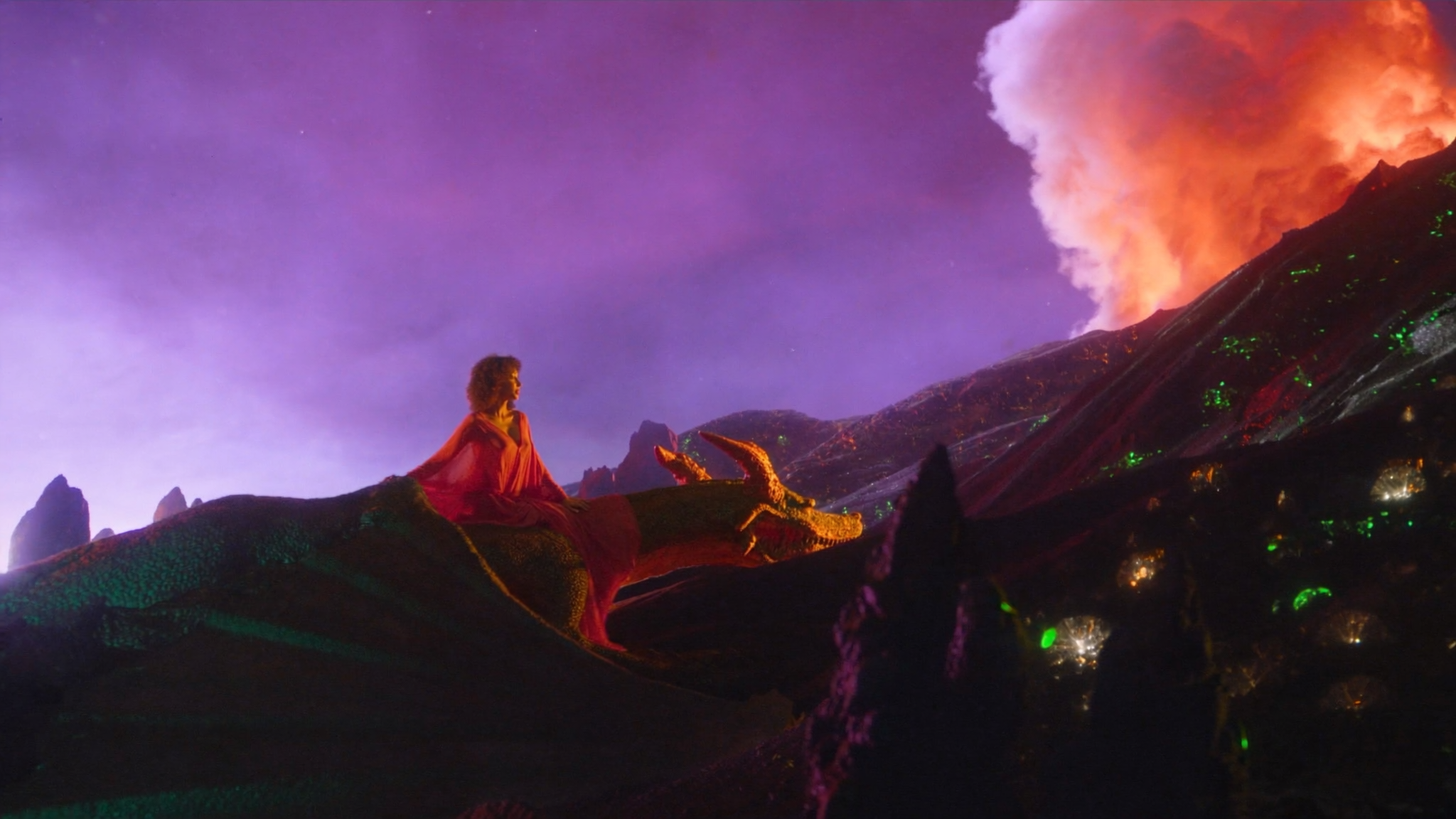
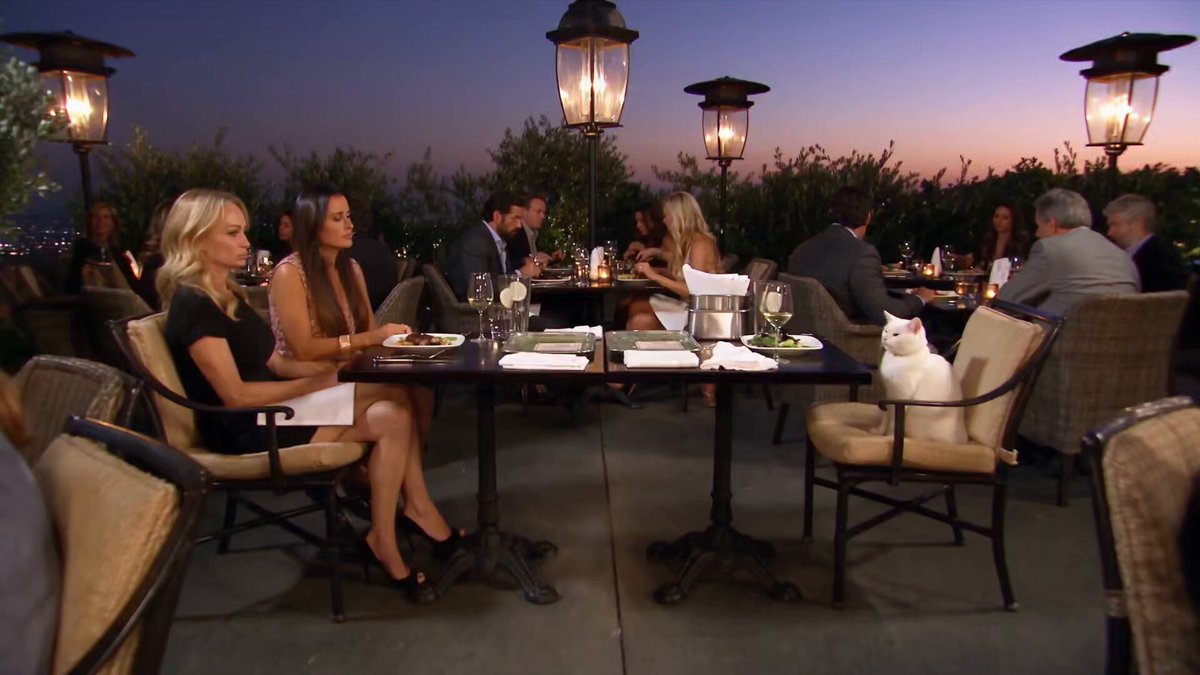
Every AI video tool solves the same problem: it hands you a striking few seconds of footage. The hard part — making twenty of those clips feel like one continuous piece of film — is still an editor's job, and the transition is where that job is won or lost.
Why Transitions Decide Whether AI Footage Feels Finished
Generated clips are islands. Each one arrives with its own lighting setup, its own grain structure, its own motion cadence, and its own slightly different interpretation of your character's face. A hard cut between two of them asks the audience to accept a small continuity lie. When the two shots are close enough, that cut reads as confident editing. When they are not, it reads as a mistake — and viewers cannot always say why, only that the video feels cheap.
A transition does three separate jobs, and confusing them is the root of most amateur-looking edits:
- Continuity. It hides a seam that a cut would expose — a shift in exposure, a jump in camera height, a change in colour temperature.
- Pacing. It controls how much time the viewer gets to absorb a beat before the next one arrives. A cut is abrupt; a dissolve is a breath; a whip is a shove.
- Genre signalling. Glitch, film burn, light leak, and datamosh each carry cultural baggage. They tell the audience what kind of video they are watching before the content does.
Free editors handle all three jobs well. What they lack is a shelf of premade cinematic transition packs — which is also their advantage. Building a transition yourself forces you to understand the shot you are joining, and the result usually fits better than anything dragged in from a template.
Choosing Your Free Editor: HitFilm Express and Its Alternatives
Before building anything, it helps to know which free tool suits the work. The differences matter most when you are joining AI-generated clips, because the awkward part is rarely the effect itself — it is fixing the mismatch underneath it.
What HitFilm Express does well
HitFilm Express is unusually generous for a free tool. Its standout feature for transition work is the composite shot: any transition you build — a masked wipe, a glitch burst, a light flash — can be assembled inside a nested composite, saved as a preset, and dropped onto future timelines in one click. That turns one afternoon of experimentation into a reusable personal library.
It also gives you effect layers, a graph editor for precise bezier easing, directional and radial blur, chromatic aberration, fractal noise, colour grading tools, and matte controls. For AI footage specifically, the ability to stack effect layers over an entire sequence — grain, subtle sharpen, a unifying grade — is a genuine advantage, because consistency across clips is usually a bigger win than any single fancy transition.
When a node-based editor is the better call
If your main problem is bridging colour and grain differences between generations, a node-based compositor gets you to a clean result faster. DaVinci Resolve's free tier includes Fusion, a proper tracker, and strong colour matching, which means you can match two mismatched clips before you ever draw a transition. The trade-off is a steeper learning curve and heavier hardware demands.
Lightweight and specialist companions
Shotcut and Kdenlive cover basic dissolves, fades, and mask wipes with far less overhead. Blender's video sequence editor is clumsy as a cutting room but excellent for procedural transitions built with shader nodes. Free frame-interpolation tools built on RIFE are worth installing for one specific job: smoothing speed ramps and generating the intermediate frames a convincing whip pan needs.
The practical answer is usually to cut and finish in one editor and keep a second tool for the handful of shots that need special treatment. Do not build a five-application pipeline for a two-minute video.
Foundational Transitions: Dissolves, Fades, and Wipes
The standard options are not boring. They are the vocabulary of editing, and AI footage — with its subtle flicker and lighting drift — is exactly the material they were designed to rescue.
Timing dissolves for mismatched shots
A cross dissolve shorter than six frames barely registers; anything longer than about twenty frames starts to feel like a slideshow unless the shots share composition. Practical starting points:
| Situation | Starting duration | Notes |
|---|---|---|
| Similar shot, similar light | 6–10 frames | Often indistinguishable from a cut |
| Colour or exposure shift | 12–18 frames | Grade the clips toward each other first |
| Change of location or time | 18–30 frames | Slow, deliberate, "meanwhile" |
| Emotional beat change | 1–2 seconds | Long dissolve on a held frame |
Two rules matter more than the numbers. First, add the dissolve after you have matched the clips' exposure and white balance — a transition should hide a seam, not a mistake. Second, centre the dissolve on a motion beat: if the outgoing clip has a hand leaving frame or a camera drift, place the transition so the movement continues through it.
Fades as structural punctuation
A fade to black means "chapter over". A fade to white reads as memory, revelation, or dream. A dip to a colour — deep blue, red, warm amber — is a genre convention that costs nothing and instantly communicates tone. Use them sparingly enough that they mean something, and keep fades to black at least a second long; shorter versions look like a rendering error rather than an intention.
Wipes and pushes with intent
A wipe implies geography, direction, or mechanical momentum: it suggests that the camera or the subject is moving that way, or that a new scene is literally pushing the old one out of frame. Hard-edged wipes feel retro and graphic; soft-edged wipes feel invisible. When you can motivate the wipe with something inside the shot — a wall passing the lens, a hand crossing frame, a door closing — it stops feeling like an effect and starts feeling like coverage.
Built-In Effects as Creative Transitions
Once the fundamentals are solid, the effects already bundled with your editor become a transition kit. None of the following requires a download.
Directional blur as a whip pan
Duplicate the outgoing clip, trim the last four to six frames, and animate a directional blur from 0 to a heavy value while pushing the clip's position off-screen in the same direction. On the incoming clip, mirror the move: start off-screen, animate position to zero, and bring the blur down to nothing at the same rate. Add motion blur to both halves and ease in and out of the keyframes. The blur hides the fact that your two generated clips were never actually panning — it borrows the audience's assumption of movement.
Light flashes and bloom
A flash transition is two or three frames of near-white exposure with a bloom or glow effect on top. It works because the eye needs a moment to re-adjust, and that moment covers a hard change in scene. Keep it under four frames unless you deliberately want a strobe effect, and place it on the loudest transient in the audio.
Colour shifts and aberration
A two-frame nudge of hue or a brief chromatic aberration split can act as a subliminal bridge between two shots with different colour casts. The audience will not notice the effect; they will notice that the join feels smoother. This is the cheapest trick in this article and one of the most effective.
Glitch, Datamosh, and Corruption Looks Without Paid Plugins
Glitch transitions look expensive and cost nothing but restraint. The trap is building a nine-second avant-garde sequence when the shot only needed eight frames of disruption.
A reliable recipe: duplicate the outgoing clip twice. On the first copy, apply a blocky displacement or mosaic effect and animate its strength with two-bump keyframes (0 → 100 → 0 → 60 → 0) across six frames. On the second copy, animate position in single-pixel steps every two frames, so the image stutters rather than slides. Add digital noise, scanlines, and a small RGB split on top, then place a freeze-frame of the incoming clip's first frame underneath so the transition has somewhere to land.
For a datamosh feel without motion vectors, pull the last frame of the outgoing clip, stretch it across four frames, and dissolve it into the incoming clip while a displacement effect pushes pixels in the direction of the previous shot's movement. It is an approximation, but at four frames nobody is auditing your algorithm. Finish with an audio layer — bitcrushed noise, tape stop, or a short static burst — because glitch without sound reads as a rendering bug rather than a choice.
Masking Transitions: Building Your Own Luma Wipe
A luma wipe — where a black-and-white gradient sweeps the new clip into view — is the most versatile transition you can build for free, and it works beautifully on AI footage because it can follow the shape of a moving subject.
Steps:
- Put the incoming clip on the timeline above the outgoing clip.
- Create a solid layer, apply a fractal noise or gradient generator, and animate its evolution or position across the transition's duration.
- Convert the solid to a matte and apply it to the incoming clip as a track matte or set-matte effect.
- Soften the matte edge so the sweep is feathered rather than razor-sharp.
- Add a thin bright line on the wipe's leading edge if you want the classic scanning look.
- Nest the whole thing as a composite and save it as a preset.
The same approach scales to shape masks: a growing circle for an iris, vertical bars for a blind split, a diagonal sweep for kinetic edits. Shape a mask around a person's silhouette and the transition appears to be motivated by the subject itself — the strongest illusion a free editor can pull off.
Fake Camera Moves and Speed Ramps
Whip pans, snap zooms, push-ins, and rack focuses are the transitions people assume require expensive software. All four are reproducible with keyframes.
- Push-in. Scale the outgoing clip from 100% to about 130% over eight frames while dissolving into the incoming clip, which starts at 130% and settles back to 100%. The two clips appear to share one continuous camera push.
- Snap zoom. A fast scale change of 100% → 160% over three frames, ideally with directional blur, used directly on a beat.
- Rack focus. Animate a blur on the outgoing clip upward while its brightness dips, then reverse the process on the incoming clip. It reads as a focus pull within a single continuous take.
- Speed ramp. Animate the outgoing clip's speed up to 300–500% for its final four frames, then start the incoming clip at 40–60% and ramp it back to normal over half a second. Frame interpolation smooths both halves and hides the morphing that AI clips often produce during fast motion.
Bridging Fidelity Gaps Between AI Generations
Transitions get blamed for problems that actually belong to grading. If two shots have different black levels, a dissolve will visibly dip in the middle. Fix the clips first:
- Match exposure and black levels. Set the darkest pixel of each clip to roughly the same value before adding any transition.
- Match grain. Apply one grain layer — fractal noise at low opacity, or a scanned film-grain texture — to the entire sequence rather than to individual clips. A consistent texture on top makes inherited inconsistencies read as style instead of error.
- Match sharpness. A slight sharpen on softer clips and a slight blur on over-crisp ones brings them into the same visual language.
- Tame flicker. Where a generated clip breathes in exposure, keyframe an exposure or opacity correction across the flicker rather than cutting the shot out.
- Control resolution properly. Scale up with a high-quality resampling algorithm rather than nearest-neighbour, and keep the whole sequence at one resolution and frame rate.
- Hide morphing under the transition. If a clip breaks apart in its final six frames, put the transition exactly there. It is free cover.
A Repeatable Workflow, Start to Finish
- Assemble raw. Drop every generated clip into a bin and name them by shot, not by file number.
- Set the sequence. Lock resolution and frame rate before you build anything. Changing either later breaks masks and presets.
- Normalise clips. Scale, crop, and colour-match each clip to a neutral reference frame.
- Story pass with hard cuts. Get the pacing right using cuts only. If the sequence does not work here, transitions will not save it.
- Build a transition bench. Create a separate timeline where you test three or four options for each seam.
- Apply the transitions pass. Place the chosen transitions, then refine timing against the audio waveform.
- Sound design pass. Every significant transition deserves a sound: a whoosh, a sub hit, a tape stop, a room-tone shift.
- Grade pass. Add unifying grain, a vignette, and a global grade over everything.
- Review small and slow. Watch the edit on a phone screen and at 50% speed. Problems invisible on a large monitor appear instantly at both extremes.
- Export tests. Render a ten-second segment before the full export to confirm frame rate, bitrate, and audio sync.
Common Mistakes, Fixes, and FAQ
Mistakes that make free edits look free
- Transition overload. If every seam has an effect, none of them communicate anything. Reserve showy transitions for act breaks.
- Length mismatch. A two-second dissolve on a two-second shot swallows the shot. Keep transitions shorter than a third of the shortest clip involved.
- Ignoring audio. Visual transitions without an audio cue feel mechanical. Cut the sound to the transition, not after it.
- No colour continuity. Grade before you transition. Always.
- Glitch as filler. Used to cover a weak clip, glitch looks like an apology. Used on a beat, it looks like intent.
- Rendering at the wrong frame rate. Mixed frame rates produce stutter that no transition can hide.
FAQ
Do I need paid plugins to get professional transitions? No. Every transition described here uses built-in effects, keyframes, and masks. Paid packs save time, not quality.
Why does my glitch transition look cheap? Usually because it lasts too long and has no sound design. Cut it to four to six frames, add a transient, and place it on the beat.
What is a safe default dissolve length? Eight to twelve frames for a normal cut, longer only when the shots are visually similar and the mood supports it.
How do I stop AI clips flickering during a transition? Pre-grade the clip with keyframed exposure correction, then cover the remaining flicker with grain and a slightly longer dissolve.
Can free editors handle vertical video? Yes — set the sequence to a 9:16 aspect ratio at the start. Rebuilding a project's aspect ratio mid-edit usually breaks masks and mattes.
Are transitions copyrighted? The techniques are not. Specific presets, sound effects, and texture packs carry their own licences, so check the terms on anything you download.
How many transition types should one video use? Two or three. Consistency reads as style; variety reads as indecision.
Final thought
The best test of a transition is that nobody notices it. Build a small personal library in your free editor — one clean dissolve preset, one light flash, one luma wipe, one glitch burst, one push-in — and you will have covered the vast majority of joins an AI-driven timeline will ever ask you to make.

Alexander
More Blogs
Read MoreVidu Q4 Alternatives: 4K AI Video Models Compared (2026)
Vidu Q4 alternatives compared: Kling 4.0, Seedance 2.5, Wan 3.0, and Runway Gen-4 — 4K support, input modes, durations, audio, and what each costs in credits on Domer.
Top 4K AI Image Generators in 2026: 5 Models Compared on Real Costs
The top 4K AI image generators on Domer compared: Flux 3 Klein, Nano Banana 2.1, GPT Image 2.5, GPT Image 2, and Nano Banana Pro — 4K credit costs, reference limits, and speed.
Nano Banana 2.1 vs GPT Image 2.5: Which Image Model Should You Use? (2026)
Nano Banana 2.1 vs GPT Image 2.5 Flare compared: credit costs per resolution, aspect ratios, reference images, text rendering, and which tasks fit each model.