
Utwórz
Pixverse 5.5 vs Runway: Which AI Video Tool Fits You?
Oct 13, 2026
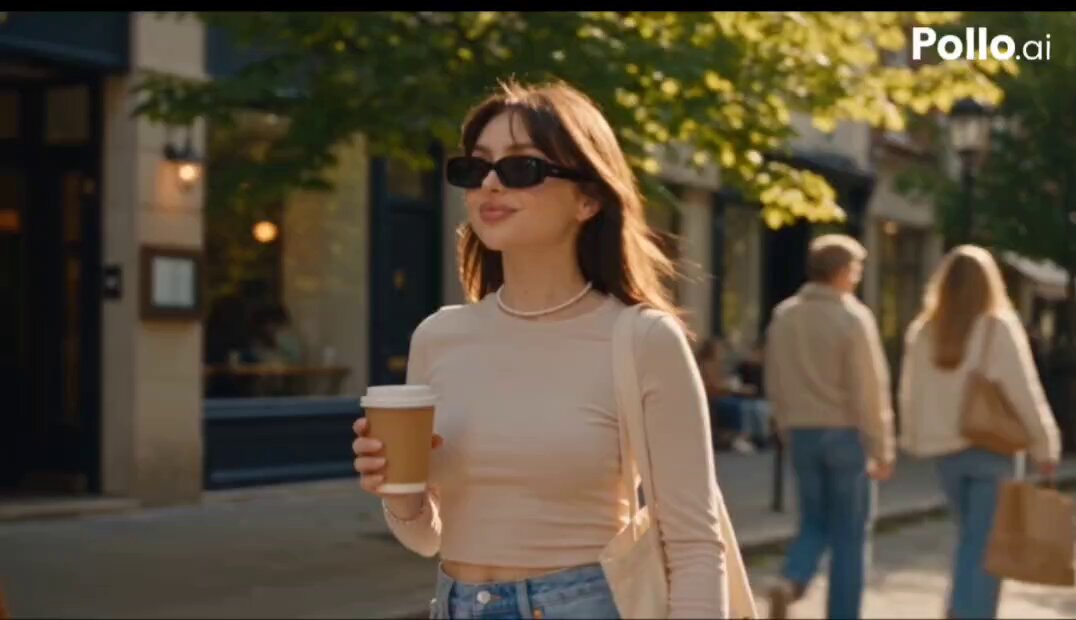

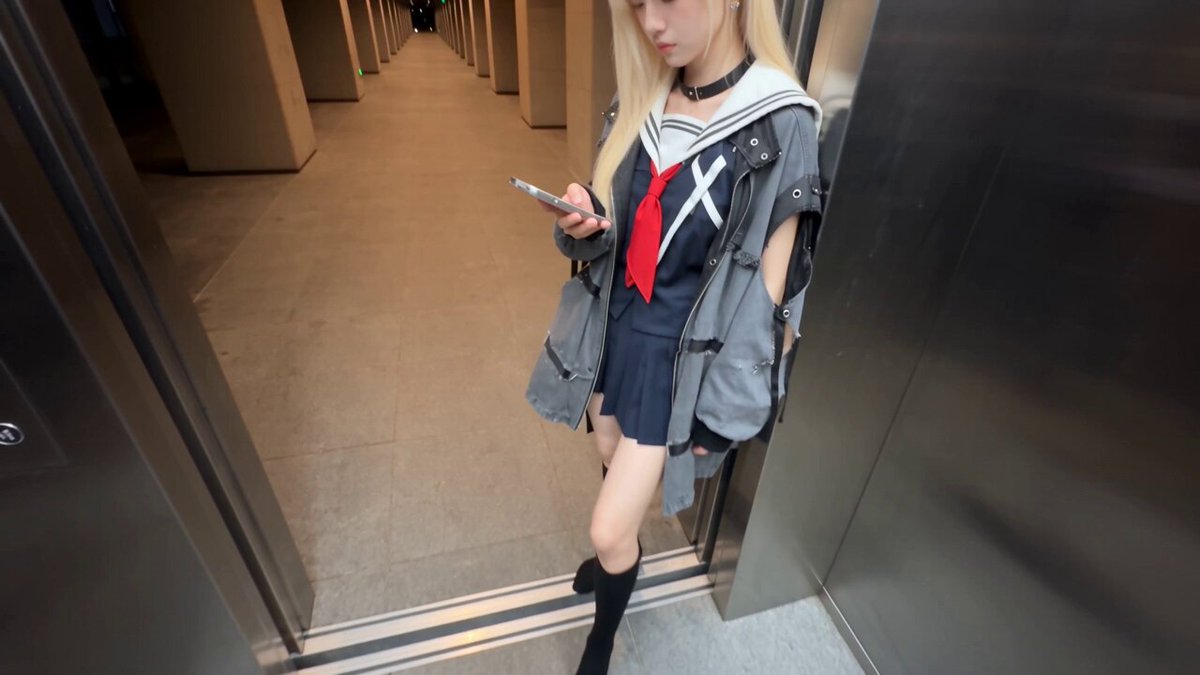
The choice between Pixverse 5.5 and Runway rarely comes down to a single winner. It comes down to the kind of video you need to make, the level of control you want, and how your team moves from idea to final export. Both platforms can generate striking footage from text or images, but they behave differently when you push them toward consistency, editing, sound, and production deadlines. A creator making short social clips may love one workflow, while a director building a narrative sequence may prefer the other. The smarter approach is to understand what each tool optimizes for, then choose the platform that matches your project instead of chasing a generic ranking.
This guide breaks down Pixverse 5.5 and Runway across the areas that matter in real projects: text-to-video, image-to-video, video-to-video, audio, camera control, temporal consistency, export quality, and team workflow. It also includes decision criteria, practical examples, common mistakes, and an FAQ so you can plan your next generation with fewer wasted renders.
What each platform is really optimized for
The first thing to understand is that Pixverse 5.5 and Runway are not identical products with different logos. They have different centers of gravity. Pixverse 5.5 often feels like a fast creative playground built for rapid ideation, stylized motion, and shareable clips. Runway often feels like a production suite built for controlled transformation, editing, and repeatable workflows across multiple shots.
Pixverse 5.5: speed, visual flair, and creative momentum
Pixverse 5.5 tends to shine when you want to move quickly. You describe a scene, choose a style or motion direction, and generate a clip that feels visually immediate. The platform is friendly to creators who iterate in public: social media editors, short-form storytellers, meme makers, and anyone who needs a dozen variations before lunch. Its strengths often appear in stylized motion, expressive character movement, and camera language that feels more dramatic than literal.
That speed has a tradeoff. Fast iteration can make it tempting to accept the first good-looking result instead of the most narratively useful one. If you need a character to look identical across five shots or a product to remain perfectly consistent through a demo, you may need extra planning, reference images, or post-production cleanup.
Runway: controlled transformation and production discipline
Runway is often chosen by editors, filmmakers, and motion designers who want granular control over how footage changes. Its ecosystem supports generation, but it also supports transformation: restyling existing clips, extending scenes, removing objects, compositing layers, and integrating AI output into a larger edit. For teams, that can matter more than raw generation speed. Runway is less about one spectacular clip and more about building a sequence that survives review.
If your project involves matching shots, maintaining a visual language, or mixing generated footage with live-action plates, Runway often provides the stronger foundation. It encourages a pipeline mindset: generate, review, refine, and assemble.
A useful mental model
Think of Pixverse 5.5 as a sketchbook with motion. Think of Runway as an edit bay with generative tools. You can absolutely create finished work in either one, but the path from idea to delivery feels different. Sketchbooks reward experimentation. Edit bays reward structure. The best choice depends on whether you need to discover the idea or protect the idea.
Text-to-video: prompt interpretation, motion, and camera language
Text-to-video is still the headline feature for most users. You type a description, press generate, and receive a moving scene. The differences between Pixverse 5.5 and Runway show up in how literally they interpret prompts, how they handle motion, and how much camera control you get without fighting the interface.
Prompt structure that works in both tools
A strong prompt usually includes a subject, an action, a setting, a lighting condition, a camera angle, and a style reference. For example: a lone cyclist pedaling through a rain-slicked alley at night, neon reflections on wet asphalt, low tracking shot, cinematic contrast, shallow depth of field. That kind of prompt gives the model enough constraints to build a coherent shot. Vague prompts like a cool video of a city produce generic results in both platforms.
Pixverse 5.5 often rewards punchy, sensory prompts. Words that describe energy, color, and motion tend to translate quickly into visible results. Runway often rewards prompts that describe camera behavior and spatial relationships. If you want a slow push-in, a handheld follow, or a locked-off wide shot, be explicit about it. Both tools benefit from iteration, but Runway users may spend more time refining the prompt before generating because the goal is usually a specific shot, not just a compelling clip.
Motion realism and temporal consistency
Temporal consistency is the ability of a video to keep objects, faces, and textures stable from frame to frame. This is where AI video can break down. Hands may melt, clothing may change color, background details may flicker, and faces may drift between identities. Pixverse 5.5 can produce very fluid motion, especially for stylized or energetic scenes, but complex human anatomy and fast camera moves may still require multiple attempts. Runway often feels more controlled in transformation tasks, especially when the source material already establishes the look you want to preserve.
For narrative work, temporal consistency matters more than single-frame beauty. A shot that looks stunning in a thumbnail but falls apart at second three is not usable. When testing either platform, generate at least five seconds and watch the middle and end, not just the first frame.
Camera controls and cinematic framing
Pixverse 5.5 has become known for offering a wide range of cinematic lens and camera directions. That can be a huge advantage for creators who want a specific look without building it manually. You can often push the model toward a dolly, a crane, a close-up, or a wide establishing shot. Runway also supports camera-like motion, but its strengths often appear in how you can combine generated motion with editing controls, masks, and transformation tools.
The practical difference is speed versus precision. If you want a dramatic camera move in one generation, Pixverse 5.5 may get you there faster. If you want to adjust the move after the fact, or combine it with a live-action plate, Runway may give you more room to refine.
Image-to-video: animating stills without losing identity
Image-to-video is where many professional workflows begin. You already have a character design, a product photo, a storyboard frame, or a mood board image. The goal is to add motion without destroying what made the still work.
Pixverse 5.5 and multi-image consistency
Pixverse 5.5 can use reference images to guide motion and style. Multi-image fusion can help when you want to combine elements, such as a character from one image and a background from another. That is powerful for creators who think visually and want to prototype scenes quickly. The risk is that the model may prioritize motion energy over identity preservation. If the face or outfit changes too much, you may need to reduce motion intensity, shorten the clip, or use a different reference image.
A good test is to animate a portrait with a simple action: turning the head, smiling, or stepping forward. If the identity holds for three seconds, the setup is probably stable enough for a longer shot. If it drifts immediately, simplify the prompt and remove competing style references.
Runway and transformation workflows
Runway is often used for image-to-video when the goal is controlled movement rather than pure generation. You can bring in a still, define motion regions, and guide how specific parts of the frame should behave. This is useful for product shots, architectural renders, and character moments where only one element should move. Runway also fits naturally into an editing workflow because the generated result can be treated as another clip in a timeline.
For teams, that integration reduces friction. A motion designer can prepare a still, generate a subtle move, and hand it to an editor without exporting through three separate apps. That may not sound dramatic, but it saves hours across a campaign.
A practical image-to-video test
Choose a still with a clear subject and a simple background. Generate a five-second clip with gentle motion. Then generate a second version with more dramatic motion. Compare identity, edge stability, and background consistency. Repeat the test in both platforms. The tool that preserves the subject with the least cleanup is usually the better fit for your project, even if the other tool produces a more exciting first frame.
Video-to-video and style transfer: restyling footage with intent
Video-to-video takes an existing clip and transforms it. You might turn live-action footage into animation, apply a painterly style, change the time of day, or replace a background. This is a different challenge because the model must preserve motion while altering appearance.
Where Pixverse 5.5 fits
Pixverse 5.5 can be effective for quick stylistic transformations, especially when the source footage is simple and the style is bold. If you want a short clip to look like a comic panel, a dream sequence, or a retro film, the platform can produce eye-catching results fast. The tradeoff is control. Complex transformations may introduce artifacts around edges, faces, or fast-moving objects. Success often depends on choosing source footage that already has clean separation between subject and background.
Where Runway fits
Runway is frequently used for more surgical video-to-video work. Its toolset supports masking, inpainting, object removal, and style application in ways that feel closer to compositing. If you need to restyle only part of a frame, remove a distracting sign, or blend generated elements with real footage, Runway is often the stronger choice. It is less about transforming the whole clip with one button and more about controlling exactly which pixels change.
How to choose
If your goal is a fast, stylized social clip, Pixverse 5.5 may get you to a shareable result quickly. If your goal is a polished shot that must match other footage, Runway may save you time in cleanup. The decision is not about which tool is more powerful in the abstract. It is about how much control you need after the first generation.
Audio, lip sync, and sound design workflows
Audio is often the difference between a demo and a finished video. Both platforms can support audio-related workflows, but they approach sound differently. Pixverse 5.5 may include native audio generation or sound-friendly output options depending on the mode. Runway often fits into a broader post-production workflow where audio is edited separately.
Native audio versus external sound design
Native AI audio is convenient. It can generate ambience, effects, or simple dialogue that matches the scene. For social clips and quick concepts, that speed is valuable. However, native audio may not give you the mixing control of a dedicated audio editor. If your project needs precise levels, music licensing, dialogue replacement, or sound effects that sync to specific frames, plan to finish audio outside the generator.
Runway users often treat generated video as a visual layer and handle sound in a separate tool. That is not a weakness. It is a production choice. A clean pipeline might use Runway for transformation and compositing, then a digital audio workstation for dialogue, music, and effects.
Lip sync and dialogue shots
Lip sync remains one of the hardest tests for AI video. If a character speaks, the mouth, jaw, and facial expressions must stay believable. Pixverse 5.5 can produce expressive character moments, but long dialogue shots may still need retakes or post-processing. Runway may be more reliable when you are integrating a performance into an existing edit, especially if you can control the source image or footage.
A practical workflow is to generate the visual performance first, then add dialogue in post. If the lip movement is close, you can use a lip sync tool or manual editing to tighten it. If the performance is far off, regenerate with a simpler camera angle and less body movement.
Sound design tips that improve any AI video
Layer ambience under every scene, even quiet ones. Add subtle room tone to prevent dead silence. Use music to guide emotion, but keep it below dialogue. Place sound effects on specific actions: footsteps, cloth movement, a door click, a camera shutter. These details make AI footage feel intentional rather than synthetic. A great sound pass can rescue a visually average clip, while poor audio can ruin a beautiful one.
Output quality, aspect ratios, and export pipelines
Resolution and aspect ratio are practical constraints. A vertical clip for social media has different framing needs than a widescreen shot for a presentation. Both Pixverse 5.5 and Runway can output multiple formats, but you should plan your aspect ratio before generating. Cropping later can cut off important action or ruin composition.
Resolution and detail
Higher resolution is not always better if the model struggles with consistency. A clean 1080p clip often beats a shaky 4K clip with flickering details. Generate at the highest stable setting your project can support, then upscale only if needed. For product shots, text, and fine patterns, test small sections first. AI video can introduce shimmering textures that become more obvious on large screens.
Frame rate and motion blur
Frame rate affects how motion feels. A 24 fps look can feel cinematic, while 30 fps or 60 fps can feel more immediate. Motion blur can make fast movement feel natural, but too much can turn into smear. If you are matching live-action footage, check the source frame rate and motion characteristics before generating. A mismatch in motion cadence is one of the fastest ways to make a generated shot feel out of place.
Export and post-production
Export clean plates whenever possible. If you plan to composite, avoid baking in heavy color grades or effects that you may want to change later. Keep a version with no audio and a version with audio. Name files clearly by shot, version, and date. These small habits prevent confusion when a project grows from one clip to twenty.
Runway often fits naturally into an edit pipeline because it supports layered workflows and integration with common editing tools. Pixverse 5.5 may be better for generating the base clip that you then bring into an editor. Either way, treat the AI tool as one station in the pipeline, not the entire factory.
Three practical workflows: social ad, narrative short, product demo
Different projects need different combinations of speed and control. Here are three workflows that show how to use Pixverse 5.5 and Runway in realistic scenarios.
Social ad in one afternoon
Start with a strong hook image or a short text prompt. Use Pixverse 5.5 to generate five to eight vertical variations with different camera moves and visual styles. Pick the two strongest clips based on the first two seconds, not the whole clip. Add captions, music, and a clear call to action in an editor. Keep the pace fast and test multiple openings. In this workflow, Pixverse 5.5 is the idea engine, while the editor handles timing and text.
Narrative short with consistent characters
Create a character reference sheet with multiple angles and expressions. Generate key shots in Runway so you can control motion, masks, and transformation more precisely. Use Pixverse 5.5 for stylized inserts, dream sequences, or montage moments where visual energy matters more than strict continuity. Assemble the sequence in an editor, then use color grading and sound design to unify the look. The hybrid approach gives you creative range without sacrificing the shots that carry the story.
Product demo with real footage
Shoot the product on a clean background or use existing footage. Use Runway to remove distracting elements, extend the scene, or add subtle motion to static product shots. Use Pixverse 5.5 for quick concept videos that show the product in imaginative environments. Keep the real product footage as the anchor so viewers trust what they see. Generated shots should support the demo, not replace the proof.
Decision framework: choosing Pixverse 5.5, Runway, or both
You can simplify the decision by asking four questions. How consistent does the output need to be? How much post-production control do you need? How fast do you need to iterate? How much does the final polish matter?
Choose Pixverse 5.5 when speed and visual impact lead
Pixverse 5.5 is a strong fit when you need rapid concepts, stylized motion, social-first formats, or a large number of variations. It is also useful when you want camera drama without building a complex node graph. If your project can tolerate some inconsistency and you plan to finish in an editor, Pixverse 5.5 can be a fast creative partner.
Choose Runway when control and integration matter
Runway is often the better choice when you need to transform existing footage, match shots, remove objects, composite layers, or fit AI generation into a professional editing workflow. It rewards planning and iteration. If the final video must survive client review, Runway's control-oriented approach can reduce risk.
Use both in a hybrid pipeline
Many creators do not need to choose one. Use Pixverse 5.5 for exploration and stylized generation. Use Runway for controlled transformation and finishing. Move assets between them through standard exports. The goal is not brand loyalty. The goal is a repeatable workflow that produces the result your audience needs.
Common mistakes that ruin AI video projects
The tools are powerful, but small mistakes can waste hours. Avoid these traps.
Writing prompts like search queries
A prompt like dog running park is too vague. Write a shot: a golden retriever sprinting through tall grass at golden hour, low camera tracking beside the dog, shallow depth of field, warm backlight. Specificity gives the model something to build.
Ignoring the first three seconds
Viewers decide quickly. If the opening lacks a clear subject, motion, or visual hook, the rest of the clip may not matter. Generate multiple openings and test them before committing to a longer sequence.
Forgetting continuity across shots
Changing wardrobe, lighting direction, or lens style between shots breaks the illusion. Create a simple continuity sheet with colors, camera angles, and character details. Reference it before every generation.
Overloading a single generation
Asking one prompt to include a complex action, dialogue, camera move, style shift, and background change often produces mush. Break complex scenes into simpler shots. Generate each beat separately, then assemble.
Skipping audio until the end
Audio affects pacing and emotion. A clip that feels flat without sound may feel alive with the right ambience and music. Plan sound early, even if you finalize it later.
Not testing exports on the target screen
A vertical clip may look great on a monitor and awkward on a phone. Check safe areas for captions, UI overlays, and platform crops. Test on the device your audience will use.
FAQ: quick answers for planning your next generation
Is Pixverse 5.5 better than Runway for text-to-video?
It depends on the shot. Pixverse 5.5 often excels at fast, stylized, visually dramatic clips. Runway often excels when you need controlled camera behavior and integration with an edit. Test the same prompt in both and compare motion consistency, not just the thumbnail.
Can I use Pixverse 5.5 and Runway together?
Yes. A common workflow is to generate exploratory or stylized shots in Pixverse 5.5, then refine, transform, or composite selected shots in Runway. Export in a standard format and keep organized version names.
Which tool is better for character consistency?
Runway may offer more control for matching characters across shots because of its transformation and masking tools. Pixverse 5.5 can work well when you use strong reference images and keep actions simple. For either tool, a character sheet and short test clips are essential.
Do I need post-production if I use AI video?
Almost always. AI video can generate stunning raw material, but editing, color, sound, captions, and pacing turn clips into a finished piece. Plan for post-production time in every project.
How do I avoid unnatural motion?
Simplify the action, reduce camera speed, and generate shorter clips. Long, complex motions are harder to keep stable. If motion breaks, split the action into two shots and cut between them.
What aspect ratio should I generate?
Generate in the final aspect ratio whenever possible. Vertical for social, widescreen for presentations and films, square for some feeds. Cropping after generation can ruin composition and cut off important action.
Final checklist before you render
Before you commit to a long render session, run a quick checklist. Define the shot list and the purpose of each clip. Choose the aspect ratio and resolution. Prepare reference images for characters or products. Write specific prompts with subject, action, setting, camera, and style. Generate short tests before full scenes. Check temporal consistency in the middle and end of each clip. Plan audio and captions. Export clean versions for editing. Keep a backup of your best takes.
Pixverse 5.5 and Runway each solve different parts of the AI video problem. Pixverse 5.5 gives you speed, visual flair, and creative momentum. Runway gives you control, transformation, and a bridge into professional post-production. The strongest workflow is often not one platform or the other, but a clear process that uses each tool where it performs best. Start with the story, choose the tool that protects the shot, and let the technology serve the edit rather than the other way around.

Alexander
More Blogs
Read MoreVidu Q4 Alternatives: 4K AI Video Models Compared (2026)
Vidu Q4 alternatives compared: Kling 4.0, Seedance 2.5, Wan 3.0, and Runway Gen-4 — 4K support, input modes, durations, audio, and what each costs in credits on Domer.
Top 4K AI Image Generators in 2026: 5 Models Compared on Real Costs
The top 4K AI image generators on Domer compared: Flux 3 Klein, Nano Banana 2.1, GPT Image 2.5, GPT Image 2, and Nano Banana Pro — 4K credit costs, reference limits, and speed.
Nano Banana 2.1 vs GPT Image 2.5: Which Image Model Should You Use? (2026)
Nano Banana 2.1 vs GPT Image 2.5 Flare compared: credit costs per resolution, aspect ratios, reference images, text rendering, and which tasks fit each model.