
Utwórz
Pixverse AI Video Workflow: A Practical Creator's Guide
Oct 16, 2026
Why Pixverse AI Belongs in a Serious Video Workflow
Pixverse AI has become one of the more interesting tools in the generative video space because it does not try to be everything at once. It is fast, it handles stylized motion unusually well, and it lets you move from a still image or a short text description to a usable clip in a matter of minutes. For creators who publish short-form content, ads, music visuals, or social storytelling, that combination is genuinely useful.
The problem is that most people use it the way they use a novelty app: type something vague, hit generate, look at the result for five seconds, and move on. That approach produces random output and a lot of frustration. A workflow approach produces clips you can actually cut into a finished piece.
This guide is about that workflow. It covers what Pixverse does well, how to structure prompts around motion instead of static description, how to use multi-image fusion, how to plan batches so you are not generating blindly, how to edit AI footage into something that feels intentional, and which mistakes consistently ruin otherwise good generations. If you are building a repeatable pipeline for yourself, a team, or a client, this is the structure that holds up.
What Pixverse AI Does Well (and What It Doesn't)
Before you build a pipeline around any tool, you need an honest inventory of its strengths. Otherwise you will keep asking it to do things it is bad at, and you will blame the tool instead of the plan.
Strengths worth building around:
- Stylized and illustrated motion. Anime, painterly, and 3D-cartoon looks tend to stay coherent across a short clip, which makes it a strong fit for narrative shorts and music visuals.
- Image-to-video conversion. Feeding a still you already like and asking for subtle movement is often more reliable than pure text generation.
- Multi-image fusion. Combining two or more references into a single animated shot is a distinctive capability and extremely useful for character consistency.
- Short, punchy clips. Social formats reward three-to-five-second moments, which is exactly the range where generative video is most stable.
- Fast iteration. You can test several directions in the time it takes to render one heavy project elsewhere.
Weaknesses to plan around:
- Long continuous takes. Coherence degrades as duration grows. Plan to stitch short clips rather than generate one long one.
- Complex physics and precise interaction. Hands manipulating objects, crowds, reflections, and fast collisions are still risky.
- Legible on-screen text. If a shot needs readable words, add them in post-production rather than hoping the model renders them.
- Exact continuity between separate generations. Characters drift. Use references, seeds, and consistent prompt scaffolding to fight this.
Knowing this in advance changes how you write your shot list. You stop designing shots that depend on the tool's weakest behaviors.
The Core Workflow: From Idea to Exported Clip
A dependable Pixverse workflow has seven stages. Skipping any of them is how you end up with a folder of disconnected clips and no finished video.
- Shot brief. Write one sentence describing what the shot must accomplish in the edit. Not "cool robot" but "establish the robot's loneliness before the crowd scene."
- Prompt construction. Translate that intent into subject, action, camera, environment, and style.
- Mode selection. Decide between text-to-video, image-to-video, or multi-image fusion based on how much control you need.
- First pass. Generate at the shortest usable duration and lowest reasonable resolution. You are testing an idea, not delivering it.
- Review and diagnose. Note exactly what failed: motion, composition, color, or identity. Vague dissatisfaction is not a note.
- Refine or replace. Adjust one variable at a time. If two passes fail the same way, change the concept rather than the wording.
- Export and organize. Name files by shot number and version so your editor can find them.
Writing a Prompt That Moves
Static description is the single most common prompt mistake. "A woman in a red coat standing in the rain" gives the model a subject but no instruction about time. Video prompts need verbs, direction, and pace.
A reliable prompt scaffold looks like this:
[Shot type] of [subject with one or two defining details], [specific action with direction and speed], [environment and weather], [lighting], [camera behavior], [style reference]
Applied:
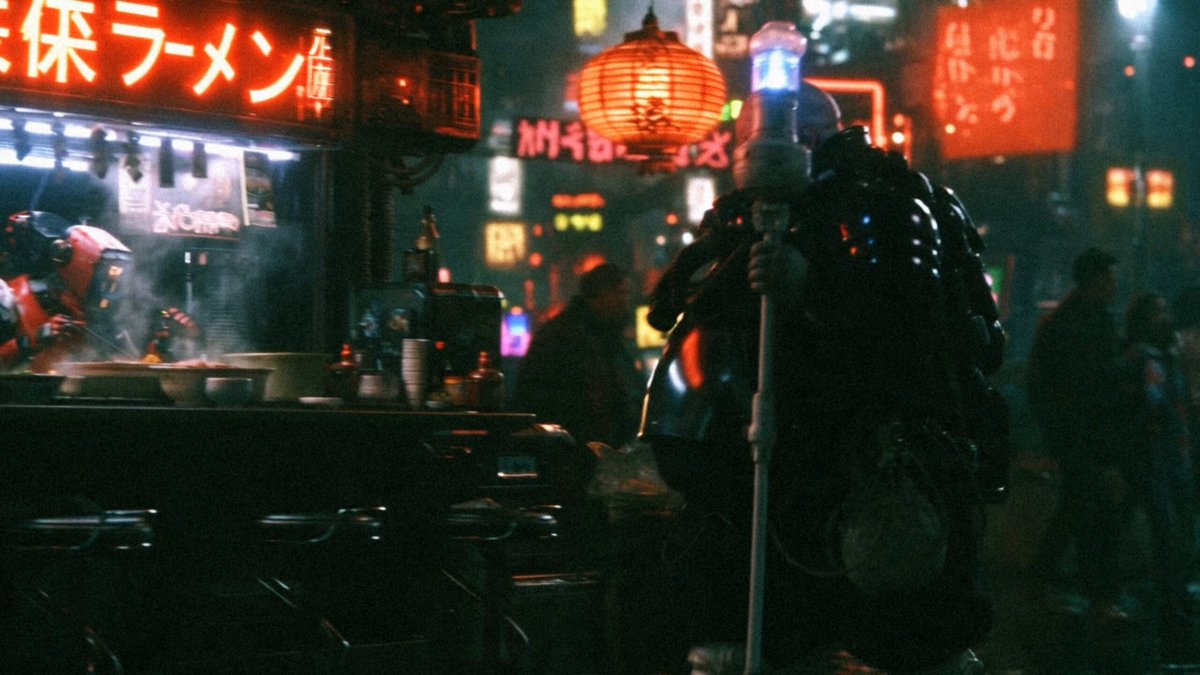
Medium shot of a woman in a soaked red coat, walking slowly toward camera while pulling her collar up, narrow alley at night, wet asphalt reflecting neon signs, cold blue key light with warm sign spill, slow handheld push-in, cinematic realism, shallow depth of field
That prompt gives the model five independent decisions to make, and each one constrains the others. Compare it to a one-line prompt and you can guess which produces footage you can actually cut.
Choosing Duration, Aspect Ratio, and Motion Strength
Three settings do most of the heavy lifting in practice.
- Duration. Generate the shortest clip that covers the action. Three seconds of clean motion beats eight seconds of drift. Extend in the edit, not in the generator.
- Aspect ratio. Decide at the start whether you are delivering vertical, square, or widescreen. Cropping a vertical generation into widescreen destroys composition, and re-generating wastes a full cycle.
- Motion strength. Low motion keeps identity and background stable. High motion produces energy but invites warping. For talking heads, product shots, and character introductions, stay low. For action beats and transitions, push it up.
Prompt Craft: Describing Motion, Camera, and Light
The quality gap between average and excellent Pixverse output is almost entirely a prompt gap. Four layers matter more than any keyword list.
Camera Language
The camera is a character in your shot. Naming its behavior gives the clip a purpose. Useful phrases include slow push-in, pull-back reveal, lateral tracking shot, handheld follow, static locked-off frame, slow orbit, crane up, and whip pan. Combine one movement with one speed qualifier and stop there. Two competing camera moves produce mush.
Subject Action Verbs
Choose verbs with visible direction: turning, stepping forward, reaching upward, leaning back, glancing over a shoulder, exhaling, closing a door. Avoid abstract verbs like "feeling" or "experiencing." The model renders what it can see, so give it something visible.
Environment and Atmosphere
Environment establishes genre faster than anything else. Fog, dust in light beams, steam, rain on glass, drifting paper, and swaying vegetation all add believable movement at low risk. Static environments with no ambient motion tend to look like frozen renders.
Lighting and Lens Cues
Lighting vocabulary does double duty: it improves color and it implies mood. Rim light, practical neon, overcast diffusion, golden hour backlight, hard single-source noir lighting, and soft window light each push the render in a different direction. Lens terms such as shallow depth of field, anamorphic flare, wide-angle distortion, and telephoto compression refine framing.
One practical rule: change only one prompt layer per iteration. If you rewrite everything at once, you learn nothing about which change worked.
Multi-Image Fusion and Reference-Driven Shots
Multi-image fusion is where Pixverse becomes genuinely more than a text-to-video toy. Instead of describing a character, you show one. Instead of describing a style, you supply an image that already has it.
A dependable approach for character consistency across a series:
- Prepare a clean reference of the character on a neutral background, well lit, full face or three-quarter view.
- Pair it with an environment or style reference that defines the look of the scene.
- Write a prompt that describes only action, camera, and lighting, and let the references carry identity and style.
- Lock the prompt scaffold in a text file. Reuse it verbatim across every shot in the scene so the only variable is action.
- Keep a naming convention such as
sc03_charA_fusion_v02.mp4so you can trace which reference combination produced which result.
Fusion also solves a common client problem. When a brand already has product photography, you can animate that exact product rather than generating an approximation of it, which keeps the deliverable on-brand and reviewable.
Planning Batches So You Generate With Purpose
Most creators waste enormous amounts of time generating shots they never use, then complain that the process is slow. The fix is batch discipline.
- Write a shot list before you open the tool. Ten shots, each with one sentence of intent.
- Group by mode. Do all text-to-video tests together, then all image-to-video tests. Switching modes constantly breaks your rhythm and your judgment.
- Do a draft pass at low settings. Treat the first pass as a sketch. Only promote the winners to higher resolution and longer duration.
- Cap iterations per shot. Three attempts, then either accept the best result or redesign the shot. Unlimited retries are how entire days disappear.
- Log what works. After each session, note the prompt patterns that produced usable footage. Over a month, that log becomes your real asset.
- Batch your reviews. Generate ten clips, walk away, then review all ten in one sitting. Reviewing immediately after each generation makes you attached to flawed output.
Editing AI Clips Into a Real Video
Raw generations are ingredients. The finished dish is made in the edit.
Cut on motion. AI clips often have a strong internal beat. Trim to the moment of peak movement and cut there. Cuts on motion hide the seam between two unrelated generations.
Stabilize and slow down selectively. A small speed reduction on a fast clip frequently reads as more cinematic and gives the eye time to accept the frame.
Match color across shots. Different generations drift in temperature and contrast. A simple correction layer that pushes every clip toward the same grade does more for perceived quality than any prompt trick.
Use transitions as cover. Whip pans, light flashes, and object wipes let you move between shots that do not match perfectly. Generative video and hard cuts are not natural allies.
Add sound early. Sound design, ambience, and music change how motion reads. A clip that looks floaty often looks intentional once footsteps and room tone are underneath it.
Overlay text in post. Titles, captions, and labels should always be added in the editor, never requested from the model.
Common Mistakes and How to Avoid Them
Overloading a single prompt. Five actions, three camera moves, and two style references will produce a muddled clip. One idea per generation.
Ignoring the first frame. In image-to-video, the starting frame dictates composition. If the still is mediocre, the clip will be too.
Chasing realism in stylized work. Pixverse tends to look best when it leans into a defined aesthetic. Asking for photoreal human faces in motion is asking for the hardest possible task.
Generating without a delivery format. If you do not know the aspect ratio and duration you need, you will regenerate everything later.
Treating output as final. Creators who expect a completed shot from one generation are always disappointed. Creators who expect a rough plate that needs trimming, grading, and sound are consistently happy.
No version control. Without naming conventions you cannot tell which of twelve files is the good one, and you will re-generate work you already own.
Building a Repeatable Workflow for Teams and Clients
Once a solo workflow works, the next step is making it repeatable.
Create a prompt library. Store scaffolds by shot type: character introduction, product reveal, establishing shot, transition, reaction beat. New projects start from a template instead of a blank field.
Standardize references. Agree on character sheets, style boards, and color palettes before generation begins. Every team member then produces compatible footage.
Separate exploration from production. Exploration is fast, low-resolution, and disposable. Production is deliberate, reviewed, and logged. Mixing the two creates confusion about what has been approved.
Define an approval gate. Nobody generates the final pass until the draft pass is signed off. This single rule prevents most rework.
Document your specs. Resolution, aspect ratio, frame rate, duration range, and naming convention should live in one shared document, not in someone's memory.
FAQ
How long should a single Pixverse clip be?
Generate the shortest duration that contains the action you need, usually three to five seconds. Extend the sequence in the edit with multiple shots rather than pushing one generation longer.
Is text-to-video or image-to-video better?
Image-to-video gives more control over composition and identity. Text-to-video is faster for exploration and for concepts you cannot easily draw. Most polished workflows use both: text-to-video for ideation, image-to-video for delivery.
How do I keep a character consistent across shots?
Use a clean character reference with multi-image fusion, lock your prompt scaffold, keep lighting consistent, and avoid high motion settings. Expect minor drift and plan a color correction pass to unify the sequence.
Why does my clip look warped or melting?
Usually high motion strength combined with too much simultaneous action. Reduce motion, simplify the prompt to one action, and shorten the duration.
Can I use these clips commercially?
That depends on the terms of the platform you use and the assets you feed into it. Check the current licensing terms and confirm you own or have rights to every reference image.
Do I still need editing software?
Yes. Trimming, grading, sound design, and text overlays are what turn generations into a watchable video. Skipping post-production is the fastest way to make AI footage look like AI footage.
Where to Take This Next
Start small and deliberate. Pick one scene with four or five shots. Write the briefs first, build prompts with the scaffold, generate a low-resolution draft pass, choose the best takes, and finish the sequence in your editor with sound and color correction. Do that once and you will have a workflow instead of a habit.
From there, expand in the direction that matches your work: a character-driven series built on fusion references, a product pipeline built on image-to-video, or a fast social format built on short stylized clips. The tool is the same in every case. What changes is the discipline you bring to planning, prompting, and post-production. That discipline, not the generator, is what makes the final video look intentional.

Alexander
More Blogs
Read MoreVidu Q4 Alternatives: 4K AI Video Models Compared (2026)
Vidu Q4 alternatives compared: Kling 4.0, Seedance 2.5, Wan 3.0, and Runway Gen-4 — 4K support, input modes, durations, audio, and what each costs in credits on Domer.
Top 4K AI Image Generators in 2026: 5 Models Compared on Real Costs
The top 4K AI image generators on Domer compared: Flux 3 Klein, Nano Banana 2.1, GPT Image 2.5, GPT Image 2, and Nano Banana Pro — 4K credit costs, reference limits, and speed.
Nano Banana 2.1 vs GPT Image 2.5: Which Image Model Should You Use? (2026)
Nano Banana 2.1 vs GPT Image 2.5 Flare compared: credit costs per resolution, aspect ratios, reference images, text rendering, and which tasks fit each model.