
Utwórz
Realistic AI Image Generators: How to Choose and Prompt
Oct 14, 2026

Why Photorealism Demands a Different Kind of Prompting
Most people start with AI image generation by typing a sentence and hoping for the best. That approach works surprisingly well for illustration, posters, and stylized concept art. It fails almost every time when the goal is a photograph. Photorealism is not a style you can switch on by adding the word "realistic" to a prompt. It is a bundle of constraints about light, lens behavior, material response, and imperfection — and the model has to satisfy all of them at once before the image stops looking synthetic.
That is why two people using the same generator can get wildly different quality. One produces something that could pass for a frame from a camera; the other produces something that looks like a very good painting of a person. The difference is rarely the tool. It is usually how the shot was specified, which controls were used, and whether the output was finished or just exported.
This guide walks through what photorealism actually requires, how the main generator families differ in practice, how to match a tool to a specific job, and a repeatable workflow you can run for client work or your own content. It also covers the failure modes that waste the most time and the quality checks that separate a usable image from a throwaway.
What "Realistic" Actually Means in AI Images
Before comparing tools, it helps to name the specific signals that make an image read as photographic. Models are trained on photographs, so they learn these signals implicitly. When you prompt for them explicitly, results improve quickly.
Texture and material truth
Skin has pores, uneven tone, fine hair, and slight translucency at the edges of the face. Fabric has a weave and a weight. Metal reflects the environment around it. Glass bends light and shows imperfections at the edges. Synthetic-looking output usually fails here first: skin becomes plastic, and fabric becomes a flat color with a printed-on pattern.
Light that behaves like light
Real photographs have a single dominant light source or a small number of them, each with a plausible direction, warmth, and falloff. Shadows follow. If a face is lit from the left, the neck, collar, and background must agree. Images break down when a model renders three competing light sources and no coherent shadow logic.
Lens and camera behavior
Depth of field, slight chromatic aberration at the corners, lens vignetting, and a small amount of noise are all photographic signatures. A prompt that specifies a focal length and aperture — 35mm, 85mm, f/1.8 — gives the model a coherent optical story to follow rather than letting it average across everything it has seen.
Imperfection as a signal
Pristine is suspicious. Real images contain a stray hair, a slightly crooked collar, a scuff on a surface, dust in the air, uneven exposure. Adding one or two deliberate imperfections is often the single highest-leverage change you can make to a prompt.
Generator Families Compared: Where Each One Excels
There is no universal best generator, only best-for-a-job. It helps to think in families rather than brand names, because each family has a distinct personality.
Open-weight diffusion pipelines
Stable Diffusion and its descendants, including SDXL and the newer high-fidelity open models, are the most controllable option. You can run them locally, swap community fine-tunes, add ControlNet-style structural guidance, use LoRA adapters for a specific face or product, and inpaint a single hand without regenerating the scene. The trade-off is setup cost: you need hardware or a hosted endpoint, and you need to learn a sampler and a step count. For product work where consistency across dozens of shots matters, this family usually wins.
Hosted models with strong prompt comprehension
DALL·E 3 and similar hosted models excel at following complicated instructions in plain language. If you need an image where six specific objects appear in a specific arrangement, these models are often the fastest path to something close. They are less controllable at the pixel level, and they tend to produce a slightly polished, editorial look that can tip into unreality if you push detail too hard.
Art-direction-first tools
Midjourney and similar tools behave like a very opinionated art director. Default output is stylized and beautiful, with strong composition and lighting instincts. Photorealism is achievable but requires deliberate effort to strip out the house style — usually through explicit camera language, negative prompts, and reference images. Where this family shines is mood, atmosphere, and environments.
Design-suite integrations
Adobe Firefly and comparable in-app generators matter less for raw fidelity and more for workflow. Generative fill, expand, and object replacement inside an existing document let you fix a single region of a real photograph without leaving the editing environment. For retouchers and designers, this is often more valuable than a marginally better base model.
Text and layout specialists
Some models handle typography, packaging copy, and clean graphic layouts noticeably better than general-purpose ones. If your "realistic" image is a product on a shelf with legible branding, pick the model that can spell.
Matching the Tool to the Job
Product and e-commerce shots
You need consistency: the same bottle, same lighting, same angle, twenty variations. Open-weight pipelines with a trained adapter plus structural control win here. Generate one hero image, then use it as the anchor for everything else.
Editorial and lifestyle scenes
Candid moments, natural window light, people mid-gesture. Hosted models with strong prompt comprehension and art-direction tools both work. Prioritize models that handle hands and crowd scenes well, since those are the most common realism breakers.
Portraits and character work
You need a face that stays the same across multiple images. Any tool with a reference or character-consistency feature is a candidate; the deciding factor is how well it preserves asymmetry and skin detail rather than smoothing everything into a beauty filter.
Concept art that must read as photographic
Production design, location scouting, world-building. Atmosphere matters more than pixel truth. Art-direction-first tools are usually the fastest route, followed by a cleanup pass in an editor.
A quick decision rule: if you need control, choose open weights. If you need speed and instruction-following, choose hosted. If you need mood, choose art-direction tools. If you need to fix an existing photo, choose an integrated editor.
A Repeatable Photoreal Workflow
Step 1 — Define the shot, not the subject
Write one sentence describing the camera, not the content: "A medium shot at eye level, 50mm, shot in soft late-afternoon window light, subject slightly left of frame." This forces you to decide framing and light before style, which is the order a photographer would use.
Step 2 — Build the prompt in layers
Keep five layers in a fixed order: subject, action, environment, lighting, optics. Add a sixth only if needed: finish and texture. Prompts that jump between layers produce images that are strong in one area and incoherent elsewhere.
Step 3 — Constrain composition and geometry
If your tool supports it, use depth maps, pose references, or simple line sketches to lock the layout. This is the difference between "a person in a kitchen" and "this person, in this kitchen, at this angle." It also eliminates the endless re-roll loop that eats hours.
Step 4 — Iterate one variable at a time
Change the light direction OR the lens OR the wardrobe. Never all three. When an image improves, you need to know why so you can repeat it. Keep a short log of prompt, seed, and settings for anything you might reuse.
Step 5 — Finish outside the generator
Almost no raw AI image is delivery-ready. A pass in an editor to correct small anatomy errors, adjust contrast, add grain, and match color across a set will do more for perceived realism than another hundred generations.
Prompt Patterns That Push Toward Photorealism
A workable structure for a portrait:
candid medium close-up, 85mm lens, f/2, shallow depth of field,
soft directional window light from camera left, warm late-afternoon tone,
natural skin texture with visible pores and fine hair,
plain linen shirt with slight wrinkles, unretouched documentary look,
mild film grain, no beauty retouching
For a product:
three-quarter product shot on matte concrete, single large softbox above and slightly behind,
subtle contact shadow, 100mm macro, f/8, sharp focus on label,
visible surface micro-texture, tiny dust particles in the air,
neutral color grading, no glossy plastic sheen
For an environment:
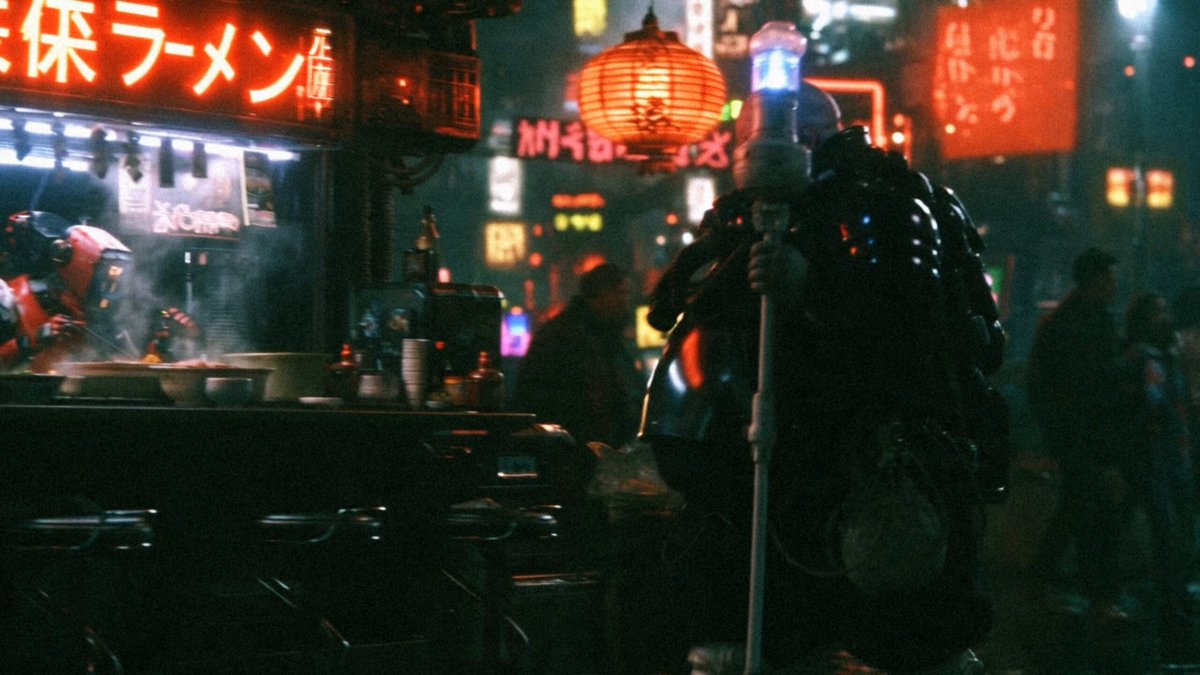
wide street scene at blue hour, 24mm, slight handheld tilt,
mixed light from shop windows and overhead lamps, wet asphalt reflections,
atmospheric haze, distant figures slightly motion-blurred,
small sensor noise, realistic exposure range with blown highlights in lamps
Notice what these have in common: a lens, an aperture, one described light source, a material detail, and one imperfection.
Common Failure Modes and Their Fixes
Plastic skin. Cause: prompts that mention beauty, smooth, flawless, or 8K detail without texture language. Fix: remove glamour words, add skin texture, pores, fine hair, unretouched.
Waxy hands or extra fingers. Cause: small hands in frame plus heavy stylization. Fix: frame hands larger, add a pose reference, or inpaint the hand region at higher resolution.
Mismatched shadows. Cause: multiple lighting descriptions. Fix: name exactly one key light and let the model derive the rest.
Over-sharpened, HDR look. Cause: prompts stuffed with quality boosters. Fix: strip them. Ask for soft light and natural contrast instead.
Repeated faces across a set. Cause: no reference image or fixed seed. Fix: lock a seed, use a character reference, or train a small adapter.
Text that reads as gibberish. Cause: general-purpose model attempting typography. Fix: generate the image without text, then add type in an editor, or use a text-capable model.
Everything looks like the same stock photo. Cause: default prompt phrasing. Fix: introduce specific, unusual details — a particular location, an odd object, a real time of day.
Quality Control: The Pre-Delivery Checklist
Run this before anything leaves your desk. Zoom to 100 percent and check hands, ears, teeth, and the space between fingers. Look at reflections and confirm they show what should be reflected. Trace shadows back to their light source. Check that background elements don't merge into the subject. Confirm the depth of field is consistent — if the background is blurred, it should blur progressively, not uniformly. Verify skin tone across the whole image rather than just the face. Read any text aloud. Finally, view the image at thumbnail size; if the illusion breaks when small, the composition is carrying too much weight and the detail work is too thin.
Putting AI Stills Into Motion
Realistic stills are often the first frame of something larger. A generated image can seed a short video clip, a product rotation, or a talking-head sequence. When planning a pipeline, generate stills at higher resolution than the final video needs — downscaling hides small flaws that upscaling will amplify. Keep composition simple and leave headroom for motion, because generators that animate images need room to move without exposing the edges of the frame. Match the lighting direction of the still to whatever motion you add, and keep a consistent color grade across every asset so the sequence feels like one shoot rather than a collage. If you are combining generated stills with real footage, generate them at the same aspect ratio and similar grain so the cut is invisible.
FAQ
Do I need an expensive GPU to get realistic results? No. Hosted tools and cloud endpoints produce excellent photoreal output. Local hardware mainly buys you speed, privacy, and access to fine-tuned community models.
Is the word "photorealistic" in a prompt useful? Mildly. It nudges the model, but it does far less than naming a lens, an aperture, a light source, and a material detail.
Why do my images look slightly painted even when I add camera language? Usually because the tool's default aesthetic is stylized. Use reference images, lower the stylization setting if available, and finish with grain and subtle contrast reduction.
How many generations should a good image take? With structured controls, often fewer than fifteen. If you are past fifty re-rolls, stop and fix the prompt structure instead.
Can I use generated images commercially? It depends on the model's license and your jurisdiction. Check the terms of the specific tool and the specific model version, and keep records of what you generated.
What's the fastest way to get consistent characters? Lock a seed, use a reference image or character feature, and keep every other variable identical between generations.
Should I edit AI images in Photoshop or similar? Yes. Finishing is not cheating; it is the step that makes generated images usable in professional contexts.
Realism in AI image generation is less about finding a magic tool and more about thinking like a photographer: choose the shot, describe the light, name the lens, and then clean up the result. Pick the generator family that matches your need for control, consistency, or atmosphere, build prompts in layers, iterate one variable at a time, and always finish before you ship.

Alexander
More Blogs
Read MoreVidu Q4 Alternatives: 4K AI Video Models Compared (2026)
Vidu Q4 alternatives compared: Kling 4.0, Seedance 2.5, Wan 3.0, and Runway Gen-4 — 4K support, input modes, durations, audio, and what each costs in credits on Domer.
Top 4K AI Image Generators in 2026: 5 Models Compared on Real Costs
The top 4K AI image generators on Domer compared: Flux 3 Klein, Nano Banana 2.1, GPT Image 2.5, GPT Image 2, and Nano Banana Pro — 4K credit costs, reference limits, and speed.
Nano Banana 2.1 vs GPT Image 2.5: Which Image Model Should You Use? (2026)
Nano Banana 2.1 vs GPT Image 2.5 Flare compared: credit costs per resolution, aspect ratios, reference images, text rendering, and which tasks fit each model.