
Utwórz
Video to Anime AI Generator: A Practical Style Transfer Guide
Oct 15, 2026
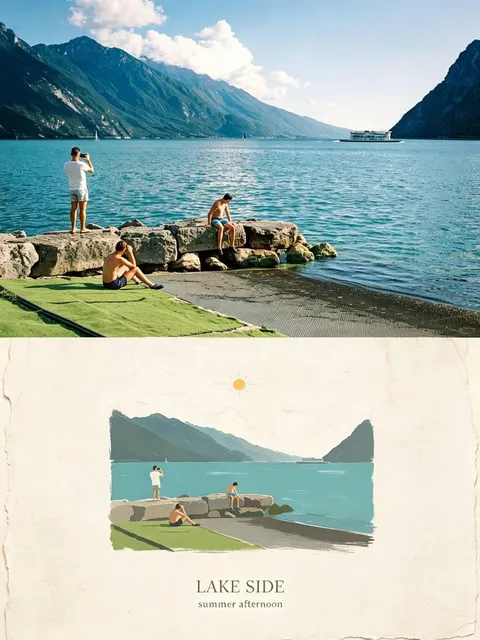
What Video-to-Anime AI Generation Actually Does
Video-to-anime generation takes footage you already have — a phone clip, a short film, a 3D render, gameplay capture, a dance video — and restyles it so it reads as hand-drawn animation. The motion stays yours. The look changes completely.
It sounds like a filter. It is not. A simple filter shifts color and contrast uniformly across the frame. Anime stylization has to do something harder: it must flatten shading into cel bands, replace photographic texture with line art, invent an artist's line quality that did not exist in the source, and then do all of that consistently for thousands of frames without the drawing "boiling" or the subject's face morphing between shots.
That second requirement is why the field is difficult. Per-frame stylization is a solved problem — you can run any image model on extracted frames today and get beautiful stills. The hard part is temporal coherence: making frame 412 look like it belongs to the same drawing as frame 411 and frame 413.
Most practical tools solve this in one of two ways. The first is to stylize a small number of keyframes and then propagate those styles across the timeline using optical flow and warping. The second is to treat the whole clip as a single generation task, where the model conditions each output frame on previous output frames as well as the source. Each approach has a different failure mode, and knowing which one you are using tells you how to fix problems when they appear.
How the Pipeline Works, End to End
Understanding the stages helps you debug them individually instead of re-running the whole render and hoping.
Frame extraction and temporal mapping
The source clip is decoded into frames, and the tool builds a map of how pixels move between them. This motion map — usually computed with optical flow — is what lets the stylizer know that the eye on frame 60 is the same eye on frame 61, even though it moved three pixels to the left.
If your footage has heavy motion blur, interlacing, or rolling shutter skew, the motion map is garbage and the output will smear. Clean, sharp, progressive footage produces dramatically better anime results than cinematic footage with lots of blur.
Style conditioning
Style comes from one of three places: a reference image you supply, a text prompt describing the aesthetic, or a fixed model that has been trained on a specific look. Reference images are the most controllable. A single strong reference — a key art frame with the exact line weight, palette, and shading style you want — outperforms a long paragraph of adjectives almost every time.
Generation and re-composition
The model produces stylized frames, and the tool reassembles them at the original frame rate. This is where you often discover that a render looks great in stills but stutters in motion, usually because the stylizer is fighting the source motion instead of following it.
Choosing the Right Approach for Your Project
Not every project needs full generative treatment. Picking the wrong tier wastes time and produces worse results than the cheaper option would have.
Lightweight stylization
Best for music videos, social clips, dance footage, and anything where the subject is clearly readable and the background is simple. These tools apply a learned painterly or cel-shaded look with strong temporal smoothing. They render fast, handle long clips, and are forgiving. The trade-off: less control over the specific anime look, and faces can lose detail.
Keyframe-plus-propagation
You draw or generate a handful of hero frames — say one every 12 to 24 frames — and the tool warps that style across the timeline. This is the classic approach used with tools like EbSynth and similar warping engines. It gives you fine artistic control and crisp line art, but it demands that you actually make good keyframes. It also struggles when the subject rotates significantly or new surfaces enter the frame.
Full generative video models
Modern video diffusion models stylize whole sequences with temporal attention, so consistency comes from the model rather than from warping. Quality is high, especially for short clips. The cost is compute time, shorter maximum clip lengths, and less predictable output — you get more surprises, and some of them are bad.
Decision criteria
- Clip length: under 10 seconds, full generative models are practical. Over a minute, propagation-based workflows scale better.
- Face detail needed? If close-ups matter, plan for a face-restoration or detail pass.
- Do you need a specific art style? Use reference conditioning, not text alone.
- Is the footage low quality? Consider reshooting or upscaling before stylizing. Models amplify artifacts.
Preparing Footage So the Model Succeeds
The single biggest quality lever is not the model. It is the source clip. Style transfer inherits everything good and bad about its input.
Lighting and contrast
Anime aesthetics rely on readable shapes and clear light logic. Flat, evenly lit footage with a clear key light converts beautifully. Footage shot in mixed color temperatures with heavy practical lights produces muddy cels and confusing line art.
Aim for a clear directional light, moderate contrast, and no blown highlights. If you can see the shape of the subject's nose and jaw in the source, the model can draw it.
Shot length and cutting
Directional consistency matters more than shot variety. When the camera pans smoothly across a scene, the model tracks it well. When the edit cuts every half second, the model has no time to establish a look, and each shot may resolve to a slightly different style.
If your source is a fast-cut montage, render shots individually and match the look afterward in post. Do not feed the whole edit into one render.
Resolution and frame rate
Most engines work best around 720p to 1080p output at 24 or 30 fps. Feeding 4K into a stylizer usually just means longer render times for the same visible result, because the model internally downsamples. Render anime output at the target delivery resolution, then upscale at the end if needed.
Shooting at 24 fps and rendering at 24 fps gives you a pleasant animated cadence. Rendering at 60 fps often looks uncannily smooth in a way that breaks the drawn illusion.
Backgrounds and crowd density
Simple or slightly defocused backgrounds stylize cleanly. Dense crowds, foliage, and fine textures are where you see the most flicker. If a shot is essential, plan to roto or mask complex regions and stylize them separately with heavier smoothing.
A Step-by-Step Workflow for an Anime-Style Clip
Here is a workflow that works across most tools, from browser-based generators to node-based diffusion pipelines.
1. Lock the edit first. Cut your clip to its final length before stylizing. Every second you render unnecessarily is wasted time.
2. Grade the source lightly. Raise shadows slightly, reduce color cast, and stabilize if needed. Do not add creative color — you are about to replace it entirely.
3. Choose or create a style reference. Pull one frame from an anime whose look matches your goal, or generate a single still you love. Keep it consistent across the whole project.
4. Test on a 3–5 second segment. Pick the hardest shot — the one with the most motion or the tightest face. If that one works, the rest will.
5. Tune strength and consistency. Push style strength high enough that the look is unmistakable, then increase temporal consistency until flicker disappears. These two settings fight each other; find the balance point.
6. Render the full sequence in segments. Render shot by shot rather than one giant batch, so a failure does not cost you the whole job.
7. Inspect at speed. Watch the output at normal speed, not frame by frame. Boiling is a motion artifact; you will only see it in playback.
8. Fix problem shots individually. Re-render with different settings, or mask and hand-fix the offending region.
9. Do a final grade and composite. Unify saturation, add grain or paper texture if you want a hand-drawn feel, and composite over your background plates.
10. Add sound. Sound design carries more of the anime illusion than most people expect — see the post-production section below.
Keeping Characters and Colors Consistent
Character consistency is the number-one complaint about AI stylization, and it is usually a pipeline problem rather than a model limitation.
Lock the palette
Decide on five to seven colors and enforce them. Cel animation has a limited palette by design. If your model produces twelve slightly different skin tones across a minute of footage, the result looks cheap even when the line work is good. A palette-constrained grade at the end fixes a lot of this.
Use face references, not descriptions
If your tool supports image conditioning, feed it a face reference alongside your style reference. Text prompts like "anime girl with brown hair" produce a different interpretation on every shot.
Keep shots short and repeat settings
Changing any setting mid-project resets consistency. Freeze your parameters before you render the bulk of the footage, and keep a written record of what they were.
Consider a compositing pass
For projects where a character appears in many shots, render the character and the background separately, then composite. This gives you full control: restyle the background heavily, restyle the character lightly, and match them in the edit.
Prompting and Style Control That Actually Works
Prompt wording has less influence than most guides suggest, but it is not irrelevant. What matters is specificity about drawing technique, not about subject matter.
Useful terms describe how the image is made: flat cel shading, clean line art, limited color palette, hard-edged shadows, painted background, visible ink outlines, two-tone shading. Terms like beautiful or cinematic do nothing.
Avoid stacking style names. Asking for three different studios at once produces a muddy average of all three. Pick one direction and reinforce it with a reference image.
Negative prompts are most useful for cleanup: blur, photographic grain, realistic skin texture, double outlines, text artifacts, watermark ghosts.
If your tool exposes motion strength or flow adherence, treat it as the primary control for how strongly the output follows the original movement versus generating its own. Higher adherence keeps choreography accurate. Lower adherence gives more artistic freedom and more drift.
Common Mistakes and How to Fix Them
Flicker and boiling outlines. Caused by insufficient temporal consistency. Raise consistency settings, lower style strength slightly, or switch to a propagation workflow with fewer, better keyframes.
Muddy or washed-out colors. Usually a source problem: low contrast footage plus heavy stylization. Regrade the source for contrast before rendering.
Faces that change identity between shots. Almost always a conditioning problem. Add a face reference, shorten shots, and freeze your seed or style settings.
Warped hands and limbs. Motion estimation is failing on fast movement. Slow the shot in post, render at a higher frame rate, or mask the fast region and handle it separately.
Backgrounds crawling with detail. Fine textures are the enemy of temporal coherence. Blur the source background slightly before rendering, or replace it entirely with a painted plate.
Output looks like a filter, not animation. You need stronger line art and flatter shading. Increase edge emphasis, reduce texture detail, and cut your frame rate to 24 fps for a drawn cadence.
Post-Production: Where the Illusion Is Finished
Stylized footage alone rarely reads as anime. The finish comes from everything around it.
Grade for a limited palette. Reduce saturation in shadows, push highlights toward warm or cool depending on the scene mood, and keep skin tones locked. Consistency across shots matters more than any single shot's beauty.
Add texture. A subtle paper grain, subtle chromatic edge, or light film halation sells the hand-made feel. Keep it understated — heavy grain just looks noisy.
Cut on twos in the edit. If your tool outputs smooth motion, you can simulate a lower animation cadence by holding every other frame in the edit. This single trick makes AI output look dramatically more drawn.
Sound design is half the effect. Wind, room tone, footsteps, cloth movement, sword metallic rings — anime sound design is stylized and slightly exaggerated. Layering in a clean ambience bed and one or two emphasized effects does more for believability than another render pass.
Add motion graphics sparingly. Speed lines, impact frames, and subtle camera shake are effective in small doses and instantly cheap in large ones.
Export appropriately. For web delivery, H.264 at a high bitrate handles flat cel-shaded imagery poorly at low bitrates — flat regions band badly. Bump the bitrate or use a modern codec with better gradient handling.
Matching Tools to the Job
Different engines suit different tasks, and most working creators keep two or three in rotation.
Browser-based generators are the fastest path from clip to stylized clip. They handle the pipeline for you, offer a handful of preset looks, and are ideal for short social content or concept tests. You trade control for speed.
Node-based diffusion setups, typically built around Stable Diffusion with AnimateDiff or a video model extension, give maximum control: custom checkpoints, ControlNet for pose and depth, masking, and batch rendering. They require more setup and a decent GPU, but nothing else matches the flexibility.
Warping tools such as EbSynth remain the most efficient way to get crisp, controlled line art from a small number of hand-made keyframes. They are not generative in the modern sense — they propagate what you give them — which is exactly why they are predictable.
General video AI platforms sit in the middle: prompt-driven, reasonably consistent, good for stylized motion where exact fidelity is less important than mood.
A practical stack for most projects: one fast browser tool for tests, one node-based pipeline for hero shots, and one warping tool for anything that needs precise line work.
FAQ
How long should my source clip be?
Start with 5 to 10 seconds. Learn the settings on that, then scale. Most quality problems become obvious in the first few seconds and get worse over a longer render.
Can I use a phone video?
Yes. Shoot in good light, keep the frame steady, avoid digital zoom, and lock exposure. A clean phone clip beats a shaky cinematic clip every time.
Why does my output flicker even at high consistency settings?
Usually motion blur or noise in the source. Both confuse optical flow. Denoise and sharpen the source lightly before rendering.
Do I need a powerful GPU?
For browser tools, no. For local diffusion pipelines, a modern mid-range GPU with at least 12 GB of video memory makes rendering practical; less than that and you will spend your time waiting.
Can I convert only part of a frame?
Yes, with masking. Isolating a character from the background and stylizing them separately is one of the most reliable ways to get clean results in complex scenes.
How do I stop the character's face from changing?
Combine a face reference image, short shots, frozen style settings, and a final compositing pass. No single fix is enough on its own.
Is the output good enough for client work?
For stylized shorts, music videos, and social campaigns, yes — with a polish pass in post. For broadcast-grade character animation with precise lip sync, expect to use it as a base layer rather than a finished product.
What makes the biggest quality difference?
Source footage quality, in almost every case. Clean lighting, sharp frames, simple backgrounds, and a strong style reference will outperform any settings tweak.
The technology is now good enough that the bottleneck has shifted from the model to the person using it. Plan the shot, prepare the source, keep the style reference tight, and finish in post — that combination beats chasing the newest generator every time.

Alexander
More Blogs
Read MoreVidu Q4 Alternatives: 4K AI Video Models Compared (2026)
Vidu Q4 alternatives compared: Kling 4.0, Seedance 2.5, Wan 3.0, and Runway Gen-4 — 4K support, input modes, durations, audio, and what each costs in credits on Domer.
Top 4K AI Image Generators in 2026: 5 Models Compared on Real Costs
The top 4K AI image generators on Domer compared: Flux 3 Klein, Nano Banana 2.1, GPT Image 2.5, GPT Image 2, and Nano Banana Pro — 4K credit costs, reference limits, and speed.
Nano Banana 2.1 vs GPT Image 2.5: Which Image Model Should You Use? (2026)
Nano Banana 2.1 vs GPT Image 2.5 Flare compared: credit costs per resolution, aspect ratios, reference images, text rendering, and which tasks fit each model.