
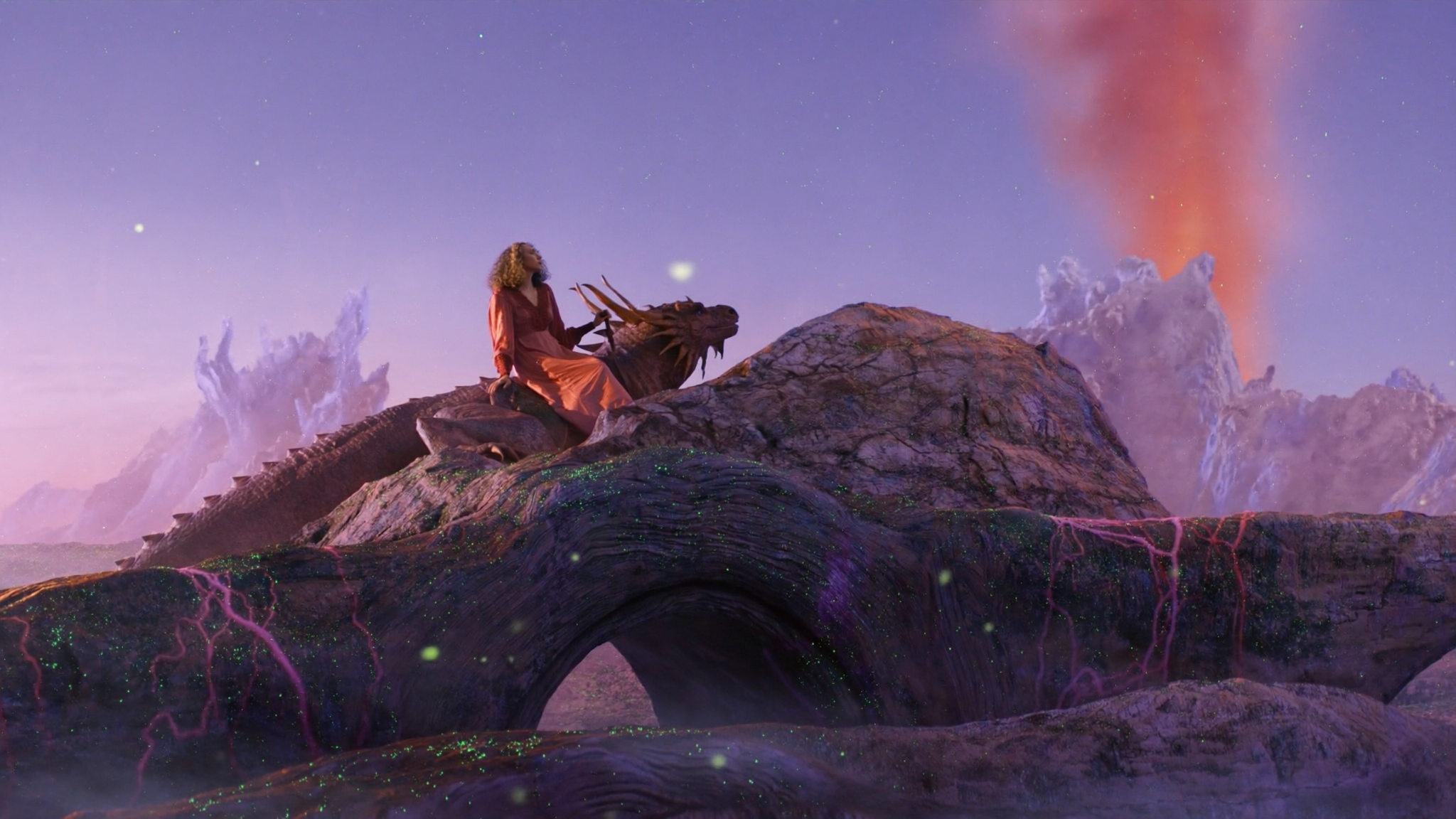
AI 3D Animation Generator Online: Realistic Workflow Guide
Oct 15, 2026
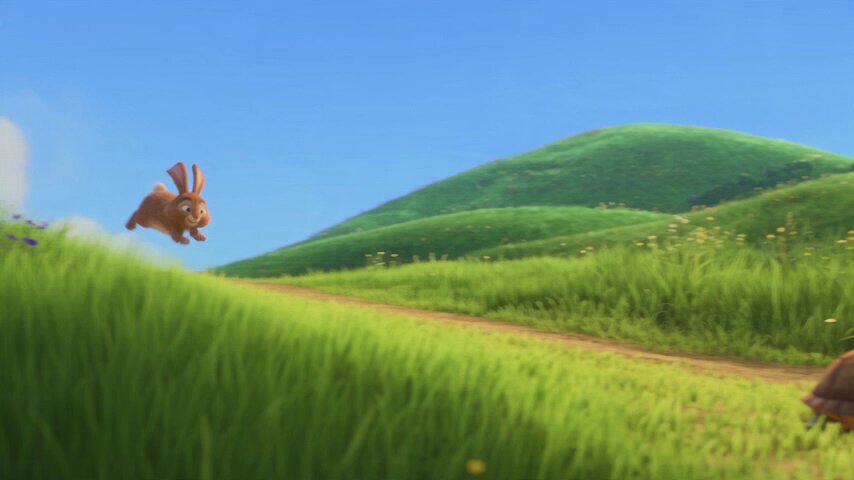
What an AI 3D Animation Generator Online Actually Does
An online AI 3D animation generator is not a single magic button. It is a category of tools that combine text, image, and video models with 3D-aware processing. Some tools create a 3D mesh from a prompt. Some animate an existing character. Some generate a short video clip that looks 3D but is not editable as geometry. Others focus on motion capture, camera paths, or scene relighting. Understanding the category prevents the most common disappointment: expecting one tool to produce a finished, editable, realistic animation from a single sentence.
Realistic results come from a pipeline. You plan a shot, generate or import assets, rig or retarget motion, define camera and lights, render, then clean up. The online generator handles the expensive middle steps. The creator still directs the story, continuity, and final polish. Use cases include product explainers, social ads, game cinematics, virtual production previs, architectural walkthroughs, educational simulations, and short films. If you treat the generator as a collaborator rather than an autopilot, quality rises quickly.
The main value is speed. Tasks that once required modeling, texturing, rigging, animating, and rendering can be compressed into a few passes. The main risk is sameness. If you accept default camera moves, default lighting, and default motion, every output looks familiar. The solution is to use the generator for exploration, then apply deliberate art direction. Start with a clear visual reference, a shot list, and a definition of realistic that matches your budget and timeline. Photoreal characters, stylized game characters, and semi-real product animations all need different settings.
The Core Pipeline: From Prompt to Finished Shot
Previsualization and shot planning
Before generating anything, write a one-page shot plan. Include the subject, action, environment, camera move, lens feel, lighting mood, and duration. For a realistic 3D animation, specify whether the shot is a close-up, medium, or wide. Note what the viewer must understand by the end. A simple sequence might be: character enters, picks up an object, turns to camera, delivers a line. That structure guides the generator and prevents random clips that cannot be edited together.
Use storyboard frames or reference images. Even rough sketches help. If you have a location photo, upload it as a style and lighting reference. If you have a character sheet, use it to maintain identity. The goal is not to lock every pixel. The goal is to give the model enough constraints to produce usable coverage.
Asset generation: props, environments, and characters
You can generate assets in three ways. First, text-to-3D creates a rough mesh from a description. This works well for background props, simple furniture, and stylized objects. Second, image-to-3D turns a photo or concept art into geometry. This is stronger for likeness and design fidelity. Third, video-to-3D or multi-view reconstruction builds a scene from several angles. This is useful for real locations and product scans. For realistic human characters, expect to refine the mesh, UVs, and textures in a 3D editor.
Rigging and animation assignment
Automatic rigging has improved, but hands, shoulders, and faces still need review. A generated character may have a clean skeleton but poor weight painting. Test extreme poses before committing to a sequence. If the tool includes motion presets, use them as blocking. Then adjust timing, foot contacts, and weight shifts. For dialogue, generate facial animation separately or use a performance-driven tool. The safest workflow is to block body motion, approve it, then add face and lip sync.
Camera, lighting, and rendering
AI video models can invent camera movement, but 3D scenes give you repeatable control. Set the focal length, camera height, and movement path. Use a 35mm lens for natural drama, a 50mm for neutral realism, and an 85mm for compressed close-ups. Lighting should match the story. Soft window light feels intimate. Hard sunset light feels cinematic. Overcast light feels documentary. Render at the lowest settings that still show motion and composition, then increase samples for final output.
Compositing and delivery
Rendering is not the finish line. Add motion blur, depth of field, grain, and color grading in post. Stabilize any AI-generated flicker. Check edges, shadows, and reflections. For delivery, export a master file and platform-specific cuts. Vertical social edits often need reframing, captions, and a stronger opening. A realistic animation that is technically clean but badly framed will still feel amateur.
Choosing the Right Generation Approach for Your Scene
Text-to-3D versus image-to-3D versus video-to-3D
Text-to-3D is best for speed and ideation. It struggles with specific likenesses and complex mechanical details. Image-to-3D is best when you already have a design, a product photo, or a concept frame. Video-to-3D is best for real-world locations and objects that must match a physical shoot. For character animation, start with a well-lit reference image and a neutral pose. For environments, use a wide reference and generate several variations.
When to generate video directly
If the final output is a short clip and editability is not required, direct AI video generation can be faster. You can prompt for a realistic 3D look with camera movement, depth, and lighting. This works for mood pieces, transitions, and social ads. However, you lose precise control over character identity, object permanence, and camera repeatability. If the client asks for a revision to the camera or a different hand position, you may need to regenerate the shot rather than adjust a parameter.
When to build real 3D assets
Choose real 3D when you need consistency across multiple shots, accurate product geometry, or interactive delivery. Real assets also make it easier to change lighting, reuse characters, and render at different resolutions. A hybrid approach is often best: use AI to generate concepts, textures, and motion, then assemble and render in a traditional 3D tool. This gives you the speed of generative models and the control of a production pipeline.
| Need | Best approach | Why |
|---|---|---|
| Fast concept exploration | Text-to-3D or AI video | Low setup, many variations |
| Specific product or face | Image-to-3D plus cleanup | Preserves identity and design |
| Multi-shot story | Real 3D assets | Consistent geometry and lighting |
| Social clip with no revisions | Direct AI video | Fastest path to a finished file |
Prompting for Realistic 3D Animation
Subject, action, environment, camera, lighting, style
A strong prompt has six parts. Subject: who or what is in frame. Action: what happens. Environment: where it happens. Camera: lens, angle, and movement. Lighting: direction, quality, and color. Style: realistic, cinematic, documentary, or product commercial. Write in plain language first, then add technical details. For example: a ceramic robot walks through a rain-soaked alley, medium shot, 35mm lens, slow tracking camera, cool streetlights with warm shop window reflections, photorealistic, shallow depth of field.
Negative prompts and continuity tokens
Negative prompts help remove common defects. Use them to avoid extra limbs, floating objects, warped faces, text artifacts, and plastic skin. Continuity tokens help maintain identity across shots. Give each character a short descriptor: silver jacket, short black hair, round glasses. Repeat that descriptor in every prompt. If the tool supports seed locking, lock the seed for the same character or location. If it supports reference images, use the same reference across the sequence.
Common prompt mistakes
Too many unrelated actions confuse the model. Asking for a character to run, jump, cry, and turn in four seconds produces mush. Too many style words dilute the result. Photorealistic, anime, claymation, and watercolor cannot all be true. Vague camera language such as cinematic shot is less useful than low-angle tracking shot at knee height. Finally, do not ignore aspect ratio. A prompt designed for a wide vista will fail in a vertical crop unless you plan the composition.
Tools and Workflow Combinations
Generative 3D asset tools
Use text-to-3D tools for background props and rough blockouts. Use image-to-3D tools for hero objects and characters that need a specific look. Popular choices in this space include Meshy, Tripo, Rodin, and Hunyuan3D. They differ in topology quality, texture resolution, and export formats. Test each one with the same reference image. Check whether the mesh has clean quad flow, whether the texture seams are visible, and whether the scale is correct. A beautiful preview can hide a messy mesh that fails when rigged.
AI animation and motion tools
Motion generation tools can create walk cycles, gestures, and action sequences from text or video. Cascadeur is useful for physics-aware posing and cleanup. Mixamo remains a fast source for humanoid motion, though the style is generic. AI video models such as Runway, Pika, Kling, Luma, and Sora can generate motion clips that look realistic but may need frame interpolation or stabilization. For character performance, combine a motion preset with manual timing adjustments. The best results come from layering: base motion, then secondary motion, then facial detail.
Scene assembly and rendering engines
Blender is the most accessible free option for scene assembly, rigging, lighting, and rendering. Unreal Engine is stronger for real-time cinematics and virtual production. Cinema 4D and Maya remain common in professional pipelines. If you generated assets in an online tool, export them as FBX, OBJ, or GLB. Rebuild materials in the target engine when possible. AI-generated textures often lack proper roughness, metallic, and normal maps. A simple physically based material setup will look more realistic than a high-resolution diffuse map alone.
Upscaling, denoising, and consistency passes
AI outputs often have noise, compression, or flicker. Use upscaling tools carefully. A 2x upscale can recover detail, but aggressive sharpening creates halos. Denoising should be applied before color grading, not after. For consistency, create a look-up table or color grade and apply it to every shot. If a character changes appearance between shots, use a reference image, a fixed seed, or a compositing fix. In severe cases, replace the face or texture in 3D rather than fighting the generator.
Achieving Realistic Motion and Character Performance
Body mechanics
Realistic motion follows weight, balance, and anticipation. A character should shift weight before stepping. A heavy object should require a visible effort. A run should have contact, down, passing, and up poses. AI motion often skips these details. You can fix them by editing keyframes or using a physics tool. Watch the hips. If the hips do not move, the character looks like a floating puppet. Watch the feet. If they slide, add foot locks or adjust the root motion.
Facial animation
Faces sell realism. A perfectly animated body with a frozen face feels uncanny. Generate facial animation separately using blendshapes, audio-driven tools, or performance capture. Keep expressions small at first. A slight eyebrow raise and a controlled blink often read better than a wide smile. Check lip sync on plosives and vowels. If the tool produces generic mouth movement, refine the jaw and lips in a 3D editor. For close-ups, render at a higher resolution and add subtle skin shader detail.
Secondary motion and cloth
Secondary motion includes hair, clothing, cables, and tails. It adds life but can also create chaos. Use cloth simulation for hero shots and simple keyframed motion for background characters. If the AI-generated cloth intersects the body, reduce simulation stiffness or add collision margins. For hair, use guide curves and a few dynamic strands rather than simulating every strand. The goal is believable motion, not physical accuracy.
Contact shadows and grounding
Nothing breaks realism faster than a character who appears to float. Add contact shadows under feet, hands, and props. In 3D, use a shadow catcher or a soft area light. In AI video, composite a subtle dark ellipse under the character. Match the shadow direction to the main light. If the character walks across a reflective floor, add a blurred reflection. Grounding is a small detail with a huge perceptual payoff.
Lighting, Materials, and Cinematic Rendering
Physically based materials
Realistic 3D animation depends on materials that respond to light. Use physically based rendering values. Skin needs subsurface scattering and a roughness map. Metal needs metallic and roughness maps. Glass needs transmission and index of refraction. Plastic needs a clear coat. AI-generated textures may look good in a preview but fail under a moving light. Always test materials with a turntable or a simple camera move before rendering a full sequence.
HDRI and three-point lighting
An HDRI environment provides realistic reflections and ambient light. Add a key light for shape, a fill light for shadow detail, and a rim light for separation. For natural scenes, use the sun and sky as the key, then add bounce cards. For interior scenes, use practical lights such as lamps and screens. Keep light color consistent. Mixing warm and cool sources can look cinematic, but random color temperatures look amateur. Use a color checker or a reference frame to balance the scene.
Depth of field, motion blur, and lens simulation
Real cameras have imperfections. Add a subtle depth of field to guide the eye. Use motion blur on fast actions. Add a small amount of lens distortion for wide shots. Avoid overdoing it. Too much blur hides detail and makes the animation feel soft. Match the shutter angle to the frame rate. A 180-degree shutter at 24 frames per second is a safe starting point. If the shot is for social media, a sharper look may perform better on small screens.
Color management
Work in a linear color space and output to the correct display transform. If colors shift after rendering, check the input and output color spaces. Use a consistent grade across shots. For realistic animation, avoid heavy teal and orange presets unless they serve the story. Natural skin tones, neutral whites, and controlled contrast usually feel more believable.
Quality Control: Reviewing AI Animation Shots
Review every shot at full speed, then frame by frame. Look for flicker, melting geometry, texture swim, foot sliding, hand errors, identity drift, camera jitter, and shadow mismatch. Create a checklist and score each shot from one to five. A shot that fails on identity or geometry should be regenerated or fixed. A shot that fails on color or grain can be fixed in post.
Common defects and fixes:
- Flicker: use temporal denoising, deflicker filters, or regenerate with a locked seed.
- Melting geometry: reduce motion complexity, increase reference images, or rebuild the asset in 3D.
- Texture swim: use UV projection, planar mapping, or a stable texture bake.
- Foot sliding: adjust root motion, add foot locks, or retime the walk cycle.
- Bad hands: hide hands behind objects, use a hand model, or generate a close-up separately.
- Identity drift: repeat character descriptors and use the same reference image across shots.
- Camera jitter: stabilize in post or use a 3D camera path.
Do not review only on a small screen. Check on a monitor at 100 percent zoom. Watch the shot in context with the previous and next shots. Continuity errors often appear only in sequence. If a character picks up an object, verify that the object is in the correct hand in the next shot. If the light direction changes, decide whether the change is motivated.
Production Workflow Example: 30-Second Sci-Fi Test Shot
Start with a simple concept: a lone astronaut walks through a derelict corridor and stops at a glowing console. The goal is a 30-second test shot with realistic lighting and camera movement.
Step 1: Write a shot plan. Shot A is a wide tracking shot behind the astronaut. Shot B is a medium shot as the astronaut stops. Shot C is a close-up of the console and hand. Total duration is 30 seconds.
Step 2: Generate the environment. Use image-to-3D from a concept frame of the corridor. Export the mesh and clean the topology. Add modular panels for detail. Keep the scale consistent: doorways around 2.2 meters, corridor width around 3 meters.
Step 3: Generate the astronaut. Use a text-to-3D or image-to-3D tool for a suited character. Rig the character with a humanoid skeleton. Retarget a slow walk cycle. Adjust the helmet and backpack so they do not intersect the body.
Step 4: Light the scene. Use a cold blue key from ceiling strips and a warm orange practical from the console. Add volumetric fog with a low density. Place a rim light behind the astronaut to separate them from the background.
Step 5: Animate the camera. Use a 35mm lens for the wide shot and a 50mm lens for the medium. Move the camera slowly. Keep the horizon level. Add a slight handheld shake for realism, but avoid motion sickness.
Step 6: Render a preview. Use low samples and a reduced resolution. Check composition, motion, and lighting. Fix any foot sliding or shadow errors. Then render the final frames with motion blur and depth of field.
Step 7: Composite. Add lens flares only where practical lights appear. Add grain, a subtle vignette, and a final color grade. Export a master and a vertical crop with the astronaut centered.
This workflow scales. For a longer film, reuse the environment, character, and lighting setup. For a product ad, replace the astronaut with the product and use a turntable camera. The principle is the same: plan, generate, assemble, refine, and review.
Common Mistakes and How to Avoid Them
One mistake is treating the AI generator as a final renderer. Most tools produce excellent raw material, but they rarely deliver a polished, editable shot without cleanup. Budget time for refinement. Another mistake is ignoring scale. A generated chair that is two meters tall will break the illusion in a room. Set a real-world unit system and check proportions.
A third mistake is overloading the prompt. Complex sentences with multiple actions and styles reduce control. Write short prompts for each shot. Use a separate prompt for the character, the environment, and the camera if the tool supports it. A fourth mistake is skipping sound design. Realistic animation feels flat without ambience, footsteps, and room tone. Add sound early, even as a scratch track.
A fifth mistake is using the wrong aspect ratio. Plan for the final platform. A 16:9 shot that is cropped to 9:16 may lose the subject. Compose with safe areas. A sixth mistake is ignoring color consistency. Use the same grade and color space across all shots. If one shot looks warmer than the rest, fix it before delivery. Finally, do not skip the review pass. Watch the entire sequence without stopping. Note anything that pulls you out of the story. Fix those issues first.
FAQ: AI 3D Animation Generator Online
Can an online AI 3D animation generator create truly photorealistic humans?
It can create realistic humans, but the result usually needs cleanup. Faces, hands, and hair are the hardest parts. Use high-quality reference images, generate at a high resolution, and refine the face in a 3D editor. For close-ups, consider performance capture or a dedicated facial animation tool.
Do I need 3D modeling experience?
Basic 3D literacy helps. You do not need to sculpt from scratch, but you should understand scale, topology, UVs, rigging, and lighting. These concepts help you diagnose problems and choose the right tool. If you are new, start with a simple prop or environment before attempting a full character sequence.
How long does a realistic AI animation shot take?
A simple shot can take a few hours from prompt to final render. A complex character shot with dialogue and cleanup can take several days. The biggest variables are revision count, motion quality, and rendering time. Plan for at least one full review and fix cycle.
What is the best file format for exporting generated assets?
FBX and GLB are common for characters and props. OBJ is useful for static meshes. For textures, use PNG or EXR. If you plan to render in Blender or Unreal Engine, test the import before building the full scene.
How do I keep a character consistent across multiple shots?
Use a reference image, a locked seed, and repeated character descriptors. Keep the same lighting setup and camera lens where possible. If the tool supports character training or embedding, use it. Otherwise, be prepared to fix identity in post or replace the face with a 3D model.
Is AI animation ready for client work?
Yes, for many commercial formats. Social ads, explainers, previsualization, and stylized cinematics are strong use cases. Photoreal human drama with complex dialogue is still challenging. Be transparent with clients about the workflow and the revision process. Set expectations around identity, motion, and render quality.
What should I learn first?
Learn shot planning, lighting, and editing. These skills improve AI output more than learning every new tool. Then learn basic 3D assembly in Blender or Unreal Engine. Finally, learn motion editing and facial animation. A strong generalist workflow will outperform a collection of disconnected generators.
The most realistic AI 3D animation comes from a deliberate process: clear references, constrained prompts, layered motion, controlled lighting, and a strict review pass. The generator is a powerful accelerant, but the director still creates the meaning. Start small, test each stage, and build a reusable asset library. Over time, your online AI animation workflow will become faster, more predictable, and more cinematic.

Alexander
More Blogs
Read MoreVidu Q4 Alternatives: 4K AI Video Models Compared (2026)
Vidu Q4 alternatives compared: Kling 4.0, Seedance 2.5, Wan 3.0, and Runway Gen-4 — 4K support, input modes, durations, audio, and what each costs in credits on Domer.
Top 4K AI Image Generators in 2026: 5 Models Compared on Real Costs
The top 4K AI image generators on Domer compared: Flux 3 Klein, Nano Banana 2.1, GPT Image 2.5, GPT Image 2, and Nano Banana Pro — 4K credit costs, reference limits, and speed.
Nano Banana 2.1 vs GPT Image 2.5: Which Image Model Should You Use? (2026)
Nano Banana 2.1 vs GPT Image 2.5 Flare compared: credit costs per resolution, aspect ratios, reference images, text rendering, and which tasks fit each model.