
Criar
AI 3D Animation Generator Workflow: From Prompt to Polished Scene
Oct 15, 2026
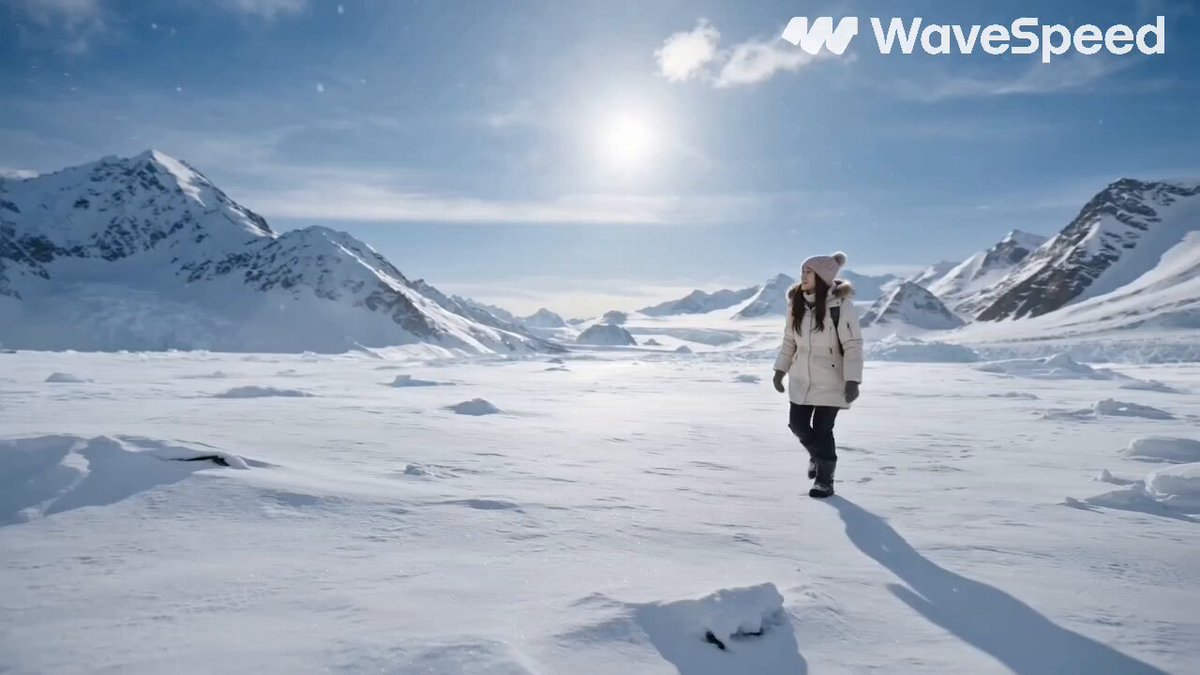
AI 3D animation generators are no longer novelty tools for quick visual experiments. They are becoming core parts of commercial pipelines for product videos, animated shorts, game cinematics, virtual sets, and social-first motion design. The appeal is simple: describe a scene, supply a few references, and receive animated footage with depth, camera movement, and lighting that once required a full 3D team. The reality is more nuanced. A generator does not replace animation direction; it compresses the distance between an idea and a reviewable shot. The creators who get the best results treat the tool as a collaborator inside a structured workflow.
Why AI 3D Animation Generators Change the Production Pipeline
Traditional 3D animation is a chain of dependent tasks: modeling, rigging, texturing, layout, animation, lighting, simulation, rendering, and compositing. Each stage demands specialist knowledge, and revisions can cascade across the entire chain. AI-assisted 3D animation changes the economics by generating plausible geometry, motion, and lighting from prompts or reference images. That does not eliminate craft, but it changes where craft is applied. Instead of manually keyframing every transition, an artist can direct the model, evaluate outputs, and refine only the shots that matter.
The biggest gains appear in previsualization, pitch videos, social content, explainer sequences, and iterative concept design. A team can test five visual directions in the time it once took to build one rough scene. The risk is inconsistent quality. Generative systems can produce beautiful frames that fall apart in motion, or maintain motion but drift in character identity. A production-ready workflow therefore balances three goals: visual quality, temporal stability, and controllability. The rest of this guide focuses on how to achieve those goals with repeatable steps rather than one-off lucky prompts.
Core Building Blocks of an AI 3D Animation Generator
An AI 3D animation generator combines several model families. Some interpret text, some reconstruct depth and geometry, some predict motion, and others refine frames for consistency. Understanding these layers helps you diagnose failures and choose the right tool for each shot.
Text-to-3D, Image-to-3D, and Video-to-3D
Text-to-3D is the fastest way to explore a concept. You describe an object, environment, or character, and the system synthesizes a 3D-like representation or a sequence with parallax. Image-to-3D uses one or more reference images to infer shape, texture, and style. It is usually more controllable because the model has concrete visual anchors. Video-to-3D takes existing footage and adds depth, camera motion, or style transfer. This is useful for turning live-action plates into animated environments or for extending a shot without rebuilding the scene.
Diffusion, Neural Radiance Fields, and Gaussian Splatting
Diffusion models excel at generating detailed images and short video clips from noise. They are strong for texture, lighting, and stylized motion, but they need help with long-term consistency. Neural radiance fields represent a scene as a continuous volumetric function, which makes novel view synthesis possible. Gaussian splatting offers fast, editable scene representations that can be rendered from new angles. In practice, modern pipelines mix these approaches: a diffusion model creates the look, a 3D representation holds the space, and a motion model drives the performance.
Motion Models and Temporal Consistency
Temporal consistency is the hardest problem. A model can generate a convincing first frame and a convincing last frame while producing a chaotic middle. Motion models address this by predicting optical flow, tracking keypoints, or enforcing frame-to-frame coherence. When evaluating a generator, watch for flicker in textures, warping around edges, identity drift on faces, and objects that change shape between cuts. These artifacts are not just aesthetic issues; they break the illusion of a stable 3D world.
A Practical End-to-End Workflow
A reliable 3D animation workflow turns a vague idea into a controlled sequence of decisions. The exact tools may change, but the stages remain similar.
Step 1: Define the Shot and Visual Language
Before opening a generator, write a one-sentence shot description and a visual reference list. Include camera angle, lens feel, motion, lighting mood, color palette, and the emotional beat. For example: 'Low-angle tracking shot through a rain-slicked alley, neon signs reflecting on wet pavement, slow push-in on a courier opening a metal case, cinematic teal and amber palette.' This level of specificity gives the model fewer opportunities to invent the wrong thing.
Step 2: Build a Prompt and Reference Stack
Combine a concise prompt with 2-5 reference images. Use references for character design, environment style, and lighting. Avoid references that conflict in perspective or color temperature. If the tool supports depth maps, normal maps, or pose guides, prepare them early. The prompt should describe subject, action, setting, camera, lighting, and style in that order. Keep it readable. Long keyword lists often dilute the important signals.
Step 3: Generate, Select, and Iterate
Generate a batch of variations rather than one perfect clip. Evaluate them on four axes: composition, motion quality, identity consistency, and artifact level. Keep the best candidate as a base and change one variable at a time. If the camera is wrong, adjust camera language. If the face drifts, add a closer reference or use a character-lock feature. If the motion is stiff, increase motion strength or provide a motion reference.
Step 4: Control Camera, Lighting, and Motion
Camera control separates a flat generated clip from a cinematic shot. Use terms such as dolly in, crane up, orbit, handheld follow, or static wide. If the tool exposes camera paths, keyframe the path and keep the subject centered with a tracking constraint. Lighting can be directed through time-of-day language, practical sources, and contrast ratios. Motion should be motivated: a character turns because they hear something, a camera moves because the scene reveals new information.
Step 5: Refine Characters and Continuity
Once a shot works, lock the character identity before generating related shots. Save the seed, reference set, and prompt structure. Generate coverage from different angles and check hair, clothing, accessories, and facial proportions. Continuity failures often come from small changes in reference framing. Use the same character sheet and the same lighting setup whenever possible.
Step 6: Upscale, Render, and Composite
Generated clips often need upscaling, stabilization, and color correction. Bring the sequence into an editor or compositor. Add motion blur, grain, lens flares, or atmospheric effects to unify the look. If the shot includes live-action elements, match blacks, whites, and color temperature. Render at the delivery resolution and check the sequence on both a large screen and a phone. Social-first content can hide artifacts on a phone, but a large screen reveals them immediately.
Prompting for 3D Animation: What Actually Works
Prompting for 3D animation is closer to writing a shot brief than writing a search query. The model needs a clear subject, a spatial context, a camera intention, and a style constraint.
Structure of a Strong 3D Animation Prompt
Use a layered structure: subject, action, environment, camera, lighting, style, and quality notes. For example: 'A weathered explorer in a fur-lined coat walks through a frozen canyon, handheld camera follows from behind, low winter sun creates long shadows, volumetric mist, cinematic realism, sharp details, natural motion.' This gives the model enough constraints without overwhelming it.
Negative Prompts and Common Failure Patterns
Negative prompts help suppress common defects: extra limbs, duplicate faces, warped hands, floating objects, text artifacts, flickering textures, and sudden camera jumps. Not every tool supports negative prompts, but when it does, keep the list focused. A long negative list can remove useful details. If the model consistently struggles with a specific object, simplify the scene or provide a reference instead of fighting the prompt.
Using Image References for Style and Geometry
References are most effective when they serve distinct roles. One image can define character appearance, another can define environment mood, and a third can define color grading. Do not use three references that all try to control the same thing. If the tool supports segmentation, mask the character and environment separately. This gives the generator a cleaner spatial map.
Achieving Character Consistency Across Shots
Character consistency is the difference between a demo reel and a usable narrative. The first step is to create a character bible: front, side, and three-quarter views, plus close-ups of key features. Use consistent lighting and neutral expressions for the reference set. Then lock the seed or identity embedding if the tool provides one. When generating a new shot, keep the character description identical and change only the action, camera, and environment.
If identity drifts, reduce the amount of motion in the prompt and generate shorter clips. Long clips accumulate small errors. You can also split the performance into beats and stitch them in post. For dialogue scenes, generate the body performance and facial performance separately when possible. This makes it easier to fix a bad mouth shape without losing the entire take.
Another technique is to render a clean plate of the character in the target pose and use it as an image-to-video anchor. The model then animates from a known-correct frame rather than inventing the character from scratch. This approach costs more preparation time but dramatically improves continuity across a sequence.
Camera, Lighting, and Scene Design in AI 3D
Camera language is one of the most powerful controls in AI 3D animation. A static shot can feel like a diorama, while a motivated camera move creates immersion. Use wide shots to establish geography, medium shots for action, and close-ups for emotion. Match the camera move to the story beat: a slow push-in builds tension, a fast whip pan adds energy, and a lateral tracking shot reveals scale.
Lighting defines depth. Without shadows and contrast, 3D scenes look flat. Name the light source and direction: 'warm key light from the left, cool rim light from behind, soft fill from a window.' Use atmospheric elements such as fog, dust, rain, or haze to separate foreground, midground, and background. These cues help the generator infer distance and volume.
Scene design should support the action. Avoid cluttered backgrounds unless the clutter is meaningful. A clean composition with strong silhouettes reads better in motion. If the generator adds unwanted objects, simplify the environment and use negative prompts. If the scene feels empty, add set dressing through reference images rather than a longer prompt.
Tooling Choices and Decision Criteria
There is no single best AI 3D animation generator. The right choice depends on the shot, the deadline, and the level of control required.
When to Use a General Video Model
General video models are strong for atmospheric shots, abstract motion, stylized sequences, and quick concept exploration. They often produce beautiful lighting and camera movement with minimal setup. Use them when the shot does not require precise character identity or exact spatial continuity. They are also useful for B-roll, transitions, and mood pieces.
When to Use a 3D-Aware Generator
A 3D-aware generator is better when you need camera control, consistent geometry, and repeatable viewpoints. These tools may accept depth maps, point clouds, or camera paths. They are ideal for product visualization, architectural walkthroughs, and sequences where the audience must understand spatial relationships. Expect a steeper setup and more preparation, but also more control.
Hybrid Pipelines with Traditional 3D Tools
Many professional teams combine generative tools with traditional 3D software. Use a traditional tool for layout, blocking, and camera animation. Generate textures, backgrounds, or stylized elements with AI. Composite the results in post. This hybrid approach keeps the strengths of both worlds: precise spatial control from 3D software and fast visual richness from generative models.
Common Mistakes and Troubleshooting
The most common mistake is prompting for a final image instead of a shot. Animation needs motion, temporal logic, and continuity. Another mistake is changing too many variables at once. If you adjust the camera, lighting, character, and style in one iteration, you will not know what caused the improvement or failure.
Flicker usually comes from weak temporal consistency. Try shorter clips, lower motion intensity, or a stronger reference frame. Warping often appears around hands, faces, and thin objects. Simplify the action or use a close-up reference. Identity drift can be reduced with character locks, seeds, and consistent reference images. If the camera jumps unexpectedly, specify a single camera move and remove conflicting terms.
Finally, do not ignore audio and pacing. A generated clip may look impressive in isolation but fail in an edit. Cut to the beat, leave room for sound design, and test the sequence with temporary music. If the motion does not match the rhythm, regenerate the shot rather than forcing it.
Quality Control Checklist Before Delivery
Before exporting, review the sequence at full speed and frame by frame. Check for stable geometry, consistent character features, clean edges, natural motion, and coherent lighting. Look for flickering textures, sudden shape changes, and floating objects. Verify that the camera move motivates the cut and that the color palette matches the surrounding shots.
Check technical details: resolution, frame rate, aspect ratio, and audio sync. Watch the final render on multiple devices. Mobile screens hide fine artifacts, while large displays expose them. If the sequence includes text or logos, confirm they remain sharp and readable. When in doubt, simplify. A clean, confident shot is more convincing than a complex shot full of small errors.
FAQ and Final Considerations
How long should an AI-generated 3D animation clip be?
Start with 3-5 second clips. Shorter clips are easier to control and less likely to accumulate temporal errors. Stitch multiple clips in post to create longer sequences.
Can AI 3D animation replace traditional 3D artists?
No. It changes the workflow. Artists become directors, editors, and quality-control specialists. They still make the creative decisions that separate a generic output from a professional result.
What is the best way to learn prompt control?
Build a personal prompt library. Save prompts that worked, note the camera, lighting, and motion terms, and reuse the structure. Compare outputs from small changes to understand how each term affects the result.
How do I keep characters consistent across scenes?
Use a character sheet, lock the seed or identity embedding, keep the description stable, and change only action, camera, and environment. Generate coverage in short clips and stitch them together.
Should I use AI for the whole pipeline?
Use AI where it adds speed or visual range. Keep traditional tools for layout, precise animation, and final compositing. A hybrid pipeline usually delivers the most reliable results.
The future of 3D animation will not be a single button that makes a film. It will be a set of intelligent tools that help creators move faster from idea to iteration. The teams that succeed will be those that build repeatable workflows, evaluate outputs critically, and combine generative speed with directorial judgment. Start with one shot, document what works, and expand your system from there.

Alexander
More Blogs
Read MoreVidu Q4 Alternatives: 4K AI Video Models Compared (2026)
Vidu Q4 alternatives compared: Kling 4.0, Seedance 2.5, Wan 3.0, and Runway Gen-4 — 4K support, input modes, durations, audio, and what each costs in credits on Domer.
Top 4K AI Image Generators in 2026: 5 Models Compared on Real Costs
The top 4K AI image generators on Domer compared: Flux 3 Klein, Nano Banana 2.1, GPT Image 2.5, GPT Image 2, and Nano Banana Pro — 4K credit costs, reference limits, and speed.
Nano Banana 2.1 vs GPT Image 2.5: Which Image Model Should You Use? (2026)
Nano Banana 2.1 vs GPT Image 2.5 Flare compared: credit costs per resolution, aspect ratios, reference images, text rendering, and which tasks fit each model.