


Why Instagram Video Still Rewards Mobile-First Creators
Instagram is no longer a single-format platform. Reels, Stories, carousels with motion, and longer uploads all compete inside the same feed, and each one has its own rhythm. What has not changed is the underlying physics: vertical framing, sound-on playback, and a hook that lands in the first second. The creators who publish consistently are usually the ones editing on the device already in their pocket.
That is the real shift. A few years ago, phone editing meant visible compromise — soft exports, watermarked templates, timelines that fought your thumb. Today, phone-native editors pair a capable camera with AI that handles the tedious work: cutting silence, transcribing speech, tracking a subject, matching colour between shots, and generating B-roll that was never filmed. The gap between a phone edit and a desktop edit has narrowed to the point where most viewers cannot tell the difference on a six-inch screen.
The practical consequence is simple. You no longer need a studio day to publish something that looks deliberate. You need a workflow you can repeat when you are tired, travelling, or shooting in a stairwell with bad light. This guide walks through that workflow, the AI features genuinely worth using, the ones that waste time, and the settings that quietly decide whether your export looks crisp or mushy.
How Mobile Editors Became AI Production Suites
From trimming tools to generative layers
Early mobile editors were linear trimmers with a few filters bolted on. The current generation stacks layers: generative video models, speech synthesis, automatic reframing, background removal, and motion tracking available as individual modules rather than a single rigid timeline. That modularity matters because it lets you apply AI to one problem at a time instead of handing an entire project to a black box.
A typical modern session might look like this: capture three handheld clips, generate two abstract transition shots from a text prompt, let the editor transcribe and caption the voiceover, then export a vertical master plus a square variant. Each step is optional. Nothing forces you into a template.
What the phone does better than the desktop
Speed of iteration. You can shoot, cut, watch, and reshoot inside ten minutes because the camera and the editor share the same screen. Desktop workflows introduce a transfer step, and transfer steps kill momentum. Mobile also gives you native vertical capture, immediate preview in the exact aspect ratio the audience will see, and quick access to trending audio inside the same app you are editing in.
The trade-off is precision. Keyframe curves, multi-track audio mixing, and colour grading are still more comfortable on a larger display. A sensible split is to do the creative cut and the AI-assisted passes on the phone, then move to desktop only when a project genuinely needs frame-level control.
The AI Features Actually Worth Using
Not every feature labelled AI improves a video. These are the ones that reliably save time on a phone.
Text-to-video and image-to-video for B-roll
Generating five seconds of atmospheric footage — rain on glass, a slow drone push over a coastline, an abstract gradient sweep — is far faster than hunting stock libraries and licensing clips. Image-to-video is usually more controllable than pure text prompts because you supply the composition and the model handles motion. Keep generated clips short, treat them as connective tissue between real shots, and avoid using them for anything the viewer needs to trust, such as a product demonstration.
Character consistency across shots
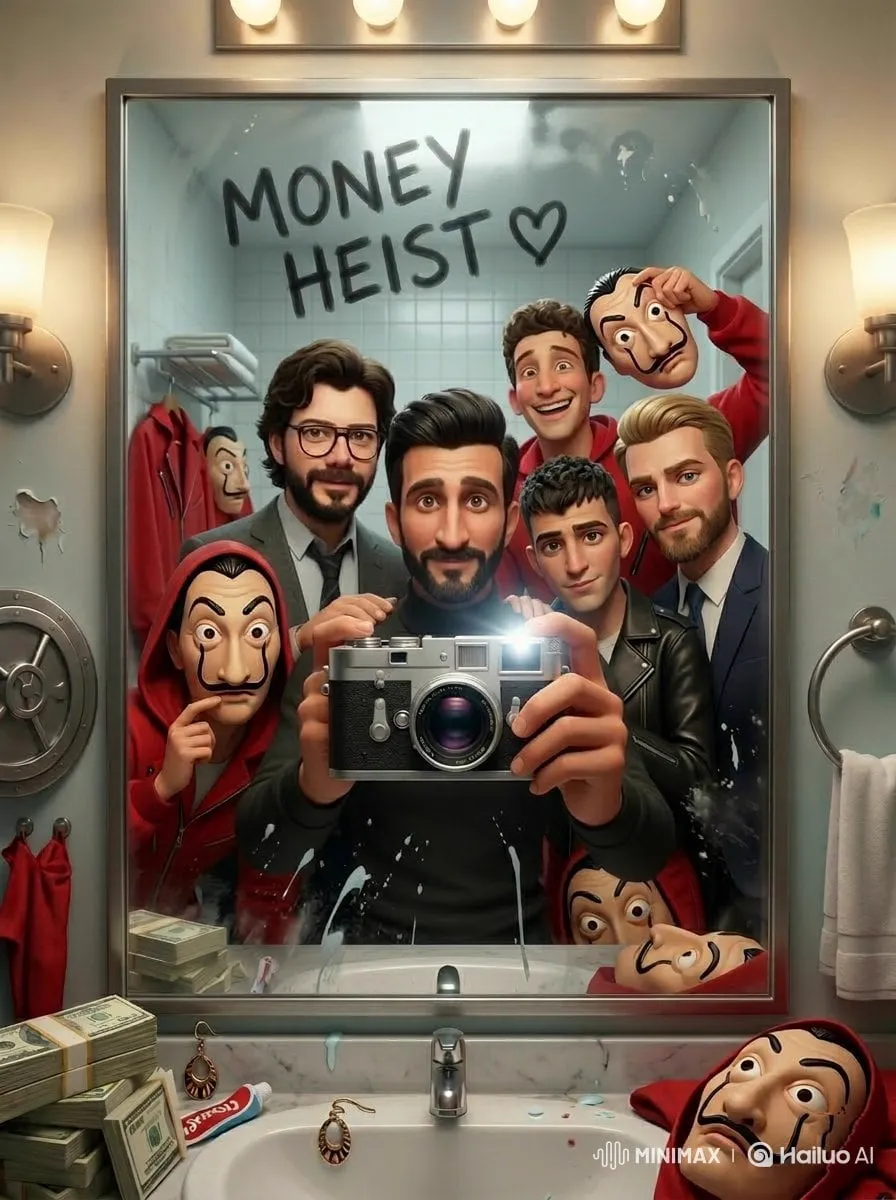
If your content features a recurring presenter or mascot, consistency is what makes it feel like a series rather than random uploads. Some tools let you lock a reference image or a short clip and reuse that identity across new generations. Upload two or three angles of the same person or character, generate additional shots, and the face, wardrobe, and lighting stay recognisable. This is the single biggest quality jump available to solo creators, because it removes the uncanny flicker that makes AI footage feel disposable.
Captions, dubbing, and synthetic voice
Automatic captions remain the highest-return feature in mobile editing. Most viewers watch with sound off at least some of the time, and accurate on-screen text keeps them watching. Modern transcription handles accents, crosstalk, and background music far better than it did even a short while ago, though you should still proofread names and technical terms.
Voice tools are useful in two situations: repairing a ruined audio take, and producing a narration in a language you do not speak fluently. Use your own voice wherever possible. A synthetic voice is a tool, not a personality, and audiences notice quickly when it is doing work a human voice should be doing.
Subject tracking, relighting, and cleanup
Tracking lets you attach text or graphics to a moving subject without manual keyframes. Relighting tools can lift a face out of shadow when you filmed against a window. Object removal erases a stray cable or a passer-by. All three are great for polish and terrible as a substitute for decent capture. Fix the light on set if you possibly can.
A Repeatable Mobile Workflow, Step by Step
Step 1: Lock the concept and write the hook first
Before opening any app, write one sentence that describes the payoff and one sentence that opens the video. The opening sentence should create a small unanswered question. "Three settings that ruin your exports" beats "Today I want to talk about export settings." If you cannot write the hook, you do not yet have a video — you have a topic.
Step 2: Build a shot list of six to ten items
On mobile, fewer shots edited well beat thirty shots rushed. A workable list for a forty-second Reel: hook to camera, one supporting detail shot, one generated atmospheric clip, one screen recording or product close-up, one reaction or result shot, one closing frame with a call to action. Write the list in your notes app with the intended duration in seconds next to each item.
Step 3: Capture the footage that must be real
Anything involving your face, your hands, a physical product, or a location should be shot for real. Shoot vertical from the start rather than cropping later. Lock exposure and focus when your subject is static, and let the phone stabilise instead of adding a digital shake effect afterwards. Record at the highest frame rate you can edit comfortably, but keep the final export at a standard rate to avoid bloated files.
Step 4: Generate only what you cannot shoot
Open your AI video tool and produce the two or three clips on your list that would otherwise require a drone, a studio backdrop, or a second location. Prompt with a clear subject, a camera movement, and a lighting condition. Short prompts with one idea each tend to perform better than long descriptive paragraphs. Generate more variations than you need and keep the best.
Step 5: Edit in two passes, not twenty
First pass: assemble everything in order with rough trims. Do not adjust colour, add effects, or fuss over transitions. Second pass: tighten. Cut every pause longer than a beat, remove any shot that repeats information, and make sure the first three seconds are the strongest footage you have. Only then add captions, music, and colour adjustments.
The two-pass rule exists because endless micro-editing is the main reason mobile projects never ship. Momentum is a production asset.
Step 6: Captions, sound, export
Add captions, position them above the bottom interface area so they are not covered by on-screen controls, and check them on the smallest screen you own. Music should sit under the voice at a level where speech stays intelligible on a phone speaker. Export at 1080p vertical with a high bitrate; 4K is rarely worth the file size for a platform that re-encodes everything anyway.
Choosing Your Tool Stack
Most creators need three tools, not ten: a capture and edit app, a generation tool, and a caption or transcription utility. Use these criteria when comparing options.
| Criterion | What to look for |
|---|---|
| Export quality | Manual bitrate control and no forced watermark |
| Vertical workflow | Native 9:16 project setup, not crop-after-the-fact |
| Caption accuracy | Editable transcript with timing offsets |
| Generation control | Reference image support and clip length options |
| Speed on older phones | Preview playback that does not stutter |
| Ownership | Clear terms for commercial use of generated clips |
Evaluate on your own project, not on a demo reel. Take one thirty-second idea through each candidate and compare how long the whole loop took. Speed of iteration is the deciding factor more often than feature lists.
Format Details That Decide Whether a Reel Performs
Safe zones matter more than most creators admit. Keep critical text away from the top and bottom edges where interface elements sit. Frame your subject slightly higher than centre so the lower third stays free for captions.
Pacing follows audio, not the other way around. Lay the voiceover or music bed first and cut picture to it. If a cut feels slightly early, it usually is — tighten by two frames and the whole piece feels faster without losing clarity.
Loop structure is underrated for short clips. Ending on a frame that resembles the opening makes the video replay almost invisibly, which lifts completion metrics. A simple way to do this is to shoot the closing line against the same background as the hook.
Cover images still get seen in profile grids and search surfaces, so choose a frame with a face, readable text, or a clear object rather than a blurry mid-motion still.
Common Mistakes That Quietly Kill Reach
Over-generating. If every shot is synthetic, the piece feels weightless. Anchor it with at least one real, human element.
Template sameness. Trending templates accelerate a good idea and flatten a weak one. Use them for structure, then change the timing, the text placement, or the sound.
Caption errors. A misspelled brand name in a caption is worse than no caption. Proofread before publishing, especially on automated transcripts.
Wrong aspect ratio. Uploading a horizontal clip into a vertical feed wastes most of the screen and signals low effort.
Front-loading setup instead of payoff. Explanations belong after the viewer is interested, not before.
Ignoring the first frame. The thumbnail is part of the edit, not an afterthought.
Exporting too many times. Each re-encode loses detail. Edit the original file and export once.
Turning One Shoot Into a Week of Content
Batch the work you hate least to repeat. Shoot five hooks in one sitting against the same background with the same lighting, then produce each as a separate piece across the week. Because the setup is identical, AI-assisted transitions and colour matching behave predictably.
A practical split for a five-post week: two talking-head explainers, one screen recording walkthrough, one generated-visual storytelling piece, and one behind-the-scenes clip. The behind-the-scenes post costs almost nothing to make and consistently earns the strongest comment threads, which helps distribution on the next upload.
Reuse ruthlessly. A long tutorial can be cut into three short tips, each with a different hook. The same caption block can be adapted for Stories, saved collections, and a carousel. The goal is not to publish more often — it is to extract more from work you have already done.
FAQ
Can a phone edit really match a desktop edit? For vertical social video, yes, in almost every case a viewer will notice. Desktop still wins for complex audio, long-form projects, and detailed colour work.
Do I need an AI generation tool at all? No. It is useful when you need establishing shots, abstract backgrounds, or visuals that would otherwise require travel or a crew. If your content is mostly talking-head, captions and trimming may be all you need.
How long should a Reel be? As long as the idea justifies and no longer. A tight twenty-second clip that loops beats a rambling sixty-second one, but do not cut information the viewer needs just to hit a number.
Should I use trending audio? Use it when it serves the edit. Forcing a trend onto content that does not fit makes the video feel late rather than current.
How many looks should a project go through? Two editing passes plus one caption check. More passes rarely improve quality and reliably delay publishing.
What is the biggest quality upgrade for a small budget? Audio. A modest clip-on microphone and a quiet room improve perceived production value more than any visual effect.
How do I keep a recurring character consistent? Save a reference image or short clip of the character and reuse it in every generation. Keep wardrobe and lighting notes so each new shot matches the last.
What should I check before hitting publish? Captions spelling, safe-zone placement, first-frame readability, audio balance on a phone speaker, and whether the hook lands in the first second. Five checks, thirty seconds each, and you will catch most of what would have cost you reach.
