
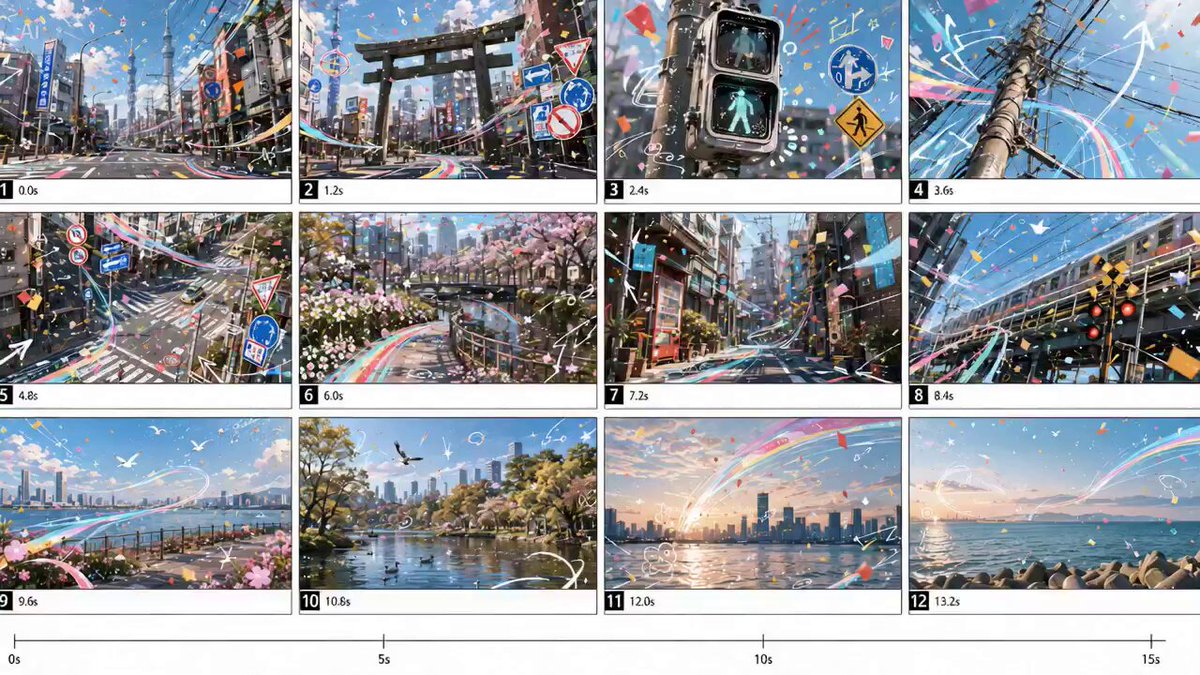

Great transitions rarely announce themselves. A clean dissolve, a whip-pan blur, or a match cut on movement disappears into the story, while a clumsy one — a jarring zoom, a stuttery cross-fade, a flash that lands off beat — pulls the viewer straight out of it. The reason AI-assisted editing matters right now is simple: the skills behind cinematic transitions (optical flow, masking, scene matching) used to require years of practice or an expensive effects package, and many of those steps now ship quietly inside tools you already have.
This is a practical guide to building those transitions with AI features embedded in free and low-cost editors, standalone open models, and small scripts. No plugin packs, no per-effect purchases — just a workflow you can repeat on every project.
Why Transitions Decide Whether an Edit Feels Professional
Transitions do three jobs, and confusing them is the fastest way to make an edit feel amateurish. First, continuity: hiding a jump in time, a change of angle, or a gap in coverage. Second, emphasis: marking a chapter change, a reveal, or a shift in tone. Third, energy: accelerating pace in a montage or slowing it for a reflective beat.
AI assistance helps most with continuity and energy. Continuity problems are mechanical — two shots that do not quite match in motion, framing, or color — and mechanical problems are exactly what motion estimation and scene matching solve well. Energy problems are rhythmic: matching cuts to a beat grid or to a whip-pan's velocity is something a model can measure faster than you can nudge sliders.
Just as important is knowing when not to transition at all. If two shots are continuous in time and space — same scene, same subject, seconds apart — a cut is almost always stronger than a dissolve. Reserve generated or stylized transitions for moments where something genuinely changes: location, era, perspective, or emotional register. A useful discipline is to count your transitions per minute of finished video. Narrative work usually lands at one or two; music-driven edits can justify eight or ten. Anything beyond that should be a deliberate choice rather than decoration.
From Manual Keyframing to AI-Assisted Transition Generation
The classic transition workflow goes like this: duplicate a shot, build a mask, keyframe the mask's shape across dozens of frames, animate position, scale, rotation, and opacity, add directional blur, then retime everything so the motion matches. Every one of those steps now has a faster path, and knowing what each accomplishes makes it much easier to choose the right shortcut.
Motion matching and scene coherence
Motion matching means estimating how pixels move from one frame to the next, then using that estimate to generate new in-between frames or to warp one shot into another. It is the engine behind smooth speed ramps, retimed action, and "seamless" transitions where a subject appears to fly between shots.
Open tools handle this well. Frame-interpolation models such as RIFE and FILM, the Flowframes front end, FFmpeg's minterpolate filter, and smooth-motion engines like SVP can all synthesize intermediate frames locally. Use them for three things: converting 30fps footage to 60fps for slow motion, building speed ramps that do not stutter, and bridging two shots with a short blend that respects motion direction.
Scene coherence is the second half of the problem. A generated bridge frame has to respect the surrounding lighting, white balance, grain, and lens character, or it reads as an obvious effect. Before you interpolate or blend, match the two shots manually: white balance, exposure, contrast curve, and — if the footage is noisy — matched grain on the cleaner shot. Ten seconds of matching saves an hour of fighting a transition that never quite sits right.
Style transfer transitions
Style transfer transitions treat the blend itself as a creative device: for a moment the image becomes something else — a painting, a sketch, a thermal view — before resolving into the next shot. Diffusion-based video-to-video pipelines, built in interfaces such as ComfyUI with AnimateDiff and ControlNet (depth or pose), can stylize a short clip consistently enough to be usable, and EbSynth remains a fast, free way to propagate a hand-painted keyframe across a shot.
Two practical rules keep this from becoming mush. First, keep the stylized segment short — 24 to 72 frames is usually plenty; longer segments drift and flicker. Second, generate at a lower resolution and upscale afterward, because consistency problems hide much better in a soft image than in a sharp one. Temporal consistency is the hardest part of any stylization pipeline, so judge the result at full speed rather than frame by frame; flicker often only appears in motion.
Scene-aware cutting and predictive edits
The least glamorous AI features are often the most useful. Scene detection tools such as PySceneDetect or FFmpeg's scene filter, plus the built-in "detect scene cuts" options in editors like DaVinci Resolve and Premiere, split long recordings into usable shots in seconds. Speech transcription with Whisper, combined with silence detection, finds natural cut points in interviews and tutorials. Beat detection through libraries such as librosa, or through a music tool that exports a beat grid, gives you cut points that land on the rhythm instead of near it.
Subject tracking closes the loop. Magic Mask in Resolve, or segment-anything style models in an open pipeline, let you isolate a person and carry a transition around their silhouette — an occlusion wipe where a subject passes in front of the lens and the next shot appears behind them. Doing this by hand takes an afternoon. Doing it with tracking takes minutes, and the result is far cleaner on hair, hands, and motion-blurred edges.
Choosing Your Tool Stack: Three Practical Tiers
Rather than hunting for one perfect app, think in tiers. Most projects only need the first two.
Tier one: built-in features in your existing editor
DaVinci Resolve's free version includes motion blur effects, optical-flow retiming, Magic Mask, and auto-captioning. CapCut, Clipchamp, VN, InShot, and iMovie all ship presets for smooth zooms, motion blur, and subject-following reframes. Kdenlive and Shotcut cover much of the same ground on an open-source footing. If your needs stop at clean dissolves, match cuts, and speed ramps, you may already be done.
Tier two: standalone open models for heavy lifting
When you need frame interpolation that holds up, scene detection across hours of footage, transcription for cut-point discovery, or segmentation for masks, open tools are the most predictable option. They run locally, they do not meter your usage, and their settings are reproducible — which matters enormously when you are working across a series rather than a single video.
Tier three: hosted generative video for impossible bridges
Sometimes no amount of editing produces the shot you need: a camera move through a wall, a season changing in two seconds, an object morphing into another. Hosted generative video tools can create a two- or three-second bridge, and most offer a limited free allowance. Treat these as hero moments — one or two per project. They work best as connective tissue between shots you already own, not as a replacement for coverage.
Decision criteria, in order: how many transitions the project needs, whether your machine can run local models, how sensitive the footage is, and whether you need the result to be reproducible next month. Privacy and repeatability both push you toward local tools; speed on a deadline pushes you toward built-in features and hosted generation.
A Repeatable Six-Step AI Transition Workflow
- Organize and log. Transcode to proxies, name clips consistently, and run scene detection on long takes. Every later step gets faster when you can find the exact three seconds you need.
- Build the story with cuts only. Cut the whole piece with hard cuts. If it does not work as cuts, transitions will not save it.
- Mark transition moments. Walk the timeline and pick the five or six places that genuinely need one. Write a one-word intent next to each: "time jump," "location," "reveal."
- Match before you generate. Align motion direction, framing, exposure, and white balance between the outgoing and incoming shot. Correct lens distortion if the two lenses differ noticeably.
- Generate, then refine. Apply interpolation, tracking, stylization, or a generative bridge. Then hand-tune: trim two frames off the start, ease the blur, adjust the blend curve so the transition peaks on the beat.
- Sound design and quality control. Add a whoosh, a riser, or a filter sweep that carries across the cut. Watch the transition on a phone at full speed, then freeze on the midpoint frame and check for warping.
Transition Recipes Worth Reusing
- Whip-pan blur match. Use two shots with similar directional movement, apply directional blur to the outgoing tail and incoming head, and cut on the fastest point of motion.
- Speed ramp with frame interpolation. Ramp from 100 percent to 20 percent and back, letting the interpolator fill the slow section. Shoot at a high shutter speed to avoid mushy frames.
- Seamless match cut. Align shapes — a circle, a horizon line, a hand — across two otherwise unrelated shots. Use subject tracking to keep the shape anchored.
- Generative bridge. A two-second generated shot carrying the eye from one location to another. Keep it short and cut on movement at both ends.
- Style-shift dissolve. Stylize about 30 frames of the outgoing shot, dissolve into the incoming shot's normal look, and let the style fade rather than snap.
- Beat-synced flash. A single-frame white, colored, or blurred frame placed exactly on the downbeat. Effective, and easy to overuse.
- Occlusion wipe. A subject or object passes the lens; use a tracked mask to reveal the next shot behind it.
- Depth parallax push. Use a depth estimate to separate foreground and background, then push them at slightly different rates for a 2.5D transition.
Common Mistakes That Break AI Transitions
Mismatched motion direction is the most common failure. If one shot moves left and the other moves right, a blend feels like a collision. Flip one shot horizontally, or choose a transition that does not rely on direction.
Frame-rate mixing is the second. Blending 24fps and 30fps footage directly produces judder that AI interpolation may soften but rarely fixes cleanly. Conform everything to a single timeline frame rate before building transitions, then decide whether to interpolate.
Over-long generative bridges are the third. A generated shot that lasts six seconds gives viewers time to notice morphing faces, unstable text, and drifting backgrounds. Two seconds is usually invisible; five seconds invites scrutiny.
Other frequent problems: inconsistent color temperature between shots, a missing audio bridge that makes the visual cut feel abrupt, transitions stacked on top of one another, and resolution mismatches where a low-resolution element is upscaled into a sharp sequence. Watch the edges too — most artifacts appear in hands, hair, thin structures, and text.
Quality Control: Judging a Transition Before You Export
Check every transition three ways. First, at full speed on a phone screen with sound: that is how most viewers will experience it, and it catches rhythm problems instantly. Second, at 100 percent on a large monitor, paused on the midpoint frame: look for warping, ghosting, duplicated limbs, and mushy edges. Third, muted: if the transition still reads without audio support, the visual work is doing its job and the sound is a bonus rather than a crutch.
Keep a short checklist. Does the transition peak on a beat? Does motion continue in the same direction? Is the midpoint frame clean enough to pause on? Does color and grain match across the seam? If any answer is no, fix it before moving on — transitions are small, but they are also the moments viewers remember noticing.
Performance, Rendering, and Storage Discipline
AI features are heavy. Work with proxies on long projects, cache render-intensive sections, and render transitions in place once they are final so scrubbing stays smooth. Do frame interpolation as the last step in a chain rather than before color grading, because interpolated frames can introduce color shifts that grading then bakes in.
When exporting, use a high-quality intermediate codec such as ProRes or DNxHR if the file will pass through another tool, then encode the deliverable from that. Keep the original clips until the project is delivered; you will occasionally need to regenerate a transition with different settings. Finally, plan storage: interpolation and stylization generate large temporary files, and a full drive in the middle of a render is a problem no AI feature can solve.
Frequently Asked Questions
Can I get cinematic transitions without buying plugins? Yes. Most cinematic looks come from matching motion, framing, and sound rather than from the effect itself. Free editors plus frame interpolation cover the majority of professional transition needs.
Do I need a powerful GPU? For hosted tools, no. For local interpolation, segmentation, or stylization, a mid-range GPU makes a dramatic difference, though CPU-only tools like FFmpeg and Flowframes still work if you are patient.
Is frame interpolation the same as a transition? No — interpolation creates new frames between existing ones. It is a component of transitions (smooth speed ramps, blended bridges), not a transition on its own.
How many transitions should a video have? Start with one every 20 to 30 seconds for narrative content and adjust from there. If a transition is not doing one of the three jobs — continuity, emphasis, energy — cut it.
Can I build these transitions on a phone? Yes. Mobile editors ship motion blur, smooth zoom, and subject tracking, and you can export a segment, process it with a desktop tool, and bring it back into the timeline.
What is the biggest giveaway of an AI transition? Inconsistent motion and unstable detail in the midpoint frames. Faces, hands, and text are where it shows first, so review those areas at full resolution before you lock the edit.
