
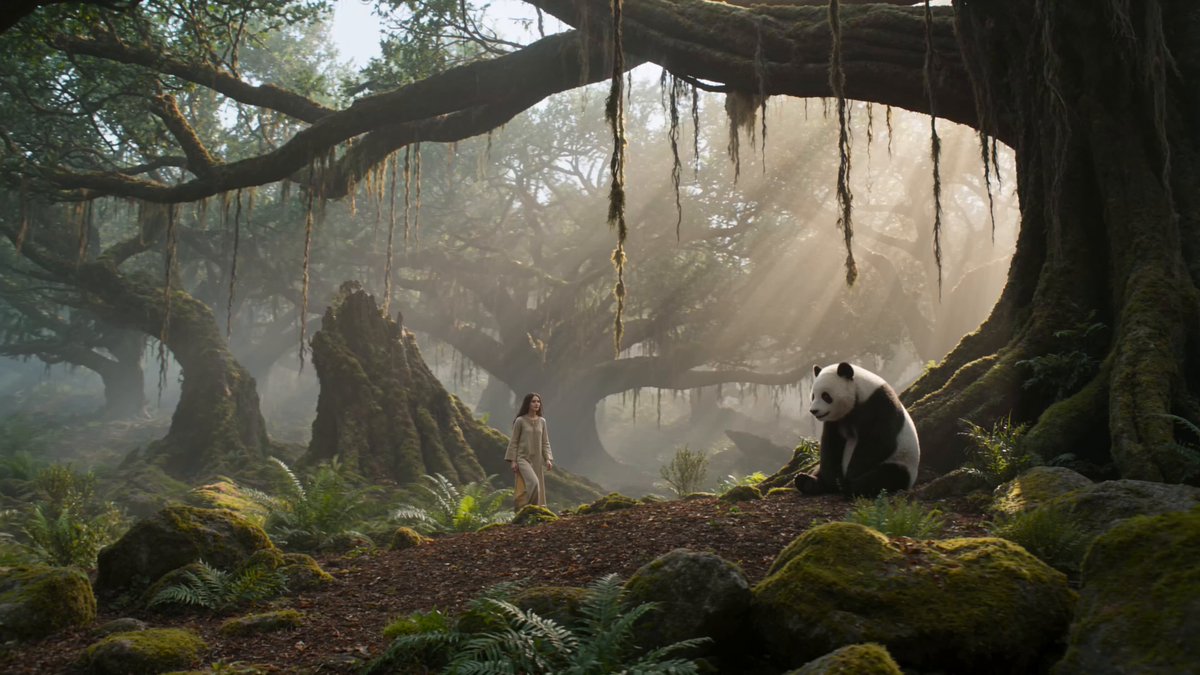
Animation Image AI Generators: Turn Stills Into Motion
Oct 15, 2026
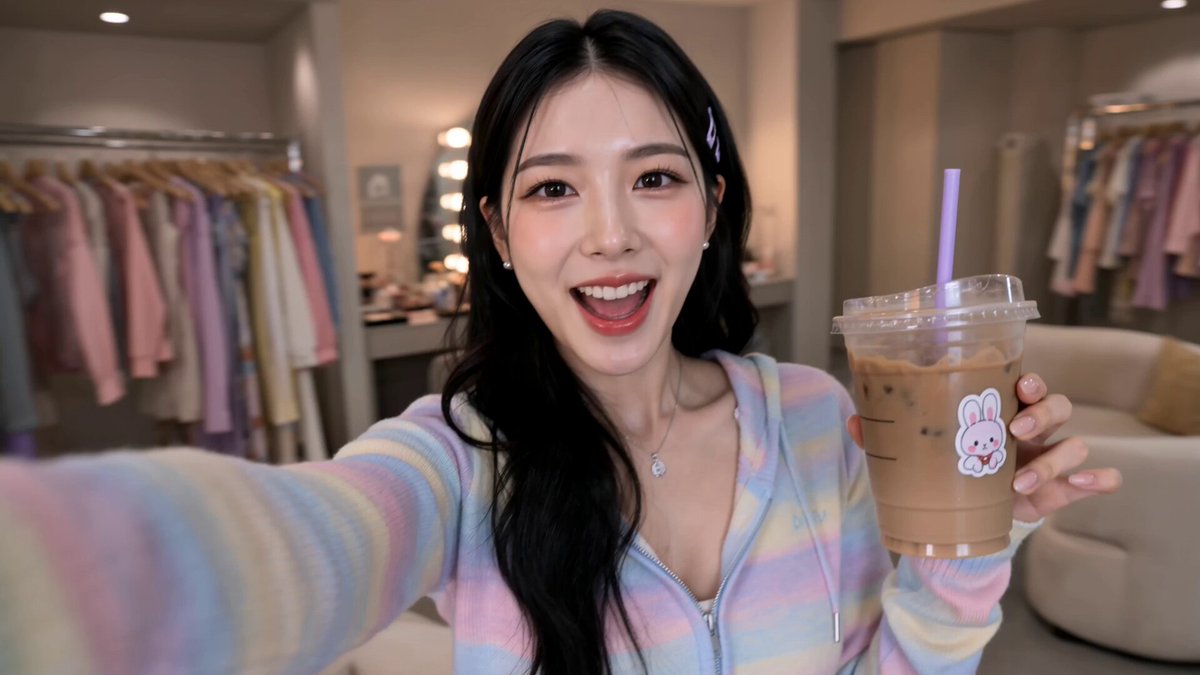
Static images have always been easy to make and hard to make move. Bringing a still to life once meant a rigging pass, a 3D scene, or hours of frame-by-frame work. Animation image AI generators collapse that pipeline into a prompt: you supply a frame, describe the motion you want, and the model returns a short clip that keeps the original composition while adding believable movement, camera drift, and atmosphere. This guide explains how these tools actually work, how to choose between them, and how to run a repeatable workflow that produces clips you would genuinely publish — not just impressive demos.
What an Animation Image AI Generator Actually Does
An animation image generator sits between two familiar categories. Image generators produce a single frozen frame. Video generators build an entire scene from scratch. Animation-focused tools take an existing frame as the anchor and animate it: a portrait whose hair lifts in the wind, a product shot with a slow orbit, a landscape where clouds roll and water ripples, a mascot illustration that blinks and sways.
The practical appeal is control. Because you choose the composition, you keep the framing, color, lighting, and subject that already work. The model only has to answer one question: how would this frozen moment continue to unfold over the next few seconds?
That single question turns out to be enormously useful. Marketing teams animate a hero product photo instead of rebuilding it in 3D. Illustrators add motion to portfolio pieces without learning a compositing suite. Storyboard artists preview camera moves before committing to a shoot. Small teams produce short-form video at a pace that used to require a dedicated motion designer.
The source frame does most of the work
Most disappointing outputs trace back to the input image, not the model. A clean, well-lit, moderately detailed still gives the model room to reason about depth, surfaces, and edges. A busy collage with five overlapping faces, heavy grain, and clipped highlights gives it nowhere coherent to go. Before blaming the tool, look hard at what you fed it.
Motion is inferred from patterns, not invented from nothing
These systems learn statistical patterns of how pixels tend to move: how fabric folds, how smoke curls, how hair resists gravity, how a camera pushes forward. When your subject matches something well represented in training data — people, nature, vehicles, product photography — the motion reads as natural. When it does not, results get strange fast.
Duration and resolution trade-offs
Short clips of two to five seconds hold together best. Push toward ten or fifteen seconds and you start paying for it in drift: faces wander, backgrounds morph, textures crawl. Higher resolutions reduce artifacting but cost more time and compute. The reliable strategy is to generate many short clips and assemble them, rather than asking one long generation to be perfect.
Core Building Blocks: How a Still Becomes Motion
You do not need to read research papers to use these tools well, but understanding the three core mechanisms helps you debug failures instead of guessing.
Diffusion and latent space, briefly
Most current systems generate in a compressed latent representation rather than raw pixels. The model denoises a noisy latent toward something that matches your prompt, then a decoder converts it back to an image or a sequence of frames. Working in latent space is what makes generation fast enough to be practical; it is also why fine textures sometimes shimmer.
Temporal consistency is the hard part
Anyone can generate twenty individually beautiful frames. The challenge is making frame nineteen agree with frame eighteen. Temporal layers, motion priors, and cross-frame attention all exist to solve this. When they fail, you see flicker, warping edges, and objects that quietly change shape between seconds.
Control signals: depth, pose, masks, and camera paths
The best results come from tools that accept more than text. Depth maps keep geometry stable. Pose estimation holds a figure's skeleton in place. Masks let you animate one region — a waterfall — while keeping the rest of the frame locked. Explicit camera parameters turn a vague "cinematic move" into a controlled push-in or parallax pan. If your tool exposes any of these, use them; they narrow the model's search space and dramatically improve consistency.
Choosing the Right Approach for Your Project
Not every still should be animated, and not every animated still needs the same tool. Work through these criteria before you commit.
Decision criteria that actually change your results
- Motion complexity. Subtle ambient motion (steam, blinking, drifting light) is forgiving. Articulated human motion is not.
- Shot length. Two seconds is easy, six is work, fifteen requires stitching.
- Sequence consistency. If you need five shots that look like one scene, prioritize tools with style locking or reference conditioning.
- Control requirements. Do you need a specific camera move, a masked region, or exact framing? That eliminates many consumer apps immediately.
- Volume and turnaround. Rendering one hero clip justifies a slow high-quality model. Rendering fifty variants favors a fast, cheaper one.
- Output destination. Vertical social crops, square product loops, and widescreen web heroes each imply different aspect ratios and durations.
When to animate a still versus generate fresh footage
Animate a still when the image itself is the asset — a photograph you licensed, a branded illustration, a product render, a character design. Generate fresh footage when the scene is generic and you are not attached to a specific frame. Mixing both is common: generate a base frame, then animate it for control.
When to skip AI motion entirely
If the final output needs precise typography sync, frame-accurate edits, or legal defensibility around every pixel, traditional editing and motion graphics may be faster overall than fighting a model into compliance. AI motion excels at organic, atmospheric, and photographic movement — not at pixel-exact interface demos.
A Practical Workflow: Prompt to Finished Clip
This five-step loop works across most tools and keeps iteration cheap.
Step 1 — Prepare the source frame
Crop to your target aspect ratio before generating, not after. Fix exposure and white balance. Remove compression artifacts with a light denoise. If there are distracting background elements, clean them up now — models love to animate noise into something unrecognizable. Aim for at least 1024 pixels on the short edge, ideally more.
Step 2 — Write a motion prompt, not a scene prompt
The image already describes the scene. Your prompt should describe only what changes: "hair moves gently in a light breeze, subtle breathing, soft light shifting across the face." Repeating the subject description wastes attention and often causes the model to reinterpret the subject. Keep motion prompts short, concrete, and physical.
Step 3 — Direct the camera
Camera language is the fastest way to add production value. Terms like slow push-in, parallax pan, gentle handheld drift, or dolly left communicate intent. Pair one camera instruction with one subject instruction. Stacking three camera moves produces a disorienting smear.
Step 4 — Iterate in short passes
Change one variable at a time: prompt, seed, motion strength, or duration. Generate three or four variants per configuration, not twenty. Save the seeds of anything promising so you can return to it. Keep a simple text log of prompt plus settings plus verdict — this is the single habit that separates people who improve quickly from people who keep re-rolling blindly.
Step 5 — Finish: upscale, interpolate, grade, sound
Raw output is rarely the final asset. Upscale to your delivery resolution, interpolate to a smoother frame rate if motion looks steppy, then apply a light grade so all clips in a sequence match. Add sound — even a quiet ambience — and the perceived quality jumps more than any resolution bump will achieve. Finally, trim: the first and last few frames are usually where the model is least stable, and cutting them is free.
Prompt Patterns That Produce Clean Animation
Motion verbs and timing language
Prefer specific verbs: drifts, ripples, flickers, sways, billows, glides. Add pacing words: slowly, gradually, almost imperceptibly. Where you want restraint, say so explicitly — "minimal movement, only the steam moves" — because models default to doing too much rather than too little.
Negative prompts and stability hints
Where supported, negative prompts are your cheapest fix. Common entries: morphing, warping, extra limbs, flickering, text artifacts, sudden zoom, jitter, distorted face, changing background. Static-subject hints help stills of products and architecture where nothing should move but light.
Style locks across a sequence
If you are producing several shots for one piece, keep a consistent phrase for lighting and lens — "overcast daylight, 35mm, shallow depth of field" — and reuse it verbatim. Change only the subject and camera, and your clips will feel like they came from the same shoot.
Tool Categories and What to Look For
Browser-based consumer apps
Fastest to start, easiest to share, least control. Look for image-to-video mode, aspect ratio presets, a visible motion-strength slider, and the ability to export without watermarks on a plan you can actually afford. Ideal for social content and rapid concepting.
Prosumer suites and node-based pipelines
These expose masks, depth, camera paths, and batch rendering. The learning curve is real, but the ceiling is far higher, and reproducibility matters more than speed when you are producing for clients. Look for project saving, version history, and a clear export pipeline.
Open-source and local options
Running locally means no per-render cost, full privacy, and total control — at the price of hardware, setup time, and a lot of configuration. This is the right choice for teams handling sensitive material or producing at high volume with stable, repeatable settings. Expect to spend real time on installation and tuning before you get a usable frame.
Common Problems and How to Fix Them
Flicker and texture crawl
Usually caused by fine, high-frequency detail: foliage, dense patterns, thin lines. Reduce source image sharpening, lower motion strength, or apply a slight blur to the noisiest region before generating. Interpolation in post hides some of it.
Face and hand drift
Faces warp when they are small in frame or in three-quarter profile. Crop tighter on the subject, reduce duration, and avoid prompts that imply large head movement. If the tool supports pose or face conditioning, enable it and the problem mostly disappears.
Rubber-band motion and over-animation
The model moves everything because it was not told not to. Rewrite the prompt to name a single moving element, add a "static camera" instruction, and dial motion strength down. In many cases the cleanest result comes from the lowest setting that still reads as movement.
Slow renders and runaway iteration
Queue times grow with resolution and duration. Generate at lower resolution to find the take you like, then re-render that seed at full quality once. Batch similar prompts instead of re-rolling one at a time; comparing four options side by side is faster than judging them sequentially.
Pre-publish quality checklist
- Does the first frame match your source image exactly?
- Is the motion motivated — does something in the scene explain why it moves?
- Any drift in faces, hands, text, or logos?
- Are edges around the subject stable at full resolution, not just in the preview?
- Do all clips in the sequence share lighting, grain, and color?
- Is audio present and roughly level-matched if you are publishing to a platform that autoplays sound?
- Have you disclosed synthetic or altered motion where your audience or platform expects it?
Where Animated Stills Pay Off Most
Social shorts and ad variants
A single strong still can become ten vertical variants with different camera moves, attention-grabbing first seconds, and localized text overlays. This is the highest-return use case because the cost per variant is tiny and testing is what actually drives performance.
Product and e-commerce visuals
Slow orbits, soft light sweeps, and gentle parallax make catalog photography feel premium without a studio reshoot. Keep motion minimal here: the product's shape must stay exactly consistent, and subtlety reads as quality.
Explainers, education, and archives
Historic photographs, diagrams, and illustrations gain a lot from restrained animation — drifting dust, moving light, a slowly resolving focus. The trick is authenticity: aggressive motion on a historical image reads as fake, while atmospheric motion reads as evocative.
Rights, Disclosure, and Workflow Hygiene
Before animating anything, confirm you have the rights to the source image and that the model's output terms permit your intended use, especially for commercial advertising. Keep a record that pairs each final clip with its source image, prompt, model version, and settings; you will want it when a client asks for a revision six months later. Disclose synthetic or altered motion where your audience or platform expects it, and avoid animating real people in ways they did not consent to. Finally, standardize your export settings — codec, resolution, frame rate, color space — so nothing breaks when assets move between editing tools.
FAQ
How long should an animated clip be?
Two to five seconds is the sweet spot. Longer generations accumulate drift, and audiences on social platforms rarely watch past the first few seconds anyway. Stitch short clips when you need a longer sequence.
Do I need a powerful computer?
Not for browser-based tools, which run on remote hardware. Local open-source pipelines need a modern GPU with substantial video memory, plus patience for setup.
Why does my animated image look wobbly?
Usually one of three causes: a low-detail or noisy source image, a prompt that asks for too much movement, or a duration that exceeds what the model can keep coherent. Fix them in that order.
Can I animate text and logos?
You can, but expect artifacts. Text warps quickly. Animate the background plate and composite crisp text or logos on top in an editor instead.
Should I upscale before or after animating?
Animate first at a reasonable resolution, pick your best take, then upscale that clip. Upscaling the source first multiplies render time and rarely improves motion quality.
How many variations should I generate?
Three or four per configuration is enough to judge direction. If none work, the problem is the prompt or the source image, not the sample size.
Will viewers know it is AI?
Restrained, motivated motion usually passes unnoticed. Exaggerated or physically impossible movement is what gives it away — which is another argument for the lowest motion setting that still reads as alive.
What is the fastest way to improve?
Keep a log. Prompt, settings, seed, and a one-word verdict for every render. After twenty entries you will see your own pattern of mistakes far more clearly than any tutorial can show you.

Alexander
More Blogs
Read MoreVidu Q4 Alternatives: 4K AI Video Models Compared (2026)
Vidu Q4 alternatives compared: Kling 4.0, Seedance 2.5, Wan 3.0, and Runway Gen-4 — 4K support, input modes, durations, audio, and what each costs in credits on Domer.
Top 4K AI Image Generators in 2026: 5 Models Compared on Real Costs
The top 4K AI image generators on Domer compared: Flux 3 Klein, Nano Banana 2.1, GPT Image 2.5, GPT Image 2, and Nano Banana Pro — 4K credit costs, reference limits, and speed.
Nano Banana 2.1 vs GPT Image 2.5: Which Image Model Should You Use? (2026)
Nano Banana 2.1 vs GPT Image 2.5 Flare compared: credit costs per resolution, aspect ratios, reference images, text rendering, and which tasks fit each model.