
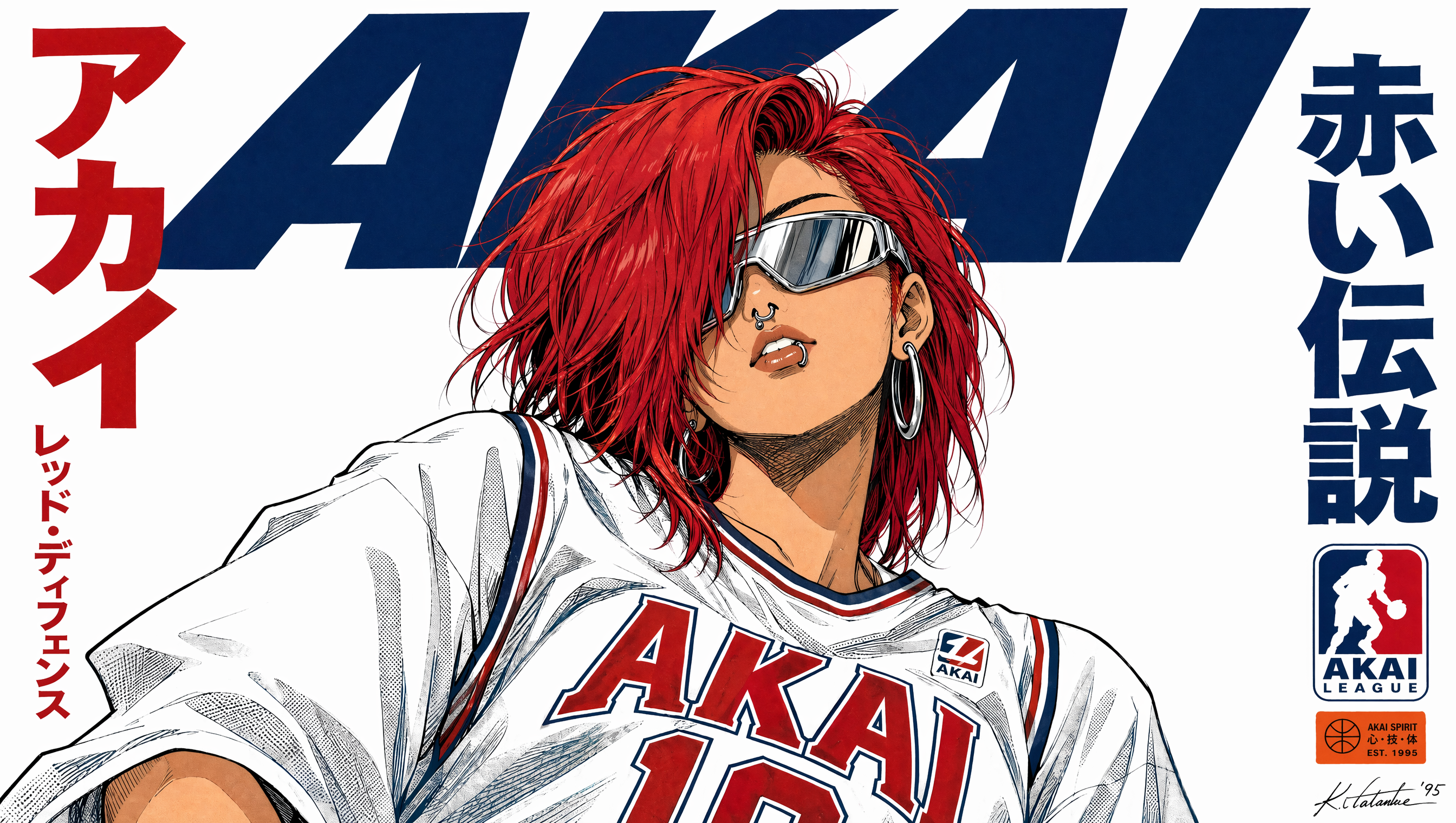
Anime is simultaneously the most forgiving and the most demanding genre for AI video. Forgiving, because stylized line art and flat shading hide the small artifacts that make AI live-action footage look uncanny. Demanding, because anime viewers are trained to track characters across shots and notice the instant a jawline, hair strand, or eye color drifts. This guide covers how anime video generation actually works under the hood, how to choose tools based on what your project needs, and a complete production workflow you can run from first idea to final export.
Why Anime Style Fits AI Video So Well
Anime is built on a set of visual conventions that happen to line up almost perfectly with the strengths of generative models.
Flat shading and hard edges. Cel shading reduces a face to a handful of color regions separated by clean outlines. Diffusion models struggle with subtle skin gradients and pore-level detail, but they handle large flat regions and crisp contours beautifully. A character rendered in anime style gives the model fewer places to fail.
Limited animation as a feature. Traditional anime often animates on twos or threes, holding poses and using quick cuts instead of continuous motion. That convention means you do not need perfectly smooth 60fps motion to look correct. Slight temporal wobble can even read as intentional stylization.
Symbolic motion. Speed lines, impact frames, floating hair, and dramatic wind are shorthand. Models can generate these convincingly because they are patterns, not physics simulations.
Strong silhouettes. Anime character design prioritizes readable shapes. Clean silhouettes survive compression, upscaling, and the inevitable softening that happens during video generation.
The catch is continuity. Live-action audiences forgive a slightly different jacket color between cuts. Anime audiences do not forgive a different face. Almost every practical difficulty in AI anime production traces back to consistency, and most of the workflow advice below exists to solve it.
How Anime Video Generation Actually Works
Understanding the machinery helps you choose the right approach instead of guessing.
The keyframe-first pipeline
Most reliable anime output comes from generating still images first, then animating them. You create a keyframe that already has the correct character, costume, lighting, and composition. Then an image-to-video model adds motion to that frame. Because the model starts from your approved image, it has far less opportunity to invent a new face.
This is why image-to-video consistently outperforms text-to-video for narrative work. Text-to-video is great for mood shots, landscapes, and establishing scenes. It is fragile for dialogue and close-ups.
Direct text-to-video
Modern video models generate several seconds of coherent motion from a prompt alone. They handle camera moves, environment motion, and atmospheric effects well. They struggle with specific characters, precise actions, and anything requiring continuity with a previous shot.
Use text-to-video for B-roll: rain on a rooftop, cherry blossoms drifting past a school gate, a train pulling out of a station. These shots carry emotional weight in anime and are cheap to generate.
Hybrid and local pipelines
A hybrid pipeline combines a local image model with a local video model and a compositing tool. You build a workflow graph that generates the keyframe, upscales it, runs a short video generation pass, interpolates frames, and exports image sequences. The advantage is control: you can insert a pose reference, a depth map, or a color palette lock at any stage. The tradeoff is setup time and hardware requirements.
Cloud tools win on speed of iteration. Local pipelines win on repeatability and precision. Many creators use both: iterate fast in the cloud, then rebuild the final shots locally with locked parameters.
Choosing the Right Tool for Your Project
Do not start with the tool. Start with the constraint that matters most to your project, then pick the tool that satisfies it.
| Your priority | What to look for | Practical implication |
|---|---|---|
| Fast iteration | Short render times, generous queue priority | Good for mood boards and rough cuts |
| Character fidelity | Image-to-video, reference image support | Essential for narrative scenes |
| Motion control | Pose or depth conditioning | Needed for fights and dance sequences |
| Long shots | Clip length beyond five seconds | Fewer cuts, more demanding on consistency |
| Repeatability | Local execution, fixed seeds | Required for series work |
| Commercial use | Clear licensing terms | Check before you build a brand around it |
A few practical notes on tool categories. General-purpose video models such as Runway, Kling, Luma, Pika, and similar platforms are the fastest way to test an idea. Open models you can run locally, combined with a node-based interface like ComfyUI, give you the control layer that anime production needs. Interpolation utilities such as RIFE or FILM smooth frame rates. For character-consistency layers, adapters that read a reference image or a trained character adapter are the difference between a demo and a series.
Finally, consider your output format before you commit. A vertical short, a horizontal episode, and a looping GIF for social all impose different framing rules. Decide early so you are not re-cropping every shot.
A Complete Workflow for a 60-Second Anime Short
Here is a realistic pipeline for a one-minute piece with roughly 12 to 18 shots.
Step 1: Write a beat sheet, not a script
Start with six to ten beats: setup, inciting moment, escalation, turn, climax, resolution. Give each beat a single visual idea. A beat is not a line of dialogue; it is an image that carries the story forward. "She opens the letter in the rain" is a beat. This constraint keeps your shot list short enough to finish.
Step 2: Build a character bible
For each character, lock down: silhouette, hair shape and color, eye color and shape, outfit with exact color values, height relative to other characters, and two or three signature poses. Write the color values as hex codes. Note them in a text file you paste into every prompt. This single habit prevents more continuity errors than any other.
Step 3: Generate keyframes
Generate the establishing shot first, then your hero close-up. Approve both before generating anything else, because they set the visual standard. Generate on a fixed seed for each character so variations stay close to the approved look. Expect to discard two out of three images. That ratio is normal, not a sign you are doing it wrong.
Step 4: Animate the keyframes
Feed each approved keyframe into an image-to-video model with a short motion description. Keep motion requests small. "Hair drifts, she blinks, camera pushes in slightly" works. "She turns around, runs, and jumps" will produce mush. For longer actions, split into two or three clips and cut between them. Fast cuts are native to anime, so this is stylistically correct rather than a compromise.
Step 5: Assemble, voice, and score
Conform everything to a consistent frame rate, add interpolation only where motion looks stuttery, then cut to a temp music track. Record or generate dialogue, then adjust shot lengths to the dialogue rhythm rather than the other way around. Sound design does more for perceived quality than another hour of video generation: wind, footsteps, cloth movement, and a single well-placed impact hit will sell the whole scene.
Prompting for Anime Style Without Losing Control
Style anchors that work
Describe style in terms of production attributes rather than franchise names. Useful anchors include: cel shaded, clean line art, limited color palette, flat lighting with hard shadows, hand-painted background, two-tone hair highlights, 1990s television animation aesthetic, film grain, chromatic aberration on edges. Stack two or three, not ten. Too many style descriptors fight each other and produce muddy output.
Camera and motion language
Video models respond well to explicit cinematography. Use terms like slow push in, dolly left, handheld follow, static wide, rack focus to background, parallax foreground. Pair one camera instruction with one subject instruction per clip. More than that and the model averages them into nothing.
Negative prompts and failure modes
Common anime-specific artifacts to suppress: extra fingers, melting outlines, photorealistic skin texture, three-dimensional shading, watermark text, split-screen composition, duplicated faces, background characters with distorted features. If your tool supports negative prompts, keep the list focused on the artifacts you actually see rather than a generic dump.
Character Consistency: The Hardest Problem
This is where most projects live or die, so treat it as a dedicated phase rather than a prompt tweak.
Reference-driven consistency
Use a reference image or character sheet alongside every generation. Tools that accept an identity reference, an image prompt, or a style adapter will hold a character far better than text alone. Generate the character sheet yourself first: front view, three-quarter, profile, and two expressions on a neutral background. This sheet becomes your production asset for the whole project.
Training a reusable character
If you are making more than a handful of shots with the same character, train a small adapter on 15 to 30 clean images of that character. This takes an afternoon and pays for itself by shot ten. Keep the training set stylistically uniform. Mixing three different art styles into one training set produces a character who looks like a different person in every render.
Practical fixes when faces drift
Inspect every shot at full size before moving on. If a face drifts, regenerate from the same keyframe with a stronger reference weight before you try to fix it in editing. If only a small region is wrong, a targeted inpaint on the keyframe is faster than a full regeneration. If the character's outfit color shifts, add the hex code directly to the prompt. If the eyes change shape, your reference weight is too low, not your prompt wording.
Post-Production: Making AI Footage Feel Like Anime
Raw AI output looks like AI output. Twenty minutes of post-production changes that more than another hour of generation.
Frame rate and timing
Anime often runs at a cadence that is not true 24fps for every element. Conform your footage to a consistent base rate, then decide per shot whether to hold frames for a snappier feel. Holds create weight. Constant interpolation creates the slippery, over-smooth look that reads as artificial.
Color, grain, and bloom
Apply a light film grain, a mild bloom on highlights, and a slight color shift toward either warm sunset tones or cool night tones depending on the scene. Avoid heavy contrast grading; anime usually keeps shadows readable. A subtle vignette helps focus attention and hides edge artifacts simultaneously.
Sound design and voice
Layer ambience first, then effects, then music. Dialogue should sit slightly forward of the music with a gentle high-pass to remove muddiness. Even a simple two-track sound design of ambience plus one impact sound dramatically raises perceived production value. If you are generating voice, keep lines short and re-record rather than pitch-shifting a wrong take.
Common Mistakes That Break an Anime AI Video
- Generating every shot before approving the style. Approve the look on two frames first. Otherwise you rebuild everything.
- Writing feature-length ambitions into a first project. A 60-second short teaches more than an unfinished 10-minute episode.
- Overloading prompts. One camera move, one subject action, two or three style anchors. Stop there.
- Ignoring the character sheet. Text descriptions of a face never hold across twenty shots.
- Chasing perfect motion. Imperfect motion with strong editing reads better than smooth motion with weak editing.
- Skipping sound. Silent AI footage feels like a test render no matter how good the frames are.
- Mixing frame rates between shots. It is the fastest way to make an edit feel amateurish.
- Not backing up approved keyframes. Your approved images are the actual project files.
A Two-Week Practice Plan
Days one and two: write three beat sheets of six beats each. Pick the one with the clearest single image per beat.
Days three and four: build character sheets for your one or two main characters. Generate at least twenty candidate images and pick the four best.
Days five through eight: generate keyframes for all shots. Aim for two approved frames per shot.
Days nine through eleven: animate every keyframe into three to five second clips. Keep motion requests minimal.
Days twelve and thirteen: edit, add sound, color grade, and export in two formats.
Day fourteen: watch it without sound, then without picture. Both passes will reveal problems you missed.
FAQ
Do I need to know how to draw?
No, but visual literacy helps enormously. You need to recognize when a face has drifted, when lighting is inconsistent, and when a composition is weak. Studying a handful of anime key animators and background artists will improve your output faster than any prompt library.
How long does a 60-second anime clip take?
A first attempt usually takes 20 to 40 hours spread over two weeks, most of it in iteration and discarding outputs. Your second project typically takes half that, because your character sheets and prompt templates already exist.
Can I use the results commercially?
That depends entirely on the tool's terms of service and your local rules for AI-generated works. Check the licensing terms of every model in your pipeline, including upscalers and interpolators, before you build a commercial project on them.
Why do faces change between shots?
Because text prompts describe categories, not individuals. Without a reference image or a trained character adapter, the model generates a plausible new face each time. Fix this with references, not with longer descriptions.
Should I animate at 24fps or 12fps?
Generate at whatever the model supports, then conform in editing. Holding frames to an effective 12fps on action shots is a legitimate stylistic choice and often looks more authentically anime than full interpolation.
How do I handle lip sync?
Keep dialogue shots short and use reaction cuts, a common anime technique. Generate the mouth movement separately or use a dedicated lip-sync tool on an approved keyframe. For anything under two seconds, an off-screen line with a reaction shot is usually the better editorial choice.
Do I need an expensive GPU?
Only if you want local generation and repeatability. Cloud tools will get you through a first project fine. If you plan a series with recurring characters, local execution quickly becomes worth the hardware investment because it lets you lock seeds and reference weights permanently.
Final Checklist Before You Export
Confirm that every character matches the sheet, that frame rates are consistent across cuts, that sound sits under the dialogue rather than over it, that you have exported both a horizontal and a vertical version, and that you have archived your keyframes and prompt templates for the next project. That last step is what turns a one-off experiment into a repeatable pipeline.
The tools will keep changing. The fundamentals will not: strong silhouettes, locked character references, small motion requests, aggressive editing, and layered sound. Get those right and the specific generator you use becomes almost interchangeable.
