
Criar
Facebook Video Thumbnails: How to Set Them and Optimize SEO
Oct 15, 2026

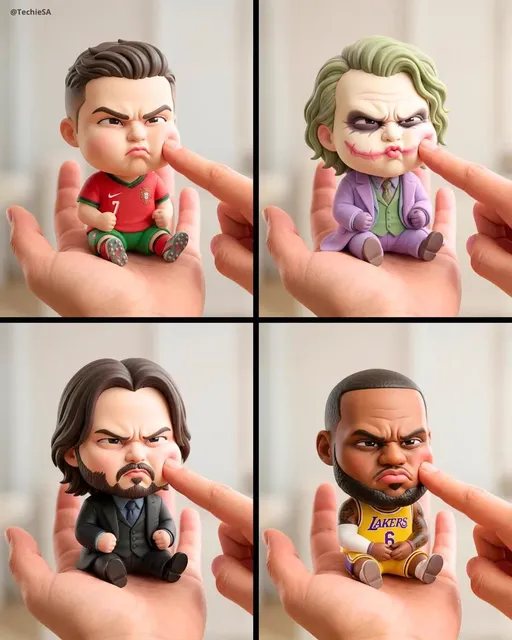
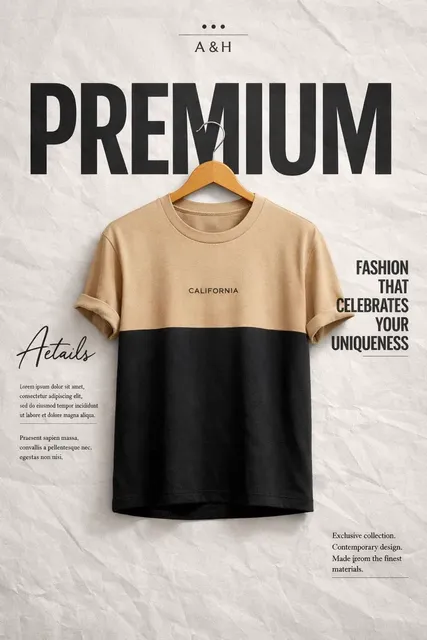
A Facebook video thumbnail does two jobs at once. It has to survive a brutal crop on a phone screen, and it has to answer one question faster than a blink: is this worth stopping for? Most creators spend hours on the edit and roughly ninety seconds on the cover image, then wonder why reach flattens out. The good news is that thumbnail work is one of the few levers you fully control, and the process is repeatable once you understand the mechanics.
This guide walks through the practical side (where the settings live, what file to upload) and the strategic side (frame selection, contrast, text, testing). It also covers how thumbnails interact with Facebook search and recommendation surfaces, because the image and the metadata around it work as one system.
Why the thumbnail carries more weight than most creators assume
Facebook is a muted, scroll-driven environment. Autoplay means your video technically starts, but the cover image is what people see in the split second before motion registers. If the cover is a mid-blink frame of someone staring at a laptop, the scroll continues. If it's a clean, high-contrast moment with a readable expression and a hint of tension, there's a chance the thumb stops.
Thumbnails also travel further than the video itself. Your cover appears in Watch feeds, in search results, in notifications, in group shares, and in direct messages where the video gets forwarded. A weak cover degrades every one of those placements, including the ones you never see in your analytics.
Finally, the thumbnail influences engagement signals the ranking systems interpret: three-second views, click-through from feeds, and completion rates. A deliberate cover doesn't trick anyone into watching something bad, but it does give a genuinely good video the fair chance it deserves.
How thumbnails behave across Facebook's different surfaces
The same video can appear in five or six places, and each one crops the cover differently. Before you design anything, decide the priority surface and treat everything else as secondary.
Feed, Watch, Reels, and Stories
In the standard feed, thumbnails render on a card that may be near-square on desktop and taller or wider on mobile depending on the video's aspect ratio. Vertical video takes more screen space, which is exactly why short vertical clips outperform horizontal uploads in feed placements. Watch surfaces often show a wider frame plus title text beneath, which means the image doesn't need to carry all the meaning alone.
Reels use a separate cover system with its own vertical crop and a profile grid that displays a small grid thumbnail later. Stories primarily surface the first frame, so your opening second is effectively the cover. If you plan to cross-post to Instagram, budget extra safe margin on the top and bottom, because the interface overlays differ.
Auto-generated frames versus a custom cover
Facebook generates a set of candidate frames from your upload. These are almost never your best option — the algorithm picks on timestamps, not storytelling. Treat auto-frames as a fallback, and always upload a custom image or explicitly choose a frame you've already vetted at small size.
One caveat worth knowing: some vertical and short-form surfaces restrict cover selection more tightly than standard video uploads. If you can't find a cover option, that's usually a product-surface limitation, not a bug in your account.
Step-by-step: uploading a custom thumbnail on Facebook
The exact menu labels shift as the interface evolves, but the underlying path is stable. Here's the workflow that works across Page content, profile uploads, and scheduled posts.
Desktop workflow
- Upload the video to your Page, profile, or content library as usual.
- Wait for processing to finish. Cover options often don't appear until the video is fully indexed.
- Open the published video or the draft, then find the edit option for the post or video.
- Open the thumbnail or cover section. You'll see auto-generated frames plus an upload control.
- Upload your prepared image, confirm the crop preview looks right on both wide and tall previews, then save.
If you're scheduling, set the cover during creation rather than after publishing. Scheduled posts with a default frame often publish before anyone checks them.
Mobile workflow
In the mobile app, the same controls exist but are sometimes nested one level deeper. Tap your published video, open the edit menu, and look for the cover or thumbnail option. Editing on mobile is fine for a quick fix, but do final art direction on desktop where you can see the full-resolution preview and verify the crop on a larger screen.
Troubleshooting when the cover won't change
- Processing lag: give it a few minutes, then refresh. Large files can take longer.
- Cached preview: hard-refresh the page or check from a different browser or device.
- File rejection: confirm the format is JPG or PNG, the dimensions meet the minimum, and the file isn't oversized.
- Wrong surface: a cover set on the standard video may not propagate to a Reel version of the same clip.
- Persistent stubbornness: delete and re-upload, or set the cover before publishing rather than after.
Specs and safe zones that survive every crop
Technical compliance isn't glamorous, but a blurry or awkwardly cropped cover signals low effort before anyone reads a word of your title.
Resolution, aspect ratio, and file format
Shoot for a square master at 1080 by 1080 pixels or larger. Square crops reasonably into both wide feed cards and tall mobile placements, which makes it the safest single asset. Facebook's stated minimum has historically been around 400 by 400 pixels; going below that produces soft edges on high-density screens. Keep files in JPG or PNG, sRGB color, and under roughly 10 MB so uploads process quickly. If you need a wide variant, 1200 by 630 works well for link-style previews.
Safe zones and text placement
Assume the edges will be eaten. On mobile, the lower portion of the frame is frequently covered by interface elements such as captions, buttons, or the profile row, and vertical surfaces place controls on the right side. Keep essential content — faces, product, key text — inside a generous center area with roughly a ten percent margin on all sides. Never place a headline flush to the bottom edge.
Readability at thumbnail size
Before you commit, shrink your design to about 150 pixels wide and look at it. If the text is unreadable or the subject turns into a dark blob, the design fails in the feed regardless of how good it looks at full size. This single check eliminates most bad covers.
Designing a thumbnail that actually stops the scroll
Good thumbnails are not decorative. They encode a promise about the video in visual form and create just enough unresolved tension to earn a tap.
Contrast, color, and separation
Facebook's interface is largely white or dark gray, so covers that lean on mid-tone beige often disappear. Push contrast between subject and background, and use two or three saturated colors rather than a full rainbow. Complementary pairs — warm subject against cool background — separate cleanly at small sizes. Add a subtle vignette or a thin outline around key elements if the subject risks blending in.
Faces, emotion, and gesture
Human faces with a clear, readable emotion outperform neutral expressions almost every time. Choose a frame where the eyes are open, the expression is unambiguous (surprise, delight, concentration), and the subject is oriented toward the camera or toward something in frame that implies action. Hands and props help when they clarify the topic: a tool, an ingredient, a screen, an instrument.
Text overlay: how much is too much
Three to five words is the sweet spot. Text should add information the image can't carry alone — a number, a place, a promise, a category — not duplicate the title. Use a bold sans-serif, high contrast, and a solid or heavily darkened backing so the words stay legible over busy footage. Avoid stacking multiple sentences or cramming in logos plus text plus a call to action; each element steals attention from the others.
Branding without clutter
Consistency builds recognition: a recurring color, a consistent typeface, a signature framing, or a small corner mark. Keep it subtle and identical across videos so regular viewers learn to spot you in a crowded feed. What you don't want is a cover so heavily branded that the actual content disappears behind a wall of graphics.
Choosing the right frame: a repeatable workflow
If you're picking from existing footage rather than designing from scratch, a small amount of process beats endless scrolling through the timeline.
Build a contact sheet first
Export stills at a fixed interval — every one or two seconds is usually enough. If you're comfortable with command-line tools, a single extraction command can dump a numbered image sequence, and video editors like DaVinci Resolve or Adobe Premiere can generate a contact sheet natively. Scanning one grid of 40 to 60 frames takes two minutes and reveals moments you'd otherwise miss.
Score candidates against five criteria
- Subject clarity: is the primary subject instantly identifiable at small size?
- Expression: does the face communicate a specific emotion?
- Negative space: is there room for text without covering anything important?
- Color separation: does the subject stand out from the background?
- Story signal: does the image hint at what happens in the video?
Shortlist three frames, mock each one at thumbnail size, and pick the winner. Then check whether it still reads after a square crop and a vertical crop.
When no frame is good enough
Sometimes the best moment is a fraction of a second, or the lighting is wrong, or the subject's eyes are closed in every usable shot. That's when compositing helps: take the expression from one frame and the background from another, or clean up the shot with background removal and generative fill. Keep the result honest — it should look like a plausible moment from the video, not a fabricated scene that sets the wrong expectation.
Where AI tools genuinely help in the thumbnail workflow
AI is useful in the thumbnail pipeline for mechanical tasks, and risky for judgment calls. Use it where it saves time, keep the final decision human.
Extraction, upscaling, and cleanup
Frame extraction tools pull candidate stills quickly. Upscaling models such as Real-ESRGAN or Topaz can rescue a slightly soft frame by doubling resolution without obvious artifacts. Background removal utilities isolate a subject so you can place them on a cleaner field of color. Generative fill can extend a background when the piece you need sits at the edge of the frame.
Variant generation and idea testing
Design tools with template and variant features let you produce three or four versions of the same cover — different crop, different headline, different color — in a few minutes. That's the fastest route to a real test. Language models can suggest short headline options and flag words that feel like clickbait, but you still choose.
What AI gets wrong
Watch for over-smoothed skin that looks synthetic, invented text that reads as gibberish at small size, mangled hands, and a generic aesthetic that makes every cover look interchangeable. Also avoid AI-generated thumbnails for AI-generated video content that misrepresent actual footage: the cover should match what the viewer will see in the first five seconds.
Facebook video SEO beyond the image
Thumbnails and metadata are one system. Facebook search indexes video titles, descriptions, on-screen text, and captions, so the words around your cover either reinforce it or waste the click.
Titles and descriptions
Front-load the topic in the title using the phrase a real person would search. Keep it under about 60 characters so it doesn't truncate awkwardly. In the description, put the most important sentence in the first two lines, since that's all most people see before tapping "see more." Add context, timestamps for longer videos, and one clear next step.
Captions and muted viewing
The overwhelming majority of feed viewing happens with sound off. Burned-in captions or Facebook's auto-generated captions make the first seconds comprehensible without audio. Check the auto-captions for errors on names and jargon, and correct them when you can. On-screen text in the opening frame also helps the video make sense instantly.
Retention and the first three seconds
Ranking systems weight early retention heavily. Your thumbnail promises a specific payoff — deliver it inside the first few seconds, or at least show clearly that it's coming. A mismatch between cover and content produces an early exit that no amount of thumbnail polish can offset.
Testing, measuring, and iterating on covers
You can't A/B test organic thumbnails natively the way you can paid creatives, but you can build a disciplined comparison habit.
A practical testing approach
Keep your video format consistent and rotate covers across similar posts. If you publish a weekly series, split covers into two styles — say a face-forward version and a graphic-text version — across alternating weeks. Track reach, three-second video views, average watch time, and any click or profile-visit metrics you have access to. A useful proxy for click-through on organic video is the ratio of three-second views to impressions.
Sample sizes and cadence
Small numbers lie. Wait until each variant has accumulated at least a few hundred impressions before drawing conclusions, and resist changing everything at once. Test one variable per cycle: headline wording, then crop, then color treatment. Keep a simple log with the date, variant, format, impressions, three-second views, and average watch time, and review it monthly. Patterns emerge faster than you expect once the log exists.
Common mistakes, FAQs, and a final checklist
Most underperforming covers fail for a handful of predictable reasons.
- Text so small it becomes noise at feed size.
- Key elements pushed to the edges where mobile interface overlays cover them.
- Low contrast between subject and background, especially in dark footage.
- Misleading imagery that promises content the video doesn't deliver.
- Forgetting to set a cover before a scheduled post goes live.
- Reusing one template with zero variation until every video looks identical.
- Never reviewing performance, so the same mistakes repeat for months.
Frequently asked questions
Can I change the thumbnail after a video is published?
Yes, in most standard video placements. Open the published video, find the edit option, and replace the cover. Changes may take a few minutes to propagate, and some short-form surfaces handle covers differently.
What size should a Facebook video thumbnail be?
A 1080 by 1080 square is the safest master because it crops well into both wide and tall placements. Keep the subject and any text well inside the frame, and avoid going below 400 by 400 pixels.
Does the thumbnail affect how many people see my video?
Indirectly, yes. The cover influences tap-through and early retention, which are signals ranking systems use. It's not the only factor, but it's the one you control completely.
Should I use text on the thumbnail?
Yes, in small doses. Three to five words that add information rather than repeat the title, set in bold high-contrast type. More than that reduces readability at feed size.
Why did my uploaded thumbnail not appear?
Usually processing lag, a cached preview, or a file that didn't meet format and size requirements. Refresh, check the file, and if it still won't stick, re-upload or set the cover before publishing.
Is it worth upscaling a soft frame with AI?
Sometimes. Upscaling works well on slightly soft frames and poorly on badly motion-blurred ones. Compare the result at thumbnail size before committing; artifacts that are invisible at full size are often glaring when the image is small.
Final checklist before you publish
- Cover chosen deliberately, not left on a default frame.
- 1080 by 1080 or larger, JPG or PNG, under about 10 MB.
- Essential content inside a ten percent margin on all sides.
- Legible at 150 pixels wide, with strong subject-background contrast.
- Three to five words of text maximum, adding new information.
- Consistent brand cue present but not overwhelming.
- Title front-loading the searchable topic.
- Captions enabled and reviewed for errors.
- Cover promise matched by the first three seconds of the video.
- Log entry created so you can compare performance later.
None of this requires expensive tools or a design team. It requires deciding that the cover is part of the video, not an afterthought — and then running the same short process every single time.

Alexander
More Blogs
Read MoreVidu Q4 Alternatives: 4K AI Video Models Compared (2026)
Vidu Q4 alternatives compared: Kling 4.0, Seedance 2.5, Wan 3.0, and Runway Gen-4 — 4K support, input modes, durations, audio, and what each costs in credits on Domer.
Top 4K AI Image Generators in 2026: 5 Models Compared on Real Costs
The top 4K AI image generators on Domer compared: Flux 3 Klein, Nano Banana 2.1, GPT Image 2.5, GPT Image 2, and Nano Banana Pro — 4K credit costs, reference limits, and speed.
Nano Banana 2.1 vs GPT Image 2.5: Which Image Model Should You Use? (2026)
Nano Banana 2.1 vs GPT Image 2.5 Flare compared: credit costs per resolution, aspect ratios, reference images, text rendering, and which tasks fit each model.