

Live streaming has matured from a webcam window into a full production format. Viewers expect clean audio, readable overlays, quick scene changes, and interactive moments that feel instant. The pressure is not only about looking professional. It is about staying responsive. A stream that pauses while the host finds a window or fixes a microphone feels broken. A stream where every element appears on cue feels intentional, even when it is built with free software.
Why Real-Time Creative Output Changes the Streaming Standard
Real-time creative output means the show can adapt without dead air. Chat votes can change the layout, a guest can join a prepared frame, and a reaction clip can play without alt-tabbing. Free tools can deliver this because the core technology is mature. The bottleneck is workflow design. Creators who plan scenes, audio, and assets in advance can produce a live show that feels edited and deliberate. Creators who improvise every transition spend the stream fixing technical problems instead of making content.
The Core Stack: What a Free Live Stream Actually Needs
Every reliable free stream rests on four layers: encoding and broadcasting, scene composition, audio capture and mixing, and source management. If one layer is weak, the others suffer. A beautiful overlay cannot fix muddy audio. A perfect microphone cannot fix dropped frames. A powerful encoder cannot fix a chaotic scene list.
Broadcasting and encoding
The broadcaster takes sources, composites a program feed, encodes it, and sends it to a platform. OBS Studio is the most flexible free option, with scenes, browser overlays, recording, replay buffer, and hardware encoding. Streamlabs Desktop adds built-in alerts and themes for faster setup. Restream Studio and Lightstream Studio are browser-based alternatives for weaker machines or remote guests. Melon App is useful for simple co-streams. Choose based on control, not popularity.
Scene composition and overlays
Scenes are collections of sources: camera, game capture, screen share, image, text, browser overlay, video clip, and audio input. Groups move related sources together. Nested scenes reuse layouts. Browser sources display chat, alerts, goal bars, and animated graphics. Build fewer scenes and make them excellent. A typical setup includes Starting Soon, Main Camera, Screen Share, Gameplay, Interview, Break, and Ending. Give each scene a hotkey so switching feels intentional.
Audio capture and mixing
Audio is where free setups often fall apart. Treat the microphone as the start of a chain, not the whole chain. Apply filters in a deliberate order: noise suppression, noise gate, EQ, compressor, and limiter. Noise suppression removes hum. A gate keeps room tone out between sentences. EQ shapes the voice. A compressor evens loud and quiet moments. A limiter prevents peaks from distorting. Keep sample rates consistent at 48 kHz across the operating system and broadcaster.
Source management
Source management is the invisible skill. Name every source clearly. Group overlays. Keep a dedicated asset folder with consistent file names. Remove unused sources instead of hiding them. Test capture methods. Game capture is usually faster than display capture. Window capture is better for specific apps. A tidy source list makes real-time creativity possible because you always know where every element lives.
Choosing the Right Free Broadcaster for Your Workflow
The best free broadcaster depends on how you work, not which one has the longest feature list. Use decision criteria: local hardware power, upload speed, number of platforms, browser access, setup complexity, and automation needs.
| Tool | Best for | Strengths | Watch-outs |
|---|---|---|---|
| OBS Studio | Maximum control | Deep scenes, filters, plugins, recording | Setup takes time |
| Streamlabs Desktop | Fast start with alerts | Themes, alerts, chat, widgets | Heavier interface |
| Restream Studio | Browser-based shows | Simple multi-platform output, guests | Less scene control |
| Lightstream Studio | Cloud production | Browser overlays, remote guests | Needs stable internet |
| Melon App | Casual co-streams | Low-friction browser rooms | Limited production depth |
| If your computer can handle encoding, start with a local tool. If it cannot, use a cloud studio and keep local sources simple. If you stream to multiple destinations, check platform rules and use a restreaming service that fits your workflow. Master one primary broadcaster instead of spreading attention across five. |
Building a Reusable Scene System for Live Shows
A reusable scene system saves more time than any single effect. Begin with a template project. Create folders for overlays, stingers, audio beds, AI-generated clips, and thumbnails. Build scenes with safe margins so platform UI does not hide text. Add a subtle panel behind text. Keep fonts large enough for mobile viewers.
Use a consistent transition style. A quick fade or slide is usually better than a flashy stinger that distracts. Save hotkeys for camera, screen, gameplay, and break. Create a Starting Soon scene with a countdown, music, and chat prompt. Create a Break scene with a looping animation and a clear message.
Nested scenes are useful for interviews. Build a camera-only scene, then nest it into a side-by-side layout. If you move the camera later, you update one source. Browser sources can show recent followers, top chatters, or a progress bar. Keep them lightweight. Too many animated browser sources can consume CPU.
Rehearse transitions. A scene system is only real-time if you can operate it without thinking. Run a private test, switch through every scene, trigger alerts, and record five minutes. Review audio balance, text readability, and visual consistency.
Audio Quality: The Free Upgrade Most Streamers Skip
Viewers forgive average video more easily than bad audio. Free tools can deliver excellent sound if you respect gain staging. Set your microphone so normal speech peaks around minus twelve to minus six decibels. Add a limiter as a safety net, not as a fix for bad levels. Use headphones. Monitoring prevents echo and feedback. If you use speakers, the microphone will pick up the stream output and create a loop.
Noise suppression is helpful, but aggressive settings can make voices metallic. Test at different strengths. A noise gate should open quickly and close gently. If the gate cuts off word beginnings, lower the close threshold or increase release time. For music, keep a separate audio source and duck it when you speak.
Room treatment does not require expensive panels. Curtains, rugs, bookshelves, and soft furniture reduce reflections. Move the microphone closer and lower the gain. This improves the ratio of voice to room noise. Record a one-minute test before every important stream. It is the cheapest insurance against an unusable recording.
Adding AI-Assisted Visuals to Live Streams Without Slowing the Show
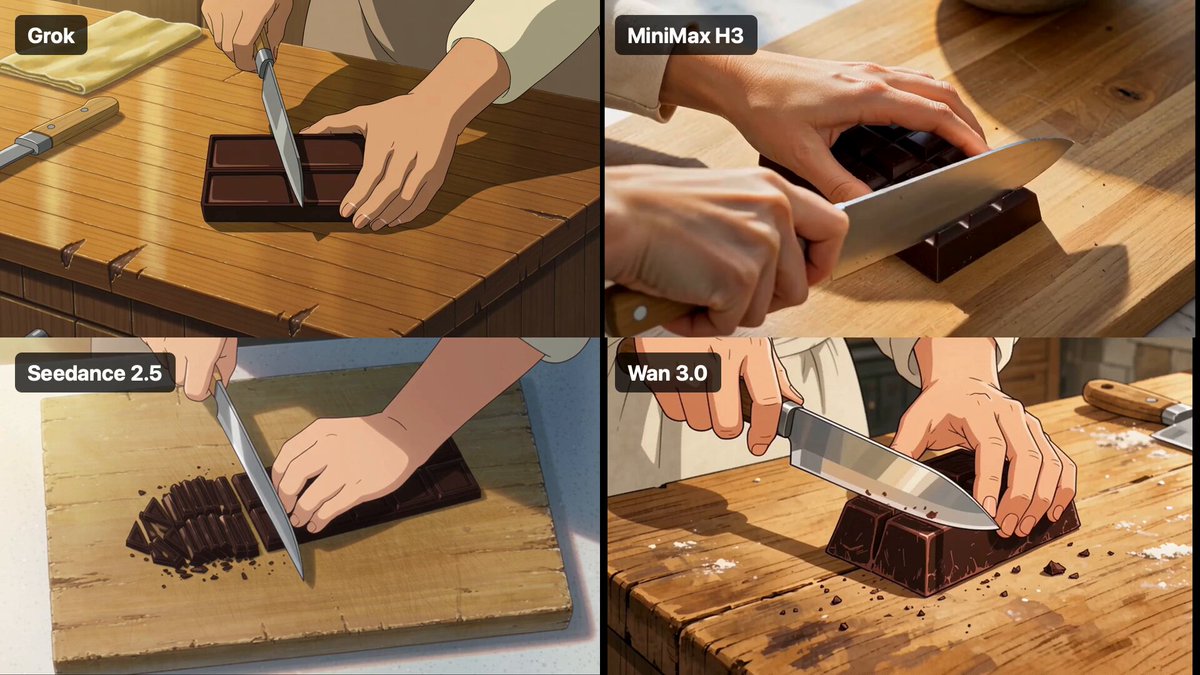
AI can expand what a free stream looks like, but real-time generation is still difficult to rely on during a live broadcast. Generative video models can take seconds or minutes to produce a clip, and the output may not match the scene consistently. For live production, use AI before the stream and treat the results as reusable assets.
Pre-rendered AI assets that look live
Generate short loops, animated backgrounds, stylized lower thirds, avatar reactions, and transition clips. Keep each asset between three and ten seconds so file size stays manageable. Export at the same resolution and frame rate as your stream. Use a media source or browser source to play the loop. Because the clip is local, it starts instantly and does not depend on an external service during the show. AI video tools can produce abstract motion backgrounds that make a simple camera scene feel produced. Prepare a small library that matches your visual identity.
Real-time generation workarounds
If you want a live AI element, limit the scope. A text prompt can trigger a pre-generated image from a local folder. A chat command can switch to an AI-created scene. A browser source can display an AI-generated image that updates between segments, not every second. Some creators run local image generation on a second machine and send the output over the network. This can work, but it adds complexity and failure points. For most free setups, avoid putting a generative model in the critical path of the broadcast. The show must continue even if the AI tool crashes.
The realistic role of AI directors
An AI director that watches chat, switches scenes, and highlights moments sounds appealing, but a free live workflow should not depend on it yet. Automation can handle simple rules: if a command appears, play a clip; if the stream reaches a goal, show an animation; if a guest joins, switch to the interview scene. Those rules are reliable and fast. Predictive AI direction is better treated as a test-stream experiment, not the backbone of a client project or sponsored show.
Interaction, Alerts, and Community Tools That Cost Nothing
Interaction turns a broadcast into a community. Free chat bots such as Nightbot, Streamer.bot, Firebot, and Mix It Up can manage commands, timers, moderation, and automated messages. Alert tools like StreamElements and Streamlabs offer free overlays for follows, subscriptions, donations, and raids.
Keep alerts short and visually consistent. A five-second animation is usually enough. Long alerts interrupt the show and stack up during busy moments. Group similar events. Make sure text is readable at small sizes. Test alert volume separately from your microphone.
Polls, predictions, channel points, and chat prompts give viewers a reason to participate. Use them with purpose. A poll can decide the next game or topic. A prediction can add suspense to a competitive segment. A chat prompt can guide a Q and A. Discord communities extend the conversation after the stream. Moderation matters as the audience grows. Set up banned words, link protection, slow mode, and moderator roles before you need them.
A Real-Time Workflow From Pre-Stream to Post-Stream
A repeatable workflow protects the show. Thirty minutes before going live, run a checklist. Open the broadcaster and load the correct scene collection. Confirm camera, microphone, and game audio. Check the streaming destination. Run a one-minute local recording and listen with headphones. Check upload speed and dropped frames. Update title, tags, and thumbnail. Queue any AI-generated clips. Open chat and moderation tools. Set lighting and focus.
During the stream, monitor three signals: audio levels, dropped frames, and chat sentiment. Use hotkeys for scene changes. Keep a notepad for timestamps of good moments. If something breaks, switch to a safe scene, explain briefly, and fix it without apologizing repeatedly. Viewers care more about momentum than perfection.
After the stream, export the recording, back up the project file, and log what worked. Generate captions or a transcript with a built-in or free tool. Cut short clips for social media. Use AI to summarize the stream or draft show notes. Review analytics for retention drops and improve the next scene layout. The post-stream phase is where a free setup becomes a system.
Troubleshooting Lag, Dropped Frames, and Audio Drift
Lag usually comes from network, encoding, or sources. If dropped frames are caused by network, lower bitrate or resolution. If they are caused by encoding, switch to a hardware encoder or reduce output resolution. If they are caused by sources, remove unused browser sources, cap animations, and avoid multiple display captures. Wi-Fi is convenient but risky. Use a wired connection when possible.
Audio drift happens when devices run at different sample rates or when a virtual cable buffers inconsistently. Set everything to 48 kHz. Restart the broadcaster after changing audio devices. If echo appears, check monitoring, speaker output, and duplicate audio sources. If the microphone sounds distant, reduce gain and move closer rather than boosting in software.
Black screens in game capture often require running the broadcaster as administrator or changing the capture method. Test games before going live. If a source fails, have a fallback scene ready. Build redundancy into the workflow: a second microphone option, a backup internet method, and a local recording. Even a free setup can be resilient when it has a plan.
Common Mistakes and FAQ
The most common mistakes are overloaded scenes, mismatched audio levels, tiny text, too many alerts, and relying on AI generation during the live show. Other traps include streaming over Wi-Fi, ignoring safe margins, using display capture for everything, and never testing the full workflow. Avoid changing five things at once before a stream. Change one variable, test it, and keep what works.
Do I need paid software to stream professionally? No. Free broadcasters, audio filters, bots, and overlays can produce a polished show. Paid tools may save time, but they are not required for quality.
What is the best free live streaming software for beginners? A local broadcaster with a simple scene collection is usually best. Start with a camera scene, a screen scene, and a starting soon scene. Add complexity only when you need it.
Can I use AI visuals in a live stream for free? Yes, if you prepare them before the show. Use AI to generate loops, backgrounds, thumbnails, and captions. Keep live generation out of the critical path.
How much upload speed do I need? For a stable 1080p stream, many creators aim for at least 10 Mbps upload, though lower resolutions and bitrates can work with less. Test your connection during the same hours you plan to stream.
How do I keep a free stream from looking cheap? Improve audio, lighting, and consistency first. Use a clean font, a simple color palette, and fewer overlays. Rehearse transitions. A restrained design usually looks more professional than a busy one.
Can I stream to multiple platforms for free? Some services offer free multistreaming with limitations. Check each platform's rules and your upload capacity. Multistreaming increases encoding and network load, so test before relying on it.
Real-time creative output is not about owning the most tools. It is about designing a workflow where free tools, prepared assets, and simple automation work together. Build a clean scene system, protect your audio, prepare AI visuals in advance, and rehearse the moments that matter. When the technology stays out of the way, the live show becomes the creative work.
