
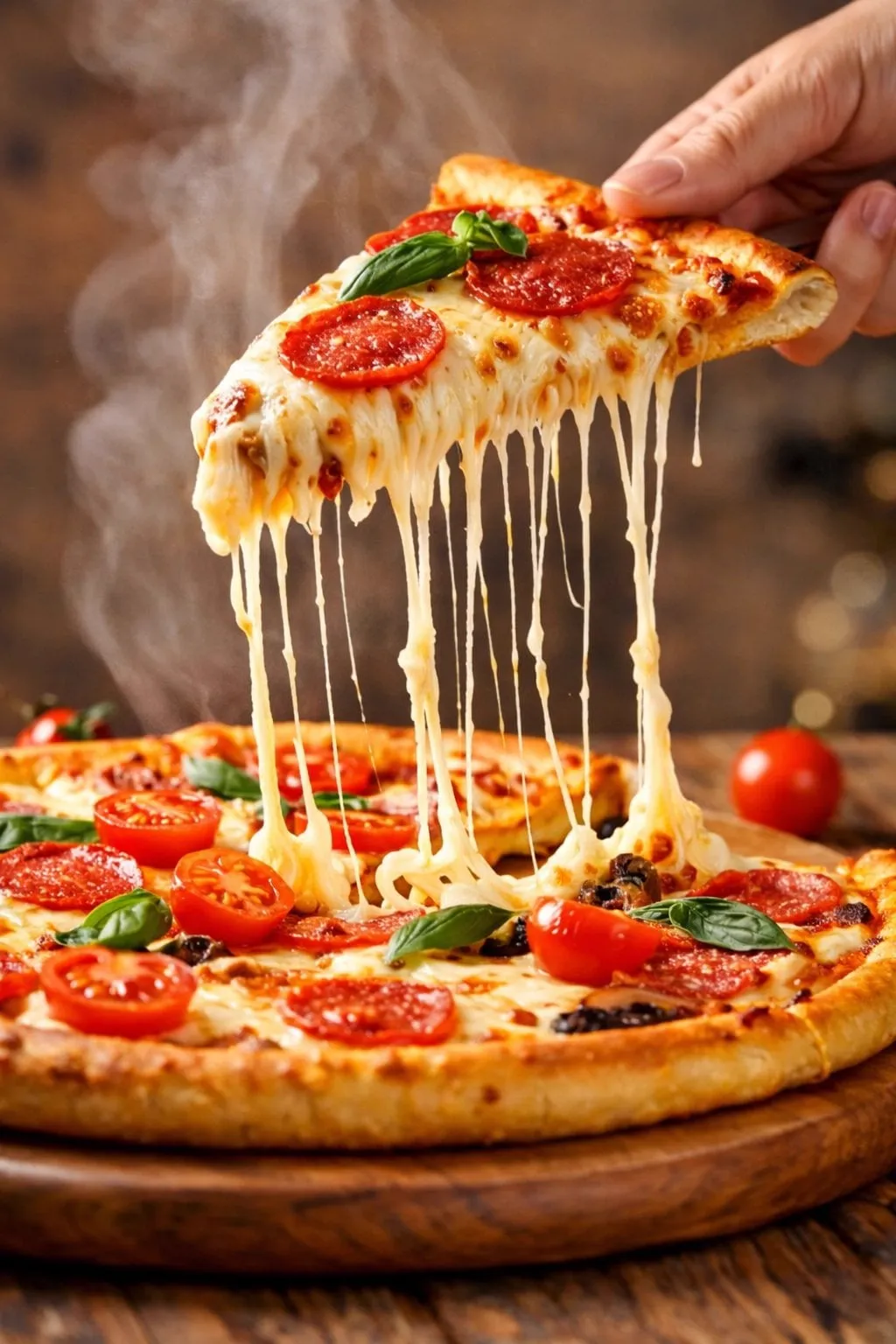
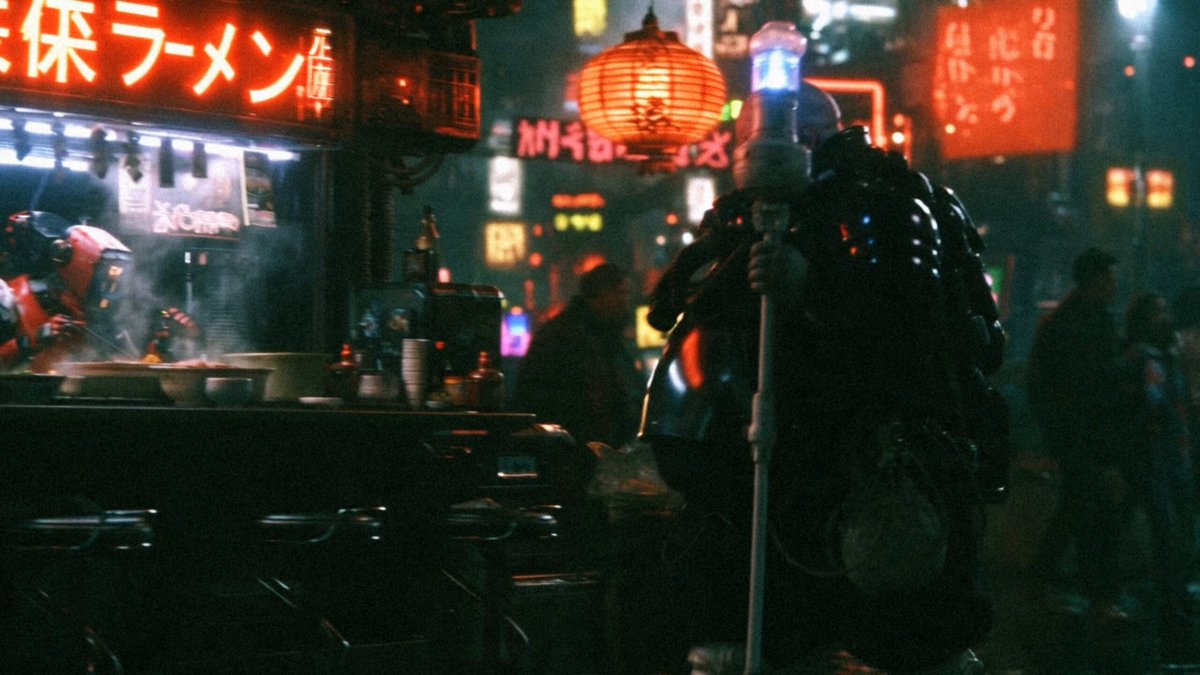
A photograph freezes time; a film spends it. The difference between the two is motion, but that motion is not just an effect applied on top of an image. It is a new way of telling a story. In the past, making a still photo move meant painstakingly adding keyframes by hand, hiring an animator, or settling for a cheap pan-and-zoom that fooled no one. Today, image-to-video models take a single photograph and imagine what happened just before and just after the frame, breathing movement into faces, water, wind, and light.
That capability has opened a door for almost everyone. Photographers can turn a portfolio shot into a living loop. Marketers can give a product photograph a cinematic reveal. Filmmakers and artists can block a scene, see it move, and iterate before committing. This guide is a map of that territory: what photo-to-video can do, how the technology works, how to get camera motion that feels intentional rather than gimmicky, how to keep characters and worlds consistent, and how to fit this into a real editing pipeline.
What Photo-to-Video Actually Is
At its heart, image-to-video generation asks a model to take a starting frame and predict a short sequence of frames that flow from it. The photograph acts as the anchor, the first frame, and the model animates everything else around that fixed point. You are not applying a filter; you are asking the model to reason about physics, depth, and motion to produce plausible frames that continue from your image.
This is different from older effects like the Ken Burns pan-and-zoom, which simply moved and scaled a static image. The new tools generate genuinely new pixels: hair moves, fabric settles, light drifts, and the camera can push through the scene rather than just sliding across a flat plane. The photograph remains recognizable, but the world around it becomes alive.
Short outputs are the norm. A single generation typically produces a handful of seconds, often ranging from a brief four-second clip to one a bit longer depending on the tool and settings. That brevity changes how you plan. You think in shots, not sequences. A campaign, a story, or a montage is assembled from several short generations cut together, much like building a film from a stack of small takes.
Choosing What a Still Cannot Show You
The best results come from choosing the right image and the right idea for motion. Some photographs are ideal candidates; others defeat the tool. Understanding the difference saves you frustrating generations.
Ideally, start with a clear subject, decent resolution, and enough detail in the region you want to move. A sharp, well-lit hero image gives the model rich material. It also helps when the image implies motion, even frozen: a windy flag, water mid-splash, a dancer caught in a leap, a car implied to be in motion. The model can extrapolate those cues convincingly. A flat, featureless image with no motion cues gives the model little to work with, and the result tends to be either subtle to the point of invisibility or visibly wrong.
Composition matters too. An image with clear depth, foreground, midground, and background gives the model the structure it needs to move a camera through space. A busy, cluttered frame becomes harder to animate cleanly, because the model must keep everything consistent while pixels shift. When in doubt, prefer clean, high-contrast compositions with an obvious subject.
You can also steer the model with the text prompt. Even in photo-to-video, a short description of what should move and how helps: "wind gently blows the grass," "the camera slowly pushes in on her eyes," "waves roll onto the shore." Describing the intended motion concretely gives the model a stronger prior than leaving it to guess from a blank field.
Camera Motion: The Difference Between Alive and Gimmicky
The single biggest factor separating professional-looking results from cheap ones is how you use camera movement. Motion for its own sake reads as a novice mistake. Motion that supports the story reads as direction.
A slow push-in increases intimacy and focus. A dolly-out reveals context and scale. A tracking shot that moves sideways lets the viewer explore a location. A subtle handheld drift adds documentary energy. The camera move you choose should reinforce what you want the audience to feel about the subject, not merely demonstrate that the image can move.
Less is almost always more. A restrained, smooth move framed on a strong composition reads as cinematic. A wild, jittery move fights the image and reveals the tool's limits. If a shot does not need dramatic motion, opt for gentle life: hair moving, leaves shifting, light flickering. A photograph that appears still but subtly breathes can be more compelling than one that lurches around.
Because outputs are short, plan the move to resolve within the clip. Start the camera where you want to open, end where you want to close, and keep the pace steady so the edit into the surrounding sequence feels natural. If your tool exposes a duration setting, choose a longer one if you want a slow, meditative feel, and be aware that very long generations can drift or go unstable.
Keeping Characters and Worlds Consistent Across Shots
Photo-to-video for a single image is one thing; telling a story across several shots is another. The moment you have multiple clips that must share the same character or the same space, consistency becomes the central challenge, exactly as it does in any production.
The practical answer is to treat your image-to-video tool as part of a reference system. If you generate a character in one clip, keep the defining features of that clip in mind for the next, and reuse the same or very similar starting images so the model has a stable anchor. When a character's appearance is critical, a small set of consistent reference images passed into successive generations keeps the identity steady.
Lock your world early. Decide the setting, palette, and light before you generate anything, and keep them constant. If you change lighting between shots, the audience will read the mismatch even if they cannot name it. When you need a new location, establish it with a dedicated image before dropping a character into it, so the character and the environment start from clear, separate anchors.
Watch for drift and corruption during iteration. Because the model continues from a chosen frame, errors accumulate if you chain generations off a flawed output. Review each selected keyframe before building on it. A tiny costume change in clip two becomes a canonical error by clip five.
Blending Generated Shots Into a Real Edit
Generated clips are raw material, not a finished product. The craft emerges in the edit, where you cut, grade, sound, and time the pieces into a sequence that reads as deliberate.
Because generations are short, use them as shots within a larger structure. Establish with a wide, move into a closer push, intercut a detail, and resolve out. Work on the timeline, arranging the moves so they flow: a push-in that matches the previous cut's motion, or a slow-out that hands the viewer to the next scene. Continuity of motion between cuts matters as much as visual continuity.
Stabilization and framing can fix small imperfections. If a generated clip drifts slightly, stabilize it. If the composition wanders, reframe and crop in the edit so the eye lands where you want it. Color grading unifies clips that came from slightly different lighting conditions, giving the assembled sequence a single look. Grading is often the hidden glue that makes a stack of AI shots feel like one film.
Add sound. Motion without sound feels emptied out, but a subtle ambient bed and a light room tone make even a gentle pan feel like a living moment. The audio does not need to be loud or complex; it just needs to believably belong to the space.
Applying This Across Content Types
The same general skill has different faces depending on what you are making.
Photographers use it to turn a favorite still into a living loop for social, or to show how a scene would feel in motion for a client before committing to a full shoot. Marketers turn a clean product photograph into a cinematic reveal or an elegant rotating shot that gives the product presence on a feed. Filmmakers and animators use it to pre-visualize, blocking a frame and pushing the camera before spending any real production budget, which makes iteration cheap and risk low. Artists use it to explore variant moods of the same image, testing how darkness, drift, or a slow zoom change the feeling of a piece.
Each use case shares the same fundamentals: pick a strong image, describe the motion, keep the move measured, preserve consistency across shots, and complete the work in the edit with grading, sound, and timing. The format changes the emphasis, but the craft is identical.
Working With a Style and a Palette
Relevance and coherence often come from committing to one visual world. A set of images that share a palette, a lens, and a mood feel like scenes from the same film; a random mix of looks feels like a collage of effects.
Before you generate, define the look you are after: the color grade, the lighting mood, the level of realism or stylization, the film stock or grain feel. Keep your starting images and prompts consistent with that look. When you grade the final edit, reinforce the same direction so every clip, generated or real, sits in the same key. A clear visual identity does more for perceived quality than any amount of motion.
Also think about motion style consistency. If one clip drifts softly and another swoops dramatically, the sequence feels incoherent. Pick a motion language for the piece, a vocabulary of moves you use and repeat, so the editing feels authored rather than assembled from random lucky generations.
Common Failure Modes and Workarounds
Certain failures repeat across every image-to-video tool, and recognizing them saves time.
A common one is corruption or morphing when the model is asked to move something it does not understand, often faces or hands, causing weird warping. Work around it by limiting the movement in those regions, choosing a starting image where the face is already clear and stable, and using gentle motion. If a region always warps, generate that element as its own clip and edit it in rather than forcing one generation to do everything.
Another is the tool ignoring your intended motion entirely, producing a static or generic result. This often stems from a vague prompt or an image with no motion cues. Make the motion explicit, add visual clues in the image, and try several seeds, since the same prompt yields different results across attempts.
Then there is inconsistency across multiple clips of the same subject. The fix is reference discipline, as described above: stable anchors, locked world, and incremental production that reviews before advancing. Finally, there is length instability: generations get increasingly unreliable the longer they run. Respect the tool's natural duration, and cut long ideas into multiple clean shots.
The Tools to Reach For
You do not need one specific product to apply this method. What you need is image-to-video generation, which appears in many tools, and an editor to assemble the output. Choose a tool that lets you load a starting image and accept a text prompt for the motion, with controls for resolution and duration. It helps when the tool lets you reuse a starting frame as the first frame of a connected shot, since that is your main lever for continuity.
Because the field moves quickly, tool-quality separation is more about controls and stability than about magic. The workflow skill, choosing a strong image and directing measured motion, transfers across any tool. Develop that skill and you are never locked to one product.
A Reproducible Recipe
Here is a sequence you can run every time. First, choose a strong, sharp image with clear motion potential and a distinct subject. Second, decide the intent of the shot, what feeling the motion should create. Third, translate that into a concrete camera and subject motion. Fourth, craft a short prompt describing the motion and any ambience. Fifth, generate several short variations and review them before committing. Sixth, keep the best keyframe as the anchor for any follow-up shots that must match. Seventh, assemble in the edit, arranging moves to flow and keep continuity. Eighth, stabilize and reframe any drift, grade for a unified look, and add sound. Finally, review on real devices and export.
Following this recipe, you spend your judgment where it matters, on images, motion, and edit, and let the model supply the labor of predicting pixels.
Frequently Asked Questions
What is the best starting image for photo-to-video? A sharp, well-lit, high-contrast image with a clear subject and motion cues such as water, wind, fabric, or implied speed.
How long are the generated clips? Usually a few seconds each. Plan short, cut multiple shots together, and respect the tool's stability limits.
Why does my clip warp or corrupt? Often the model is struggling with a complex region, usually a face or hand, or the generation ran too long. Limit motion, choose a stable start, and keep clips short.
Can I control the camera move? Loosely, via prompt and by choosing the starting composition. Restrained moves generally read better than aggressive ones.
How do I keep a character consistent across clips? Use stable reference images, lock the world and palette, generate incrementally, and never build new shots on a flawed output.
Final Thoughts
Photo-to-video is not about adding motion to prove you can. It is about the moment a frozen instant becomes a story, when a visitor in the frame turns their head, when a flag finally catches the wind, when the camera leans in and you find yourself leaning in with it. The technology is young and imperfect, but directed well it is one of the most immediately thrilling creative tools to appear in years. Start with one strong photograph, give it a gentle, purposeful move, and feel what a single living frame can do.
