
Criar
Photo to Anime AI Art: A Repeatable Workflow Guide
Oct 15, 2026
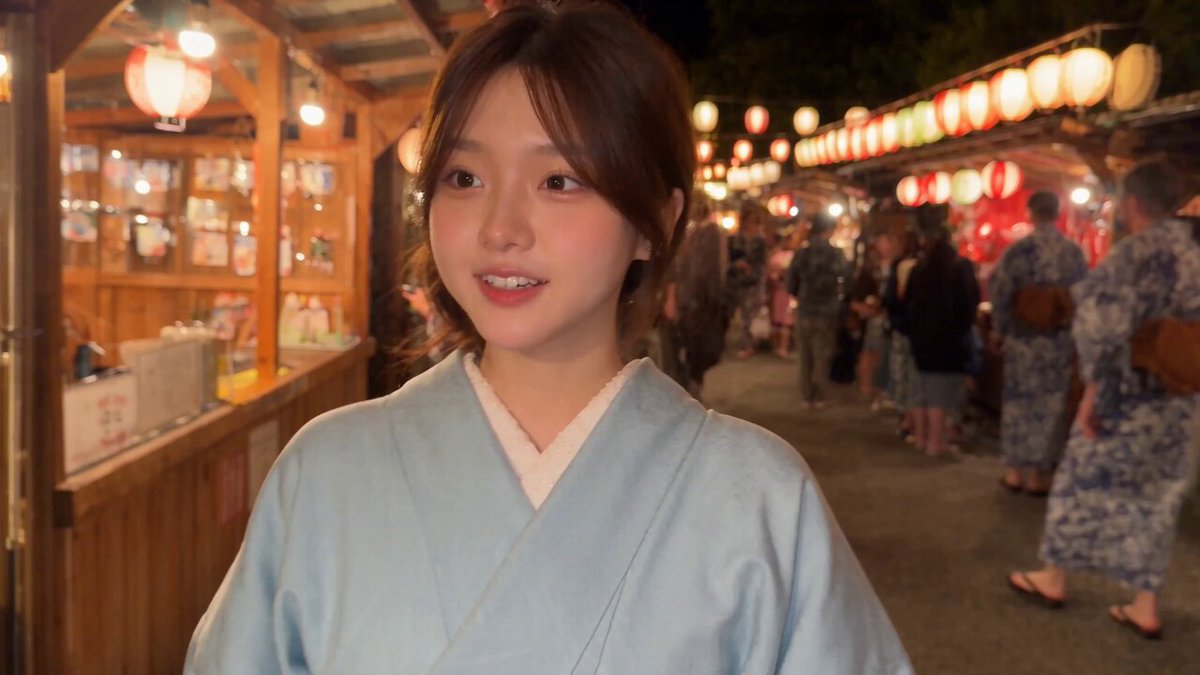
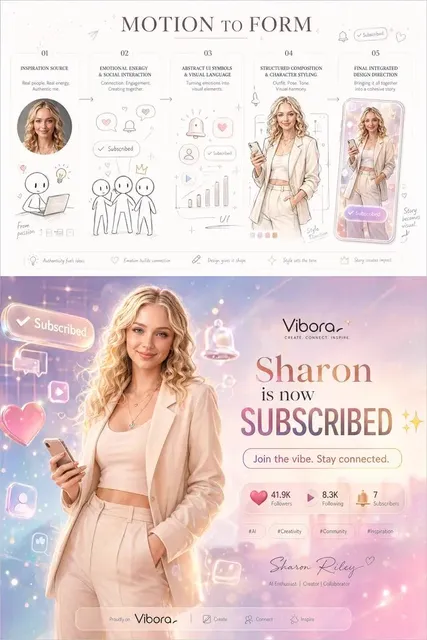
Why Photo-to-Anime Conversion Is Worth a Real Workflow
Turning a photograph into anime-style art used to mean commissioning an illustrator and waiting days for a revision round. A generative model now produces a plausible first pass in seconds, which quietly creates a harder problem: the first pass is almost never the final image. Most people run one prompt, get something vaguely anime, and stop there. The result looks like a beauty filter with a cartoon overlay, not a drawing.
Treating the process as a workflow fixes that. Instead of hunting for a magic button, you move through a pipeline: prepare the input, preserve the geometry that matters, apply style deliberately, then hand-finish the details a model tends to break. The same pipeline scales from a single profile picture to a full character sheet for a short animation.
What Actually Happens Inside a Photo-to-Anime Model
Every photo-to-anime system, whatever the interface looks like, performs three jobs in sequence. Understanding them tells you which knob to turn when the output is wrong.
Reading structure from the photo
The model first extracts what must be preserved: face shape, eye position, hair silhouette, shoulder line, hand placement. Face detection and landmark models map dozens of points onto the face, while segmentation separates the subject from the background. Pose estimators add a skeleton when the body is visible. If this stage gets confused by a turned head, heavy shadow, or hair blending into a dark wall, the anime output inherits the confusion, no matter how good the style prompt is.
Encoding what anime looks like
Style in anime is not a single filter. It is a set of conventions: simplified noses, large eyes with distinct highlight shapes, cel-shaded color planes, hard-edged shadows, and line art that varies in weight. A model learns these conventions from large collections of drawings, then compresses them into a style representation it can apply to new content. That is why telling a model to be anime is far weaker than showing it three images from the exact style you want.
Rebuilding the image
The final stage generates a new image that satisfies both constraints at once: the structure from the photo and the look from the style reference. In diffusion models this happens through iterative denoising, where the model starts from noise and repeatedly removes it, nudged at each step toward the structure and style conditions. Too little transformation and you get a photo with painted edges. Too much and you get a generic anime face that no longer resembles the person.
Choosing an Approach: Style Transfer, Diffusion, or Hybrid
There is no single best method, only methods that fit different goals. The table below maps the main families to the work they actually do well.
| Approach | How it works | Good for | Watch out for |
|---|---|---|---|
| Classical style transfer | Matches statistical texture features between two images | Quick painterly effects, backgrounds | Weak on faces, rarely produces real line art |
| Diffusion with structure control | Text-to-image model guided by pose, depth, or edge maps | Accurate likeness, custom styles | Slower, needs tuning on both prompt and control |
| Reference-conditioned diffusion | Identity and style images fed in as conditions | Multi-image consistency, character work | Sensitive to reference quality |
| Hybrid pipelines | Combine the above with masking and manual compositing | Final production images | More setup, more control |
For a portrait where the person must stay recognizable, reference-conditioned diffusion with a pose or depth constraint is the practical default. For background art, plain style transfer is often enough. For anything that will be animated later, hybrid pipelines pay off, because you can mask regions and keep the face stable while the rest of the frame changes.
Preparing a Photo So the Model Has a Fair Chance
Poor input is fatal here in a very literal way. Before generating anything, check the source image against this list.
- Lighting: even, soft light across the face. Harsh side light creates shadows the model reads as facial structure.
- Resolution: at least 1000 pixels on the short edge. Small files get upscaled with artifacts that become stray lines.
- Angle: within roughly 30 degrees of straight on for portraits. Extreme profiles confuse eye placement.
- Background: plain or high contrast against the hair. Busy backgrounds leak in as texture noise.
- Expression: relaxed and neutral unless you specifically want the model to dramatize it.
- Accessories: decide in advance whether glasses, hats, and jewelry should survive. They often distort.
A five-minute cleanup in any photo editor, covering cropping, straightening, and exposure, improves the anime output more than another twenty prompt attempts.
A Step-by-Step Photo-to-Anime Workflow
1. Pair the photo with two or three style references
Pick references that agree with each other: same era, same line weight, same palette range. Mixing a soft watercolor film style with a sharp modern broadcast style gives the model contradictory signals and produces muddy averaging. Keep the references in the same project folder as your photo so the pairing is reproducible a month later.
2. Write a prompt that describes drawing, not content
Describe how the image is made, not who is in it. Useful vocabulary includes clean line art, cel shading, two-tone shadows, soft rim light, flat color blocks, and detailed eyes with a single highlight. Add palette words such as warm ochre and teal, plus framing words such as waist-up portrait or three-quarter view. Negative entries worth keeping: photorealistic, photograph, blurry line art, extra fingers, watermark.
3. Tune the transformation strength
Most tools expose a strength, denoise, or style-intensity value. Start near the middle, generate a small grid of four to six variants at slightly different values, and pick the one where the person is still recognizable and the line art has formed. Below that range you get a photo with an outline drawn over it. Above it, the likeness dissolves into a stranger.
4. Lock a seed and change one variable at a time
Once you have a result you like, fix the seed. Now you can adjust prompt wording, style weight, or control strength without losing the composition. Changing three things at once makes it impossible to learn what actually improved the image, and you will not be able to repeat the result tomorrow.
5. Upscale, then hand-finish
Generative upscalers add plausible detail but also invent it. After upscaling, spend ten minutes in any paint program: fix the eyes, clean stray strands of hair, straighten a jawline, and correct any hand the model mangled. If you plan to animate the frame, keep hands simple or out of frame entirely. This pass is the difference between an image that looks generated and one that looks finished.
Keeping the Same Character Across Many Images
A single good portrait is easy. A character that looks consistent across ten images is the real challenge, and it is where most projects stall.
Anchor identity with references, not adjectives
Text descriptions drift. A hairstyle described as short black hair produces a different silhouette in every generation. Instead, feed the model a small identity set, three to five images of the same face from different angles, and let it extract the features that stay constant. Many diffusion tools handle this with an adapter that injects reference features, or with a small trained model that teaches the base model one specific face.
Control pose separately from identity
Once identity is anchored, control the body with a pose skeleton, a depth map, or a rough blockout drawn in any 3D or illustration program. This separation is what makes a character sheet possible: identical face, deliberately varied poses and expressions, all generated in one afternoon.
Build a naming and versioning habit
Save outputs with a descriptive name and the exact settings beside them. When a client asks for the version from last week, a folder of untitled files is worthless. A simple convention covering character, pose, seed, and strength solves it permanently.
From a Still Frame to a Moving Scene
Anime-style video compounds everything above, and motion exposes every weakness in a still frame. Start with a frame that already looks correct, then decide how it should move. Three routes work in practice.
- Image-to-video generation. Provide a start frame and describe the motion: hair lifting, a slow head turn, drifting particles. Keep camera moves small, because large moves force the model to invent a lot of unseen geometry.
- Frame interpolation and warping. Generate a few keyframes, then interpolate between them. This preserves a consistent character because every frame descends from art you already approved.
- Layered compositing. Animate background elements such as clouds, light shafts, or falling petals while the character layer stays nearly static. It reads as motion even when almost nothing moves.
Whichever route you choose, generate short clips, review at full speed, and cut the frames that break. Two seconds of clean motion beats eight seconds of drifting faces.
Common Mistakes and How to Fix Them
| Symptom | Likely cause | Fix |
|---|---|---|
| Face no longer resembles the subject | Transformation strength too high | Lower strength, add an identity reference |
| Output looks like a photo with an outline | Strength too low, or no style reference | Raise strength, supply two or three style images |
| Muddy, indistinct colors | Contradictory style references | Use references from one style family |
| Extra or fused fingers | Hands are difficult geometry for any model | Reframe the crop, simplify hand poses |
| Stray lines and texture noise | Low-resolution input | Clean and upscale the photo before generating |
| Every generation looks different | Random seed, no reference set | Lock the seed and anchor identity |
Most of these problems trace back to two decisions made at the very start: how clean the input photo is, and how tightly the style references agree with each other.
Ethics, Consent, and Honest Presentation
Converting a photo of a real person into an illustrated character is usually harmless fun. It stops being harmless when the result is presented as someone else's identity, used commercially without permission, or applied to public figures in misleading contexts.
A few habits keep you on solid ground. Ask before transforming photos of friends or clients, and say what the image will be used for. Keep a note of which photos you used as references and where the outputs were published. If the work is commercial, check the licensing terms of every model and dataset involved, because they differ and some restrict commercial use. Finally, be transparent about the process. Audiences respond well to a before-and-after comparison; they respond badly to discovering an illustration was generated when it was presented as hand-drawn.
FAQ
Do I need a powerful graphics card?
Not necessarily. Many tools run in a browser, and lighter models work on modest hardware. Local generation on a mid-range GPU is faster for batch work, but a cloud option is fine for occasional projects.
Can I get a good result from a single photo?
Yes, for a single image. For a consistent character across many images, one photo is rarely enough. Gather three to five shots from different angles.
Why does the output never match the style I described in text?
Text is a weak style signal. Supply reference images and keep your prompt focused on rendering technique rather than trying to name an artist or a specific show.
How many generations should I expect before a keeper?
For a portrait, twenty to forty iterations is normal once the settings are dialed in. The very first attempt is almost never the one you use.
Is it acceptable to sell anime-style portraits made this way?
That depends on the model license, the terms of any platform you used, and the consent of the person in the photo. When in doubt, disclose the process and keep documentation of your inputs.
What is the fastest way to improve results right now?
Improve the input photo. Better lighting, higher resolution, and a cleaner background beat any prompt trick, every time.
Can I combine several styles in one image?
You can, but the result is usually an average rather than a blend. If you want two influences, generate one pass with each style and composite them by region instead.
How do I stop a character from changing between video frames?
Generate keyframes from an approved still using the same seed and references, then interpolate between them rather than letting the video model invent new frames freely.

Alexander
More Blogs
Read MoreVidu Q4 Alternatives: 4K AI Video Models Compared (2026)
Vidu Q4 alternatives compared: Kling 4.0, Seedance 2.5, Wan 3.0, and Runway Gen-4 — 4K support, input modes, durations, audio, and what each costs in credits on Domer.
Top 4K AI Image Generators in 2026: 5 Models Compared on Real Costs
The top 4K AI image generators on Domer compared: Flux 3 Klein, Nano Banana 2.1, GPT Image 2.5, GPT Image 2, and Nano Banana Pro — 4K credit costs, reference limits, and speed.
Nano Banana 2.1 vs GPT Image 2.5: Which Image Model Should You Use? (2026)
Nano Banana 2.1 vs GPT Image 2.5 Flare compared: credit costs per resolution, aspect ratios, reference images, text rendering, and which tasks fit each model.