
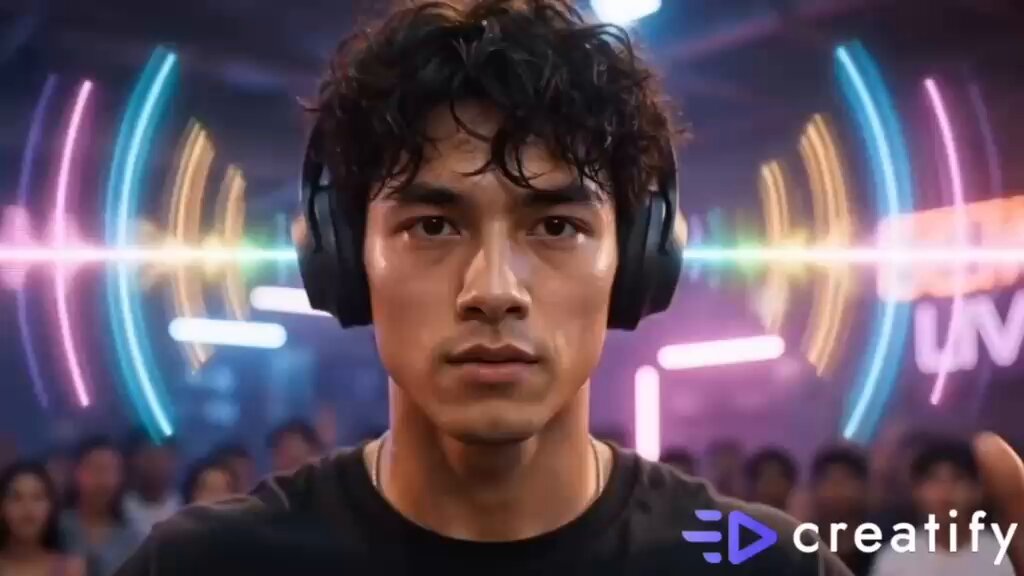
Text to Animated Video: A Practical AI Workflow Guide
Oct 15, 2026
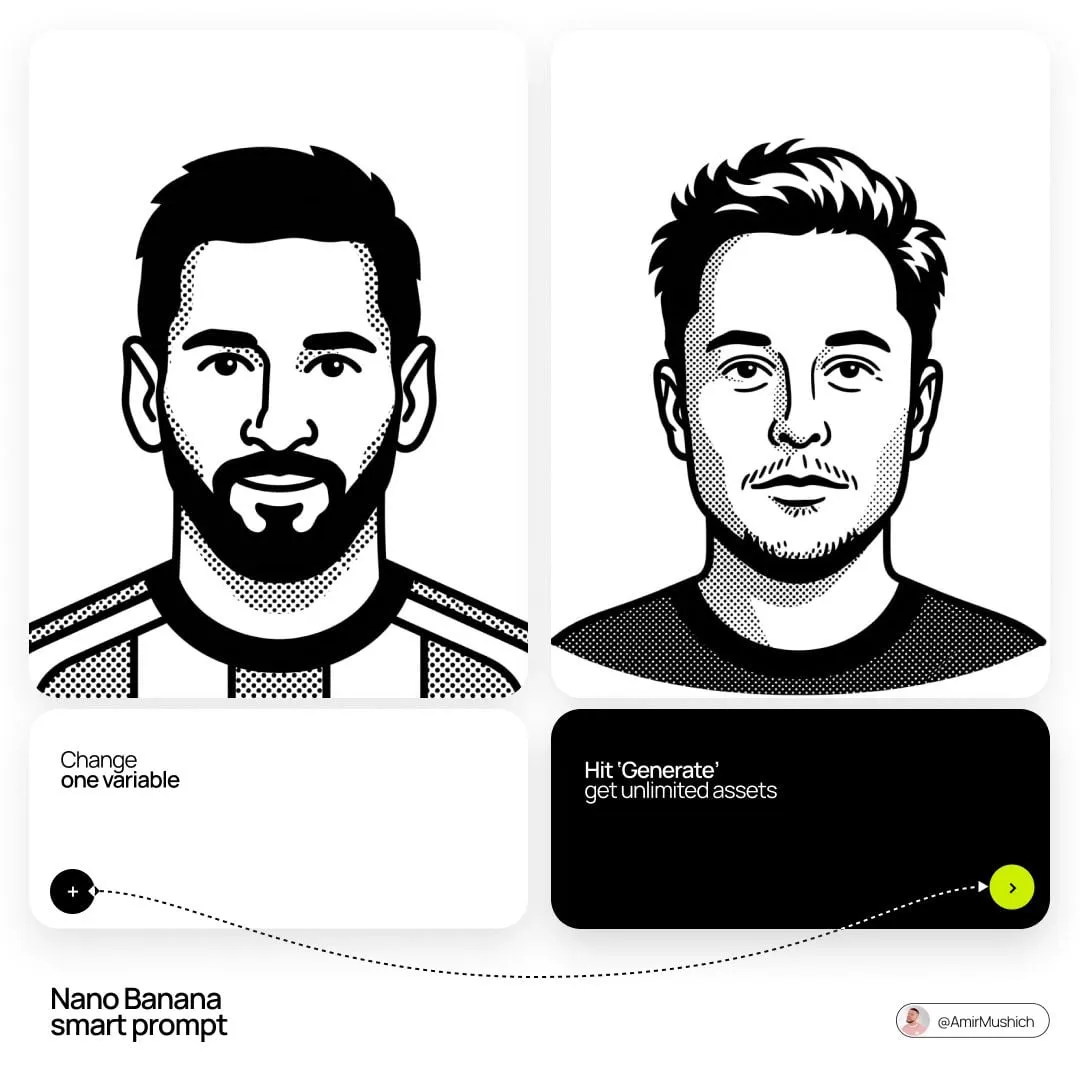
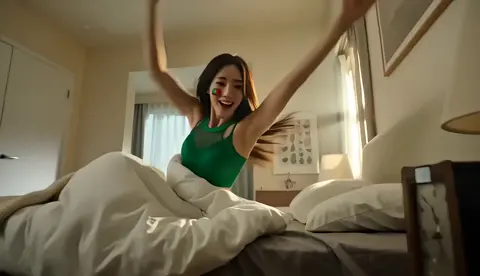
Why Text-to-Animated Video Changed the Production Equation
Text-to-animated video is the practice of describing a scene in plain language and having software render moving images that match the description. What once required a storyboard artist, an animator, a compositor, and a render farm can now be sketched in a single afternoon. That shift matters most for the middle layer of content: explainer clips, social cutdowns, concept previews, and internal training videos. These are projects that need to look intentional but rarely justify a full animation pipeline.
Speed is the obvious benefit. Iteration is the real one. Traditional animation punishes changes, because re-keying a character or re-lighting a shot costs hours of specialist time. A generative workflow punishes almost nothing. You can produce six variants of the same opening hook, compare retention, and keep the winner. Creators who internalize this treat generation as drafting rather than as final output, and their results improve immediately.
The catch is control. A model that renders beautiful motion from a vague sentence will also render the wrong motion from a vague sentence. The difference between a frustrating afternoon and a finished video is rarely the tool. It is the workflow wrapped around the tool: how you write the brief, how you break it into shots, how you evaluate output, and how you finish the piece after generation.
How the Generation Pipeline Works Beneath the Interface
Most tools hide a similar architecture behind a chat box. Understanding the stages helps you predict where a project will break down.
From prompt to pixels
The pipeline usually runs in four stages. First, a language model interprets your prompt, extracting subjects, actions, camera behavior, lighting, and style cues. Second, that interpretation is converted into a conditioning signal that guides the generator. Third, a diffusion or transformer-based renderer produces frames, either from scratch or by animating a still image you supply. Fourth, a temporal layer enforces consistency between frames so faces, clothing, and background geometry do not melt between seconds.
Why temporal consistency is the hard part
Rendering one convincing frame is a solved problem. Rendering 120 frames that agree with each other is not. Each frame is generated with partial knowledge of its neighbors, and small errors compound. This is why hands warp mid-gesture, why a jacket changes color at a cut, and why backgrounds drift like a slow zoom nobody asked for. Tools that advertise long clip lengths often trade consistency for duration.
What the model is actually good at
Short, continuous, single-subject motion is where generative animation shines: a camera push through a landscape, a product rotating on a plinth, a character walking through fog, an abstract shape morphing into a logo. Scenes with many interacting characters, precise lip sync, or complex hand choreography still need human finishing or a different approach entirely.
Resolution, frame rate, and the cost of upscaling
Generate at the native resolution the model handles well, then upscale in a separate pass. Asking a model to output 4K directly often produces softer detail than generating at 1080p and running a dedicated upscaler. Frame rate follows the same logic: 24 frames per second reads as cinematic, 30 reads as broadcast, and 60 reads as gameplay footage. Choose deliberately, because converting between them later introduces judder.
Choosing a Tool: Decision Criteria That Actually Matter
Feature lists are nearly identical across products. The differentiators are narrower and more practical.
| Criterion | What to test | Why it matters |
|---|---|---|
| Shot length | Generate one continuous 8-second clip | Tells you the real usable duration before artifacts appear |
| Style fidelity | Run the same prompt in three visual styles | Reveals whether style control is real or cosmetic |
| Image-to-video | Animate one of your own stills | Essential for brand consistency and character continuity |
| Camera control | Request a specific dolly or pan | Separates tools that understand cinematography from tools that guess |
| Editability | Re-roll a single shot without losing the rest | Determines whether iteration is fast or painful |
| Export | Check codec, alpha, and audio handling | Bad exports destroy a good render |
| Commercial terms | Read the license for generated output | Protects you before a client campaign goes live |
Match the tool to the visual register
The most common mismatch is style. Some engines are tuned for photoreal, cinematic motion and produce muddy results with flat 2D cartoon work. Others excel at illustrated, vector-adjacent looks but struggle with realistic skin and fabric. Pick two or three tools and learn them deeply rather than sampling ten. Fluency with one engine beats shallow familiarity with many.
Test with your own material, not demo prompts
Marketing examples are optimized. Run your actual script, your actual brand colors, and your actual aspect ratio through a trial before committing. A tool that handles a jungle chase beautifully may collapse on a clean product shot with a plain white background, because the model has less visual information to anchor to.
A Step-by-Step Workflow From Script to Final Cut
This is a repeatable process that works across most current generators.
Step 1: Write for the model, then rewrite for humans
Start with the human script: what the video says and why anyone cares. Then produce a second document, the shot brief, that describes only what the camera sees. Sentences like "this saves time" do nothing for a generator. "Close-up of hands sorting paper folders into two neat stacks, warm window light, shallow depth of field" gives it something to render.
Step 2: Build a shot list with durations
Break the script into shots of four to eight seconds. Anything longer should be split, because stitching two shorter generations usually looks better than one long unstable one. Note the aspect ratio, the motion direction in each shot, and the transition into the next. A shot list is also your budget: twelve shots at five seconds is sixty seconds of finished runtime once you account for cuts and titles.
Step 3: Establish a visual anchor
Generate or source one still image that defines the look: palette, lighting, character design, texture. Use it as a reference for every subsequent shot, either through image-to-video or a style reference field. Consistency across shots comes from a shared anchor far more reliably than from repeating adjectives in every prompt.
Step 4: Generate in batches, review in passes
Generate three to five variants per shot, then review them in one sitting rather than reacting to each render. Watching variants back to back makes flaws obvious: inconsistent motion speed, mismatched color temperature, jitter at the midpoint. Reject fast and re-roll. Do not try to salvage a broken clip with editing unless you have a specific reason.
Step 5: Assemble on a real timeline
Import approved clips into a standard editor. Cut on motion, not on a music beat alone, and trim the first and last half-second of every generated clip, because that is where artifacts cluster. Add transitions that hide seams: a whip pan, a match cut on a shape, or a hard cut on a sound effect.
Step 6: Layer in sound before polish
Voiceover, music, and effects change how motion reads. A slightly jittery clip under confident narration and a rhythmic bed is invisible; the same clip in silence looks broken. Generate or record scratch audio early so pacing decisions happen before you commit to a final edit.
Step 7: Finish and export
Apply a light grade to unify shots from different generations, since color drift between clips is the giveaway that a video was machine-assisted. Add titles, captions, and a subtle grain or texture layer if the render looks too clean. Export H.264 for delivery, and keep a high-bitrate master for future re-cuts.
Prompting for Animation: Vocabulary That Gets Results
Generative models respond to structure. A four-part prompt outperforms a paragraph of adjectives.
The four-part prompt formula
Lead with subject and action, then environment, then camera, then style. Example: "A paper boat drifting down a rain-filled gutter, late afternoon, slow tracking shot from water level, soft cinematic color, shallow depth of field." Each clause answers a different question the model would otherwise guess at.
Camera language worth learning
Terms like dolly in, dolly out, crane up, handheld, static, rack focus, and orbit are interpreted surprisingly literally by better engines. Direction matters too: specifying left to right motion prevents the reversed-action problem that appears when a model decides movement on its own.
Style anchors that stay stable
Instead of stacking twenty adjectives, name a medium and a reference era: watercolor illustration, cel-shaded animation, claymation stop-motion, 1980s airbrush poster, technical blueprint. Medium-based descriptions produce more consistent results across shots than mood-based ones like "dreamy" or "epic."
Negative prompts and safety filters
Most engines accept exclusions such as "no text, no watermarks, no extra limbs, no lens flare." Keep negative lists short and specific; long lists confuse the conditioning. Expect safety filters to reject prompts containing real public figures, brand logos, or violent imagery, and design around that from the start rather than discovering it during a deadline.
Common Mistakes and How to Fix Them
The same failures appear in nearly every first project.
Overloading a single prompt. Cramming three actions into one generation produces mush. Fix it by splitting into separate shots and cutting between them.
Ignoring aspect ratio at generation time. Cropping a square render into a vertical format destroys composition. Generate natively in the target ratio.
Chasing duration. Longer clips are not better clips. Cut more often; audiences read frequent cuts as energy.
Reusing one prompt for every shot. Variation is what makes an edit feel alive. Change camera angle or distance between consecutive shots on purpose.
Skipping the audio pass. Sound design rescues more mediocre footage than any filter. Budget time for it.
Never checking rights. Verify the license attached to the specific tool tier you used, and confirm that any stock music or voice assets are cleared for the platform where the video will run.
Use Cases Where AI Animation Pays Off
Not every project benefits. The best fits share three traits: short runtime, high iteration need, and tolerance for stylized rather than photoreal fidelity.
Explainers work well because they combine simple motion, strong narration, and frequent visual changes. Social hooks are ideal because only the first three seconds need to be excellent. Concept previews for pitches let teams show motion before committing budget to full production. Training modules benefit because abstract or sensitive topics are easier to depict with illustrated characters than with filmed actors. Product teasers with a single rotating subject are close to the model's sweet spot.
Weaker fits include dialogue-heavy narrative scenes, anything requiring precise lip sync in close-up, and long-form storytelling with recurring characters across many scenes. These are possible, but they usually need a hybrid pipeline where live-action, stock, or traditional animation carries the load.
Rights, Review, and Production Hygiene
Three habits keep generative animation safe to ship.
First, keep a project log: prompt, tool, version, and date for every approved clip. When a client asks how a shot was made, you will have an answer.
Second, run a human review pass on every frame that contains a person. Fingers, eyes, teeth, and text on clothing are where errors hide, and audiences notice them instantly.
Third, standardize naming and folder structure from the first project. With hundreds of short clips, the bottleneck stops being generation and becomes finding the right file. A simple convention — episode number, shot number, variant letter — saves hours later.
FAQ
How long should a generated clip be?
Four to eight seconds is the reliable range for most engines. Shorter clips give you more control and hide consistency errors; longer clips often drift. If a scene needs twenty seconds of continuous motion, generate three shots and cut between them.
Do I need animation experience to start?
No, but editing experience helps enormously. The people who get the best results think like editors: they know how a cut should land and how sound shapes perception. Basic familiarity with a timeline editor is more valuable than drawing skill.
Can I keep a consistent character across many shots?
Yes, with effort. Generate one strong reference image, then use image-to-video or character reference features for every subsequent shot. Keep wardrobe, lighting, and lens descriptions identical. Accept that perfect consistency across twenty shots is still rare and plan for close-ups and distance changes to mask small differences.
Why does my output look nothing like the prompt?
Usually the prompt is abstract rather than visual, or it contains contradictory cues such as "minimalist" and "highly detailed." Rewrite with concrete nouns, one action, and one camera instruction. If the result is still wrong, the model may not support that style well.
Is generated animation good enough for client work?
For many categories, yes, provided you finish it properly with sound design, grading, and titles. Clients care about the result, not the method. Check the licensing terms attached to your tool tier before delivering to a commercial campaign.
How do I stop flicker and morphing artifacts?
Generate shorter clips, keep motion slow, avoid rapid subject changes mid-shot, and trim the first and last frames. If a clip still flickers, add a subtle grain or motion blur layer in post to mask it.
A Practical Place to Start
Pick one short idea — fifteen seconds, one subject, one location. Write the human script, then the shot brief. Build a still anchor, generate three shots at five seconds each, and cut them together with narration. That single loop teaches more than a week of reading comparisons.
Once it works, repeat the process with a slightly harder scene. Add a second character, a camera move, a transition. The skill compounds quickly, and the constraint that matters most is not access to models. It is how fast you can judge a render, reject it, and try again.

Alexander
More Blogs
Read MoreVidu Q4 Alternatives: 4K AI Video Models Compared (2026)
Vidu Q4 alternatives compared: Kling 4.0, Seedance 2.5, Wan 3.0, and Runway Gen-4 — 4K support, input modes, durations, audio, and what each costs in credits on Domer.
Top 4K AI Image Generators in 2026: 5 Models Compared on Real Costs
The top 4K AI image generators on Domer compared: Flux 3 Klein, Nano Banana 2.1, GPT Image 2.5, GPT Image 2, and Nano Banana Pro — 4K credit costs, reference limits, and speed.
Nano Banana 2.1 vs GPT Image 2.5: Which Image Model Should You Use? (2026)
Nano Banana 2.1 vs GPT Image 2.5 Flare compared: credit costs per resolution, aspect ratios, reference images, text rendering, and which tasks fit each model.