
Criar
How to Create Wednesday-Inspired Fan Art With AI Tools
Oct 15, 2026

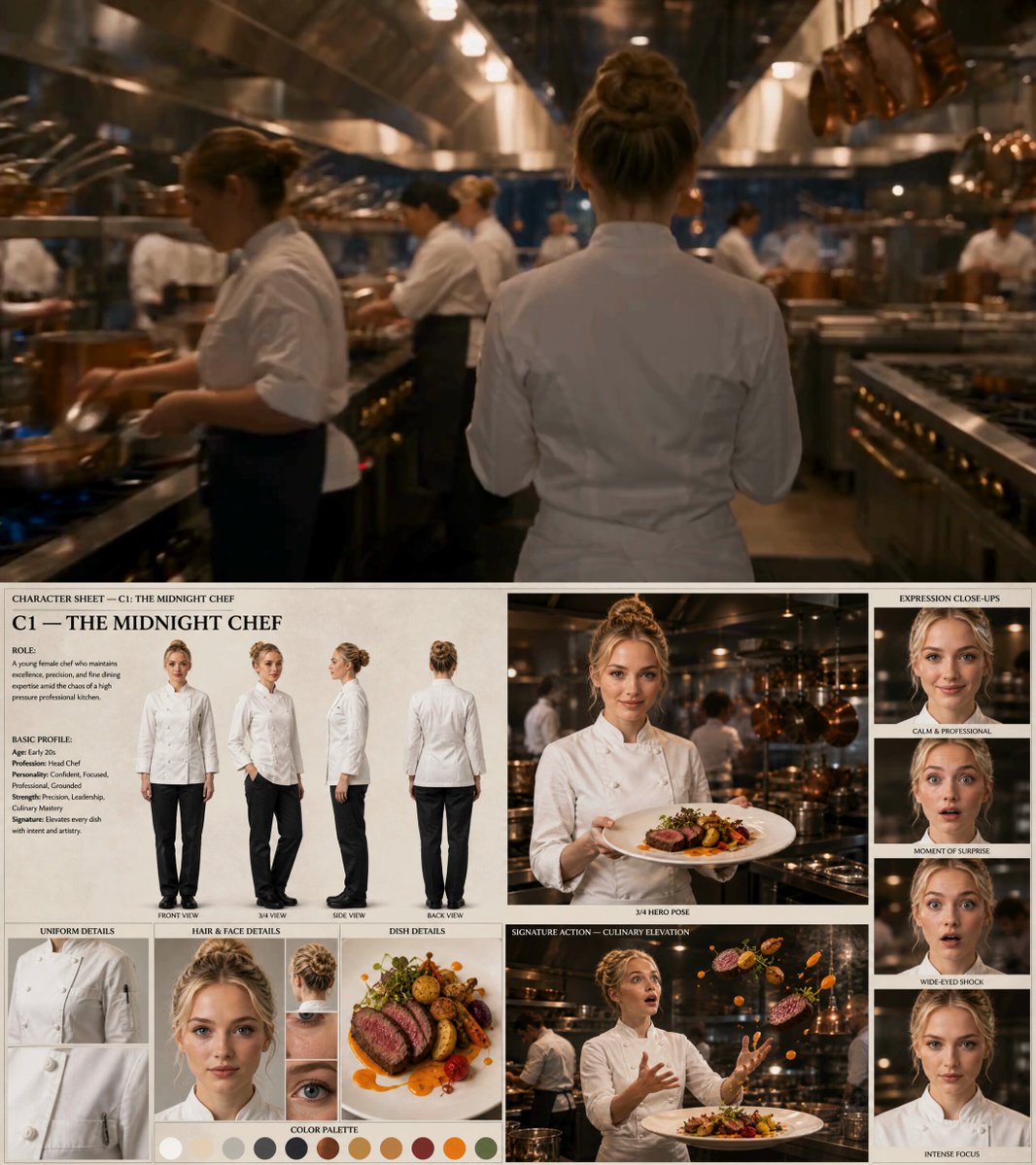
Why Wednesday Still Dominates Fan Art Feeds
Some shows have a visual signature so strong that a single frame is recognizable at thumbnail size. A gothic boarding school spin-off of a beloved Addams Family legacy sits exactly in that zone: black high-collared dresses, twin braids, a deadpan stare, foggy courtyards, taxidermy-filled classrooms, and a cello silhouette against a moonlit window. Add a cheerful werewolf roommate in pastel pinks and a disembodied hand with a personality, and you have a cast of visual archetypes that artists cannot resist.
There is a practical reason this fandom works so well with AI image generators. Diffusion models do not understand plot, character arcs, or episode continuity. They understand visual patterns: silhouette, wardrobe, palette, lighting, texture, era. A dark academia library with green banker lamps is a pattern the model has seen thousands of times. So is a monochrome portrait with heavy contrast and a muted, slightly desaturated palette. When you combine those patterns with a well-described character archetype, you get images that feel like the show without the model ever needing to "know" the show.
That is why this particular fandom is a great training ground for anyone learning AI image workflows. The aesthetic is forgiving of a limited color range, the compositions are naturally cinematic, and small errors are easy to hide in shadow.
This guide walks through the full process: understanding what the tools actually do, picking the right one for your goal, writing prompts that reliably produce the look, running a repeatable generation workflow, finishing images in post, and sharing them without stepping on anyone's toes.
What AI Image Generators Are Actually Doing Under the Hood
Every modern text-to-image model works roughly the same way, and knowing the mechanics removes most of the guesswork.
A text encoder converts your prompt into a numeric representation of concepts. A diffusion model then starts from random noise and progressively denoises it, guided by that representation, until an image emerges. The key parameters you control are:
- Seed – the random starting point. Locking a seed keeps composition stable while you change small prompt details.
- Guidance scale (sometimes called CFG) – how strictly the model follows your prompt. Low values (around 3–5) produce dreamier, more interpretive results; higher values (7–10) obey the prompt more literally but can look stiff or oversaturated.
- Steps or iterations – how many denoising passes run. Quality improves quickly up to roughly 25–35 steps, then plateaus; more steps mostly cost time.
- Sampler or scheduler – the math that controls each step. Different samplers change texture and sharpness more than they change subject matter.
- Aspect ratio and resolution – portrait ratios (4:5, 2:3) suit character portraits; widescreen ratios (16:9) suit atmospheric establishing shots.
Two concepts matter more than the rest for fan art. The first is img2img, where you feed the model an existing image and let it redraw it at a chosen strength. This is how you take a frame you like and push it toward a stylized illustration. The second is inpainting, where you mask part of an image and regenerate only that region — the standard fix for mangled hands, odd faces, or a background that does not match the mood.
Also worth knowing: most models are far better at patterns than at named entities. Describing the visual traits of a character — pale skin, dark braided pigtails, black high-collared dress, blank expression — will consistently outperform typing a character name, both in accuracy and in how usable the output is.
Choosing the Right Tool for the Job
There is no single best generator. There are categories, and each fits a different kind of work.
Hosted web generators. Fast, no installation, strong prompt understanding, limited fine control. Good for exploring ideas and building a mood board in an afternoon.
Local diffusion interfaces. Full control over models, style adapters, seeds, samplers, and batch size. Higher learning curve, requires a decent GPU, and gives you the consistency features that make a series of images feel like a set rather than a pile.
Mobile apps. Convenient for quick concepts and social posting, but limited resolution and weak control over composition.
Video-to-image workflows. Extract frames from footage you have the right to use, then restyle them. This is the fastest route to genuinely cinematic compositions, because the framing, lighting, and depth of field are already solved by a camera operator.
Use this checklist before committing:
| Criterion | What to look for | Why it matters |
|---|---|---|
| Style control | Reference image or style adapter support | Consistency across a series |
| Resolution ceiling | Native output above 1K, plus upscaling | Print and display quality |
| Inpainting | Masked regional regeneration | Fixing hands, faces, props |
| Seed control | Reproducible seeds and batch variation | Iterating without starting over |
| Licensing terms | Clear commercial and remix terms | Deciding what you can publish |
| Privacy | Whether prompts and images are retained | Working with your own footage |
A realistic setup for a fan art project: one hosted generator for brainstorming, one local or advanced interface for the final renders, and a simple image editor for finishing. You do not need six tools.
Prompt Engineering for a Gothic Dark Academia Look
The most reliable prompts are built from stacked layers rather than a single sentence. Think of it as a formula:
Subject and wardrobe → pose or action → setting → lighting → lens and camera → mood and palette → medium or style → quality cues.
Here is the formula applied to three different concepts:
- A pale young woman with twin braids and a black high-collared dress, arms crossed, standing in a foggy stone courtyard at night, single overhead lamp, 35mm lens, shallow depth of field, cold desaturated palette, cinematic still, fine grain.
- A cluttered antique classroom with glass display cases, a wooden desk covered in typewriter keys, green banker lamps, deep shadows, symmetrical composition, wide-angle lens, muted teal and amber palette, dark academia interior, photographic.
- A slender hand creeping across a vintage typewriter on a desk, moonlit window behind, hard rim light, macro lens, high contrast black and white, unsettling mood, film noir still.
Three things make these work. First, every prompt names a light source, because light is what creates atmosphere. Second, every prompt names a lens or camera language, which pushes the model toward photographic composition instead of illustration clichés. Third, every prompt constrains the palette, which is what makes a set of images look like they belong together.
Negative prompts worth keeping on hand
Useful exclusions for this style: text, watermark, signature, logo, extra fingers, deformed hands, blurry, low contrast, oversaturated, warm orange glow, cartoon, 3d render, plastic skin.
Adjust as needed. If your output looks flat, remove low contrast. If it looks like a glossy 3D render, keep 3d render and add film grain.
Weighting and syntax
Most interfaces let you emphasize a term with parentheses or numeric weights. Use sparingly. Emphasizing two or three elements at most — usually lighting and material — produces cleaner results than weighting every word.
A Repeatable Workflow From Idea to Finished Frame
The difference between one lucky image and a portfolio is process. Here is a workflow that scales.
1. Build a reference board first
Collect ten to fifteen reference images: production stills, set photos, costume details, paintings, film frames with the lighting you want. Do not feed these directly into the model. Use them to extract vocabulary — the words for the materials, light sources, and framing you keep responding to.
2. Draft three prompt variants per concept
Write a literal version, a moodier version with stronger lighting language, and an unusual version that changes medium (graphite sketch, 1970s film poster, oil painting). Generating three directions costs the same as generating three near-identical prompts and gives you a much wider search space.
3. Generate a contact sheet, not a masterpiece
Use a fixed seed and small batch variations. Low-resolution drafts at 4–8 images per prompt let you judge composition fast. Do not judge faces or hands at this stage — judge silhouette, framing, and light.
4. Pick and refine with img2img
Take the strongest draft, feed it back at moderate strength (roughly 0.35–0.55), and tighten the prompt. Lower strength preserves the composition; higher strength reinvents it. If the composition is right but the details are wrong, stay low.
5. Fix problems with inpainting
Mask only the broken region. Keep the mask tight — generous masks tend to regenerate the whole area and break lighting continuity. For hands, describe the pose explicitly in the inpaint prompt: "relaxed hand resting on a wooden desk, fingers visible".
6. Lock your seed for a series
Once a composition works, keep the seed and change one variable at a time — wardrobe, time of day, camera angle. This is how you build a set of images that feel like a coherent shoot.
7. Upscale and detail
Final renders benefit from a dedicated upscaler followed by a light detail pass. Watch for the plastic-skin look: a small amount of noise added back after upscaling fixes most of it.
Video-to-Image: Restyling Footage Into Cinematic Stills
This is the technique most people skip, and it is often the fastest route to high-quality compositions.
Extract frames from footage you have permission to use — your own recordings, licensed clips, or public-domain material. Frame extraction tools can pull every frame or one per second; for stills, one every half-second to two seconds is plenty. Then filter for keyframes with clean silhouettes, strong directional light, and no motion blur. A slightly soft frame will upscale poorly; a sharp frame with dramatic lighting will carry a lot of stylization.
Run the chosen frames through img2img at moderate strength. Because the composition is already professional, you can push stylization harder than you would with a blank-canvas text prompt, and the result still reads as intentional rather than arbitrary. This is also an excellent way to study lighting: restyle the same frame in five different palettes and see how much the mood shifts.
If you want character consistency across a set of stills, extract frames that share framing (same angle, same lens distance) and lock your seed across the batch.
Post-Processing: Making AI Art Look Deliberate
Raw model output usually looks like model output. Twenty minutes of finishing fixes that.
- Crop for intent. Tighten to the focal point, remove dead space at the edges, and choose your platform ratio deliberately: 4:5 for feeds, 9:16 for stories, 16:9 for wallpapers.
- Shape the tonal curve. Pull down shadows slightly and lift the midtones a touch for a moody but readable image. Crushed blacks hide detail; flat blacks look digital.
- Reduce saturation selectively. Desaturate everything except one accent — a red ribbon, a warm lamp, a green sweater. This single move produces the strongest "prestige TV still" effect.
- Add grain and halation. A few percent of film grain and a subtle glow around highlights removes the smooth, airbrushed look that reads as synthetic.
- Fix anatomy by hand. If a finger is slightly off, clone or paint it. It takes two minutes and saves the image.
- Keep typography minimal. A small title in the corner, thin weight, wide letter spacing. Avoid heavy display fonts and drop shadows.
Five Reusable Style Recipes
Once you find a palette that works, save the prompt with the seed and treat it as a preset.
- Monochrome gothic portrait — black and white, hard rim light from a window, deep shadow, 85mm portrait lens, heavy grain, stark contrast.
- Dark academia interior — symmetrical composition, green banker lamp, antique wood, dust in the air, muted amber and teal, wide-angle lens.
- Pastel counterpoint — same composition as a gothic image but a bright pink, lilac, and cream palette with soft window light, used to suggest a cheerful character in a bleak setting.
- Graphite storyboard — pencil sketch style, hatching, visible construction lines, off-white paper texture, no color. Excellent for narrative sequences and for sharing work-in-progress thinking.
- Vintage film poster — high-contrast duotone, limited palette, bold negative space at the top for a title, slight print misregistration and paper texture.
Keeping five recipes in rotation means you can produce a varied post or print set without reinventing your prompt every time.
Sharing Fan Art Without Getting Your Post Removed
Fan art lives in a gray zone, and platforms enforce rules unevenly. A few habits keep you out of trouble.
- Disclose AI generation. Most communities now expect it, and audiences respond better to honesty than to a claim of hand-painting that can be disproven from the file metadata.
- Do not replicate a real performer's face. Character archetypes are fine; photorealistic likenesses of living actors are where most platforms draw the line.
- Do not sell unlicensed character art at scale. Personal prints and commissions are usually tolerated; mass-produced merchandise is a different legal conversation entirely.
- Tag accurately. Use the fandom tag plus the medium tag so people who filter out AI work can do so, and people who want it can find it.
- Do not mimic another artist's signature style or feed a living artist's portfolio into a style adapter without permission.
- Respond gracefully to criticism. The fandom has strong opinions about AI. A short, non-defensive reply goes further than a debate.
Common Mistakes and How to Fix Them
Everything looks orange. Your prompt lacks palette constraints and the model defaults to warm. Add explicit color terms such as cold desaturated palette, teal shadows, and include warm orange glow in the negative prompt.
The face is fine but the hands are wrong. Inpaint the hands with a pose description. Generating a new seed to fix one hand costs you the entire image.
Every image looks the same. You are reusing the same seed without changing anything meaningful. Change the lens, the light source, or the time of day — not just adjectives.
The result looks like a 3D render. Add medium language: photographic, 35mm film, natural grain. And reduce guidance slightly; very high guidance often produces the plastic look.
The composition is boring. Low-resolution drafts are revealing this, and you are ignoring it because a detail caught your eye. Trust the silhouette test: squint at the thumbnail. If the shape does not read, no amount of detail will save it.
You are producing quantity, not a body of work. Ten finished images with a shared palette and format beat two hundred unedited generations. Curate hard.
You skipped the reference board. Pulling vocabulary from real production design is what separates convincing pastiche from generic dark wallpaper.
FAQ
Do I need artistic skill to make fan art with AI?
No, but you need taste. The generator handles rendering; you handle selection, composition choices, lighting direction, and editing. The people who produce strong AI fan art are usually the ones who can look at eight drafts and explain why one works.
Which is better for this style, text-to-image or image-to-image?
Start with text-to-image to explore concepts, then switch to image-to-image once you have a composition worth refining. For cinematic stills, extracting frames and restyling them is often faster than writing prompts from scratch, because the camera work is already solved.
How do I keep a character looking consistent across multiple images?
Lock the seed, keep the lighting description identical, and change only one variable per generation. If your tool supports reference-image conditioning or a trained style adapter on your own images, that is the strongest option — build a set of ten to twenty images of your character and train a small adapter.
Why does the model keep producing a generic gothic girl instead of what I described?
Your prompt is probably front-loading genre words and burying specifics. Lead with the subject and wardrobe, then setting, then light. Also check whether a style word like gothic is dominating — models often interpret style tokens more aggressively than descriptive ones.
What resolution should I generate at?
Generate at the model's native resolution, then upscale in a second pass. Generating directly at very large sizes often produces duplicated limbs and strange compositions because the model is operating outside its trained range.
Is it okay to post AI-generated fan art?
Generally yes, if you disclose it, avoid replicating real performers' faces, do not sell unlicensed merchandise, and follow each platform's community rules. Fandom norms vary widely, so check the specific community before posting a large batch.
How long should a finished piece take?
A single strong image from concept to finished grade: roughly forty-five to ninety minutes once your workflow is set. The early stages are fast; the finishing pass is where the time goes, and it is also where the quality difference lives.
Can I use these techniques for original characters?
Absolutely, and it is the better long-term investment. Everything here — palette constraints, seed locking, img2img refinement, inpaint repair, film-style grading — applies directly to original character and world design, with none of the licensing ambiguity.

Alexander
More Blogs
Read MoreVidu Q4 Alternatives: 4K AI Video Models Compared (2026)
Vidu Q4 alternatives compared: Kling 4.0, Seedance 2.5, Wan 3.0, and Runway Gen-4 — 4K support, input modes, durations, audio, and what each costs in credits on Domer.
Top 4K AI Image Generators in 2026: 5 Models Compared on Real Costs
The top 4K AI image generators on Domer compared: Flux 3 Klein, Nano Banana 2.1, GPT Image 2.5, GPT Image 2, and Nano Banana Pro — 4K credit costs, reference limits, and speed.
Nano Banana 2.1 vs GPT Image 2.5: Which Image Model Should You Use? (2026)
Nano Banana 2.1 vs GPT Image 2.5 Flare compared: credit costs per resolution, aspect ratios, reference images, text rendering, and which tasks fit each model.