

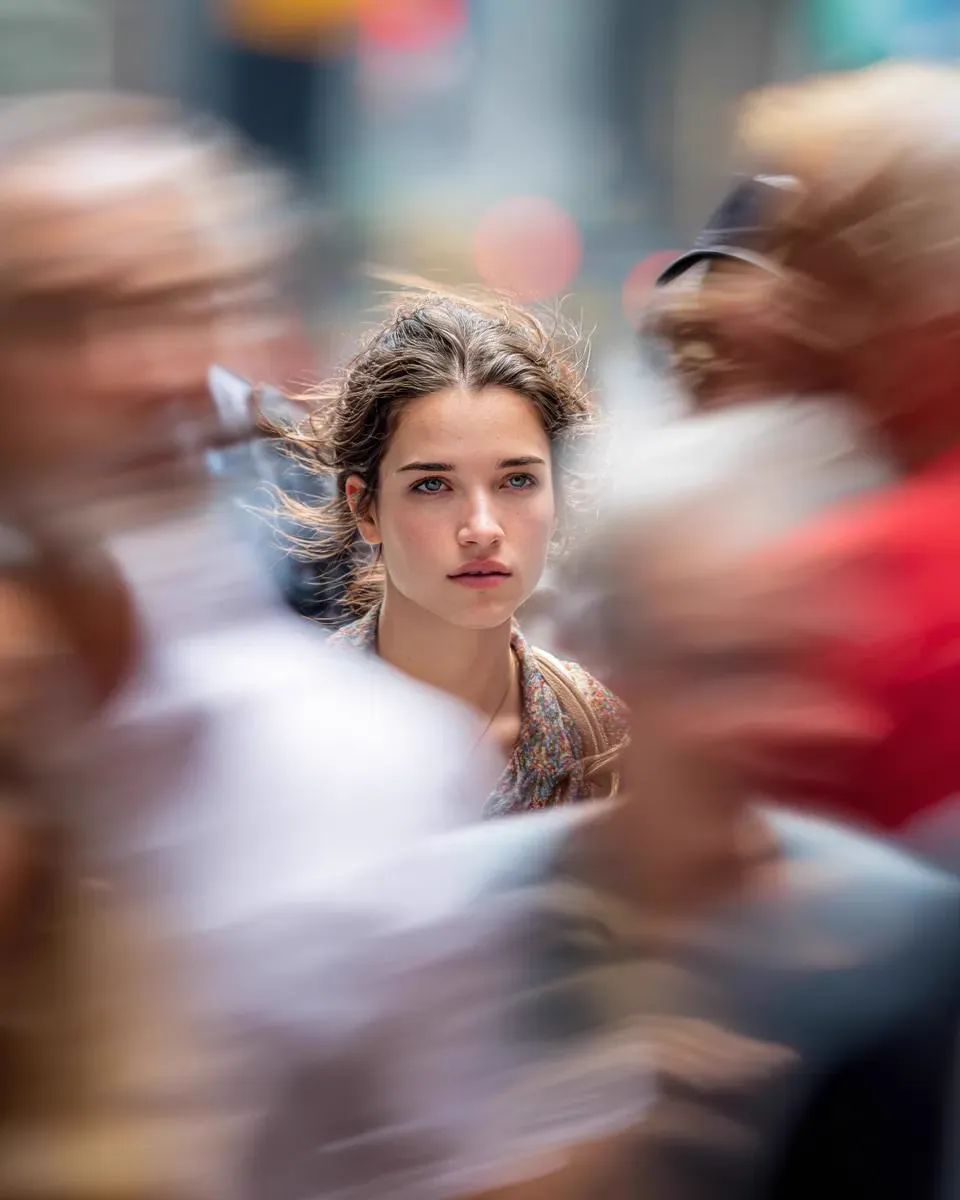
Why a Still Image Feels Dead, and What Actually Fixes It
A photograph captures one instant, and that is exactly its limitation. When a still sits on screen for more than a second or two, the eye stops finding new information and the frame flattens into a graphic. Video does not feel alive because it has more pixels. It feels alive because something changes: position, light, focus, the relationship between foreground and background, the shape of an edge.
So when someone asks for the best transition to make an image look like video, they are really asking a more useful question: what kind of change can I introduce into this frame, and how do I control it so the result reads as intentional rather than accidental? A slow push-in, a drifting cloud, a blink, a rack focus — these are all valid answers, and the right one depends on what the image is already doing.
This guide walks through the four families of motion you can add to a still, how to choose between them, a repeatable image-to-video workflow, prompt patterns that produce believable results, the mistakes that ruin otherwise good shots, and how to cut animated stills into something that reads as a scene rather than a slideshow.
The Four Families of Motion You Can Add to a Still
Every convincing animated still draws from one or more of four motion families. Naming them turns a vague creative hunch into a concrete decision.
Camera motion
The frame moves while the subject stays put. Push in, pull out, pan, tilt, orbit, crane, slow handheld drift. Camera motion is the safest option because it is the least likely to distort faces, hands, or text. It also carries the strongest emotional signal: a slow push reads as attention, a slow pull reads as departure. If you learn only one technique, learn this one.
Subject motion
The thing inside the frame moves: hair shifts, fabric ripples, a head turns, an arm lifts, a mouth opens. This is where generative video earns its keep and also where it fails most visibly. Start small — a blink, a breath, a slight head turn — rather than asking for a full performance. Micro-motion reads as life; macro-motion reads as a physics error.
Environmental motion
Atmosphere moves around the subject. Smoke, dust motes, rain, snow, steam, water, leaves, curtains, crowd blur, lens flare. Environmental motion is the cheapest way to make a still feel like a fragment of something longer. A portrait that is otherwise perfectly static, with light dust drifting through the beam of a window, feels alive.
Structural transformation
The image itself changes form over time: a morph, a match cut, a day-to-night shift, a dissolve between two states of the same subject. This family does the heavy lifting in transitions between shots, and it benefits most from pairing two stills rather than animating one.
Most strong results stack two families — a slow camera push plus drifting atmosphere, or a small subject movement plus a rack focus. Stacking more than two usually produces mush.
Choosing the Right Motion for the Shot
Motion choice is not a matter of taste alone. Four criteria narrow it down quickly: what is actually in the frame, what the shot needs to communicate, what the model can handle reliably, and how the clip will be delivered.
| Shot type | Primary motion | Why it works |
|---|---|---|
| Landscape, architecture, cityscape | Camera move plus environmental | Nothing needs to deform; atmosphere sells scale |
| Portrait, character close-up | Subject micro-motion plus rack focus | Avoids hand and body reconstruction |
| Product, still life | Slow orbit or push, controlled highlights | Highlights moving across a surface imply a real light |
| Documentary or archival still | Parallax with subtle grain drift | Preserves authenticity while adding depth |
| Two-image transition | Morph or match cut | Uses both frames instead of inventing detail |
| Abstract or graphic | Structural transformation | No anatomy to break |
A second criterion is duration. Two to four seconds is the sweet spot. Long enough to read as motion, short enough that small errors never fully surface. If a shot needs six seconds, consider generating two clips and cutting them together rather than asking one generation to hold attention that long.
A third criterion is what the model can handle. Faces at a distance, landscapes, vehicles, and fabric are forgiving. Hands, teeth, dense crowds, and legible text are not. When a shot depends on one of those elements, keep motion minimal and let the edit and sound design carry the energy.
A Repeatable Image-to-Video Workflow
The difference between a hobbyist result and a professional one is usually process, not luck. This five-step loop keeps quality consistent across dozens of shots.
Step 1 — Prepare the plate
Upscale and denoise the source still before it ever reaches a video model. Generators amplify compression artifacts, banding, and JPEG noise, and those flaws move in ways that look wrong. Crop to the final aspect ratio now, because you cannot reframe later without cropping into generated motion. Avoid aggressive sharpening: halos become crawling edges once the frame starts to move.
Step 2 — Write a motion-first prompt
Describe three layers in order: camera, subject, atmosphere. One instruction per layer. If you find yourself writing a paragraph, cut it in half. Prompts that describe mood rather than movement give the model nothing concrete to animate.
Step 3 — Lock duration, aspect ratio, and seed
Set the clip length deliberately — usually two to four seconds. Generate at the target aspect ratio so the model is not forced to invent the edges of the frame later. Keep the seed fixed while you iterate on phrasing; changing everything at once makes results impossible to compare.
Step 4 — Generate in batches, then select ruthlessly
Produce four to six variants at identical settings instead of endlessly tweaking one. Review each clip three ways: at quarter speed, muted, and frame-by-frame across the first and last second. Reject anything with a bad opening frame — you can rarely save it, and the audience always notices the first beat.
Step 5 — Repair, interpolate, and finish
Interpolate to 30 or 60 frames per second so the motion reads smoothly. Apply slight stabilization if the camera move drifts. Grade for consistency across the sequence, add a light grain pass to unify generated and photographic elements, and then spend real time on sound: ambience, a subtle low bed, and one or two specific effects tied to the visible motion. Sound design contributes as much to perceived movement as the pixels do.
Prompt Patterns That Produce Believable Motion
Good motion prompts share a structure: a camera instruction, a subject instruction, an atmosphere instruction, and a short list of things to avoid. Here are patterns worth adapting.
Slow dolly in, roughly 15 percent push over 4 seconds.
Subject: subtle breathing, one blink near the second mark.
Atmosphere: fine dust drifting left to right across the key light.
Lens: 50mm, shallow depth of field, natural motion blur.
Avoid: camera shake, cuts, text, warping faces.
Gentle parallax push with foreground separation.
Background clouds drifting slowly, foreground static.
No subject movement, preserve original composition and grain.
Transformation: the still resolves into the second image over 3 seconds.
Match lighting direction and color temperature across the morph.
Avoid: extra limbs, added objects, style shift.
Environmental motion only: steam rising, curtain swaying slightly,
light shifting as if a cloud passed overhead.
Camera locked, no push, no zoom, no shake.
Three rules make these patterns work. Use one verb per layer instead of stacking three actions on the camera. Use magnitudes — slow, subtle, slight, barely perceptible — because unsized motion almost always comes back too strong. And state what to preserve, not only what to change: composition, grain, color, style. Preservation instructions are the most underused tool in image-to-video prompting.
Common Mistakes and How to Fix Them
Asking for too much movement. The single biggest cause of artifacts. Halve the intensity and, if it still feels flat, add atmosphere or a lens effect instead of more motion.
Prompting style instead of motion. Style is already baked into the still. The model needs to know what changes, not what the image looks like.
Ignoring the first frame. Editors cut on the strongest frame. If second zero is weak, the clip is weak regardless of what happens later.
Cropping after generation. Reframing a generated clip changes the camera language mid-shot and reveals invented edges. Crop before.
Over-interpolating. Pushing a 24 fps clip to 60 fps with heavy interpolation creates mushy, rubbery motion. One moderate pass is enough.
Mixing incompatible clips in a sequence. Three shots with three different lens feels, grain levels, and motion speeds will never cut together cleanly. Build a style block and reuse it.
Skipping sound. Silent motion feels synthetic. Even a room tone bed changes how viewers judge the image.
Fixing in the edit what should be fixed in generation. If the motion direction is wrong, regenerate. Stepping through a bad camera move in post is a time sink that never looks convincing.
Multi-Shot Consistency: Building a Scene, Not a Clip
A single animated still is a trick. Five of them that share lighting, lens language, and pacing become a scene. Consistency comes from constraints, not from hoping the model cooperates.
Write a style block — a short, reusable paragraph describing lens, film stock, palette, contrast, and grain — and paste it into every prompt in the sequence. Keep the light direction identical across shots; if the key comes from the left in shot one, it comes from the left in shot three. Generate in order of difficulty, starting with the shot that matters most, because once you know which settings produce the right look you can apply them to the rest.
For character work, supply a reference image alongside the text description on every generation rather than only the first. For sequences where a character walks through several environments, use the last frame of one clip as the starting plate of the next. This chaining technique hides cuts inside continuous motion and is one of the most reliable ways to build a longer piece from short generations.
Finally, keep a shot log: prompt, seed, duration, and a one-line note about what worked. After twenty clips, that log becomes the most valuable asset in the project.
Cutting Animated Stills Together
Editing is where animated stills stop looking like a demo reel and start looking like film. A few principles carry most of the weight.
Match motion to motion. A push-in should cut against a push-out or a lateral pan, not against another push-in of identical speed, which reads as a jump. Respect direction continuity: if the camera drifts left in one shot, the next shot should not drift right unless you want to signal a break.
Cut on movement, not on stillness. Place the edit in the middle of the most energetic frame of motion and the cut disappears. This is also the best way to hide a weak tail on a generated clip: cut before the motion decays.
Keep shot lengths short — two to five seconds — and vary them. A sequence of identical durations feels mechanical. Alternate a longer establishing motion with two quick beats.
Use audio to bridge. Overlap ambience across the cut, or let a single sound effect begin in one shot and finish in the next. Audio continuity does more to sell a transition than any visual trick.
And use morphs sparingly. A structural transformation between two stills is powerful precisely because it is rare. Once every cut is a morph, the viewer stops reading it as meaning and starts reading it as a filter.
Where Different Tools Fit
Tool choice should follow the task, not the other way around.
Generative image-to-video models — Runway, Kling, Luma Dream Machine, Pika, Veo, and similar systems — are the first stop for subject motion, environmental motion, and single-image animation. They vary in how strictly they respect camera instructions and how well they preserve the source composition. Test the same still and prompt across two or three of them before committing to a project-wide choice.
Local and node-based workflows, such as ComfyUI with open image-to-video models, trade convenience for control. They are the right answer when you need reproducible seeds, custom upscaling, or a pipeline that runs without a network connection.
Compositing and 3D tools — After Effects, DaVinci Resolve Fusion, Blender — remain the most precise way to build parallax and 2.5D camera moves by separating a still into depth layers. If your shot is a landscape or an architectural plate, layered parallax often beats generative animation outright.
Frame interpolation utilities smooth low-frame-rate output and can rescue a slightly choppy generation.
Audio tools deserve a slot in the same budget. Ambience libraries and simple foley do as much for believability as any render setting.
FAQ
What is the single best transition for making a still look like video?
A slow camera push combined with subtle environmental motion. It is the most reliable, least artifact-prone option and it works on almost any subject.
How long should an animated still be?
Two to four seconds for most shots. Longer clips give small errors time to compound and rarely add narrative value.
Can I animate a still without AI video models?
Yes. Layered parallax in a compositing tool, 2.5D camera projection, and simple scale-and-position animation can produce convincing depth, especially on landscapes and interiors.
Why does my character look distorted when they move?
The model is reconstructing anatomy it cannot see. Reduce the motion request to micro-movements, keep the camera doing most of the work, and avoid shots where hands or teeth are large in frame.
Should I upscale before or after generating motion?
Before. Cleaning and enlarging the source still prevents artifacts from being animated along with the image.
How do I keep several shots looking like the same film?
Reuse a written style block, keep light direction and lens language constant, generate with the same settings, and finish every clip with the same grade and grain pass.
Is sound design really necessary?
For perceived realism, yes. Viewers forgive imperfect motion far more easily when ambience and effects are coherent.
What is the fastest path to a good result?
Prepare the still properly, write a three-layer motion prompt, generate a batch of four to six variants, pick the one with the strongest opening frame, and finish it with interpolation, grain, and sound. That loop outperforms endless single-shot tweaking every time.
